
25 Essential Software for a New Windows PC – A Practical Setup Guide
A new laptop or desktop feels fast and clean on the first day. But when you start using it for office work, study, browsing, or personal files, you may find some useful programs are missing. You do not need to install dozens of apps at once. Start with what you actually use.
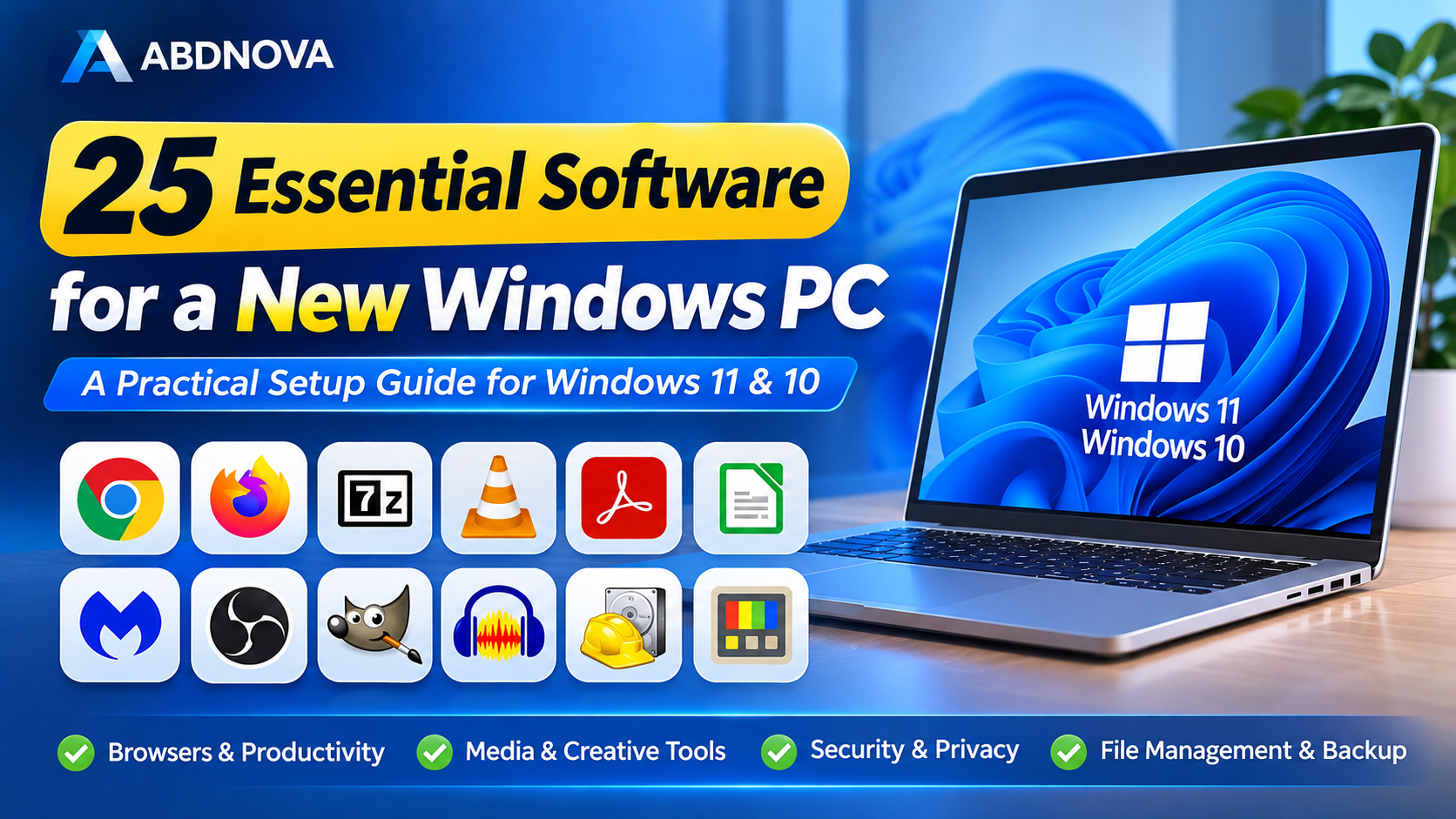
This practical guide covers 25 essential software for a new Windows PC, including useful applications for Windows 11 and Windows 10, with advice on which ones to install first. Most are free or offer a free version.
Each software recommendation includes a practical use case, an ABDNOVA guide where available, and an official developer source.
Note: Some programs are alternatives rather than applications you need to install together. Choose the software that fits your actual requirements.
Before You Install Anything on a New Windows PC
Before downloading additional software, prepare Windows and protect your important files.
- Run Windows Update: Install available security updates and restart your computer when required.
- Check Windows Security: Confirm that Microsoft Defender Antivirus and other essential protections are enabled.
- Install trusted drivers: Use Windows Update or your computer manufacturer’s official support website.
- Set up backups: Keep important documents, photos, and other files on a separate storage device or suitable backup service.
- Remove unnecessary software: Review preinstalled applications before adding more programs.
Windows 10 note: Standard Windows 10 support ended on October 14, 2025. If you still use Windows 10, check your device’s current security support options.
Part 1: Everyday Essentials
These programs help with everyday browsing, opening downloaded files, watching videos, reading PDFs, and completing office tasks.
1. Google Chrome – For Everyday Browsing
Google Chrome is useful for Gmail, office portals, online forms, and synchronizing bookmarks between devices.
Windows already includes Microsoft Edge, so Chrome is a choice rather than a requirement.
Good for: Browsing, extensions, and Google account synchronization.
ABDNOVA Guide: Google Chrome Offline Installer
Official Source: Google Chrome Website
2. Mozilla Firefox – A Useful Second Browser
Firefox is a good alternative when you prefer its privacy controls or need to test a website in another browser.
There is no need to run several browsers unless they serve a purpose.
Good for: Privacy controls and an independent browser option.
ABDNOVA Guide: Mozilla Firefox Offline Installer
Official Source: Mozilla Firefox Website
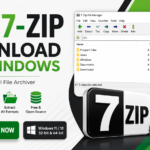
3. 7-Zip – Open Compressed Files
Downloaded files often arrive as ZIP, 7z, or RAR archives. 7-Zip offers more archive options than the basic Windows tools.
Good for: Extracting archives and compressing folders.
ABDNOVA Guide: 7-Zip Download
Official Source: 7-Zip Website
4. VLC Media Player – Watch Videos Without Extra Codec Packs
VLC plays many common video and audio formats, supports subtitles, and is convenient for offline media.
Good for: Local video, music, and subtitle playback.
ABDNOVA Guide: VLC Media Player Download
Official Source: VideoLAN VLC Website
5. Adobe Acrobat Reader – Read and Fill PDFs
From invoices to application forms, PDF files are part of daily work. Acrobat Reader can open, print, annotate, and fill supported forms.
Advanced editing may require a paid plan.
Good for: Office and school PDF documents.
ABDNOVA Guide: Adobe Acrobat Reader Download
Official Source: Adobe Acrobat Reader Website
6. LibreOffice – Office Work Without a Paid Suite
LibreOffice includes tools for documents, spreadsheets, and presentations. It is useful when a new PC does not include an office suite.
Complex Microsoft Office files may need formatting checks.
Good for: Assignments, letters, budgets, and presentations.
ABDNOVA Guide: LibreOffice Download for Windows
Official Source: LibreOffice Website
Part 2: Save Time on Everyday Windows Tasks
These utilities help with window management, searching files, editing text, creating backups, and transferring data between devices.
7. Microsoft PowerToys – Extra Tools for Windows
Microsoft PowerToys adds window layouts, bulk renaming, keyboard remapping, and other productivity utilities.
Install it if those features match your workflow.
Good for: Multitasking and file management.
ABDNOVA Guide: Microsoft PowerToys Download
Official Source: Microsoft PowerToys Documentation
8. Everything – Find Files Quickly
When you have thousands of files, searching by filename can be frustrating. Everything is designed to locate indexed files and folders quickly.
Good for: Large file collections and multiple drives.
ABDNOVA Guide: Everything Search Download
Official Source: Everything by voidtools
9. Notepad++ – Edit Text, HTML, and Configuration Files
The built-in Notepad is fine for simple notes. Notepad++ is more convenient for code, logs, and structured text because it includes tabs, syntax highlighting, and advanced search.
Good for: Website owners and technical users.
ABDNOVA Guide: Notepad++ Download for Windows
Official Source: Notepad++ Website
10. FreeFileSync – Make Regular File Copies
FreeFileSync compares folders and helps copy changed files to another drive or location.
Always check the preview: some synchronization modes can delete files at the destination.
Good for: Repeated folder backups and synchronization.
ABDNOVA Guide: FreeFileSync Download for Windows
Official Source: FreeFileSync Website
11. LocalSend – Transfer Files Between Phone and PC
LocalSend transfers files between supported devices on a local network without needing to email files to yourself.
The network must allow devices to communicate.
Good for: Photos, documents, and local transfers.
ABDNOVA Guide: LocalSend Download for Windows
Official Source: LocalSend Website
Part 3: Security and Passwords
A new Windows computer should have reliable security protection and a safe method for managing passwords.
12. Microsoft Defender Antivirus – Start with Built-In Protection
Windows Security includes Microsoft Defender Antivirus on supported Windows systems.
Keep real-time protection and updates enabled. You normally do not need a separate download.
Good for: Everyday malware protection already included with Windows.
Official Source: Microsoft Windows Support
13. Malwarebytes – An Extra Malware Scanner
Malwarebytes can scan for malware and potentially unwanted programs.
Its free and paid editions have different capabilities; do not assume the free version provides every real-time feature.
Good for: Additional scanning when you suspect a problem.
ABDNOVA Guide: Malwarebytes Download
Official Source: Malwarebytes Website
14. Bitwarden – Keep Unique Passwords
Using the same password on many sites is risky. Bitwarden helps generate and store separate passwords.
Protect your vault with a strong master password and multifactor authentication.
Good for: Managing online accounts across devices.
ABDNOVA Guide: Bitwarden Download
Official Source: Bitwarden Website
15. KeePassXC – An Alternative for Local Password Storage
KeePassXC keeps passwords in an encrypted database file that you manage.
Choose it if you prefer local control; you do not need both KeePassXC and Bitwarden.
Good for: Offline password management.
ABDNOVA Guide: KeePassXC Download for Windows
Official Source: KeePassXC Website
Part 4: Study, Office, and Creative Work
These applications are useful for screenshots, screen recordings, audio editing, graphics, and video conversion.
16. ShareX – Screenshots with More Control
ShareX can capture regions, windows, and screen content, with annotation and workflow options.
Windows Snipping Tool remains enough for simple captures. Check upload settings before handling private material.
Good for: Tutorials and support screenshots.
ABDNOVA Guide: ShareX Download
Official Source: ShareX Website
17. OBS Studio – Record Lessons and Tutorials
OBS Studio records screens, windows, webcams, and audio sources.
It is powerful but needs some setup for recording quality and performance.
Good for: Teaching, demonstrations, and streaming.
ABDNOVA Guide: OBS Studio Download
Official Source: OBS Studio Website
18. Audacity – Record and Clean Up Audio
Audacity helps trim voice recordings, combine tracks, and apply audio effects.
It is useful for podcasts and spoken tutorials.
Good for: Voice recordings and basic audio editing.
ABDNOVA Guide: Audacity Download
Official Source: Audacity Website
19. GIMP – Edit Photos and Graphics
GIMP offers layers, cropping, resizing, retouching, and export options.
It takes some learning but is useful when basic image editors are not enough.
Good for: Website images, photos, and graphics.
ABDNOVA Guide: GIMP Download
Official Source: GIMP Website
20. HandBrake – Convert Video Files
HandBrake converts supported videos and lets you choose quality and compression settings.
It is a transcoder, not a full video editor.
Good for: Video conversion and smaller shareable files.
ABDNOVA Guide: HandBrake Download
Official Source: HandBrake Website
Part 5: Cloud, Email, and Storage Health
These applications help manage cloud files, email accounts, storage health, deleted files, and lightweight PDF reading.
21. Google Drive for Desktop – Work Across Devices
Google Drive for desktop provides access to cloud files and synchronization features.
Remember: synchronized deletions may also affect cloud copies, so keep a separate backup of important files.
Good for: Shared work files and cross-device access.
ABDNOVA Guide: Google Drive for Desktop Download
Official Source: Google Drive Website
22. Mozilla Thunderbird – Manage Several Email Accounts
Thunderbird is useful if you prefer a desktop email client with folders, search, and supported account integrations.
Good for: Work and personal email in one app.
ABDNOVA Guide: Thunderbird Download
Official Source: Mozilla Thunderbird Website
23. CrystalDiskInfo – Keep an Eye on Drive Health
CrystalDiskInfo shows available drive health and SMART information for compatible SSDs and hard drives.
A healthy reading does not replace regular backups.
Good for: Storage health monitoring.
ABDNOVA Guide: CrystalDiskInfo Download
Official Source: CrystalDiskInfo Website
24. Recuva – Try Recovering Deleted Files
Recuva can attempt to recover certain deleted files, but recovery is not guaranteed.
If you delete something important, stop writing new data to the affected drive. SSD TRIM can make recovery impossible.
Good for: Basic accidental-deletion recovery attempts.
ABDNOVA Guide: Recuva Download for Windows
Official Source: Recuva Official Download
25. SumatraPDF – A Lighter PDF Reader
SumatraPDF is a simple document reader for users who mainly want to open and read PDFs and supported ebook formats.
You may choose it instead of Acrobat Reader if you do not need advanced PDF features.
Good for: Quick document reading.
ABDNOVA Guide: SumatraPDF Download for Windows
Official Source: SumatraPDF Website
What Software Should You Install First?
The best software selection depends on how you use your Windows computer.
| Your Main Use | Start With |
|---|---|
| Home and General Browsing | Preferred browser, 7-Zip, VLC, PDF reader |
| School or University | LibreOffice, PDF reader, Google Drive |
| Office Work | LibreOffice, Thunderbird, FreeFileSync |
| Tutorials and Content Creation | ShareX, OBS Studio, Audacity, GIMP |
| Technical Work | PowerToys, Everything, Notepad++ |
| Password and Security Hygiene | Windows Security, Bitwarden or KeePassXC, backups |
A Simple Windows PC Setup Order
Step 1: Update and Secure Windows
Install Windows updates, check security settings, and configure a backup before installing additional applications.
Step 2: Install Everyday Software
Add the browser, archive tool, PDF reader, and office applications you actually need.
Step 3: Add Specialist Tools Later
Install file management utilities, creative applications, and technical tools only when your work requires them.
Software Installation Safety Tips
- Avoid cracked or modified installers.
- Do not install unofficial driver bundles.
- Avoid unnecessary registry cleaners.
- Do not install multiple overlapping real-time antivirus products without a clear reason.
- Download applications from their official developers or trusted sources.
- Keep installed applications updated.
- Maintain separate backups of important files.
25 Essential Software for a New Windows PC – FAQ
Do I need to install all 25 programs?
No. This is a selection guide, not a compulsory installation list. Some programs are alternatives to each other.
Which software is most important for a new laptop?
Start with Windows updates and security, then a browser, 7-Zip, a PDF reader, and office software if needed. Set up backups early.
Should I install another antivirus on Windows 11?
Not automatically. Windows includes Microsoft Defender Antivirus. Consider additional tools only if they meet a clear need.
Do I need both Adobe Acrobat Reader and SumatraPDF?
No. Choose Acrobat Reader for supported forms and annotations, or SumatraPDF if you mainly want lightweight reading.
Is Recuva a replacement for backup software?
No. File recovery is uncertain. A separate, tested backup is more dependable.
Can I use these applications on Windows 10?
Many have Windows 10-compatible versions, but support depends on the application and release. Standard Windows 10 support ended in October 2025; check your device’s support and security options.
Should I install Chrome when Edge is already available?
Only if you prefer Chrome or need its particular features. Edge is already available on Windows.
Final Thoughts
A new PC does not become better simply because you install more software. Begin with a small set that helps you browse, open files, work on documents, and keep data safe.
Add PowerToys, creative applications, and specialist utilities when you actually need them.
Our simple rule: Install what you use, keep it updated, and always maintain a backup.