
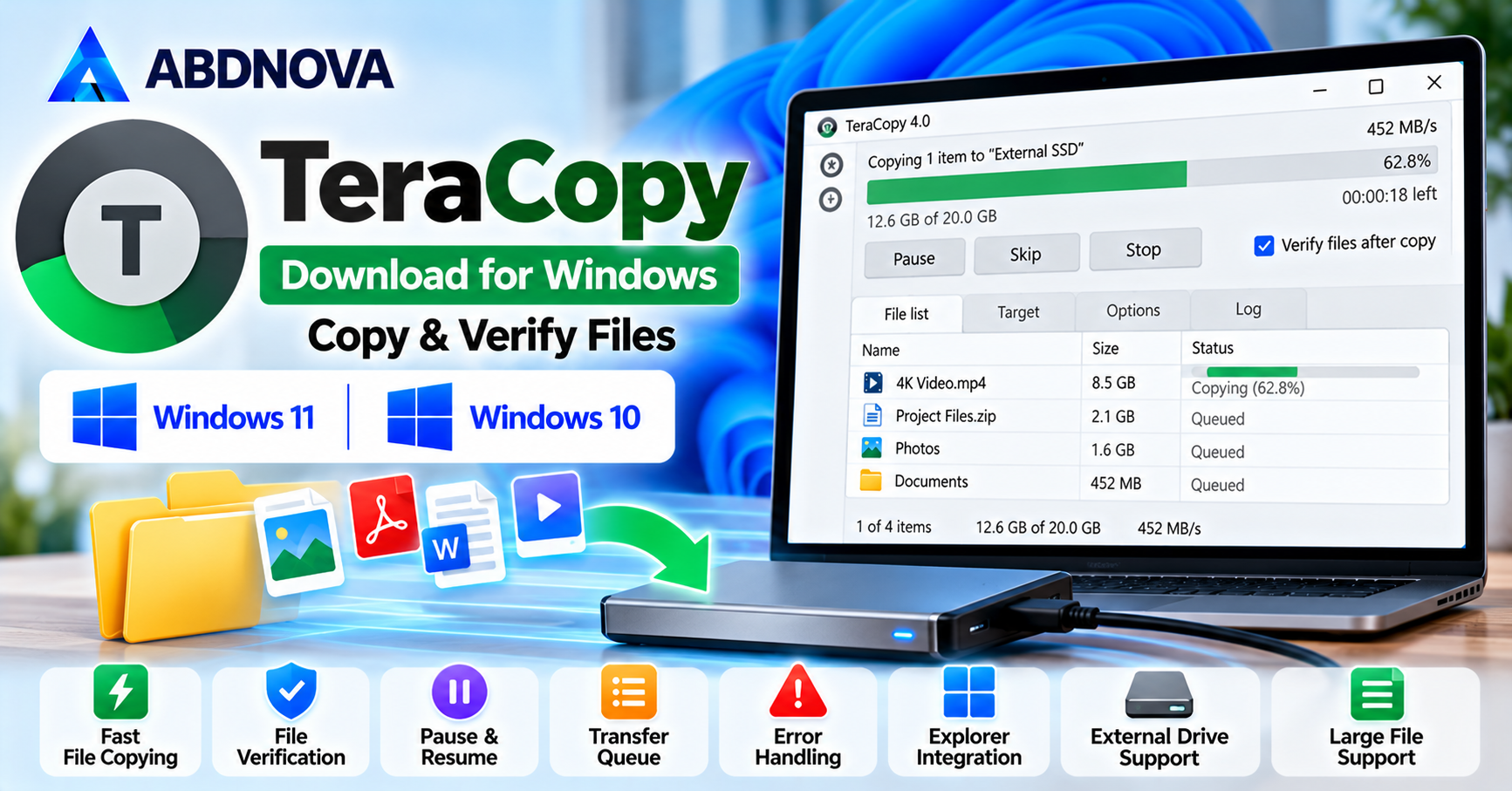

TeraCopy Download for Windows – Copy & Verify Files
TeraCopy Download for Windows helps Windows 11 and Windows 10 users copy, move, verify, and manage file transfers with additional controls.
TeraCopy is a file transfer utility developed by Code Sector that helps Windows users copy and move files with additional control over transfer operations. It provides features such as file verification, transfer queues, error handling, and integration with Windows File Explorer.
Whether you are transferring large videos, backing up documents, copying files to an external hard drive, or moving folders between storage devices, TeraCopy offers a practical alternative to standard Windows copy operations.
TeraCopy is available for Windows 11 and Windows 10, with a free edition for personal use and a paid Pro edition offering additional capabilities.
TeraCopy Download for Windows – Overview
| Software | TeraCopy |
| Developer | Code Sector |
| Category | File Copy & Transfer Utility |
| Operating System | Windows 11 & Windows 10 |
| License | Free for Personal Use / Paid Pro |
| Main Purpose | Copy, Move & Verify Files |
| File Verification | Supported |
| Pause & Resume | Supported |
| Transfer Queue | Supported |
| Error Handling | Supported |
| Explorer Integration | Supported |
| Official Website | codesector.com |
TeraCopy is particularly useful for transferring large numbers of files and checking whether copied files match their sources.
TeraCopy Main Interface & Key Features
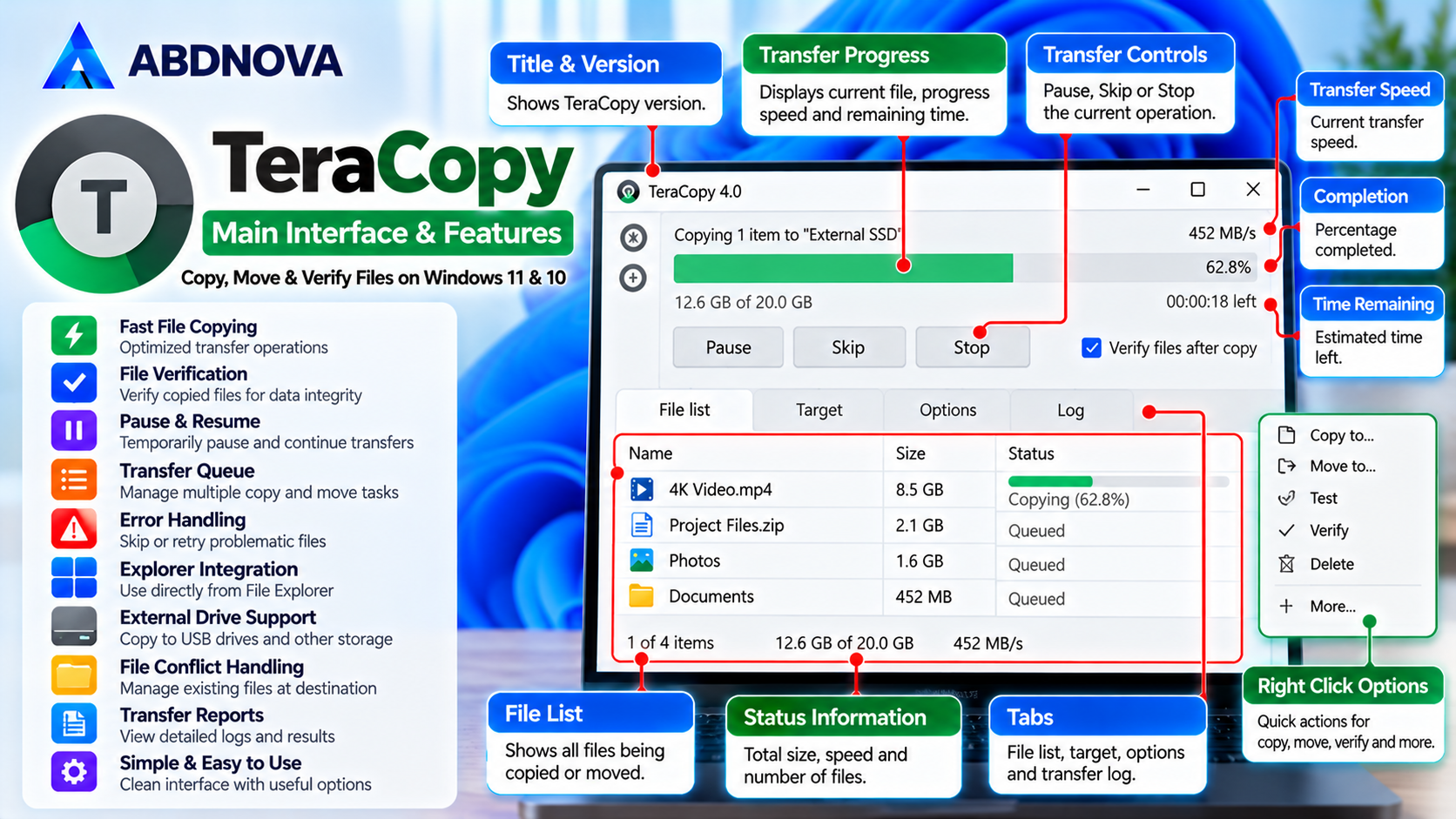
TeraCopy provides a dedicated transfer window that displays file operations, transfer progress, speed, and completion status.
Key Features of TeraCopy
Fast File Copying
Copy files using optimized transfer operations.
Move Files
Transfer files between folders and storage devices.
Pause & Resume
Temporarily pause supported transfer operations and continue them later.
File Verification
Compare source and destination files using supported hash algorithms.
Error Recovery
Handle problematic files without necessarily stopping the entire operation.
Transfer Queue
Organize multiple copy and move operations.
Windows Explorer Integration
Start supported transfers from File Explorer.
File Conflict Handling
Manage files that already exist at the destination.
Transfer Reports
Review operation results and identify unsuccessful transfers.
Large File Support
Copy large files, including videos, archives, and disk images.
External Drive Transfers
Copy files to supported USB drives and external storage.
Pro Features
Access additional functionality through the paid edition.
Actual transfer performance depends on storage speed, USB connection, file sizes, and system conditions. TeraCopy does not guarantee faster transfers in every situation.
TeraCopy System Requirements for Windows
TeraCopy is designed for compatible Windows computers.
| Component | Requirement |
|---|---|
| Operating System | Windows 11 or Windows 10 |
| Processor | Compatible Intel or AMD processor |
| RAM | Sufficient to run Windows and transfer operations |
| Storage | Space for installation and transferred files |
| File System | Supported Windows-accessible file systems |
| Internet | Required to download the installer |
| Permissions | May require administrator access for protected locations |
For large transfers, make sure the destination drive has enough free space before starting.
How to Download & Install TeraCopy on Windows 11 & 10
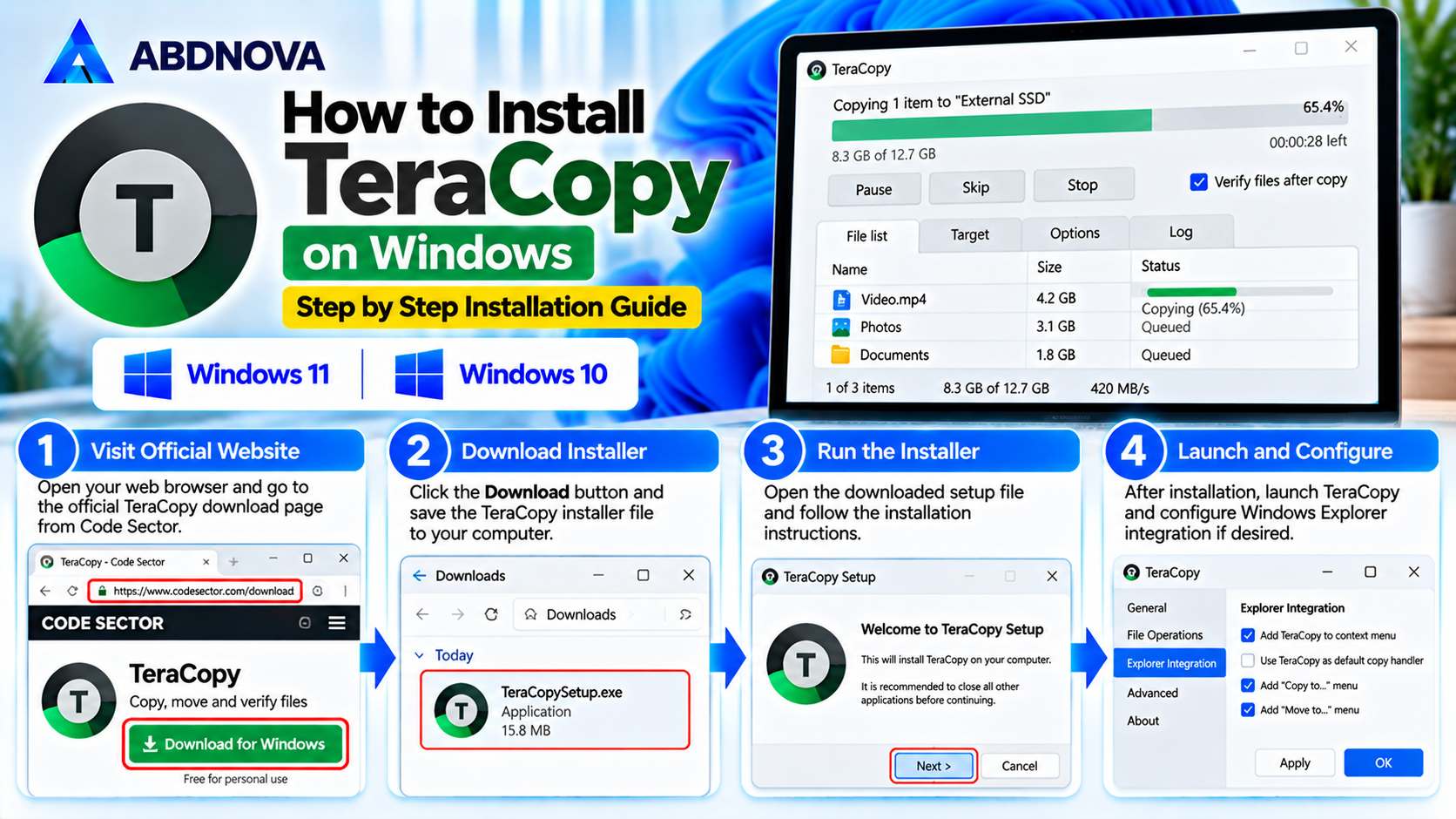
Download TeraCopy from the official Code Sector website to avoid modified installers and unofficial software packages.
Installation Steps
- Open the official TeraCopy download page.
- Select the available Windows download.
- Download the installer.
- Open the downloaded setup file.
- Approve the Windows permission prompt if necessary.
- Review the installation options.
- Follow the setup instructions.
- Complete the installation.
- Launch TeraCopy.
- Configure your preferred transfer settings.
Depending on the installed version, TeraCopy may offer integration with Windows File Explorer.
Review the available settings before changing the default file-copy behavior.
How to Copy Files Using TeraCopy
TeraCopy allows users to select files and copy them to another folder or storage device.
Step-by-Step File Copying
- Open TeraCopy.
- Add the files or folders you want to copy.
- Select Copy.
- Choose the destination folder.
- Start the transfer.
- Monitor the progress.
- Wait for the operation to finish.
- Review any reported errors.
- Verify copied files when appropriate.
- Open the destination folder to confirm the results.
For example, you can copy a large video folder from your computer to an external SSD using TeraCopy.
The total transfer time depends primarily on the speed of the source and destination devices.
How to Move Files Using TeraCopy
TeraCopy also supports moving files between folders and drives.
Move Files Step by Step
- Open TeraCopy.
- Select the files or folders.
- Choose Move.
- Select the destination.
- Start the operation.
- Wait for the transfer to complete.
- Check the results.
- Confirm that the files are available at the destination.
Important: Moving files may remove the original copies after a successful transfer. For important data, consider copying and verifying the files before deleting the originals.
Avoid interrupting a move operation, especially when transferring files between different physical drives.
TeraCopy File Copying, Verification & Transfer Queue
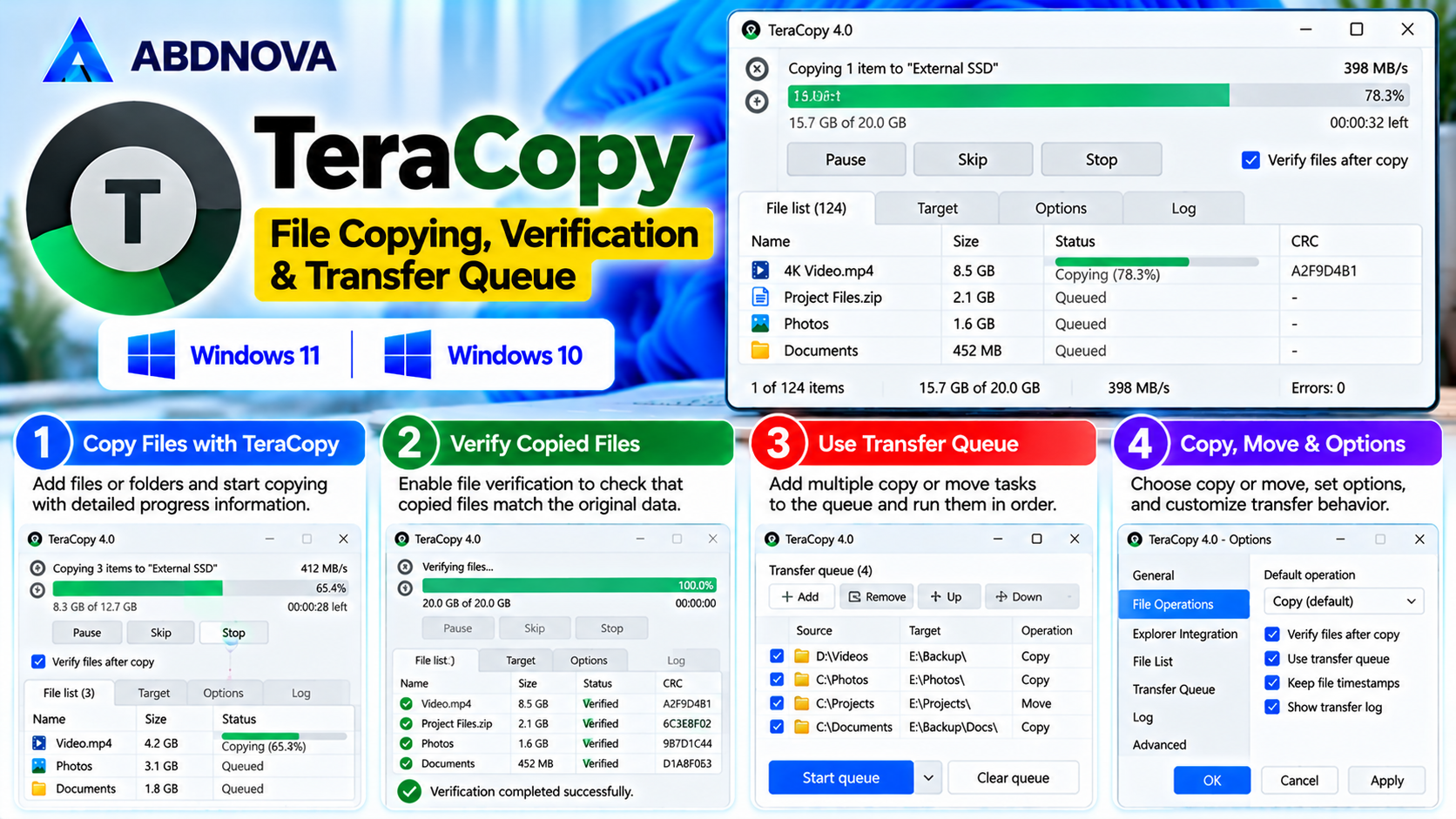
How to Verify Copied Files with TeraCopy
One of TeraCopy’s useful features is the ability to verify transferred files.
File verification helps determine whether the destination files match their source files.
How File Verification Works
TeraCopy can calculate supported file hashes and compare the source and destination data.
If the calculated values match, the verification process provides strong evidence that the copied data is identical.
Verification Steps
- Add the files you want to transfer.
- Choose the destination.
- Start the copy operation.
- Enable or select the available verification option.
- Allow TeraCopy to check the transferred files.
- Review the verification results.
- Investigate any files that fail verification.
Verification is especially useful when copying important documents, software archives, photographs, and backup files.
Copy vs Copy & Verify
| Feature | Copy Only | Copy & Verify |
|---|---|---|
| Transfers Files | Yes | Yes |
| Checks Destination Data | Not Necessarily | Yes |
| Additional Processing | Lower | Higher |
| Suitable for Large Transfers | Yes | Yes |
| Suitable for Important Backups | Basic | Recommended |
| Transfer Completion Time | Usually Shorter | Usually Longer |
Verification can increase the total operation time because additional data must be read and checked.
TeraCopy Pause, Resume & Transfer Queue
TeraCopy provides controls for managing file transfer operations.
Pause a Transfer
- Start copying files.
- Locate the transfer progress window.
- Click Pause.
- Wait until the transfer pauses.
- Click Resume to continue.
Pause and resume controls apply to supported active transfer operations. They should not be treated as a guarantee that every interrupted or cancelled transfer can be resumed later.
Manage Multiple Transfers
When transferring several folders, TeraCopy can help organize operations through its transfer management and queue features.
This is useful when:
- Copying several large folders.
- Transferring data between external drives.
- Moving files from multiple locations.
- Managing large backup operations.
- Avoiding unnecessary simultaneous transfers.
Queue behavior and available controls may vary by software version and edition.
TeraCopy File Explorer Integration
TeraCopy can integrate with Windows File Explorer, allowing users to start supported copy and move operations without manually opening the application first.
How to Use Explorer Integration
- Install TeraCopy.
- Open its preferences or integration settings.
- Enable the available Explorer integration options.
- Open Windows File Explorer.
- Select files or folders.
- Use the available TeraCopy command or transfer option.
- Choose the destination.
- Start the operation.
The exact menu location may differ between Windows 10, Windows 11, and TeraCopy versions.
If the integration option does not appear, check the application’s settings and restart File Explorer if necessary.
TeraCopy Error Handling & File Conflicts
File transfer errors can occur because of inaccessible files, insufficient permissions, storage problems, or unstable external connections.
TeraCopy provides error-handling features to help users identify and manage these situations.
Common Transfer Errors
- Source file cannot be read.
- Destination drive is full.
- File access is denied.
- External drive disconnects.
- File name or path is unsupported.
- A destination file already exists.
- Storage device reports an input/output error.
How to Handle Errors
- Review the reported error.
- Confirm that the source file is accessible.
- Check available destination storage.
- Verify file and folder permissions.
- Check the external drive connection.
- Retry failed operations when appropriate.
- Review the final transfer report.
- Verify important destination files.
Do not repeatedly retry transfers from a drive showing signs of physical failure.
TeraCopy Free vs Pro
TeraCopy offers a free edition for personal use and a paid Pro edition.
| Feature | Free | Pro |
|---|---|---|
| Basic File Copying | Yes | Yes |
| File Moving | Yes | Yes |
| Pause & Resume | Yes | Yes |
| File Verification | Yes | Yes |
| Error Handling | Yes | Yes |
| Windows Explorer Integration | Yes | Yes |
| Additional Advanced Features | Limited | Included |
| License | Personal Use | Paid |
The precise feature differences can change between releases. Check the official Code Sector website for current licensing, Pro features, and pricing.
Users should also review licensing terms before using the free edition in a commercial environment.
TeraCopy vs Windows File Explorer
Windows includes built-in file copying and moving features through File Explorer.
TeraCopy adds additional controls that may be useful for large or important transfers.
| Feature | TeraCopy | Windows File Explorer |
|---|---|---|
| Copy Files | Yes | Yes |
| Move Files | Yes | Yes |
| Pause Transfers | Yes | Yes |
| File Verification | Built-In Options | No Equivalent Standard Copy Workflow |
| Transfer Error Reports | Dedicated Features | Basic Error Messages |
| Transfer Queue Management | Yes | Limited |
| Explorer Integration | Optional | Built-In |
| Additional Installation | Required | Not Required |
For simple transfers, Windows File Explorer is usually sufficient.
TeraCopy may be more suitable when verification, transfer management, and detailed error handling are important.
If you also need to synchronize files between folders or storage devices, read our FreeFileSync Download for Windows guide. FreeFileSync focuses on folder synchronization and backups, while TeraCopy focuses on copying, moving, and verifying files.
TeraCopy Troubleshooting & Safe Download
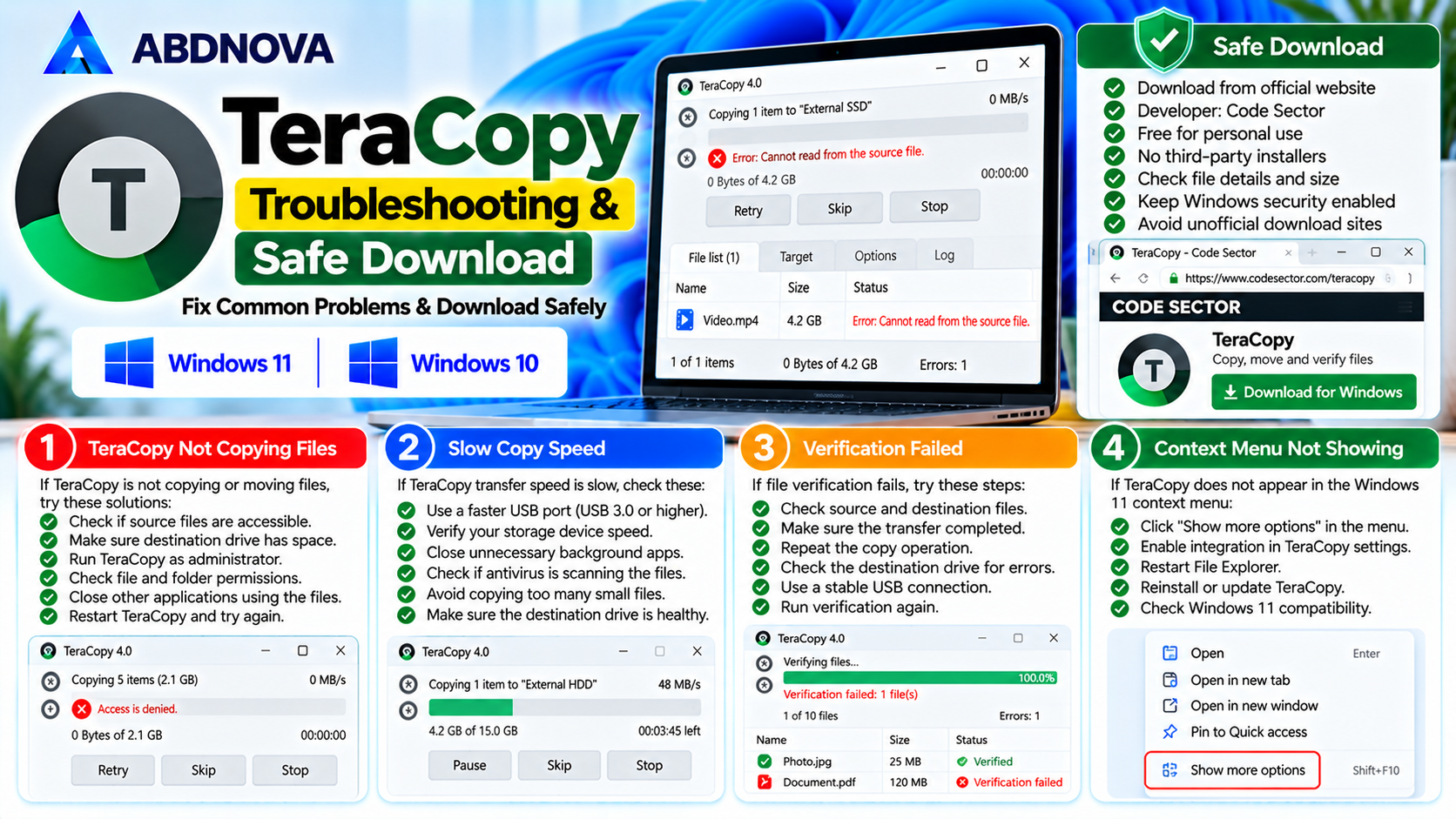
TeraCopy Copy Speed Slow
TeraCopy transfer speed may be affected by storage hardware, connection type, and the number of files being copied.
Possible Causes
- Slow USB connection.
- Older hard drive.
- Large numbers of small files.
- Insufficient destination space.
- Antivirus scanning.
- Other applications accessing the drive.
- Damaged storage sectors.
- Network connection limitations.
Troubleshooting Steps
- Check the source and destination drives.
- Use an appropriate high-speed USB port.
- Confirm that the external drive supports the connection speed.
- Close unnecessary background applications.
- Avoid running multiple heavy disk operations.
- Check available storage space.
- Compare transfer performance with Windows File Explorer.
- Review any errors reported by TeraCopy.
File verification can also make an operation take longer because it performs additional checking.
TeraCopy Not Copying Files
If TeraCopy cannot copy or move files, check the source, destination, and permissions.
Possible Solutions
- Restart TeraCopy.
- Confirm the source files still exist.
- Check the destination folder.
- Verify available disk space.
- Check whether another application is locking a file.
- Review Windows permissions.
- Reconnect external storage if safe to do so.
- Review the transfer error report.
- Update TeraCopy from the official website.
If a storage device repeatedly disconnects or reports read errors, investigate the hardware before continuing.
TeraCopy Verification Failed
A verification failure indicates that the verification process could not confirm that the destination file matches the source.
Possible Reasons
- Transfer was interrupted.
- Destination storage has errors.
- Source data changed during copying.
- File was modified after transfer.
- Hardware or connection problems occurred.
Recommended Actions
- Review the affected file.
- Check the source file.
- Verify that the destination drive is healthy.
- Repeat the copy operation if appropriate.
- Run verification again.
- Compare the results.
- Check for hardware problems if failures continue.
For important backups, retain the original files until all transferred data has been checked.
TeraCopy Not Showing in Windows 11 Context Menu
Windows 11 uses a redesigned context menu that may hide certain third-party application commands.
Possible Solutions
- Open File Explorer.
- Right-click a file or folder.
- Select Show more options if available.
- Look for TeraCopy commands.
- Check TeraCopy’s Explorer integration settings.
- Restart File Explorer.
- Reinstall or update TeraCopy if necessary.
The exact integration behavior depends on the installed TeraCopy version.
Is TeraCopy Safe to Download?
TeraCopy is a legitimate file transfer application developed by Code Sector.
For safer installation and operation:
- Download TeraCopy from the official Code Sector website.
- Avoid modified or unofficial installers.
- Review installation settings.
- Keep Windows security features enabled.
- Verify important transferred files.
- Check available destination storage.
- Avoid interrupting move operations.
- Maintain backups of important files.
- Use supported software versions.
Important: File verification helps check copied data integrity, but it does not replace a proper backup strategy.
TeraCopy FAQ
Is TeraCopy free?
TeraCopy offers a free edition for personal use and a paid Pro edition.
Does TeraCopy work on Windows 11?
Yes. TeraCopy is available for compatible Windows 11 computers.
Can I use TeraCopy on Windows 10?
Yes. TeraCopy supports compatible Windows 10 systems.
Is TeraCopy faster than Windows File Explorer?
It can perform well in certain transfer scenarios, but actual speed depends on the hardware, storage devices, file sizes, and system conditions.
Can TeraCopy verify copied files?
Yes. TeraCopy includes file verification capabilities.
Can TeraCopy copy large files?
Yes. It supports copying large files, subject to storage and file-system limitations.
Does TeraCopy support USB drives?
Yes. It can copy and move files to supported USB and external storage devices.
Can TeraCopy pause file transfers?
Yes. TeraCopy supports pausing and resuming active transfer operations.
Can TeraCopy recover deleted files?
No. TeraCopy is primarily a file transfer utility, not deleted-file recovery software. For deleted files, consider Recuva or Windows File Recovery.
Does TeraCopy replace Windows File Explorer?
No. It can integrate with File Explorer and provide additional file transfer functionality.
Is TeraCopy Pro necessary?
Not for basic personal file copying and verification. The Pro edition offers additional features.
Is TeraCopy safe for important backups?
TeraCopy’s verification features can help check copied files, but users should maintain multiple backups and verify important data.
Final Thoughts
TeraCopy is a useful Windows file transfer utility for users who regularly copy large folders, move files between storage devices, or want to verify transferred data.
Its file verification, pause and resume controls, error handling, and Explorer integration provide more control than a basic copy operation.
For everyday file transfers, the free personal-use edition may be sufficient. Users who need additional functionality can review the Pro edition.
Always download TeraCopy from the official Code Sector website, verify important files after copying, and maintain reliable backups to protect valuable data.
Ready to download TeraCopy for Windows?
Windows 11 & 10 • File Copying • Verification • Transfer Queue
ABDNOVA does not host the installer. The button opens the official Code Sector download page.


