


Bitwarden Download for Windows 11 & 10 – Free Password Manager
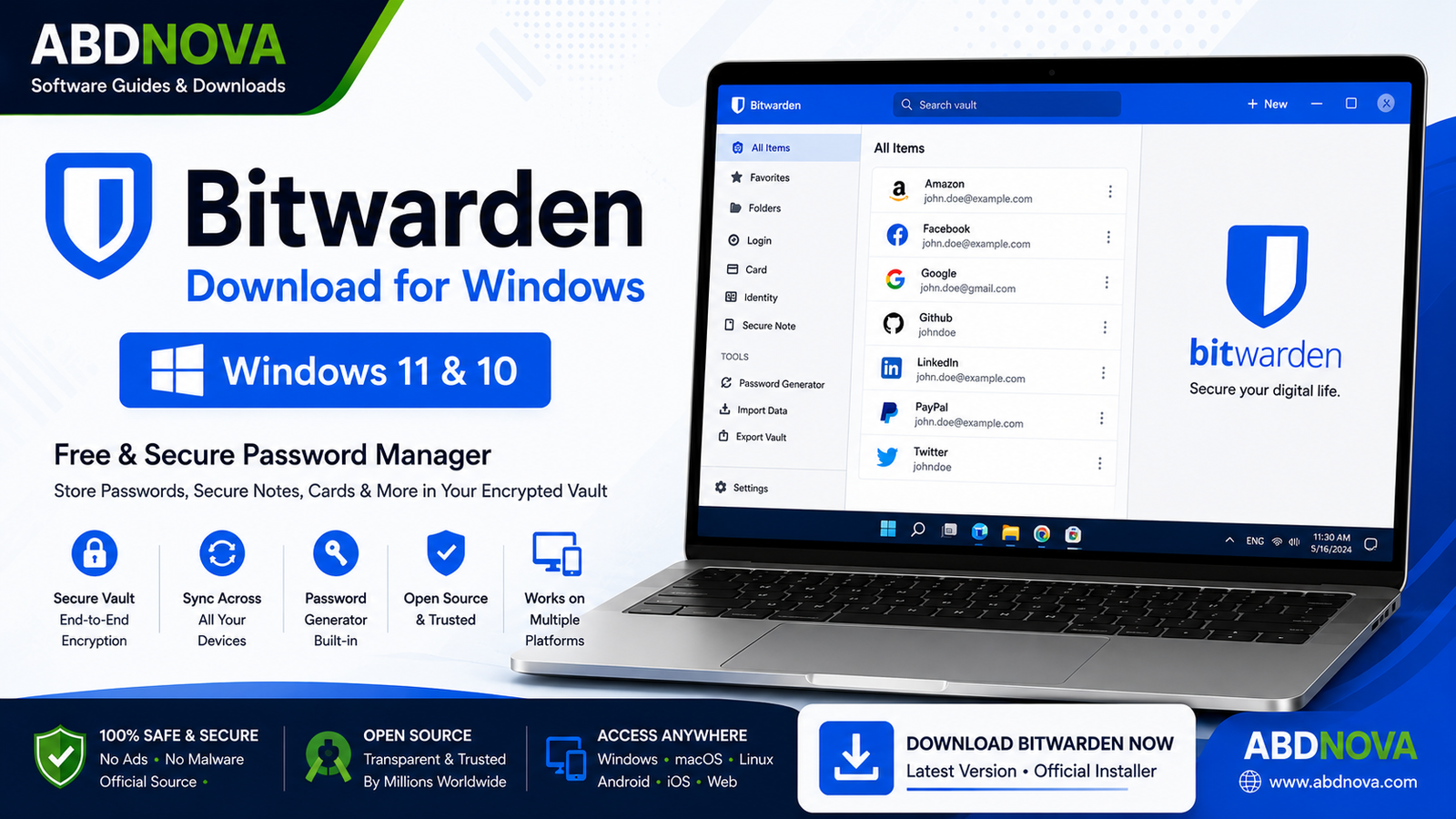
Download Bitwarden for Windows to store passwords, secure notes, cards, identities, passkeys, and other sensitive information inside an encrypted vault.
Bitwarden is an open-source password manager designed to help users securely store, organize, generate, and access passwords and other sensitive information.
With Bitwarden for Windows, you can manage login credentials, secure notes, payment cards, identities, passkeys, and other supported vault items directly from your desktop.
In this guide, you will learn how to download Bitwarden safely, install the Windows desktop application, create or access your vault, use password generation and sync features, improve account security, and troubleshoot common problems.
Bitwarden Download – Quick Overview
| Information | Details |
|---|---|
| Software | Bitwarden Password Manager |
| Developer | Bitwarden |
| Category | Password Manager / Security |
| Platform | Windows, macOS, Linux and more |
| Windows Support | Windows desktop application |
| License | Free with optional paid plans |
| Account Required | Yes for normal synced vault use |
| Offline Access | Supported |
| Encryption | End-to-end / zero-knowledge |
| Recommended Source | Official Bitwarden Website |
What Is Bitwarden?
Bitwarden is an open-source password manager designed to securely store and manage passwords and other sensitive information.
Bitwarden can store:
- Website usernames and passwords
- Secure notes
- Payment card information
- Identity information
- Passkeys
- Custom fields
- TOTP authenticator information
- SSH keys
Bitwarden also provides password and username generators, import and export tools, secure sharing features, synchronization, offline vault access, and browser extensions.
Bitwarden Main Interface + Password Vault & Key Features

Vault
The vault is where your saved information is stored. You can create different types of entries for passwords, cards, identities, secure notes, and other supported credentials.
Search
If your vault contains many entries, the search function helps you quickly locate a specific website or account.
Folders
Folders can help organize personal, work, banking, shopping, social-media, and other credentials.
Password Generator
Bitwarden includes a built-in generator for creating strong random passwords and unique usernames.
Cross-Device Sync
Your Bitwarden vault can synchronize across supported devices so credentials saved on one device can become available through your other Bitwarden applications.
Offline Vault Access
The desktop application supports access to locally cached vault information while offline. Synchronization and online services still require an internet connection.
Bitwarden Password Manager, Password Generator & Security

Bitwarden uses a zero-knowledge architecture. Vault data is encrypted on the user’s device before it is stored on Bitwarden servers, and the service does not have the keys required to decrypt the vault.
Browser Extensions
Bitwarden provides browser extensions that help you access saved logins, autofill credentials, save new login information, generate passwords, and manage supported passkeys while browsing.
Biometric Unlock
On compatible devices and supported installation configurations, Bitwarden can use biometric authentication to unlock the desktop vault.
Passkey Support
Bitwarden supports storing and managing passkeys as part of its password-management platform.
Import and Export
Bitwarden supports importing vault information from other password managers and provides export options for backup. Be especially careful with unencrypted exports because they may contain sensitive credentials in readable form.
How Secure Is Bitwarden?
Bitwarden uses end-to-end, zero-knowledge encryption. Vault information is encrypted locally before it is stored on Bitwarden servers.
Enable Two-Step Login
Two-step authentication adds another layer of protection to your Bitwarden account. Even if someone obtains your master password, an additional authentication requirement can make unauthorized access more difficult.
Download Bitwarden for Windows 11 & 10
The safest way to download Bitwarden is through the official Bitwarden website. Avoid downloading password managers from unknown third-party download websites.
- Visit the official Bitwarden download page.
- Select the Windows desktop version.
- Choose the standard Windows installer for normal desktop use.
- Save the installer to your Downloads folder.
- Verify the official source before running the installer.
Which Bitwarden Version Should You Download?
For most Windows users, the regular Windows desktop installer is the simplest choice. Bitwarden also supports Microsoft Store and portable installation options, although some desktop features can differ depending on the installation method.
How to Install Bitwarden on Windows + Create & Set Up Your Vault

- Download Bitwarden: Visit the official Bitwarden download page and select the Windows desktop version.
- Open the installer: Double-click the downloaded Bitwarden setup file.
- Review the Windows prompt: Verify that you downloaded the installer from the official source before continuing.
- Complete installation: Follow the setup instructions shown on screen.
- Launch Bitwarden: Open Bitwarden from the Start menu or desktop shortcut.
- Sign in or create an account: Existing users can sign in, while new users can create an account and set up a vault.
- Create a strong master password: Use a long, unique, memorable password that you do not reuse elsewhere.
Using Bitwarden With Your Browser
The desktop application is useful for managing your vault, but many users will also want the official Bitwarden browser extension.
- Access saved logins
- Autofill credentials
- Save new login information
- Generate passwords
- Manage passkeys on supported websites
- Reduce manual password typing
Import Passwords Into Bitwarden
Bitwarden provides import tools for moving supported vault data from other password-management services and file formats.
Back Up Your Bitwarden Vault
Bitwarden supports encrypted JSON exports as well as other export formats. For sensitive backups, encrypted export formats are preferable to leaving plain-text password files on your computer.
Bitwarden Free vs Premium
| Feature | Free | Paid Plans |
|---|---|---|
| Secure Vault Storage | Yes | Yes |
| Password Generator | Yes | Yes |
| Cross-Device Sync | Yes | Yes |
| Import / Export | Yes | Yes |
| Passkey Management | Yes | Yes |
| Advanced Features | Limited | Additional options |
For many personal users, the free plan provides the essential password-management features needed for everyday use.
Bitwarden System Requirements
Bitwarden’s desktop application is designed for modern desktop operating systems, including Windows. Keep Windows updated and ensure you have enough storage for the application and updates.
Related Security Guides
You can also read these ABDNOVA security guides:
Troubleshooting Bitwarden on Windows
Bitwarden Won’t Install
Confirm that the download completed successfully, download a fresh installer from Bitwarden, restart Windows, and make sure you are using an appropriate installer for your system.
Bitwarden Won’t Open
Close Bitwarden completely, restart Windows, check for application updates, and install the latest official desktop version if necessary.
Vault Is Not Syncing
Confirm that your internet connection is working, reopen Bitwarden, and allow the application time to synchronize.
Browser Autofill Is Not Working
Make sure the official Bitwarden browser extension is installed, you are signed in, the vault is unlocked, and the saved website address matches the website you are visiting.
Biometric Unlock Is Missing
Biometric support depends on your operating system, compatible hardware, Bitwarden settings, and desktop installation method.
Forgot the Master Password
Because Bitwarden uses zero-knowledge encryption, Bitwarden cannot simply reveal your master password. Follow Bitwarden’s official account-recovery guidance applicable to your account configuration.
Tips for Using Bitwarden Safely
- Use a long, unique master password.
- Do not reuse the master password anywhere else.
- Enable two-step login.
- Keep Bitwarden updated.
- Install only official Bitwarden applications and extensions.
- Lock your vault when leaving a shared computer.
- Use Bitwarden’s password generator to replace reused passwords.
- Prefer encrypted vault backups.
- Never share your master password.
Frequently Asked Questions
Is Bitwarden free?
Yes. Bitwarden provides a free password-management plan, while optional paid plans add additional features.
Does Bitwarden work on Windows?
Yes. Bitwarden provides a desktop application for Windows.
Is Bitwarden open source?
Yes. Bitwarden describes its password-management software as open source.
Can Bitwarden generate passwords?
Yes. The built-in generator can create strong random passwords and usernames.
Can I use Bitwarden offline?
The desktop application supports offline access to locally cached vault information. Synchronization and online services still require an internet connection.
Does Bitwarden support passkeys?
Yes. Bitwarden supports storing and managing passkeys, although exact use varies by platform and application.
Can I import passwords from another password manager?
Yes. Bitwarden supports multiple import methods and migrations from various password-management products and formats.
Is my vault encrypted?
Yes. Bitwarden encrypts vault data locally before it is stored on its servers and uses a zero-knowledge architecture.
What happens if I forget my master password?
Bitwarden cannot simply reveal your master password under its zero-knowledge design. Follow Bitwarden’s official recovery guidance for your account configuration.
Should I download Bitwarden from third-party websites?
For a password manager, the safest choice is the official Bitwarden download source. Avoid unofficial or modified installers.
Final Thoughts
Bitwarden is a strong option for Windows users who want an open-source password manager with encrypted vault storage, password generation, cross-device synchronization, offline access, browser integration, passkey support, import/export tools, and optional advanced features.
For most users, the free plan provides enough functionality to start replacing reused passwords with strong, unique credentials. Download Bitwarden only from the official source, create a strong master password, enable two-step login, and keep both the desktop app and browser extension updated.
Ready to download Bitwarden?
Get the latest supported Windows installer from the official Bitwarden website. ABDNOVA recommends official sources only.


