


Download 7-Zip – the free, open-source file archiver for Windows.
7-Zip is a free and open-source file archiver for Windows. It is designed to compress files into smaller archives and extract files from many popular archive formats.
The program is best known for its 7Z format, which can provide strong compression while keeping the software lightweight and easy to use.
What is 7-Zip used for?
- Compressing files and folders
- Creating 7Z and ZIP archives
- Extracting RAR, ZIP, 7Z and other archives
- Splitting large archives
- Password-protecting archives
- Managing downloaded compressed files
- Creating backups
Why Use 7-Zip?
Windows includes basic ZIP support, but 7-Zip provides many additional features for users who regularly work with compressed files.
For example, you can select a folder containing multiple files and turn it into a single compressed archive.
Instead of:
Project
    ├── Document.docx
    ├── Images
    ├── Report.pdf
    └── Data.xlsx
you can create:
Project.7z
This makes the files easier to store, transfer, and organize.
7-Zip Compression
The main feature of 7-Zip is file compression. Its native 7Z format uses the LZMA and LZMA2 compression methods and can achieve high compression ratios with suitable files.
However, the amount of compression depends on the type of data.
Files that often compress well
- Text files
- Documents
- Source code
- Spreadsheets
- Uncompressed data
Files that may compress poorly
- JPEG images
- MP4 videos
- MP3 audio
- Other already-compressed files
Therefore, using maximum compression does not always result in a dramatically smaller file.
Create 7Z and ZIP Archives
7-Zip can create archives in several formats, including:
7Z
The native 7-Zip format. It is designed for strong compression and supports advanced features such as encryption and solid compression.
ZIP
A widely supported archive format that works with Windows and many other operating systems without requiring 7-Zip.
For maximum compatibility, ZIP is often the better choice. For stronger compression and advanced 7-Zip features, 7Z is usually preferable.
Extract Compressed Files
7-Zip is also an archive extraction tool. It can extract many common formats, including:
- 7Z
- ZIP
- RAR
- TAR
- GZ
- BZ2
- XZ
- ISO
- CAB
This means you can use one lightweight application to manage many different types of compressed files.
7-Zip Password Protection
7-Zip allows you to protect supported archives with a password. When creating a 7Z archive, you can enter a password in the encryption section.
7-Zip uses AES-256 encryption for 7Z archives. You can also encrypt the file names inside a 7Z archive, which provides additional privacy.
Important
Use a strong password for important archives. If you forget the password, there is no simple built-in option that will reveal it.
Split Large Archives
7-Zip can split large archives into smaller volumes. This can be useful when:
- Uploading large files
- Using removable storage
- Working with file-size limits
- Transferring large backups
A large archive may be divided into multiple parts, which can then be stored or transferred separately. Keep all parts together when you need to extract the complete archive.
7-Zip Is Free and Open Source
One of the biggest differences between 7-Zip and WinRAR is licensing. 7-Zip is free and open-source software. You can install and use it without purchasing a commercial license.
This makes 7-Zip particularly attractive for users who want a powerful archive utility without a paid trial period. It is also different from WinRAR, which is commercial software with a trial period.
7-Zip vs Windows Built-In Archive Tools
Windows 10 includes built-in ZIP creation and extraction. Newer Windows 11 versions support more archive formats: Windows 11 23H2 added extraction of formats including RAR, 7Z, and TAR, while Windows 11 24H2 added built-in creation options for 7Z and TAR archives. Exact options depend on the Windows version and updates installed.
| Feature | Windows 10 built-in | Windows 11 built-in (24H2+) | 7-Zip |
|---|---|---|---|
| ZIP extraction and creation | Yes | Yes | Yes |
| RAR extraction | Not natively | Yes (unencrypted archives) | Yes |
| 7Z extraction | Not natively | Yes (unencrypted archives) | Yes |
| 7Z creation | No | Yes | Yes |
| Password-protected archive support | Limited | Limited; encrypted RAR/7Z extraction is not supported natively | Supports encrypted archives, including AES-256 for 7Z |
| Split/multi-volume archive management | Limited | Limited | Advanced options |
| Compression controls and formats | Basic ZIP | Built-in ZIP, 7Z and TAR creation options | Advanced settings and broad format support |
| License | Included with Windows | Included with Windows | Free and open source |
If you only work with ordinary ZIP files, Windows may be enough. Newer Windows 11 versions can also handle many RAR and 7Z archives without extra software. 7-Zip remains useful for encrypted archives, advanced compression settings, and multi-volume archive workflows.
Who Should Use 7-Zip?
Home Users
Compress photos, documents, and personal files.
Students
Combine project files into a single archive for storage or sharing.
Office Users
Create compressed backups and organize large collections of documents.
Developers
Compress source code, project files, and backups.
IT Professionals
Manage large archives, backups, and multi-part files.
Main Benefits of 7-Zip
- Completely free to use
- Open-source software
- Strong 7Z compression
- Supports many archive formats
- AES-256 encryption
- Password protection
- Multi-volume archives
- Windows Explorer integration
- Lightweight application
- Command-line support
7-Zip at a Glance
- Best for: File compression and archive management
- Native format: 7Z
- Alternative format: ZIP
- License: Free and open source
- Platform: Windows, with command-line versions available for other platforms
- Main advantage: Strong compression without a commercial license
7-Zip Features
7-Zip is more than a simple file extractor. It provides several useful tools for compressing, extracting, protecting, and managing archives.
High Compression
The native 7Z format is designed for high compression.
Multiple Archive Formats
Works with 7Z, ZIP, RAR, TAR, GZ, BZ2, XZ, ISO, CAB, and more.
AES-256 Encryption
Supports AES-256 encryption for 7Z archives with optional file-name encryption.
Multi-Volume Archives
Split large archives into smaller parts.
Windows Explorer Integration
Right-click menu options for quick actions.
7-Zip Compression Levels
7-Zip provides several compression levels, ranging from faster compression to maximum compression.
- Store: No compression.
- Fastest: Prioritizes speed.
- Fast: Faster compression with reasonable results.
- Normal: A good balance between compression and speed.
- Maximum: Better compression but may take longer.
- Ultra: Highest available settings, requires more processing.
For everyday use, Normal is usually a good choice.
7-Zip Supported Formats
| Format | Create | Extract |
|---|---|---|
| 7Z | ✅ | ✅ |
| ZIP | ✅ | ✅ |
| TAR | ✅ | ✅ |
| GZ | — | ✅ |
| BZ2 | — | ✅ |
| XZ | — | ✅ |
| RAR | ❌ | ✅ |
| ISO | — | ✅ |
| CAB | — | ✅ |
7-Zip can extract RAR archives but does not create RAR archives. If you need to create RAR files, WinRAR is required.
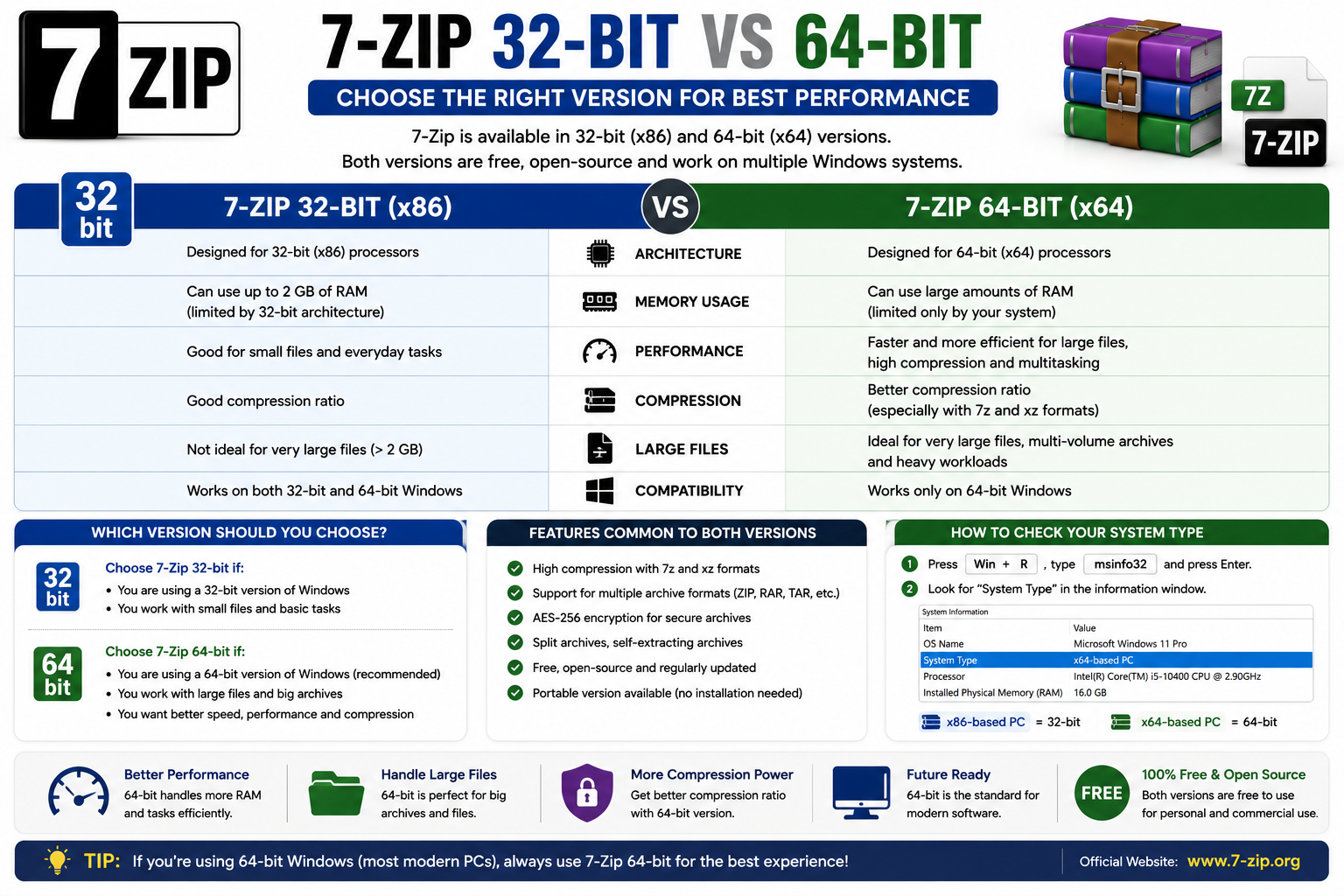
7-Zip 32-bit vs 64-bit
64-bit 7-Zip
Recommended for most modern Windows computers (10 and 11). Better suited for large archives and systems with more RAM.
32-bit 7-Zip
Primarily intended for older 32-bit Windows systems. If you have 64-bit Windows, choose the 64-bit version.
Which 7-Zip Version Should You Download?
The official download page lists separate builds for 64-bit x64, 32-bit x86, and ARM64. For most modern Intel and AMD computers, 64-bit x64 7-Zip is the appropriate version.
How to Download 7-Zip Safely
Always download 7-Zip from the official 7-Zip website. The current version is 7-Zip 26.02.
- Check your Windows system type.
- Choose the correct architecture.
- Prefer the official EXE installer.
- Avoid modified or unofficial installers.
- Keep the setup file until installation is complete.
Is 7-Zip Really Free and Safe?
Yes. 7-Zip is free software and does not require registration or payment. The official website states that it can be used on computers in commercial organizations as well.
The safest approach is to download the installer directly from the official website. Avoid cracked versions, modified installers, or “premium” versions.
How to Install 7-Zip on Windows
- Download the appropriate installer from the official website.
- Double-click the downloaded file.
- If prompted by User Account Control, allow it to continue.
- Accept the default installation location and click Install.
- Wait for the installation to finish and click Close.
7-Zip is now ready to use.
How to Create and Extract Archives
Create a 7Z or ZIP Archive
- Select files/folder, right-click.
- Choose 7-Zip → Add to archive.
- Select 7z or ZIP.
- Choose a compression level and name.
- Click OK.
Extract an Archive
- Right-click the archive file.
- Select 7-Zip.
- Choose Extract Here or Extract to folder.
- For multi-part archives, ensure all parts are in the same folder.
Password Protection and Splitting
Create a Password-Protected 7Z
- Select files, right-click → Add to archive.
- Select 7z.
- In Encryption, enter your password.
- Enable file-name encryption if needed.
- Click OK.
Split a Large Archive
- While creating an archive, find Split to volumes, bytes.
- Enter a size (e.g.,
100M,1G). - The archive will be divided into parts.
Right-Click Menu & Default App
After installation, 7-Zip integrates with Windows Explorer. You can quickly access options such as Open archive, Extract Here, Add to archive, etc.
To set 7-Zip as your default app: Settings → Apps → Default apps → search for the archive extension and select 7-Zip.
Troubleshooting Common Issues
Cannot Open Archive
Corrupted download, missing parts, or unsupported format. Try downloading again.
CRC Error
Damaged data. Corrupted download or storage. Re-downloading is the best first step.
Multi-Part Not Extracting
Make sure all parts are in the same folder. Do not rename them.
Wrong Password
Check uppercase/lowercase, extra spaces. No built-in tool to reveal forgotten passwords.
Not in Right-Click Menu
Open 7-Zip, enable context-menu integration, or reinstall.
Cannot Create RAR
Normal. 7-Zip extracts RAR but doesn’t create them. Use WinRAR or create 7Z/ZIP.
Related Guide: For another popular file archiver, see our WinRAR Download for Windows guide.
Frequently Asked Questions
Is 7-Zip free?
Yes. 7-Zip is free and open-source software.
Is 7-Zip safe?
Yes, when downloaded from the official website. Avoid unofficial installers.
Can 7-Zip open RAR files?
Yes, it can extract RAR archives, but it cannot create them.
Can 7-Zip create ZIP files?
Yes, 7-Zip can create ZIP archives.
Is 7Z better than ZIP?
Not universally. 7Z offers stronger compression, while ZIP offers broader compatibility.
Should I install 32-bit or 64-bit?
For modern Windows 10/11, the 64-bit version is recommended.
Can 7-Zip protect files with a password?
Yes, it supports password protection and AES-256 encryption.
Can 7-Zip split large archives?
Yes, it can divide archives into multiple volumes.
Final Verdict
7-Zip is one of the best free archive utilities available for Windows. Its combination of strong 7Z compression, broad archive-format support, AES-256 encryption, Windows integration, and open-source licensing makes it a practical choice for both beginners and advanced users.
For basic ZIP files, Windows’ built-in tools may be enough. However, if you regularly work with 7Z, RAR, ZIP, TAR, and other archive formats, 7-Zip provides considerably more flexibility.
Its biggest limitation is that it cannot create RAR archives. Users who specifically need RAR creation may prefer WinRAR. For everyone else, 7-Zip is a lightweight, powerful, and completely free solution.
Conclusion
Whether you need to compress a folder, extract a downloaded archive, protect sensitive files with a password, or split a large backup into multiple parts, 7-Zip provides the tools needed to manage your files efficiently.
For the safest experience, download the latest version from the official 7-Zip website and choose the installer that matches your Windows architecture.
If you want a free and powerful archive utility, 7-Zip is an excellent choice.
Ready to download 7-Zip?
Get the latest version from the official 7-Zip website. We verify every link for safety.


