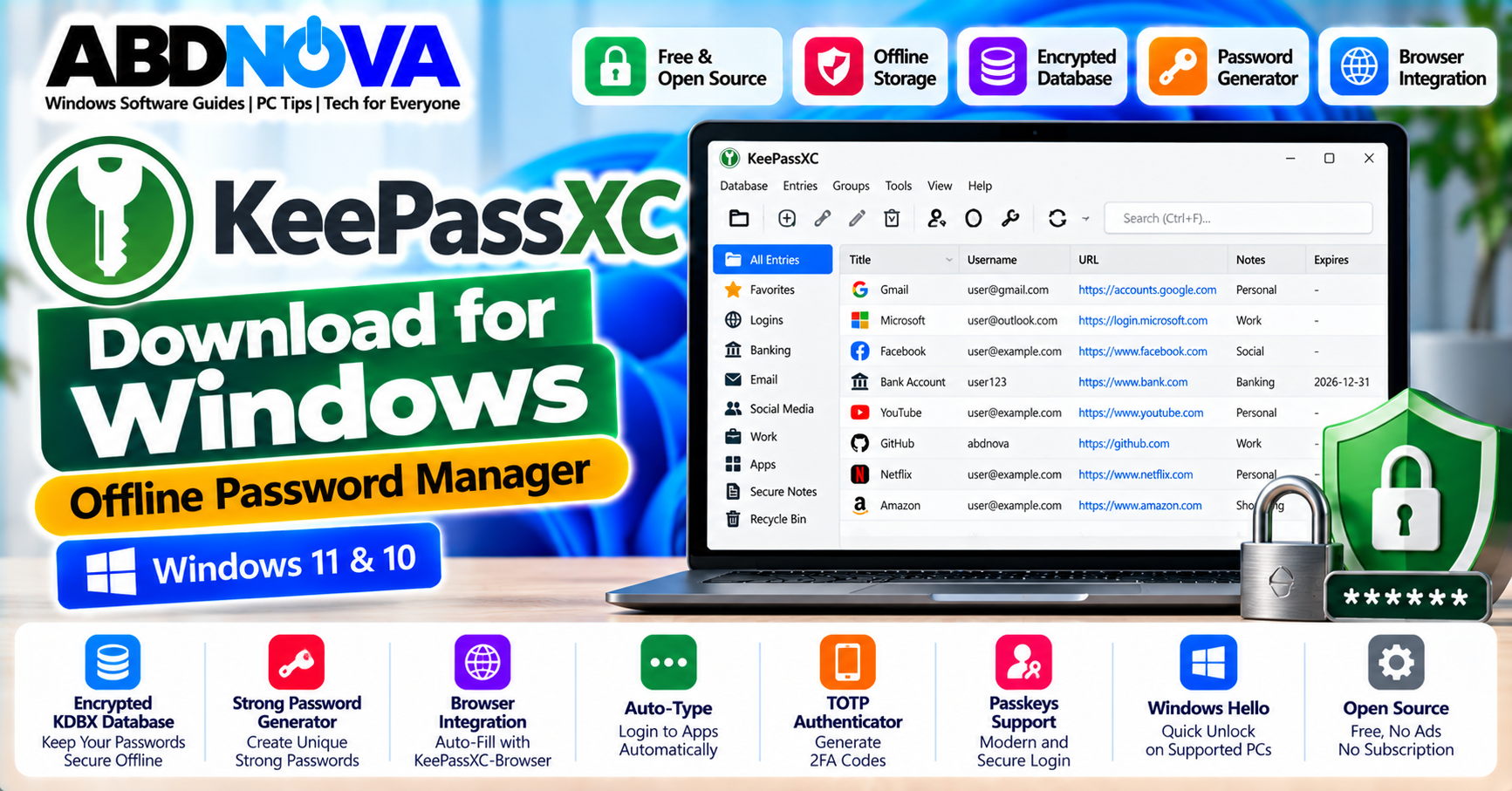

KeePassXC Download for Windows – Offline Password Manager
KeePassXC is a free and open-source password manager for Windows that stores passwords and other sensitive information inside an encrypted database on your own computer.
Unlike password managers built around mandatory cloud accounts, KeePassXC uses a local encrypted database. You control where the database file is stored and whether you want to synchronize it using another trusted service.
For Windows 11 and Windows 10 users who prefer a local-first password manager, KeePassXC combines password generation, browser integration, Auto-Type, TOTP, passkeys, Windows Hello Quick Unlock and other advanced security features without requiring a subscription.
KeePassXC for Windows 11 & 10
The current stable version is KeePassXC 2.7.12. KeePassXC 2.8.0 Beta 1 is also available for testing, but it is not the current stable release. For normal password storage, use the stable version unless you specifically need to test beta software.
| Detail | Information |
|---|---|
| Software | KeePassXC |
| Stable Version | 2.7.12 |
| Operating Systems | Windows 11 & Windows 10 |
| Windows Installer | 64-bit MSI |
| Portable Version | 64-bit ZIP |
| License | Free & Open Source |
| Database Format | KDBX |
| Mandatory Cloud Account | No |
| Browser Integration | Supported |
| TOTP & Passkeys | Supported |
KeePassXC Main Interface, Password Database & Security Features
KeePassXC stores credentials in an encrypted KDBX database rather than automatically uploading your password vault to a company-operated cloud service.
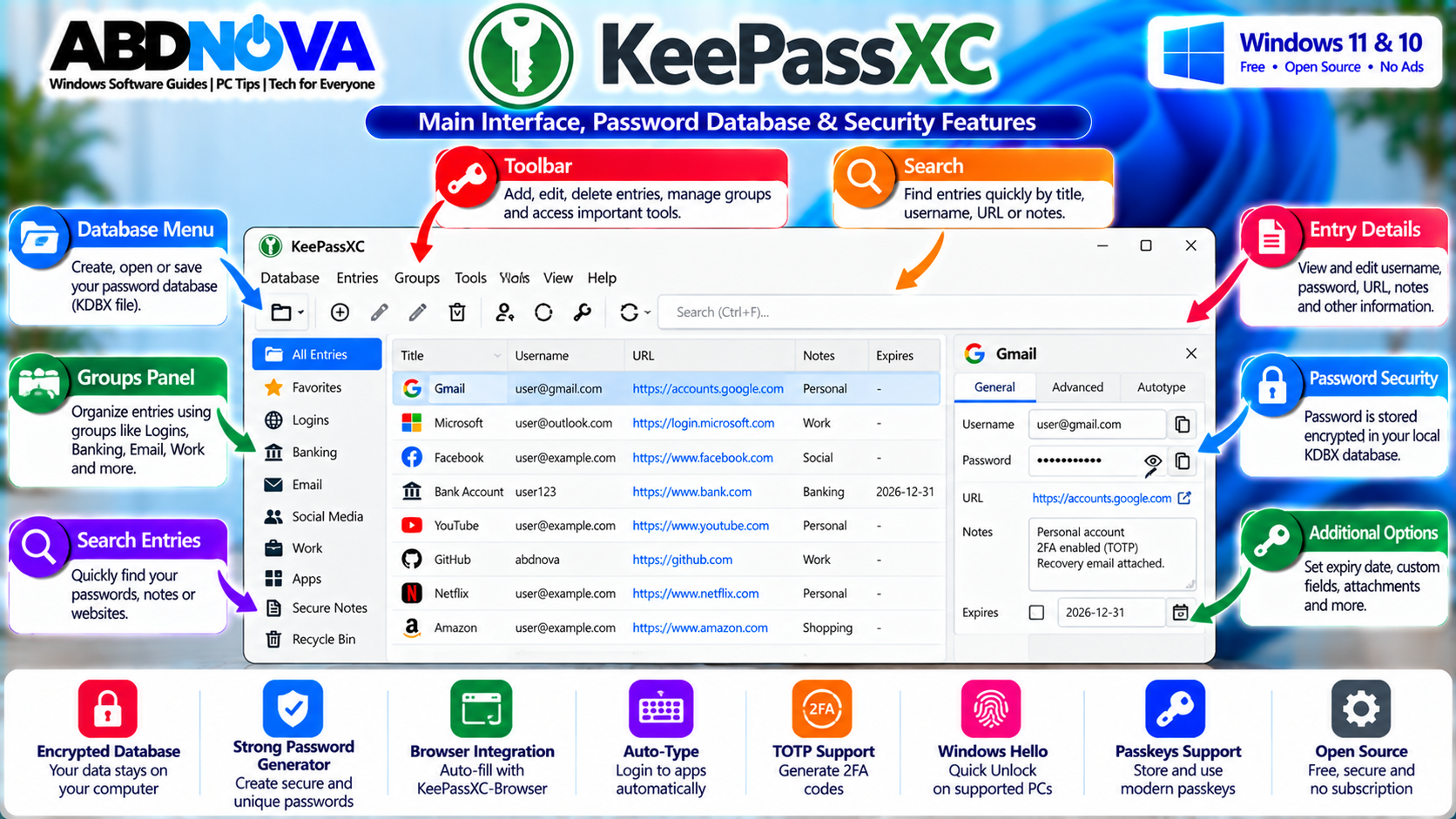
A KeePassXC database can contain:
- Website usernames
- Passwords
- Website URLs
- Secure notes
- Custom attributes
- TOTP information
- Passkeys
- Attachments
- SSH keys
- Other sensitive account information
The database is protected using the master credentials you configure. Instead of remembering hundreds of individual passwords, you primarily need to protect the credentials required to unlock the database.
KeePassXC Key Features
- Local encrypted password database
- No mandatory cloud account
- Free and open-source software
- Password and passphrase generator
- KeePassXC-Browser integration
- Auto-Type
- TOTP support
- Passkey support
- Windows Hello Quick Unlock
- Hardware security-key support
- SSH Agent integration
- Groups and folders
- Custom fields and attachments
- Database reports
- Duplicate-password detection
- Weak-password detection
- Import from other password managers
- Portable Windows version
- KDBX database compatibility
Local & Offline Password Storage
One of KeePassXC’s main differences from many commercial password managers is its local-first design. Your vault is stored in a database file at a location you control.
Documents\Passwords\MyPasswords.kdbx
or
D:\Secure\Personal.kdbx
You can keep the database completely local for an offline password-management workflow. KeePassXC does not require a KeePassXC cloud account to access your passwords.
KeePassXC KDBX Database
KeePassXC uses the KeePass-compatible KDBX database format. The KDBX file contains your encrypted password vault.
A database can be protected using options such as:
- Master password
- Key file
- Supported hardware security keys
A strong master password is especially important because it protects access to the database containing your other credentials.
Create a Strong Master Password
Your master password should be long, unique, difficult to guess and never reused on another account. A long unique passphrase can also provide a practical balance between memorability and security.
Avoid passwords based on your name, birthday, phone number or credentials already used on another website.
How to Install KeePassXC & Create an Offline Password Database
For a normal modern Windows 11 or Windows 10 computer, the official KeePassXC download page provides a 64-bit MSI installer. An official 64-bit Portable ZIP is also available.
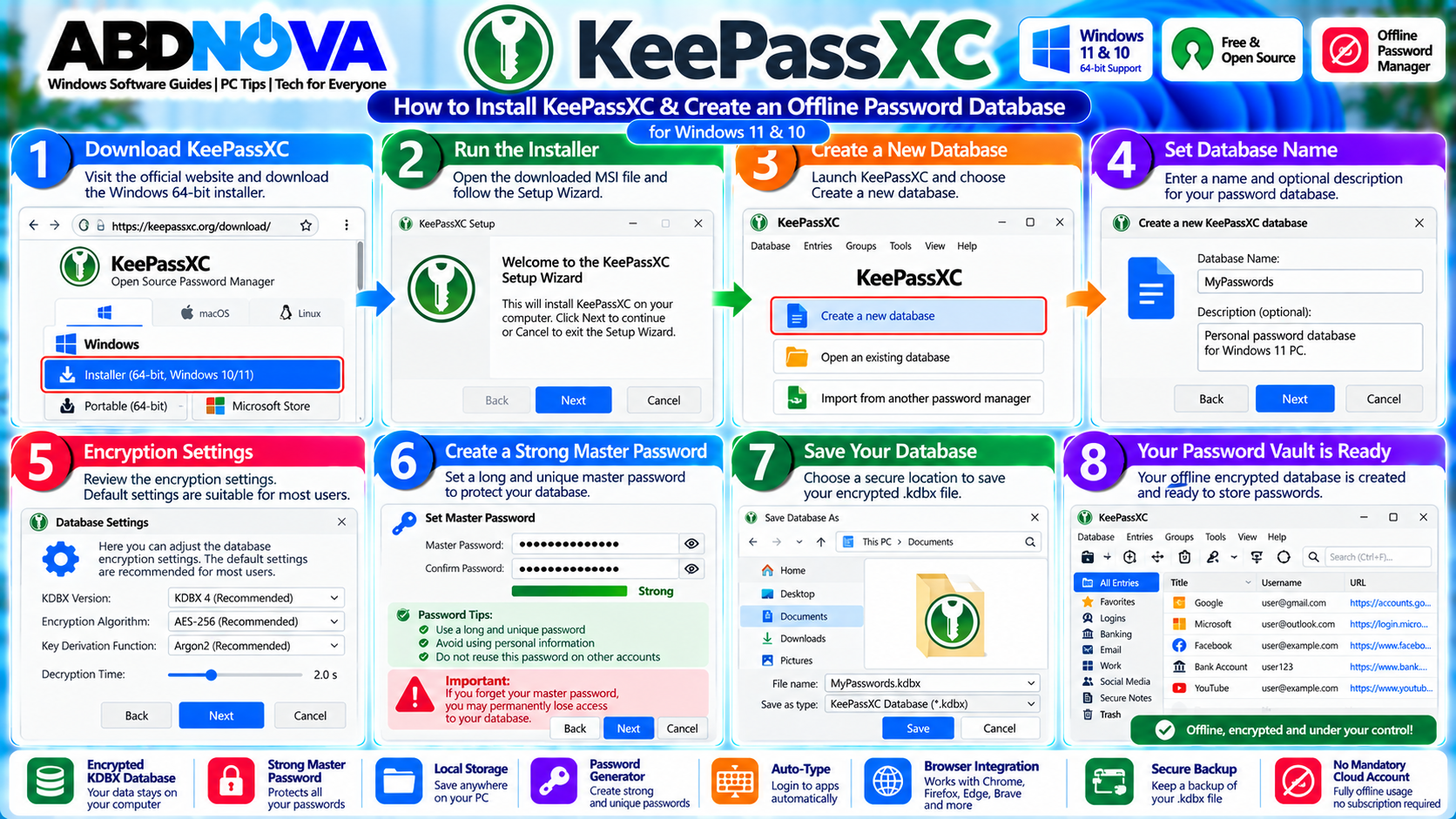
Install KeePassXC on Windows
- Visit the official KeePassXC download page.
- Open the Windows section.
- Download the 64-bit MSI installer for Windows 10/11.
- Open the downloaded MSI file.
- Review the Windows security and UAC information.
- Continue through the KeePassXC Setup Wizard.
- Select your preferred installation options.
- Complete installation.
- Launch KeePassXC.
Install KeePassXC With Winget
KeePassXC can also be installed using Windows Package Manager:
winget install -e --id KeePassXCTeam.KeePassXCFor most users, the official MSI installer remains the simplest installation method.
KeePassXC Portable Version
The official project provides a 64-bit Portable ZIP for Windows 10 and Windows 11. This can be useful if you prefer a portable software toolkit or do not want a traditional installation.
Create Your First KeePassXC Database
- Open KeePassXC.
- Choose to create a new database.
- Enter a database name.
- Review the encryption settings.
- Create a strong master password.
- Configure additional protection if required.
- Choose where the KDBX database should be stored.
- Save the database.
D:\Password Database\Personal.kdbx
Remember where the database is stored and create a separate secure backup.
Add & Organize Passwords in KeePassXC
Credentials are stored as entries. A typical website entry may contain a title, username, password, website URL and optional notes.
You can organize entries into groups such as:
- Banking
- Shopping
- Social Media
- Work
- Hosting
- Websites
- Software
- Personal
Password & Passphrase Generator
KeePassXC includes a built-in password generator for creating long random passwords using uppercase and lowercase letters, numbers and special characters. It also supports passphrase generation.
Using a different password for every online account reduces the risk that one compromised password will expose several accounts.
KeePassXC Browser Integration, Auto-Type, TOTP, Passkeys & Windows Hello
KeePassXC goes beyond basic password storage with browser integration and several authentication features.
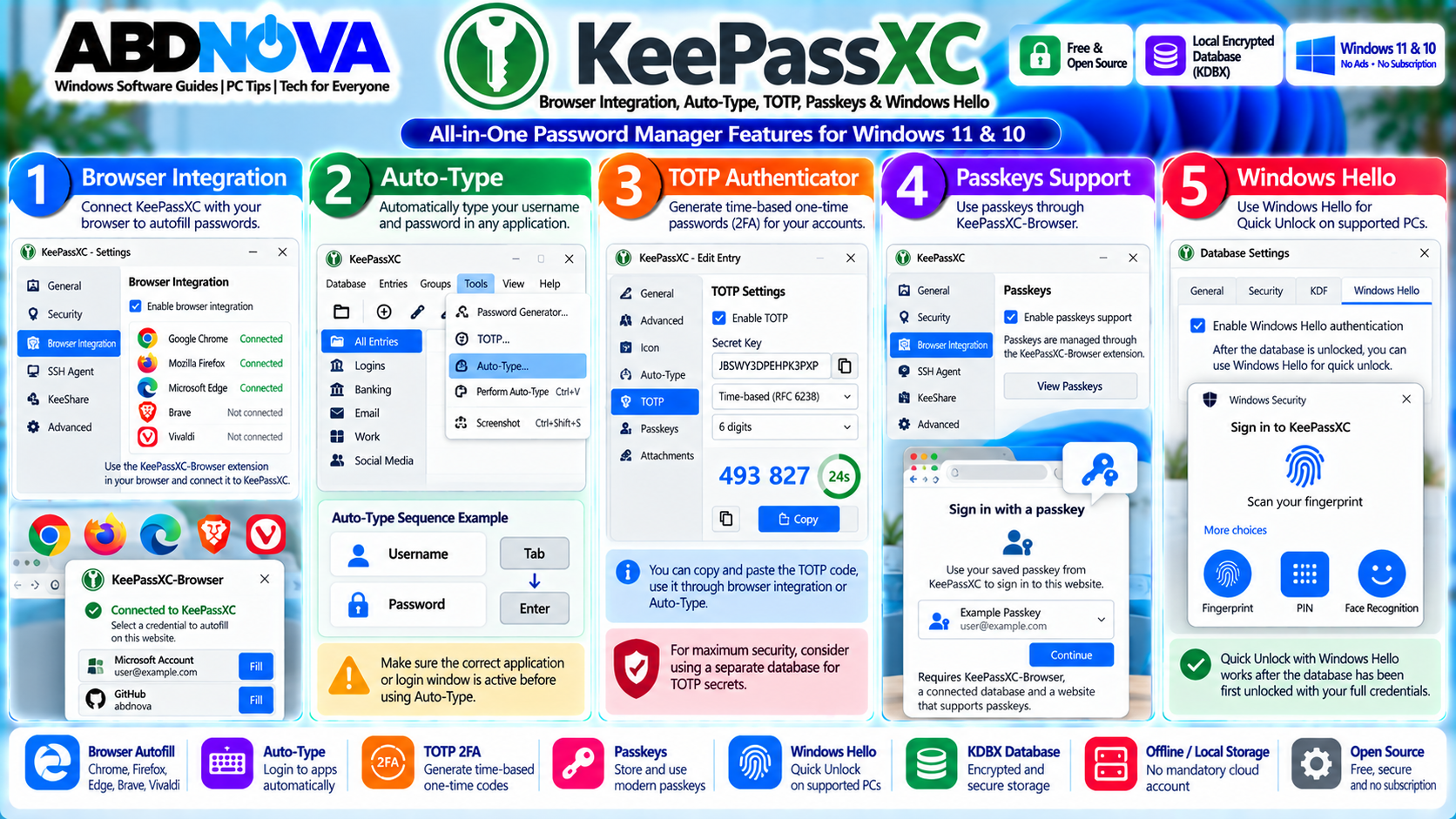
KeePassXC-Browser Integration
The official KeePassXC-Browser extension connects supported browsers to the KeePassXC desktop application and can retrieve matching credentials from an unlocked local database.
Supported browser families include Google Chrome, Chromium, Brave, Vivaldi, Mozilla Firefox, Tor Browser and Microsoft Edge.
ABDNOVA also provides Windows installation guides for Google Chrome, Mozilla Firefox and Microsoft Edge.
Enable KeePassXC Browser Integration
- Install KeePassXC on Windows.
- Install the official KeePassXC-Browser extension.
- Open KeePassXC.
- Go to Tools → Settings.
- Open Browser Integration.
- Enable browser integration.
- Select the browser you use.
- Save the settings.
- Unlock your database.
- Open or restart the browser.
- Connect KeePassXC-Browser to KeePassXC.
- Approve the connection.
Once configured, the extension can offer matching credentials for websites stored in your database.
Auto-Type
KeePassXC Auto-Type can enter credentials into applications by simulating keyboard input. This is useful for desktop applications, login dialogs, websites and software that does not support KeePassXC-Browser directly.
TOTP Authenticator Support
KeePassXC can generate Time-Based One-Time Passwords (TOTP), including the temporary codes commonly used for two-factor authentication.
Configured TOTP codes can be used through workflows such as copy and paste, browser integration and Auto-Type.
Passkey Support
KeePassXC supports passkeys through KeePassXC-Browser. A supported website and browser can create and use passkeys stored through the KeePassXC integration.
Passkey availability still depends on the website and browser supporting the technology correctly.
Windows Hello Quick Unlock
On supported Windows systems, KeePassXC can use Windows Hello for Quick Unlock. After initially unlocking the database with its full credentials, Windows Hello can provide a more convenient unlock method under supported conditions.
Depending on your Windows configuration and hardware, authentication may use a PIN, fingerprint or facial recognition.
Hardware Security Keys
KeePassXC can work with supported hardware security keys for additional database protection. If a hardware key becomes part of your database unlock process, protect it carefully and maintain an appropriate recovery plan.
SSH Agent Integration
Advanced users can use KeePassXC with SSH Agent functionality. On Windows, supported workflows include OpenSSH for Windows and Pageant.
This is primarily useful for developers, system administrators and technical users who want supported SSH keys stored within their KeePassXC workflow.
Database Reports & Password Health
KeePassXC includes reporting features that can help identify credential problems such as duplicate passwords, weak passwords and expired credentials.
If the same password is used on several websites, replace it with unique passwords wherever possible.
Import Passwords From Other Password Managers
KeePassXC supports importing data from several password-management applications and formats. The exact migration process depends on your existing password manager.
- Export credentials from the original password manager.
- Protect the exported file carefully.
- Import it into KeePassXC.
- Verify important entries.
- Securely remove unencrypted export files when they are no longer needed.
Back Up Your KeePassXC Database
Because KeePassXC uses a local KDBX database, backups are extremely important. Consider maintaining multiple protected copies of important password databases.
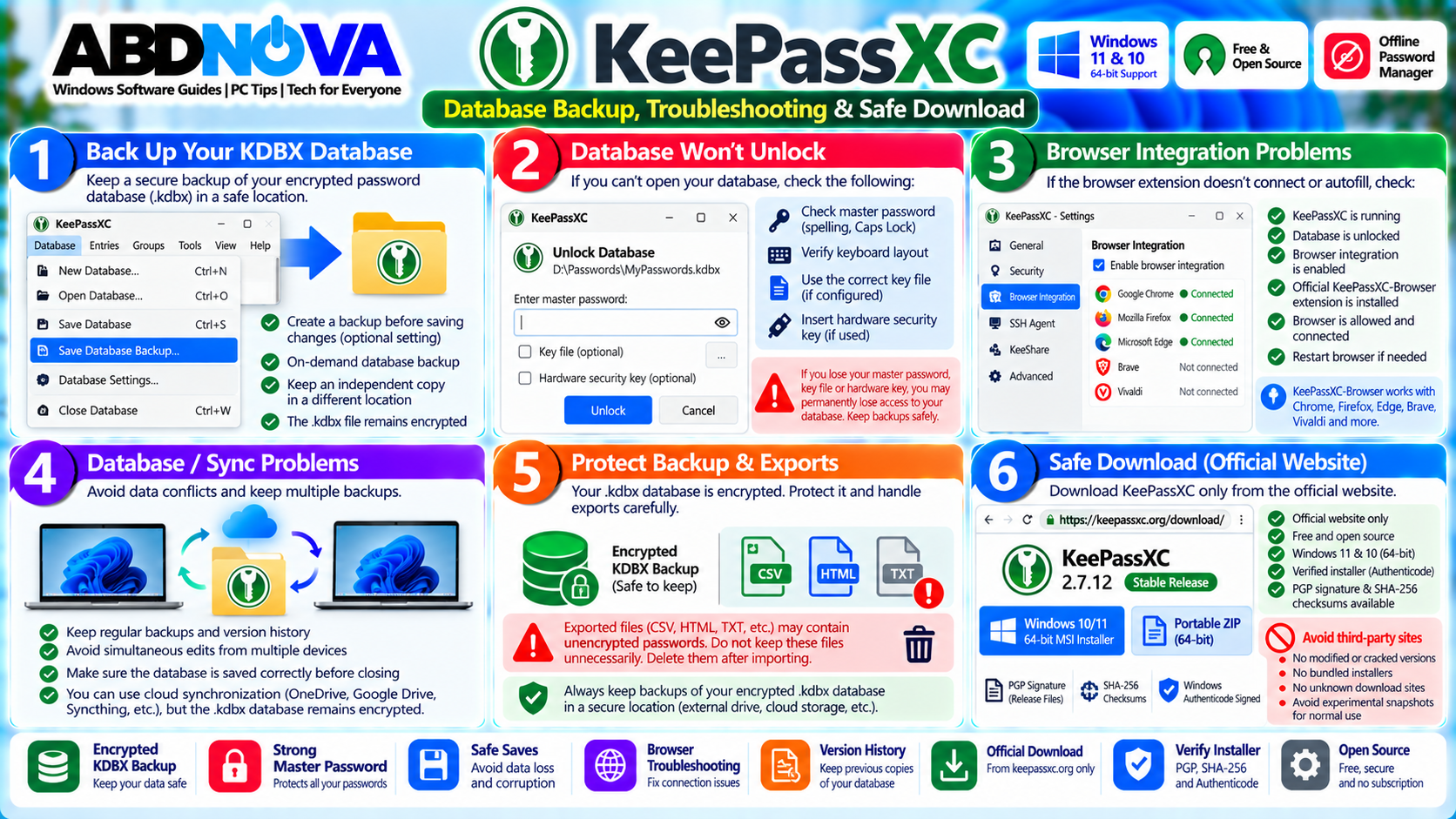
D:\KeePassXC\Passwords.kdbx
Backup:
External drive or another appropriately protected location
If you synchronize your database between devices, synchronization should not automatically be considered your only backup. Keep at least one independent protected backup for important credentials.
Sync KeePassXC Between Computers
KeePassXC itself does not require a mandatory password cloud. Because the vault is stored as a KDBX file, you can choose an appropriate method for making the database available across trusted computers.
One option is Syncthing. See our Syncthing Download for Windows guide for setting up file synchronization between computers.
Other workflows can use appropriately secured network storage or trusted file-synchronization services.
KeePassXC vs Browser Password Manager
A browser’s built-in password manager is normally closely integrated with that browser and its ecosystem. KeePassXC instead provides a standalone encrypted database that you control.
| KeePassXC | Browser Password Manager |
|---|---|
| Standalone KDBX database | Integrated with browser ecosystem |
| Local-first storage | Storage model depends on browser/provider |
| Works with multiple supported browsers | Usually optimized for its own browser |
| Auto-Type support | Primarily browser autofill |
| TOTP and passkey features | Capabilities vary by browser |
| User controls database location | Storage location depends on browser design |
KeePassXC vs KeePass
KeePass and KeePassXC are separate password-management applications that work with KeePass-style databases.
KeePassXC provides native applications for Windows, macOS and Linux and integrates features such as browser integration, TOTP, passkeys, Auto-Type and SSH Agent support.
Both projects have separate development, features and release cycles. Do not assume that a plugin or feature designed specifically for one application automatically works with the other.
KeePassXC Database Backup, Troubleshooting & Safe Download
KeePassXC Does Not Open
- Confirm you installed the correct Windows version.
- Restart Windows.
- Download the installer again from the official website.
- Install required Microsoft runtime components if prompted.
- Try the official portable version.
- Check Windows security messages.
- Update to the latest stable release.
Database Will Not Unlock
Check the following:
- Master password spelling
- Caps Lock
- Keyboard layout
- Required key file
- Required hardware security key
- Correct KDBX database file
If the master password or other required authentication material is lost, there is no simple cloud password reset that bypasses the database protection.
Browser Extension Does Not Connect
- Make sure KeePassXC is running.
- Unlock the database.
- Enable Browser Integration.
- Enable the correct browser in KeePassXC settings.
- Install the official KeePassXC-Browser extension.
- Restart the browser.
- Reconnect the extension.
- Update KeePassXC and the extension.
Autofill Does Not Work
- Confirm KeePassXC is running.
- Confirm the database is unlocked.
- Check that the browser extension is connected.
- Verify the website URL stored in the entry.
- Check browser access for the entry.
- Select the correct credentials.
Windows Hello Is Not Working
- Confirm Windows Hello is configured in Windows.
- Unlock the database once using the full credentials.
- Complete the Windows Hello prompt.
- Check KeePassXC security settings.
- Restart KeePassXC.
- Update Windows and KeePassXC.
Safe KeePassXC Download
Download KeePassXC only from the official project website or another distribution method explicitly provided by the project.
The project provides PGP signatures and SHA-256 digests for release packages. Windows MSI packages are also protected with an Authenticode signature that Windows can verify.
Avoid:
- Modified installers
- Cracked versions
- Fake premium editions
- Unknown portable packages
- Third-party download managers
- Bundled installers
- Unofficial browser extensions
Frequently Asked Questions
What is KeePassXC?
KeePassXC is a free and open-source password manager that stores credentials inside an encrypted database controlled by the user.
Is KeePassXC free?
Yes. KeePassXC is free and open-source software.
Does KeePassXC work on Windows 11?
Yes. The current stable Windows release supports Windows 11.
Does KeePassXC work on Windows 10?
Yes. The current stable 64-bit Windows package supports Windows 10 and Windows 11.
What is the latest stable KeePassXC version?
As of September 30, 2026, KeePassXC 2.7.12 is the current stable release. KeePassXC 2.8.0 Beta 1 is available for testing but is not the stable release.
Is KeePassXC an offline password manager?
KeePassXC uses a local encrypted database and does not require a KeePassXC cloud account. Many core password-management functions can therefore be used offline.
Does KeePassXC store passwords in the cloud?
KeePassXC does not require its own central cloud-storage service. Your password database is stored at a location you control.
Can I sync KeePassXC between computers?
Yes. Because the vault is a KDBX database file, you can use an appropriately secured synchronization method to make it available across trusted devices.
Does KeePassXC support browser autofill?
Yes. KeePassXC-Browser integrates with supported browsers including Chrome, Firefox, Edge, Brave, Vivaldi, Chromium and Tor Browser.
Does KeePassXC support Windows Hello?
Yes. Supported Windows systems can use Windows Hello for Quick Unlock after the database has initially been unlocked with its full credentials.
Does KeePassXC support TOTP?
Yes. KeePassXC can generate TOTP codes for configured entries.
Does KeePassXC support passkeys?
Yes. Passkeys are supported through KeePassXC-Browser integration.
Is there a portable KeePassXC version?
Yes. The official download page provides a 64-bit Portable ZIP for Windows 10 and Windows 11.
What happens if I forget my KeePassXC master password?
KeePassXC cannot simply reset the database master password through an online account. Protect the required database credentials carefully and maintain an appropriate recovery strategy.
Final Thoughts
KeePassXC provides Windows users with a local-first password-management system without requiring a mandatory cloud account or subscription.
Its encrypted KDBX database gives you control over where your vault is stored, while features such as password generation, Auto-Type, KeePassXC-Browser, TOTP, passkeys, Windows Hello Quick Unlock and SSH Agent integration provide considerably more functionality than basic password storage.
That control also creates additional responsibility. Use a strong master password, maintain secure backups of the KDBX database, protect any required key files or hardware keys, and securely remove unencrypted password-export files after migration.
For normal Windows 11 and Windows 10 use, choose the current stable 64-bit release rather than beta, snapshot, modified or third-party builds.
Download KeePassXC for Windows
Get the current stable Windows installer or official portable package directly from KeePassXC.