

Everything Search Download for Windows

Everything Search Download for Windows gives Windows 11 and Windows 10 users an extremely fast and lightweight way to find files and folders by name. Developed by voidtools, Everything builds a filename index so search results can appear almost instantly while you type.
Everything Search Download for Windows – Overview
| Software | Everything |
| Developer | voidtools |
| Platform | Windows |
| Windows Support | Windows 11 & Windows 10 |
| Category | File Search / Utilities |
| License | Freeware |
| Versions | Installer, Portable & Lite |
| Architecture | x86, x64 and additional supported builds |
| Best For | Fast filename and folder searching |
What Is Everything Search?
Everything is a Windows filename search engine from voidtools. Instead of repeatedly scanning an entire drive for every normal filename search, it creates an index of files and folders and updates that database as the filesystem changes.
This makes Everything especially useful when you remember all or part of a filename but do not remember where it is stored.
Everything Search Main Interface and Features

Fast File and Folder Search
Open Everything and begin typing a filename or folder name. Matching results update while you type, making it much faster than manually browsing through multiple folders.
Simple Search Interface
The main window includes a search box, result list, sortable columns, menu options and a status bar. Results can show details such as name, path, size and date modified.
Real-Time Result Updates
Everything monitors filesystem changes so newly created, renamed, moved or deleted files can be reflected in its search database.
Lightweight Design
Everything is designed to use relatively few system resources while maintaining a searchable filename database, making it suitable as an everyday Windows utility.
Everything Search Fast File Search, Filters and Advanced Search
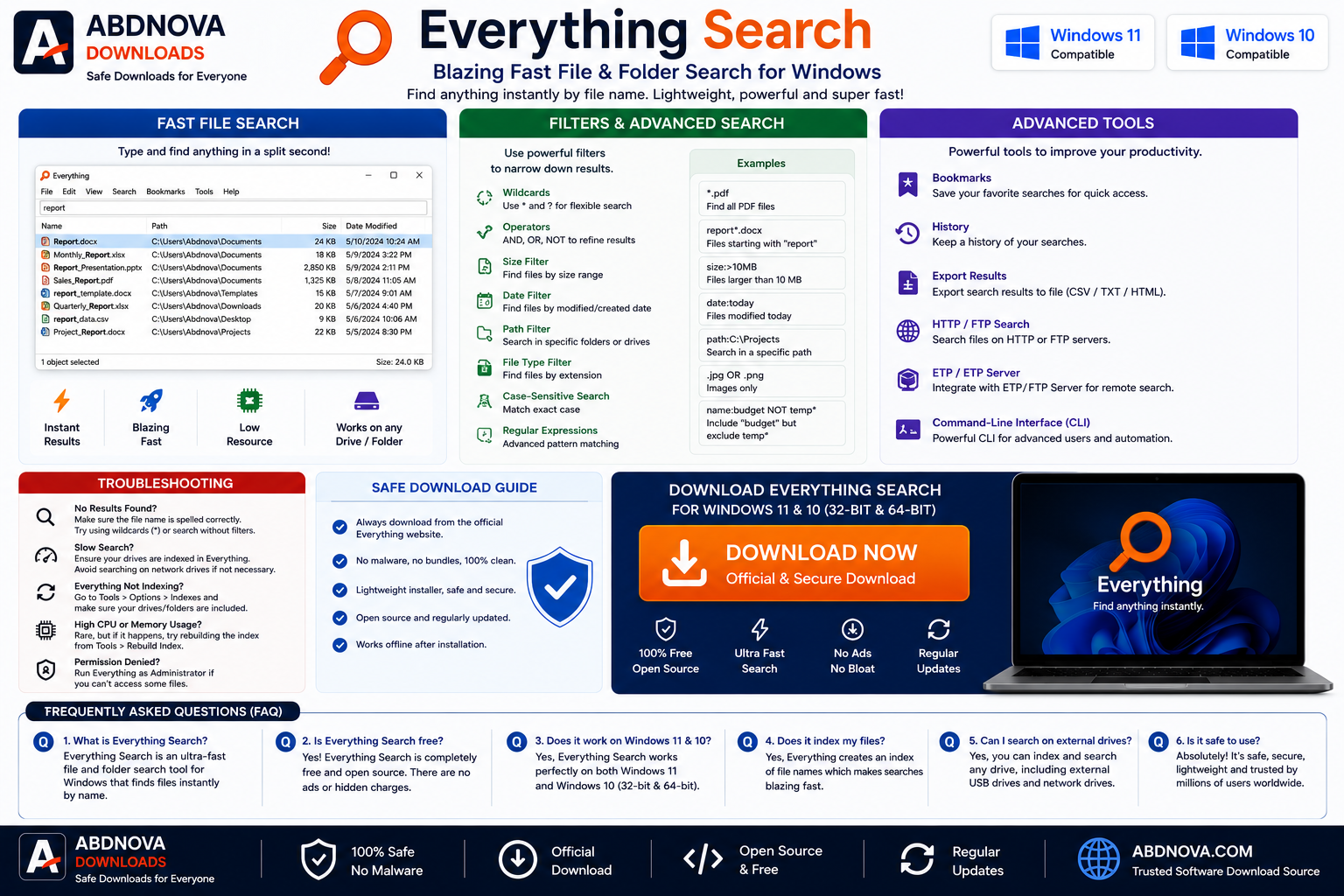
Search by File Type
You can search by extension. For example, *.pdf can help locate PDF files, while *.jpg, *.png, *.docx and *.mp4 can narrow results to other common formats.
Search a Specific Drive or Folder
You can include a drive letter or folder path in the search query to limit results to a particular location.
Advanced Search Syntax
Everything supports AND, OR, NOT, exact phrases and wildcards. Advanced users can also search by size and modification date.
invoice 2026— matches both termsinvoice|receipt— matches either terminvoice !old— excludes “old”"annual report"— exact phrasesize:>1gb— finds files larger than 1 GBdm:today— finds items modified today
Advanced Search Window
If you do not want to memorize search commands, use Search → Advanced Search to build more complex searches through a graphical interface.
Search File Contents
Everything can also search inside files using content-search functionality, but content searching is slower because file contents are not indexed in the same way as filenames.
How to Install Everything Search on Windows
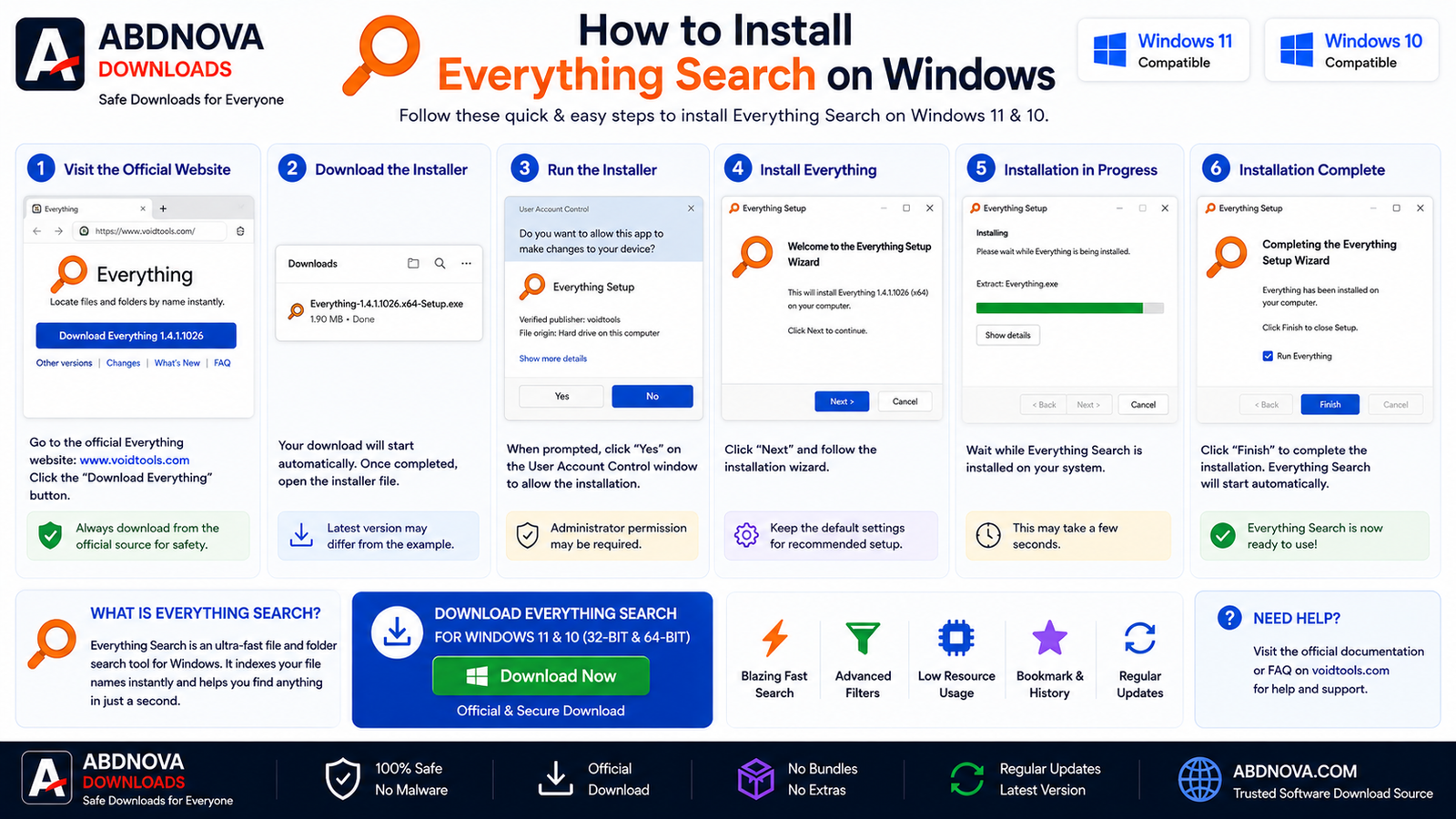
- Visit the official voidtools Everything download page.
- Choose the appropriate stable version. For most modern Windows 11 and Windows 10 PCs, the 64-bit installer is the easiest choice.
- Download and open the installer.
- Verify the source if Windows displays a security or User Account Control prompt.
- Review the installation location, Everything Service, startup, Windows integration and shortcut options.
- For most users, the recommended/default settings are a reasonable starting point.
- Complete installation and launch Everything.
- Allow the initial filename index to finish, then start searching.
Everything Installer vs Portable Version
| Feature | Installer | Portable |
|---|---|---|
| Traditional Installation | Yes | No |
| Easy Windows Integration | Yes | Manual |
| Portable Use | No | Yes |
| Recommended For | Most users | Portable/advanced use |
| Core Search Functionality | Same | Same |
The installer is the simplest choice for most users. The portable version is useful when you do not want a normal installation or want to keep Everything on removable storage.
Everything Service Explained
NTFS indexing needs appropriate filesystem access. Everything can use the Everything Service so the main interface can run as a standard user while the service handles the required indexing access. This can also help avoid repeated administrator prompts.
Everything Search vs Windows Search
Everything specializes in extremely fast filename and folder-name searching. Windows Search is integrated into Windows and can also be useful for Start menu items, settings and indexed document content. Many users can benefit from keeping both tools rather than treating one as a complete replacement for the other.
Everything Search System Requirements
- Operating System: Windows 11, Windows 10 and other supported Windows versions
- Architecture: x86, x64 and supported additional builds
- Storage: Small application footprint plus space for the search database
- RAM: Usage depends mainly on the number of indexed files and enabled options
- Internet: Required for downloading and updates
Common Everything Search Problems and Fixes
Everything Shows No Files
Wait for initial indexing to finish, check configured indexes and drives, confirm the Everything Service is running when required, and restart the application.
Everything Cannot Index an NTFS Drive
Check that the Everything Service is installed and running or that Everything has the required permissions to access NTFS indexing information.
Search Results Are Outdated
Restart Everything, check index settings, confirm the affected drive is included and allow the database to update.
Everything Uses Too Much Memory
Memory usage grows as more files and additional properties are indexed. Review indexed drives, folder indexes, file lists and optional properties if usage seems unusually high.
Everything Doesn’t Start with Windows
Open Tools → Options and verify that the startup option is enabled. You can also review Windows startup settings.
Content Search Is Slow
This is expected because file contents are not indexed like filenames. Narrow the search by folder, extension, filename, size or date before performing a content search.
Related Windows Utility Guides
For checking detailed hardware information on your PC, see our CPU-Z Download for Windows guide.
For removing unwanted programs and scanning leftover files, see our Revo Uninstaller Download for Windows guide.
Is Everything Search Free?
Yes. Everything is freeware, so normal users can download and use the application without purchasing a software license.
Is Everything Search Safe?
Everything is a legitimate Windows file-search utility developed by voidtools. For a safer installation, download the current stable version from the official developer website, avoid modified or repackaged installers and keep the application updated.
Everything Search FAQ
What is Everything Search?
Everything is a Windows filename search engine developed by voidtools that creates an index so files and folders can be located very quickly by name.
Does Everything Search work on Windows 11?
Yes. Windows 11 is supported by current Everything releases.
Is Everything Search free?
Yes. Everything is freeware.
Should I use Everything Installer or Portable?
The installer is recommended for most users because it simplifies setup and Windows integration. Choose Portable if you specifically need a no-install version.
Can Everything search inside files?
Yes, but content searches are slower because file contents are not indexed in the same way as filenames.
Can Everything search by file size?
Yes. Its search syntax supports size filters and ranges.
Can Everything find recently modified files?
Yes. Date-modified search functions can help locate files changed today, this week or within other supported date ranges.
Final Thoughts
Everything Search is a practical Windows utility for users who regularly need to locate files and folders quickly. Its fast filename index, real-time updates, filters, advanced search syntax and portable option make it much more efficient than manually browsing large collections of files.
If you are looking for Everything Search Download for Windows, use the official voidtools source and choose the stable installer unless you specifically need a portable or alternative build.
Ready to download Everything Search?
Windows 11 & 10 • Freeware • Fast File Search
ABDNOVA does not host the Everything installer. The button opens the official voidtools download page.


