

Malwarebytes Download for Windows – Free Malware Protection
Download Malwarebytes for Windows to scan, detect, and remove malware, spyware, adware, PUPs, and other suspicious software.
Malwarebytes is a Windows security application designed to detect and remove malware, spyware, adware, potentially unwanted programs (PUPs), and other threats. It is especially useful when you suspect that unwanted software may already be present on your PC.
The free version is mainly used for on-demand malware scanning and cleanup, while eligible paid Malwarebytes plans add real-time protection and other active security features.
In this guide, you will learn how to download Malwarebytes safely, compare Free vs Paid protection, check Windows compatibility, install the program, scan your PC, quarantine threats, and troubleshoot common problems.
Malwarebytes Download – Quick Overview
| Information | Details |
|---|---|
| Software | Malwarebytes |
| Developer | Malwarebytes |
| Category | Security / Anti-Malware |
| Platform | Windows |
| Supported Windows | Windows 11 & Windows 10 |
| Memory | 4 GB minimum, 8 GB preferred |
| Free Disk Space | 1 GB during installation |
| Internet | Required for installation, activation and updates |
| License | Free & Paid Options |
| Free Malware Scan | Yes |
| Threat Removal | Yes |
| Real-Time Protection | Paid Plans |
| Recommended Source | Official Malwarebytes Website |
What Is Malwarebytes?
Malwarebytes is security software designed to protect Windows computers from malicious and unwanted software. It can scan for malware, spyware, adware, trojans, potentially unwanted programs, potentially unwanted modifications, and other suspicious files or activity.
Malwarebytes can be useful when you notice:
- Unexpected pop-up advertisements.
- Browser redirects.
- Unknown applications.
- New browser extensions you did not install.
- Unusual PC slowdown.
- Changed browser settings.
- Suspicious background processes.
These symptoms do not automatically prove that a computer is infected, but running a trusted security scan is a sensible way to investigate.
Malwarebytes Key Features

Malware Detection and Removal
Malwarebytes can scan Windows for malicious or suspicious software and provide options to quarantine or remove detected items.
PUP Detection
Potentially Unwanted Programs can include software that changes browser settings, installs unwanted components, displays excessive advertisements, or arrives bundled with other programs. Malwarebytes can detect many of these unwanted programs.
Quarantine
Quarantine isolates suspicious items from normal operation, giving you an opportunity to review a detection before permanently removing or restoring it.
Real-Time Protection
Eligible paid Malwarebytes plans provide active protection designed to detect and block threats while you use the computer. This is different from the free version’s primary on-demand scanning role.
Web, Ransomware and Exploit Protection
Depending on the current paid plan, Malwarebytes can include web protection, ransomware-related protection, exploit protection, scheduled scans, and other security or privacy features.
Malwarebytes Free vs Paid

| Feature | Free | Paid |
|---|---|---|
| Malware Scan | Yes | Yes |
| Threat Removal | Yes | Yes |
| PUP Detection | Yes | Yes |
| Quarantine | Yes | Yes |
| On-Demand Scanning | Yes | Yes |
| Real-Time Protection | No | Yes |
| Web Protection | No | Yes |
| Ransomware Protection | No | Yes |
| Scheduled Protection | Limited | Yes |
Malwarebytes Free can be enough if you mainly want an additional malware scan or cleanup tool while another trusted Windows security product provides real-time protection. A paid plan makes more sense if you specifically want Malwarebytes itself to monitor the PC continuously.
Malwarebytes vs Microsoft Defender
Modern Windows versions already include Microsoft Defender through Windows Security. Microsoft Defender provides built-in real-time antivirus protection, while Malwarebytes can provide additional malware scanning and, with eligible paid plans, its own active protection features.
Malwarebytes System Requirements
Current requirements in the source document list Windows 11 and Windows 10, at least 4 GB RAM, 8 GB RAM preferred, 1 GB free disk space during installation, and an internet connection for installation, activation, updates, and security-data updates.
- Windows 11 or Windows 10.
- 4 GB RAM minimum.
- 8 GB RAM preferred.
- 1 GB free disk space during installation.
- Internet connection for installation and updates.
Malwarebytes 32-bit vs 64-bit
Most modern Windows PCs use 64-bit architecture. To check your system, open Settings → System → About → System type. Use the current official Malwarebytes installer recommended for your Windows configuration instead of downloading random third-party architecture-specific packages.
Is Malwarebytes Safe?
Malwarebytes is legitimate security software. The important safety issue is where you download it from. A fake or modified “Malwarebytes download” from an unknown website may not be trustworthy.
- Malwarebytes Crack
- Malwarebytes Premium Crack
- Malwarebytes Keygen
- Malwarebytes Lifetime Activated
- Malwarebytes Patch
- Malwarebytes Premium Unlocked
How to Download Malwarebytes for Windows
The safest choice is the official Malwarebytes website. Avoid unofficial mirrors, modified installers, cracks, keygens, and pages claiming to provide paid Malwarebytes features for free.
- Visit the official Malwarebytes website.
- Select Malwarebytes for Windows.
- Review the available free or paid product options.
- Click the official download button.
- Wait until the installer finishes downloading.
- Optionally review the installer properties and publisher information before running it.
Malwarebytes Online vs Offline Installer
Some users search for a Malwarebytes offline or full installer. An offline package can be useful for business deployment or limited-internet environments, but Malwarebytes still requires internet access for important updates and other functions.
If you need an offline installer or deployment package, use Malwarebytes’ current official resources. Avoid third-party websites offering unverified “full offline installers.”
How to Install Malwarebytes on Windows

- Open the installer: Go to Downloads and double-click the Malwarebytes setup file.
- Check the UAC prompt: Review publisher information before allowing changes.
- Follow the setup wizard: Choose the options that correctly describe your use.
- Review optional choices: Read any trial, subscription, account, or product screens carefully.
- Complete installation: Allow setup to finish and launch Malwarebytes.
A new installation may offer a trial of paid protection. Remember that some trial features can stop when the trial expires unless you subscribe.
How to Scan Your PC With Malwarebytes
Before running the first scan, allow Malwarebytes to update. Security applications rely on current data and components to identify newer threats.
- Open Malwarebytes.
- Make sure the application is updated.
- Open the scanner.
- Start the recommended scan.
- Wait for the scan to finish.
- Review the results.
- Quarantine detected threats when appropriate.
What Happens If Malwarebytes Finds a Threat?
Detected items may include malware, PUPs, PUMs, or other suspicious content. Review the results before taking action. Quarantine is useful because it isolates suspicious items instead of immediately deleting everything permanently.
Can Malwarebytes Give a False Positive?
Yes. No security product can guarantee that every detection will always be correct. If a legitimate file appears suspicious, verify the source, developer, publisher, digital signature, and detection details before restoring it.
Malwarebytes Troubleshooting
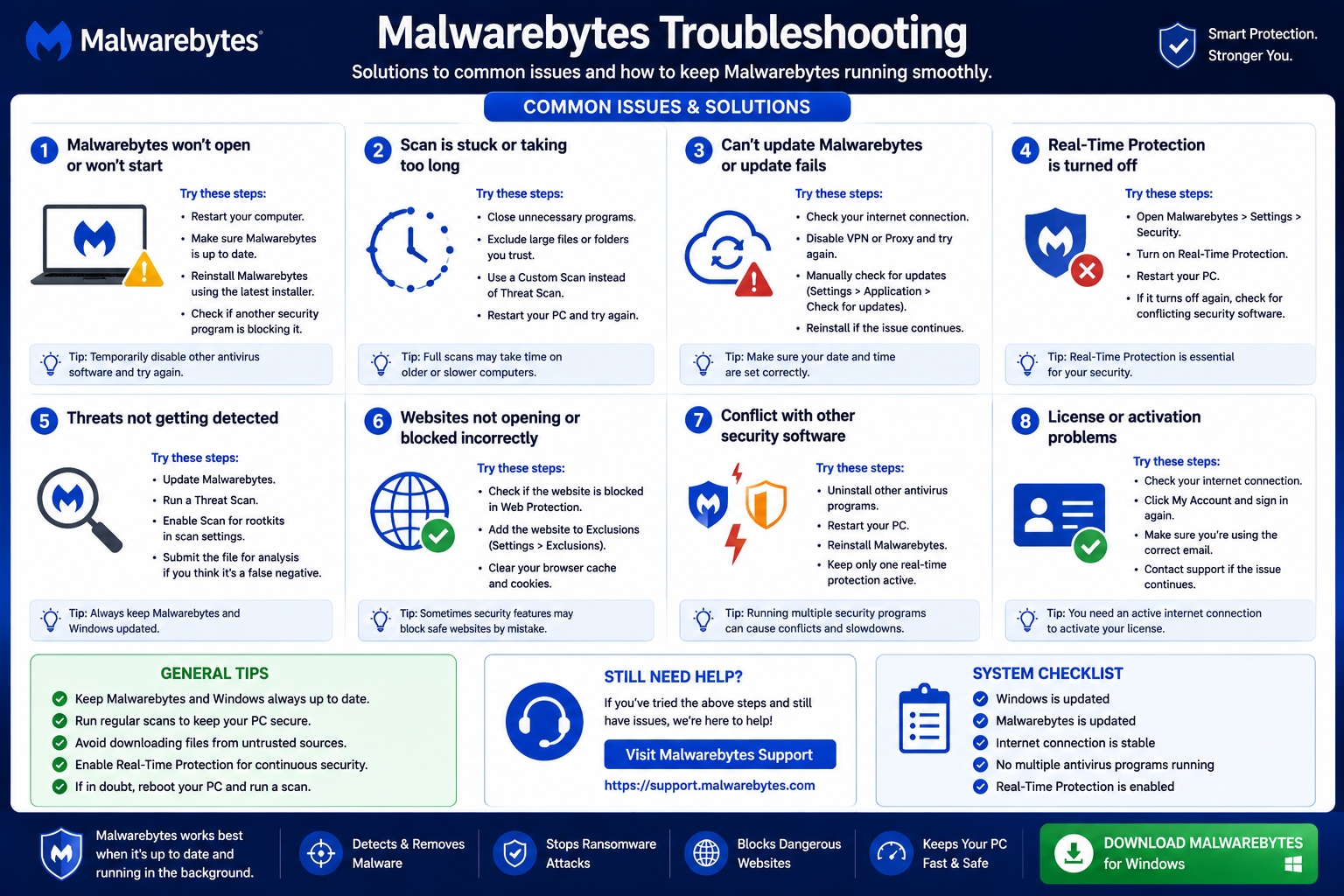
Malwarebytes Won’t Install
Restart Windows, download a fresh installer from the official Malwarebytes website, confirm that your Windows version is supported, check available storage, and install pending Windows updates.
Malwarebytes Won’t Open
Restart Windows, check for updates, confirm that another security product is not causing a conflict, and repair or reinstall Malwarebytes if the problem continues.
Malwarebytes Scan Is Stuck
Give the scan some time. If it remains stuck, restart Malwarebytes, restart Windows, update the application, and run the recommended scan again.
Malwarebytes Update Failed
Check your internet connection, restart Malwarebytes and Windows, verify Windows date and time, and check whether a firewall or another security product is interfering.
Malwarebytes Uses High CPU
Higher CPU or disk activity can be normal while a security scan is running. If high usage continues when no scan is active, restart the application and Windows, update Malwarebytes, and check whether another antivirus is scanning at the same time.
Malwarebytes Keeps Detecting the Same Threat
Update Malwarebytes, run another scan, restart Windows when requested, check recently installed programs, remove suspicious browser extensions, and run Windows Security scans if appropriate.
Frequently Asked Questions
Is Malwarebytes free?
Yes. Malwarebytes provides free malware scanning and cleanup functionality, while paid plans add active protection and other features.
Is Malwarebytes safe?
Yes. Malwarebytes is legitimate security software. Download it directly from the official Malwarebytes website.
Is Malwarebytes an antivirus?
Malwarebytes provides malware detection and security protection features. Paid products can provide real-time protection, while the free version is mainly useful for on-demand scanning and cleanup.
Does Malwarebytes work on Windows 11?
Yes. The source document lists Windows 11 in the current system requirements.
Does Malwarebytes work on Windows 10?
The source document also lists Windows 10. Check current official compatibility before downloading because software support can change.
Can Malwarebytes work with Microsoft Defender?
Yes. Malwarebytes can be used on systems where Microsoft Defender is present, although the exact security configuration depends on the Malwarebytes version, plan, and Windows settings.
Should I disable Microsoft Defender before installing Malwarebytes?
No. Do not disable Microsoft Defender without a specific reason. Install Malwarebytes normally and follow current guidance for your security configuration.
Can Malwarebytes remove spyware and adware?
Malwarebytes can detect many known spyware, adware, PUPs, and other malicious or unwanted programs.
What does Malwarebytes quarantine do?
Quarantine isolates suspicious items so they cannot operate normally on the computer, allowing you to review a detection before permanently removing or restoring it.
Does Malwarebytes need internet access?
Internet access is important for installation, activation, updates, security-data updates, and online protection features.
If you also work regularly with PDF documents, you can check our Foxit PDF Reader Download for Windows guide.
Final Thoughts
Malwarebytes is a practical Windows security tool for detecting and removing malware, adware, potentially unwanted programs, and other suspicious software. The free version is especially useful as an on-demand malware scanner and cleanup tool.
Users who want continuous Malwarebytes protection can compare the current paid plans. Most importantly, always download Malwarebytes from the official developer website and avoid cracked or modified copies.
Ready to download Malwarebytes?
Get the latest supported Windows installer from the official Malwarebytes website. ABDNOVA recommends official sources only.


