


Google Drive for Desktop Download for Windows
Download Google Drive for desktop for Windows to access, sync, stream, mirror, and manage Google Drive files directly from your PC.
Google Drive for desktop is Google’s official Windows application for accessing and managing Google Drive files directly through File Explorer. It connects your PC with Google Drive so you can work with cloud files without opening a browser every time.
You can access files in My Drive, work with shared content, synchronize selected PC folders, make files available offline, and choose whether your Drive files are streamed or mirrored to the computer.
In this guide, you will learn how to download Google Drive for desktop, install it on Windows, sign in, choose Stream or Mirror mode, sync PC folders, use offline files, manage storage, and fix common synchronization problems.
Google Drive for Desktop – Quick Overview
| Information | Details |
|---|---|
| Software | Google Drive for desktop |
| Developer | |
| Category | Cloud Storage / File Synchronization |
| Platform | Windows |
| License | Free |
| Google Account | Required |
| File Synchronization | Yes |
| Offline File Access | Available |
| My Drive Access | Yes |
| File Explorer Integration | Yes |
| Stream Files | Yes |
| Mirror Files | Yes |
| Automatic Updates | Yes |
| Recommended Source | Official Google Website |
What Is Google Drive for Desktop?
Google Drive for desktop is a Windows and macOS application that connects your computer directly to Google Drive. After installation, Drive becomes accessible from Windows File Explorer much like another storage location.
You can use it to:
- Open cloud files from your PC.
- Upload files to Google Drive.
- Create, move, rename, and manage folders.
- Synchronize selected PC folders.
- Make selected files available offline.
- Access shared content.
- Automatically synchronize changes.
Google Drive vs Google Drive for Desktop
Google Drive is Google’s cloud storage service, while Google Drive for desktop is the application that connects your Windows computer to that service.
If you only upload or download an occasional file, the browser version may be enough. If you work with Drive files frequently, the desktop application provides a more convenient File Explorer-based workflow.
Google Drive for Desktop Features

File Explorer Integration
After setup, Google Drive appears in Windows File Explorer so you can browse and work with cloud files using familiar Windows controls.
Automatic File Synchronization
Changes made on your PC can synchronize to Google Drive, while new or updated cloud files can become accessible from the computer.
Sync PC Folders
You can select folders from your computer and configure Google Drive to synchronize them. This can be useful for work files, documents, photos, projects, and other important folders.
Offline Access
Selected streamed files or folders can be made available offline when you need to work without an internet connection.
Stream Files vs Mirror Files
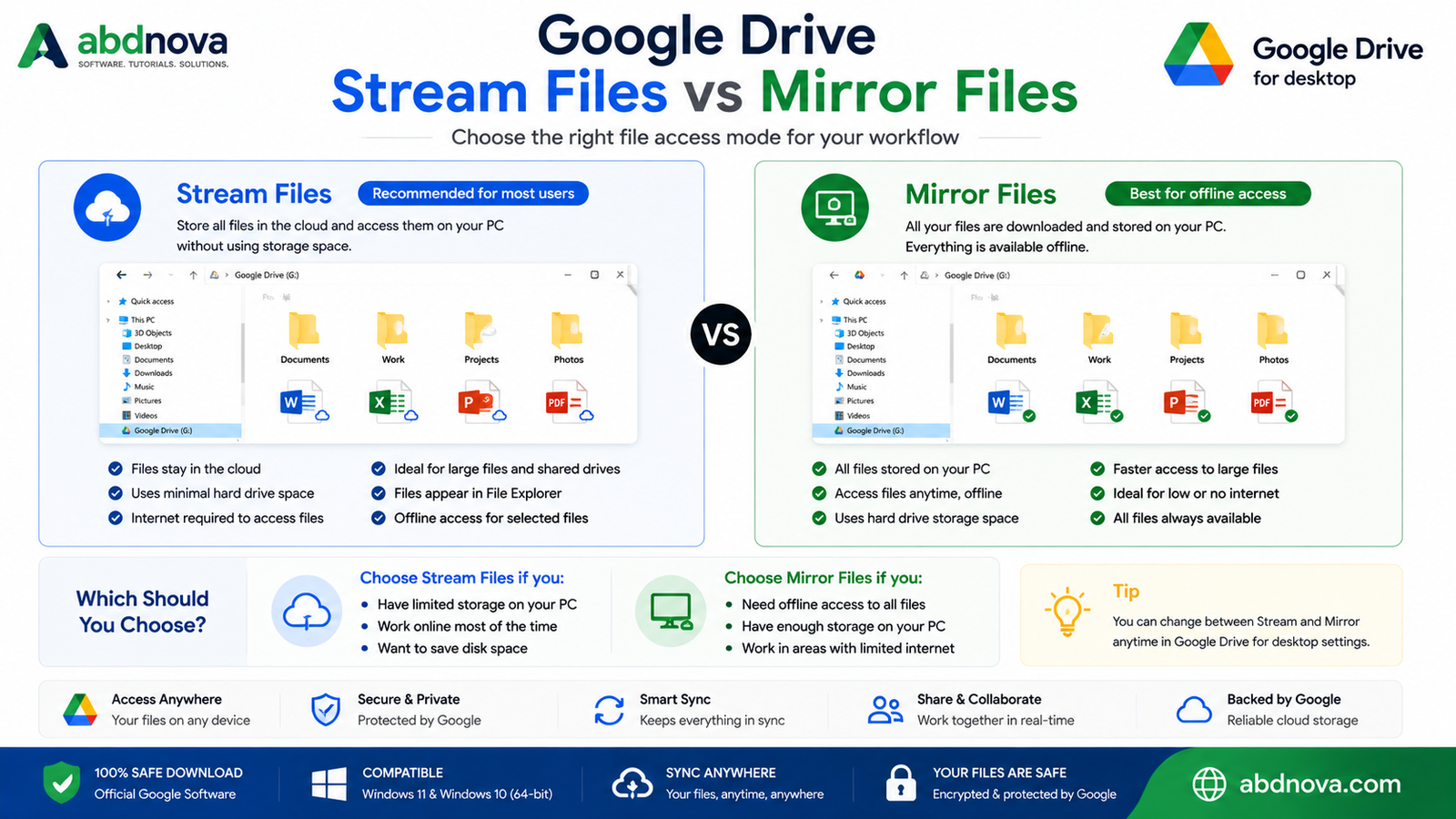
| Feature | Stream Files | Mirror Files |
|---|---|---|
| Files Primarily Stored in Cloud | Yes | No |
| Files Stored Locally | As needed | Yes |
| Saves PC Storage | Better | No |
| Offline Access | Selected files | Files available locally |
| Internet Dependency | Higher | Lower |
| Best for Large Drive Libraries | Yes | Depends on local storage |
| Best for Frequent Offline Work | Limited | Yes |
For users with a large Drive library and reliable internet, Stream files is often a practical starting point. Mirror files can be more suitable when frequent offline access is important and sufficient local storage is available.
Google Drive Offline Access
You do not need to mirror your entire Drive just to use a few files offline. With streaming enabled, selected files and folders can be marked as available offline.
Google Drive for Desktop on Windows 11 and Windows 10
Google Drive for desktop works on supported Windows systems and integrates with File Explorer. Because Google and Microsoft support policies change over time, always check the current official Windows requirements before installing.
Google Drive for Desktop 32-bit vs 64-bit
Most modern Windows PCs use 64-bit architecture. To check your system type, open Settings → System → About → System type. Use the installer currently provided by Google rather than searching unknown websites for old architecture-specific packages.
How to Download Google Drive for Desktop
The safest way to download Google Drive for desktop is directly from Google’s official Drive download page.
- Visit Google’s official Google Drive download page.
- Choose the Windows download option.
- Wait for the installer to finish downloading.
- Locate GoogleDriveSetup.exe in Downloads.
- Confirm that the installer came from Google’s official website before running it.
How to Install Google Drive for Desktop on Windows

- Open GoogleDriveSetup.exe: Double-click the downloaded installer.
- Review the UAC prompt: Check publisher information before allowing changes.
- Review installation options: Choose the shortcuts or setup options you want.
- Start installation: Allow Google Drive for desktop to install the required components.
- Launch Google Drive: Open the application when installation is complete.
How to Sign In to Google Drive for Desktop
- Open Google Drive for desktop.
- Click the sign-in option.
- Complete authentication in your browser.
- Use the correct Google Account.
- Complete any required verification such as two-step verification.
If you need Google’s browser on your PC for account sign-in or everyday browsing, see our Google Chrome Offline Installer guide.
Access Google Drive from Windows File Explorer
After setup, open File Explorer → Google Drive. You can browse folders and perform common operations such as open, copy, move, rename, create folders, delete, and drag-and-drop.
How to Set Up Stream Files
Open Google Drive for desktop preferences, find the My Drive syncing options, and choose Stream files. This keeps most Drive content in the cloud while still making it visible from your PC.
How to Set Up Mirror Files
Choose Mirror files if you want My Drive files stored both in Google Drive and on your computer. Before mirroring a large library, confirm that your PC has enough free storage.
How to Sync PC Folders with Google Drive
- Open Google Drive for desktop preferences.
- Add or configure a folder from your computer.
- Select the folder you want to synchronize.
- Review available sync options carefully.
- Only synchronize folders you actually need.
Be Careful When Deleting Synced Files
Synchronization is not always the same as an independent backup. Deleting a synced file in one location can affect its cloud version or other connected locations depending on your configuration.
Before deleting important synchronized files:
- Check your sync settings.
- Confirm where the file is stored.
- Make sure another backup exists if the file is important.
- Delete only when you understand the result.
Google Drive Storage Management
Google Drive for desktop involves both cloud storage and local PC storage. If cloud storage is full, review your Google Account storage. If PC storage is full, check whether you are mirroring a large Drive library or keeping too many streamed folders available offline.
Google Drive for Desktop Troubleshooting

Google Drive Is Not Syncing
Check your internet connection, confirm synchronization is not paused, restart Google Drive, restart Windows, and check both cloud and local storage.
Google Drive Is Stuck on Syncing
Large files, many files, slow internet, or storage problems can make synchronization take longer. Check for sync errors and allow large uploads enough time to complete.
Google Drive File Not Showing on PC
Confirm you are signed in to the correct Google Account, check Google Drive on the web, make sure synchronization is active, refresh File Explorer, and restart Google Drive if necessary.
Google Drive Says Storage Is Full
Reinstalling the desktop app will not solve a cloud-storage limit. Review and manage the storage associated with your Google Account.
Google Drive Uses Too Much Disk Space
Check whether Mirror files is enabled or whether many streamed files have been made available offline. Streaming can usually reduce local storage use.
Google Drive Won’t Open
Restart Windows, check whether Drive is already running in the background, install updates, update Google Drive, or reinstall the application from Google’s official installer.
Google Drive Sign-In Problems
Check your internet connection, confirm your Google email and password, complete required account verification, and make sure the browser sign-in flow is allowed to finish.
Google Drive for Desktop vs Web Version
| Feature | Drive for Desktop | Google Drive Web |
|---|---|---|
| Installation Required | Yes | No |
| File Explorer Access | Yes | No |
| Automatic PC Sync | Yes | Limited |
| Stream Files | Yes | No |
| Mirror My Drive | Yes | No |
| Offline Workflow | Better | More limited |
| Best For | Regular Drive users | Occasional access |
Related Guide: If you also want to compare another popular cloud storage and file-sync service, see our Dropbox Download for Windows guide.
Frequently Asked Questions
Is Google Drive for desktop free?
Yes. Google Drive for desktop is free to download and install. Your available cloud storage depends on your Google Account and any additional storage plan.
Do I need a Google Account?
Yes. A Google Account is required to sign in and access Google Drive.
Is Google Drive for desktop the same as Backup and Sync?
No. Google’s older Backup and Sync application was replaced by Google Drive for desktop.
Can I access Google Drive without installing it?
Yes. Google Drive can also be used through a supported web browser.
Does Google Drive for desktop store files on my PC?
It depends on your settings. Stream files keeps most content primarily in the cloud, while Mirror files stores My Drive files locally as well as in Google Drive.
Can I use Google Drive files without internet?
Yes, when the required files are stored locally or configured for offline access.
Which is better: Stream or Mirror?
Stream is convenient for limited local storage and reliable internet. Mirror is more suitable when you have enough storage and frequently need files offline.
Does Google Drive automatically back up my computer?
It can synchronize selected PC folders, but synchronization should not automatically be treated as a complete backup strategy.
Why is Google Drive taking up so much space?
You may be mirroring Drive files or keeping many streamed files available offline. Review Google Drive preferences and local offline files.
Is Google Drive for desktop safe?
Yes. Google’s official Google Drive for desktop software is legitimate. Download it directly from Google’s official source.
Final Thoughts
Google Drive for desktop is a useful Windows application for users who regularly work with Google Drive files. Its biggest advantage is direct File Explorer integration, which reduces the need to repeatedly download and upload files through a browser.
Streaming is useful when you want to save local disk space, while mirroring is better when frequent offline access is important. Choose the mode that fits your available storage and internet connection.
Ready to download Google Drive for Desktop?
Get the current Windows installer directly from Google’s official website. ABDNOVA recommends official download sources only.


