


Notepad++ Download for Windows

Download Notepad++ for Windows to edit text and source code with syntax highlighting, tabs, search and replace, code folding, plugins, themes, and lightweight performance.
Notepad++ is a free and lightweight text and source code editor for Windows. It provides more advanced editing tools than the standard Windows Notepad while remaining fast and easy to use.
It supports many programming and markup languages, including HTML, CSS, JavaScript, PHP, Python, C, C++, Java, XML, JSON, SQL, and more. Features such as syntax highlighting, tabbed editing, search and replace, code folding, plugins, and customizable themes make it useful for programmers, web developers, students, and anyone who regularly works with text files.
If you need a lightweight code editor without installing a large development environment, Notepad++ is one of the most practical options available for Windows.
Notepad++ for Windows – Quick Overview
| Information | Details |
|---|---|
| Software | Notepad++ |
| Developer | Don Ho / Notepad++ Team |
| Category | Text Editor / Source Code Editor |
| Platform | Windows |
| License | Free & Open Source |
| Interface | Tabbed Editor |
| Syntax Highlighting | Yes |
| Code Folding | Yes |
| Find & Replace | Yes |
| Plugin Support | Yes |
| Portable Version | Available |
| 64-bit Version | Available |
| 32-bit Version | Available |
| ARM64 Version | Available |
| Recommended Source | Official Notepad++ Website |
What Is Notepad++?
Notepad++ is a text and source code editor designed primarily for Microsoft Windows. At its simplest, you can use it to create and edit ordinary text files. However, it includes many additional tools that make it much more useful for programming and technical work.
For example, Notepad++ can recognize programming syntax and display different parts of the code in different colors. This makes source code easier to read and edit.
What Is Notepad++ Used For?
Common uses include:
- Editing text files.
- Writing HTML and CSS.
- Editing JavaScript.
- Working with PHP files.
- Writing Python scripts.
- Editing XML and JSON.
- Viewing configuration files.
- Editing SQL.
- Reviewing log files.
- Comparing text.
- Searching large files.
- Editing multiple documents.
- Making quick code changes.
You do not need to be a programmer to use Notepad++. It can also be useful as a more powerful replacement for Windows Notepad.
Notepad++ vs Windows Notepad
| Feature | Notepad++ | Windows Notepad |
|---|---|---|
| Basic Text Editing | Yes | Yes |
| Tabbed Documents | Yes | Yes |
| Syntax Highlighting | Yes | Limited / no traditional code highlighting |
| Code Folding | Yes | No |
| Programming Language Support | Extensive | Basic text editing |
| Plugins | Yes | No |
| Advanced Find & Replace | Yes | Basic |
| Regular Expressions | Yes | Limited |
| Macro Recording | Yes | No |
| Custom Themes | Yes | Limited |
| Source Code Editing | Excellent | Basic |
Windows Notepad is suitable for simple text files. Notepad++ is more useful when you regularly edit code, configuration files, logs, or multiple documents.
Notepad++ Features

Syntax Highlighting
Syntax highlighting is one of the most recognizable Notepad++ features. It can identify the language used in a document and display tags, attributes, comments, values, keywords, and other code elements using different formatting.
Syntax Folding
Code files can become very long. Notepad++ allows supported sections of code to be collapsed or expanded so you can focus on the part you are currently editing.
Tabbed Editing
Notepad++ allows multiple documents to remain open in separate tabs. For example, you can keep index.html, style.css, script.js, and config.php open in one editor window.
Powerful Find and Replace
Notepad++ can search the current document, all open documents, files inside a folder, and specific text patterns. It also supports regular expressions for advanced search-and-replace operations.
Find in Files
Find in Files is useful when you need to search through many website files, configuration files, source-code files, or logs without opening every file individually.
Programming Language Support
Notepad++ supports syntax highlighting and editing features for many programming, scripting, and markup languages.
- HTML
- CSS
- JavaScript
- PHP
- Python
- Java
- C
- C++
- C#
- XML
- JSON
- SQL
- Bash
- PowerShell
- Perl
- Ruby
Auto-Completion
Notepad++ includes auto-completion functionality that can help reduce repetitive typing. It is not the same as the advanced intelligent assistance available in a full IDE, but it can still make everyday editing faster.
Line Numbers
Line numbers make programming and troubleshooting easier. If an error points to a specific line, you can quickly navigate to that part of the file.
Multiple Views
Notepad++ can display documents in separate views. This is useful when comparing code, copying between files, reviewing two versions, or working with related documents side by side.
Notepad++ Plugins
One of Notepad++’s major advantages is its plugin system. Plugins can add functionality that is not included in the basic installation.
Plugins can help with:
- File comparison.
- Text processing.
- Formatting.
- Development workflows.
- Additional navigation.
- Automation.
You do not need plugins to use Notepad++. For most new users, it is better to start with the default editor and install plugins only when you actually need them.
Notepad++ Themes and Dark Mode
Notepad++ allows you to customize the appearance of the editor. Theme options can change the background, text appearance, syntax colors, and overall editor appearance.
Current Notepad++ versions also provide dark-mode options. Dark mode can be useful when working at night, coding for long periods, or using a dark Windows desktop.
Notepad++ Macros
Notepad++ can record certain editing actions as macros. This can save time when you need to repeat the same editing sequence many times.
For occasional users, macros may not be necessary. For repetitive text-processing tasks, however, they can be very useful.
Notepad++ Encoding Support
Text files can use different character encodings. Notepad++ provides encoding controls that are particularly useful when working with UTF-8, international text, website files, configuration files, and older documents.
Notepad++ Installer vs Portable Version
| Feature | Installer | Portable |
|---|---|---|
| Traditional Installation | Yes | No |
| Start Menu Integration | Yes | Limited |
| Easy for Regular Use | Yes | Yes |
| Easy to Move | Less convenient | Yes |
| Suitable for USB / Portable Use | Less suitable | Yes |
| Recommended for Most Users | Yes | Optional |
For most people, the standard installer is the better choice. Use the portable version when you specifically need portability or do not want a normal Windows installation.
Notepad++ 32-bit vs 64-bit vs ARM64
Notepad++ provides builds for different Windows architectures. Most modern computers use 64-bit Windows, so the 64-bit version is usually appropriate. A 32-bit build can still be useful for specific older systems or compatibility requirements, while ARM64 is intended for compatible Windows on ARM devices.
| Version | Best For |
|---|---|
| x64 (64-bit) | Most modern Intel / AMD Windows PCs |
| x86 (32-bit) | Older 32-bit systems or special compatibility needs |
| ARM64 | Compatible Windows ARM devices |
How to Check Your Windows System Type
- Press Windows + I.
- Open System.
- Select About.
- Look for System type.
If Windows shows 64-bit operating system, x64-based processor, use the appropriate 64-bit Notepad++ release.
Is Notepad++ Free?
Yes. Notepad++ is free and open-source software. You do not need to purchase a license to use the normal application.
- Notepad++ Pro Crack
- Notepad++ Premium Key
- Notepad++ Activated Version
- Notepad++ Serial Key
- Notepad++ Keygen
These are unnecessary because the official software itself is already free.
Is Notepad++ Safe?
Notepad++ is a widely used open-source text editor. For the safest installation, download it from the official Notepad++ website or official distribution channels and avoid modified installers from unknown websites.
Also remember that a safe text editor can still open potentially dangerous scripts or code. Be careful with executable scripts, commands, or files from unknown sources.
Why Use Notepad++?
Notepad++ sits between a very basic text editor and a large development environment. It provides significantly more editing functionality than a simple text editor without requiring the resources or complexity of a full IDE.
Typical workflow: Quick editing → Web development → Configuration files → Programming → Text processing
Notepad++ System Requirements
Notepad++ is designed to be lightweight and does not require a powerful computer for normal text and code editing.
Before downloading Notepad++, mainly check:
- Your Windows version.
- Your system architecture.
- Available disk space.
- Whether you want the installer or portable package.
- Whether you need x64, x86, or ARM64.
For most modern Windows PCs, the 64-bit (x64) installer is the normal choice.
Notepad++ for Windows 11
Notepad++ works well as a lightweight text and source code editor on compatible Windows 11 computers. You can use it for plain text files, HTML, CSS, JavaScript, PHP, Python, JSON, XML, SQL, configuration files, log files, and other supported programming languages.
Notepad++ for Windows 10
Notepad++ can also be used on compatible Windows 10 systems. Microsoft ended general support for most Windows 10 editions on October 14, 2025, so check the current Notepad++ release information before downloading for an older Windows installation.
For security reasons, keeping both your operating system and applications updated is recommended.
Notepad++ Download Options
When you visit the official Notepad++ download section, you may see builds for x64, x86, and ARM64 as well as installer and portable packages.
Do not download every package. You only need the version suitable for your computer and intended use.
How to Download Notepad++ for Windows
The safest method is to download Notepad++ directly from its official download page.
- Visit the official Notepad++ website and open the Downloads section.
- Choose a current stable release appropriate for your Windows system.
- Select the correct architecture: x64, x86, or ARM64.
- For normal use, choose the installer.
- Choose a portable package only if you specifically need it.
- Download the file and wait for it to finish.
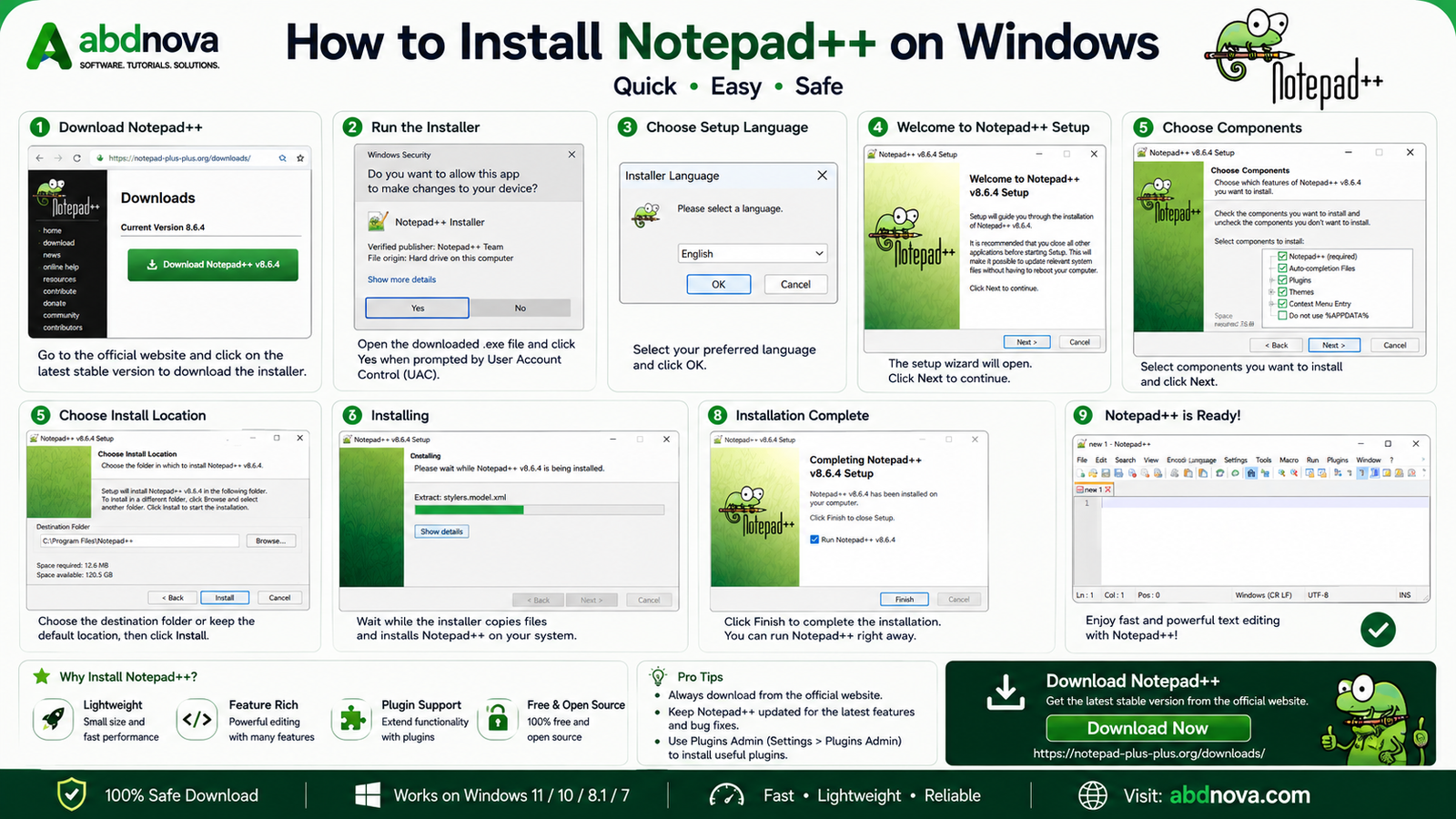
How to Install Notepad++ on Windows

- Run the installer: Open your Downloads folder and double-click the Notepad++ installer.
- Review the Windows prompt: Check the application information before allowing it to continue.
- Select installation language: Choose your preferred language if the setup asks.
- Start setup: Continue through the Notepad++ Setup Wizard.
- Review the license: Read the license information and continue if you agree.
- Choose installation location: The default folder is fine for most users.
- Select components: New users can normally keep the default selections.
- Install Notepad++: Click Install and wait for the process to complete.
- Launch Notepad++: Open the editor after installation.
Notepad++ Main Interface
The Notepad++ interface is designed around a large editing area. Important parts include the menu bar, toolbar, document tabs, editing area, line numbers, status bar, search tools, language selection, and encoding information.
How to Open a File in Notepad++
Method 1 — From Notepad++
Open File → Open, select the file, and click Open.
Method 2 — Drag and Drop
Drag a supported text or code file into the Notepad++ window.
Method 3 — Windows Context Menu
Depending on your installation and Windows configuration, Notepad++ integration may allow files to be opened directly from Windows File Explorer.
How to Create a New File
Open Notepad++ and choose File → New. A new tab will appear. Type or paste your content, then use File → Save As and choose the folder, file name, and file extension.
Examples: index.html, style.css, script.js, config.txt, data.json
How to Select a Programming Language
Notepad++ often recognizes a language from the file extension. For example, index.html is recognized as HTML, style.css as CSS, and script.js as JavaScript.
If needed, you can manually select a language from the Language menu so Notepad++ can apply appropriate syntax highlighting.
How to Install Plugins in Notepad++
The easiest method is generally through the built-in plugin management interface.
- Open Plugins → Plugins Admin.
- Find the plugin you need.
- Select it.
- Choose Install.
- Allow Notepad++ to restart if required.
Notepad++ Dark Mode and Themes
Dark Mode changes the general application interface, while syntax themes can affect how code appears inside the editor. Depending on your configuration, you can customize the background, normal text, comments, keywords, strings, numbers, and other syntax elements.
For beginners, the default appearance is perfectly fine. Customization can come later.
Notepad++ Auto-Completion
Notepad++ includes auto-completion settings that can assist while typing. This can help reduce repetitive typing, but Notepad++ remains primarily a lightweight editor rather than a full IDE.
Word Wrap
If you are editing long lines of text, Word Wrap can make the document easier to read without horizontal scrolling.
You can enable it from View → Word Wrap.
For source code, some users prefer to keep word wrap disabled so the original line structure remains easier to see.
Find and Replace
Press Ctrl + F to Find or Ctrl + H to Replace. Notepad++ provides several search modes, including more advanced options for users who understand regular expressions.
Notepad++ Updates
Keeping Notepad++ updated provides access to current bug fixes, security improvements, and new features.
- Use the application’s normal update mechanism when available.
- Download releases from the official source.
- Avoid unofficial modified builds.
- Check plugin compatibility if you rely on specialized plugins.
Notepad++ Find in Files
Find in Files lets you search for specific text across multiple files inside a folder. It is especially useful for website files, HTML and CSS projects, PHP files, configuration files, source code, log files, and large text projects.
Open Search → Find in Files, enter the text, select the folder, and start the search.
Replace in Files – Use Carefully
Notepad++ can replace text across multiple files. This is powerful, but it should be used carefully.
- Make a backup.
- Confirm the correct folder.
- Check the search text.
- Review file filters.
- Test on a few files first.
How to Compare Files in Notepad++
File comparison is useful when you have two versions of a document or source-code file and want to see what changed. Notepad++ can be extended with plugins that provide file-comparison functionality.
- Open Plugins Admin.
- Search for an appropriate comparison plugin.
- Install it.
- Restart Notepad++ if requested.
- Open the two files you want to compare.
- Use the plugin’s comparison command.
Plugin names and availability can change, so check the current Plugins Admin list.
Notepad++ Encoding and UTF-8
Notepad++ supports multiple text encodings. For modern websites and multilingual documents, UTF-8 is widely used.
Encoding is especially important for documents containing English, Bengali, Arabic, Chinese, Japanese, Korean, and European languages.
Notepad++ Backup Features
Notepad++ includes settings related to backup and session behavior that can help reduce the risk of losing unsaved work.
Check Settings → Preferences → Backup and review the available options according to your workflow.
Notepad++ Session Restore
Notepad++ can remember previously open documents depending on your settings. This is convenient if you regularly work with several files at the same time.
Still, save important changes rather than relying entirely on session recovery.
Notepad++ Regular Expressions
Notepad++ supports regular expressions, commonly called Regex, in its search and replace tools. Regex allows advanced pattern-based searching for repeated patterns, number formats, similar text structures, line patterns, and complex text combinations.
Notepad++ Column Mode
Column-style editing can be useful when you need to edit the same vertical area across multiple lines. This can save time when working with structured text.
Notepad++ Macro Recording
If you repeatedly perform the same editing steps, Notepad++ macros can automate some of that work.
Simple workflow: Start Recording → Perform Actions → Stop Recording → Playback
Notepad++ Common Problems & Troubleshooting

Notepad++ Won’t Open
- Restart Windows.
- Try opening Notepad++ again.
- Check whether another instance is already running.
- Consider whether a recently installed plugin may be causing a problem.
- Update or reinstall Notepad++ if necessary.
Notepad++ Plugin Not Working
A plugin may stop working because of plugin compatibility, a Notepad++ update, incorrect architecture, an old plugin version, or an installation problem.
Check whether the plugin is available through Plugins Admin and compatible with your current Notepad++ installation. Also make sure you have not mixed incompatible x86 and x64 components.
Syntax Highlighting Not Working
Check the file extension and, if necessary, manually select the appropriate language from the Language menu.
File Opens with Strange Characters
Incorrect encoding may be the cause. Check the current encoding from the Encoding menu before converting the file.
Notepad++ Can’t Save a File
Possible causes include file permissions, read-only status, protected Windows locations, another application using the file, or insufficient access rights.
Try saving a copy to another folder to determine whether the problem is related to the original location.
Notepad++ Settings Changed or Missing
- Check your preferences.
- Check whether you are using a different Notepad++ package.
- Confirm whether you are running a portable version.
- Review plugin settings.
- Check theme and language configuration.
- Restart Notepad++.
- Restart Windows.
- Check for updates.
- Check file permissions.
- Check file encoding.
- Check file extension.
- Review problematic plugins.
- Confirm x64 / x86 compatibility.
- Reinstall from the official source if necessary.
If you manage website or server files with Notepad++, you may also find our FileZilla Download for Windows guide useful for transferring files between your computer and a server.
Notepad++ vs Visual Studio Code
| Feature | Notepad++ | Visual Studio Code |
|---|---|---|
| Text Editing | Excellent | Excellent |
| Source Code Editing | Yes | Yes |
| Syntax Highlighting | Yes | Yes |
| Tabs | Yes | Yes |
| Plugins / Extensions | Yes | Yes |
| Lightweight | Very lightweight | Heavier |
| Advanced Development Tools | Basic–Moderate | Extensive |
| Integrated Terminal | Limited compared with IDE-style editors | Yes |
| Debugging Tools | Limited | Extensive with supported setups |
| Git Integration | Limited / basic workflow | Stronger built-in ecosystem |
| Best For | Quick editing & lightweight coding | Larger development workflows |
Choose Notepad++ If:
- You want fast startup.
- You prefer lightweight software.
- You need quick code editing.
- You need advanced text editing.
- You regularly edit configuration files.
- You do simple HTML/CSS work.
- You view log files.
- You want minimal system-resource usage.
Choose VS Code If:
You need a more complete development environment with extensive extensions, integrated development tools, terminal workflows, debugging, and project management.
You do not necessarily have to choose only one. Many developers use Notepad++ for quick edits and a larger code editor for more complex projects.
Notepad++ Pros and Cons
| Pros | Cons |
|---|---|
| Free and open source | Primarily designed for Windows |
| Lightweight and fast startup | Less powerful than a full IDE |
| Syntax highlighting | Some advanced features require plugins |
| Many supported languages | Plugin compatibility can vary |
| Tabbed editing | Advanced Regex features have a learning curve |
| Advanced Find and Replace | Not intended to replace a complete development environment |
| Find in Files | |
| Regex support | |
| Plugin support | |
| Portable version available | |
| x64, x86, and ARM64 builds available | |
| Customizable interface |
Frequently Asked Questions
Is Notepad++ free?
Yes. Notepad++ is free and open-source software. You do not need to buy a license, activation key, or premium edition for the standard application.
Is Notepad++ available for Windows 11?
Yes. Current compatible Notepad++ releases can be used on supported Windows 11 systems. Choose the correct architecture for your computer.
Can I use Notepad++ on Windows 10?
Notepad++ can run on compatible Windows 10 systems. Check the current Notepad++ requirements when using an older Windows installation.
Should I download 32-bit or 64-bit Notepad++?
For most modern Intel and AMD computers running 64-bit Windows, choose x64. Use x86 only when you specifically need the 32-bit build. Compatible ARM-based Windows devices should use the appropriate ARM64 version.
Is there a portable Notepad++?
Yes. Notepad++ provides portable packages in addition to the normal installer. The portable version is useful if you do not want a traditional installation.
Does Notepad++ support HTML?
Yes. Notepad++ can be used to edit HTML as well as CSS, JavaScript, and many other web-development file types.
Does Notepad++ support Python?
Yes. Notepad++ supports Python syntax highlighting and can be used to write and edit Python source files. It is primarily an editor rather than a complete Python development environment.
Can Notepad++ edit JSON files?
Yes. Notepad++ can open and edit JSON files as plain text with appropriate syntax highlighting. Additional formatting functionality may also be available through plugins.
Does Notepad++ have plugins?
Yes. Plugins can be managed through Plugins Admin in supported versions. Only install plugins you actually need and obtain them through trusted sources.
Does Notepad++ have dark mode?
Yes. Current Notepad++ versions provide dark-mode and appearance customization options.
Is Notepad++ better than Windows Notepad?
For simple notes, Windows Notepad may be enough. For source code, advanced search, plugins, syntax highlighting, macros, and more complex text editing, Notepad++ provides significantly more functionality.
Is Notepad++ better than VS Code?
Neither is universally better. Notepad++ is excellent for lightweight and quick editing, while VS Code provides a broader development environment. Choose based on your workflow.
Safe Notepad++ Download
The safest option is to obtain Notepad++ from its official website. Avoid modified third-party installers and downloads advertised as cracked, activated, premium, or keygen versions.
Download Notepad++ for Windows
| Details | Information |
|---|---|
| Software | Notepad++ |
| Category | Text / Source Code Editor |
| Platform | Windows |
| License | Free & Open Source |
| x64 | Available |
| x86 | Available |
| ARM64 | Available |
| Portable Package | Available |
| Recommended Architecture | x64 for most modern PCs |
| Recommended Package | Installer for most users |
| Download Source | Official Notepad++ Website |
- Check whether Windows is x64, x86, or ARM64.
- Choose Installer or Portable.
- Use the official download source.
- Avoid modified builds.
- Keep Notepad++ updated.
- Install only necessary plugins.
- Back up important files before bulk editing.
- Be careful with Replace in Files.
- Check encoding before converting important documents.
Final Thoughts
Notepad++ is an excellent choice for Windows users who want something more powerful than a basic text editor without moving to a large development environment.
Its combination of syntax highlighting, tabbed editing, Find in Files, advanced Find and Replace, plugins, macros, encoding controls, portable packages, and lightweight performance makes it useful for both everyday text editing and programming.
Beginners can use it as a simple text editor, while developers can take advantage of its more advanced tools when needed.
Simple setup for most modern Windows PCs: Download x64 Installer → Install Notepad++ → Open Your Files → Configure Only the Features You Need
Ready to download Notepad++?
Get the current Windows release directly from the official Notepad++ download page. ABDNOVA recommends official download sources only.


