


Download Adobe Acrobat Reader – the world’s most trusted free PDF viewer.
Adobe Acrobat Reader is a free PDF application for Windows that lets you open, read, print, search, comment on, fill, sign, and share supported PDF documents.
PDF files are commonly used for invoices, application forms, contracts, manuals, reports, e-books, business documents, and official paperwork. Although modern browsers can open PDFs, Acrobat Reader provides a more dedicated environment for people who work with PDF documents regularly.
Important: Adobe Acrobat Reader is not the same as Adobe Acrobat Pro. Reader provides the essential PDF viewing and document-interaction tools for free, while advanced editing features are part of Adobe’s paid Acrobat products.
Adobe Acrobat Reader for Windows Overview
| Information | Details |
|---|---|
| Software | Adobe Acrobat Reader |
| Developer | Adobe |
| Category | PDF Reader |
| License | Free |
| Platform | Windows |
| PDF Viewing & Printing | Yes |
| Comments & Highlights | Yes |
| Form Filling & Signing | Yes |
| Full PDF Text Editing | No (Acrobat Pro required) |
| 32-bit & 64-bit Versions | Available |
What Is Adobe Acrobat Reader?
Adobe Acrobat Reader is a PDF application developed by Adobe. Its main purpose is to help users work with existing PDF documents without requiring a professional PDF editing application.
You can use Acrobat Reader to:
- Open PDF files
- Read PDF documents
- Search inside PDFs
- Print documents
- Zoom and navigate pages
- Highlight text
- Add comments & sticky notes
- Fill supported PDF forms
- Add signatures
- Share & review PDFs
For many home, school, and office users, these tools are enough for everyday PDF work.
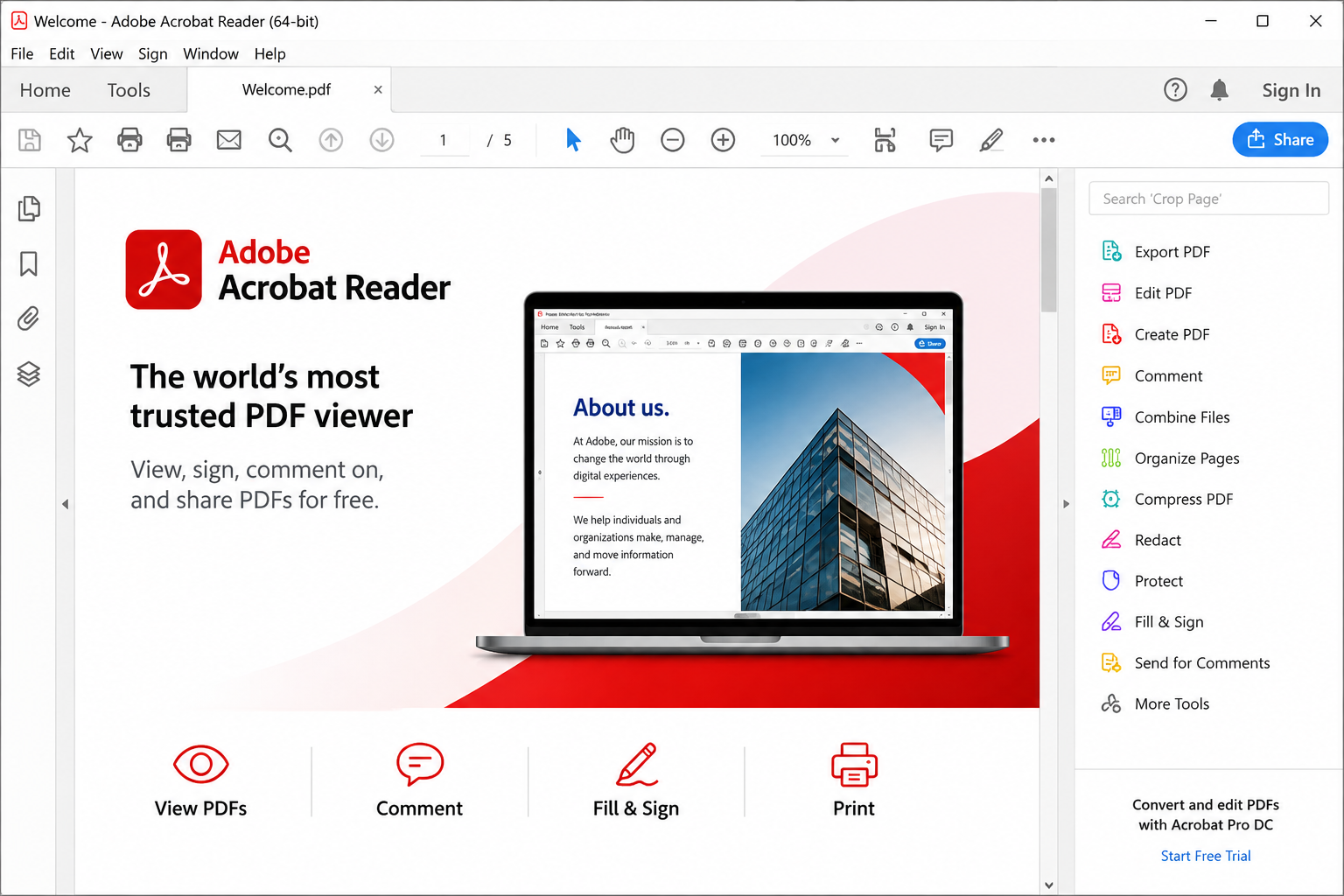
Adobe Acrobat Reader Main Features
1. Open and Read PDF Files
Provides dedicated controls for viewing PDF pages, text, images, tables, forms, and other supported content. Perfect for invoices, contracts, manuals, e-books, and reports.
2. Search Inside PDF Documents
Instead of checking every page manually, search for a specific word or phrase. This is invaluable for long contracts, manuals, financial reports, and research papers.
3. Zoom and Page Navigation
Zoom in/out, jump to specific pages, adjust page display, and use bookmarks. Especially useful for documents with small text, diagrams, or large tables.
4. Print PDF Documents
Print PDFs directly with options for printer selection, page range, orientation, paper size, and page scaling. Check the print preview before printing large PDFs.
5. Comments and Annotations
Use highlight, underline, strikethrough, sticky notes, text comments, and drawing tools. Ideal for studying, document reviews, and collaborative work.
6. Fill PDF Forms
If a PDF contains supported fillable fields, you can complete the form electronically. Instead of Print → Write → Scan, use Open → Fill → Sign → Save → Share.
7. Sign PDF Documents
Create a signature by typing, drawing, or using an image, then place it in the appropriate area. Ideal for basic document workflows.
8. Share and Review PDFs
Use Acrobat Reader for basic PDF sharing and document review with colleagues, customers, teachers, and business partners.
Adobe Acrobat Reader vs Adobe Acrobat Pro
This is one of the most important differences to understand before downloading.
| Feature | Acrobat Reader | Acrobat Pro |
|---|---|---|
| View, Print & Search PDFs | ✅ | ✅ |
| Comments & Highlighting | ✅ | ✅ |
| Fill Forms & Sign PDFs | ✅ | ✅ |
| Edit Existing Text & Images | ❌ | ✅ |
| Advanced PDF Creation | Limited | ✅ |
| Professional PDF Workflows | Limited | ✅ |
If you mainly need to open, read, print, comment, fill, and sign PDFs, Reader may be enough. If you regularly need to change existing PDF text and images, a paid Acrobat product is more appropriate.
Is Adobe Acrobat Reader Free?
Yes. Adobe Acrobat Reader is available as a free PDF reader. You don’t need Acrobat Pro simply to open, read, print, search, add comments, highlight, fill supported forms, and sign supported documents. Advanced editing and professional PDF functionality may require a paid Acrobat product.
Adobe Acrobat Reader for Windows 11 & 10
For a modern Windows 10 or Windows 11 computer using a 64-bit operating system, the 64-bit Reader is generally the appropriate choice.
| Requirement | Details |
|---|---|
| Operating System | Windows 11 64-bit / Windows 10 64-bit version 1809 or later |
| Processor | 1.5 GHz or faster Intel or AMD |
| RAM | 2 GB |
| Storage | Approx. 900 MB (English 64-bit) |
Adobe Acrobat Reader 32-bit vs 64-bit
64-bit Acrobat Reader
Recommended for most modern Windows computers. Suitable for current 64-bit Windows 10 and Windows 11 environments.
32-bit Acrobat Reader
Relevant for 32-bit Windows systems, legacy environments, or specific compatibility requirements.
If you don’t know which version of Windows you’re using, check: Settings → System → About → System type.
Adobe Acrobat Reader Online vs Offline Installer
Online Installer
A smaller setup program that downloads additional files during installation. Convenient for a single PC with a reliable internet connection.
Offline / Full Installer
A complete package. Useful when internet access is limited, installing on several computers, or keeping an installer on a USB drive.
How to Download Adobe Acrobat Reader for Windows
For a safer installation, download Acrobat Reader from Adobe’s official source.
- Visit Adobe’s official Acrobat Reader download page.
- Choose the free Acrobat Reader application (not the Pro trial).
- Review the available installation options.
- Download the installer to your Windows PC.
- Confirm that you downloaded it from Adobe rather than an unknown third-party website.
Adobe Acrobat Reader Download & Installation for Windows
- Locate the Acrobat Reader installer in your Downloads folder.
- Double-click the setup file (Windows may display a User Account Control prompt).
- Allow the installer to prepare and install the required files.
- Wait for the installation to complete without shutting down the computer.
- After setup finishes, open Acrobat Reader from the Windows Start menu.

Set Acrobat Reader as the Default PDF App
Windows may continue opening PDFs in Microsoft Edge even after Reader is installed.
- Windows 11: Settings → Apps → Default apps → Search for “Adobe Acrobat Reader” and configure it for PDF files.
- Windows 10: Settings → Apps → Default apps → Choose the default app for the .pdf file type and select Acrobat Reader.
How to Open, Print, Highlight & Comment
Open a PDF
- Double-click (if default).
- Right-click → Open with → Reader.
- Launch Reader first and open the file.
Print a PDF
- Open the PDF.
- Choose print and review printer, page range, and scaling.
- Check the preview before printing.
Highlight & Comment
- Open the PDF.
- Access annotation tools.
- Use highlight, underline, sticky note, or text comment.
How to Fill and Sign a PDF
Open a supported form in Acrobat Reader. If the document contains fillable fields, enter the required information. Use Reader’s signing tools to add your signature.
A simple workflow: Open PDF → Fill Fields → Add Signature → Save → Share.
Remember that some PDFs are static documents and may not contain fillable fields.
Do You Need an Adobe Account?
Not necessarily for basic local PDF viewing. An Adobe account isn’t required simply to read PDF files stored on your computer. However, some connected services, cloud features, or sharing functions may require an account depending on Adobe’s current offering.
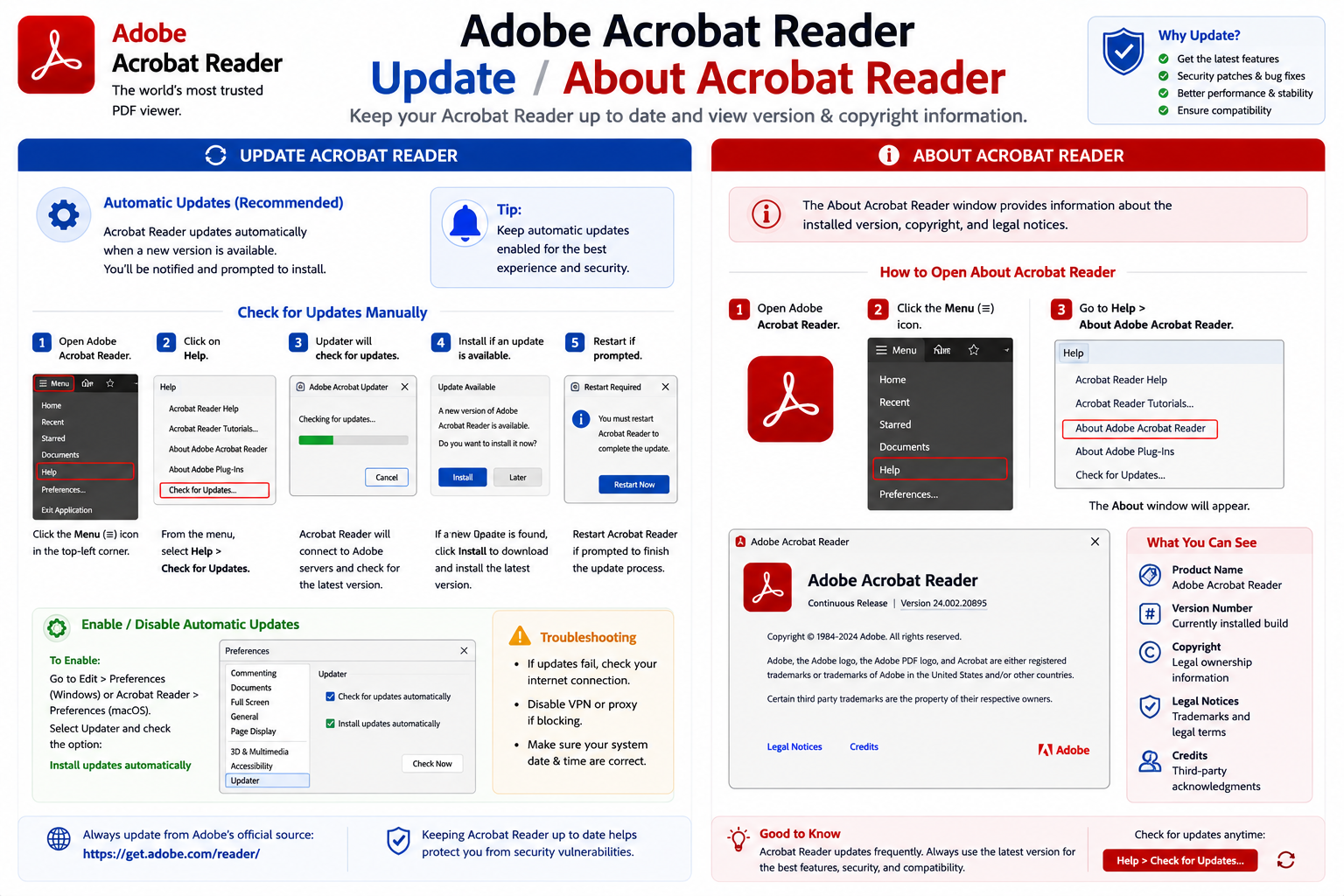
How to Update Adobe Acrobat Reader
Keeping Reader updated is important for security, bug fixes, and compatibility.
- Open Acrobat Reader.
- Open the Help menu.
- Find the “Check for Updates” option.
- Install the update and restart Reader if required.
Acrobat Reader vs Microsoft Edge & Chrome
Browser PDF Viewers (Edge/Chrome)
Convenient for quickly opening PDFs, basic reading, printing, and simple navigation. Enough if you only open PDFs occasionally.
Adobe Acrobat Reader
More useful for regular PDF work, comments, annotations, form filling, signatures, and dedicated PDF workflows. Keeps PDFs separate from browsing.
Can You Edit PDFs in Adobe Acrobat Reader?
Important Limitation
Acrobat Reader lets you perform commenting, highlighting, annotating, filling forms, and signing. However, the free Reader application is not a complete editor for freely changing existing PDF text and images. To modify actual content, you need the appropriate paid Acrobat functionality.
Adobe Acrobat Reader Security Tips
PDF files can contain links, forms, scripts, and interactive content. Be cautious with unexpected PDF files.
- Avoid blindly trusting PDFs from unknown emails, suspicious messages, or untrusted websites.
- Be extra careful if a PDF asks for passwords, payment details, or banking information.
- Verify the source before interacting with suspicious content.
Adobe Acrobat Reader Troubleshooting
Installation Issues
Restart Windows, check storage, verify architecture, download a fresh installer from Adobe, and try again. Avoid third-party “repair tools.”
App Won’t Start / “Can’t Run”
Check your Windows version, system architecture, and Acrobat Reader requirements. Use the appropriate 32-bit or 64-bit package.
PDFs Still Open in Edge
Go to Settings → Apps → Default apps. Find Acrobat Reader and associate it with .pdf files.
Reader Keeps Crashing
Update Reader, restart Windows, close unnecessary apps, check if only one document causes the crash. Reinstall if necessary.
PDF Form Cannot Be Filled
Not every PDF has interactive fields. The PDF may be a scanned image or static document. If there are no fillable fields, Reader may not let you type.
Reader Uses Too Much Memory
Large PDFs with hundreds of pages or high-res images require more memory. Close unused PDFs, restart Reader or Windows.
Is Adobe Acrobat Reader Safe?
Yes, the official Adobe Acrobat Reader application is legitimate. The important part is downloading it from the correct source.
- Avoid cracked, pre-activated, modified Adobe Reader, or unknown portable builds.
- The normal free Acrobat Reader does not require a crack or activation key.
- Always download from Adobe’s official website.
Adobe Acrobat Reader Pros and Cons
Pros
- Free PDF reader developed by Adobe
- Opens, prints, and searches PDFs easily
- Comments, annotations, and highlighting
- Form filling and signature tools
- Available on multiple platforms
- Regular security updates
Cons
- Full PDF editing requires paid Acrobat
- Advanced conversion requires a paid product
- Unnecessary for occasional PDF viewing
- Large PDFs can use significant system resources
Related Guide: Looking for another PDF reader? See our Foxit PDF Reader Download for Windows guide.
Frequently Asked Questions
Is Adobe Acrobat Reader free?
Yes, it is a free application for viewing, printing, commenting, filling forms, signing, and sharing PDFs. Advanced editing requires a paid product.
Is Acrobat Reader the same as Acrobat Pro?
No. Reader is the free viewing/interaction tool. Pro provides advanced PDF creation, editing, conversion, and management tools.
Can I edit PDF text with Acrobat Reader?
Not as a full editor. Editing existing text and images requires appropriate Acrobat Pro functionality.
Does Acrobat Reader work on Windows 11?
Yes, the current 64-bit Reader is compatible with Windows 11 64-bit.
Should I download 32-bit or 64-bit Reader?
For modern 64-bit Windows 10 or 11, the 64-bit version is correct. Use 32-bit for older systems.
Does Acrobat Reader require a product key?
No. The standard free Reader does not require an activation key. Be cautious if an unofficial site asks you to buy one.
Can Acrobat Reader fill PDF forms?
Yes, when the PDF contains supported interactive form fields.
Can Acrobat Reader sign PDFs?
Yes, Reader provides signing functionality for supported documents.
Can Acrobat Reader print PDFs?
Yes.
Can Acrobat Reader highlight PDF text?
Yes, supported PDFs can be highlighted and annotated.
Is Acrobat Reader safe?
Yes, when you obtain the legitimate application from Adobe and keep it updated. Avoid cracked or modified downloads.
Final Thoughts
Adobe Acrobat Reader is a practical free PDF application for Windows users who regularly work with PDF documents. It provides the essential tools most everyday users need: Open → Read → Search → Print → Highlight → Comment → Fill → Sign → Share.
The biggest limitation is straightforward: Acrobat Reader is not a complete free PDF editor. If you need to modify existing PDF text or images, an appropriate paid Acrobat product may be required.
For users who only occasionally open a PDF, a browser’s built-in viewer may be enough. But if you frequently work with forms, contracts, invoices, reports, and applications, Acrobat Reader provides a more dedicated PDF environment. For a modern Windows 10 or 11 PC, the 64-bit version is generally the right choice. Download it from Adobe’s official source, avoid modified versions, and keep it updated for security.
Ready to download Acrobat Reader?
Get the latest version from Adobe’s official website. We verify every link for safety.


