


CrystalDiskInfo Download for Windows

CrystalDiskInfo Download for Windows gives Windows 11 and Windows 10 users a free, open-source utility for checking HDD, SATA SSD and NVMe SSD health, temperature, S.M.A.R.T. information, firmware, power-on hours and other important storage details.
CrystalDiskInfo Download for Windows – Overview
| Software | CrystalDiskInfo |
| Developer | Crystal Dew World |
| Platform | Windows |
| Supported Windows | Windows 11 & Windows 10 |
| Architecture | x86 / x64 / ARM64 |
| Drive Support | HDD, SSD, NVMe and selected USB / RAID devices |
| License | Open Source |
| Packages | Installer / ZIP |
| Best For | Storage health monitoring |
What Is CrystalDiskInfo?
CrystalDiskInfo is a Windows storage-health and information utility. It reads supported drive data and presents important information such as overall health status, temperature, S.M.A.R.T. attributes, firmware, interface type, power-on hours, power cycles and model information.
It is primarily a monitoring tool rather than a disk-speed benchmark. If you need read and write speed testing, CrystalDiskMark serves a different purpose.
CrystalDiskInfo Main Interface and Features
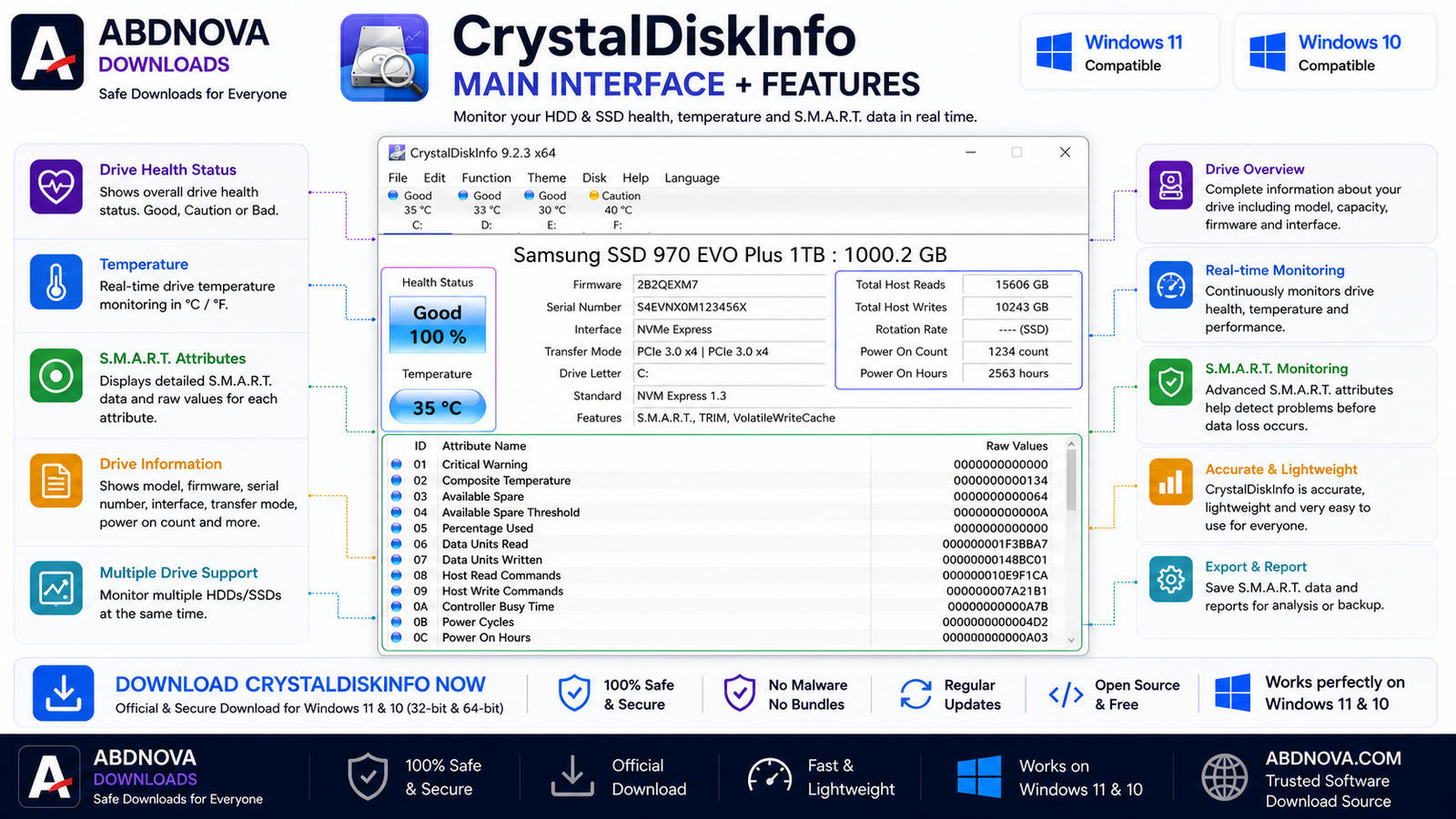
Drive Health Status
CrystalDiskInfo provides a simplified health indicator based on supported drive data. This can make potential warning signs easier to notice, but no health-monitoring utility can guarantee that a drive will not fail unexpectedly.
Drive Temperature
The application displays the temperature reported by supported drives. If a drive consistently runs unusually hot, compare the reading with the operating specifications from the drive manufacturer and check airflow or cooling.
S.M.A.R.T. Information
S.M.A.R.T. stands for Self-Monitoring, Analysis and Reporting Technology. Depending on the drive, CrystalDiskInfo may display information such as reallocated sectors, power-on hours, power-cycle count, temperature, error information, SSD wear indicators, total host writes and NVMe health data.
Drive Details
The main interface can also show firmware, interface, transfer mode, drive letter, power-on hours and other supported storage information.
CrystalDiskInfo SSD, HDD, NVMe Health and S.M.A.R.T. Monitoring

Check SSD Health
- Open CrystalDiskInfo.
- Select the SSD you want to inspect.
- Review the Health Status.
- Check the reported temperature.
- Review available S.M.A.R.T. information.
- Check power-on hours and other drive details.
If a warning appears, back up important files first. Then investigate the relevant attributes and use the storage manufacturer’s diagnostic tools when available.
Check HDD Health
For a compatible hard drive, review health status, temperature, power-on hours, reallocated-sector-related information, pending-sector-related information where supported, and other S.M.A.R.T. attributes.
Check NVMe SSD Health
CrystalDiskInfo supports NVMe storage on supported Windows systems. Depending on the SSD, it may show model, firmware, temperature, health information, power-on hours, data read and written, power cycles and other NVMe health attributes.
What to Do If You See a Warning
- Back up important files immediately.
- Review the detailed S.M.A.R.T. attributes.
- Restart the PC and check again.
- Use the drive manufacturer’s official diagnostic utility.
- Check SATA cables where applicable.
- Check the drive warranty.
- Replace the drive if diagnostics indicate a serious hardware problem.
How to Install CrystalDiskInfo on Windows

- Visit the official Crystal Dew World CrystalDiskInfo page.
- For most users, choose the Standard Edition.
- Select the installer or ZIP package you need.
- Download the file from the official source.
- Open the installer and verify its source if Windows shows a security prompt.
- Follow the setup wizard.
- Complete installation and launch CrystalDiskInfo.
- Select the drive you want to inspect if your PC contains multiple storage devices.
CrystalDiskInfo Installer vs ZIP Version
| Feature | Installer | ZIP |
|---|---|---|
| Traditional Installation | Yes | No |
| Easy Setup | Excellent | Simple extraction |
| Start Menu Shortcut | Yes | Manual |
| Portable-Style Use | Less convenient | Better |
| Recommended For | Most users | Portable / advanced use |
CrystalDiskInfo vs CrystalDiskMark
| Feature | CrystalDiskInfo | CrystalDiskMark |
|---|---|---|
| Drive Health | Yes | No |
| S.M.A.R.T. Monitoring | Yes | No |
| Temperature | Yes | Not primary purpose |
| SSD / HDD Information | Yes | Limited |
| Speed Benchmark | No | Yes |
| Read / Write Testing | No | Yes |
| Main Purpose | Health monitoring | Performance benchmarking |
Related System Utility Guides
For detailed processor, motherboard and RAM information, see our CPU-Z Download for Windows guide.
For broader hardware information and sensor monitoring, see our HWiNFO Download for Windows guide.
Common CrystalDiskInfo Problems and Fixes
CrystalDiskInfo Doesn’t Detect My SSD
Restart CrystalDiskInfo, use appropriate administrator permissions, update the application, confirm that Windows detects the drive, and check whether an unsupported USB adapter or RAID controller is involved.
NVMe SSD Doesn’t Appear
Update CrystalDiskInfo and Windows, check BIOS or UEFI settings, update chipset or storage drivers, and confirm that Windows recognizes the NVMe SSD.
CrystalDiskInfo Shows Caution or Warning
Do not ignore a warning. Back up important files first, identify the affected S.M.A.R.T. attribute, use manufacturer diagnostics and consider replacing the drive if the condition indicates a serious problem.
Drive Temperature Is High
Compare the temperature with the manufacturer’s specification for your exact drive. Improve airflow, clean dust, check fans and use an appropriate NVMe heatsink where supported if cooling is inadequate.
USB Drive Doesn’t Show Health Information
Some USB enclosures and adapters do not pass S.M.A.R.T. information correctly. As a result, not every USB-connected drive will provide complete health data.
CrystalDiskInfo System Requirements
- Primary ABDNOVA Focus: Windows 11 & Windows 10
- Architecture: x86 / x64 / ARM64
- NVMe Support: Windows 10 / Server 2016 or later
- Administrator Access: May be required for appropriate drive access
- Internet: Required for downloading and updates
Is CrystalDiskInfo Free?
Yes. CrystalDiskInfo is available as open-source software, with official downloadable editions provided by Crystal Dew World.
Is CrystalDiskInfo Safe?
CrystalDiskInfo is a legitimate open-source storage-monitoring utility. Download it from the official Crystal Dew World source, avoid modified installers, keep the application updated and verify Windows security prompts.
CrystalDiskInfo FAQ
Does CrystalDiskInfo work on Windows 11?
Yes. Windows 11 is included in the official system requirements.
Can CrystalDiskInfo check SSD and HDD health?
Yes. Monitoring compatible SSD and HDD health information is one of its main purposes.
Does CrystalDiskInfo support NVMe SSDs?
Yes. NVMe support is available on supported Windows systems.
Can CrystalDiskInfo show drive temperature?
Yes. Temperature monitoring is one of its primary health-monitoring functions.
Does CrystalDiskInfo test SSD speed?
No. CrystalDiskMark is designed for storage-performance benchmarking, while CrystalDiskInfo focuses on health and drive information.
Can CrystalDiskInfo repair a failing SSD or HDD?
No. CrystalDiskInfo is a monitoring utility, not a physical drive-repair tool. Back up important data and use manufacturer diagnostics if a drive appears to be failing.
Does CrystalDiskInfo support external USB drives?
Some USB storage devices are supported, but compatibility depends on whether the enclosure or controller exposes the necessary drive information.
Final Thoughts
CrystalDiskInfo is a useful Windows utility for checking HDD, SSD and NVMe health information, drive temperature, S.M.A.R.T. attributes, firmware and power-on data. It can help identify warning signs, but drive-health monitoring should always be combined with a reliable backup strategy.
If you are looking for CrystalDiskInfo Download for Windows, use the official Crystal Dew World source and choose the package that matches your Windows system.
Ready to download CrystalDiskInfo?
Get the latest supported Windows package from the official Crystal Dew World CrystalDiskInfo page. ABDNOVA recommends official sources only.


