
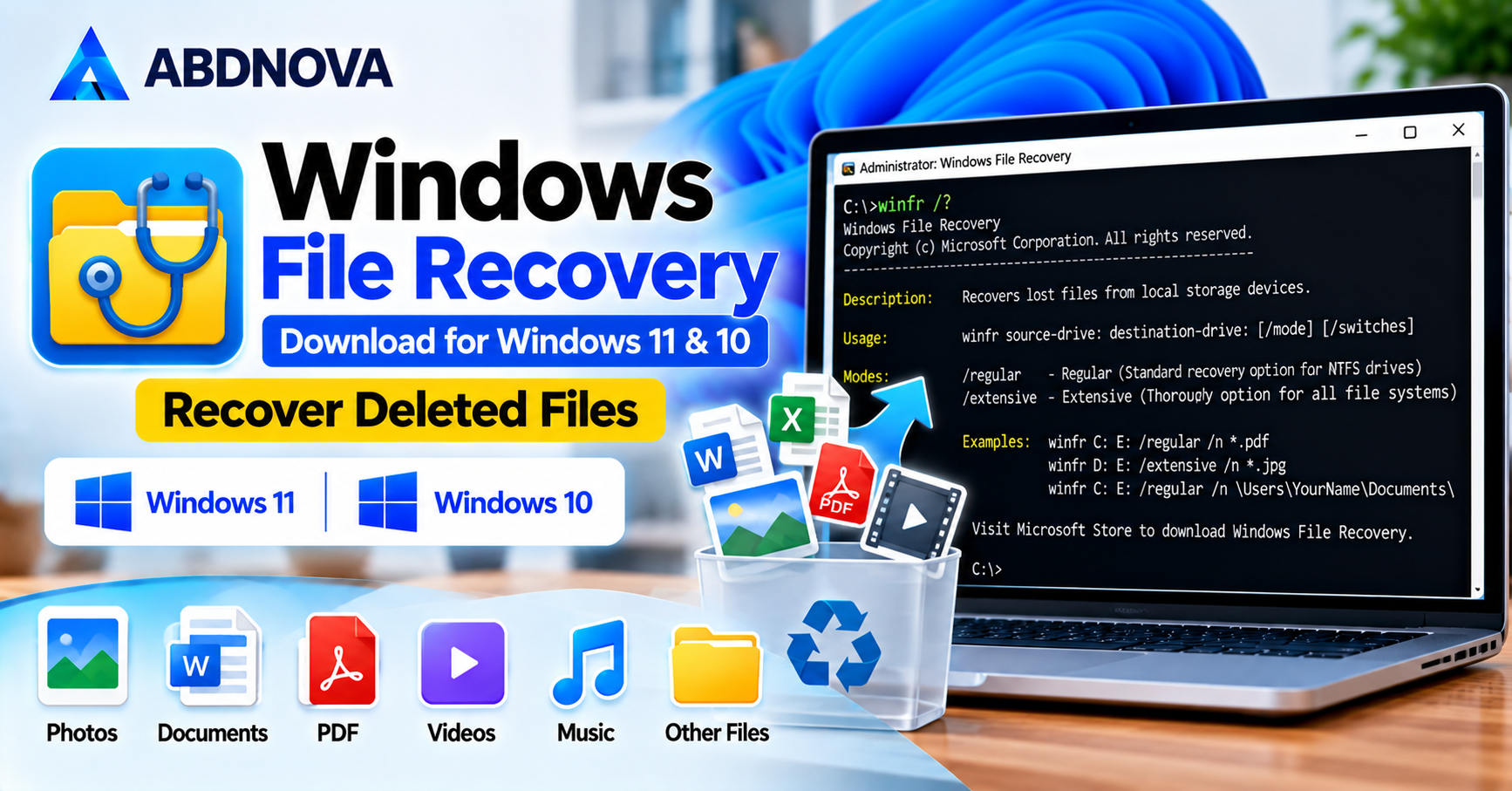

Windows File Recovery Download for Windows 11 & 10 – Recover Deleted Files
Windows File Recovery Download helps Windows 11 and Windows 10 users attempt to restore accidentally deleted files using Microsoft’s free command-line recovery utility.
Windows File Recovery is a free data recovery utility developed by Microsoft. It helps users attempt to recover accidentally deleted photos, documents, videos, and other files from supported storage devices on Windows 11 and Windows 10.
Unlike many traditional recovery applications, Windows File Recovery uses a command-line interface instead of a graphical recovery wizard. Users can scan internal drives, external hard drives, USB flash drives, and supported memory cards.
If you accidentally deleted an important file and cannot restore it from the Recycle Bin or a backup, Windows File Recovery may help retrieve the data before it is overwritten.
Important: Stop using the affected drive as soon as possible. Continuing to save files, install applications, or download content may overwrite deleted data and reduce the chance of recovery.
Windows File Recovery Download – Overview
| Software | Windows File Recovery |
| Developer | Microsoft |
| Category | File Recovery Utility |
| Operating System | Windows 11 & Windows 10 |
| License | Free |
| Download Source | Microsoft Store |
| Interface | Command-Line |
| Regular Recovery | Supported |
| Extensive Recovery | Supported |
| USB Recovery | Supported |
| External Drive Recovery | Supported |
| File Type Filtering | Supported |
| Internet | Required for Store download |
Windows File Recovery is available through the official Microsoft Store and does not require a paid subscription.
Windows File Recovery Main Interface & Features
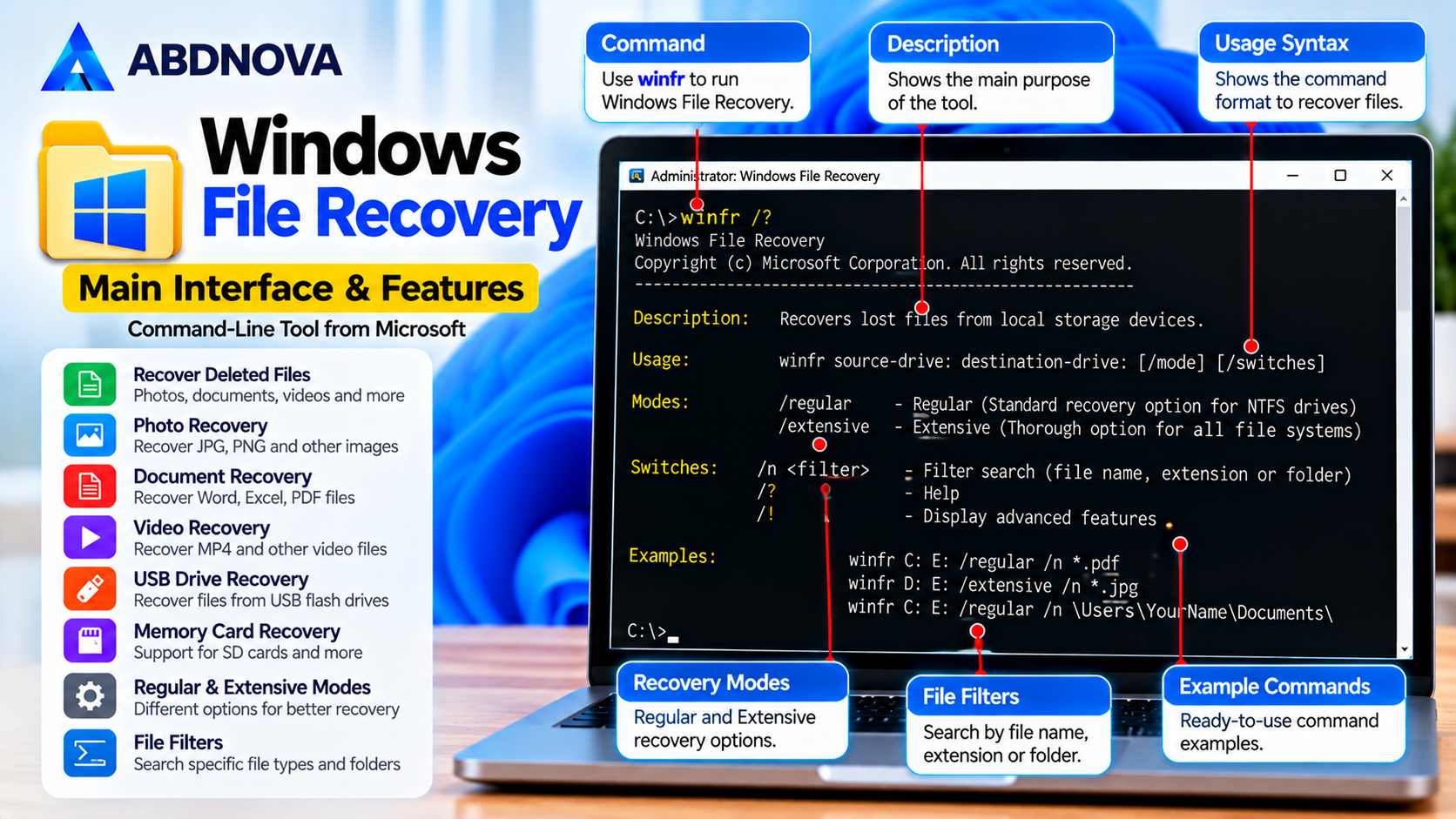
Windows File Recovery provides recovery options for several common data-loss situations. Instead of clicking through a graphical wizard, users enter commands that specify the storage device, recovery mode, and file filters.
Key Features of Windows File Recovery
Deleted File Recovery
Attempt to recover files removed from local storage.
Regular Mode
Search for recently deleted files on healthy NTFS drives.
Extensive Mode
Perform a more thorough recovery search when Regular Mode is unsuitable.
Document Recovery
Search for Word, Excel, PDF, and other supported documents.
Photo Recovery
Attempt to restore deleted JPG, PNG, and other supported image files.
Video Recovery
Search for recoverable video files.
USB Recovery
Recover deleted data from supported USB storage devices.
Memory Card Recovery
Search compatible SD cards and similar devices.
File Filters
Specify file names, extensions, and folders to narrow the recovery search.
Command-Line Control
Run recovery operations using the winfr command.
Free Microsoft Utility
No separate paid edition is required.
Windows File Recovery cannot guarantee that every deleted file will be recovered. Success depends on the storage device, file system, and whether the original data remains available.
Windows File Recovery System Requirements
| Component | Requirement |
|---|---|
| Operating System | Compatible Windows 11 or Windows 10 |
| Application Source | Microsoft Store |
| Processor | Compatible Windows processor |
| Memory | Sufficient to run Windows and recovery operations |
| Storage | Separate destination drive for recovered files |
| File Systems | NTFS, FAT, exFAT, and other supported formats |
| Interface | Command Prompt |
| Permissions | Administrative approval may be required |
Windows 10 note: Standard Windows 10 support ended on October 14, 2025. Microsoft recommends moving to a supported Windows version for ongoing security updates.
For operating system installation resources, see our Windows 11 ISO Download Guide.
How to Download & Install Windows File Recovery
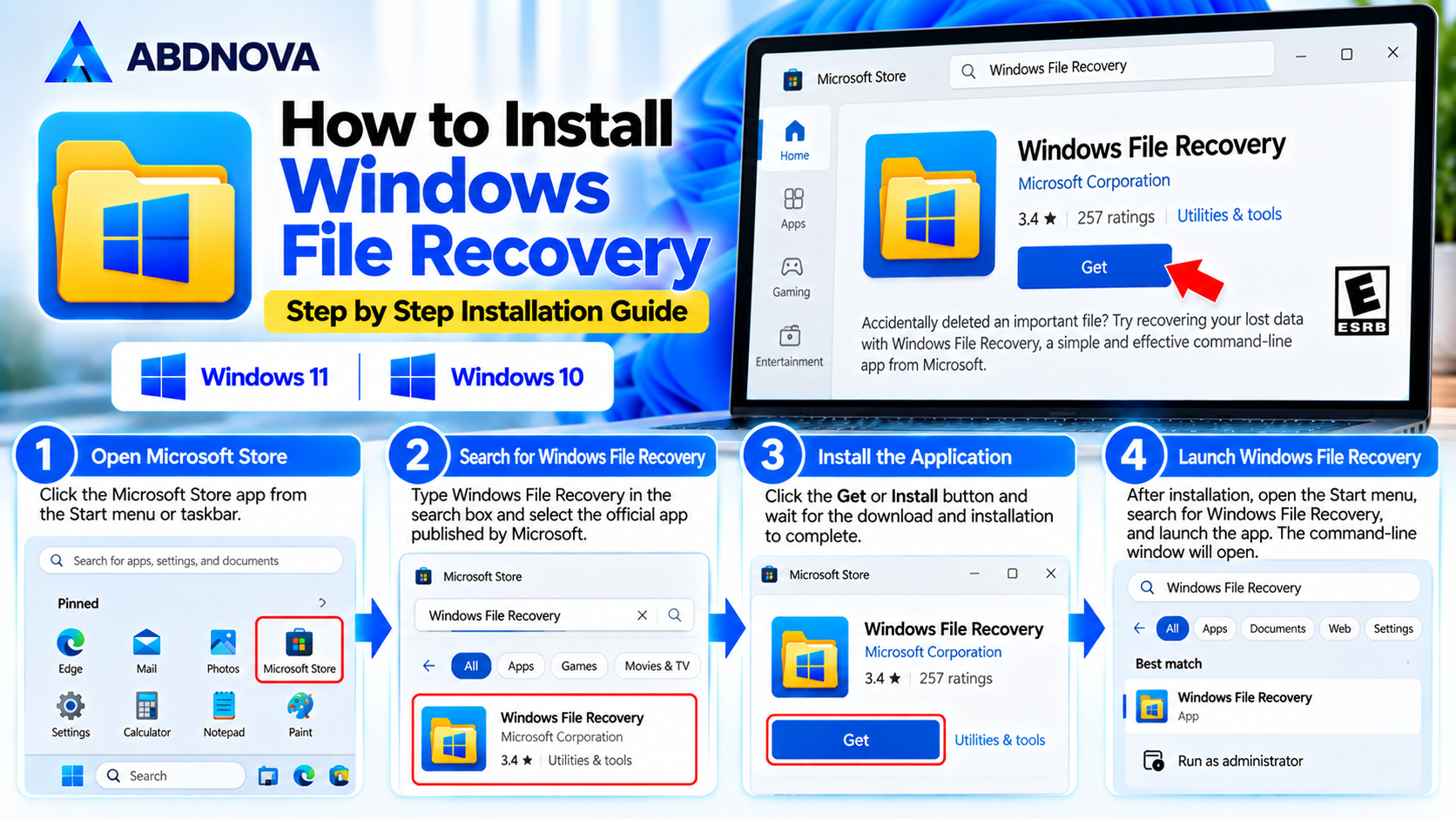
Windows File Recovery can be downloaded from the Microsoft Store. Always select the application published by Microsoft.
Installation Steps
- Open the Microsoft Store on your computer.
- Search for Windows File Recovery.
- Select the application published by Microsoft.
- Click Get or Install.
- Wait for the installation to finish.
- Open the Start menu.
- Search for Windows File Recovery.
- Launch the application.
- Approve the Windows permission prompt if displayed.
- The command-line window will open.
The application is now ready to use.
Important: If deleted files are on your system drive, installing additional software on that drive may overwrite recoverable data. Consider safer recovery options before installing.
How to Use Windows File Recovery
Windows File Recovery works through commands that identify the source drive, destination drive, recovery mode, and optional filters.
Basic Command Structure
winfr source-drive: destination-drive: /mode /n filter
For example:
winfr C: E: /regular /n *.pdf
This command searches the C: drive for recoverable PDF files and saves the results to the E: drive.
Understanding the Command
| Parameter | Purpose |
|---|---|
winfr | Launches Windows File Recovery |
C: | Source drive containing deleted files |
E: | Destination drive for recovered files |
/regular | Uses Regular recovery mode |
/extensive | Uses Extensive recovery mode |
/n | Specifies a file or folder filter |
*.pdf | Searches for PDF files |
The source and destination must be different drives or partitions. For safer recovery, use a separate physical storage device whenever possible.
How to Recover Deleted Files Using Regular Mode
Regular Mode is recommended for recently deleted files on a healthy NTFS drive.
Step-by-Step Recovery
- Connect a separate destination drive.
- Open Windows File Recovery.
- Identify the drive containing the deleted files.
- Identify the destination drive.
- Enter the recovery command.
- Press Enter.
- Type Y when prompted to confirm.
- Wait for the scan to complete.
- Open the recovery folder on the destination drive.
- Check the recovered files.
Example: Recover PDF Files
winfr C: E: /regular /n *.pdf
Example: Recover Word Documents
winfr C: E: /regular /n *.docx
Example: Recover Excel Files
winfr C: E: /regular /n *.xlsx
Replace the drive letters with the actual letters used on your computer.
Windows File Recovery Commands & Recovery Modes
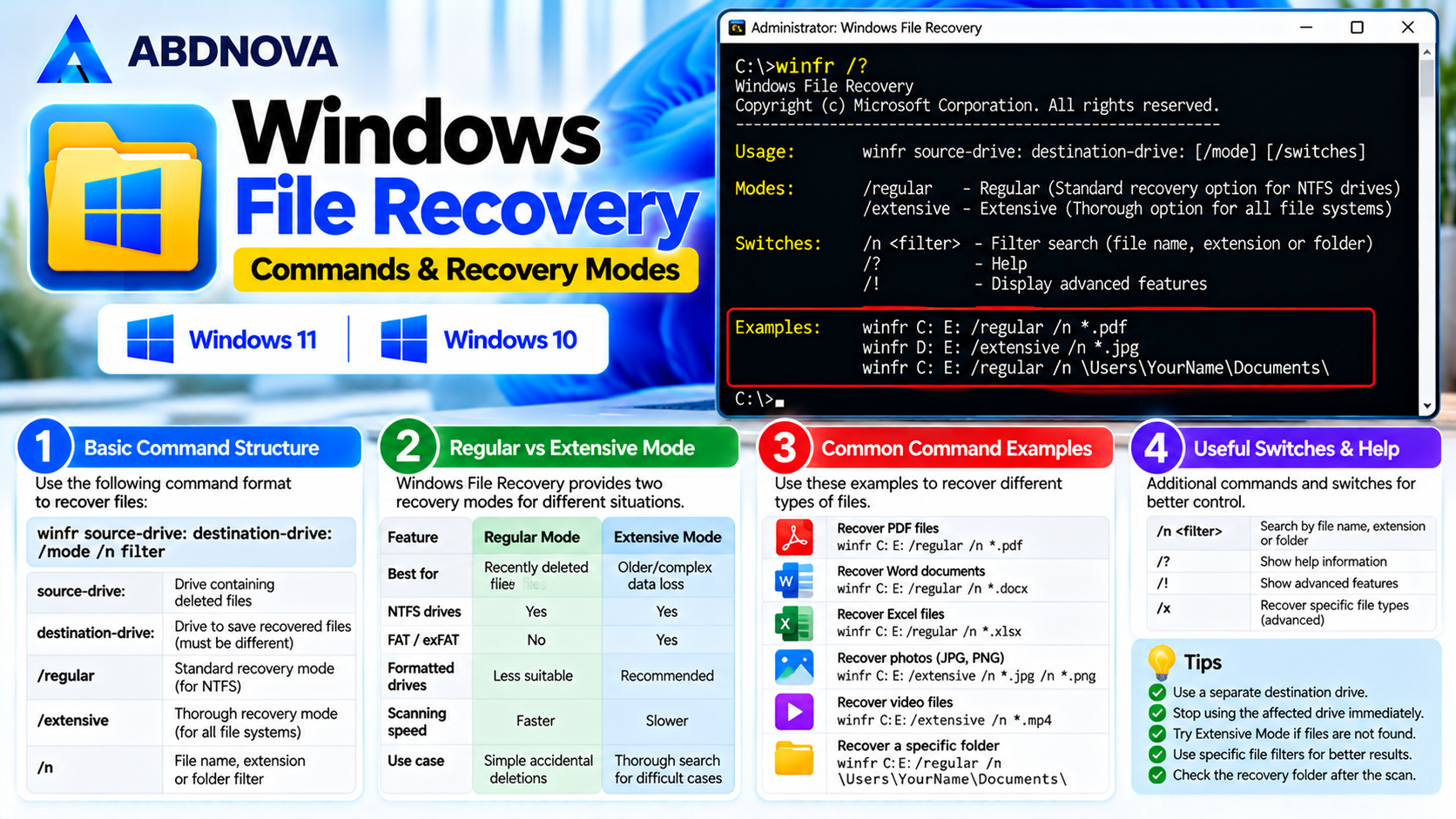
Windows File Recovery provides two main recovery modes: Regular and Extensive.
Regular Mode
Regular Mode is suitable for recently deleted files on healthy NTFS storage. It generally completes faster and is a useful first option for simple accidental deletions.
Extensive Mode
Extensive Mode performs a more thorough search and can be useful for older deletions, formatted drives, or supported non-NTFS storage.
Regular vs Extensive Mode
| Feature | Regular Mode | Extensive Mode |
|---|---|---|
| Recently Deleted Files | Recommended | Supported |
| NTFS Drives | Supported | Supported |
| FAT / exFAT | Not Supported | Supported |
| Older Deleted Files | Less Suitable | Recommended |
| Formatted Drives | Less Suitable | Recommended |
| Scanning Speed | Generally Faster | Generally Slower |
| Recovery Guarantee | No | No |
Extensive Mode Example
winfr C: E: /extensive /n *.jpg
This command searches for recoverable JPG images using Extensive Mode.
How to Recover Deleted Photos, Documents & Videos
Windows File Recovery allows users to filter recovery operations by file extension.
Recover Deleted Photos
To search for JPG and PNG images:
winfr C: E: /extensive /n *.jpg /n *.png
Recover Deleted Documents
To search for PDF and Word files:
winfr C: E: /regular /n *.pdf /n *.docx
Recover Deleted Videos
To search for MP4 video files:
winfr C: E: /extensive /n *.mp4
Recover a Documents Folder
Replace YourUsername with your Windows account folder name.
winfr C: E: /regular /n \Users\YourUsername\Documents\
File recovery may take longer on large storage devices. Extensive Mode can also recover files without their original names or folder structures.
How to Recover Deleted Files from a USB Drive
Windows File Recovery can scan compatible USB flash drives and external storage devices.
USB Recovery Steps
- Connect the USB drive to your computer.
- Open File Explorer.
- Check the USB drive letter.
- Connect or identify a separate destination drive.
- Open Windows File Recovery.
- Enter the appropriate recovery command.
- Confirm the operation.
- Wait for scanning to finish.
- Review the recovered files.
Example: Recover JPG Files from USB
If your USB drive is E: and your destination drive is C:, use:
winfr E: C: /extensive /n *.jpg
For USB drives using FAT or exFAT, Extensive Mode is required.
Avoid formatting the USB drive before attempting recovery if it contains important deleted data.
Where Are Recovered Files Saved?
Windows File Recovery automatically creates a recovery folder on the destination drive.
The folder normally follows this naming pattern:
Recovery_<date and time>
For example, after recovering files from C: to E:, open File Explorer and check the newly created recovery folder on E:.
Some recovered files may have changed names or incomplete metadata. Always open recovered files to verify that they are usable.
Windows File Recovery vs Recuva
Windows File Recovery and Recuva both help users attempt to restore deleted files, but their interfaces and recovery workflows differ.
| Feature | Windows File Recovery | Recuva |
|---|---|---|
| Developer | Microsoft | Piriform / CCleaner |
| Free Edition | Yes | Yes |
| Graphical Interface | No | Yes |
| Command-Line Recovery | Yes | Not Required |
| File Type Filtering | Yes | Yes |
| USB Recovery | Yes | Yes |
| Recovery Modes | Regular & Extensive | Quick & Deep Scan |
| Beginner-Friendly | More Technical | Generally Easier |
| Official Source | Microsoft Store | CCleaner Website |
Windows File Recovery is useful for users comfortable entering recovery commands. Recuva may be easier for beginners because it offers a graphical interface and recovery wizard.
Related Guide: Recuva Download for Windows – Recover Deleted Files.
Windows File Recovery Troubleshooting & Safe Download
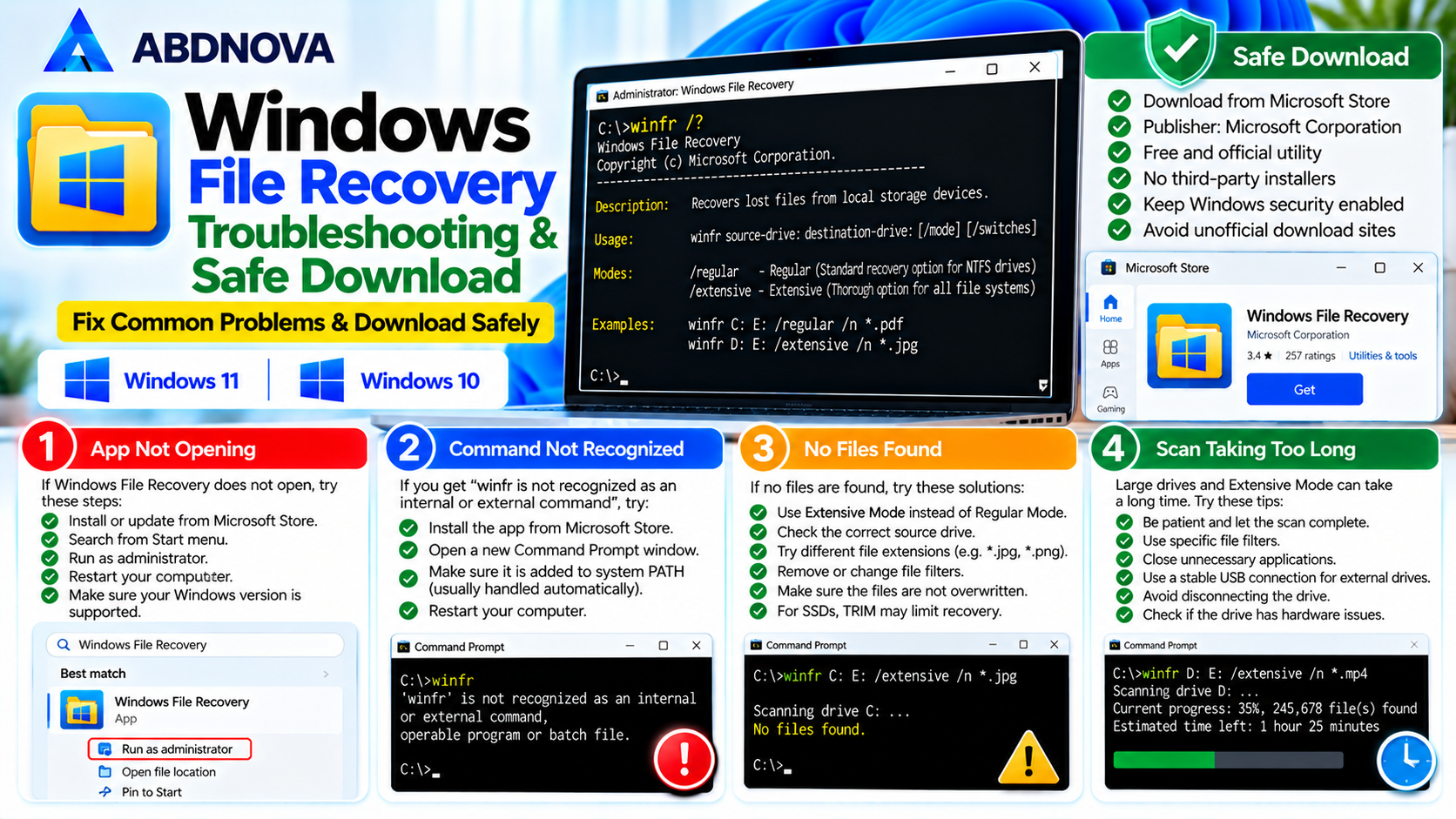
Windows File Recovery Not Working
Some users may experience errors when running recovery commands.
Common Problems
- Windows File Recovery does not open.
- The
winfrcommand is not recognized. - Incorrect source or destination drive.
- Invalid command syntax.
- No recoverable files found.
- Recovery operation takes too long.
- Recovered files cannot be opened.
Troubleshooting Steps
- Confirm that Windows File Recovery is installed.
- Open the application from the Start menu.
- Verify the source drive letter.
- Check the destination drive letter.
- Make sure the drives are different.
- Review command syntax and spacing.
- Confirm the correct recovery mode.
- Try Extensive Mode when appropriate.
- Avoid writing additional data to the source drive.
- Check whether the deleted files were overwritten.
For command-line help, enter:
winfr /?
For additional advanced options:
winfr /!
Windows File Recovery Cannot Find Deleted Files
Windows File Recovery may fail to locate deleted files for several reasons.
Possible Causes
- The original data has been overwritten.
- The selected recovery mode is unsuitable.
- The file system is damaged.
- The wrong source drive was selected.
- The recovery filter is too restrictive.
- The storage device has hardware problems.
- SSD TRIM has made deleted data unavailable.
Possible Solutions
Try a more thorough recovery search:
winfr C: E: /extensive /n *.pdf
You can also change the file extension or folder filter to match the missing files.
If the data is extremely important, avoid repeated scans on a physically failing drive and consider professional recovery assistance.
Windows File Recovery Taking Too Long
Recovery scans may take considerable time depending on drive size, storage speed, file system condition, and recovery mode.
Recommended Actions
- Allow the scan to complete on healthy storage.
- Use a reliable USB connection.
- Avoid disconnecting the source drive.
- Close unnecessary background applications.
- Use specific file filters when appropriate.
- Confirm that the destination has sufficient free space.
To stop an active recovery operation, press:
Ctrl + C
If the storage device makes unusual noises or repeatedly disconnects, stop scanning and seek professional advice.
Can Windows File Recovery Recover Files from SSD?
Windows File Recovery may recover some deleted files from supported SSDs, but recovery is often limited by TRIM.
TRIM allows an SSD to manage storage blocks that are no longer in use. Once the underlying data has been erased or made unavailable, recovery software cannot restore it.
For Important SSD Data
- Stop using the affected drive.
- Check the Recycle Bin.
- Check OneDrive or other cloud backups.
- Check File History or other backups.
- Avoid installing additional software on the affected drive.
- Consider professional recovery services when appropriate.
No recovery application can guarantee restoration of deleted SSD data.
Is Windows File Recovery Safe to Download?
Windows File Recovery is an official Microsoft utility distributed through the Microsoft Store.
For safer installation and recovery:
- Download the application from the official Microsoft Store.
- Verify that Microsoft is listed as the publisher.
- Avoid unofficial installers.
- Keep Windows security features enabled.
- Use a different destination drive.
- Do not overwrite the original deleted data.
- Avoid unnecessary disk formatting or cleanup.
- Maintain regular backups of important files.
Windows File Recovery does not support recovering files directly from cloud storage or network file shares.
Windows File Recovery FAQ
Is Windows File Recovery free?
Yes. Windows File Recovery is a free Microsoft utility.
Does Windows File Recovery work on Windows 11?
Yes. It supports compatible Windows 11 computers.
Can I use Windows File Recovery on Windows 10?
Yes. It supports compatible Windows 10 systems, although standard Windows 10 support has ended.
Can Windows File Recovery recover permanently deleted files?
It may recover files that are no longer available in the Recycle Bin, provided the original data has not been overwritten or erased.
Can it recover deleted photos?
Yes. It can attempt to recover supported image files, including JPG and PNG.
Can it recover files from a USB drive?
Yes. It supports recovery from compatible USB storage devices.
Does Windows File Recovery have a graphical interface?
No. It uses a command-line interface.
What is the difference between Regular and Extensive Mode?
Regular Mode is generally suitable for recently deleted files on healthy NTFS drives. Extensive Mode performs a more thorough search and supports additional file systems.
Can Windows File Recovery recover formatted files?
It may recover some files after formatting, depending on the file system, formatting method, and remaining data.
Can Windows File Recovery recover SSD files?
Sometimes, but SSD TRIM can significantly reduce recovery chances.
Where does Windows File Recovery save recovered files?
It creates a recovery folder on the selected destination drive.
Is Windows File Recovery better than Recuva?
Neither tool guarantees better recovery in every situation. Windows File Recovery provides Microsoft’s command-line recovery options, while Recuva offers a more beginner-friendly graphical interface.
Final Thoughts
Windows File Recovery is a useful free Microsoft tool for Windows 11 and Windows 10 users who need to attempt recovery of accidentally deleted files.
Its Regular and Extensive recovery modes, support for different storage devices, and file-type filtering options make it a practical choice for users comfortable working with commands.
For the best recovery results, stop using the affected drive immediately, select the correct recovery mode, and save recovered files to a separate storage device.
Always download Windows File Recovery from the official Microsoft Store and maintain regular backups to protect important documents, photos, and other files.
Ready to download Windows File Recovery?
Windows 11 & 10 • Microsoft Utility • Regular & Extensive Recovery
ABDNOVA does not host the installer. The button opens Microsoft’s official Windows File Recovery page, which provides the Microsoft Store installation link.


