
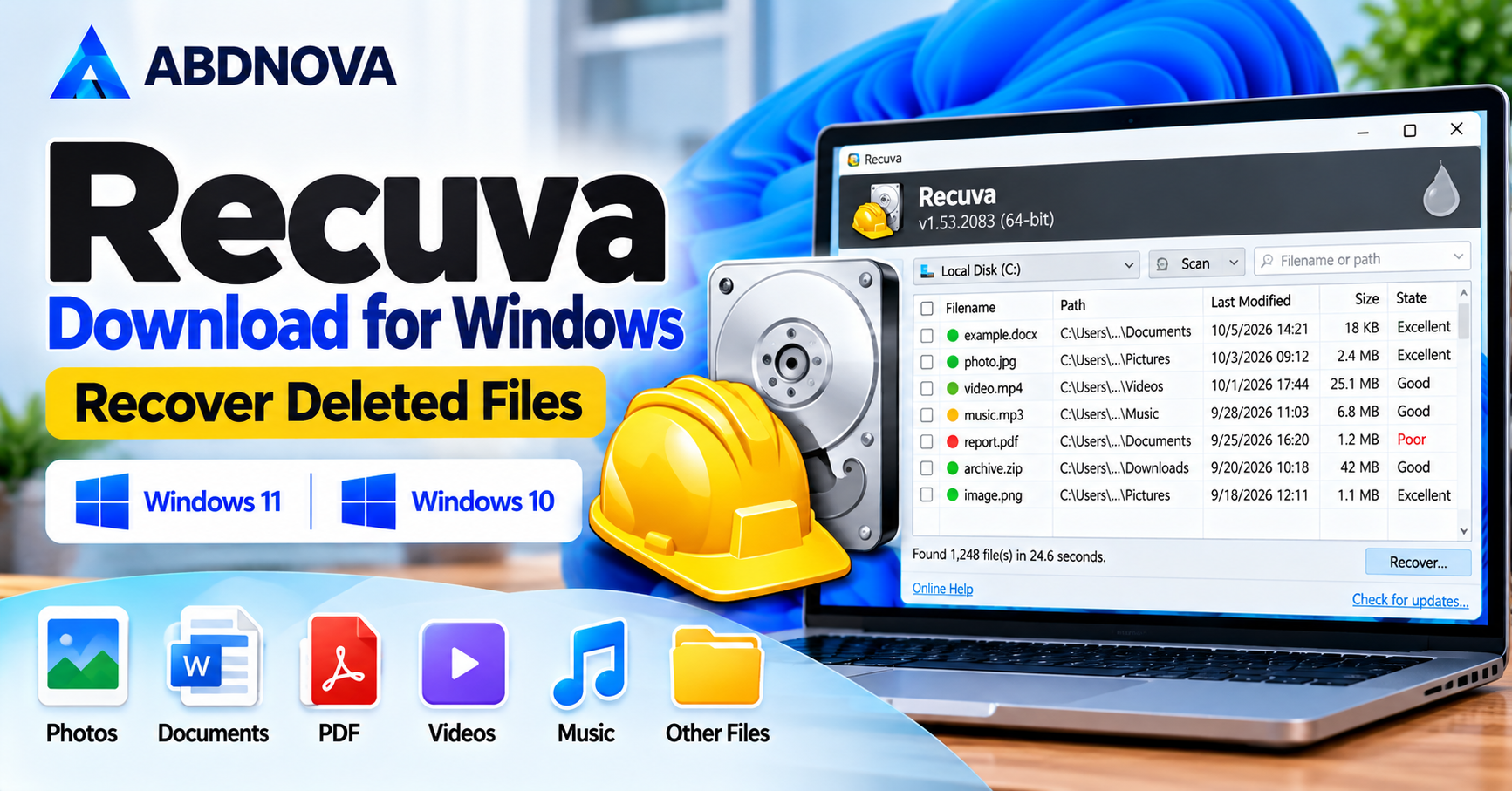

Recuva Download for Windows – Recover Deleted Files
Recuva Download for Windows helps Windows 11 and Windows 10 users scan supported storage devices and attempt to recover accidentally deleted files.
Recuva is a file recovery application developed by Piriform, part of the CCleaner family. It helps Windows users recover accidentally deleted files from hard drives, USB flash drives, memory cards, and other supported storage devices.
If you accidentally delete important photos, documents, videos, music, or other files, Recuva can scan the selected drive and attempt to restore recoverable data.
Recuva is available for Windows 11 and Windows 10, with a free edition for basic file recovery and a paid Professional edition offering additional features.
Important: File recovery is not guaranteed. If you have accidentally deleted important files, stop using the affected drive immediately to reduce the risk of overwriting recoverable data.
Recuva Download for Windows – Overview
| Software | Recuva |
| Developer | Piriform / CCleaner |
| Category | Data Recovery Software |
| Operating System | Windows 11 & Windows 10 |
| License | Free & Professional |
| Main Purpose | Recover Deleted Files |
| Quick Scan | Supported |
| Deep Scan | Supported |
| USB Recovery | Supported |
| Memory Card Recovery | Supported |
| File Preview | Available for supported files |
| Secure File Deletion | Available |
Recuva works with supported Windows-accessible storage devices, although successful recovery depends on the condition of the storage medium and whether deleted data has been overwritten.
Recuva Main Interface & Key Features
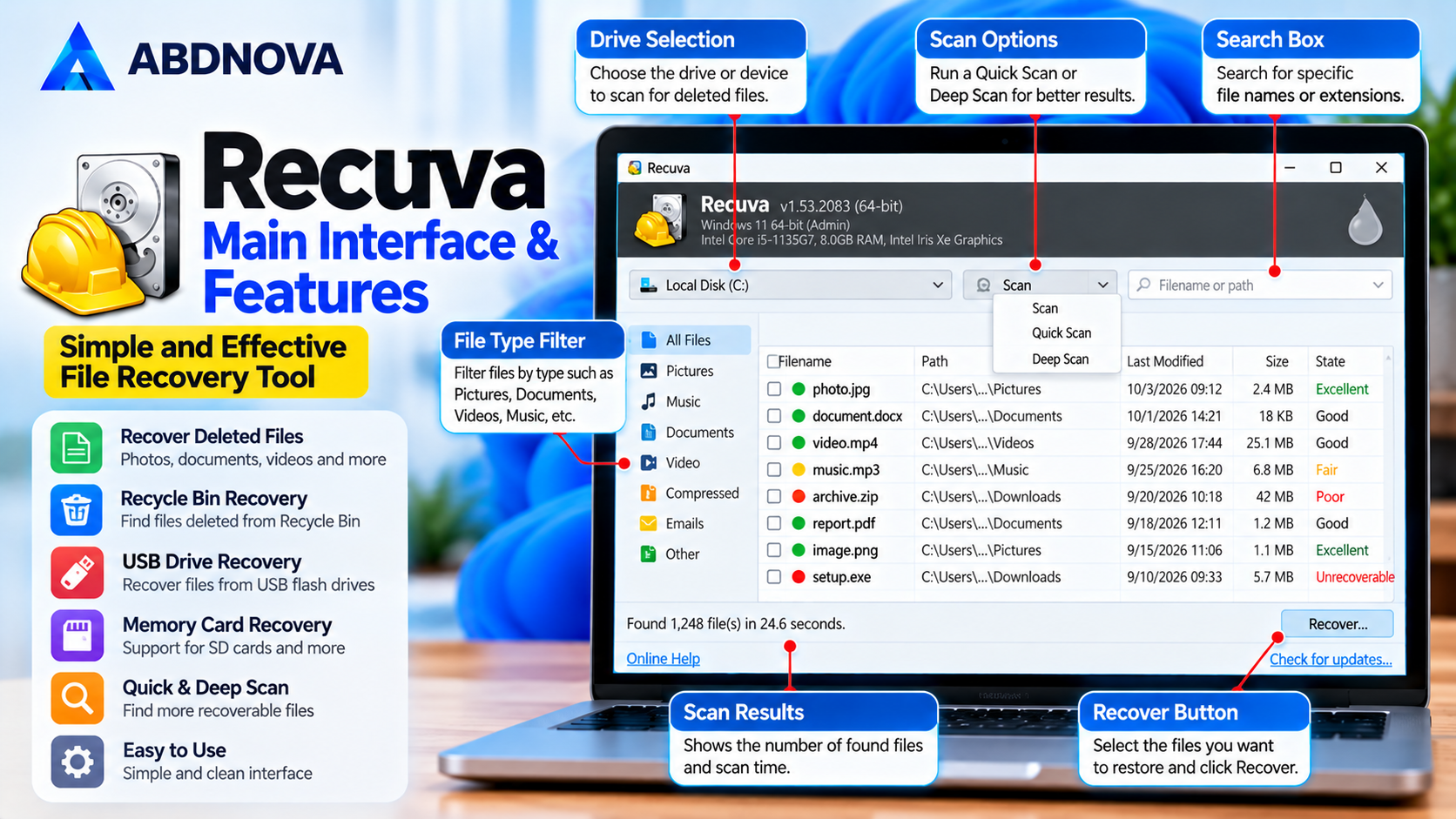
Recuva provides a straightforward interface for scanning storage devices and identifying files that may still be recoverable.
Key Features of Recuva
Deleted File Recovery
Attempt to restore accidentally deleted files.
Recycle Bin Recovery
Find supported files deleted from the Windows Recycle Bin.
Quick Scan
Search for recoverable files using a faster scanning process.
Deep Scan
Perform a more thorough search for deleted file data.
Photo Recovery
Recover supported deleted image files.
Document Recovery
Search for Word documents, PDFs, spreadsheets, and other files.
Video & Music Recovery
Find supported multimedia files.
USB Drive Recovery
Scan USB flash drives and supported external storage.
Memory Card Recovery
Recover files from compatible memory cards.
Recovery Status
Display indicators of potential file recoverability.
Advanced Mode
Review additional file details and recovery options.
Secure Deletion
Overwrite selected files to help prevent future recovery. This feature is separate from file recovery and should not be used on a drive containing files you want to restore.
Recuva cannot repair every damaged storage device or recover files that have been permanently overwritten.
Recuva System Requirements for Windows
Recuva is designed for compatible Windows computers.
| Component | Requirement |
|---|---|
| Operating System | Windows 11 or Windows 10 |
| Processor | Compatible Intel or AMD processor |
| RAM | Sufficient to run Windows and perform scans |
| Storage | Space for installation and recovered files |
| File System | Supported Windows file systems |
| Internet | Needed to download the installer |
| Administrator Access | May be required for certain operations |
For better recovery results, use a separate healthy drive to save recovered files.
Important: Do not install Recuva on the same drive or partition containing the deleted files if doing so could overwrite the data you want to recover.
How to Download & Install Recuva on Windows 11 & 10
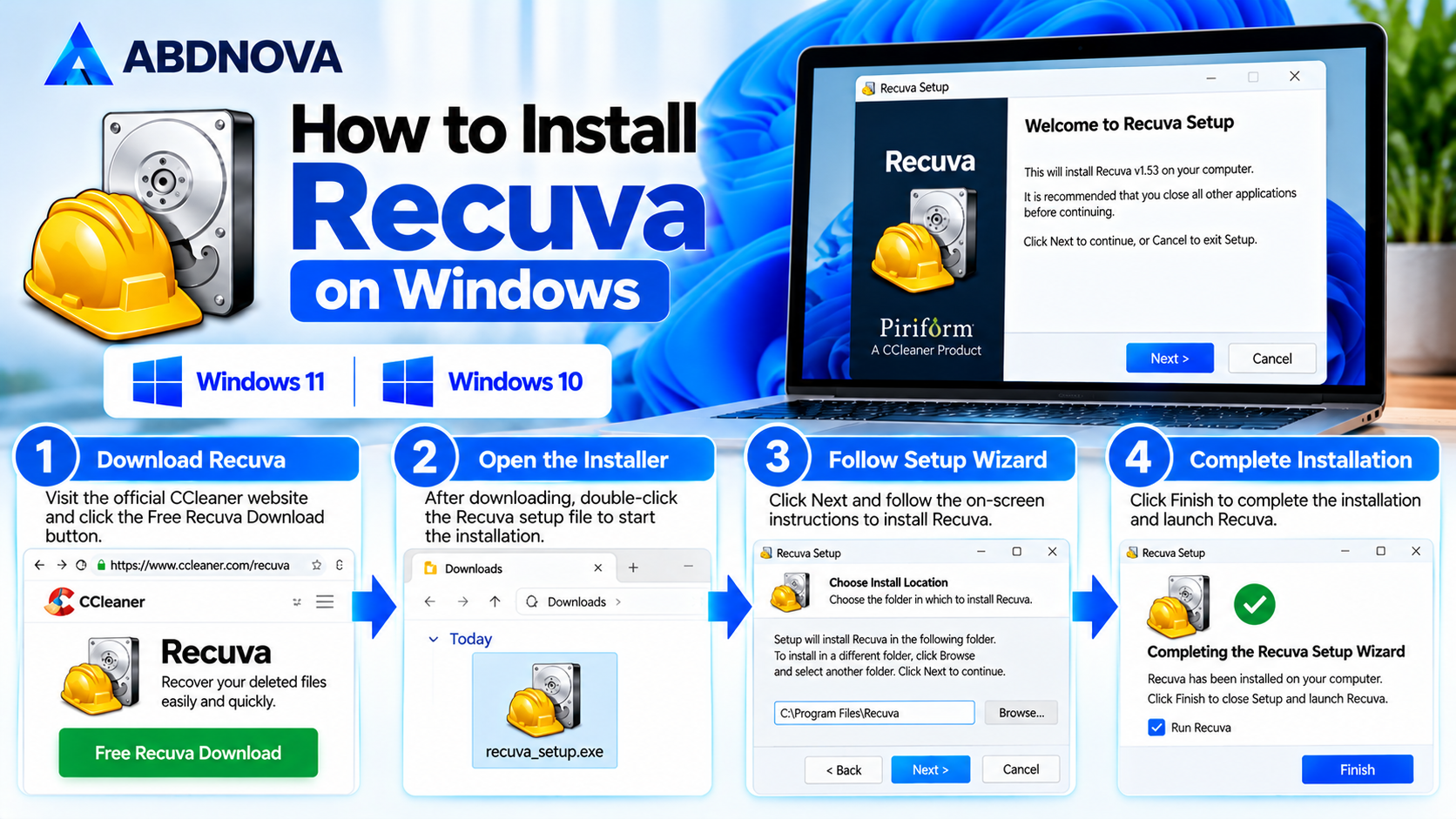
Download Recuva from its official website to avoid modified or potentially unsafe installers.
Recuva Installation Steps
- Open the official Recuva website.
- Select the available download option.
- Choose the Free or Professional edition.
- Download the Windows installer.
- Open the downloaded setup file.
- Review the installation options.
- Follow the setup instructions.
- Complete the installation.
- Launch Recuva.
- Start the recovery wizard or open the main interface.
If the deleted files are on your Windows system drive, consider using another computer or an appropriate external recovery environment rather than installing software onto the affected drive.
How to Recover Deleted Files Using Recuva
Recuva includes a recovery wizard that helps users search for deleted files.
Step-by-Step File Recovery
- Open Recuva.
- Start the Recuva Wizard if it appears.
- Select the type of file you want to recover.
- Choose the original file location if known.
- Select the appropriate drive or folder.
- Start the scan.
- Wait for Recuva to display the results.
- Review the available files and recovery indicators.
- Select the files you want to recover.
- Click Recover.
- Choose a different physical drive as the recovery destination.
- Open the recovered files to check whether they work.
For example, if the deleted files were stored on a USB drive, save recovered files to your computer’s internal drive rather than back to the same USB drive.
Understanding Recovery Results
Recuva may show colored indicators that estimate the condition of discovered files.
| Indicator | General Meaning |
|---|---|
| Green | File has a better estimated chance of recovery |
| Orange | File may be partially overwritten or damaged |
| Red | File has a poor estimated chance of recovery |
These indicators are estimates, not guarantees. A recovered file may still be incomplete or unusable.
Recuva File Recovery & Deep Scan
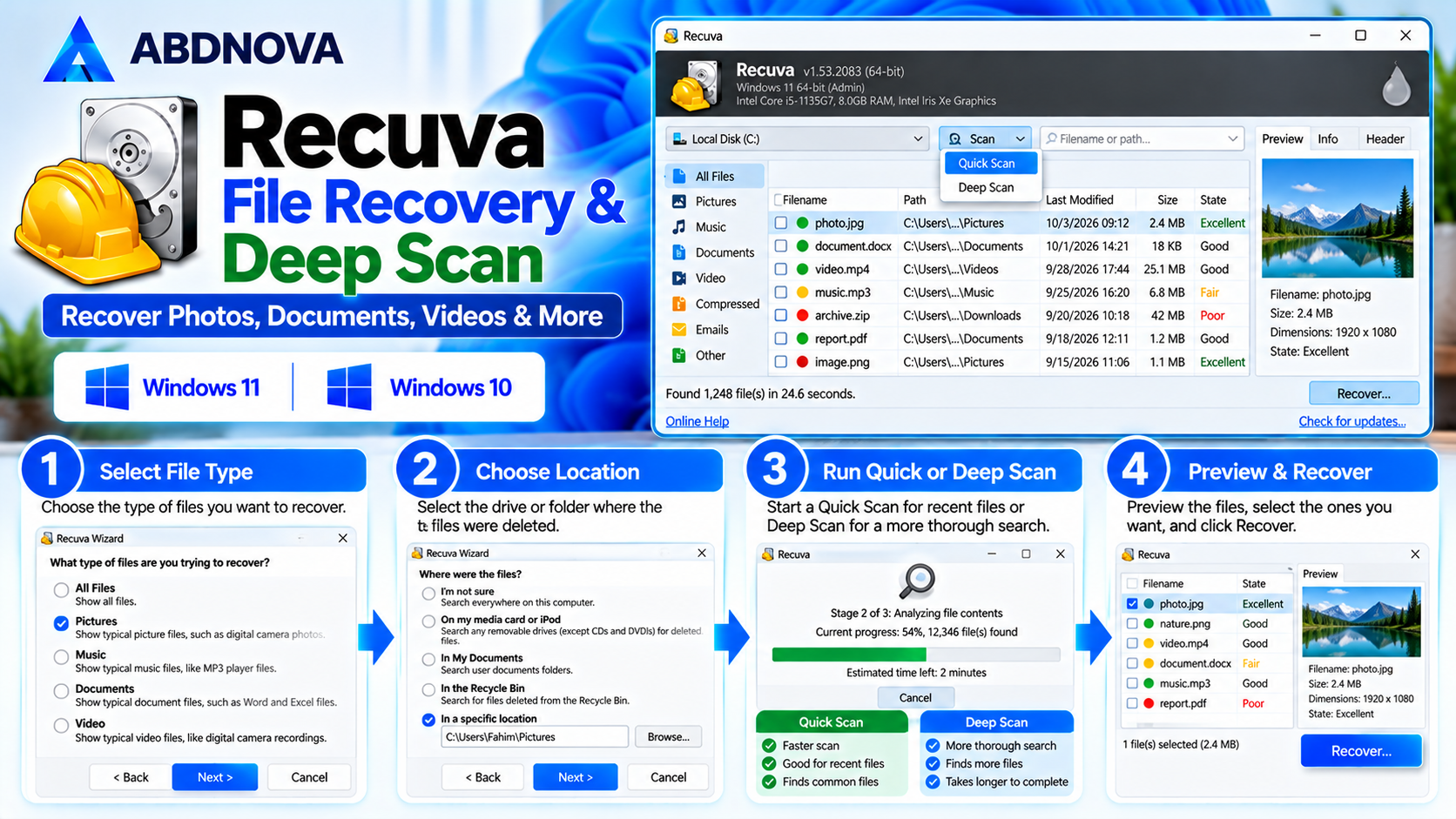
Recuva Quick Scan vs Deep Scan
Recuva provides different scanning approaches for locating deleted data.
Quick Scan
Quick Scan is useful when files were deleted recently and the storage device is functioning normally.
It is generally faster and is a practical first option for accidental deletion.
Deep Scan
Deep Scan searches more thoroughly for recoverable file data.
It may help when:
- Quick Scan cannot find the deleted file.
- Files were deleted some time ago.
- The original file information is missing.
- A supported drive has been formatted.
Deep Scan can take considerably longer, particularly on large storage devices.
| Feature | Quick Scan | Deep Scan |
|---|---|---|
| Scanning Speed | Faster | Slower |
| Recently Deleted Files | Suitable | Suitable |
| Thorough Search | Limited | More Extensive |
| Large Drives | Usually Quicker | May Take Longer |
| File Names & Paths | May Be Preserved | May Be Missing |
| Recovery Guarantee | No | No |
Deep Scan does not restore data that has already been overwritten or physically erased.
How to Recover Deleted Photos, Documents & Videos
Recuva can search for different file categories.
Recover Deleted Photos
- Open Recuva.
- Select Pictures in the recovery wizard.
- Choose the original storage location.
- Start scanning.
- Review the discovered image files.
- Select recoverable photos.
- Save them to another drive.
Recover Deleted Documents
- Open Recuva.
- Select Documents or the appropriate file category.
- Choose the drive containing the deleted documents.
- Run a scan.
- Review the results.
- Select the required files.
- Recover them to a separate location.
Recover Deleted Videos
- Select the video file category.
- Choose the original drive.
- Run Quick Scan or Deep Scan.
- Review available video files.
- Select the files you need.
- Recover them to another drive.
Large video files can be particularly difficult to recover if parts of their data have been overwritten.
Recuva USB Drive & Memory Card Recovery
Recuva can attempt to recover deleted files from supported USB flash drives, external hard drives, and memory cards.
Recover Files from a USB Drive
- Connect the USB drive to your Windows computer.
- Open Recuva.
- Select the USB drive.
- Choose the file type or scan for all files.
- Start scanning.
- Review the discovered files.
- Select the files you want to recover.
- Save them to a different drive.
Recover Files from a Memory Card
- Connect the memory card using a compatible card reader.
- Confirm that Windows detects the card.
- Open Recuva.
- Select the memory card.
- Start the scan.
- Review available photos, videos, or documents.
- Recover selected files to another storage device.
Important: If Windows asks you to format a drive containing important files, do not format it before assessing your recovery options.
Recuva Free vs Professional
Recuva offers a free version and a paid Professional version.
| Feature | Recuva Free | Recuva Professional |
|---|---|---|
| Deleted File Recovery | Yes | Yes |
| Quick Scan | Yes | Yes |
| Deep Scan | Yes | Yes |
| USB & Memory Card Recovery | Yes | Yes |
| Advanced File Recovery | Yes | Yes |
| Virtual Hard Drive Support | Not Included | Included |
| Automatic Updates | Not Included | Included |
| Premium Support | Not Included | Included |
Recuva Free is suitable for many basic recovery tasks. Recuva Professional adds features and support options, but purchasing the Professional edition does not guarantee successful file recovery.
Review the official website for current pricing and edition details.
Recuva vs Windows File Recovery
Windows users can also consider Microsoft’s Windows File Recovery utility.
Windows File Recovery is a free Microsoft utility that uses command-line tools to recover deleted files. Unlike Recuva, it offers Regular and Extensive recovery modes instead of a graphical recovery wizard. For installation instructions, recovery commands, and troubleshooting, read our Windows File Recovery Download for Windows 11 & 10 guide.
| Feature | Recuva | Windows File Recovery |
|---|---|---|
| Developer | Piriform / CCleaner | Microsoft |
| Graphical Interface | Yes | Command-Line |
| Deleted File Recovery | Yes | Yes |
| Deep Recovery Options | Yes | Recovery Modes |
| USB & External Drives | Supported | Supported |
| Beginner-Friendly | Generally Easier | More Technical |
| Free Option | Yes | Yes |
Recuva is often easier for beginners because it provides a graphical interface and recovery wizard.
Windows File Recovery may be useful for users comfortable with command-line tools and supported Microsoft recovery procedures.
Recuva Troubleshooting & Safe Download
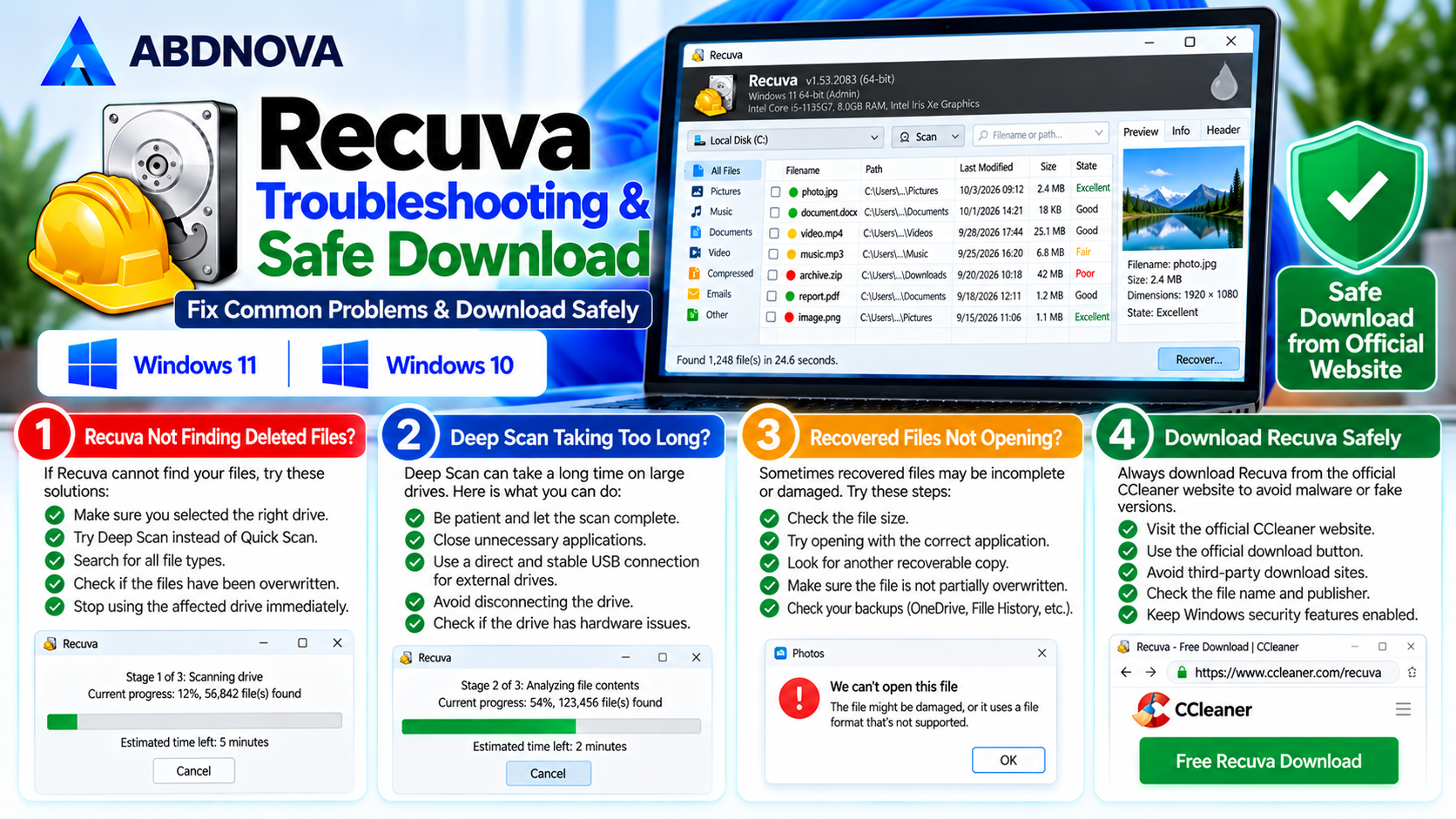
Recuva Not Finding Deleted Files
Sometimes Recuva cannot locate the files you want to restore.
Possible Reasons
- The deleted data has been overwritten.
- The wrong drive or folder was selected.
- The storage device is not detected correctly.
- The file system is severely damaged.
- The deleted files were removed by SSD TRIM.
- The storage device has hardware problems.
- The scan did not identify the file data.
Troubleshooting Steps
- Stop writing new data to the affected drive.
- Confirm that the correct drive is selected.
- Run a Quick Scan if you have not already.
- Enable Deep Scan if necessary.
- Search for all file types.
- Check whether the drive is accessible.
- Review the recovery results.
- Avoid installing additional applications on the affected drive.
If the files are extremely important, consider professional data recovery services rather than repeatedly experimenting with the original storage device.
Recuva Deep Scan Taking Too Long
Deep Scan can take a long time on large or slow storage devices.
Possible Solutions
- Allow the scan to finish if the drive is healthy.
- Close unnecessary background applications.
- Use a reliable USB connection.
- Avoid disconnecting external storage during scanning.
- Check whether the drive is showing signs of hardware failure.
Warning: If the drive is clicking, repeatedly disconnecting, or becoming unresponsive, stop scanning. Continued use may make recovery more difficult.
Recuva Cannot Recover Files from SSD
Modern SSDs often use TRIM to inform the drive that deleted storage blocks are no longer needed.
As a result, deleted files on an SSD may become unrecoverable quickly, even if the deletion happened recently.
Recuva cannot bypass data that has already been erased or made unavailable by SSD maintenance operations.
For SSD Recovery
- Stop using the affected drive.
- Avoid installing recovery tools onto it.
- Check available backups.
- Check OneDrive or other cloud storage.
- Check Windows File History if configured.
- Consider professional recovery help for valuable data.
Recovery success depends on the SSD, file system, deletion method, and whether the original data remains accessible.
Recuva Recovered Files Not Opening
Sometimes Recuva restores a file name, but the recovered file cannot be opened.
Possible Causes
- The file was partially overwritten.
- Some file data is missing.
- The file structure is damaged.
- The file was fragmented.
- The recovered file is incomplete.
What to Do
- Check the recovered file size.
- Try opening it with the appropriate application.
- Review whether another recoverable copy exists.
- Check available backups.
- Avoid repeatedly writing data to the original drive.
A successfully completed recovery operation does not necessarily mean the recovered file is intact.
Is Recuva Safe to Download?
Recuva is a legitimate file recovery application from Piriform / CCleaner.
For safer use:
- Download Recuva from its official website.
- Review installer options before proceeding.
- Avoid unofficial modified installers.
- Keep Windows security features enabled.
- Never recover files to the same affected drive.
- Avoid running unnecessary disk cleanup tools before recovery.
- Check existing backups before attempting advanced recovery.
- Stop using storage devices that show signs of physical failure.
Important: Recuva is a file recovery utility, not a guaranteed solution for failed hard drives, encrypted data, overwritten files, or severely damaged storage devices.
Recuva FAQ
Is Recuva free for Windows?
Yes. Recuva offers a free edition for basic deleted file recovery.
Does Recuva work on Windows 11?
Yes. Recuva is available for compatible Windows 11 computers.
Can I use Recuva on Windows 10?
Yes. Recuva supports compatible Windows 10 systems.
Can Recuva recover permanently deleted files?
It may recover files deleted from the Recycle Bin or removed using Shift + Delete, provided the original data remains recoverable.
Can Recuva recover deleted photos?
Yes. Recuva can attempt to recover deleted photos from supported storage devices.
Can Recuva recover files from a USB drive?
Yes. Recuva supports recovery from compatible USB flash drives and external storage.
Does Recuva recover formatted drives?
It may recover some files from supported formatted drives, depending on the formatting method and whether the data remains intact.
Can Recuva recover deleted files from an SSD?
Sometimes, but SSD TRIM can make deleted data unrecoverable.
Is Recuva Deep Scan better than Quick Scan?
Deep Scan performs a more thorough search but takes longer. It does not guarantee better recovery in every situation.
Does Recuva recover corrupted files?
Recuva may recover available file data, but it cannot reliably repair files that have already been damaged or overwritten.
Is Recuva Professional necessary?
Not for basic recovery. The free edition includes the main deleted file recovery features.
Where should I save recovered files?
Save them to a different physical drive to avoid overwriting other recoverable data.
Final Thoughts
Recuva is a practical file recovery tool for Windows 11 and Windows 10 users who want to attempt recovery of accidentally deleted documents, photos, videos, and other files.
Its easy-to-use recovery wizard, Quick Scan, Deep Scan, and support for external storage make it suitable for common accidental deletion scenarios.
For the best chance of successful recovery, stop using the affected storage device immediately, scan it carefully, and save recovered files to a separate drive. Always download Recuva from its official website and maintain regular backups to protect important data.
Ready to download Recuva for Windows?
Windows 11 & 10 • Deleted File Recovery • Quick & Deep Scan
ABDNOVA does not host the Recuva installer. The button opens the official CCleaner Recuva download page.


