

VLC Media Player Download for Windows – Free & Open-Source Multimedia Player

Download VLC Media Player – the versatile, free, and open-source multimedia player for Windows.
VLC Media Player is a free and open-source multimedia player for Windows. It can play a wide range of video and audio formats, including MP4, MKV, AVI, MP3, FLAC, WebM, and many others.
VLC is especially useful when Windows’ built-in media applications cannot open a particular file or when you need more advanced features such as subtitles, multiple audio tracks, playback-speed control, playlists, DVD playback, screenshots, and network streaming.
In this guide, you will learn how to download VLC Media Player for Windows, choose the correct version, install it, play videos and music, add subtitles, change audio tracks, create playlists, and fix common VLC problems.
VLC Media Player for Windows Overview
| Information | Details |
|---|---|
| Software | VLC Media Player |
| Developer | VideoLAN |
| Category | Multimedia / Media Player |
| License | Free & Open Source |
| Platform | Windows |
| Video & Audio Playback | Yes |
| Subtitles & DVD/Audio CD | Supported |
| Network Streaming | Supported |
| Architecture | 32-bit, 64-bit & ARM64 packages available |
What Is VLC Media Player?
VLC is a multimedia player that can open both video and audio files. It is commonly used for watching movies, playing music, opening MKV and MP4 files, using subtitles, playing DVDs and Audio CDs, selecting different audio tracks, changing playback speed, creating playlists, playing network streams, and taking screenshots from video.
Because VLC supports many codecs and containers, users often do not need to install additional codec packs for everyday playback.
VLC Supported Formats
Video Formats
- MP4
- MKV
- AVI
- WebM
- MPEG
- MOV
- WMV
- FLV
- 3GP
- TS
Audio Formats
- MP3
- AAC
- FLAC
- WAV
- OGG
- WMA
- ALAC
Note: The exact playback capability can still depend on the codec and encoding used in a specific file.
VLC Media Player Main Features

Wide Format Support
One of VLC’s biggest advantages is that it can play many video and audio formats from a single application without requiring separate codec packs.
Subtitle Support
Load external subtitle files (SRT, ASS, SSA, SUB) or use internal subtitle tracks. You can also adjust subtitle timing if they appear too early or too late.
Multiple Audio Tracks
Switch between available languages or commentary tracks while the video is playing via the Audio → Audio Track menu.
Playback Speed Control
Slow down or speed up playback. Great for tutorials, lectures, training videos, recorded meetings, and long presentations.
If you also record tutorials, presentations, or videos, see our OBS Studio Download guide for screen recording and live streaming on Windows.
DVD & Audio CD Playback
Supports playback of DVDs, Audio CDs, VCDs, and other disc sources—making it useful for users who still have media stored on physical discs.
Playlists & Screenshots
Add several media files to a playlist and play them in sequence. You can also capture the current video frame as an image for tutorials or references.

VLC 32-bit vs 64-bit vs ARM64
64-bit VLC
For most modern Windows computers, the 64-bit version is generally the correct choice.
32-bit VLC
The 32-bit version may be useful for older Windows installations that use 32-bit architecture.
ARM64 VLC
Users with compatible Windows-on-ARM devices can choose the ARM64 version provided by VideoLAN.
If you are unsure about your Windows architecture, go to Settings → System → About → System type, then select the VLC version that matches your system.
How to Download & Install VLC
For safer installation, download VLC from the official VideoLAN source.
- Visit the official VLC download page and select Windows.
- Choose the correct architecture (64-bit, 32-bit, or ARM64).
- Download the installer to your computer.
- Go to your Downloads folder and run the VLC setup file.
- Choose the installation language and continue through the wizard.
- Accept default components and installation location, then click Install.
- After installation completes, click Finish and launch VLC.
File Associations: During installation, Windows can associate certain media formats with VLC. You do not need to make VLC the default for every format—keep other associations if you prefer another app for certain file types.

How to Use VLC’s Key Features
Open a Video
Use Media → Open File, drag and drop a file directly into the VLC window, or right-click a file and choose Open with → VLC media player.
Add Subtitles
Open the video, click Subtitle → Add Subtitle File, and select your SRT/ASS file. Use the synchronization controls if the subtitles are out of sync.
Change Audio Track
While the video is playing, go to Audio → Audio Track, then choose the desired language or commentary track.
Change Speed & Create Playlist
Go to Playback → Speed to slow down or speed up. Create playlists under View → Playlist and add your files to play them in sequence.

VLC Troubleshooting
Cannot Open a Video
Try another file, check if the file is complete, download the file again, or try another media player. If other files work, the issue may be with that specific file.
Video Is Lagging
Close unnecessary apps, update graphics drivers, check hardware decoding settings, or try a lower-resolution file.
No Sound
Check Windows volume, VLC volume, audio track selection, Windows output device, and speaker/headphone connection.
Shows a Black Screen
Update graphics drivers, restart VLC, go to Tools → Preferences → Video, and review or change the video output mode.
Subtitles Not Showing
Verify the subtitle file exists, ensure the correct track is selected, load the file manually, or adjust subtitle encoding/timing in Preferences.
Keeps Crashing
Reset VLC preferences via Tools → Preferences → Reset Preferences. If settings are corrupted, this often fixes repeated crashes.
VLC Pros and Cons
Pros
- Free and open source
- Wide video/audio format support
- Subtitle support & multiple audio tracks
- DVD and Audio CD playback
- Network streaming & playlist support
- Playback-speed control & screenshots
- Hardware decoding & 64-bit/ARM64 builds
Cons
- Interface can feel basic compared to newer players
- Advanced settings may confuse beginners
- Damaged or unusual media files can still fail
- Some features require manual configuration
Fix VLC Black Screen or Video Not Displaying
If VLC plays audio but the video area stays black, changing the video output module can help resolve display or graphics-related playback problems on Windows.
- Open VLC Media Player.
- Go to Tools → Preferences.
- Select the Video tab.
- Under Output, change Automatic to Direct3D11 video output.
- Click Save.
- Close VLC completely and open it again.
- Play the affected video and check whether the picture appears normally.
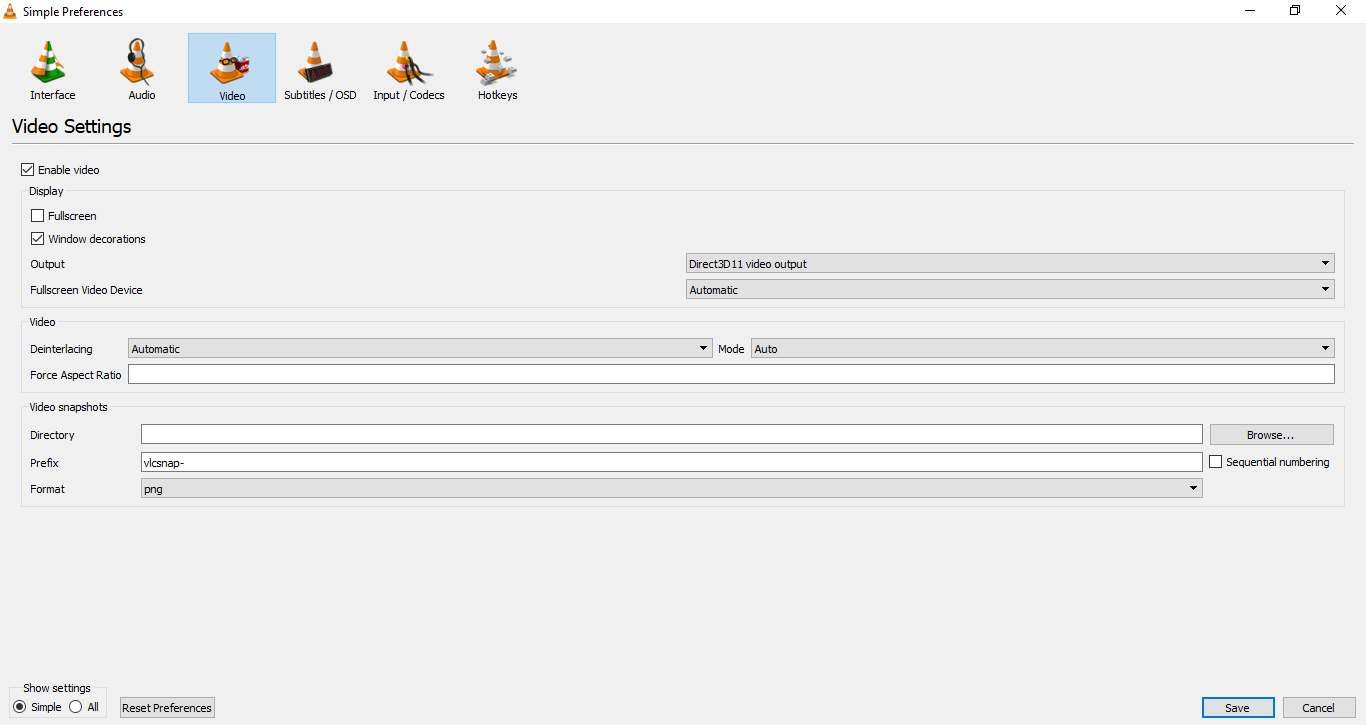
We tested the Direct3D11 video output option on a Windows PC with VLC. After changing the output setting, restarting VLC, and playing an MP4 video, video and audio playback worked normally. Our test confirmed normal playback with Direct3D11 selected; we did not reproduce a black-screen issue.
VLC Safe Download
For the safest installation, download VLC directly from VideoLAN. Avoid modified, repacked, or unofficial installers from unknown download websites. Before running the installer, check that the file came from the expected official source.
Related Windows Media Guides
For screen recording and live streaming, see our OBS Studio Download for Windows guide.
For another lightweight media player, see our MPC-HC Download for Windows guide.
Frequently Asked Questions
Is VLC Media Player free?
Yes. VLC Media Player is completely free and open-source software.
Does VLC work on Windows 11 and 10?
Yes, VLC supports modern Windows systems, including Windows 11 and Windows 10.
Should I download 32-bit or 64-bit VLC?
For most modern 64-bit Windows PCs, choose the 64-bit version. VLC also provides ARM64 builds for compatible Windows ARM devices.
Can VLC play MP4, MKV, and DVDs?
Yes. VLC supports MP4, MKV, and DVD playback, along with many other video formats.
Does VLC support subtitles?
Yes. You can use built-in subtitle tracks or load external subtitle files (like SRT or ASS).
Can VLC play music?
Yes. VLC supports many audio formats including MP3, FLAC, WAV, and OGG.
Can VLC stream media?
Yes. VLC supports network streams and streaming protocols.
Can VLC take screenshots from a video?
Yes, VLC can capture the current video frame and save it as an image.
Final Thoughts
VLC Media Player is one of the most useful free multimedia players for Windows. Its biggest advantage is the combination of wide format support, subtitles, multiple audio tracks, DVD/CD playback, playlists, playback-speed controls, screenshots, network streaming, and advanced audio/video settings in one application.
For most modern Windows users, the 64-bit build is usually the right choice. Download VLC from the official VideoLAN source, choose the correct architecture, and avoid modified or unofficial installers.
Ready to download VLC Media Player?
Download the latest stable VLC package directly from the official VideoLAN website.
ABDNOVA does not host or modify the installer linked below.


