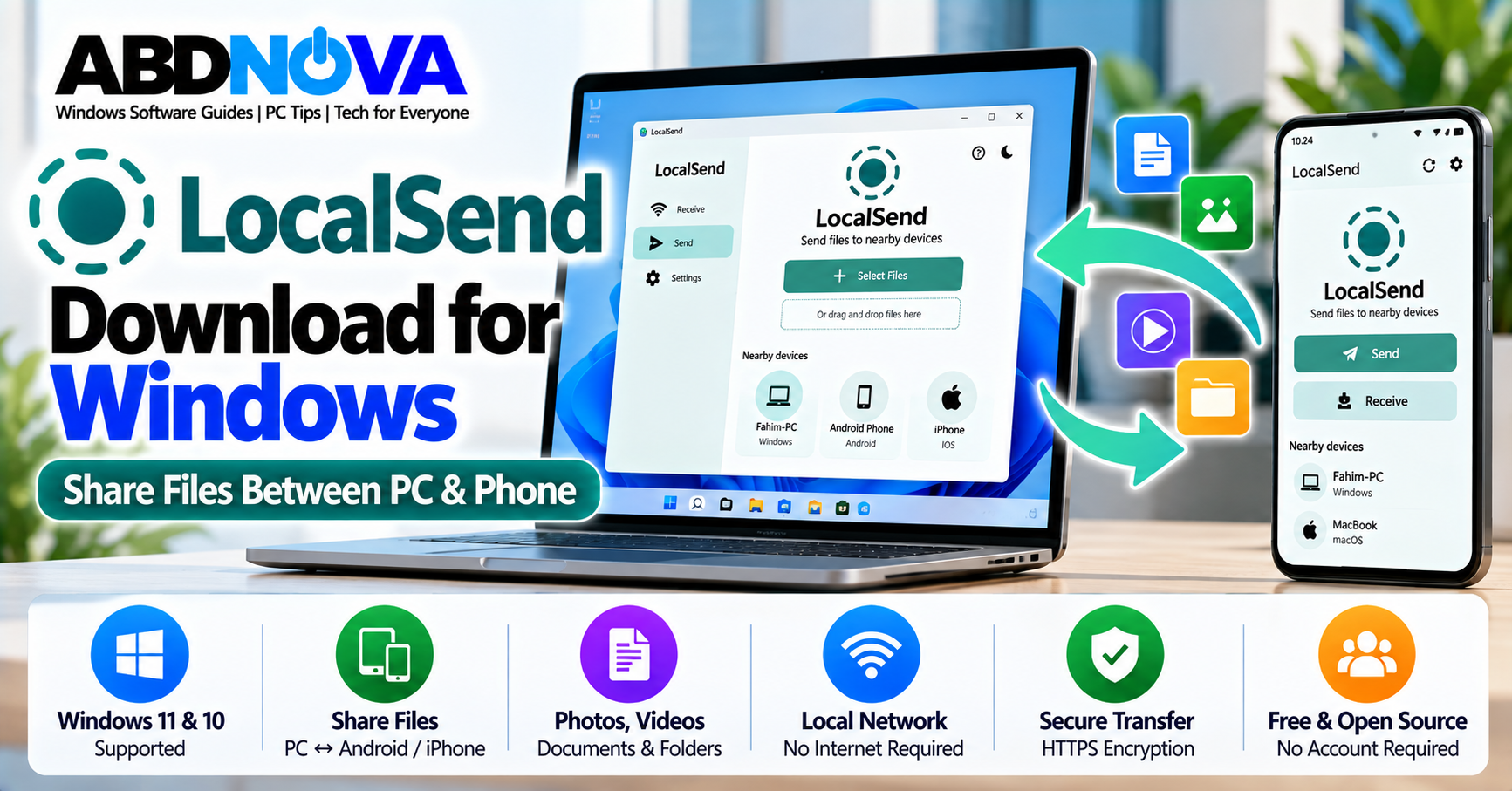

LocalSend Download for Windows – Share Files Between PC & Phone
LocalSend is a free and open-source file-sharing application that lets you transfer files between nearby devices using your local network. It is useful for sharing photos, videos, documents, folders, and other files between a Windows PC and Android phone, iPhone, Mac, Linux computer, or another Windows PC.
Unlike cloud-based file-sharing services, LocalSend does not require you to upload files to an external server first. Devices communicate directly over the local network, and no account or login is required for normal file transfers.
LocalSend for Windows 11 & 10
LocalSend supports Windows 10 and newer versions, including Windows 11. The same application is also available for Android, iPhone and iPad, macOS, and Linux.
| Feature | Details |
|---|---|
| Software | LocalSend |
| Windows Support | Windows 10 and newer, including Windows 11 |
| Platforms | Windows, Android, iOS, macOS & Linux |
| License | Free & Open Source |
| Account Required | No |
| Cloud Required | No |
| Internet for Local Transfers | No |
| Encryption | HTTPS-encrypted communication |
| File & Folder Sharing | Supported |
| Portable Windows Version | Available |
LocalSend Main Interface & Local File Sharing Features
LocalSend focuses on straightforward device-to-device sharing. Install and open the application on the devices you want to use, allow them to communicate through the same local network, select your files, and choose the receiving device.
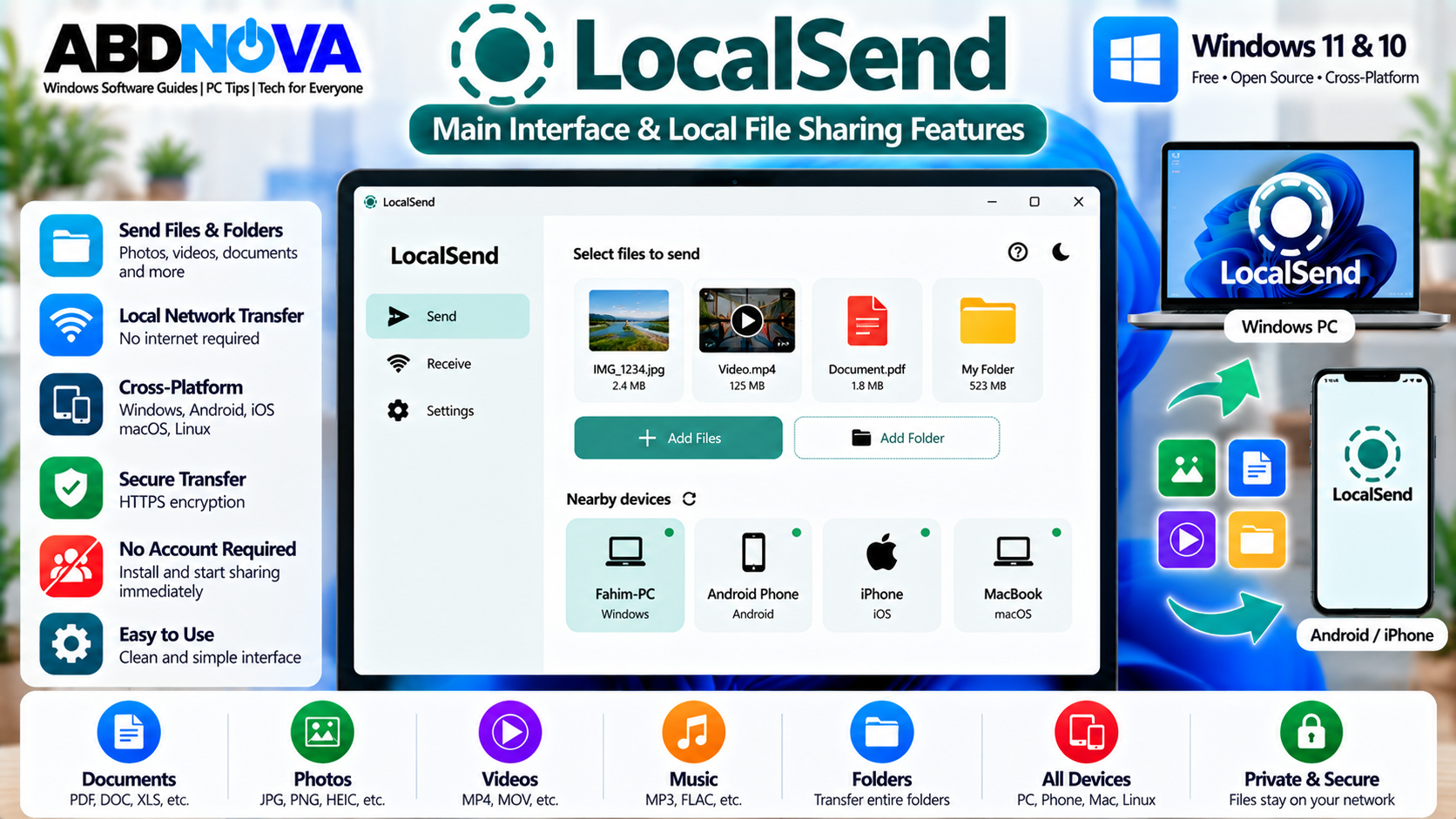
Key LocalSend features include:
- PC-to-phone file transfers
- Phone-to-PC file transfers
- Windows-to-Windows transfers
- Android and iPhone support
- Cross-platform file sharing
- Local-network transfers
- No account or login required
- No internet required for normal local transfers
- HTTPS-encrypted communication
- File and folder sharing
- Nearby-device discovery
- Optional PIN verification
- Portable Windows version
- Free and open-source software
Share Files Without Cloud Storage
One of LocalSend’s main advantages is that your files do not need to be uploaded to cloud storage before reaching the receiving device.
Upload → Cloud Server → Download
LocalSend workflow:
Phone or PC → Local Network → Receiving Device
This can be convenient for large photos, videos, documents, and folders when both devices are nearby.
If you specifically need online storage and synchronization between devices in different locations, see our Google Drive for Desktop Download for Windows guide.
No Account or Login Required
LocalSend does not require you to register an email address or create an online account for normal file transfers.
Install the application on both devices, open LocalSend, and allow the devices to discover each other over the local network.
Does LocalSend Need Internet?
An active internet connection is not required for normal LocalSend transfers. However, the devices must be able to communicate with each other through the same local network or another compatible local-network configuration.
For example, your Windows PC and phone can normally use the same home or office Wi-Fi network.
LocalSend Security & Privacy
LocalSend transfers normal files locally instead of routing them through an external cloud-storage server. Communication is protected using HTTPS encryption.
Optional PIN verification can add another confirmation step when receiving files.
How to Install LocalSend on Windows 11 & 10
The official LocalSend project provides Windows download options including a standard installer and portable packages.
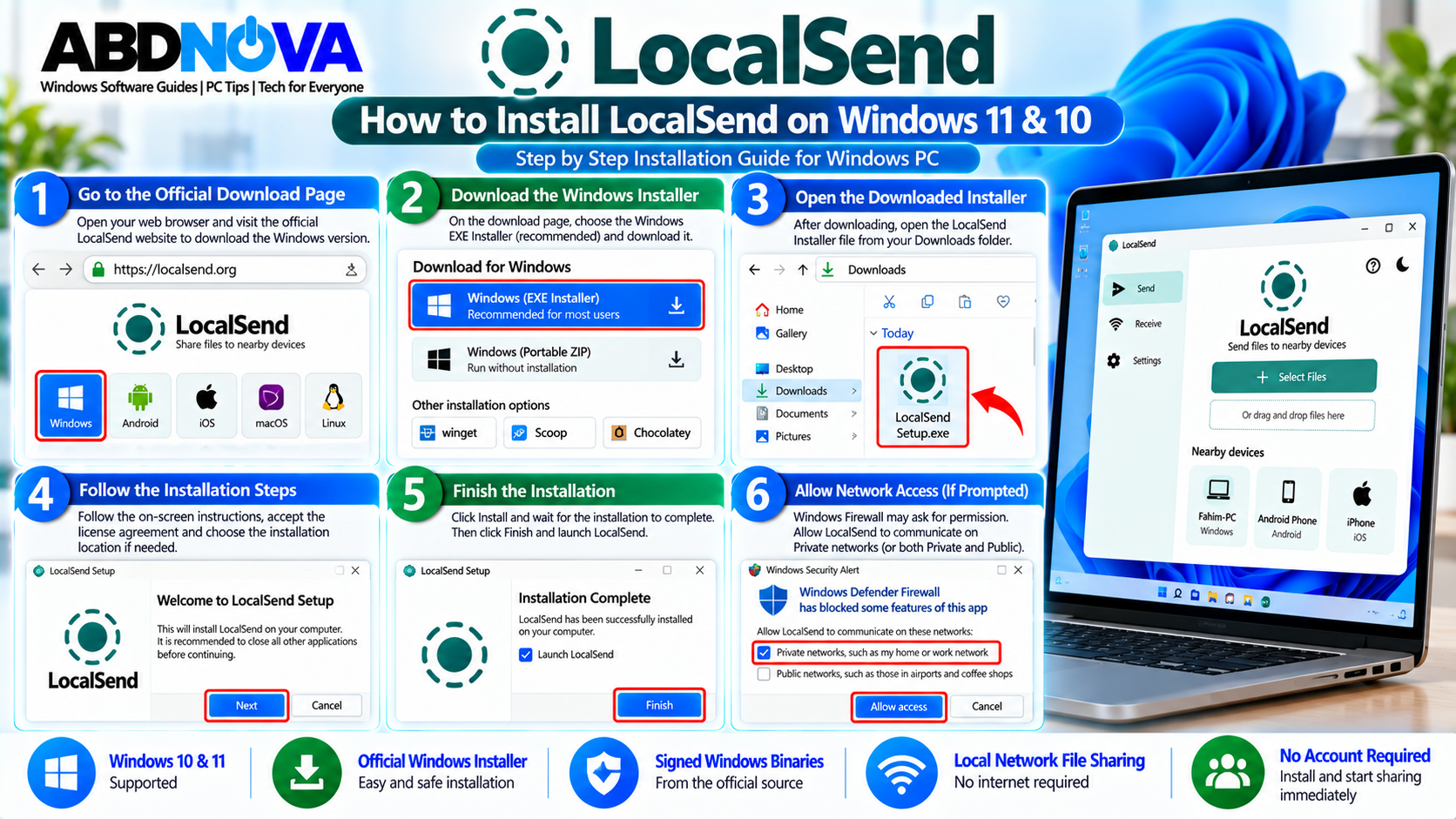
- Visit the official LocalSend website.
- Open the Download section.
- Select the Windows version.
- Download the appropriate Windows package.
- Open the installer.
- Follow the installation instructions.
- Finish installation.
- Launch LocalSend.
Windows Firewall may ask whether LocalSend can communicate through the network. Allow the appropriate access on your trusted local/private network so nearby devices can be discovered.
Install LocalSend on Your Phone
For PC-to-phone file sharing, install the official LocalSend application on your Android phone, iPhone, or iPad as well.
Then:
- Open LocalSend on the Windows PC.
- Open LocalSend on the phone.
- Connect both devices to a network where they can communicate.
- Wait for the devices to discover each other.
LocalSend PC to Android & iPhone File Transfer
LocalSend supports transfers in both directions, making it useful when you frequently move photos, videos, documents, or folders between your computer and phone.
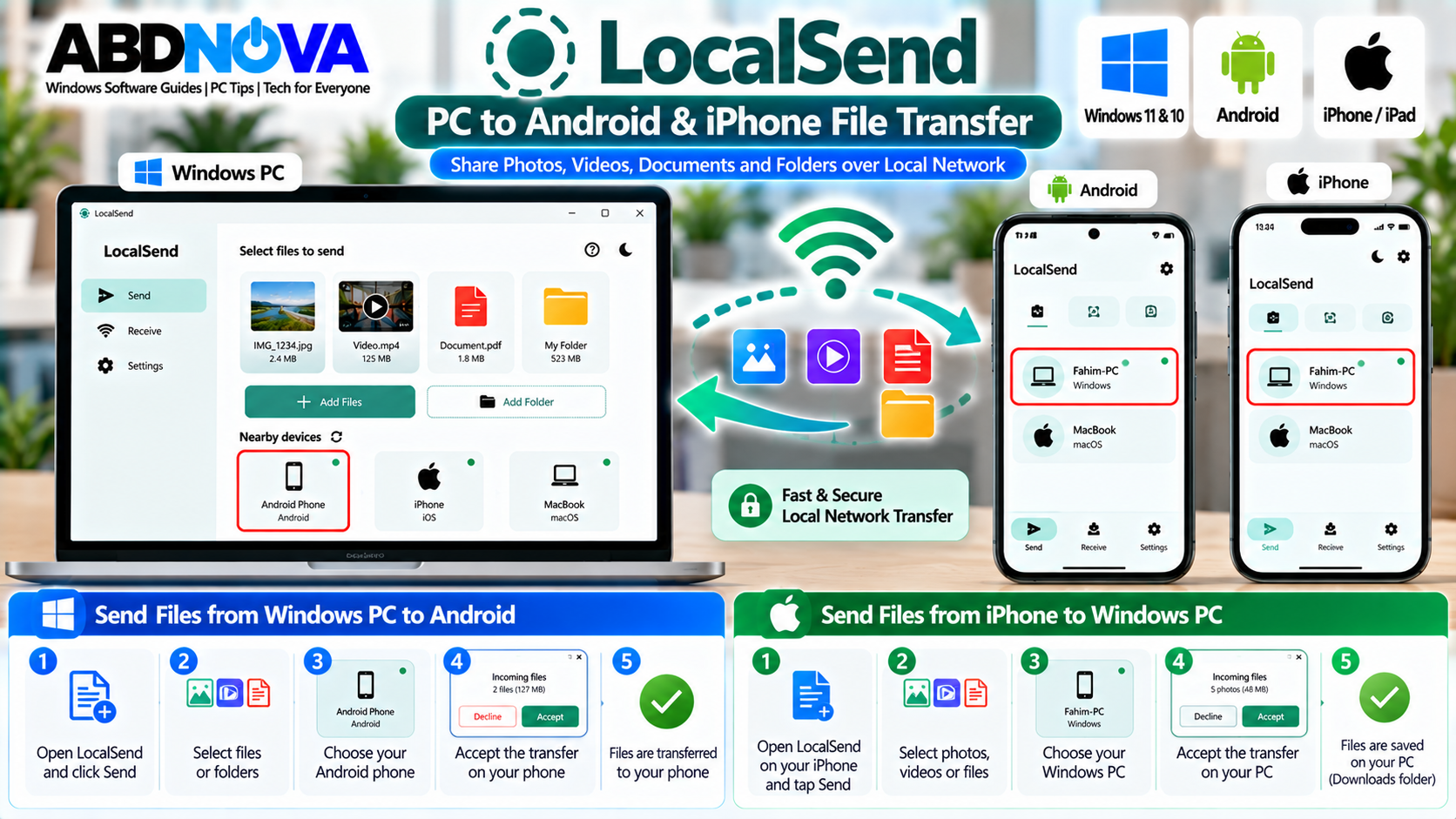
Share Files From Windows PC to Android
- Open LocalSend on the Windows PC and Android phone.
- Select Send on the Windows PC.
- Choose a file or folder.
- Wait for nearby devices to appear.
- Select your Android phone.
- Accept the transfer on the phone if requested.
- Wait for the transfer to complete.
Share Files From Android to Windows PC
- Open LocalSend on both devices.
- Select Send on the Android phone.
- Choose the files you want to transfer.
- Select the Windows PC.
- Accept the transfer on Windows if required.
- Wait for completion.
This can be more convenient than connecting a USB cable whenever you only need to move a few files.
Transfer Files Between iPhone and Windows
LocalSend also supports iPhone and iPad. Open LocalSend on the Windows PC and iPhone, make sure both devices can communicate through the local network, and select the files you want to send.
or
iPhone → Windows PC
This provides a cross-platform local file-sharing option without requiring normal transfers to pass through cloud storage first.
Send Photos & Videos Without a USB Cable
After taking photos or recording videos on your phone, you can transfer them directly to your Windows PC over the local network.
You do not need to upload the files to email, a messaging platform, or cloud storage first.
Share Folders With LocalSend
LocalSend can transfer folders as well as individual files. This is useful for:
- Work documents
- Photo collections
- Video folders
- Project files
- Download folders
- Other groups of files
For large transfers, keep both devices connected to a stable network until the transfer is complete.
Where Does LocalSend Save Received Files?
Received files are normally stored in the device’s download location. LocalSend also provides settings for changing the destination where received files are saved.
If you cannot find a transferred file:
- Check the device’s Downloads folder.
- Open LocalSend settings.
- Check the configured save location.
LocalSend Portable Version for Windows
LocalSend also provides a portable Windows option. Instead of performing a traditional installation, download the official portable package, extract it, and run LocalSend from the extracted folder.
A portable version can be useful if you:
- Prefer portable applications
- Do not want a traditional installation
- Keep utilities in a separate software folder
For normal everyday use on a personal Windows PC, the standard installer is generally simpler.
LocalSend vs USB Cable
| LocalSend | USB Cable |
|---|---|
| Wireless local-network transfer | Physical connection required |
| Convenient for quick nearby transfers | Useful when Wi-Fi is unavailable |
| Works across multiple supported platforms | Depends on device and USB support |
| Performance depends on local network | Performance depends on USB connection and devices |
The better option depends on the devices, local network, transfer size, and available connections.
LocalSend vs Cloud Storage
Cloud storage and LocalSend solve different file-sharing needs. Cloud services are useful when files need to remain online, synchronize across devices, or be available when devices are in different locations.
LocalSend is designed primarily for nearby devices communicating over a local network.
| LocalSend | Cloud Storage |
|---|---|
| Local device-to-device transfer | Files stored or synchronized through cloud servers |
| No account required | Normally requires an account |
| No internet required for normal local transfer | Internet normally required for cloud synchronization |
| Designed for nearby devices | Useful across different locations |
For a cloud-based alternative, you can also read our Dropbox Download for Windows guide. Dropbox is designed around cloud storage and synchronization, while LocalSend focuses on direct local-network transfers.
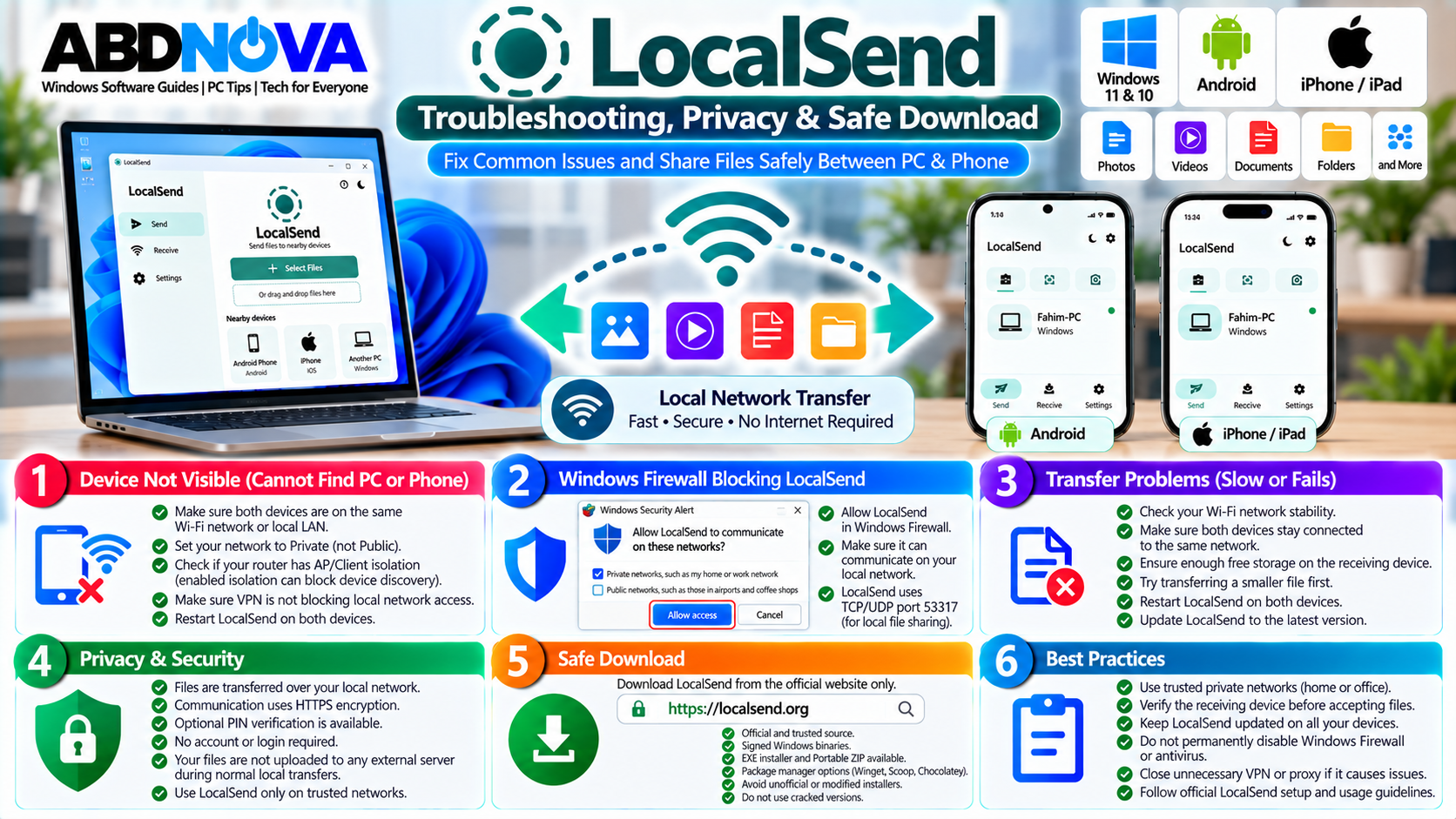
LocalSend Troubleshooting, Privacy & Safe Download
If LocalSend cannot find another device or a transfer fails, the issue is often related to network communication, firewall permissions, VPN software, guest-network isolation, or device permissions.
LocalSend Not Finding Your Phone or PC
Check that:
- LocalSend is open on both devices.
- Both devices can communicate through the local network.
- Windows Firewall allows LocalSend.
- The phone has the required local-network permissions.
- A VPN is not interfering with local discovery.
- The devices are not isolated on guest Wi-Fi.
- Both devices use compatible LocalSend versions.
Restart LocalSend on both devices after checking these settings. If necessary, reconnect to Wi-Fi or restart the router.
Windows Firewall Blocking LocalSend
If Windows Firewall blocks LocalSend:
- Open Windows Security.
- Open Firewall & network protection.
- Check whether LocalSend is allowed through the firewall.
- Confirm that you are using the appropriate network profile.
- Restart LocalSend.
LocalSend Transfer Failed
If a transfer starts but fails before completion, check:
- Wi-Fi signal strength
- Available storage on the receiving device
- Firewall settings
- VPN or proxy software
- LocalSend versions
- Device sleep settings
- Network stability
Try transferring a small file first. If small files work but large files fail, check available storage and network stability.
LocalSend Device Not Showing
If only one device has a discovery problem, try:
- Closing and reopening LocalSend
- Disconnecting and reconnecting Wi-Fi
- Restarting the device
- Checking LocalSend permissions
- Checking firewall or security software
- Checking network isolation
- Updating LocalSend
Public and guest Wi-Fi networks may intentionally prevent devices from communicating with each other.
LocalSend Transfer Speed Is Slow
Transfer speed depends heavily on your local network and devices. Slow transfers can result from:
- Weak Wi-Fi signal
- Congested wireless network
- Older router hardware
- Slow phone storage
- Slow PC storage
- Large numbers of small files
- Background network activity
Moving devices closer to the router can help. A PC connected to the router through Ethernet can also provide a stable connection while the phone remains connected through Wi-Fi.
Safe LocalSend Download
Download LocalSend from the official LocalSend project or its documented distribution channels.
Avoid:
- Modified installers
- Unofficial repacks
- Fake premium versions
- Unknown EXE download sites
- Installers containing bundled applications
Frequently Asked Questions
Is LocalSend free?
Yes. LocalSend is free and open-source software.
Does LocalSend work on Windows 11?
Yes. LocalSend supports Windows 10 and newer versions, including Windows 11.
Can LocalSend transfer files between Android and Windows?
Yes. Files can be transferred from Windows to Android and from Android to Windows.
Can I use LocalSend with an iPhone?
Yes. LocalSend supports iOS, allowing file transfers between an iPhone or iPad and a Windows PC.
Does LocalSend require an account?
No. You do not need to create a LocalSend account or sign in for normal local file transfers.
Does LocalSend require internet?
No active internet connection is required for normal transfers between devices that can communicate over the local network.
Does LocalSend upload files to the cloud?
Normal LocalSend transfers take place over the local network rather than requiring files to be uploaded to an external cloud server.
Are LocalSend transfers encrypted?
Yes. LocalSend uses encrypted communication for file transfers.
Can LocalSend send folders?
Yes. LocalSend supports transferring both files and folders between supported devices.
Why can’t LocalSend find my phone?
Check local-network connectivity, Windows Firewall, phone permissions, VPN settings, guest-network isolation, and the LocalSend versions installed on both devices.
Final Thoughts
LocalSend is a practical solution for transferring files between a Windows PC and nearby Android phones, iPhones, tablets, Macs, Linux computers, and other Windows PCs.
Its main advantage is simplicity: you can share photos, videos, documents, folders, and other files over your local network without creating an account or uploading everything to cloud storage first.
For Windows 11 and Windows 10 users who regularly transfer files between a PC and phone, LocalSend provides a convenient cross-platform alternative to USB cables and cloud-based sharing.
Download LocalSend for Windows
Get LocalSend directly from the official project.