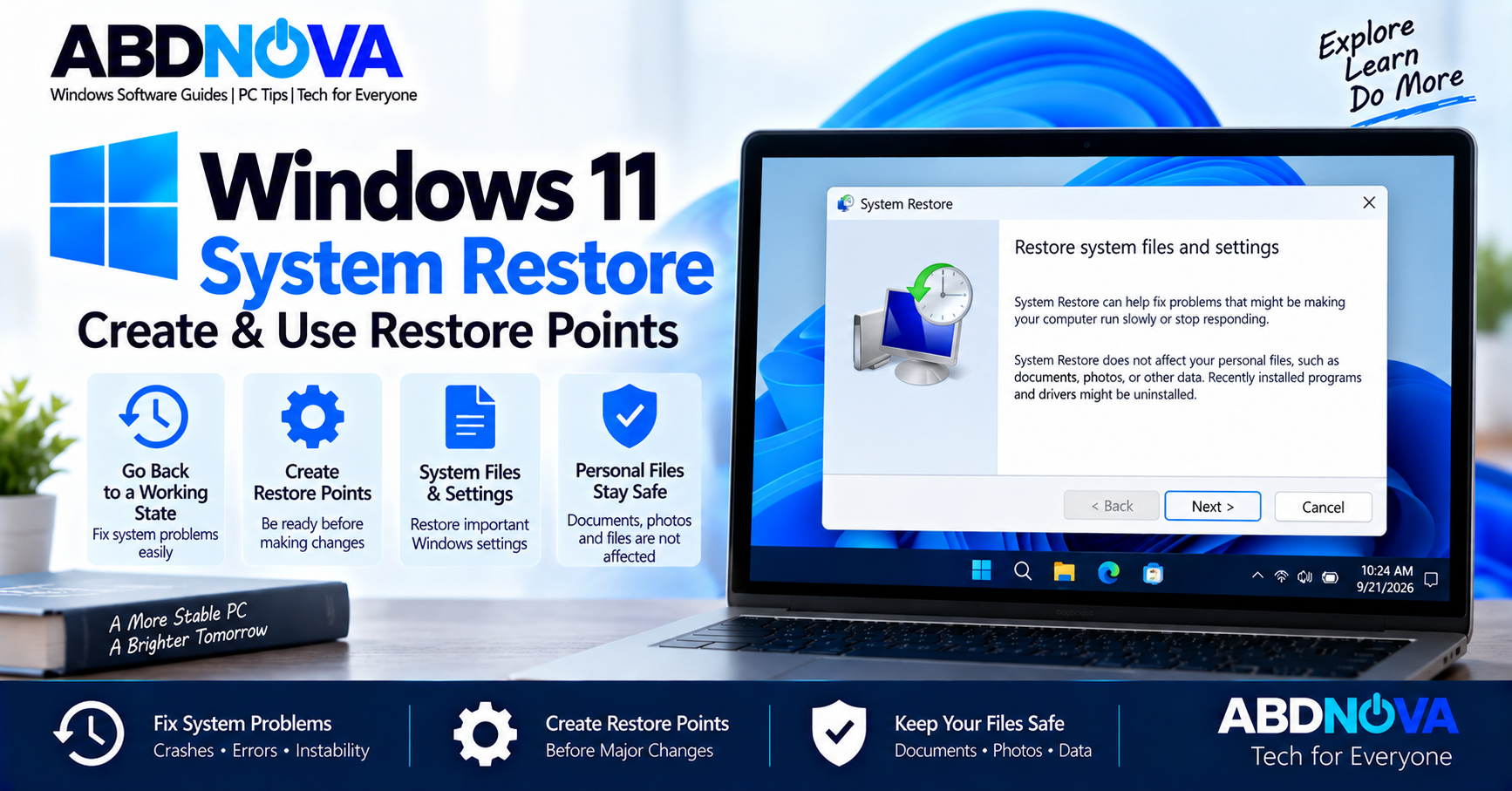

Windows 11 System Restore – Create & Use Restore Points
Windows 11 System Restore is a built-in recovery feature that lets you return Windows system files, Registry settings, installed programs, drivers, and system configuration to an earlier state.
It can be useful when a PC starts having problems after installing software, updating a driver, changing Windows settings, or making another system-level change.
Traditional System Restore normally does not affect personal files such as documents and photos. However, applications, drivers, and system changes made after the selected restore point can be removed or reversed.
Windows 11 System Restore Details
| Detail | Information |
|---|---|
| Developer | Microsoft |
| Included With | Windows 11 |
| Main Purpose | Roll back system changes |
| Uses | Restore points |
| Personal Files | Normally unaffected |
| System Files & Settings | Restored |
| Registry Settings | Restored |
| Installed Apps & Drivers | Recent changes may be reversed |
| Works From Windows | Yes |
| Works From WinRE | Yes |
| Internet Required | No |
| BitLocker Key | May be required in WinRE |
| Separate Download | Not required |
What Does Windows 11 System Restore Do?
System Restore uses restore points containing snapshots of important Windows system configuration.
When you apply a restore point, Windows can roll back:
- System files
- Windows Registry settings
- System settings
- Installed applications
- Drivers
- Other system-level changes
The goal is to return Windows to a working configuration from before a problem appeared.
For example, if Windows becomes unstable immediately after installing a driver or application, you can select a restore point created before that change.
When Should You Use System Restore?
Windows 11 System Restore can be useful when:
- Windows behaves incorrectly after installing an application.
- A driver update causes crashes or hardware problems.
- System settings were changed incorrectly.
- Windows becomes unstable after a recent system change.
- A newly installed program causes conflicts.
- Windows cannot start and Startup Repair does not solve the problem.
- You want to undo system changes without resetting Windows.
If Windows cannot start normally, several recovery tools are available through Windows 11 Recovery Environment (WinRE).
What Is a Windows Restore Point?
A restore point is a snapshot of important Windows system configuration at a particular time.
When traditional System Protection is enabled, restore points can be created automatically around significant system events. You can also create a restore point manually before making an important change to the PC.
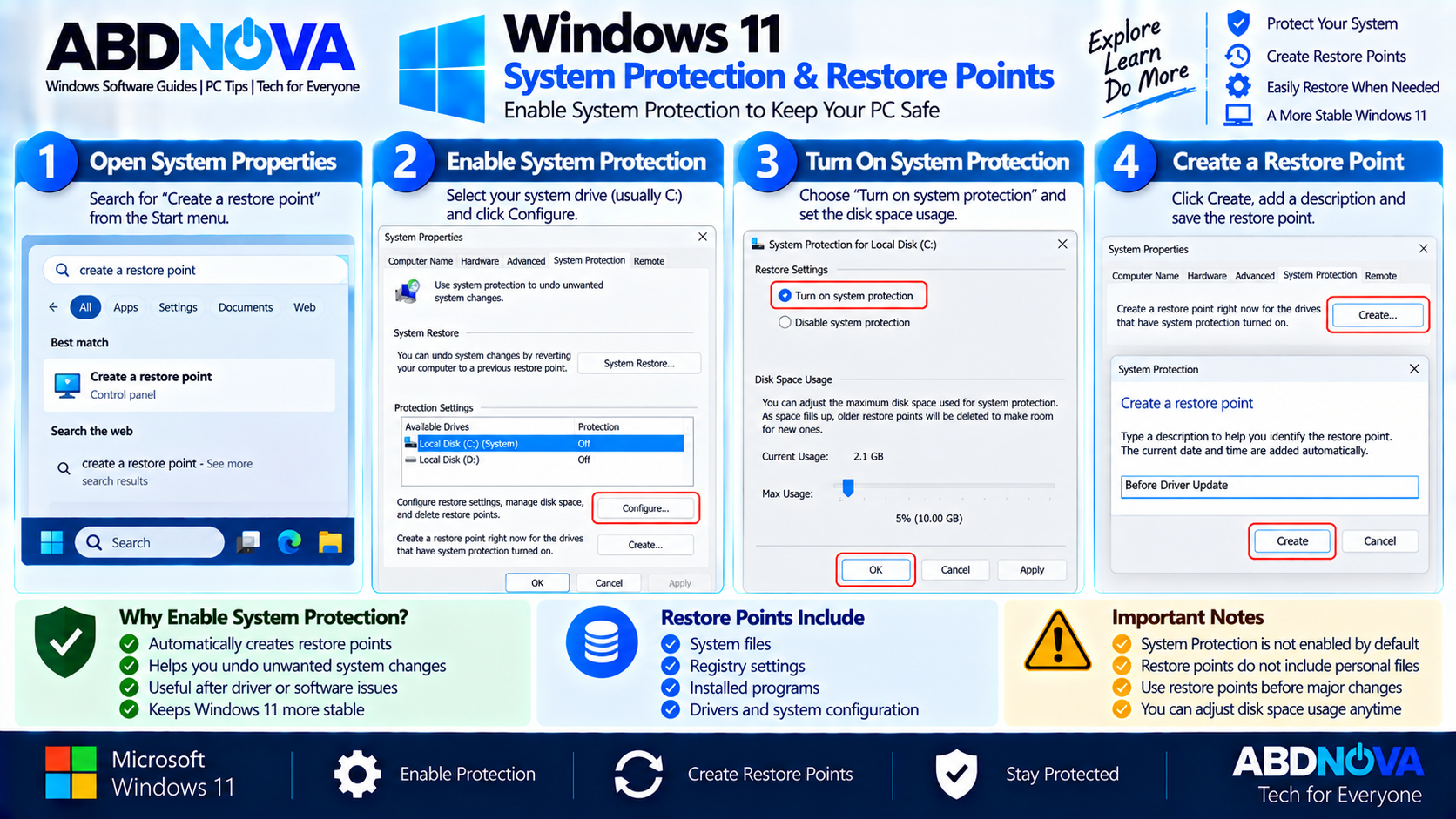
Windows 11 System Protection & Restore Points
Traditional restore points depend on System Protection. Microsoft currently states that System Protection is not enabled by default, so check its status before relying on System Restore.
How to Enable System Protection in Windows 11
- Open Start.
- Search for Create a restore point.
- Select the matching result.
- The System Properties window opens on the System Protection tab.
- Select the Windows system drive, normally Local Disk (C:).
- Select Configure.
- Select Turn on system protection.
- Adjust the maximum disk-space usage if required.
- Select Apply and then OK.
Once enabled, System Protection can automatically create restore points when needed.
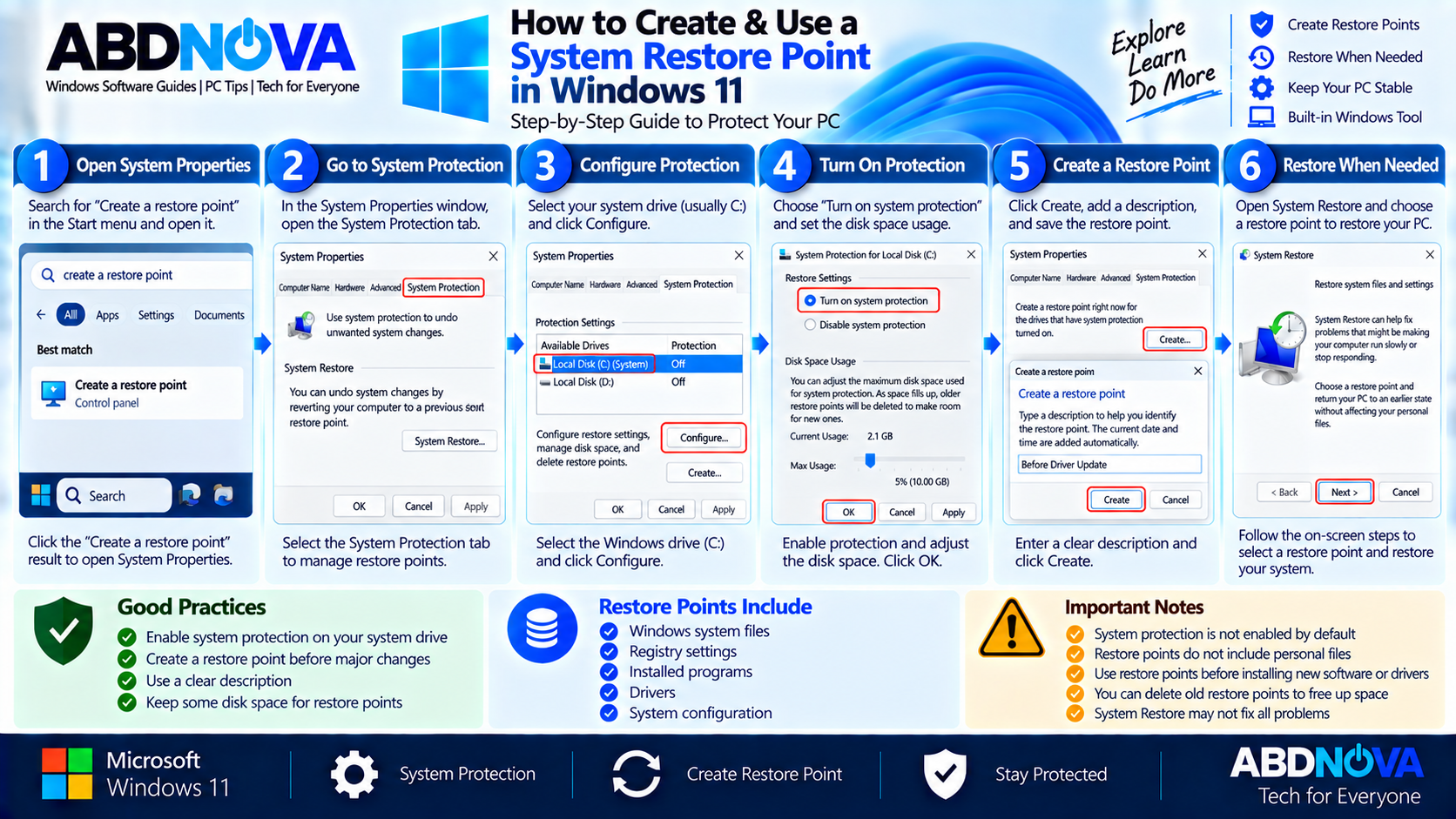
How to Create & Use a System Restore Point in Windows 11
Create a Restore Point Manually
Creating a restore point before installing important software, changing drivers, or making major Windows changes gives you another recovery option if something goes wrong.
- Open Start and search for Create a restore point.
- Open the matching result.
- Under the System Protection tab, select Create.
- Enter a useful description for the restore point.
- Select Create again.
- Wait while Windows creates the restore point.
A useful description might be:
How to Run System Restore in Windows 11
If Windows still starts normally, you can launch System Restore from Control Panel:
You can also press Windows + R, type:
rstrui.exeand press Enter.
When System Restore opens:
- Select Next.
- Choose the restore point you want to use.
- Select Scan for affected programs if you want to check affected apps and drivers.
- Select Next.
- Review the selected restore point.
- Select Finish.
Windows applies the restore point and automatically restarts.
Scan for Affected Programs
Before starting the restoration, use Scan for affected programs.
This can help identify applications and drivers that may be removed or restored when Windows returns to the selected restore point.
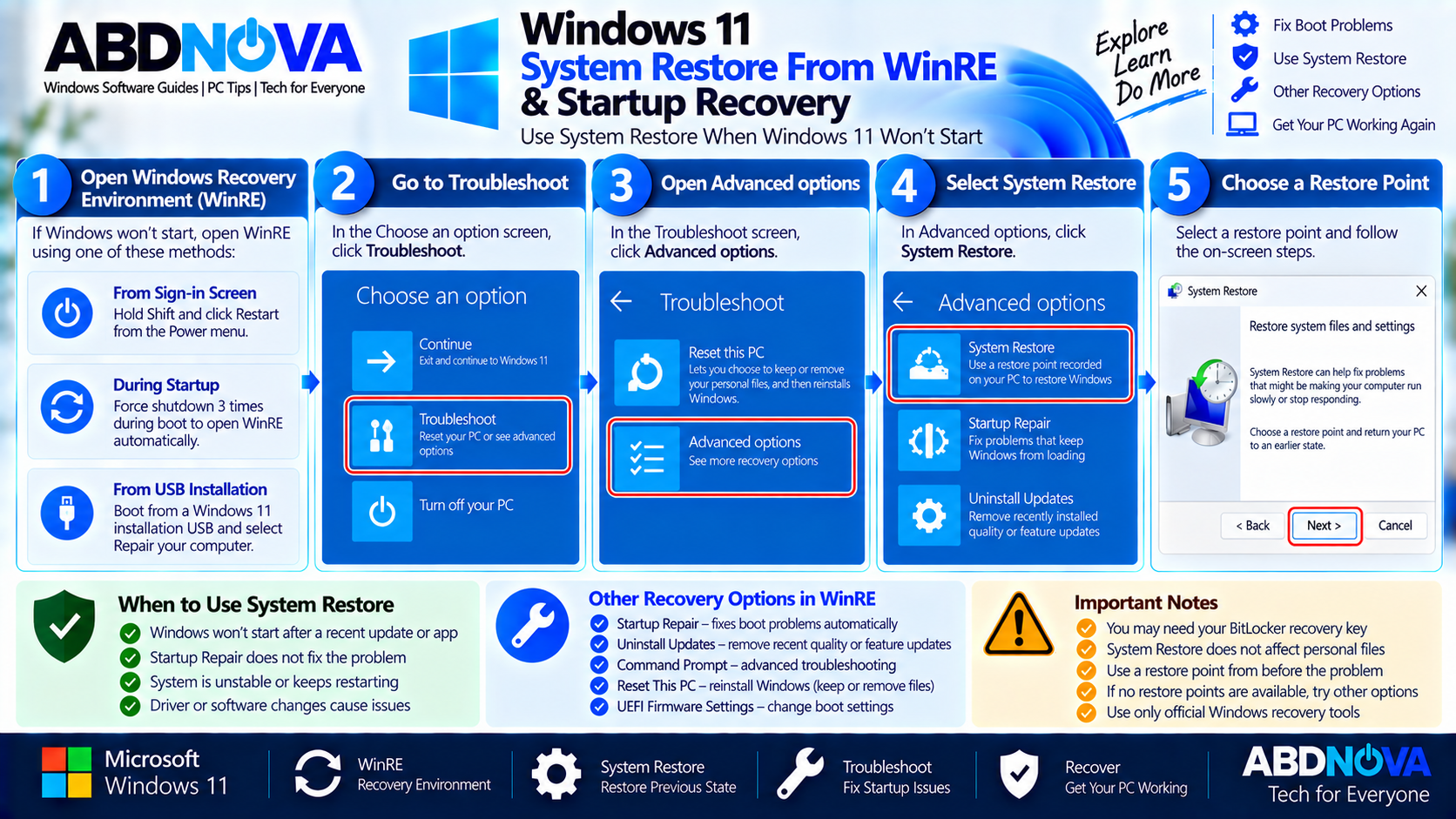
Windows 11 System Restore From WinRE & Startup Recovery
System Restore can also be used when Windows 11 will not start normally.
Enter Windows Recovery Environment and select:
Select the appropriate restore point and continue through the recovery wizard.
This can be useful when a recent driver, application, or system configuration prevents Windows from starting normally.
System Restore and BitLocker
If the Windows drive is encrypted and you run System Restore through Windows Recovery Environment, Microsoft says you will need the BitLocker recovery key to complete the operation.
Keep the recovery key accessible somewhere other than only on the affected PC.
Does System Restore Delete Personal Files?
Traditional System Restore is designed to restore Windows system configuration without affecting personal files.
Your documents, photos, and other personal data are not normally rolled back by traditional System Restore.
However, System Restore is not a replacement for a proper backup. Important personal files should still be backed up before significant recovery operations whenever possible.
Does System Restore Remove Apps or Drivers?
It can. Applications and drivers installed after the selected restore point may be affected because Windows returns installed programs and system configuration to their earlier state.
Use Scan for affected programs before starting System Restore to see which applications and drivers may change.
System Restore vs Point-in-Time Restore
Microsoft now documents traditional System Restore and the newer Point-in-time restore as separate Windows recovery technologies.
| System Restore | Point-in-Time Restore |
|---|---|
| Restores system files and settings | Rolls back the entire Windows system drive |
| Personal files are not affected | Personal files can be rolled back |
| Restore points are event-triggered or manually created | Uses recent automatic snapshots |
| Configured through traditional System Protection | Configured through Windows Recovery settings |
| Can provide older restore points subject to available disk space | Microsoft currently retains snapshots for up to 72 hours |
System Restore vs Startup Repair
| System Restore | Startup Repair |
|---|---|
| Rolls Windows back to an earlier system state | Automatically diagnoses certain startup problems |
| Requires an available restore point | Does not require a restore point |
| Useful after recent system changes | Designed primarily for startup failures |
| Can reverse apps, drivers, and settings | Attempts to repair certain boot-related problems |
| Personal files normally unaffected | Does not reinstall Windows |
If Windows fails to start, Microsoft’s recovery guidance may use Startup Repair before moving to other recovery methods. System Restore remains available when an appropriate restore point exists.
System Restore vs Reset This PC
System Restore and Reset This PC perform significantly different recovery operations.
System Restore rolls back system-level changes using an existing restore point. Reset This PC reinstalls Windows and removes applications and settings while allowing you to choose whether personal files are kept or removed.
For more details about the more extensive recovery option, see our Windows 11 Reset This PC guide.
No Restore Points Available
Sometimes System Restore opens but no usable restore points appear.
A common reason is that traditional System Protection was not enabled. Restore points created by traditional System Restore depend on System Protection.
Open:
Check whether protection is enabled for the Windows system drive.
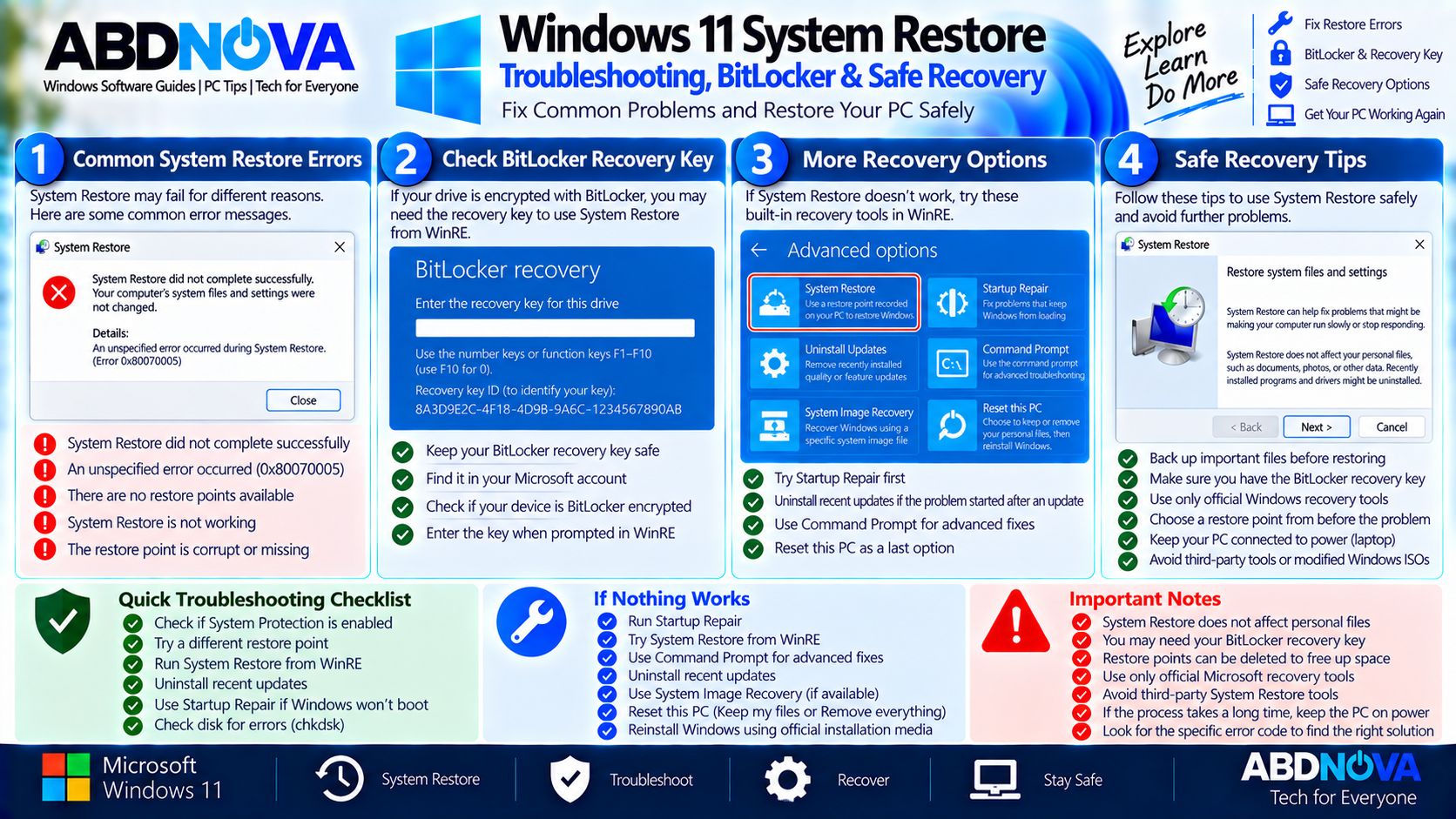
Windows 11 System Restore Troubleshooting, BitLocker & Safe Recovery
System Restore Failed or Did Not Complete
If System Restore fails:
- Try another available restore point.
- Try running System Restore from WinRE.
- Make sure the correct BitLocker recovery key is available if requested.
- Try Startup Repair if Windows cannot boot.
- Consider Uninstall Updates if the problem began after a Windows update.
- Use Safe Mode or Startup Settings for driver and software troubleshooting.
- Consider Reset This PC or official recovery media if less disruptive recovery methods cannot solve the problem.
Windows Recovery Environment provides several built-in recovery tools from the troubleshooting interface.
Safe System Restore Tips
Before restoring Windows:
- Save open work.
- Back up important personal files whenever possible.
- Connect a laptop to reliable power.
- Choose a restore point from before the problem began.
- Use Scan for affected programs before confirming the restore.
- Do not deliberately turn off the computer while the restore is being applied.
After Windows starts successfully again, check Windows Update, device drivers, security software, and the application or driver that originally caused the problem.
Frequently Asked Questions
What is Windows 11 System Restore?
System Restore is a built-in Windows recovery feature that returns system files, Registry settings, installed applications, drivers, and system configuration to an earlier restore point without normally affecting personal files.
Does Windows 11 automatically create restore points?
When traditional System Protection is enabled, Windows can create restore points automatically when needed. Microsoft currently states that System Protection itself is not enabled by default.
How do I create a restore point in Windows 11?
Search for Create a restore point, open System Protection, select Create, enter a description, and select Create again.
Can System Restore recover deleted personal files?
No. Traditional System Restore is intended to restore system configuration rather than personal files. Use a proper file-backup solution to protect personal data.
Can I use System Restore if Windows 11 will not boot?
Yes. Enter Windows Recovery Environment and select Troubleshoot → Advanced options → System Restore.
Will System Restore uninstall programs?
Applications and drivers installed after the selected restore point can be affected. Use Scan for affected programs before starting the restoration.
Why are there no restore points?
Traditional restore points require System Protection. If protection was disabled, usable restore points may not have been created.
Is System Restore the same as Point-in-time restore?
No. Traditional System Restore restores system files and settings without rolling back personal files. Microsoft’s newer Point-in-time restore can roll back the Windows system drive, including personal files, apps, and settings.
Final Thoughts
Windows 11 System Restore is a useful built-in recovery option for reversing recent software, driver, Registry, or system-setting changes without reinstalling Windows.
For future protection, check that System Protection is enabled and consider creating a manual restore point before significant driver, software, or configuration changes. Remember that traditional restore points do not replace a proper backup of personal files.
If Windows cannot start, System Restore can also be accessed through Windows Recovery Environment. If no usable restore point exists or System Restore cannot solve the problem, Windows provides additional recovery options such as Startup Repair and Reset This PC.
Windows 11 System Restore
View Microsoft’s official instructions for using System Restore and restore points.