
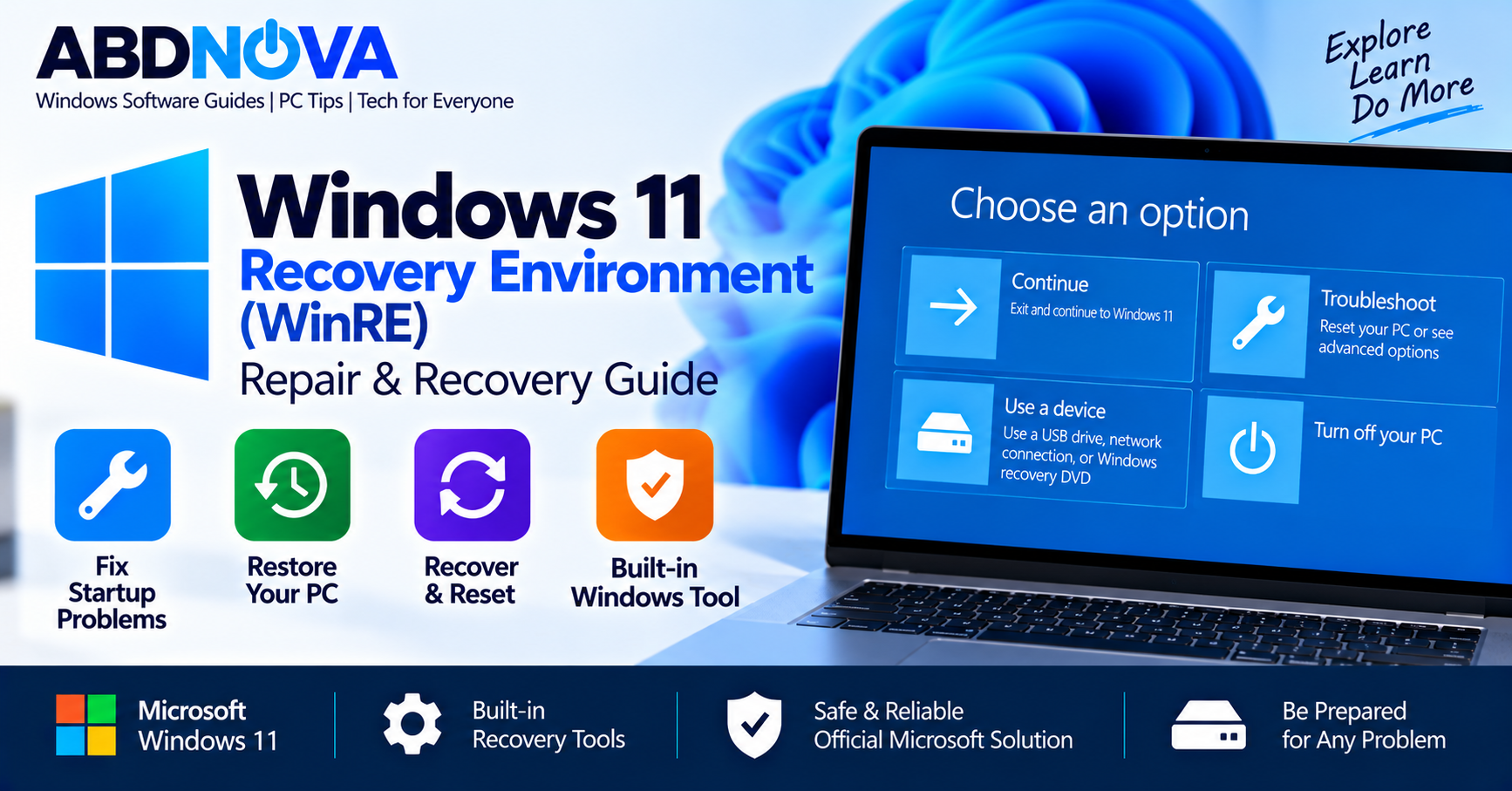

Windows 11 Recovery Environment (WinRE) – Repair & Recovery Guide
Windows 11 Recovery Environment (WinRE) is Microsoft’s built-in recovery platform for troubleshooting and repairing Windows when the operating system cannot start normally or develops serious problems.
WinRE can help repair startup failures, remove problematic updates, restore Windows settings, start Safe Mode, access Command Prompt, reset the PC, and open other advanced recovery tools.
Windows RE is based on Windows Preinstallation Environment (Windows PE) and is normally preloaded with Windows 11 Home, Pro, Enterprise, and Education. No separate third-party recovery application is required.
Windows 11 WinRE Details
| Detail | Information |
|---|---|
| Developer | Microsoft |
| Full Name | Windows Recovery Environment |
| Short Name | Windows RE / WinRE |
| Included With | Windows 11 |
| Main Purpose | Repair, troubleshoot and recover Windows |
| Recovery Image | winre.wim |
| Startup Repair | Yes |
| System Restore | Yes |
| Uninstall Updates | Yes |
| Safe Mode | Available through Startup Settings |
| Command Prompt | Yes |
| Reset This PC | Yes |
| UEFI Firmware Settings | Supported where applicable |
| Third-Party Software Required | No |
What Is Windows Recovery Environment?
Windows Recovery Environment is a separate recovery environment capable of operating even when the normal Windows installation cannot start correctly.
Microsoft designed WinRE to repair common causes of an unbootable Windows system. Because it is based on Windows PE, it can provide recovery, diagnostic, startup, and command-line tools independently of the normal Windows desktop.
A typical WinRE screen provides options such as:
- Continue
- Use a device
- Troubleshoot
- Turn off your PC
Selecting Troubleshoot provides access to the main Windows repair and recovery options.
When Should You Use Windows 11 WinRE?
WinRE can be useful when:
- Windows 11 does not start correctly
- The PC repeatedly enters a boot loop
- Windows freezes during startup
- A Windows update causes problems
- System or boot files become damaged
- You need to restore Windows to an earlier state
- You need Safe Mode for troubleshooting
- You need advanced Command Prompt access
- You need to uninstall a problematic update
- You need to reset or recover Windows
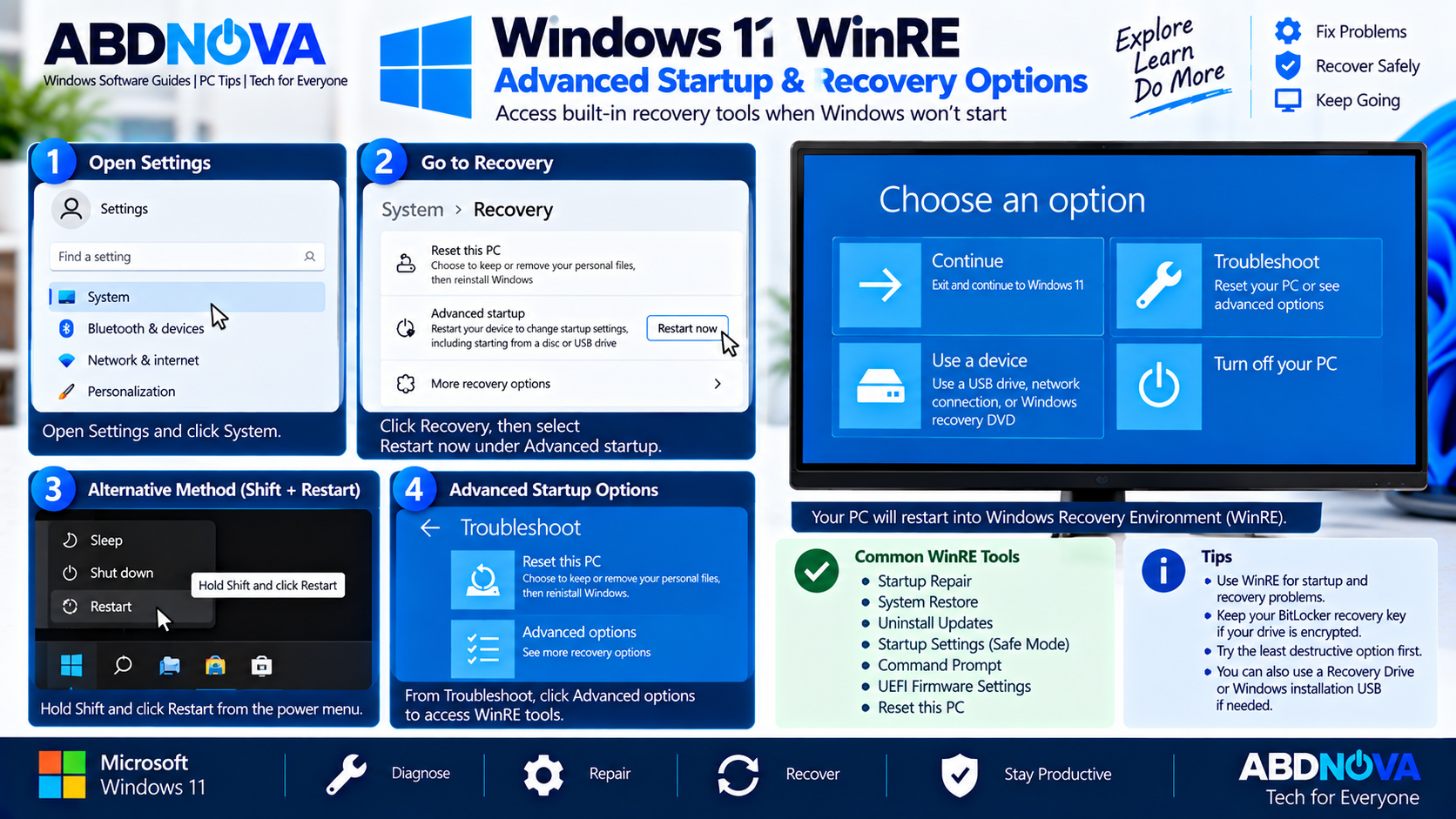
Windows 11 WinRE Advanced Startup & Recovery Options
Open WinRE From Windows 11 Settings
If Windows still starts normally, you can enter WinRE through Settings:
- Open Settings.
- Select System.
- Open Recovery.
- Find Advanced startup.
- Select Restart now.
The PC restarts into Windows Recovery Environment.
Open WinRE With Shift + Restart
You can also hold the Shift key while selecting Restart from the Windows power menu.
This method is particularly useful when you can reach the Windows sign-in screen but cannot successfully use the normal desktop.
Automatic WinRE Startup
Windows can automatically enter its recovery environment when startup problems prevent normal booting.
This is why a PC experiencing repeated boot failures may eventually display Preparing Automatic Repair or Windows advanced recovery options instead of loading the desktop.
Windows 11 WinRE Tools
The exact tools available can vary depending on the Windows version, device configuration, encryption status, and recovery setup.
Common Windows 11 WinRE tools include Startup Repair, System Restore, Uninstall Updates, Startup Settings, Command Prompt, UEFI Firmware Settings, and Reset This PC.
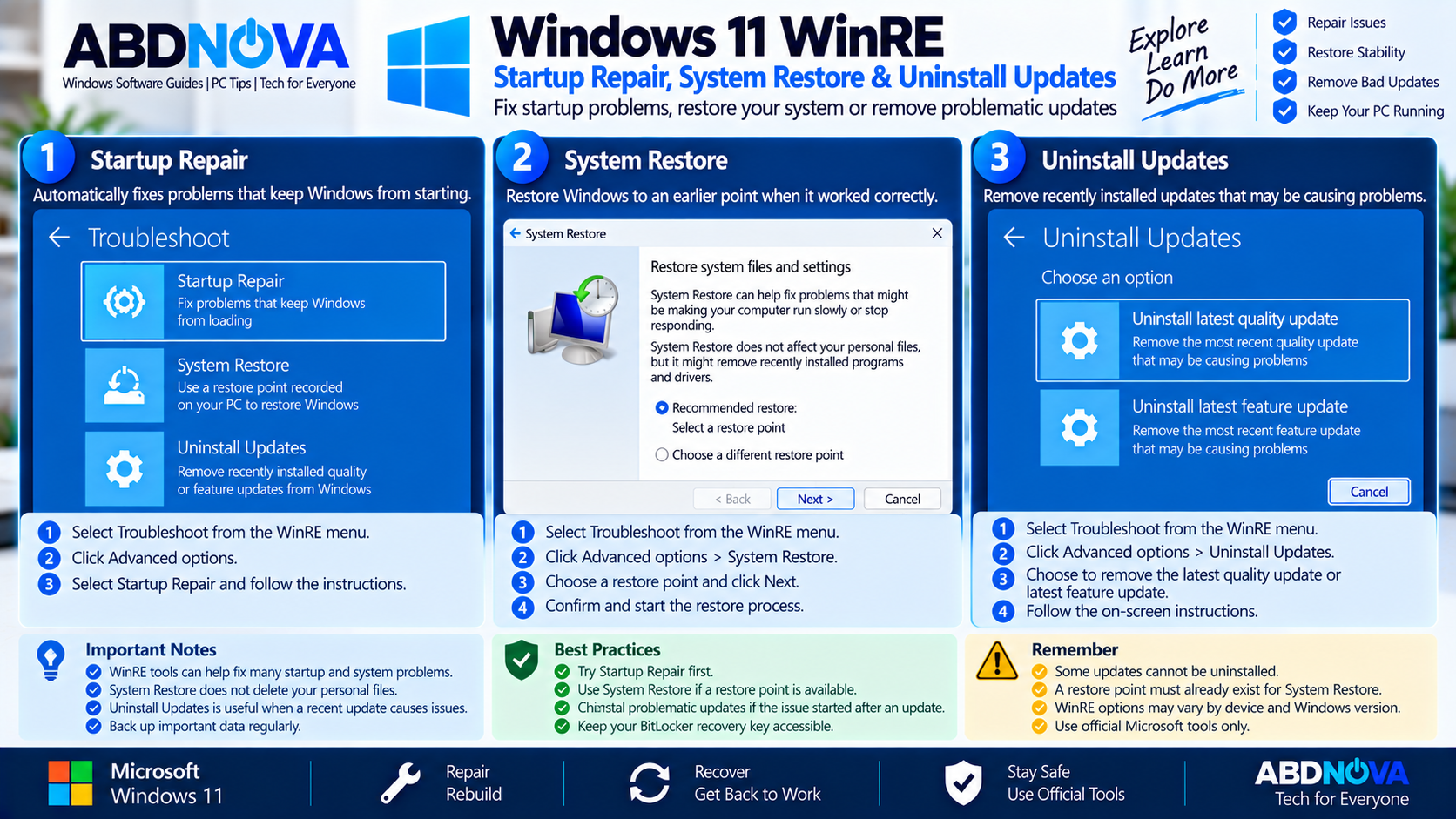
Windows 11 WinRE Startup Repair, System Restore & Uninstall Updates
Startup Repair
Startup Repair automatically checks for common problems that prevent Windows from starting correctly.
Open:
Microsoft documents Startup Repair as capable of diagnosing several startup-related problems, including damaged system files, corrupted boot configuration data, registry problems, incompatible drivers, and other boot issues.
Startup Repair is therefore a sensible early option when Windows suddenly refuses to boot.
System Restore
System Restore can roll back Windows system files and settings to an earlier restore point.
Open:
Traditional System Restore does not normally restore or delete personal documents, although system changes made after the selected restore point can be undone.
It can be useful after:
- Driver problems
- Problematic software installation
- System configuration changes
- Certain Windows errors
A suitable restore point must already exist for this option to work.
Point-in-Time Restore
Microsoft’s current Windows recovery documentation also includes Point-in-time restore for Windows 11 version 24H2 or later.
This recovery method is more extensive than traditional System Restore because it can roll back the PC—including apps, settings, and personal files—to a recent automatic restore point.
Uninstall Updates
If Windows stopped working correctly immediately after an update, WinRE can provide an option to remove an applicable recent update.
Open:
Not every Windows update can necessarily be removed, but this recovery route can be useful when a recent update appears to have caused the problem.
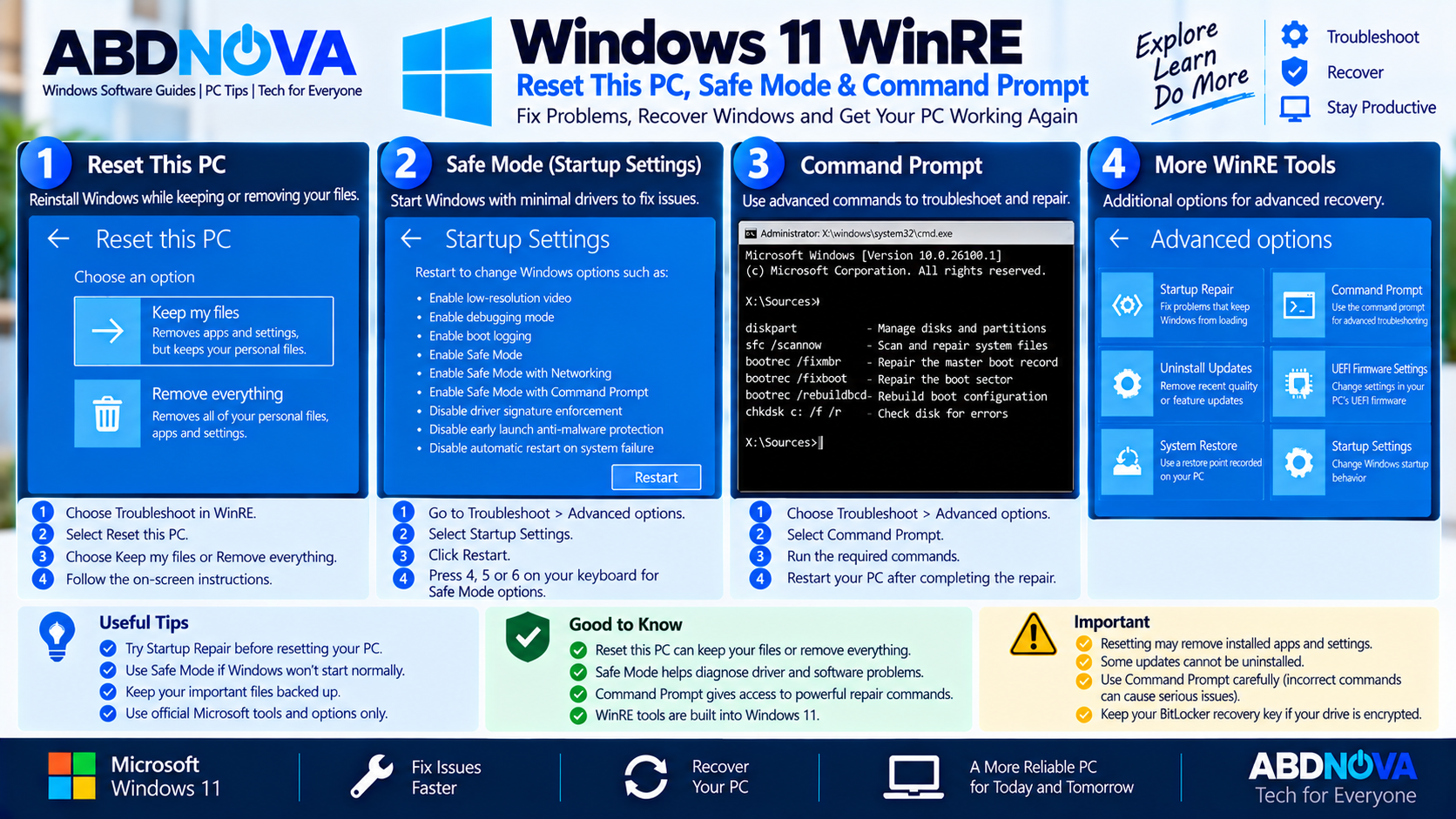
Windows 11 WinRE Reset This PC, Safe Mode & Command Prompt
Startup Settings and Safe Mode
Startup Settings provides alternative startup modes for diagnosing Windows problems.
Depending on the system configuration, options can include:
- Safe Mode
- Safe Mode with Networking
- Safe Mode with Command Prompt
- Other diagnostic startup settings
Safe Mode starts Windows with a limited set of drivers and services, making it useful for isolating driver, software, and configuration problems.
Command Prompt
Advanced users can open:
This provides command-line access for technical troubleshooting involving system files, disks, boot configuration, and other recovery operations.
For additional Windows command-line information, see our Windows Terminal Download for Windows guide.
UEFI Firmware Settings
On supported PCs, WinRE can provide:
The PC then restarts into its firmware interface, where available options can include boot order, Secure Boot, and other hardware-level settings. Exact options depend on the PC manufacturer.
Reset This PC
WinRE also provides access to Reset this PC.
Open:
Windows can offer two main choices:
- Keep my files — reinstalls Windows while preserving personal files, but removes apps and resets settings.
- Remove everything — removes personal files as part of the reset and is the more destructive option.
BitLocker and Windows 11 WinRE
BitLocker is an important consideration when using Windows recovery tools.
If the Windows system drive is encrypted, the BitLocker recovery key may be required before many WinRE recovery options can access the protected installation.
Make sure the correct recovery key is accessible before performing major recovery work. Do not rely on the affected PC as the only place where important recovery information is stored.
Check Whether WinRE Is Enabled
Windows includes the REAgentC command-line utility for managing Windows Recovery Environment.
Open Command Prompt or Windows Terminal as administrator and run:
reagentc /infoThe output can display:
- Windows RE status
- Windows RE location
- Boot Configuration Data identifier
- Recovery-image configuration
A normally configured system should show:
Windows RE status: EnabledEnable Windows Recovery Environment
If Windows RE is disabled and the required recovery image is correctly configured, REAgentC provides an enable option:
reagentc /enableYou can then check the status again with:
reagentc /infoThe Windows 11 WinRE Recovery Partition
Windows typically stores WinRE files in a dedicated recovery location rather than exposing them as a normal storage partition.
The recovery image is normally named:
winre.wimMicrosoft’s deployment documentation uses a Recovery\WindowsRE directory for the Windows RE image. The actual registered location on a specific PC can be checked using reagentc /info.
WinRE vs Windows 11 Recovery Drive
Windows Recovery Environment and a Windows Recovery Drive are related, but they are not the same thing.
| Windows RE | Windows Recovery Drive |
|---|---|
| Recovery environment installed or configured with Windows | Recovery media created on a USB drive |
| Usually stored in an internal recovery location | Stored on removable USB media |
| Can launch automatically after startup problems | Requires booting from the USB |
| Contains troubleshooting and recovery tools | Can provide recovery environment and recovery files |
| Normally available without a USB | Useful when internal recovery is unavailable |
A Recovery Drive is therefore an additional recovery option rather than a replacement for WinRE.
WinRE vs Windows 11 Installation USB
A Windows installation USB also serves a different primary purpose. Installation media is designed mainly to install or reinstall Windows, although it can also provide access to repair options.
WinRE is specifically designed as a troubleshooting and recovery environment.
If internal WinRE is unavailable, a Recovery Drive or official Windows installation media can provide alternative recovery routes.
For official Windows installation media information, see our Windows 11 ISO Download guide.
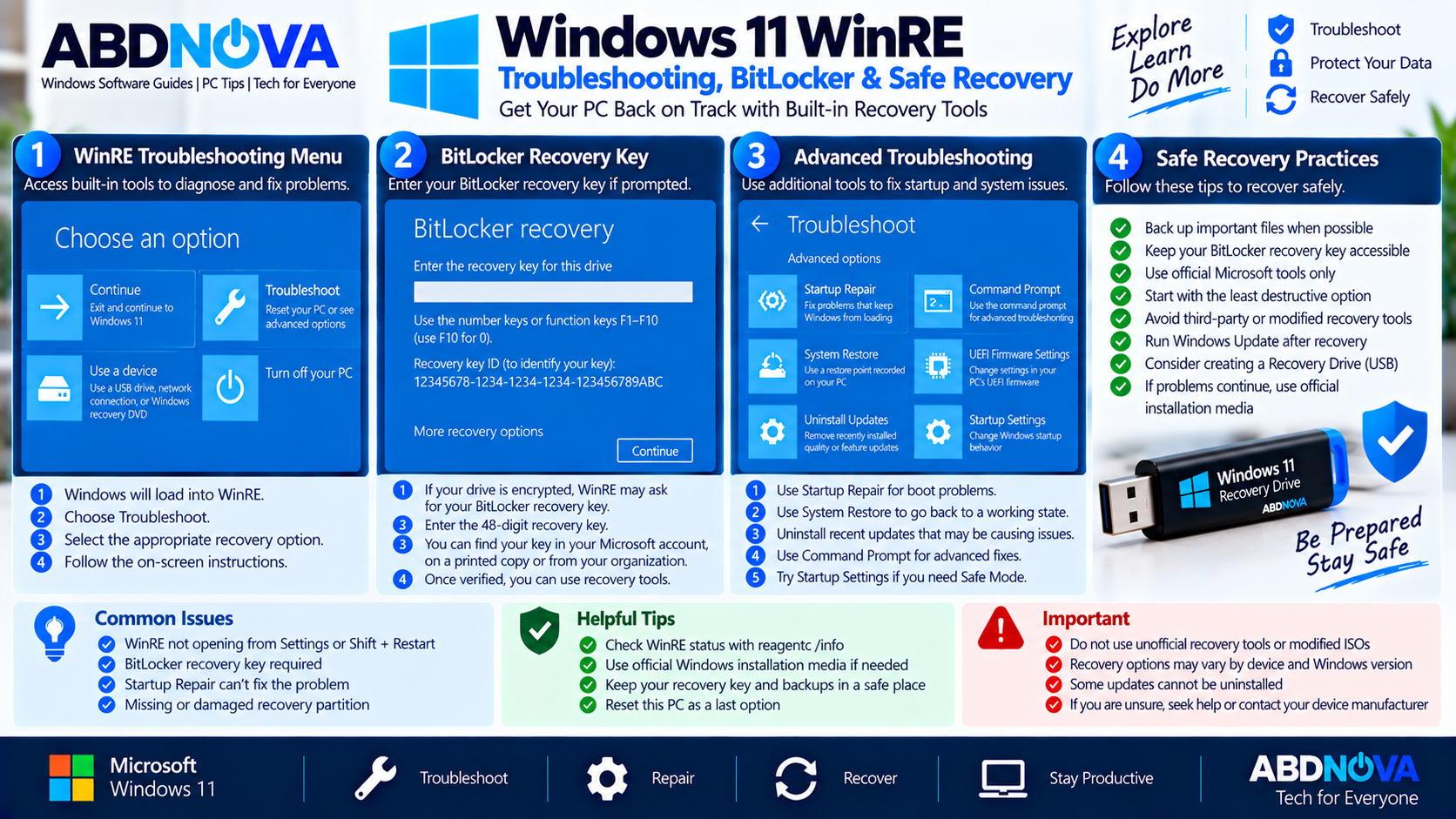
Windows 11 WinRE Troubleshooting, BitLocker & Safe Recovery
WinRE Does Not Open
If Advanced startup does not open Windows Recovery Environment, first check the current WinRE configuration:
reagentc /infoIf Windows RE is disabled, REAgentC reports its current status. If the recovery image or recovery partition is missing or damaged, simply running the enable command may not resolve the underlying problem.
Startup Repair Cannot Fix the PC
Startup Repair cannot repair every Windows problem.
If it fails, other recovery options may be appropriate. A typical progression can include:
The correct option depends on the cause of the problem and whether important data has already been backed up.
WinRE Asks for a BitLocker Recovery Key
This can be normal on an encrypted Windows PC. BitLocker-protected drives may require the legitimate recovery key before WinRE can access protected data or perform certain recovery operations.
Do not use unofficial software to bypass BitLocker protection. Retrieve the recovery key associated with the device or organization.
Recovery Partition Is Missing
A missing or damaged recovery partition is a more advanced repair situation.
Before manually changing partitions:
- Back up important files
- Run
reagentc /info - Keep official Windows installation media available
- Check whether the PC manufacturer provides recovery media
- Avoid deleting or resizing partitions without understanding their purpose
Safe Windows 11 Recovery
Windows Recovery Environment is a Microsoft component already included with Windows 11. You do not need to download a third-party “WinRE tool.”
For Windows recovery, prioritize:
- Built-in Windows Recovery Environment
- Windows Recovery Drive
- Official Microsoft Windows installation media
- Recovery media supplied by the PC manufacturer
Avoid:
- Random WinRE downloads
- Modified Windows recovery images
- Cracked Windows ISOs
- Unknown recovery utilities claiming to replace Microsoft files
- Unverified scripts that alter the recovery partition
Frequently Asked Questions
What is Windows 11 WinRE?
WinRE stands for Windows Recovery Environment. It is Microsoft’s built-in recovery platform for diagnosing and repairing Windows when normal startup is unavailable or Windows develops serious problems.
Is WinRE already included with Windows 11?
Yes. Windows RE is normally preloaded with Windows 11 desktop editions including Home, Pro, Enterprise, and Education.
How do I check whether WinRE is enabled?
Open an elevated Command Prompt or Windows Terminal and run reagentc /info. Look for Windows RE status: Enabled.
Can WinRE repair a Windows 11 PC that does not boot?
Yes. WinRE includes Startup Repair and several other recovery tools specifically intended for startup and recovery problems.
Does WinRE require a USB drive?
Not normally. WinRE is typically available from the computer’s internal recovery environment. A Recovery Drive or Windows installation USB can provide alternative access when internal recovery is unavailable.
Does entering WinRE delete personal files?
No. Simply entering WinRE does not delete personal files. However, individual recovery operations have different effects, so review an option carefully before running it.
Why does WinRE ask for a BitLocker recovery key?
Encrypted Windows drives may require the BitLocker recovery key before WinRE can access protected data or perform certain recovery operations.
Can I download WinRE separately?
For a normal Windows 11 PC, WinRE is part of Windows rather than a standalone recovery application. If internal WinRE is unusable, official Windows installation media or manufacturer recovery media are safer alternatives.
Final Thoughts
Windows 11 Recovery Environment (WinRE) provides a built-in emergency toolkit for repairing startup problems, restoring system settings, uninstalling problematic updates, accessing Safe Mode and Command Prompt, resetting Windows, and performing other recovery tasks.
Before a serious Windows problem occurs, check that WinRE is enabled with reagentc /info, keep important files backed up, and make sure your BitLocker recovery key is accessible if device encryption is enabled.
If the internal recovery environment cannot repair the PC, use an official Windows Recovery Drive, Microsoft Windows installation media, or recovery media supplied by the PC manufacturer.
Windows 11 Recovery Environment Guide
View Microsoft’s official Windows recovery options and choose the appropriate recovery method for your PC.


