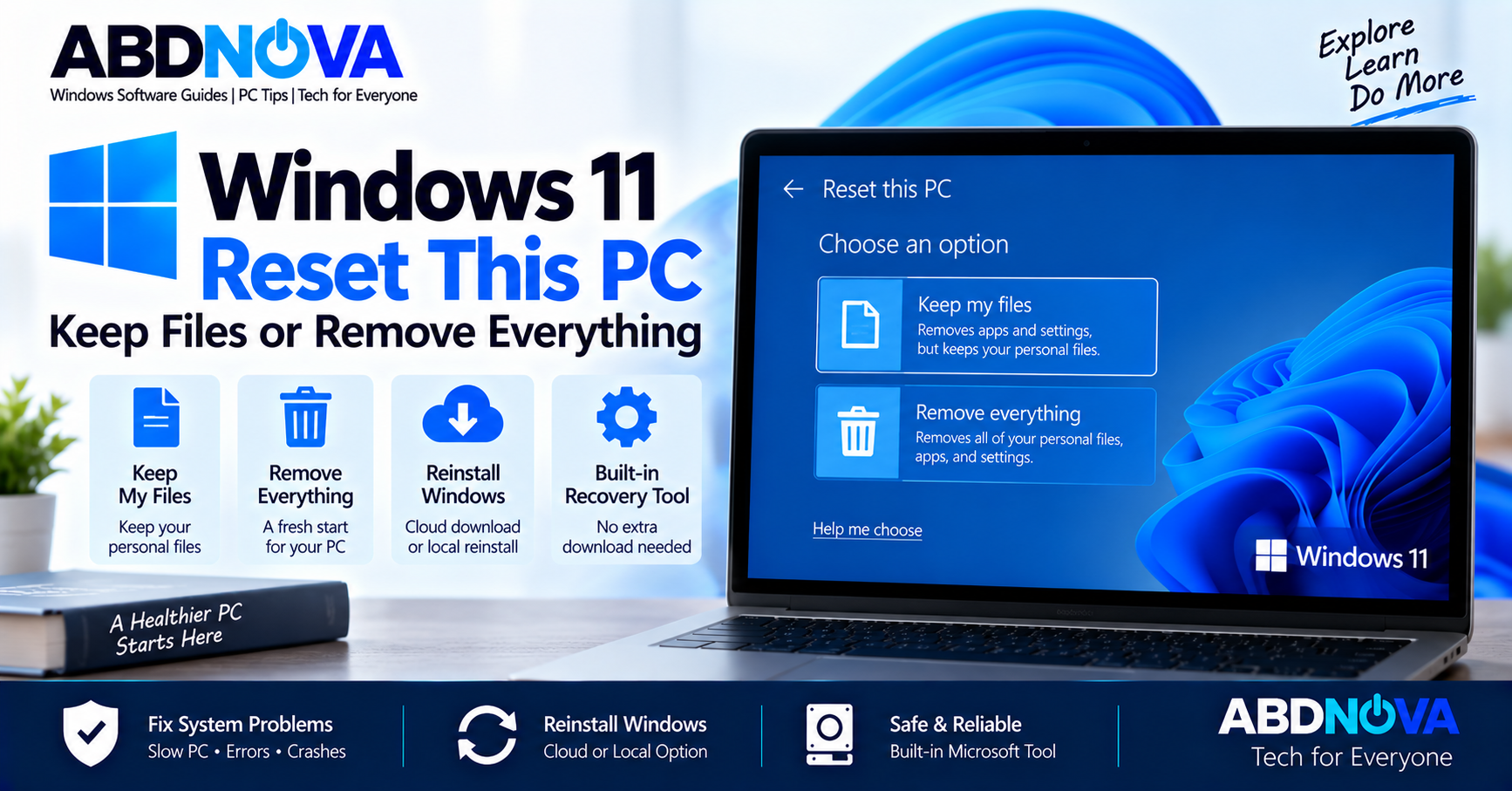

Windows 11 Reset This PC – Keep Files or Remove Everything
Windows 11 Reset This PC is a built-in recovery feature that reinstalls Windows when your computer has serious software, system, performance, or recovery problems. You can start it from Windows Settings or from Windows Recovery Environment (WinRE) when Windows cannot start normally.
Before beginning, it is important to understand the difference between Keep my files, Remove everything, Cloud download, and Local reinstall.
Windows 11 Reset This PC Details
| Detail | Information |
|---|---|
| Developer | Microsoft |
| Included With | Windows 11 |
| Main Purpose | Reinstall Windows and recover the PC |
| Keep Personal Files | Optional |
| Remove Personal Files | Optional |
| Cloud Download | Available |
| Local Reinstall | Available |
| Run From Settings | Yes |
| Run From WinRE | Yes |
| External USB Required | No |
| Internet Required | For Cloud download |
| BitLocker Key | May be required |
| Third-Party Download | Not required |
When Should You Reset Windows 11?
Reset This PC can be useful when Windows has persistent problems that simpler troubleshooting methods have not resolved.
You may consider resetting Windows when:
- Windows has become unstable or unreliable.
- Serious software problems continue after troubleshooting.
- Windows components or system settings are badly damaged.
- You want to reinstall Windows without manually creating installation media.
- You need to remove your files before giving away or selling the PC.
- Other appropriate recovery methods have failed.
Windows 11 Reset This PC – Keep My Files vs Remove Everything
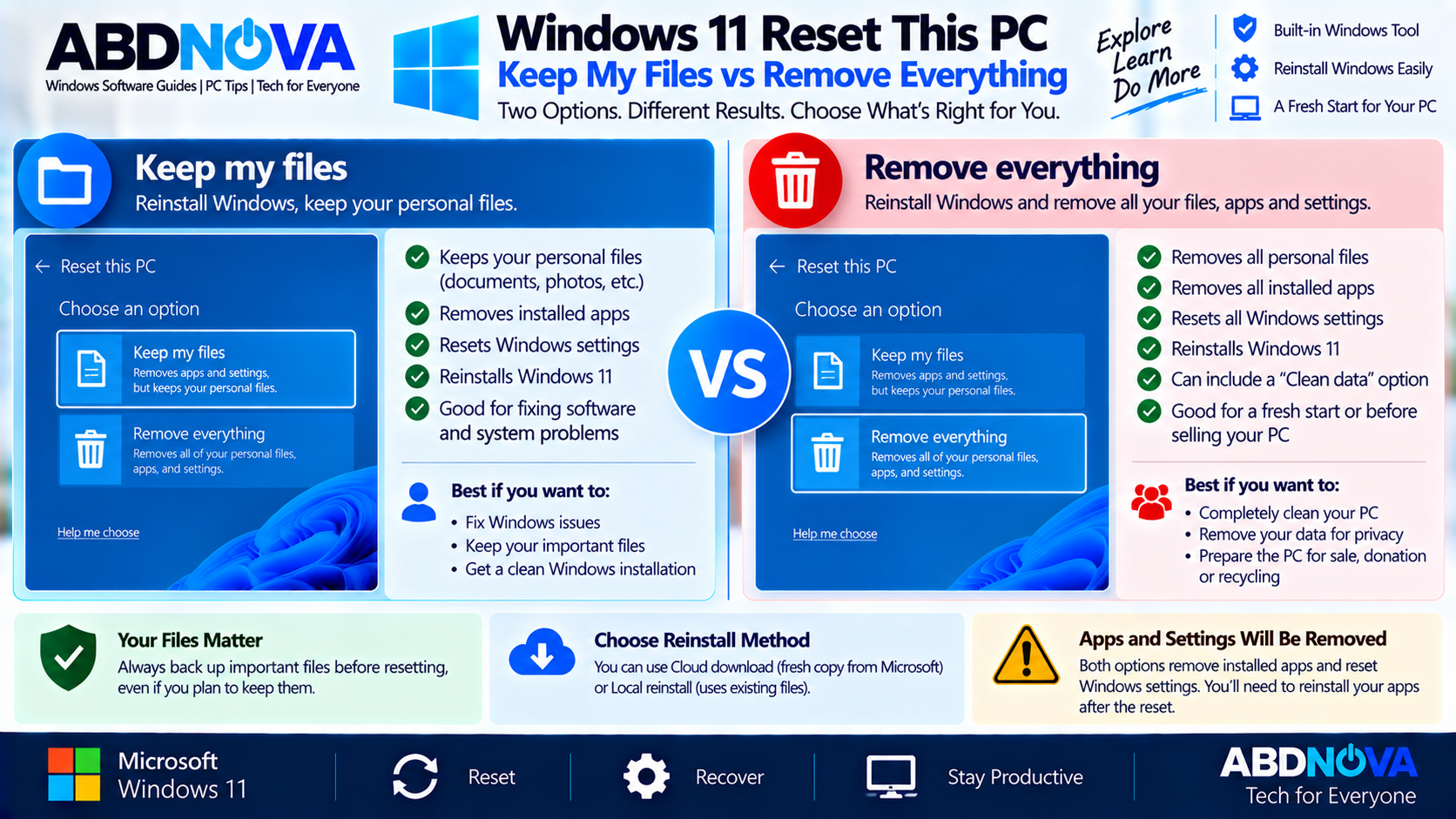
This is the most important choice when resetting Windows 11. Both options reinstall Windows, but they handle your personal files differently.
Keep My Files
Keep my files reinstalls Windows while preserving personal files such as documents and photos.
However, it removes:
- Installed desktop applications
- Many installed drivers and utilities
- Windows settings and customizations
This option is useful when you need to repair or reinstall Windows but want to retain your personal files.
Remove Everything
Remove everything reinstalls Windows and removes personal files, installed applications, and Windows settings.
This option is suitable when you want a more complete fresh start or are preparing the computer to be sold, donated, or recycled.
Clean Data Before Selling a PC
When using Remove everything, Windows can provide an option to clean the drive. Enabling Clean data makes deleted files more difficult for another person to recover.
This is particularly relevant when donating, recycling, or selling a computer.
Windows 11 Cloud Download vs Local Reinstall
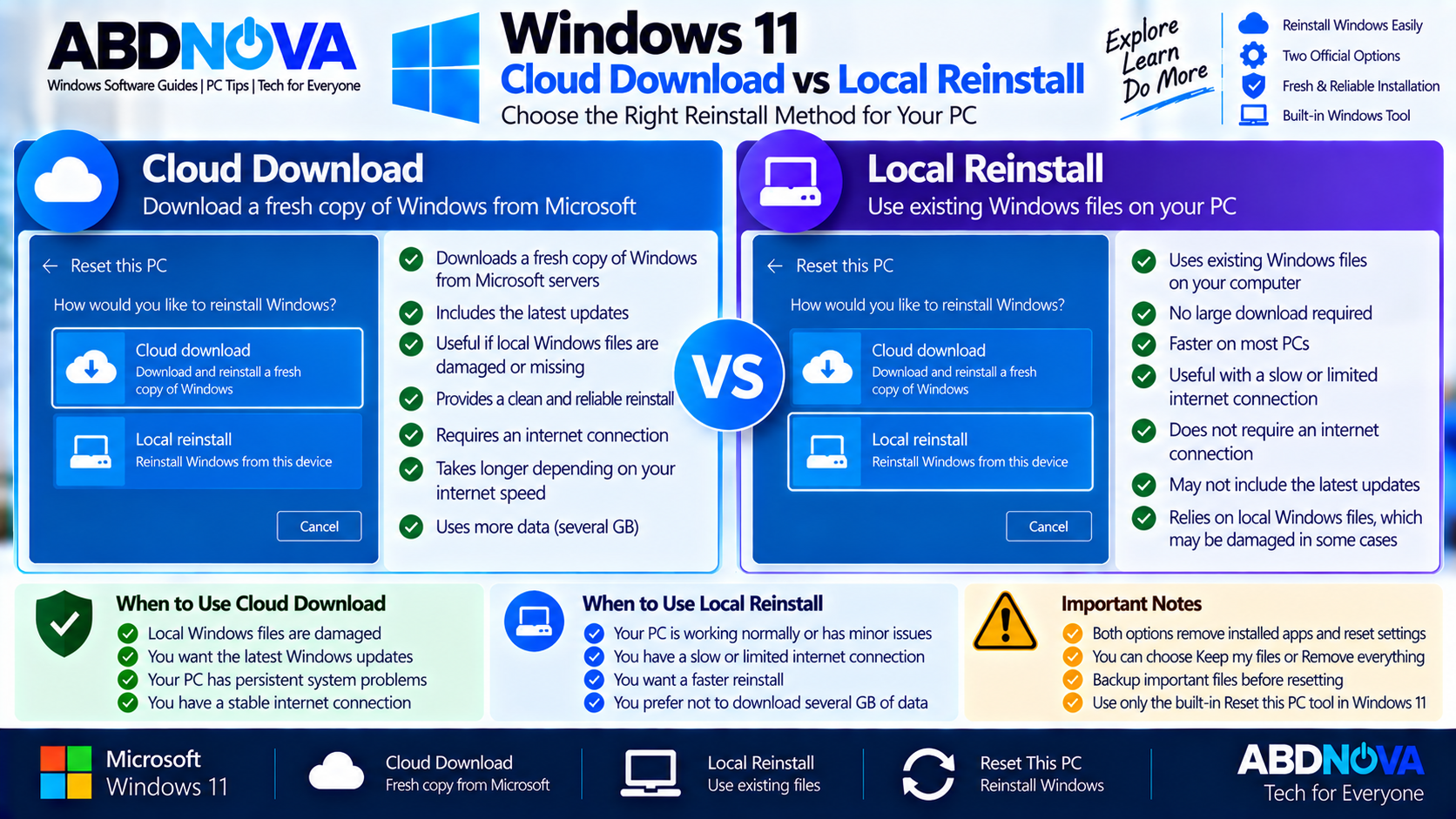
After choosing Keep my files or Remove everything, Windows may ask how you want to reinstall the operating system.
Cloud Download
Cloud download obtains a fresh copy of Windows from Microsoft.
It can be useful when:
- Local Windows recovery files may be damaged.
- Important local installation files are missing.
- You want Windows to obtain a fresh installation copy.
An internet connection is required for Cloud download.
Local Reinstall
Local reinstall uses Windows files already stored on the computer.
Advantages include:
- No large Windows download is required.
- It can be useful with a slow or limited internet connection.
- It may be faster depending on the PC and connection.
The main limitation is that Local reinstall depends on the Windows files already available on the computer.
| Cloud Download | Local Reinstall |
|---|---|
| Downloads a fresh Windows copy | Uses Windows files already on the PC |
| Requires internet access | No large Windows download required |
| Useful if local files are damaged or missing | Useful with slow or limited internet |
| Includes current updates in the downloaded copy | May not include the latest updates |
How to Reset Windows 11 From Settings & WinRE
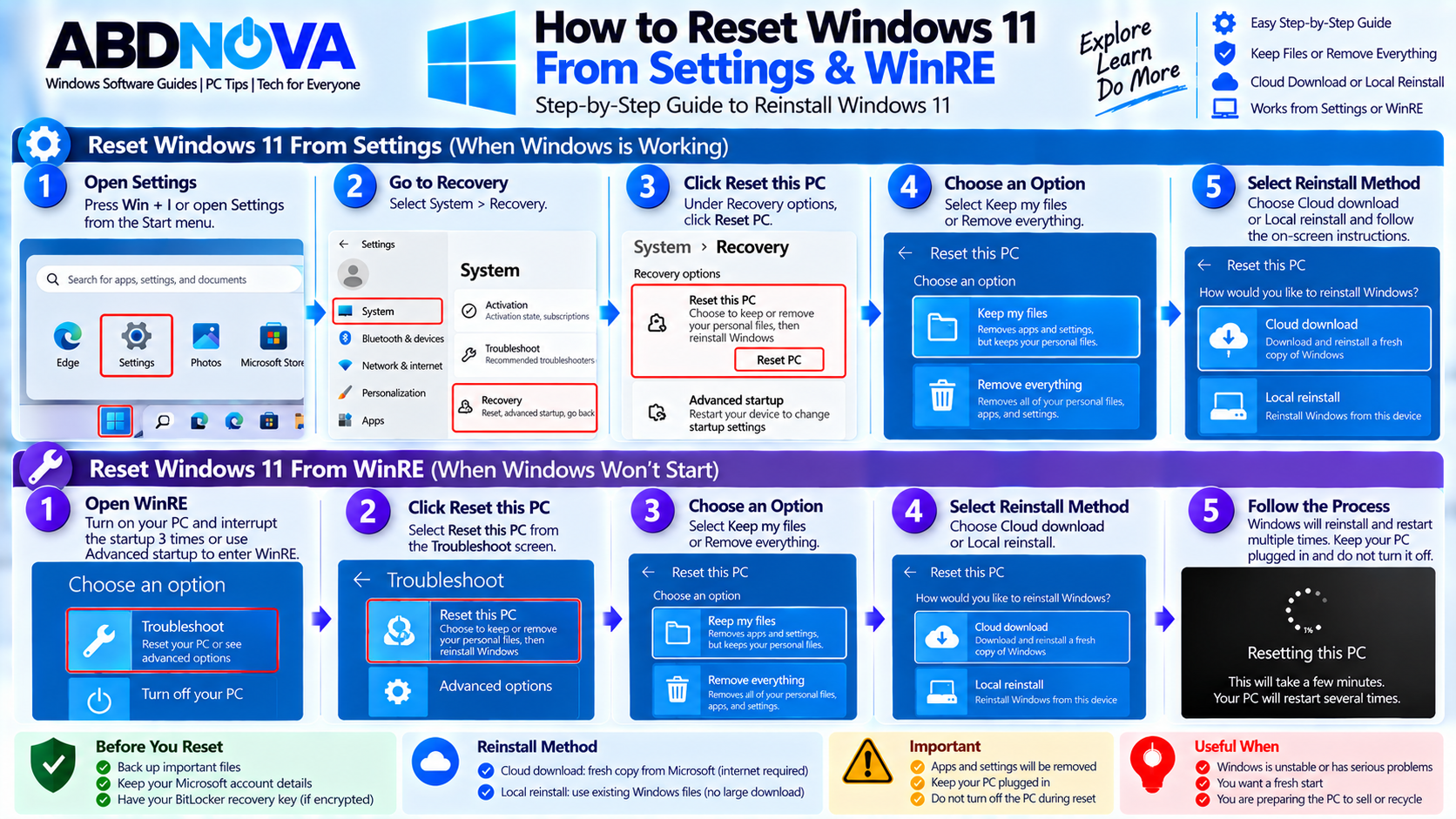
If Windows still starts normally, Settings is the easiest way to begin. If Windows cannot start, Reset This PC is also available through Windows Recovery Environment.
Reset Windows 11 From Settings
Open:
Under Recovery options, find Reset this PC and select:
Then choose:
- Keep my files, or
- Remove everything
Next select:
- Cloud download, or
- Local reinstall
Review the additional settings carefully and follow the on-screen instructions before beginning the reset.
Reset Windows 11 From WinRE
If Windows cannot start normally, enter Windows Recovery Environment (WinRE) and select:
Choose whether to keep your files or remove everything, then continue with the available reset options.
For more information about accessing the recovery environment, see our Windows 11 Recovery Environment (WinRE) guide.
What Happens During Reset This PC?
Windows prepares the selected recovery configuration and begins reinstalling the operating system. The computer may restart several times during the process.
The screen can also remain black for an extended period. Do not manually restart the PC simply because the screen stays black during an active reset.
What Does Keep My Files Actually Keep?
Keep my files preserves personal files while reinstalling Windows, but it does not leave everything on the computer unchanged.
After the reset, you may need to:
- Reinstall desktop programs.
- Reinstall certain drivers or manufacturer utilities.
- Sign back into applications.
- Reconfigure Windows settings.
- Run Windows Update.
Before resetting, make sure you have important installers, licenses, account credentials, and other information you may need afterward.
Restore Preinstalled Apps
Depending on the PC and available reset settings, Windows may offer a Restore preinstalled apps option.
When enabled, manufacturer customizations can be reapplied during the reset. This can be useful on OEM computers that originally included device-specific applications or customizations.
Reset This PC vs Startup Repair
Reset This PC and Startup Repair are designed for different recovery situations.
| Reset This PC | Startup Repair |
|---|---|
| Reinstalls Windows | Attempts to repair startup problems |
| Removes apps and settings | Does not reinstall Windows |
| Can keep or remove personal files | Intended to preserve the existing installation |
| More disruptive | Less disruptive |
| Useful for broader Windows problems | Primarily for boot and startup failures |
If the main problem is that Windows cannot start, try the less disruptive Windows 11 Startup Repair option when appropriate before resetting Windows.
Reset This PC vs System Restore
System Restore rolls Windows system files, Registry settings, and installed programs back to an earlier restore point without affecting personal files.
Reset This PC instead reinstalls Windows and removes apps and settings, while allowing you to choose whether personal files are kept or removed.
If a problem began recently after a software installation, driver change, or system-setting change, see our Windows 11 System Restore guide before using a complete reset.
Reset This PC vs Reinstall Using Windows Update
Windows 11 also provides Fix problems using Windows Update on supported configurations.
This recovery option reinstalls the same version of Windows and repairs system files and components while preserving your apps, personal files, and settings.
This makes it less disruptive than Reset This PC, which removes applications and settings even when Keep my files is selected.
Reset This PC vs Clean Installation
Reset This PC uses the built-in Windows recovery process and does not require external installation media.
A clean installation using official Windows installation media is a more extensive recovery method and can remove personal files, applications, settings, and manufacturer customizations.
If built-in recovery options cannot resolve a severe Windows problem, official installation media can provide another recovery route.
Windows 11 Reset This PC Troubleshooting, BitLocker & Safe Recovery
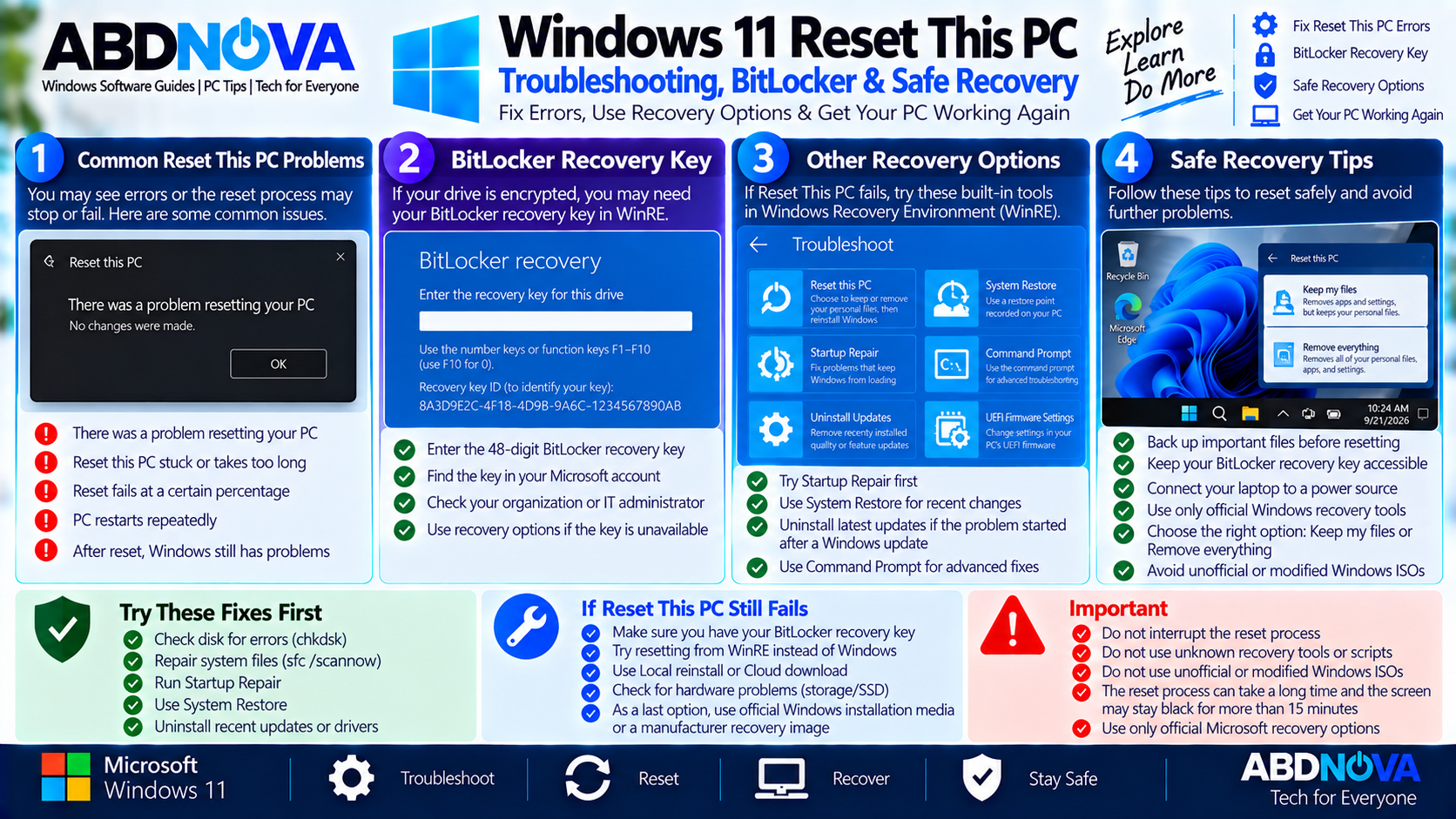
Before resetting Windows, prepare for possible recovery issues and make sure important data and recovery information are available.
Reset This PC and BitLocker
If the Windows drive is encrypted, Windows Recovery Environment may require the BitLocker recovery key before completing recovery operations.
What If Reset This PC Fails?
If Reset This PC displays an error, freezes, or cannot complete, avoid repeatedly forcing the computer off while a reset is actively running.
Depending on the problem, other official recovery options include:
- Startup Repair
- System Restore
- Uninstall Updates
- Windows Recovery Environment
- Recovery Drive
- Reinstall Windows using Windows Update
- Official Windows installation media
- Manufacturer recovery media
Manufacturer recovery images can also contain hardware-specific drivers and factory applications that generic Windows installation media may not include.
Safe Reset and Recovery Tips
Before resetting Windows 11:
- Back up important personal files.
- Make sure your BitLocker recovery key is available.
- Connect a laptop to power.
- Know your Microsoft account credentials.
- Save software licenses or activation information when needed.
- Understand what Keep my files and Remove everything will remove.
- Do not interrupt the PC while Windows is resetting.
- Use built-in Windows recovery tools or official recovery media.
Frequently Asked Questions
Does Reset This PC reinstall Windows 11?
Yes. Reset This PC reinstalls Windows and lets you choose whether to keep or remove your personal files.
Will Keep My Files delete my documents and photos?
Keep my files is designed to preserve personal files such as documents and photos while removing apps and settings. Backing up important files beforehand is still recommended.
Does Reset This PC remove installed programs?
Yes. Reset This PC removes installed apps and settings, including when Keep my files is selected.
Which should I use: Cloud download or Local reinstall?
Cloud download obtains a fresh Windows copy and can help when local recovery files are damaged or missing. Local reinstall uses files already on the PC and avoids a large download.
Can I reset Windows 11 if Windows won’t start?
Yes. Reset This PC can be accessed through Windows Recovery Environment even when the normal Windows desktop is unavailable.
Do I need a USB drive to reset Windows 11?
No. Reset This PC can reinstall Windows without external installation media.
Does Reset This PC require a BitLocker recovery key?
An encrypted device may require its BitLocker recovery key when resetting through Windows Recovery Environment. Keep the key available before starting.
Should I use Remove Everything before selling my PC?
Remove everything with the drive-cleaning option is intended for situations such as selling, donating, or recycling a PC. Microsoft notes that its consumer data-erasure feature does not meet government or industry data-erasure standards.
Final Thoughts
Windows 11 Reset This PC is a built-in recovery option for reinstalling Windows without first creating a bootable USB. Keep my files preserves personal files but removes apps and settings, while Remove everything removes personal files, apps, and settings.
You can also choose between Cloud download and Local reinstall. Because resetting Windows is more disruptive than options such as Startup Repair or System Restore, back up important data first and keep your BitLocker recovery key available.
If Reset This PC cannot recover the computer, official Windows installation media, a Recovery Drive, or manufacturer recovery media provide additional recovery paths.
Windows 11 Reset This PC
View Microsoft’s official Reset your PC instructions and recovery guidance.