

Windows 11 Safe Mode – How to Start, Use & Exit Safe Mode
Windows 11 Safe Mode is a built-in diagnostic startup mode that runs Windows with a limited set of essential files, services, and drivers. It can help troubleshoot startup failures, driver problems, black or blank screens, software conflicts, crashes, and other Windows problems.
If a problem does not appear while Windows is running in Safe Mode, the reduced environment can help narrow down whether a driver, application, service, or another component that normally loads with Windows is contributing to the issue.
Windows 11 Safe Mode Details
| Detail | Information |
|---|---|
| Developer | Microsoft |
| Included With | Windows 11 |
| Main Purpose | Troubleshooting and diagnostics |
| Standard Safe Mode | Yes |
| Safe Mode with Networking | Yes |
| Safe Mode with Command Prompt | Yes |
| Access Through WinRE | Yes |
| Internet in Standard Safe Mode | Normally no |
| BitLocker Key | May be required |
| Separate Download | Not required |
What Is Safe Mode in Windows 11?
Safe Mode starts Windows in a basic state using a limited set of files and drivers. This reduced environment is designed to help diagnose Windows problems.
Safe Mode can be useful when troubleshooting:
- Windows startup problems
- Black or blank screens
- Problematic device drivers
- Recently installed applications
- Software conflicts
- Repeated crashes or instability
- Display-driver problems
- Sign-in or startup issues
Windows 11 Safe Mode Options
Standard Safe Mode
Standard Safe Mode starts Windows with a limited set of essential files and drivers. Use this option when network access is not required for troubleshooting.
Safe Mode with Networking
Safe Mode with Networking adds the network drivers and services needed to access the internet and other computers on a network.
Safe Mode with Command Prompt
This option starts Windows in Safe Mode with Command Prompt instead of the normal Windows interface. It is intended mainly for advanced troubleshooting.
How to Start Windows 11 in Safe Mode
If Windows is still working, open:
After the PC restarts into Windows Recovery Environment, select:
When Startup Settings appears, choose the required option:
- 4 or F4 — Enable Safe Mode
- 5 or F5 — Enable Safe Mode with Networking
- 6 or F6 — Enable Safe Mode with Command Prompt
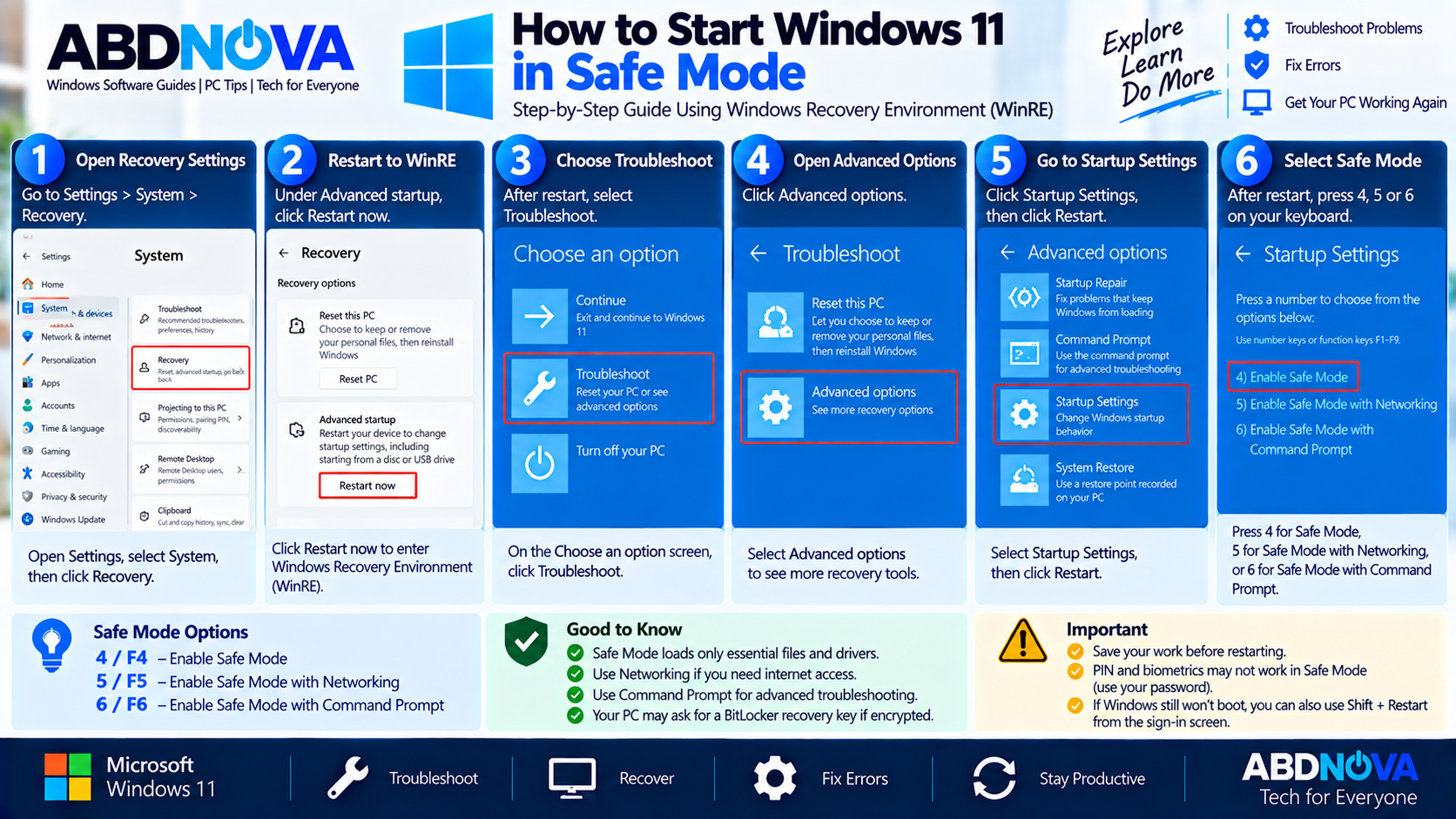
For more information about the recovery environment, see our Windows 11 Recovery Environment (WinRE) guide.
Start Safe Mode Using Shift + Restart
You can also access Windows Recovery Environment using Shift + Restart.
- Press and hold the Shift key.
- While holding Shift, select Power → Restart.
- Wait for Windows Recovery Environment to open.
- Select Troubleshoot → Advanced options → Startup Settings → Restart.
- Select the Safe Mode option you need.
The same Shift + Restart method can also be used from the Windows sign-in screen.
Start Safe Mode When Windows Won’t Boot
If Windows repeatedly fails to start correctly, the PC can automatically enter Windows Recovery Environment.
From WinRE, select:
Then select the appropriate Safe Mode option.
If the computer has a startup-specific failure, see our Windows 11 Startup Repair guide for Microsoft’s built-in automatic boot-repair option.
What to Do in Windows 11 Safe Mode
After Windows starts in Safe Mode, think about what changed immediately before the problem appeared.
Common examples include:
- A newly installed application
- A recently updated driver
- A graphics-driver change
- A Windows configuration change
- A new utility or background application
- A software or service conflict
If Windows works correctly in Safe Mode but fails again after a normal restart, that difference can help narrow down the source of the problem.
Windows 11 Safe Mode Driver, Black Screen & App Troubleshooting
Safe Mode can be particularly useful for diagnosing drivers, display problems, recently installed applications, and software conflicts.
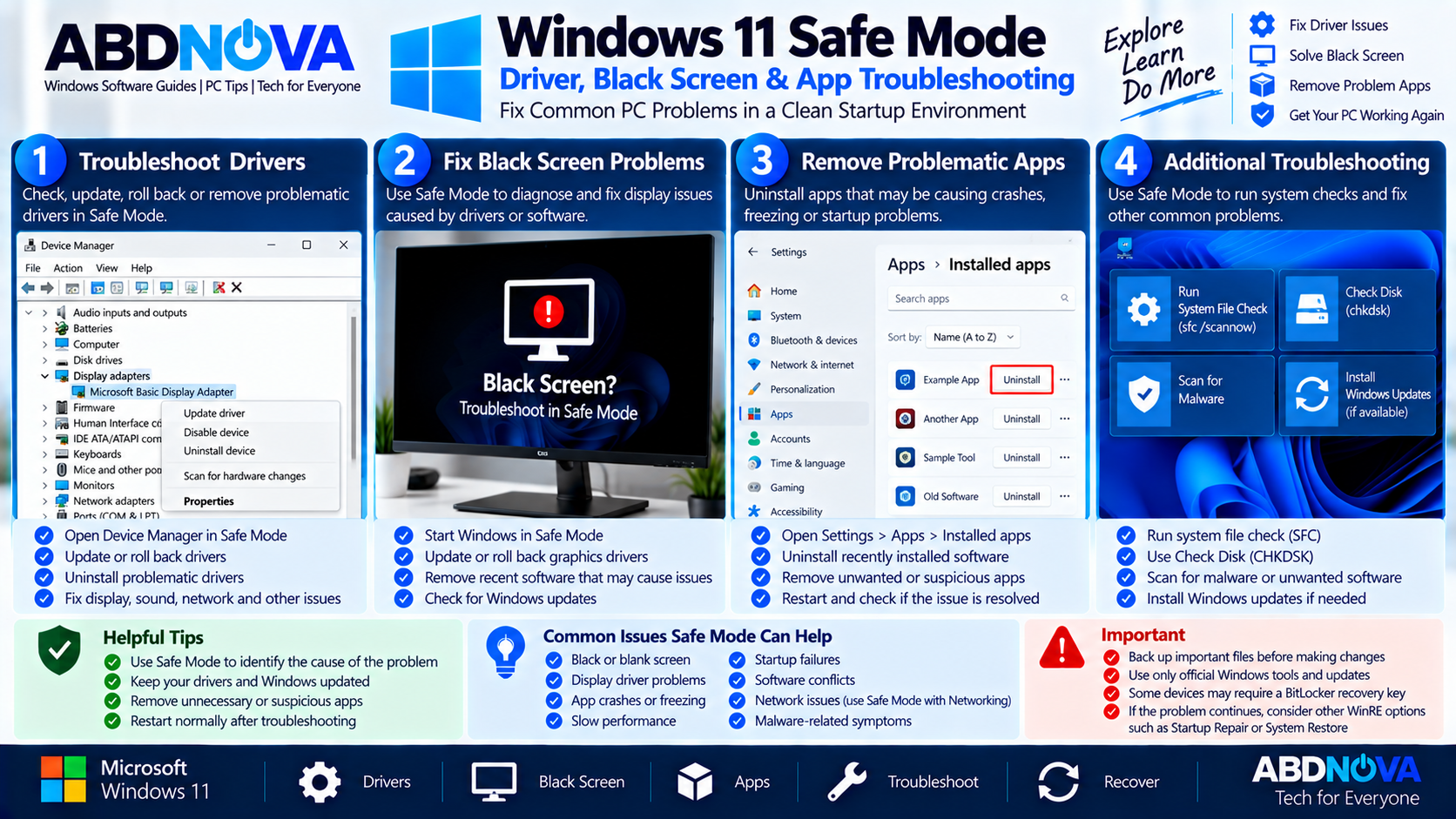
Troubleshoot Drivers in Safe Mode
A faulty or incompatible driver can contribute to startup failures, crashes, black screens, freezing, display problems, and hardware instability.
If Windows works correctly in Safe Mode but fails during a normal startup, investigate recently installed or updated drivers.
Open:
Locate the affected hardware. Depending on the problem, troubleshooting may include updating, rolling back, disabling, or reinstalling the relevant driver.
Troubleshoot a Black or Blank Screen
Safe Mode can help diagnose persistent black or blank screens because Windows starts with a more limited driver environment.
If the problem appeared after a graphics-driver change, open Device Manager in Safe Mode and inspect the display adapter.
Depending on the situation, rolling back or updating the graphics driver may help.
Remove Problematic Applications
If the issue began immediately after installing an application, open:
Identify the suspected application and uninstall it if appropriate. Restart Windows normally afterward and check whether the problem is resolved.
Windows 11 Safe Mode vs Clean Boot
Safe Mode and Clean Boot are different troubleshooting methods.
| Safe Mode | Clean Boot |
|---|---|
| Starts Windows with limited files and drivers | Starts Windows while controlling startup apps and services |
| Useful for startup, driver, and broader system diagnosis | Useful for isolating background software conflicts |
| Available through Startup Settings | Configured from within Windows |
| More restricted Windows environment | Closer to a normal Windows startup |
If Safe Mode works correctly but normal Windows does not, a clean boot can help isolate a background application or service conflict.
Windows 11 Safe Mode and BitLocker
If the Windows system drive is encrypted, keep the BitLocker recovery key accessible before using advanced startup options.
Windows Recovery Environment may request the BitLocker recovery key on an encrypted device before allowing access to certain recovery options.
Sign-In Problems in Safe Mode
Safe Mode sign-in can differ from a normal Windows sign-in.
If you normally use Windows Hello, make sure you know the password for the Microsoft or local account before starting Safe Mode troubleshooting.
Windows 11 Safe Mode Networking & Command Prompt
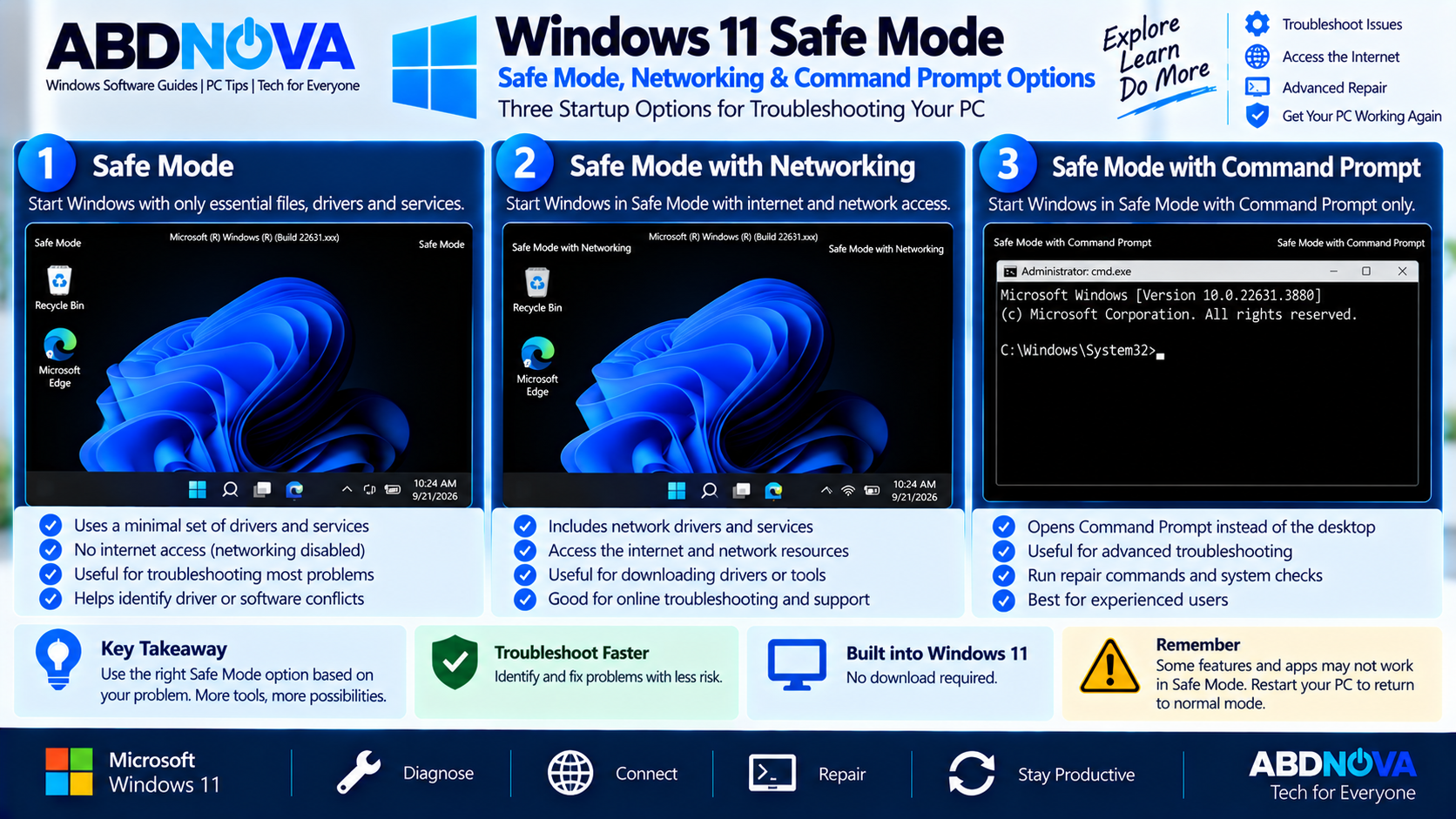
Safe Mode with Networking
Select 5 or F5 when troubleshooting requires network or internet access.
Safe Mode with Networking can be useful when you need to:
- Research a Windows error
- Access a network resource
- Download an official hardware driver
- Access Microsoft troubleshooting documentation
- Obtain a legitimate troubleshooting utility
Safe Mode with Command Prompt
Select 6 or F6 when an advanced troubleshooting procedure specifically requires command-line access.
This option is intended mainly for experienced users or trusted repair procedures that require Command Prompt.
Windows 11 Safe Mode Troubleshooting & How to Exit Safe Mode
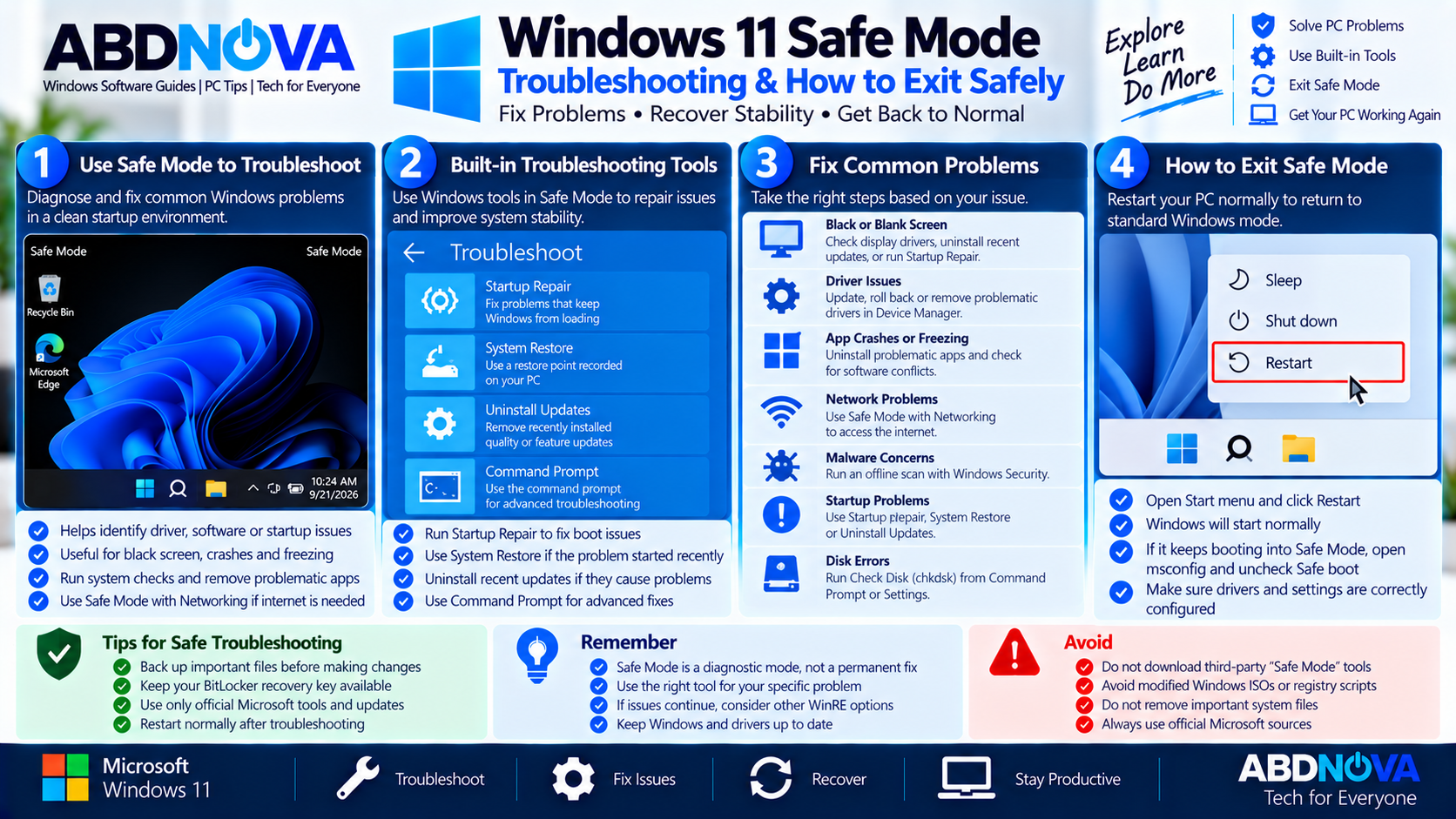
How to Exit Windows 11 Safe Mode
In most cases, simply restart the computer:
Windows should return to normal startup.
Windows Keeps Booting Into Safe Mode
If the PC continues to start in Safe Mode, check System Configuration:
- Press Windows + R.
- Type msconfig.
- Select OK.
- Open the Boot tab.
- Under Boot options, clear Safe boot.
- Select Apply and then OK.
- Restart the computer.
If Safe boot is already disabled but Windows still cannot start normally, another driver, update, application, startup configuration, or Windows component may be causing the problem.
Safe Mode Doesn’t Fix the Problem
Safe Mode helps diagnose Windows problems, but it does not guarantee that the underlying problem can be repaired from Safe Mode itself.
If the issue remains, Windows Recovery Environment provides other built-in recovery options:
- Startup Repair
- System Restore
- Uninstall Updates
- Command Prompt
- Reset This PC
If the problem started after a recent driver, application, or system change, an existing restore point may help. See our Windows 11 System Restore guide.
Safe Troubleshooting Tips
- Back up important personal files whenever possible.
- Keep the BitLocker recovery key accessible.
- Use Device Manager carefully when changing drivers.
- Use drivers from Microsoft or the hardware manufacturer.
- Remove only software you believe is related to the problem.
- Restart normally after making a change to test the result.
- Use official Windows recovery options for more serious problems.
Frequently Asked Questions
What is Windows 11 Safe Mode?
Safe Mode is a built-in diagnostic startup mode that starts Windows with a limited set of files, drivers, and services to help troubleshoot system problems.
How do I start Windows 11 in Safe Mode?
Enter Windows Recovery Environment, select Troubleshoot → Advanced options → Startup Settings → Restart, and then select the required Safe Mode option.
Which key starts Safe Mode in Windows 11?
From Startup Settings, select 4/F4 for standard Safe Mode, 5/F5 for Safe Mode with Networking, or 6/F6 for Safe Mode with Command Prompt.
Does Windows 11 Safe Mode have internet access?
Standard Safe Mode normally does not provide normal network access. Select Safe Mode with Networking when network or internet access is required.
Does Safe Mode delete personal files?
Starting Windows in Safe Mode does not itself delete personal files. However, actions you manually perform while troubleshooting can affect applications, settings, drivers, or data.
Can Safe Mode help fix a black screen?
Safe Mode can help diagnose a black or blank screen, especially when a display driver or another startup component may be involved.
Why might Windows ask for a BitLocker recovery key?
An encrypted device may require the BitLocker recovery key when accessing certain Windows Recovery Environment or advanced startup options.
How do I exit Windows 11 Safe Mode?
Restart the PC normally. If Windows continues to enter Safe Mode, open msconfig, select the Boot tab, clear Safe boot, and restart.
Is Safe Mode the same as Windows Recovery Environment?
No. Windows Recovery Environment contains multiple recovery and troubleshooting tools. Safe Mode is a diagnostic startup mode available through Startup Settings.
Final Thoughts
Windows 11 Safe Mode provides a built-in diagnostic environment for troubleshooting startup failures, problematic drivers, black screens, software conflicts, crashes, and other Windows problems.
The standard route is Windows Recovery Environment → Troubleshoot → Advanced options → Startup Settings → Restart. From there, select standard Safe Mode, Safe Mode with Networking, or Safe Mode with Command Prompt depending on the troubleshooting task.
If Safe Mode cannot resolve the problem, Windows Recovery Environment provides additional recovery options such as Startup Repair and System Restore before you move to more disruptive recovery methods.
Windows 11 Safe Mode
View Microsoft’s official Startup Settings and Safe Mode instructions.