
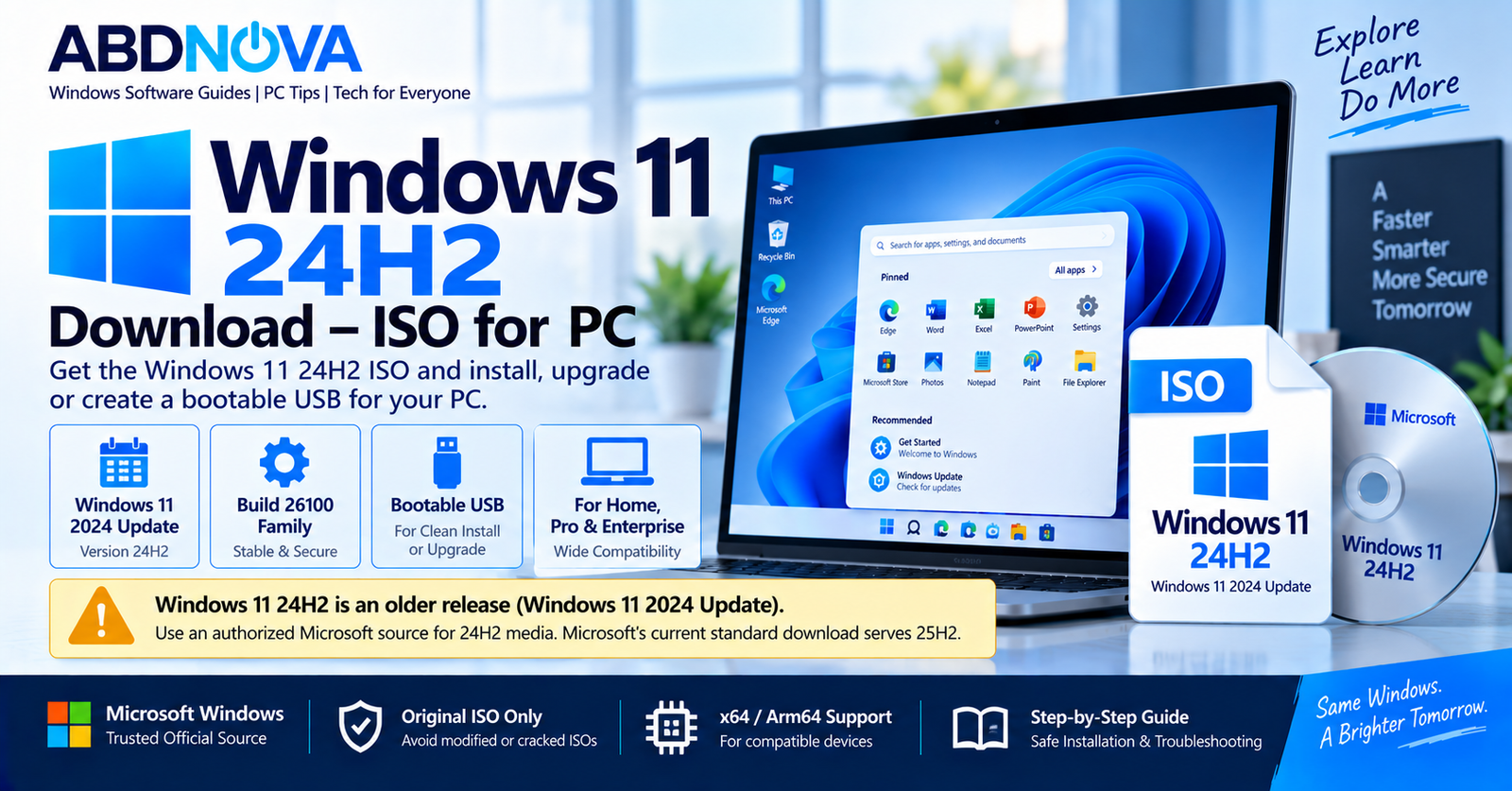

Windows 11 24H2 Download – ISO for PC
Windows 11 24H2 Download refers to Microsoft’s Windows 11 2024 Update, released on October 1, 2024. Version 24H2 uses the 26100 build family and introduced a newer Windows platform generation with improvements to security, connectivity, performance, accessibility, power management, and other Windows features.
Windows 11 24H2 remains supported in 2026, but it is no longer Microsoft’s standard consumer download release. Microsoft now distributes Windows 11 25H2 through its normal Windows 11 download page.
If you need Microsoft’s current Windows 11 installation media instead, see our Windows 11 ISO Download guide.
Windows 11 24H2 Details
| Detail | Information |
|---|---|
| Developer | Microsoft |
| Product | Windows 11 |
| Version | 24H2 |
| Official Name | Windows 11 2024 Update |
| Availability Date | October 1, 2024 |
| Build Family | 26100 |
| Architecture | x64 / Arm64 depending on device and media |
| Bootable USB | Supported |
| Clean Installation | Supported |
| Current Status | Still supported |
| Newer Standard Release | Windows 11 25H2 |
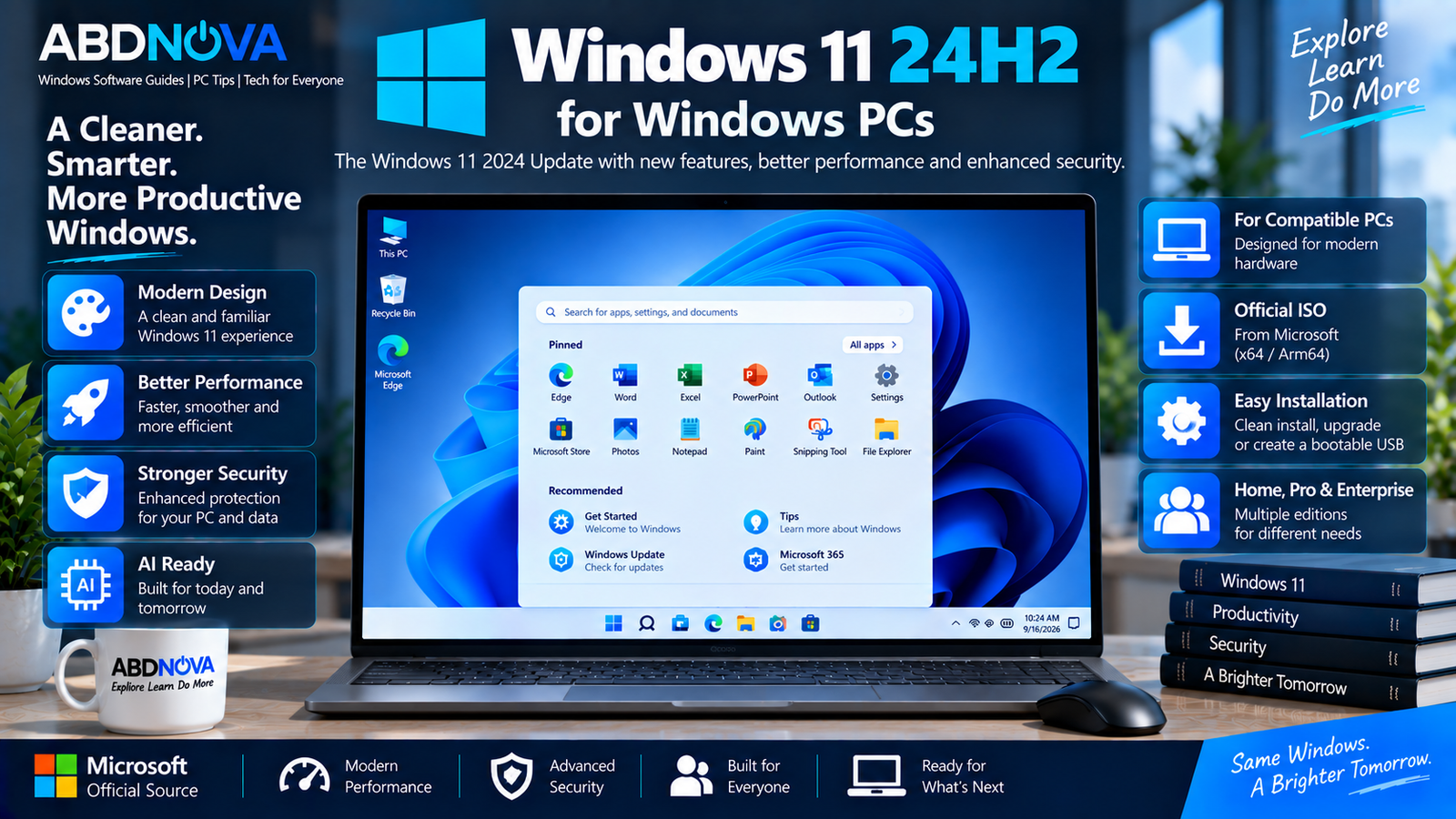
Windows 11 24H2 for Windows PCs
Windows 11 version 24H2 is Microsoft’s Windows 11 2024 Update. It was a more substantial platform release than a small enablement-package update and became an important foundation for later Windows 11 servicing.
The familiar Windows 11 interface remains, including the centered Start menu, redesigned Settings app, File Explorer, Snap layouts, virtual desktops, Windows Security, Microsoft Store, and modern window-management features.
Is Windows 11 24H2 Still Supported?
Yes. Windows 11 24H2 is still supported in September 2026, but the remaining support period depends on the Windows edition.
| Windows 11 24H2 Edition | End of Updates |
|---|---|
| Home | October 13, 2026 |
| Pro | October 13, 2026 |
| Pro Education | October 13, 2026 |
| Pro for Workstations | October 13, 2026 |
| Enterprise | October 12, 2027 |
| Education | October 12, 2027 |
Home and Pro-family editions are therefore approaching end of servicing. Microsoft also states that eligible unmanaged Home and Pro PCs still running Windows 11 24H2 are being moved to Windows 11 25H2.
Can You Still Download Windows 11 24H2 ISO from Microsoft?
This requires an important distinction. Microsoft’s regular consumer Download Windows 11 page currently identifies Windows 11 25H2 as its standard release.
Therefore, selecting the ISO currently offered on Microsoft’s normal consumer download page should not be described as downloading Windows 11 24H2.
If you specifically require a Windows 11 24H2 image for an organization, test environment, development lab, compatibility work, or another legitimate purpose, use an appropriate official Microsoft licensing, subscription, or organizational channel available to you.
Windows 11 24H2 vs 25H2
Windows 11 25H2 succeeded 24H2 as Microsoft’s standard Windows 11 consumer release.
| Feature | Windows 11 24H2 | Windows 11 25H2 |
|---|---|---|
| Release Generation | 2024 Update | 2025 Update |
| 24H2 Build Family | 26100 | Newer release branch |
| Standard Consumer Download | No longer the standard download | Current standard download |
| Home / Pro Lifecycle | Ends October 13, 2026 | Later support lifecycle |
For a normal new installation, Microsoft’s current Windows release is generally the practical route unless you specifically require Windows 11 24H2 for compatibility, testing, deployment, or another controlled use case.
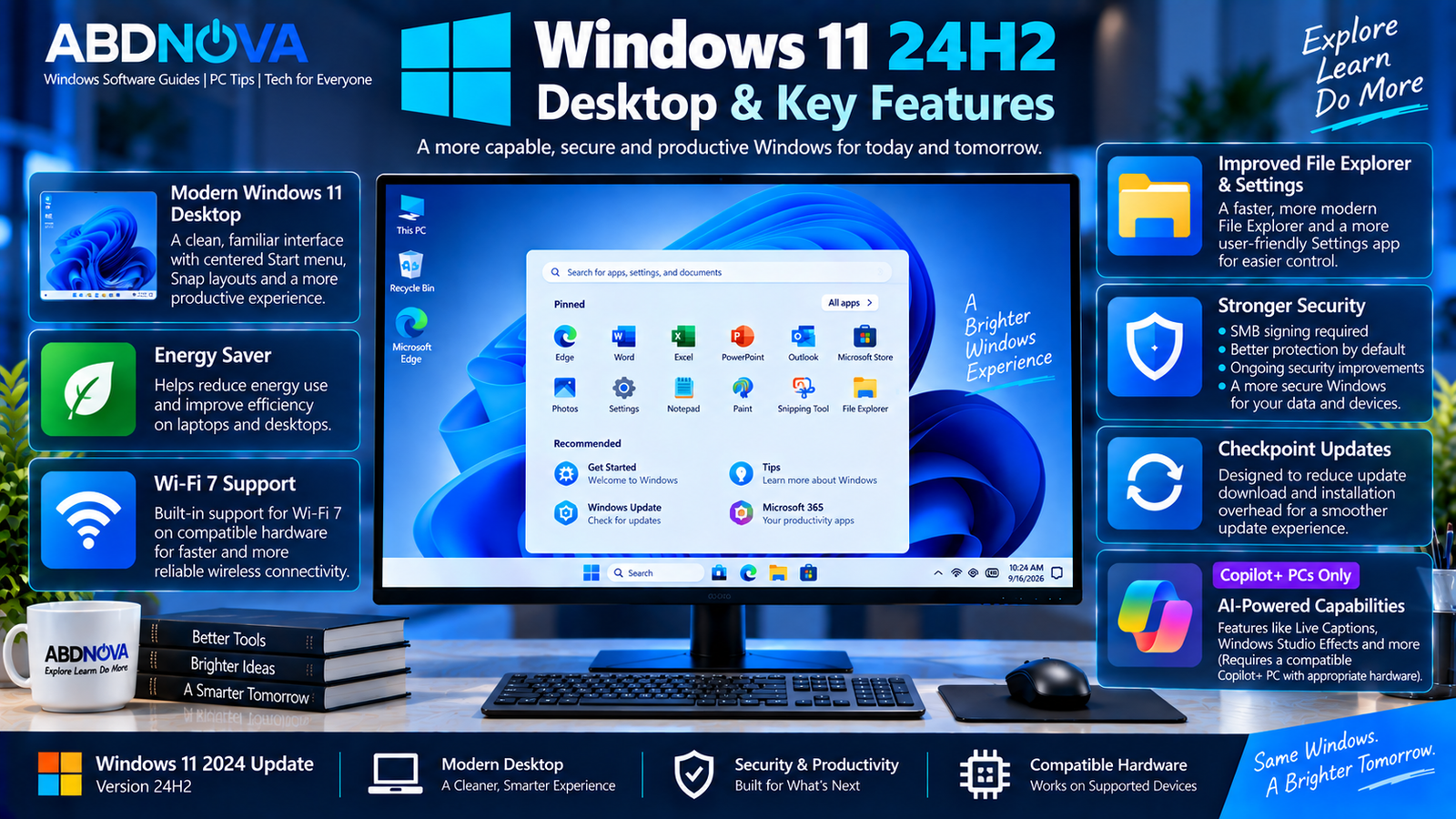
Windows 11 24H2 Desktop & Key Features
Modern Windows 11 Desktop
Windows 11 24H2 retains Microsoft’s modern desktop design with the centered taskbar, Start menu, Quick Settings, notification area, Snap layouts, multiple desktops, and improved window management.
Security Improvements
Windows 11 combines technologies such as TPM 2.0, Secure Boot, Windows Security, Microsoft Defender, Windows Hello, and BitLocker or device-encryption capabilities depending on the edition and hardware.
Keeping Windows updated remains important because security and reliability fixes continue to arrive through cumulative updates while the edition remains supported.
Wi-Fi 7 Support
Windows 11 24H2 introduced support for newer connectivity technologies including Wi-Fi 7 on compatible hardware.
Actual availability depends on the computer’s wireless hardware, drivers, router, and regional support.
Energy Saver
Energy Saver expands Windows power-management options and can help reduce energy use. It is also useful on desktop computers where traditional battery-saver behavior is less relevant.
Sudo for Windows
Windows 11 24H2 added sudo functionality for running elevated commands from the command line, providing another option for developers and advanced users.
If you regularly work with command-line tools, see our Windows Terminal Download for Windows guide.
Copilot+ PC Features
Some features associated with the Windows 11 24H2 generation were designed specifically for Copilot+ PCs.
Windows 11 24H2 System Requirements
Windows 11 24H2 follows Microsoft’s Windows 11 hardware requirements. A compatible system generally needs:
- Compatible 64-bit processor
- TPM 2.0
- UEFI firmware
- Secure Boot capability
- At least 4 GB RAM
- At least 64 GB storage
- DirectX 12-compatible graphics
- Compatible display
Some newer Windows and Copilot+ features require additional hardware beyond the standard Windows 11 minimum requirements.
Check Which Windows Version You Have
You may already have Windows 11 24H2 installed. To check:
- Press Windows + R.
- Type
winver. - Press Enter.
The About Windows window displays the installed Windows version and OS build.
You can also open:
This page shows your Windows edition, system type, processor, installed RAM, and other device information.
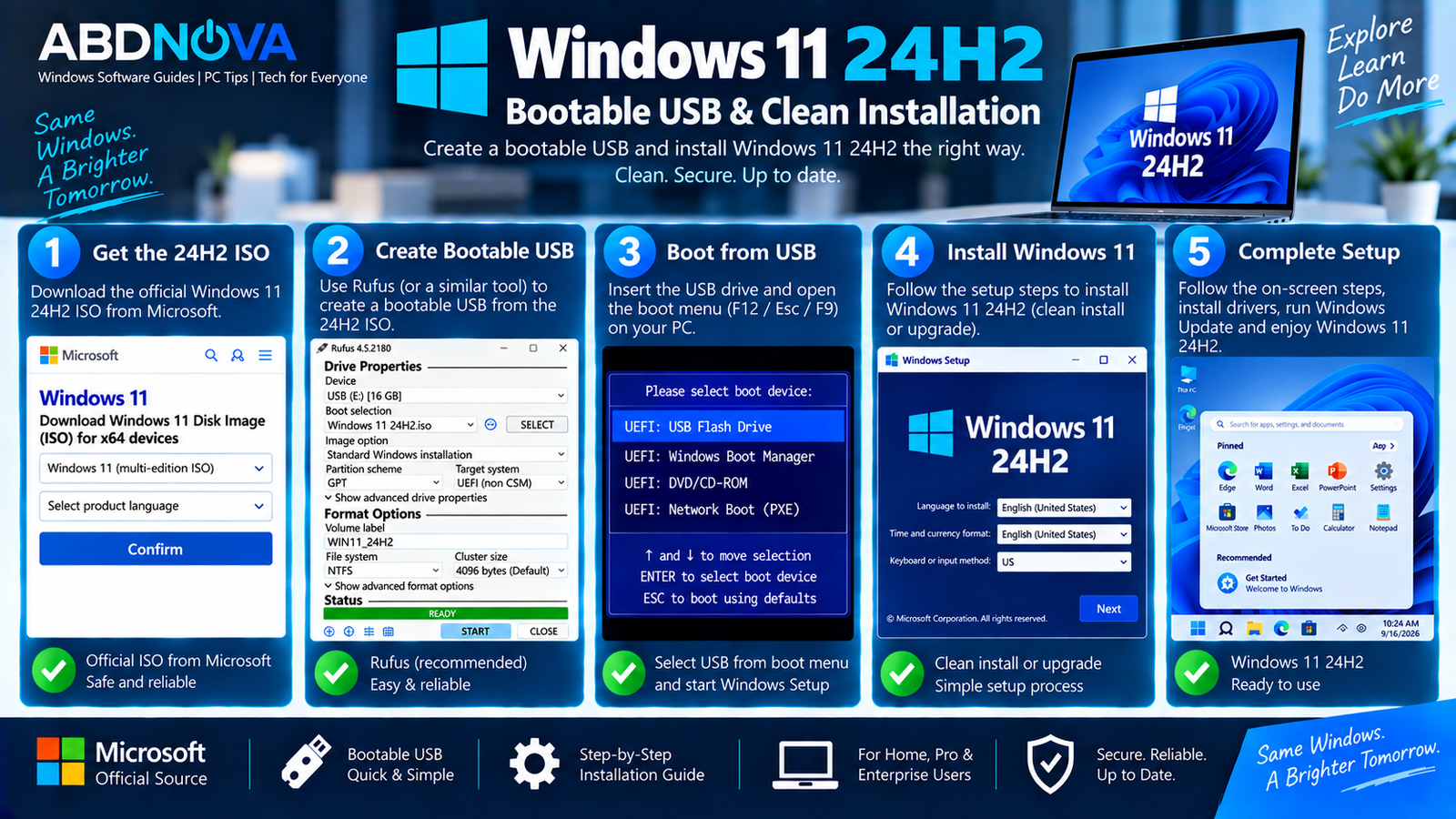
Windows 11 24H2 Bootable USB & Clean Installation
If you already have a legitimate, original Windows 11 24H2 ISO, you can use it to create compatible bootable installation media.
What You Need
- Legitimate Windows 11 24H2 ISO
- Blank USB flash drive
- 8 GB or larger USB capacity
- Compatible Windows 11 PC
- Backup of important files
- Trusted bootable-media utility
Create a Windows 11 24H2 Bootable USB
- Connect the USB flash drive.
- Open your trusted bootable-media utility.
- Select the correct USB device.
- Select the legitimate Windows 11 24H2 ISO.
- Use the appropriate UEFI/GPT configuration for the target PC.
- Start creating the bootable USB.
- Wait until the process finishes.
- Restart the target PC.
- Open the computer’s boot menu.
- Select the USB drive.
Clean Install Windows 11 24H2
Boot from the prepared USB and follow Windows Setup. Select the appropriate language, keyboard configuration, Windows edition when applicable, and destination drive.
After installation:
- Connect the PC to the internet.
- Run Windows Update.
- Install the latest cumulative updates.
- Install required hardware drivers.
- Check Windows activation.
- Restore your applications and files.
Windows 11 24H2 Activation
Installing Windows and activating Windows are separate processes. A Windows ISO does not provide a Windows license.
Activation requires an appropriate digital license or product key for the Windows edition installed on the computer.
If the PC previously had a properly activated matching Windows edition, Windows may reactivate automatically after connecting to Microsoft’s activation services.
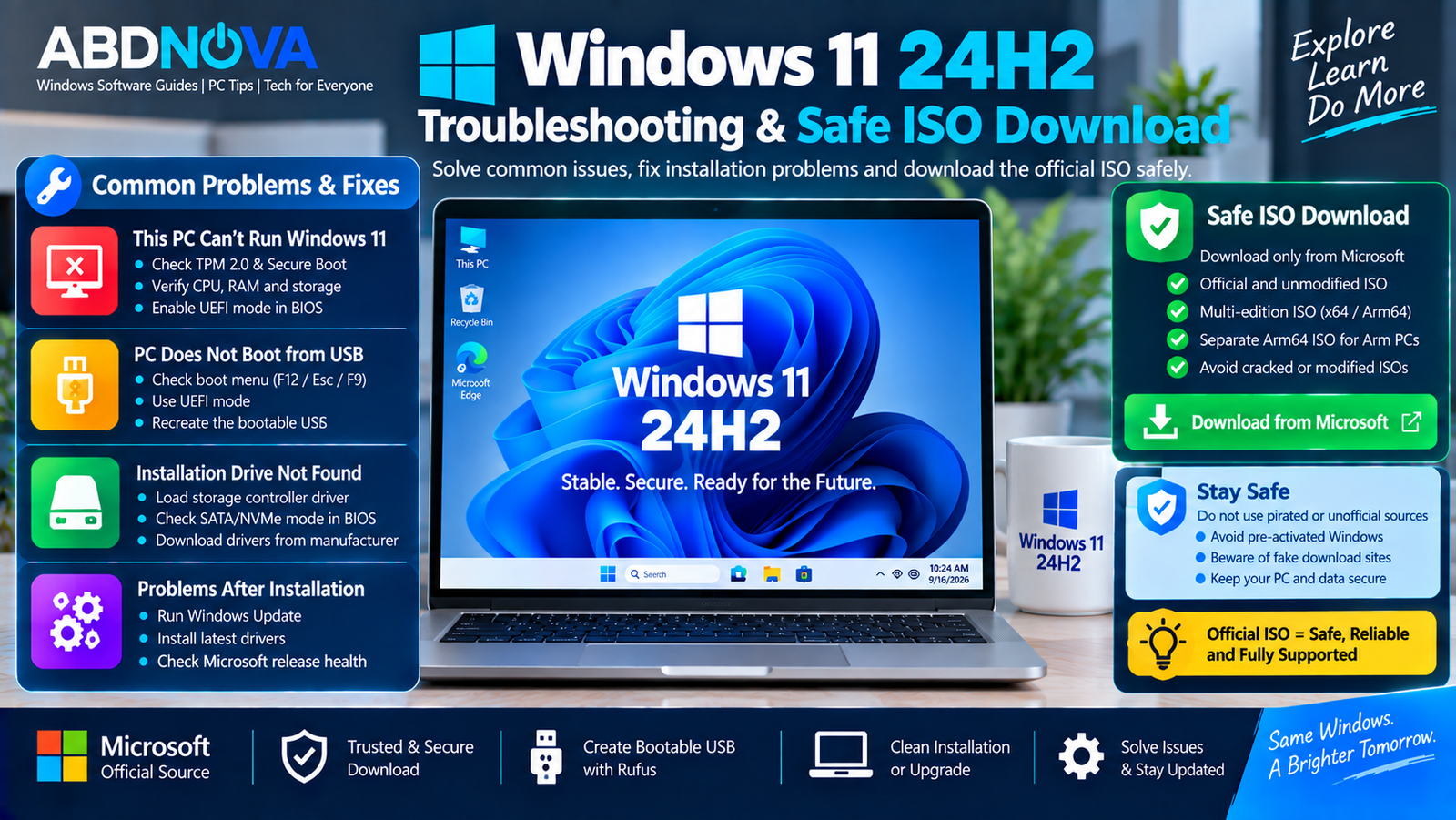
Windows 11 24H2 Troubleshooting & Safe ISO Download
This PC Can’t Run Windows 11
Check TPM 2.0, Secure Boot capability, processor compatibility, RAM, storage, and UEFI settings.
Do not assume that creating modified installation media resolves Windows 11 hardware compatibility issues safely or creates a supported configuration.
PC Does Not Boot from USB
Open the computer’s UEFI/BIOS boot menu and verify that the USB device appears.
If the USB is missing, recreate the installation media and confirm that the correct USB drive and boot configuration were selected.
Installation Drive Is Missing
Some PCs require an appropriate storage-controller driver before Windows Setup can detect the SSD.
Download the required driver from the PC or motherboard manufacturer’s official support page rather than an unknown driver website.
Problems After Updating Windows 11 24H2
Install the latest Windows updates first. Microsoft maintains Windows release-health information for Windows 11 24H2 and documents current and resolved issues.
Keeping Windows 11 24H2 fully updated is particularly important while the installed edition remains within its servicing lifecycle.
Safe Windows 11 24H2 ISO Download
Be careful when searching for an older Windows 11 24H2 Download. Microsoft’s normal consumer Windows 11 page now serves Windows 11 25H2.
- Cracked Windows ISOs
- Pre-activated Windows images
- Modified or heavily debloated ISOs
- Unverified cloud-storage links
- Torrent downloads
- Unknown ISO mirrors
- Activation bypass packages
If you specifically require Windows 11 24H2, use an appropriate official Microsoft channel available for your licensing or organizational scenario.
For a normal upgrade to Microsoft’s current Windows 11 release, you can also see our Windows 11 Installation Assistant Download guide.
Frequently Asked Questions
Is Windows 11 24H2 still supported?
Yes. Windows 11 24H2 remains supported in September 2026. Home and Pro-family servicing ends on October 13, 2026, while Enterprise and Education remain supported until October 12, 2027.
Is Windows 11 24H2 the latest Windows 11 version?
No. Microsoft currently identifies Windows 11 25H2 as its standard current Windows 11 consumer download release.
Does Microsoft’s normal Windows 11 ISO page still download 24H2?
No. Microsoft’s current consumer Windows 11 download page provides the newer Windows 11 release rather than Windows 11 24H2.
Can I create a bootable USB with a Windows 11 24H2 ISO?
Yes. If you already have a legitimate Windows 11 24H2 ISO, it can be used to create compatible bootable installation media.
Should I use 24H2 or 25H2 for a new installation?
Microsoft currently distributes Windows 11 25H2 through its standard consumer download page. Windows 11 24H2 may still be relevant where a specific supported 24H2 environment is required for testing, compatibility, deployment, or organizational use.
When does Windows 11 24H2 support end?
Microsoft lists October 13, 2026 as the end-of-updates date for Home, Pro, Pro Education, and Pro for Workstations. Enterprise and Education editions are supported until October 12, 2027.
Is Windows 11 Enterprise LTSC 2024 the same as normal Windows 11 24H2?
No. Windows 11 Enterprise LTSC 2024 is a separate Long-Term Servicing Channel product with a different lifecycle from the normal Windows 11 24H2 release.
Final Thoughts
Windows 11 24H2 Download remains relevant in 2026 because version 24H2 is still within Microsoft’s servicing lifecycle, although its position has changed since the original Windows 11 2024 Update release.
Microsoft now distributes Windows 11 25H2 through its standard consumer download page, while Windows 11 24H2 Home and Pro are approaching their October 2026 end-of-servicing date. Enterprise and Education have a longer support period.
If you specifically require Windows 11 24H2, obtain the ISO through an appropriate legitimate Microsoft channel available for your licensing or organizational scenario. Avoid cracked, modified, pre-activated, or unverified third-party Windows images.
Visit the Official Windows 11 Download Page
Microsoft’s standard download page currently provides the current Windows 11 release rather than Windows 11 24H2.


