

Windows 11 Installation Assistant Download
Windows 11 Installation Assistant Download provides Microsoft’s official upgrade utility for installing the latest version of Windows 11 on the PC you are currently using. It is designed mainly for users who want to upgrade a compatible Windows PC without manually creating a bootable USB or downloading an ISO.
The current Microsoft listing identifies Windows 11 25H2 as the current Windows 11 release. The Installation Assistant supports compatible x64-based PCs and does not run on Arm-based PCs.
What Is Windows 11 Installation Assistant?
Windows 11 Installation Assistant is a small Microsoft utility that checks your computer for compatibility, downloads Windows 11, and guides you through the upgrade process.
It is particularly useful when a compatible computer has not yet received the Windows 11 upgrade through Windows Update or when you want to manually start the upgrade.
Microsoft generally recommends waiting until Windows Update offers the upgrade, but Installation Assistant provides an official alternative for eligible PCs.
Windows 11 Installation Assistant Details
| Detail | Information |
|---|---|
| Developer | Microsoft |
| Tool | Windows 11 Installation Assistant |
| Current Windows Release | Windows 11 25H2 |
| Installer | Windows11InstallationAssistant.exe |
| Installer Size | About 4 MB |
| Architecture | x64 |
| Arm Support | No |
| Supported Starting OS | Windows 10 / Windows 11 |
| License | Microsoft Windows license required |
| Official Source | Microsoft |
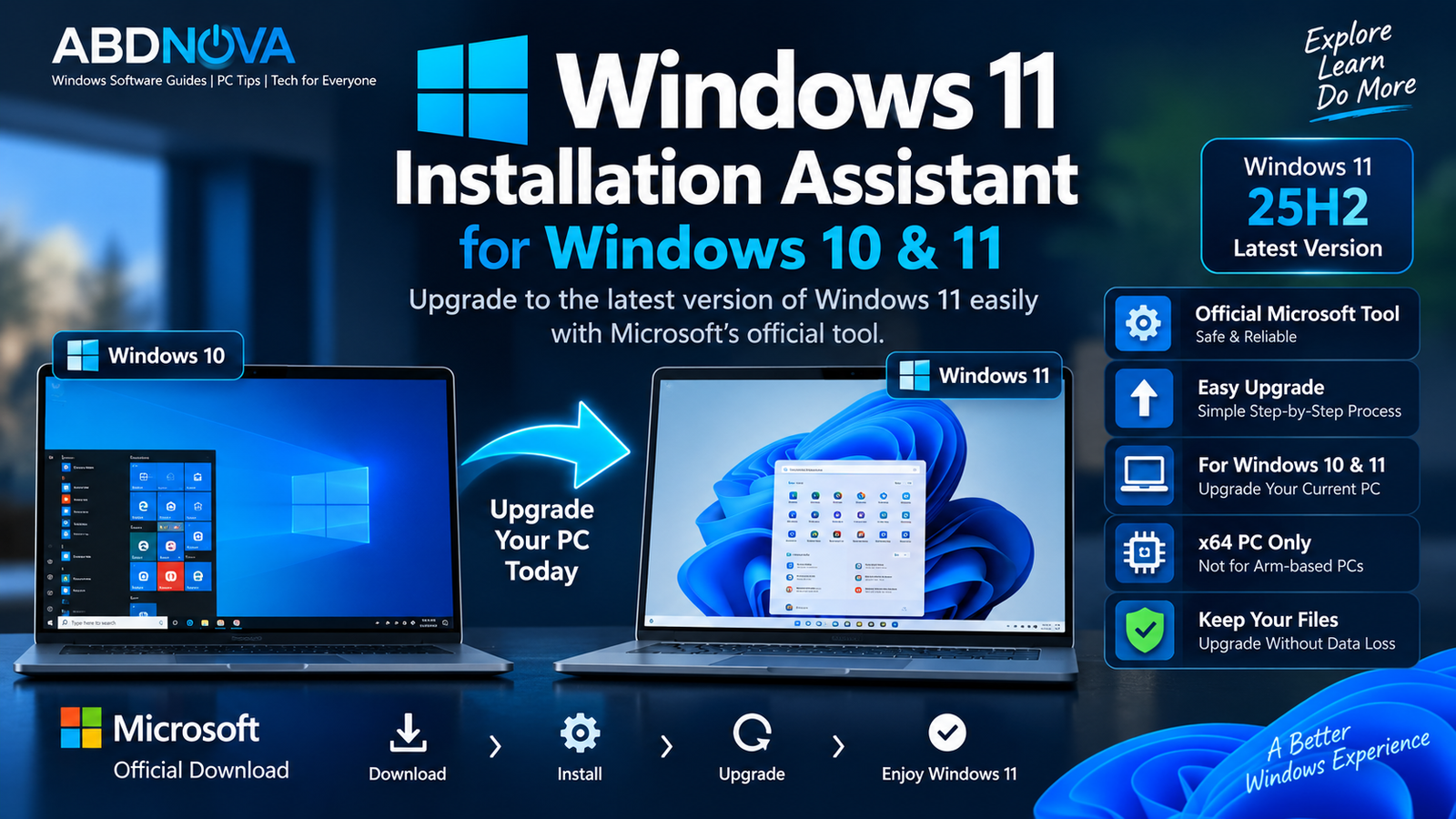
Windows 11 Installation Assistant for Windows 10 & 11
Windows 11 Installation Assistant can be used on an eligible Windows 10 PC to upgrade directly to Windows 11. It can also help start a Windows 11 feature upgrade on a compatible Windows 11 computer.
If upgrading from Windows 10, Microsoft requires Windows 10 version 2004 or later. The computer must also satisfy the Windows 11 hardware requirements.
If you still need installation media for an existing Windows 10 system, our Windows 10 ISO Download guide covers the official ISO option.
Windows 11 Installation Assistant Requirements
Before running the tool, check the following requirements:
- A valid Windows 10 or Windows 11 license.
- Windows 10 version 2004 or later when upgrading from Windows 10.
- A compatible x64 processor.
- At least 9 GB of free disk space for downloading Windows 11.
- A stable internet connection.
- A PC that meets the Windows 11 hardware requirements.
Before performing a major operating-system upgrade, back up important personal files and check the PC manufacturer’s support site for relevant BIOS, firmware, chipset, storage, graphics, and other driver updates.
How to Download Windows 11 Installation Assistant
- Open Microsoft’s official Windows 11 download page.
- Find Windows 11 Installation Assistant.
- Select Download Now.
- Save
Windows11InstallationAssistant.exe. - Run the downloaded file as administrator.
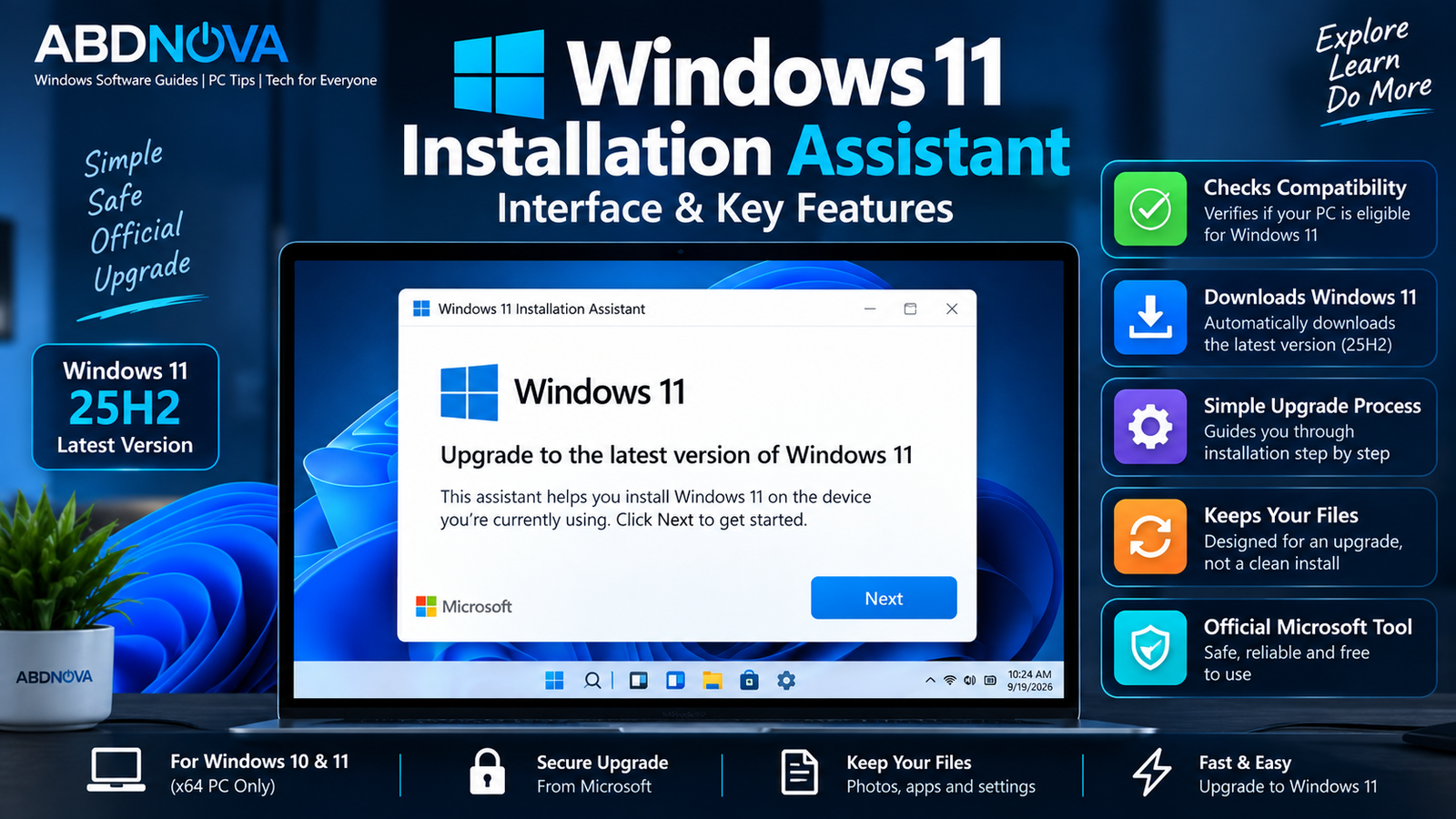
Windows 11 Installation Assistant Interface & Key Features
The Installation Assistant provides a guided upgrade process instead of requiring users to manually download an ISO and prepare installation media.
Compatibility Check
The tool checks whether the computer is eligible for Windows 11. If additional verification is required, Microsoft may direct you to use the PC Health Check app.
Automatic Windows Download
After compatibility is confirmed and the license terms are accepted, Installation Assistant downloads the required Windows 11 files and prepares the upgrade.
Guided Installation
The assistant handles the major preparation steps and tells you when the computer is ready to restart and continue installation.
No Bootable USB Required
Unlike installation-media methods, Installation Assistant upgrades the current compatible computer directly. You do not need to create a bootable USB just to perform this type of upgrade.
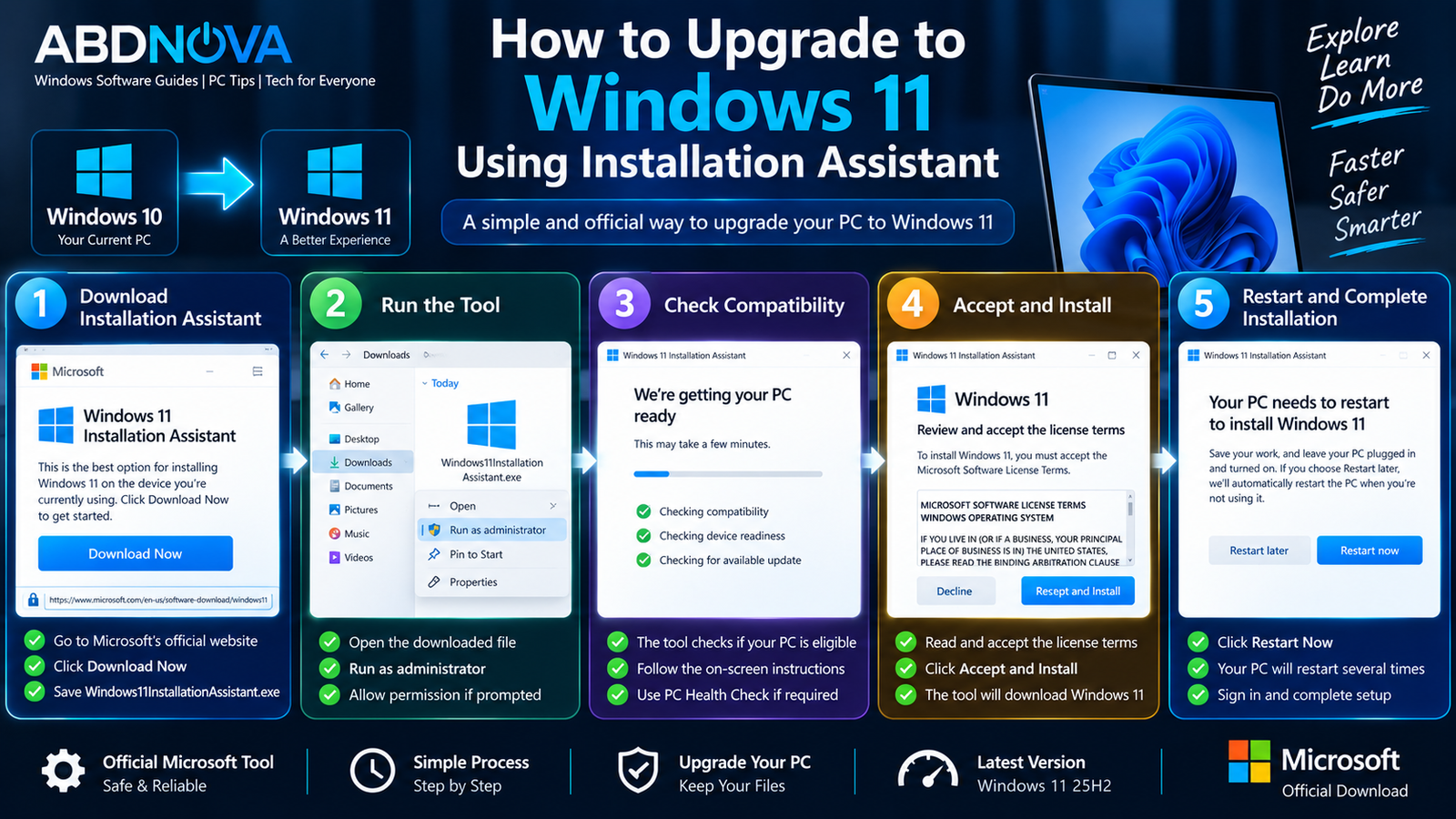
How to Upgrade to Windows 11 Using Installation Assistant
Step 1: Run Installation Assistant
Open Windows11InstallationAssistant.exe and allow it to run with administrator privileges.
Step 2: Check Compatibility
The tool checks whether your computer meets the Windows 11 requirements.
If Microsoft requests additional compatibility verification, run PC Health Check, review the results, and then return to Installation Assistant to refresh the compatibility status.
Step 3: Accept and Install
When the PC passes the compatibility check, review Microsoft’s license terms and select Accept and Install.
Installation Assistant will begin downloading and preparing Windows 11.
Step 4: Restart the PC
When the tool is ready, select Restart Now.
Step 5: Sign In to Windows 11
After installation finishes, the Windows sign-in screen appears. Sign in normally and allow Windows to complete any remaining setup tasks.
Installation Assistant vs Media Creation Tool vs ISO
| Option | Best Used For |
|---|---|
| Installation Assistant | Upgrading the compatible PC you are currently using |
| Media Creation Tool | Creating installation media for another x64 PC |
| Windows 11 ISO | Clean installation, virtual machines, or manual installation |
Installation Assistant is generally the straightforward choice when you already have a compatible PC and simply want to upgrade it.
Media Creation Tool is more appropriate when you need to create installation media, while a Windows 11 ISO provides more flexibility for clean installations, virtual machines, and manual deployment.
Can You Use Installation Assistant on Windows 10?
Yes. Windows 11 Installation Assistant can upgrade an eligible Windows 10 computer to Windows 11.
The Windows 10 installation must be version 2004 or later, and the computer must satisfy Microsoft’s Windows 11 hardware requirements.
Does Windows 11 Installation Assistant Delete Your Files?
Installation Assistant is designed as an upgrade method rather than the boot-from-media clean-install process that erases a drive.
Even so, always back up important documents, photos, work files, browser data, and other personal information before performing a major operating-system upgrade.
If you specifically want a clean installation instead, use Microsoft’s installation-media or ISO options.
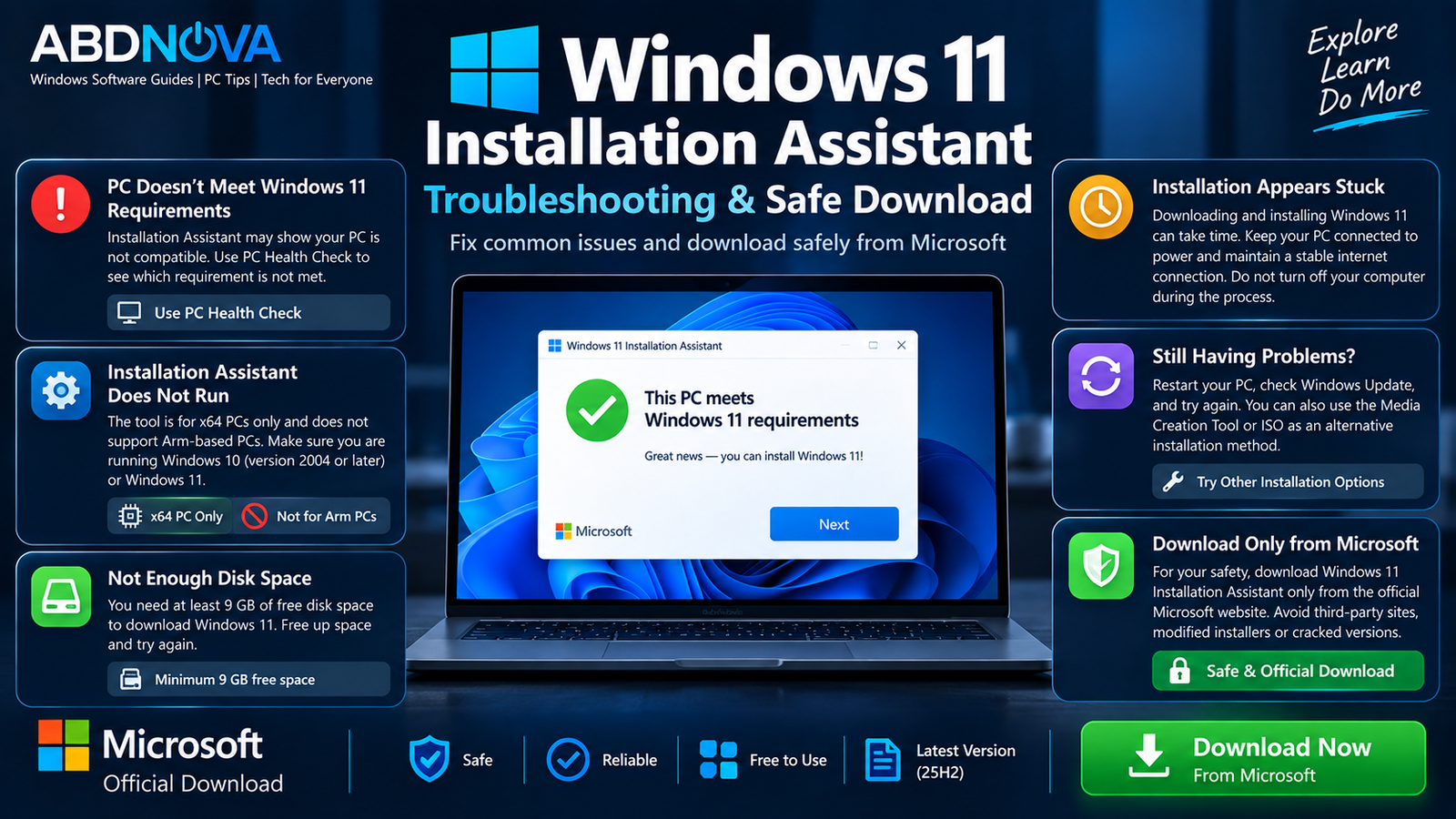
Windows 11 Installation Assistant Troubleshooting & Safe Download
PC Does Not Meet Windows 11 Requirements
If Installation Assistant reports that the computer is incompatible, use Microsoft’s PC Health Check utility to identify which Windows 11 requirement is not satisfied.
Avoid unofficial requirement-bypass tools when your goal is a normal supported Windows installation.
Installation Assistant Does Not Run
Check whether your computer uses an x64 or Arm processor. Windows 11 Installation Assistant supports x64 PCs and does not run on Arm-based computers.
Not Enough Free Space
Microsoft specifies at least 9 GB of free disk space for downloading Windows 11 through Installation Assistant. Free additional storage and restart the tool if necessary.
Windows 11 Upgrade Appears Stuck
The installation can take time depending on internet speed, storage performance, and the computer’s hardware.
- Keep the PC connected to power.
- Maintain a stable internet connection.
- Do not shut down the computer during installation.
- Allow sufficient time for downloading and installation.
Installation Assistant Still Fails
Check Windows Update and restart the computer before trying again.
Also check the PC manufacturer’s support website for relevant BIOS, firmware, chipset, storage, graphics, and driver updates.
If Installation Assistant continues to fail, Microsoft’s Windows 11 installation media or official ISO can provide an alternative installation method.
Safe Windows 11 Installation Assistant Download
The safest source for Windows 11 Installation Assistant is Microsoft’s official Windows 11 download page.
The tool is specifically designed for upgrading the computer on which it is running, so you do not need a modified installer, unofficial setup package, activation tool, or cracked version.
- Modified Windows 11 Installation Assistant files.
- Unofficial setup packages.
- Requirement-bypass utilities for normal supported installations.
- Windows activators or cracks.
- Third-party repackaged installers.
Frequently Asked Questions
Is Windows 11 Installation Assistant free?
The Installation Assistant itself can be downloaded from Microsoft without charge. You still need an appropriately licensed Windows installation.
What is the current Windows 11 version?
The source used for this guide identifies Windows 11 2025 Update, version 25H2, as the current release.
Can Installation Assistant upgrade Windows 10 to Windows 11?
Yes. The PC must meet the Windows 11 requirements and, when starting from Windows 10, must be running Windows 10 version 2004 or later.
Does Windows 11 Installation Assistant support Arm PCs?
No. Installation Assistant is intended for x64 processors and does not run on Arm-based PCs.
Do I need a USB drive?
No. Installation Assistant upgrades the current compatible PC directly. A USB drive is generally used when you choose installation-media methods instead.
Does Installation Assistant delete personal files?
Installation Assistant is intended for an upgrade rather than a boot-from-media clean installation. However, you should still back up important files before upgrading Windows.
Is Installation Assistant better than an ISO?
They serve different purposes. Installation Assistant is intended for upgrading the current compatible PC, while an ISO is more suitable for clean installations, virtual machines, and other manual installation scenarios.
Final Thoughts
Windows 11 Installation Assistant Download provides a straightforward official method for upgrading a compatible x64 Windows PC to Windows 11 without manually creating bootable installation media.
The tool handles compatibility checking, Windows downloading, installation preparation, and the upgrade process. Before starting, confirm that the computer meets Windows 11 requirements, back up important files, and keep the PC connected to power during installation.
For the safest upgrade, use the official Microsoft download rather than modified or third-party copies of Installation Assistant.
Download Windows 11 Installation Assistant
Get the official Windows 11 Installation Assistant directly from Microsoft.


