
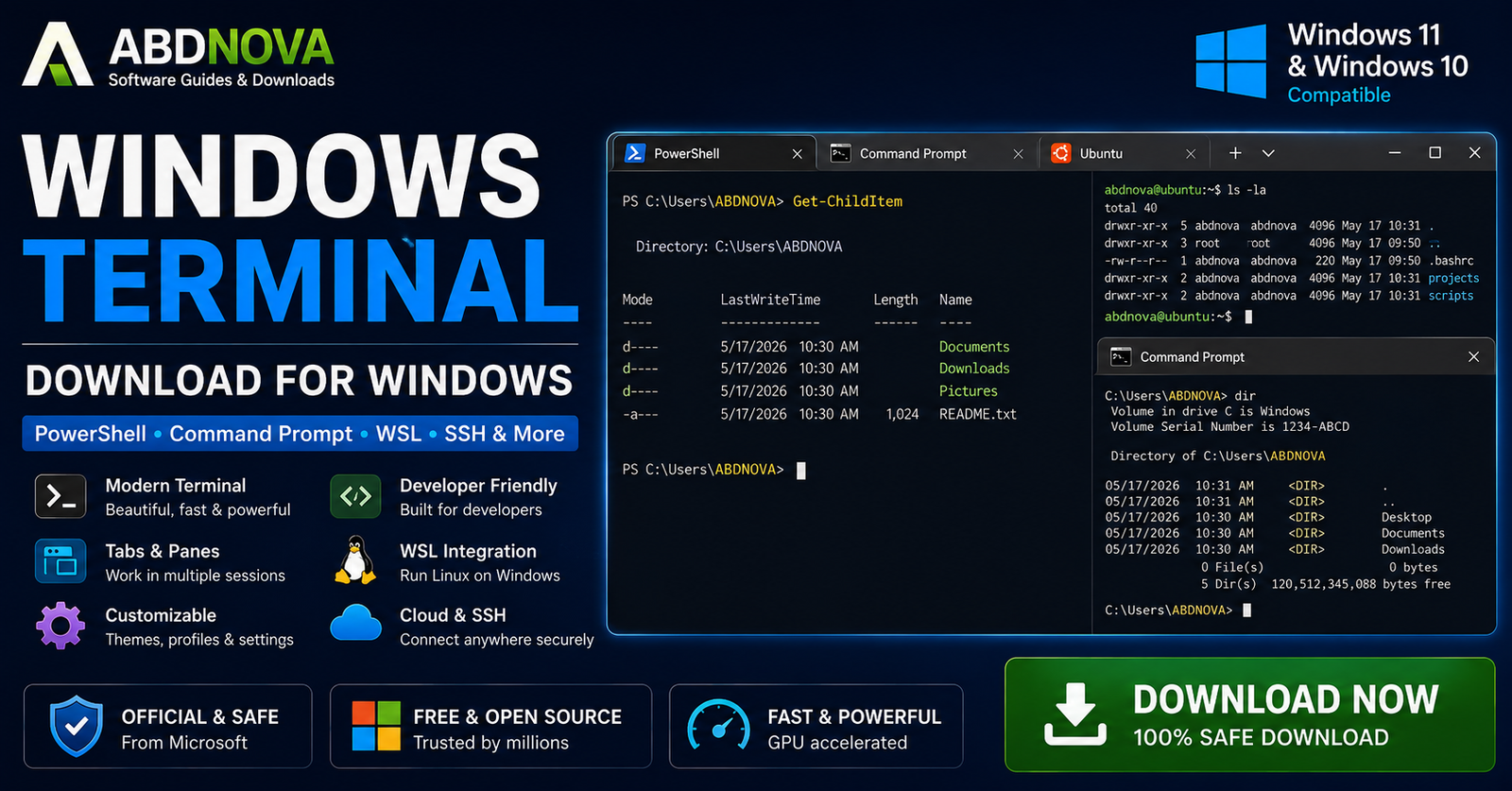

Windows Terminal Download for Windows 11 & 10
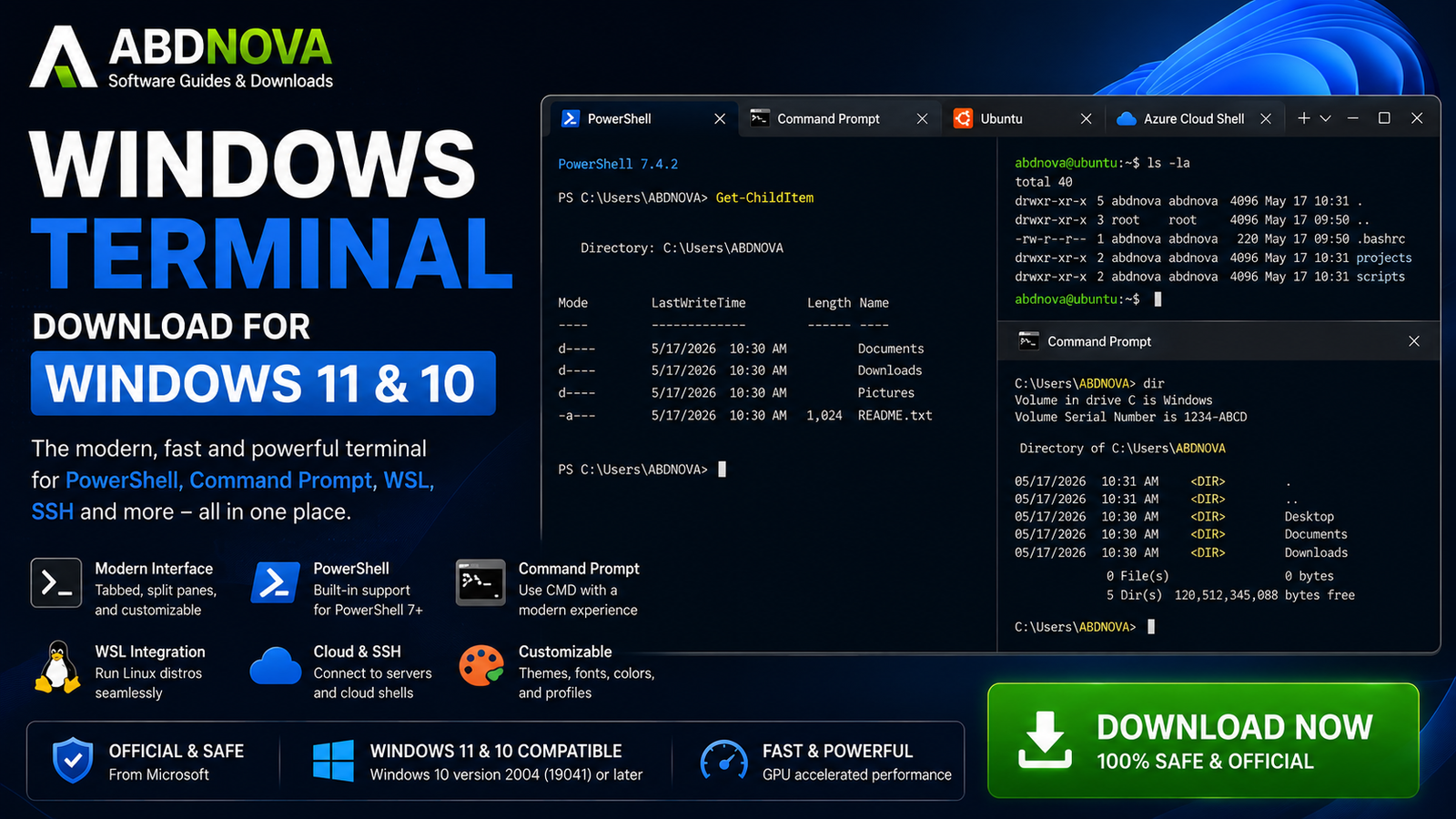
Download Windows Terminal for Windows 11 and Windows 10 to use PowerShell, Command Prompt, WSL, SSH, tabs, split panes, profiles, and modern terminal customization.
Windows Terminal Download for Windows gives Windows users Microsoft’s modern terminal application for PowerShell, Command Prompt, Windows Subsystem for Linux, SSH sessions, and other command-line environments.
Instead of opening separate console windows, Windows Terminal lets you organize multiple shells using tabs and split panes inside one application.
It also provides profiles, keyboard shortcuts, Command Palette, Unicode and UTF-8 support, GPU-accelerated text rendering, themes, background customization, and other productivity features for developers, administrators, IT professionals, and advanced Windows users.
Windows Terminal Download for Windows – Quick Overview
| Information | Details |
|---|---|
| Software | Windows Terminal |
| Developer | Microsoft |
| Current Stable Release | 1.24.11911.0 |
| Software Type | Terminal Emulator |
| License | Open Source |
| Windows 11 | Supported |
| Windows 10 | Version 2004 / Build 19041 or Later |
| Microsoft Store | Recommended |
| Official GitHub Build | Available |
| WinGet Installation | Available |
| PowerShell | Supported |
| Command Prompt | Supported |
| WSL | Supported |
| SSH Sessions | Supported |
| Tabs | Yes |
| Split Panes | Yes |
| Command Palette | Yes |
| Profiles | Yes |
| GPU-Accelerated Rendering | Yes |
| Official Source | Microsoft |
What Is Windows Terminal?
Windows Terminal is Microsoft’s open-source terminal emulator for Windows.
It acts as a modern interface for command-line shells rather than replacing the shells themselves.
Windows Terminal can host:
- Windows PowerShell.
- PowerShell 7.
- Command Prompt.
- WSL Linux distributions.
- SSH sessions.
- Azure Cloud Shell profiles.
- Other compatible command-line applications.
The important distinction is simple: Windows Terminal is the interface; PowerShell and Command Prompt are shells that can run inside it.
Windows Terminal System Requirements
Microsoft’s current Windows Terminal repository lists Windows 10 version 2004, build 19041 or later as the minimum Windows requirement.
- Windows 11: Supported.
- Windows 10 22H2: Supported.
- Windows 10 build 19041 or later: Meets the stated minimum requirement.
- Windows 8.1: Not supported by current releases.
- Windows 7: Not supported.
Windows Terminal Stable vs Preview
Windows Terminal Stable
The stable release is the correct choice for most users. It receives tested features, bug fixes, security improvements, and reliability updates.
Windows Terminal Preview
Windows Terminal Preview provides access to features that Microsoft is testing before they reach the stable channel.
Preview is more appropriate for developers, enthusiasts, testers, and users who specifically need upcoming Terminal functionality.
How to Install Windows Terminal on Windows
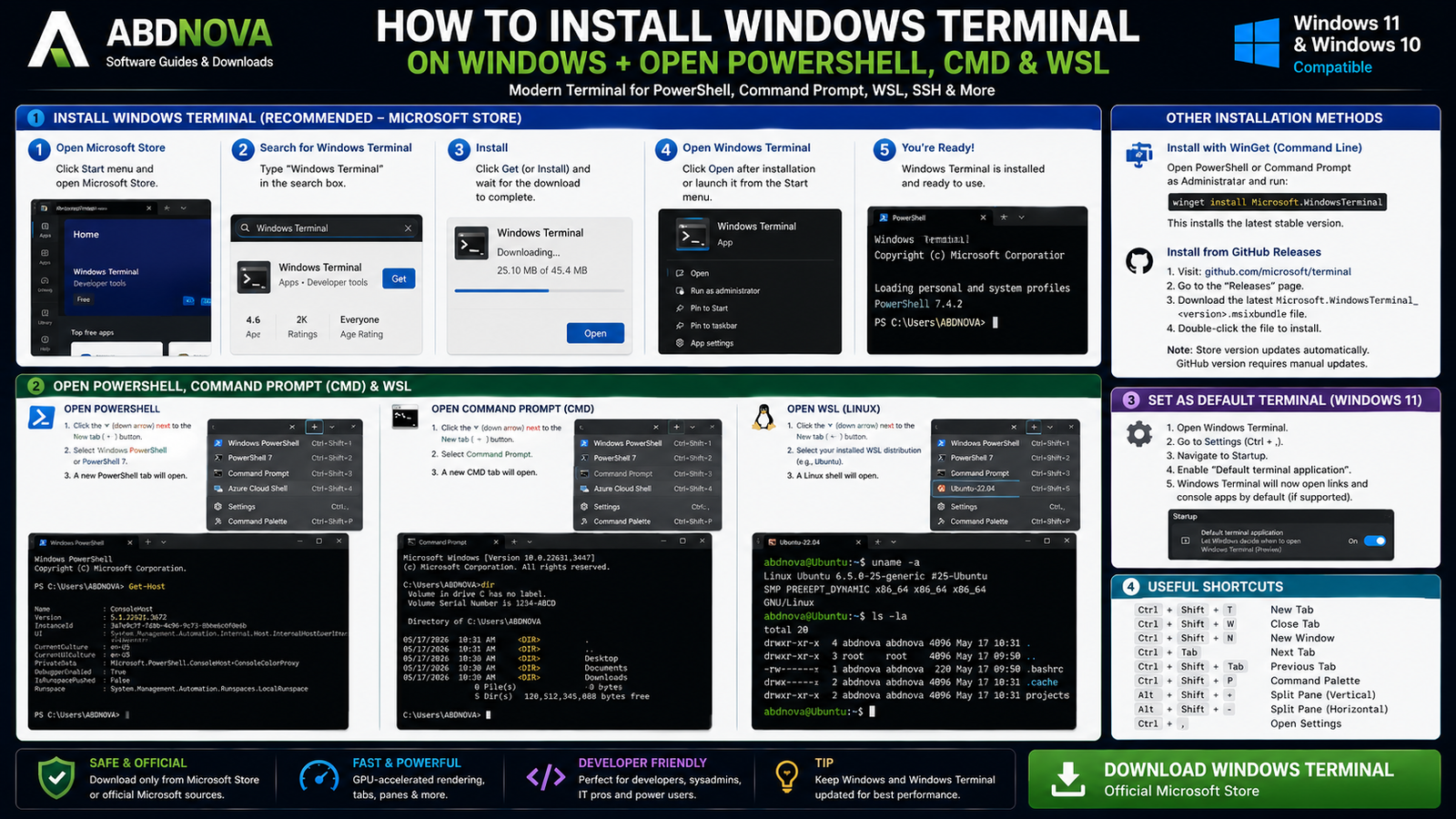
Install from Microsoft Store
Microsoft recommends the Microsoft Store installation for most users because Store-installed versions receive updates automatically.
- Open Microsoft Store.
- Search for Windows Terminal.
- Confirm that the application is published by Microsoft.
- Select Install.
- Launch Windows Terminal from the Start menu.
Install Windows Terminal with WinGet
You can also install Windows Terminal through Windows Package Manager:
winget install --id Microsoft.WindowsTerminal -eThis method is useful for development PCs, automated setup, IT administration, or users who prefer command-line package management.
Install Windows Terminal from GitHub
If Microsoft Store is unavailable, Microsoft publishes official release packages through the Windows Terminal GitHub repository.
The release package normally uses a name similar to:
Microsoft.WindowsTerminal_<versionNumber>.msixbundleDownload the current stable package from Microsoft’s official repository and open it with Windows App Installer.
Windows Terminal Main Interface, Tabs & Profiles
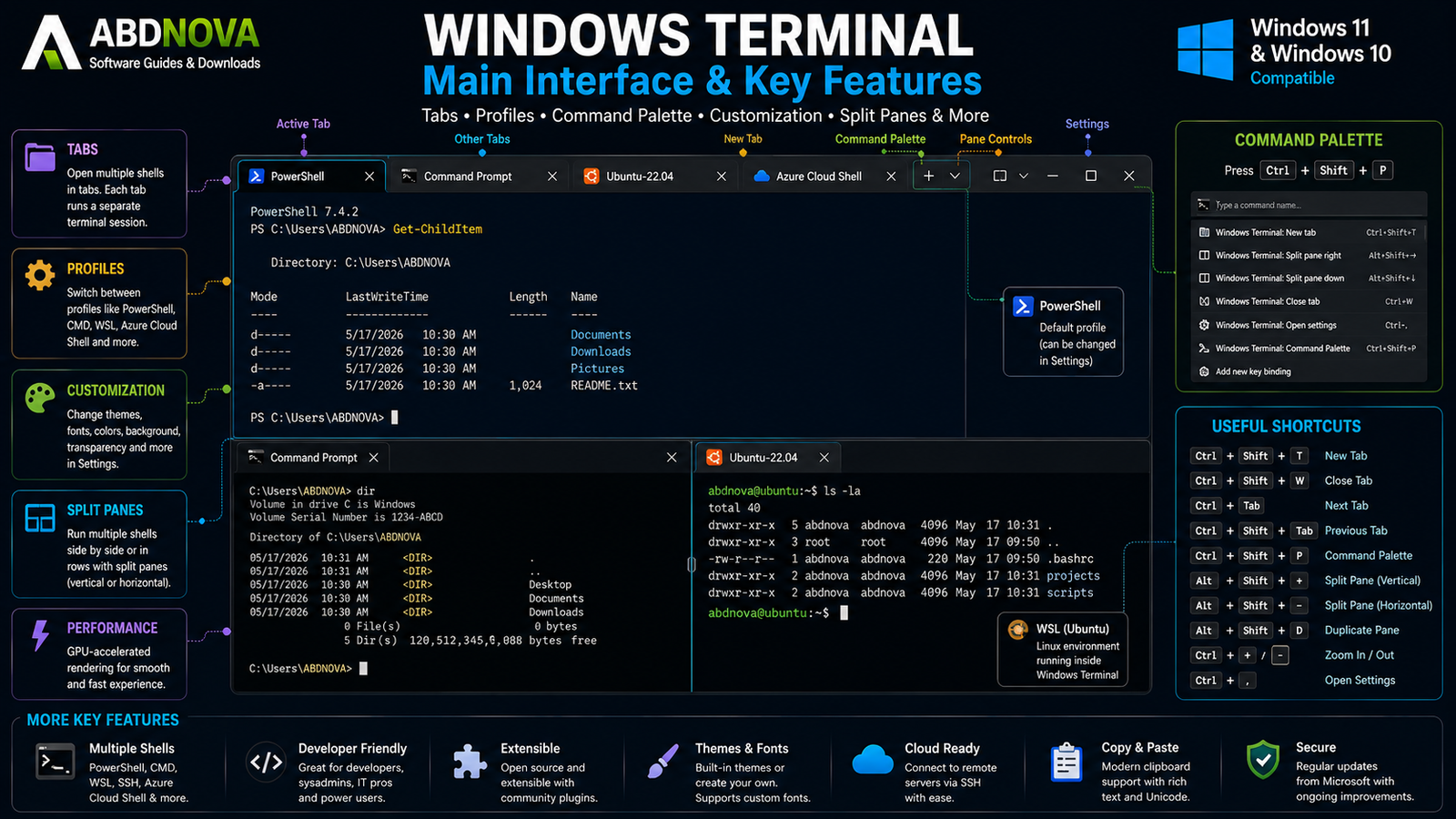
Windows Terminal combines familiar desktop interface features with modern command-line workflows.
Tabs
Each tab can run a separate terminal session.
For example:
- Tab 1 — PowerShell.
- Tab 2 — Command Prompt.
- Tab 3 — Ubuntu through WSL.
- Tab 4 — SSH session.
The default shortcut for opening a new tab using the default profile is:
Ctrl + Shift + TProfiles
Profiles let different command-line environments have their own configuration.
A profile can define:
- Shell executable.
- Starting directory.
- Icon.
- Font.
- Color scheme.
- Background.
- Appearance.
- Profile-specific behavior.
Windows Terminal can automatically create profiles for compatible environments such as installed WSL distributions and multiple PowerShell versions.
PowerShell in Windows Terminal
PowerShell is one of the most common shells used inside Windows Terminal. It can be used for Windows administration, automation, file management, networking, software management, and development workflows.
Command Prompt in Windows Terminal
Traditional Command Prompt can also run inside Windows Terminal. Familiar commands such as dir, cd, ipconfig, ping, and systeminfo still work normally.
The shell does not change—the interface around it becomes more modern.
WSL Integration
If a compatible WSL distribution is installed, Windows Terminal can create profiles for distributions such as Ubuntu or Debian.
This allows Windows and Linux command-line environments to coexist inside one Terminal window.
If you use WSL for container development, see our Docker Desktop Download for Windows guide for Docker, WSL 2, containers, and Compose.
Windows Terminal Tabs & Split Panes Explained
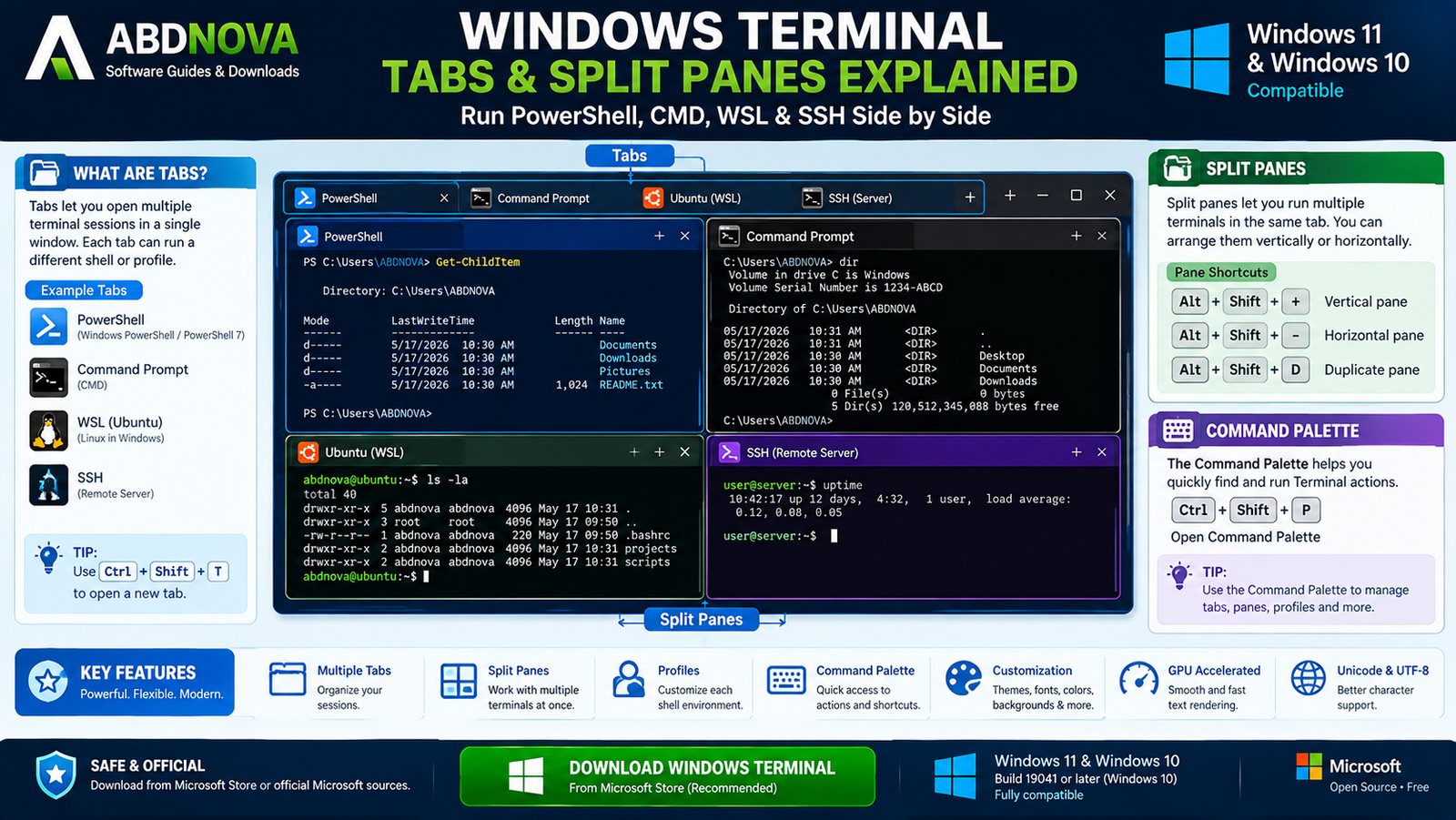
Tabs are useful when you want multiple shell sessions inside one window. Split panes go further by allowing multiple terminal sessions inside the same tab.
Split Panes
You might use:
Left Pane: PowerShell
Right Pane: Ubuntu WSL
Or:
Top Pane: SSH server session
Bottom Pane: Local PowerShell
Useful Split Pane Shortcuts
| Action | Shortcut |
|---|---|
| New Tab | Ctrl + Shift + T |
| Command Palette | Ctrl + Shift + P |
| Vertical Pane | Alt + Shift + + |
| Horizontal Pane | Alt + Shift + – |
| Duplicate Pane | Alt + Shift + D |
Command Palette
The Command Palette provides searchable access to Windows Terminal actions.
Open it with:
Ctrl + Shift + PThis is particularly useful once you start using more profiles, panes, and custom actions.
Windows Terminal Customization, Profiles & Themes
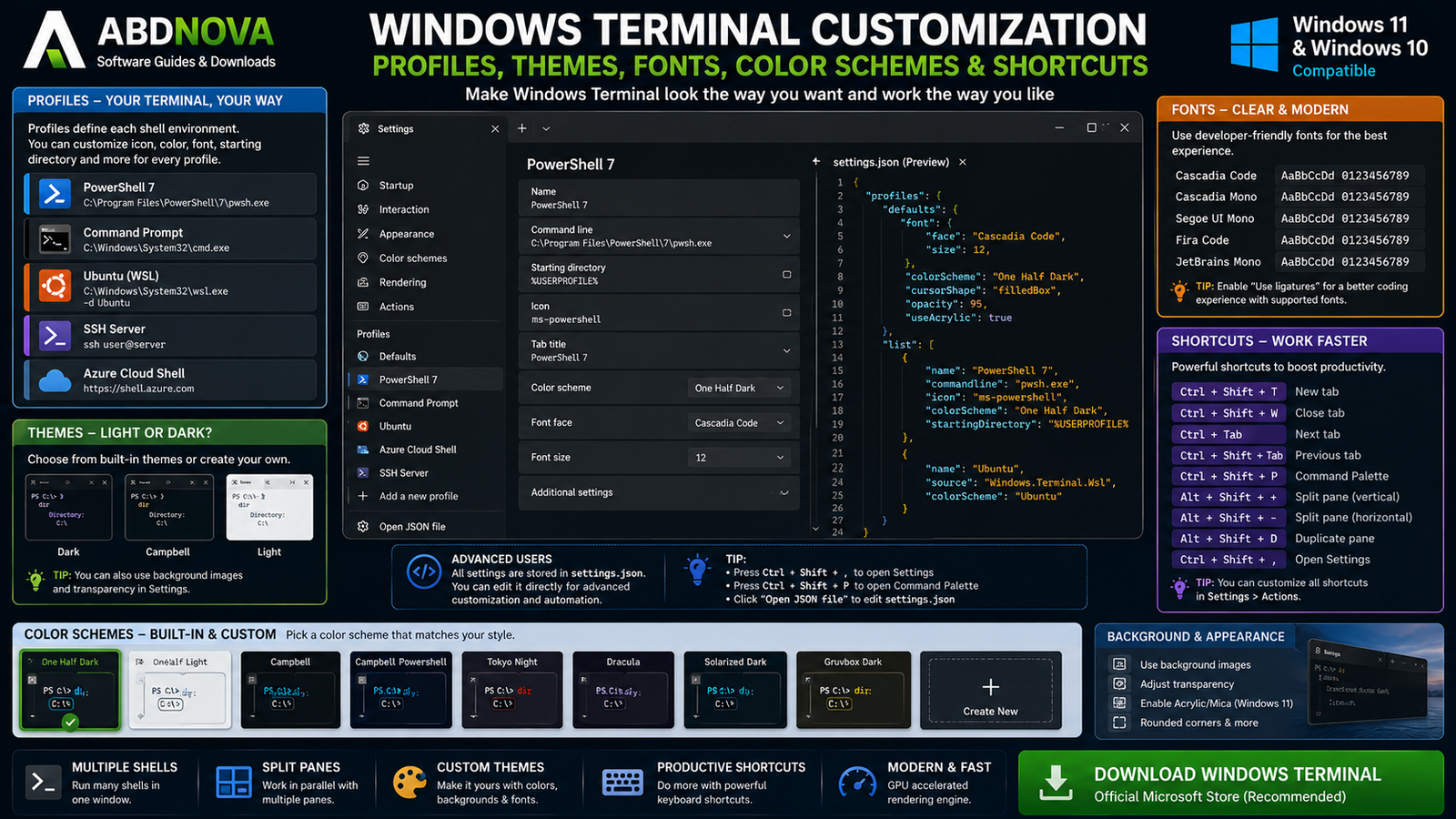
Customization is one of Windows Terminal’s strongest features.
The graphical Settings interface can configure:
- Default profile.
- Startup behavior.
- Appearance.
- Color schemes.
- Fonts.
- Tabs.
- Profiles.
- Keyboard actions.
- Background images.
- Transparency.
- Cursor appearance.
Change the Default Profile
Open:
Windows Terminal → Settings → Startup → Default profile
You can then select PowerShell, Command Prompt, Ubuntu, another WSL distribution, or another available shell.
Set Windows Terminal as the Default Terminal
On supported Windows configurations, Windows Terminal can be configured as the default terminal application so command-line programs open using Terminal instead of the older console host.
Color Schemes and Themes
Different profiles can use different colors, fonts, backgrounds, opacity, and cursor settings, making PowerShell, CMD, WSL, and remote sessions easier to distinguish.
settings.json
Most users can use the graphical Settings interface. Advanced users can also edit settings.json directly for deeper customization.
GPU-Accelerated Rendering & Unicode Support
GPU-Accelerated Text Rendering
Windows Terminal uses a modern rendering architecture designed to display command-line text smoothly and efficiently.
The practical result is a more responsive terminal experience, particularly when large amounts of text are being displayed.
Unicode and UTF-8
Windows Terminal supports modern Unicode and UTF-8 workflows, which are useful for programming languages, Linux tools, international text, symbols, and modern command-line applications.
Font selection still matters because the chosen font must include the characters you want to display.
Copy, Paste & Search Terminal Output
Windows Terminal provides modern clipboard support for copying commands, file paths, logs, configuration snippets, and command output.
Terminal also includes search functionality for finding error messages, filenames, IP addresses, log entries, commands, and other text in long terminal sessions.
Windows Terminal vs Command Prompt vs PowerShell
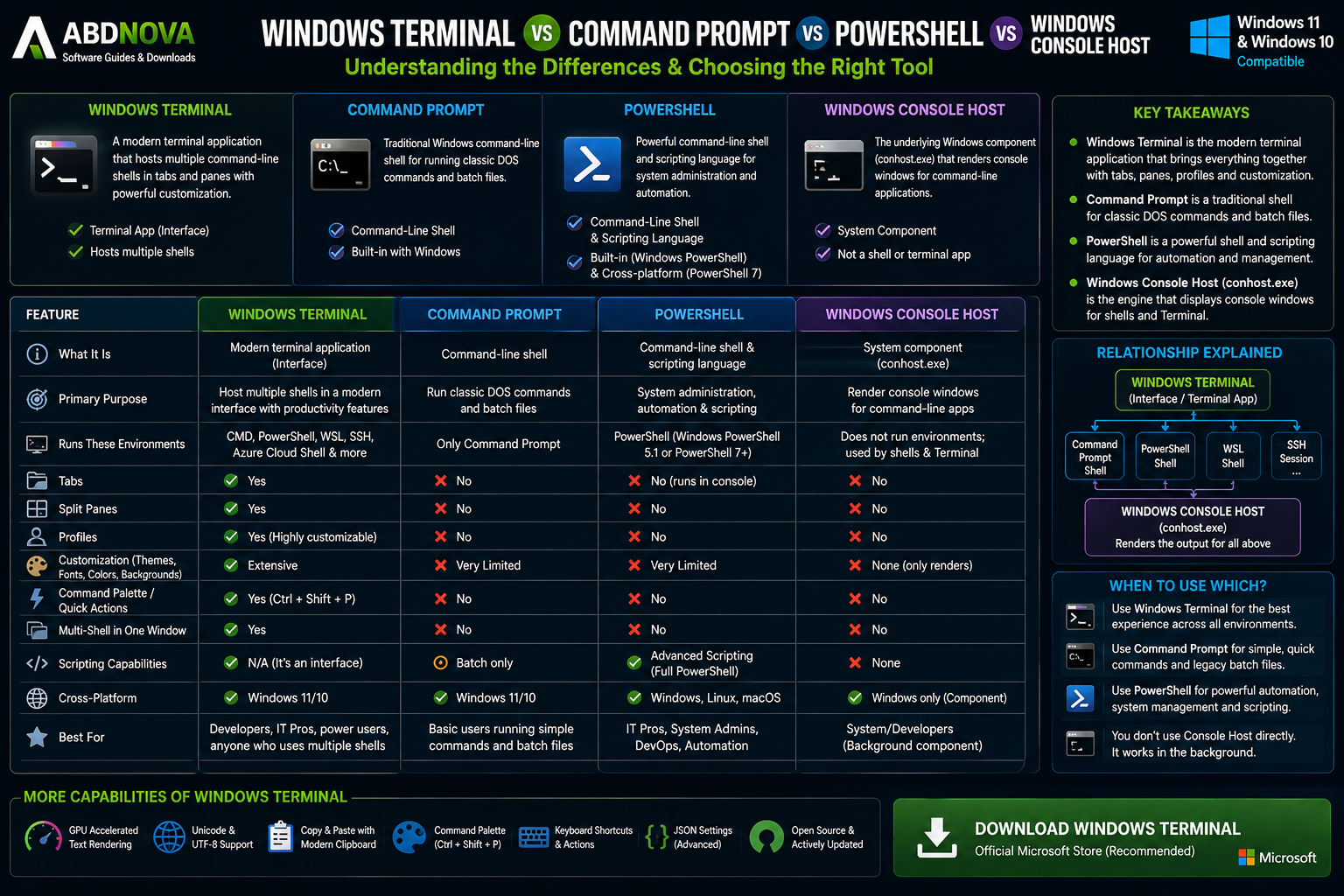
Windows Terminal vs Command Prompt
| Feature | Windows Terminal | Traditional CMD Window |
|---|---|---|
| Run CMD | Yes | Yes |
| PowerShell Profiles | Yes | No |
| WSL Profiles | Yes | No |
| Multiple Tabs | Yes | No |
| Split Panes | Yes | No |
| Command Palette | Yes | No |
| Profile Customization | Extensive | Basic |
| Multiple Shells Together | Yes | No |
| Modern Interface | Yes | Limited |
| Best Use | Unified Terminal Environment | Simple CMD Session |
Windows Terminal vs PowerShell
PowerShell is a shell and scripting language. Windows Terminal is a terminal emulator.
You can—and normally will—run PowerShell inside Windows Terminal. They complement each other rather than compete.
Windows Terminal
- Hosts PowerShell.
- Hosts Command Prompt.
- Hosts WSL.
- Hosts SSH and other compatible profiles.
Windows Terminal vs Windows Console Host
The traditional Windows Console Host provides the older console window used by command-line applications.
Windows Terminal provides a more modern environment with tabs, panes, profiles, extensive customization, Command Palette, and modern text rendering.
Windows Terminal for SSH & Remote Work
Windows Terminal can host SSH sessions, which makes it useful for developers and administrators managing remote Linux systems or servers.
If you also need graphical FTP, FTPS, or SFTP file transfers to remote servers, see our FileZilla Download for Windows guide.
Is Windows Terminal Safe?
Yes, when Windows Terminal is obtained from Microsoft’s official distribution channels.
Recommended sources include Microsoft Store, Microsoft’s official Windows Terminal documentation, and the official microsoft/terminal GitHub repository.
Windows Terminal Troubleshooting
Windows Terminal Does Not Open
Confirm that Windows meets the minimum requirement, install pending Windows updates, restart Windows, check for Terminal updates, and repair or reinstall the application if necessary.
GitHub MSIXBundle Does Not Install
Manual GitHub builds can sometimes require additional framework dependencies, particularly on older Windows 10 systems.
For most users, the Microsoft Store installation is easier because dependencies and updates are handled more automatically.
PowerShell Profile Is Missing
Confirm that the PowerShell version is actually installed, then restart Windows Terminal.
Terminal can automatically generate profiles for compatible detected command-line environments.
WSL Distribution Does Not Appear
Make sure WSL and the Linux distribution are installed correctly, then close and reopen Windows Terminal.
Windows Terminal Opens the Wrong Shell
Open:
Settings → Startup → Default profile
Then select the shell you want Terminal to open by default.
Tabs or Panes Are Confusing
Start with a single shell and learn tabs first. Split panes are optional and can be added later when they improve your workflow.
Settings Are Broken
If the problem started after editing settings.json, review or revert your recent changes.
The graphical Settings interface is safer for users who do not need advanced JSON customization.
How to Update Windows Terminal
Microsoft Store
Microsoft Store can automatically deliver Windows Terminal updates, which is one reason Microsoft recommends this installation method.
GitHub
Manual GitHub installations do not automatically update. Download and install the latest official release when you want to update.
WinGet
WinGet users can manage Windows Terminal through Windows Package Manager.
How to Uninstall Windows Terminal
Open:
Settings → Apps → Installed apps
Find Windows Terminal and use the available application-management options.
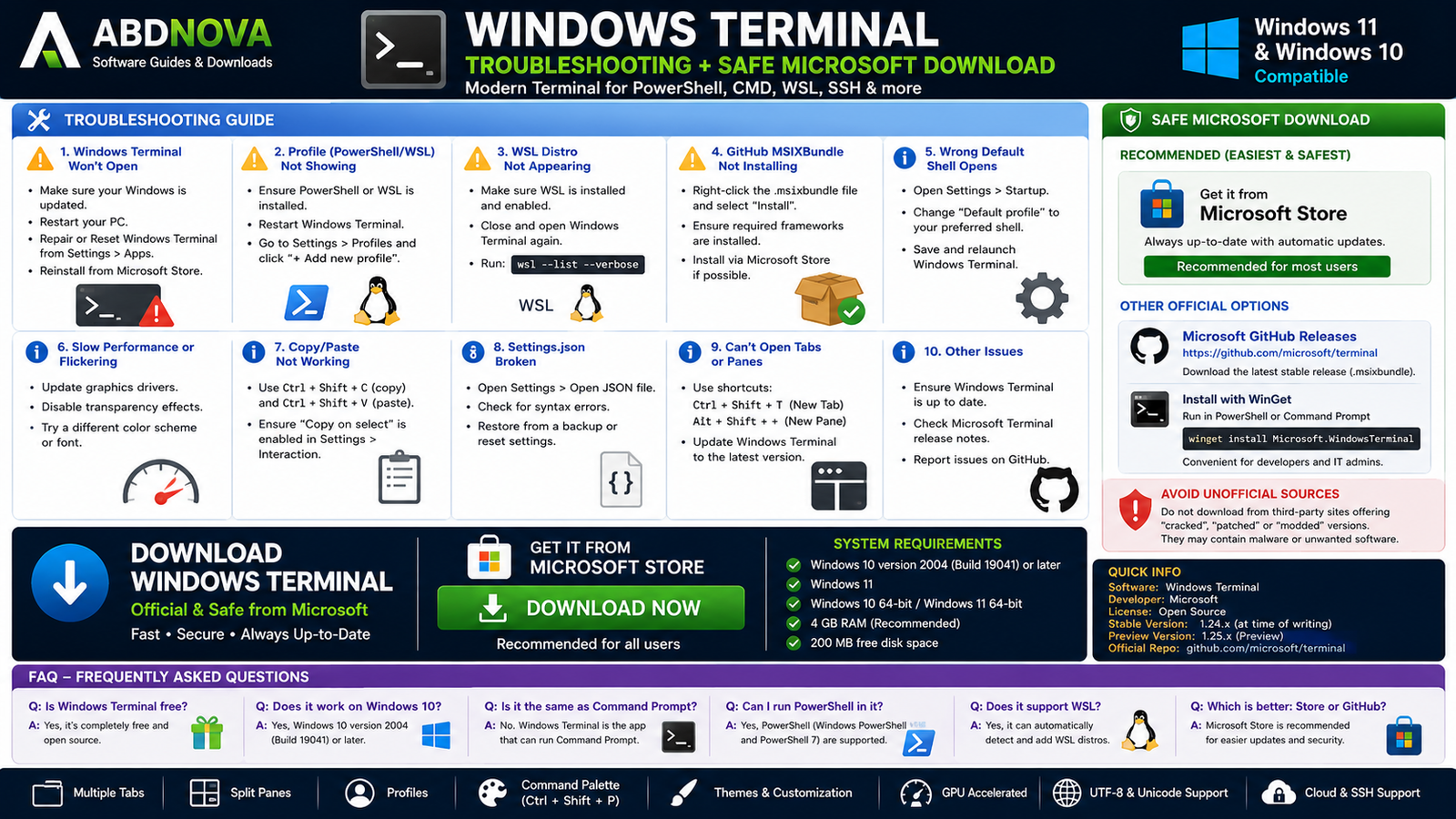
Safe Windows Terminal Download – Important
For most users, Microsoft Store is the recommended Windows Terminal installation source because it provides automatic updates.
Official source: Microsoft Windows Terminal Installation Guide.
If Microsoft Store is unavailable, Microsoft’s official Windows Terminal GitHub releases provide another legitimate installation method.
- Windows Terminal Crack.
- Windows Terminal Pro.
- Windows Terminal Premium.
- Windows Terminal Activator.
- Modified Windows Terminal.
- Unofficial Terminal repacks.
- Unknown third-party installers.
Frequently Asked Questions
Is Windows Terminal free?
Yes. Windows Terminal is Microsoft’s open-source terminal application.
Does Windows Terminal work on Windows 11?
Yes. Windows 11 is supported.
Does Windows Terminal work on Windows 10?
Yes. Microsoft’s current minimum requirement is Windows 10 version 2004, build 19041 or later.
What is the current stable Windows Terminal version?
As of August 2026, Microsoft’s current stable release is Windows Terminal 1.24.11911.0.
Is Windows Terminal the same as Command Prompt?
No. Command Prompt is a shell. Windows Terminal is an application capable of hosting Command Prompt and other shells.
Is Windows Terminal the same as PowerShell?
No. PowerShell is a command shell and scripting environment that can run inside Windows Terminal.
Can Windows Terminal run CMD?
Yes. Command Prompt can run as a Windows Terminal profile.
Can Windows Terminal run PowerShell?
Yes. PowerShell is one of the primary shells commonly used inside Windows Terminal.
Does Windows Terminal support WSL?
Yes. Terminal can automatically create profiles for compatible installed WSL distributions.
Can Windows Terminal use SSH?
Yes. SSH sessions can be used inside Windows Terminal through a suitable command-line profile or shell.
Can I open multiple terminals at once?
Yes. Windows Terminal supports multiple tabs and split panes.
What is the Command Palette?
The Command Palette provides searchable access to Terminal actions. The default shortcut is Ctrl + Shift + P.
Should I use Windows Terminal or Windows Terminal Preview?
Most users should use stable Windows Terminal. Preview is intended for users who want to test upcoming features.
Does Windows Terminal automatically update?
The Microsoft Store version can receive automatic updates. Manually installed GitHub releases do not automatically update.
Is Windows Terminal safe?
Yes, when obtained from Microsoft’s official Store, documentation, GitHub repository, or supported package distribution.
Final Thoughts
Windows Terminal is much more than a modern-looking Command Prompt window. It provides a unified workspace for PowerShell, Command Prompt, WSL, SSH, and other command-line environments while adding tabs, split panes, profiles, Command Palette, keyboard shortcuts, modern rendering, and extensive customization.
For users who rarely open a command line, the traditional Windows tools may already be sufficient. For developers, system administrators, WSL users, IT professionals, and anyone regularly switching between command-line environments, Windows Terminal provides a much cleaner workflow.
For most users, Microsoft Store remains the simplest installation method because updates are handled automatically. Microsoft’s official GitHub releases are the appropriate alternative when Store installation is unavailable.
Ready to download Windows Terminal?
Get Windows Terminal through Microsoft’s official installation channels. ABDNOVA recommends official sources only.


