


TreeSize Free Download for Windows 11 & 10

Download TreeSize Free for Windows to find large folders and files, analyze disk usage, inspect SSDs and HDDs, and visualize storage with a Treemap.
TreeSize Free Download for Windows gives Windows 11 and Windows 10 users a free disk-space analyzer for finding exactly what is consuming storage on an SSD, HDD, USB drive, or other connected storage device.
Windows File Explorer can show how much free space remains, but it is often difficult to determine which folders and files are responsible for a full drive. TreeSize Free solves this by scanning storage and presenting usage in an Explorer-like folder tree and visual Treemap.
You can quickly identify large folders, drill down to individual files, inspect storage usage, and decide what should be moved, archived, kept, or deleted.
TreeSize Free Download for Windows – Quick Overview
| Information | Details |
|---|---|
| Software | TreeSize Free |
| Developer | JAM Software |
| Current Free Release | 4.8.1 |
| Software Type | Disk Space Analyzer / Storage Utility |
| Windows 11 | Supported |
| Windows 10 | 64-bit Supported |
| Folder Size Analysis | Yes |
| File-Level Analysis | Yes |
| Treemap | Yes |
| PDF Reports | Yes |
| SSD / HDD Analysis | Yes |
| External Drives | Yes |
| USB / SD Cards | Yes |
| Portable Version | Yes |
| License | Free Edition – Review Current JAM Software Terms |
| Official Source | JAM Software |
What Is TreeSize Free?
TreeSize Free is a Windows storage-analysis utility designed to answer a simple question: what is using all my disk space?
Instead of automatically deleting files, TreeSize scans a drive or folder and shows how storage is distributed throughout its directory structure.
TreeSize Free is useful for:
- Finding large folders.
- Checking what is filling the C: drive.
- Analyzing SSD and HDD storage.
- Checking external drives.
- Finding large individual files.
- Viewing folder sizes.
- Analyzing USB drives and SD cards.
- Visualizing storage with a Treemap.
- Exporting disk-usage information.
- Cleaning storage manually after identifying unnecessary data.
TreeSize Free is therefore best thought of as a disk space analyzer rather than a one-click PC cleaner.
Why Use TreeSize Free?
The most common reason is that your Windows drive is almost full, but you do not know why.
For example, a 1 TB SSD may have only a small amount of free space remaining even though you cannot immediately identify where hundreds of gigabytes are being used.
TreeSize scans the drive and makes large directories easy to identify. You can then expand the largest folders and continue drilling down until you find the actual files consuming the storage.
How to Install TreeSize Free on Windows & Scan Your C Drive

Step 1: Download TreeSize Free
Open JAM Software’s official TreeSize page and choose the TreeSize Free download.
Step 2: Open the Installer
Go to your Downloads folder and open the official TreeSize setup file.
Step 3: Verify the Source
If Windows displays a security or User Account Control prompt, confirm that the installer came from JAM Software.
Step 4: Complete Setup
Follow the installation wizard and finish the normal installation.
Step 5: Launch TreeSize Free
Open TreeSize Free and select the drive or folder you want to analyze.
How to Scan Your C Drive
- Open TreeSize Free.
- Select the C:\ drive.
- Wait while TreeSize calculates storage usage.
- Start with the largest folders.
- Expand folders to drill down into subfolders.
- Continue until you identify the files or directories using the space.
Run TreeSize as Administrator
Some protected Windows folders may not be fully accessible with standard permissions.
Running TreeSize Free as administrator can provide a more complete view of protected areas.
TreeSize Free Main Interface & Folder Size Analysis

TreeSize Free uses an Explorer-like interface that makes it relatively easy to understand if you already use Windows File Explorer.
After scanning, TreeSize can display information such as:
- Folder name.
- Size.
- Allocated space.
- Number of files.
- Number of folders.
- Percentage of the parent folder.
- Available access or ownership information.
Understanding Folder Sizes
One of TreeSize Free’s biggest advantages is being able to see folder sizes without opening Properties for each directory manually.
For example, if your Downloads folder uses 65 GB, you can expand it and immediately determine whether most of that space belongs to videos, ISO files, installers, archives, or other data.
TreeSize Free Treemap Explained – Find Large Files & Space Hogs
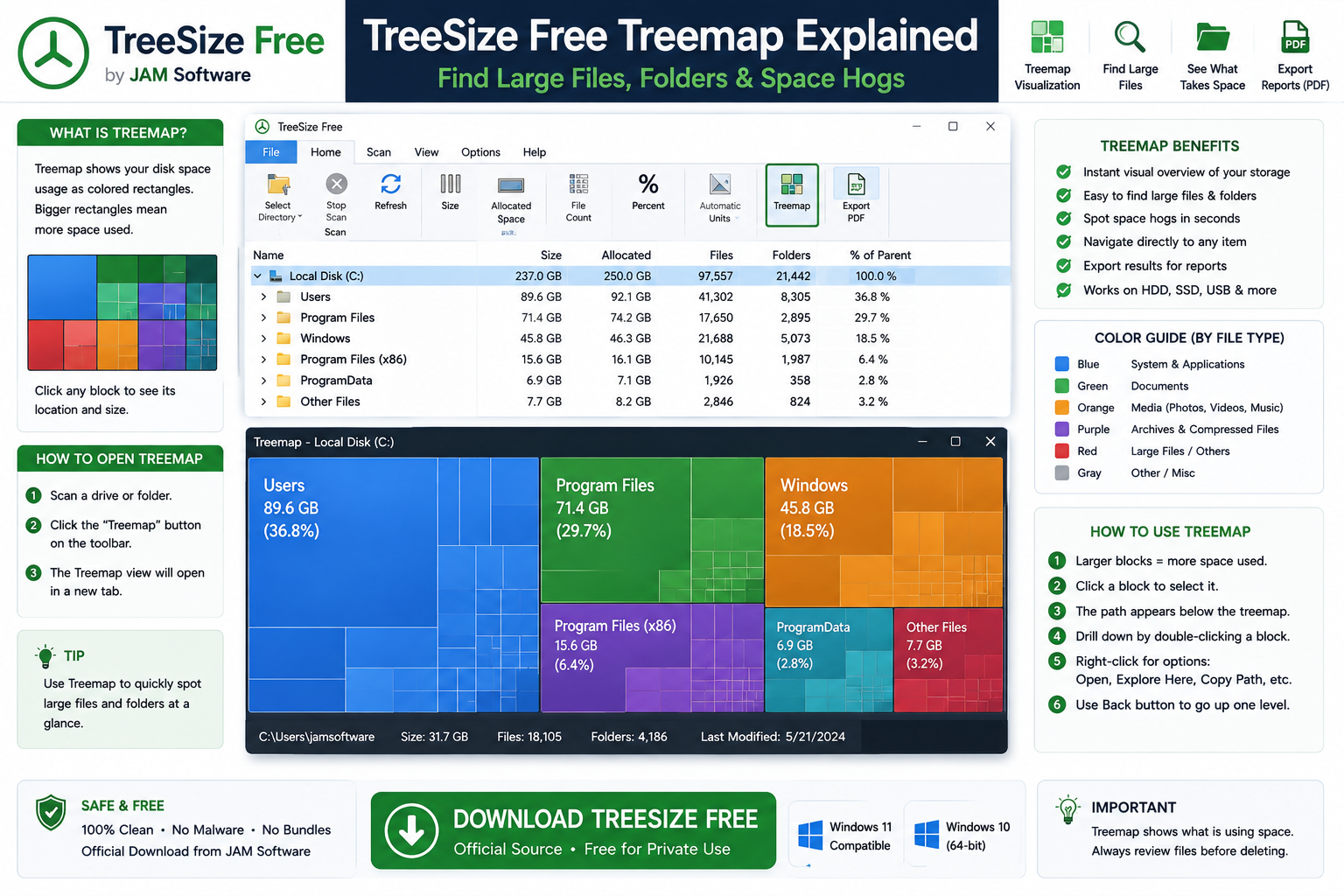
A Treemap is a visual representation of storage usage. Files and folders appear as blocks, with larger blocks generally representing items using more space.
This can make it much easier to spot unusually large files when a drive contains thousands of folders and files.
How to Use the Treemap
- Scan the drive or folder.
- Open the Treemap view.
- Look for the largest blocks.
- Select a large block.
- Identify the corresponding file or folder.
- Determine whether you still need it.
- Delete, move, archive, or leave it alone as appropriate.
Common Space Hogs
Common storage-heavy items include:
- Large videos.
- Old backups.
- ISO images.
- Virtual machines.
- Game files.
- Downloads.
- Phone backups.
- ZIP and RAR archives.
- Old installation files.
- Cached project data.
TreeSize Free Disk Analysis – SSD, HDD, USB & External Drives

Scan SSDs and HDDs
TreeSize can analyze both solid-state drives and traditional hard drives.
The basic process is the same:
Select Drive → Scan → Review Storage Usage
This works with common storage types including NVMe SSDs, SATA SSDs, and HDDs.
If you want to measure storage performance rather than storage usage, see our CrystalDiskMark Download for Windows guide.
Scan External Drives, USB Drives & SD Cards
TreeSize Free can analyze connected storage volumes such as external HDDs, external SSDs, USB flash drives, and SD cards.
This is useful when a backup or removable drive has become full and you need to determine which folders are consuming the available space.
Scan Supported Mobile Devices
TreeSize can also work with certain mobile devices exposed through supported Windows technologies such as MTP.
The exact storage visible to TreeSize depends on what the connected device makes available to Windows.
Fast NTFS Scanning with MFT
TreeSize Free can use the Windows Master File Table when scanning compatible local NTFS drives.
This can make scans much faster than manually traversing every folder. When MFT access is unavailable, TreeSize can use normal file-system scanning instead.
Export TreeSize Free Results to PDF
TreeSize Free includes PDF reporting for disk-space results.
This can be useful when you want to save a storage report, document disk usage, review the scan later, or share information for troubleshooting.
The Free edition provides more limited reporting than TreeSize’s paid editions.
TreeSize Free vs Personal vs Professional
| Feature | Free | Personal | Professional |
|---|---|---|---|
| Basic Disk Analysis | Yes | Yes | Yes |
| Treemap | Yes | Yes | Yes |
| PDF Reporting | Yes | Yes | Yes |
| Advanced Largest-File Tools | Limited | Yes | Yes |
| Duplicate File Search | No Dedicated Feature | Yes | Yes |
| Compare Usage Over Time | No | Yes | Yes |
| Advanced Disk Analysis | Limited | More | Yes |
| Command-Line Features | No | Limited / Varies | Yes |
| Task Scheduling | No | Limited / Varies | Yes |
| Advanced Exports | Limited | More | Yes |
| Professional IT Use | Check Current License | Depending on License | Yes |
Does TreeSize Free Find Duplicate Files?
Dedicated duplicate-file searching is primarily a paid-edition capability rather than one of the core TreeSize Free features.
TreeSize Free can help you locate large data, but disk-space visualization and duplicate-file detection are different tasks.
Does TreeSize Automatically Delete Junk Files?
No. TreeSize’s main job is showing you where disk space is being used.
You decide whether to delete, move, archive, back up, or keep the files you find.
If you want broader Windows cleanup and maintenance tools rather than detailed folder-size analysis, see our Microsoft PC Manager Download for Windows guide.
What Files Are Usually Safe to Review?
When looking for storage that can potentially be recovered, start with your own files.
Common places to review include:
- Downloads.
- Videos.
- Old ISO images.
- Duplicate personal backups.
- Old installers.
- Large archives.
- Recycle Bin.
- Temporary project exports.
- Old phone backups.
TreeSize Free vs Windows Storage Settings

Windows already includes Settings → System → Storage, which provides broad categories such as installed apps, temporary files, documents, pictures, and other storage.
| Feature | TreeSize Free | Windows Storage |
|---|---|---|
| Overall Storage Usage | Yes | Yes |
| Folder-Level Analysis | Detailed | Limited |
| File-Level Analysis | Yes | Limited |
| Treemap | Yes | No |
| External Drive Analysis | Yes | Basic |
| PDF Reporting | Yes | No |
| Portable Version | Yes | Built Into Windows |
| Best For | Deep Disk-Space Analysis | Quick Storage Overview |
Windows Storage is convenient for a quick overview. TreeSize Free is more useful when you need to drill down from Drive → Folder → Subfolder → File.
Cloud synchronization can also contribute to local storage usage when files are kept offline. If you use Microsoft’s cloud storage service, see our Microsoft OneDrive Download for Windows guide.
Why TreeSize and File Explorer May Show Different Sizes
TreeSize Free and Windows File Explorer may occasionally report slightly different size values.
Differences can result from permissions and from how advanced NTFS features such as hardlinks, deduplication information, or other file-system data are evaluated.
Running TreeSize as administrator can also allow more protected folders to be included in the scan.
Is TreeSize Free Safe?
The genuine TreeSize Free obtained from JAM Software is legitimate software.
JAM Software states that its official editions operate locally rather than requiring your analyzed storage data to be uploaded to a cloud service.
TreeSize Free Troubleshooting
TreeSize Cannot Access Some Folders
Close TreeSize, right-click the application, select Run as administrator, and scan again.
Protected Windows locations may require elevated permissions.
TreeSize Free Scan Is Slow
Possible causes include:
- A very large number of files.
- A slow external drive.
- USB connection limitations.
- Network storage.
- File-system differences.
- Permission issues.
- Storage hardware problems.
Local NTFS drives can normally benefit from TreeSize’s MFT-based scanning.
TreeSize Free Won’t Install
Confirm that your Windows version is supported, restart Windows, download a fresh official installer, and try again.
If you do not want to install TreeSize, use the official portable version instead.
TreeSize Portable Won’t Open
Make sure the downloaded archive was properly extracted and that the files came directly from JAM Software.
Do not disable Windows security protection merely to run an unknown TreeSize executable.
TreeSize Shows a Different Size Than Windows Explorer
Small discrepancies can occur because of permissions and differences in how certain NTFS features are evaluated. Run TreeSize with appropriate permissions and compare the same folder or drive.
How to Uninstall TreeSize Free
Installed Version
Open Settings → Apps → Installed apps, locate TreeSize Free, and choose Uninstall.
Portable Version
Close TreeSize Free and delete the extracted portable files. No traditional uninstall process is required.

Safe TreeSize Free Download – Important
Always obtain TreeSize Free directly from JAM Software.
Official source: JAM Software TreeSize Free.
- TreeSize Professional Crack.
- Pre-activated TreeSize.
- Modified TreeSize installers.
- Repacked installers.
- Torrent downloads.
- Unknown mirrors.
- Pirated license keys.
For ordinary disk-space analysis, the genuine TreeSize Free edition already provides the essential tools most home users need.
Frequently Asked Questions
Is TreeSize Free really free?
JAM Software provides a Free edition of TreeSize. Review the developer’s current licensing terms for the environment where you plan to use it.
Does TreeSize Free work on Windows 11?
Yes. Windows 11 is listed in the current TreeSize Free compatibility information.
Does TreeSize Free support Windows 10?
Yes. JAM Software’s current TreeSize Free resources list Windows 10 64-bit compatibility.
What does TreeSize Free do?
It analyzes storage usage and shows which folders and files consume disk space through an Explorer-like tree and Treemap visualization.
Can TreeSize scan the entire C drive?
Yes. TreeSize can analyze entire drives as well as individual folders.
Can TreeSize scan external SSDs and HDDs?
Yes. Connected external HDDs, SSDs, USB drives, and SD cards can be analyzed.
Does TreeSize Free have a portable version?
Yes. JAM Software provides an official portable TreeSize Free edition.
Does TreeSize upload my files?
JAM Software describes TreeSize as an on-premises storage-analysis solution, so normal analysis takes place locally rather than uploading your files for cloud processing.
Does TreeSize automatically delete large files?
No. Its main purpose is to identify disk usage. You decide which files should be deleted, moved, archived, or kept.
Can TreeSize Free find duplicate files?
Dedicated duplicate-file searching is primarily a feature of the paid TreeSize editions rather than the core Free edition.
Can TreeSize Free export reports?
Yes. TreeSize Free supports PDF reporting of disk-space results.
Why should I run TreeSize as administrator?
Administrator permissions can allow TreeSize to access more protected files and folders and provide a more complete scan.
Why does TreeSize show a different size than File Explorer?
Permissions and differences in how advanced NTFS features are evaluated can produce small discrepancies.
Is TreeSize Free safe?
Yes, when downloaded from JAM Software’s official source and used carefully when reviewing or deleting files.
Final Thoughts
TreeSize Free is particularly useful when Windows tells you that an SSD or hard drive is nearly full but does not make it obvious where all the storage has gone.
Instead of automatically deleting data, TreeSize lets you inspect storage through an Explorer-like folder tree, file-level analysis, folder-size information, and Treemap visualization. It can also analyze external storage and generate PDF reports.
For normal Windows 11 and supported Windows 10 PCs, the Free edition provides the essential tools needed to investigate disk-space problems. More advanced duplicate-file searching, large-file filtering, automation, and professional features are available in paid TreeSize editions.
Most importantly, remember that large does not mean unnecessary. Use TreeSize to identify what is consuming storage, then verify each file or folder before deleting it.
Ready to download TreeSize Free?
Get the official Windows version directly from JAM Software. ABDNOVA recommends official sources only.


