

Microsoft OneDrive Download for Windows 11 & 10
Download Microsoft OneDrive for Windows to sync files, back up important folders, use Files On-Demand, share files, and access cloud storage directly from File Explorer.
Microsoft OneDrive is a cloud storage and file synchronization service that lets you store files online, sync them between devices, back up important Windows folders, and access your documents, photos, and other files from almost anywhere.
On Windows, OneDrive integrates directly with File Explorer. Once you sign in with your Microsoft account, your OneDrive files appear alongside the other folders on your PC. Changes made to synced files can automatically sync to the cloud and your other connected devices.
Windows 11 already includes OneDrive, so many users do not need to download it separately. If OneDrive is missing, has been removed, or needs to be reinstalled, Microsoft provides the official Windows installer.
This guide explains Microsoft OneDrive Download for Windows, installation, file synchronization, folder backup, Files On-Demand, sharing, storage, and common troubleshooting steps.
What Is Microsoft OneDrive?
OneDrive is Microsoft’s cloud storage service. It connects storage in your Microsoft account with your Windows PC and other supported devices.
Instead of keeping an important document only on one computer, you can save it inside your OneDrive folder. OneDrive then synchronizes the file with the cloud. If you edit, rename, move, or delete a synced item, those changes can also be reflected in OneDrive online and on your other synchronized devices.
OneDrive is useful for:
- Storing files in the cloud
- Syncing files between PCs and other devices
- Backing up important Windows folders
- Accessing files through File Explorer
- Sharing files and folders
- Saving local disk space with Files On-Demand
- Accessing files through a web browser
- Protecting sensitive files with Personal Vault
- Working with personal, work, or school Microsoft accounts
Microsoft OneDrive at a Glance
| Information | Details |
|---|---|
| Software | Microsoft OneDrive |
| Developer | Microsoft |
| Category | Cloud Storage / File Sync / Backup |
| Platform | Windows, macOS, Android, iOS, Web |
| Windows Support | Windows 11 and Windows 10 22H2 |
| Account Required | Microsoft account or work/school account |
| File Sync | Yes |
| Folder Backup | Yes |
| Files On-Demand | Yes |
| File Sharing | Yes |
| Personal Vault | Available for eligible personal accounts |
| Price | Free storage available; additional storage depends on plan |
| Download Source | Official Microsoft website |
Download Microsoft OneDrive for Windows
For security and reliability, download OneDrive directly from Microsoft. Microsoft provides the current OneDrive desktop application for Windows, which can automatically synchronize and back up files across supported devices.

Do Windows 11 Users Need to Download OneDrive?
Usually, no. OneDrive is already installed with Windows 11. Search for OneDrive from the Windows Start menu before downloading another copy.
If it has been uninstalled or is not working correctly, you can download and reinstall the current version from Microsoft.
Windows 10 Support
Microsoft’s current requirements list Windows 10 version 22H2 or Windows 11 for the supported Windows desktop application. Microsoft ended support for OneDrive desktop apps running on Windows 10 21H2 and earlier on August 15, 2026.
Therefore, Windows 10 users should ideally be running Windows 10 22H2.
OneDrive System Requirements
| Requirement | Minimum / Supported |
|---|---|
| Operating System | Windows 11 or Windows 10 22H2 |
| Architecture | 32-bit or 64-bit |
| Processor | 1.6 GHz or higher |
| RAM | 1 GB or higher |
| Resolution | 1024 × 576 or higher |
| Internet | High-speed connection recommended |
| Windows Server | Windows Server 2016 or newer |
| Account | Microsoft personal or work/school account |
How to Install OneDrive on Windows

Step 1: Check Whether OneDrive Is Installed
Open the Start menu and type OneDrive. If Microsoft OneDrive appears, open it and proceed directly to account setup. If it is missing, download the installer from Microsoft.
Step 2: Download OneDrive
Open Microsoft’s official OneDrive download page and download the Windows version.
Step 3: Run the Installer
Open the downloaded OneDrive setup file and allow the installation to complete. OneDrive should then become available from the Start menu and Windows notification area.
Step 4: Sign In
Launch OneDrive and sign in using your personal Microsoft account or your work or school Microsoft account.
Step 5: Choose Your OneDrive Folder
During setup, OneDrive shows the location where your synchronized files will be stored. You can accept the default location or select Change location.
Step 6: Complete Setup
Follow the remaining setup screens. After synchronization begins, OneDrive appears inside Windows File Explorer.
OneDrive Main Interface and File Explorer Integration
One of OneDrive’s biggest advantages on Windows is its direct integration with File Explorer. You can access your OneDrive folder and work with cloud files much like ordinary local files.

You can:
- Open documents
- Create folders
- Copy and move files
- Rename items
- Delete items
- Make files available offline
- Free local disk space
How OneDrive Sync Works
When you save a document inside your OneDrive folder, OneDrive uploads it to your cloud storage. If you later edit that document on your PC, the updated version synchronizes again.
Changes made through OneDrive on another synchronized device can also appear on your Windows PC.
OneDrive Files On-Demand
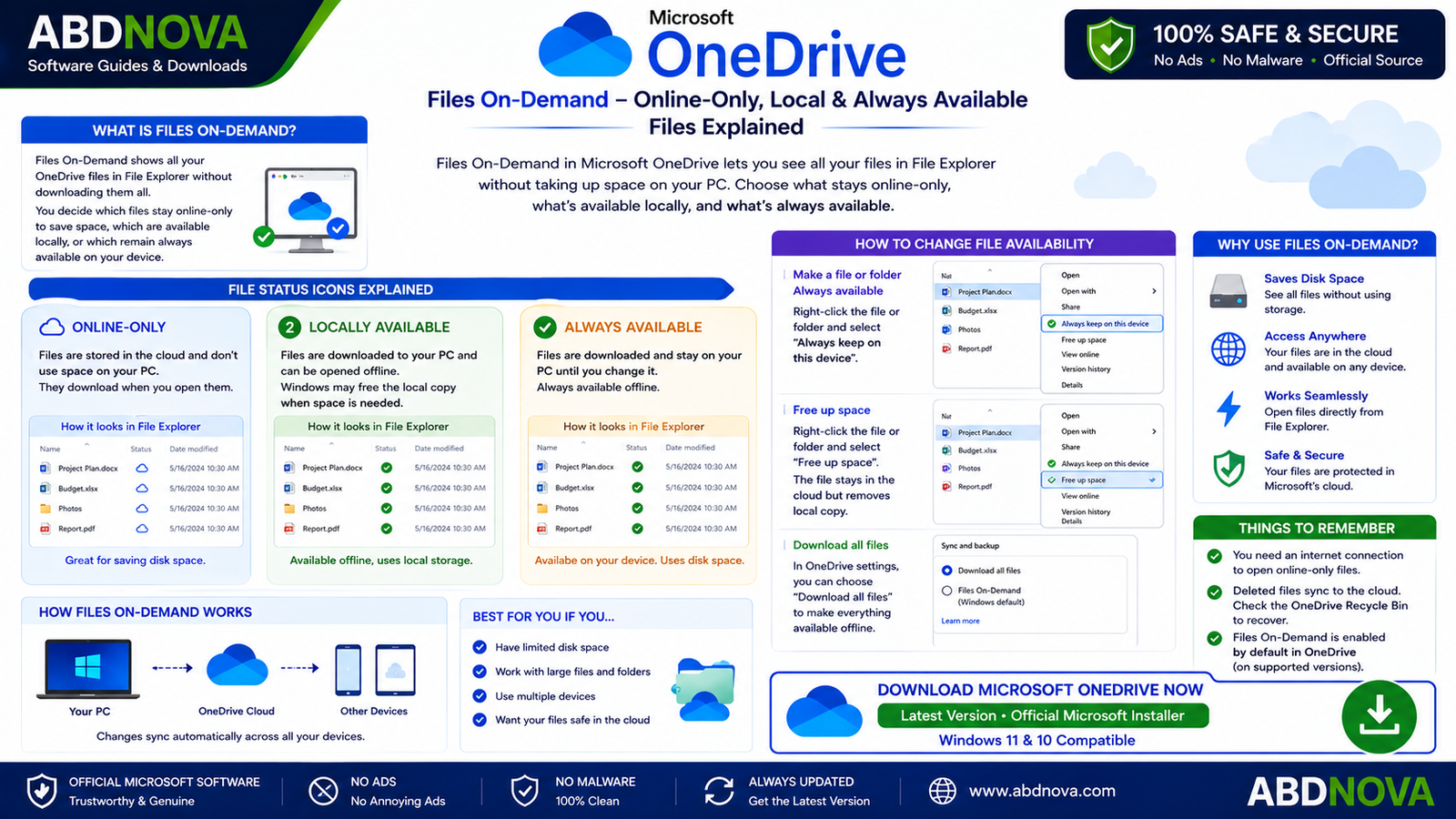
Files On-Demand lets you see cloud files in File Explorer without permanently storing every file on your PC. This is especially useful when your OneDrive contains a large amount of data but your computer has limited SSD space.
Online-Only
The file appears in File Explorer but does not occupy its full file size on your local drive. It downloads when you open it.
Locally Available
The file has been downloaded to your PC and can be opened without an internet connection. Windows may later free the local copy when space is needed.
Always Available
You explicitly choose to keep the file on your PC, so it remains available offline.
Keep a File Offline
Right-click the OneDrive file or folder and choose Always keep on this device.
Free Up Disk Space
Right-click a synchronized file that you no longer need offline and select Free up space. The cloud version remains available while the local copy can be removed.
Back Up Important Windows Folders
OneDrive can protect commonly used Windows folders by synchronizing their contents to your OneDrive account. Depending on the available configuration, this can include Desktop, Documents, Pictures, Music, and Videos.
Once folder backup is enabled, eligible content in those folders can become available through OneDrive on your other devices.
Always check that synchronization has successfully completed before assuming an important file is safely stored online.
Upload and Download Files with OneDrive
Upload Through File Explorer
Drag or copy a file into your OneDrive folder. OneDrive will synchronize it automatically when connected to the internet.
Upload Through the OneDrive Website
Sign in to OneDrive through your browser and upload files or folders.
Save Directly to OneDrive
Supported Microsoft applications can save documents directly to OneDrive.
Download Files From OneDrive
If you use OneDrive through a browser, select the files or folders you want and choose Download. With the Windows sync client, opening an online-only file can download it automatically.
OneDrive File Sharing, Personal Vault and Storage

Share Files and Folders
OneDrive can share files without requiring large email attachments. Before sharing sensitive information, check who has access, whether recipients can edit, whether the link can be forwarded, and whether the sharing link is still required.
OneDrive Personal Vault
Personal Vault provides an additional protected area inside eligible personal OneDrive accounts for important or sensitive files. Microsoft requires stronger authentication or an additional identity-verification step to open Personal Vault.
Personal Vault can be useful for important personal records, scanned identification documents, financial documents, sensitive PDFs, and other private files.
OneDrive Storage
A Microsoft account includes cloud storage depending on the account and subscription. Additional storage is available through eligible Microsoft plans. Because plans and storage allowances can change, check Microsoft’s current information for the latest details.
OneDrive Personal vs Work or School
OneDrive Personal
Designed for individuals using a personal Microsoft account. Typical uses include personal documents, photos, device files, family files, and personal backups.
OneDrive for Work or School
Provided through an organization using Microsoft 365 or related services. It may include organizational sharing, collaboration, security, storage, and administration policies.
OneDrive Security
Because OneDrive may contain personal documents and photos, account security is important.
- Use a strong, unique Microsoft account password
- Enable two-step verification
- Keep Windows updated
- Use the current supported OneDrive software
- Review sharing permissions carefully
- Use Personal Vault for sensitive files where appropriate
Be cautious of phishing emails pretending to be OneDrive sharing notifications. If uncertain, open OneDrive directly instead of signing in through suspicious links.
How to Pause or Control OneDrive Sync
If OneDrive is using bandwidth while you are working or using a limited connection, synchronization can be paused temporarily from the OneDrive cloud icon in the Windows notification area.
You can also choose which folders synchronize to a particular PC. Be careful when changing synchronization or backup settings and read confirmation messages carefully.
OneDrive Not Syncing – Troubleshooting
1. Check Your Internet Connection
Open a website and confirm that your internet connection is working.
2. Check the OneDrive Icon
Look at the OneDrive cloud icon in the Windows notification area. It can indicate whether OneDrive is synchronizing, paused, signed out, or experiencing an error.
3. Resume Sync
If synchronization was paused, resume it.
4. Check Your Microsoft Account
Make sure OneDrive is signed in to the correct personal, work, or school account.
5. Check Storage Space
Synchronization can fail if your OneDrive cloud storage is full. Local storage can also matter when downloading files for offline use.
6. Check File Names and Paths
If only one file is failing to sync, rename or move it and try again.
7. Restart OneDrive
Close OneDrive and reopen it from the Start menu.
8. Restart Windows
A PC restart can resolve temporary File Explorer, network, update, or OneDrive process problems.
9. Update OneDrive
Use the latest supported version of OneDrive.
OneDrive Files Missing
If you cannot find a file:
- Search inside your OneDrive folder.
- Check OneDrive on the web.
- Confirm you are signed into the correct Microsoft account.
- Check the OneDrive Recycle Bin.
- Check whether the file belongs to a work or school account.
- Allow synchronization to finish.
Do not immediately reinstall OneDrive when files appear missing. First determine whether the files still exist in the cloud.
OneDrive Is Using Too Much Disk Space
Use Files On-Demand instead of deleting cloud files. Right-click files or folders you do not need offline and choose Free up space.
OneDrive Is Using Too Much Internet
Large initial backups can upload significant amounts of data. You can temporarily pause synchronization, review the folders being backed up, and allow large initial synchronization to complete when you have a stable connection.
OneDrive Doesn’t Start With Windows
Open OneDrive settings and check its startup behavior. You can also inspect Windows startup apps to make sure Microsoft OneDrive has not been disabled.
OneDrive vs Google Drive
Both OneDrive and Google Drive provide cloud storage, file synchronization, sharing, and multi-device access.
OneDrive integrates especially well with Windows, File Explorer, and Microsoft 365. Google Drive may be preferable for users whose workflow centers around Google’s services.
If you use Google’s cloud ecosystem, read our Google Drive for Desktop guide to learn how to install and use Google’s desktop file synchronization software on Windows.
Related Guide: If you are considering another popular cloud storage and file-sync service, see our Dropbox Download for Windows guide.
Should You Use OneDrive on Windows?
OneDrive is particularly useful if you use Windows 11 or Windows 10, already have a Microsoft account, use Microsoft 365, want automatic file synchronization, need cloud access across multiple devices, or want to save SSD space with Files On-Demand.
You may not need it if you already use another cloud provider exclusively and do not want an additional synchronization service running on your PC.
Safe Download
For the safest installation, always get Microsoft OneDrive directly from the official Microsoft OneDrive download page. This helps ensure that you receive the genuine and latest version provided by Microsoft.
Always download OneDrive from Microsoft. Avoid modified installers, unofficial download packages, or websites claiming to provide special or “unlocked” versions of OneDrive.
- OneDrive Crack
- OneDrive Activated
- OneDrive Modified
- OneDrive Unlocked
- Unofficial repacked installers
ABDNOVA does not host modified OneDrive installers. Our download button directs users to the official Microsoft download source.
Frequently Asked Questions
Is Microsoft OneDrive free?
Yes. OneDrive can be used with a free Microsoft account, although available cloud storage is limited. Additional storage and features are available through eligible paid Microsoft plans.
Is OneDrive already installed on Windows 11?
Yes. OneDrive is normally already installed on Windows 11 PCs.
Does OneDrive work on Windows 10?
Yes, but Microsoft’s current supported requirement is Windows 10 22H2. Support for the OneDrive desktop app on Windows 10 21H2 and earlier ended on August 15, 2026.
Do I need a Microsoft account?
Yes. OneDrive requires a Microsoft personal account or a supported work or school account.
Can I use OneDrive without downloading all my files?
Yes. Files On-Demand allows cloud files to appear in File Explorer without keeping every file fully downloaded to your PC.
Can I access OneDrive files offline?
Yes. Make the required files locally available or choose Always keep on this device before going offline.
Does deleting a OneDrive file delete it from the cloud?
If the file is synchronized, deletion can synchronize across OneDrive. Deleted cloud files may be recoverable from the OneDrive Recycle Bin for the applicable retention period.
Can OneDrive back up my Desktop and Documents?
Yes. OneDrive supports backup and synchronization of important standard Windows folders through its folder-backup functionality.
What is Personal Vault?
Personal Vault is a protected area of personal OneDrive that requires stronger authentication or an additional identity-verification step to access sensitive files.
Can I use multiple OneDrive accounts on one PC?
You can use multiple work or school accounts, while the desktop setup supports one personal OneDrive account at a time.
Does OneDrive save disk space?
Yes. Files On-Demand lets you keep files online-only while still seeing them in File Explorer, reducing local storage use.
Can I uninstall OneDrive?
Yes. Before removing OneDrive, make sure you understand which files are stored locally and which exist only in the cloud.
Is OneDrive the same as a backup?
Not exactly. OneDrive provides cloud synchronization and folder-backup features, but synchronized changes can propagate between devices and the cloud. For irreplaceable data, maintaining an additional independent backup is sensible.
Final Thoughts
Microsoft OneDrive is one of the most convenient cloud storage options for Windows users because it integrates directly with File Explorer and can synchronize files without requiring users to constantly upload and download them manually.
Features such as Files On-Demand, Windows folder backup, file sharing, multi-device synchronization, offline availability, and Personal Vault cover the main needs of most home and productivity users.
For Windows 11 users, OneDrive is normally already installed. Windows 10 users should note the current requirement of Windows 10 22H2 for supported desktop-app use.
If you decide to use OneDrive, download it only from Microsoft, secure your Microsoft account, understand how synchronization affects deleted files, and use Files On-Demand to avoid unnecessarily filling your PC’s storage.
Ready to download Microsoft OneDrive?
Get the latest supported Windows installer from the official Microsoft website. ABDNOVA recommends official sources only.


