
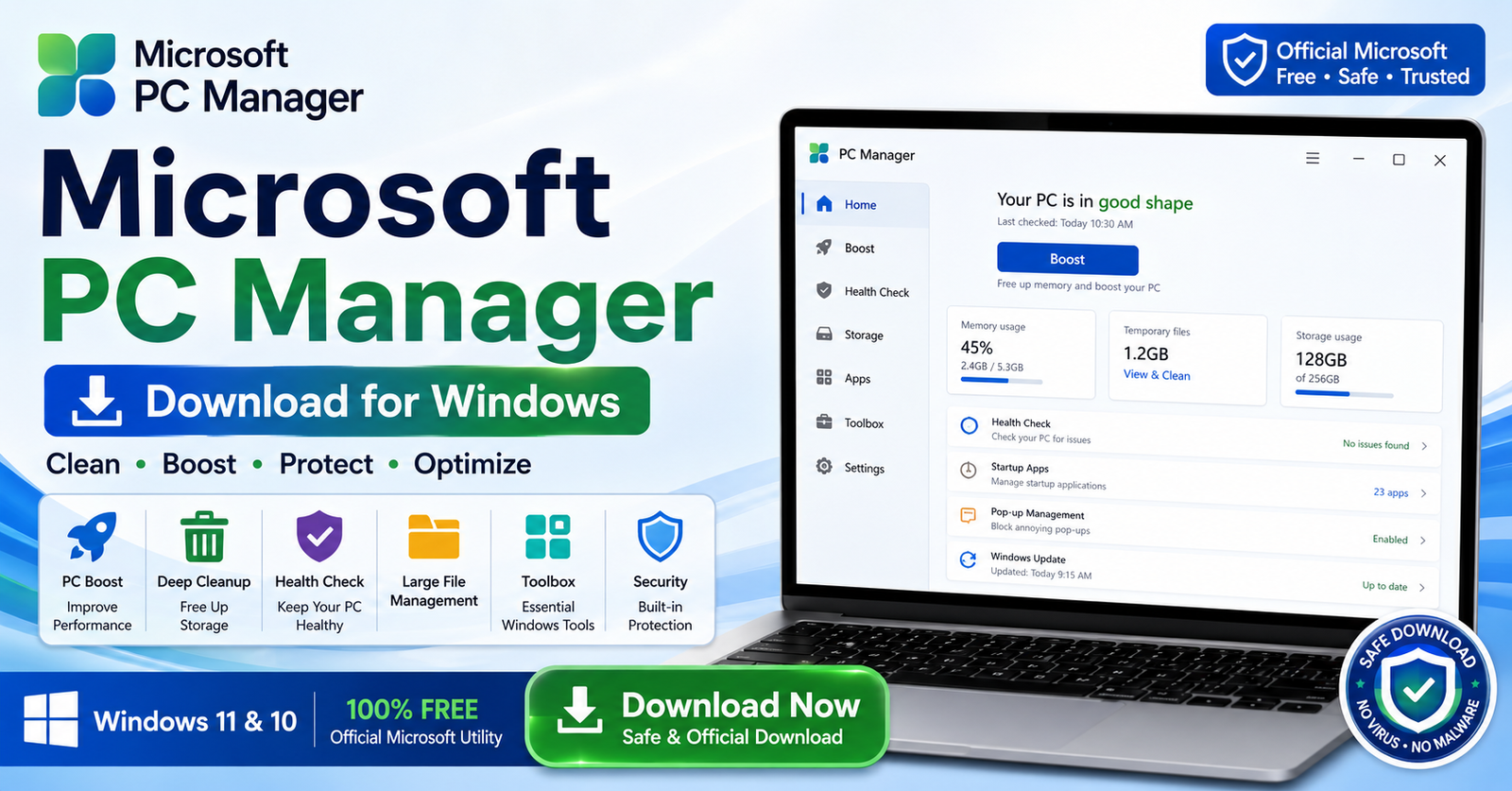

Microsoft PC Manager Download for Windows 11 & 10
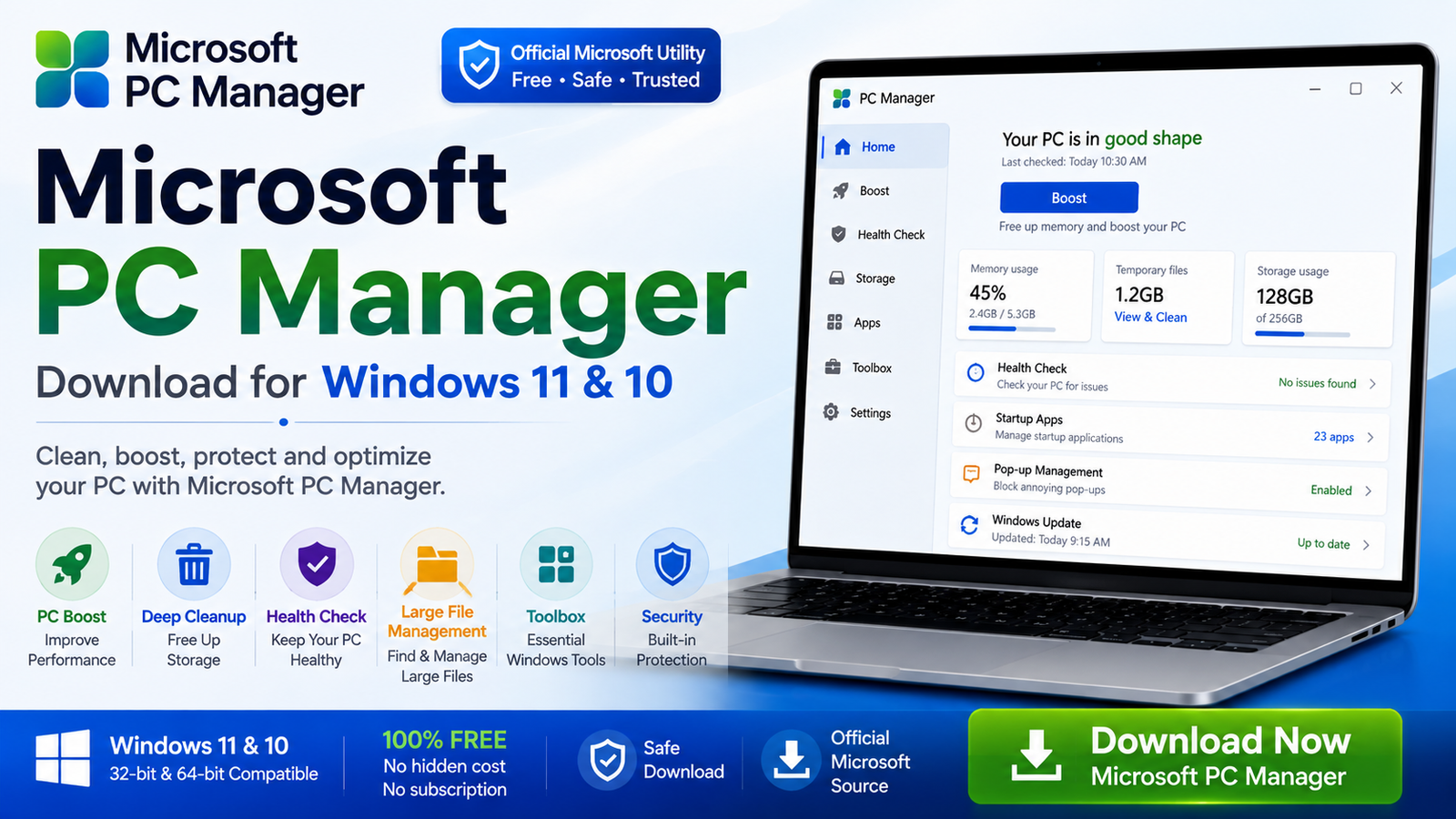
Download Microsoft PC Manager for Windows 11 and Windows 10 to clean unnecessary files, free storage, manage startup apps, check PC health, and access useful Windows maintenance tools.
Microsoft PC Manager Download for Windows gives Windows 11 and Windows 10 users an official Microsoft utility for cleaning temporary files, freeing storage, managing startup apps, checking PC health, reducing unwanted pop-ups, and accessing useful Windows maintenance tools from one interface.
Instead of installing several separate PC-cleaning and optimization programs, Microsoft PC Manager combines many everyday maintenance features such as PC Boost, Storage Management, Health Checkup, Startup App Management, Pop-up Management, Toolbox, and Mini Toolbar.
In this guide, you will learn how to download Microsoft PC Manager safely, install it on Windows, use PC Boost and storage cleanup, manage startup applications, check PC health, troubleshoot common problems, and get the application from an official Microsoft source.
Microsoft PC Manager Download – Quick Overview
| Information | Details |
|---|---|
| Software | Microsoft PC Manager |
| Developer | Microsoft |
| Category | System Utility / PC Optimization |
| Platform | Windows |
| Windows 11 | Supported |
| Windows 10 | Version 19042.0 or later |
| Price | Free |
| PC Boost | Yes |
| Storage Cleanup | Yes |
| Large File Management | Yes |
| Health Checkup | Yes |
| Startup App Management | Yes |
| Pop-up Management | Yes |
| Toolbox & Mini Toolbar | Yes |
| Official Source | Microsoft |
What Is Microsoft PC Manager?
Microsoft PC Manager is an official Windows maintenance and optimization application developed by Microsoft. It brings common cleanup, storage, startup, performance, and system-management functions into a simple dashboard.
Microsoft PC Manager can help you:
- Free up storage space.
- Clean temporary and unnecessary files.
- Reduce temporary resource usage.
- Find large files.
- Manage startup applications.
- Check PC health.
- Reduce unwanted application pop-ups.
- Access useful Windows tools.
- Perform routine Windows maintenance.
PC Manager focuses on practical maintenance rather than advanced system tuning. It can make everyday Windows maintenance easier, but it cannot replace hardware upgrades or repair failing components.
Microsoft PC Manager System Requirements
Microsoft currently lists the following supported Windows versions:
- Windows 11.
- Windows 10 version 19042.0 or later.
Microsoft does not prominently publish separate minimum RAM, CPU, or storage requirements on the main PC Manager download page, so it is better not to use unofficial hardware requirements.
How to Install Microsoft PC Manager on Windows

- Open the official Microsoft source: Visit the official Microsoft PC Manager website or Microsoft Store.
- Choose the installation option: Use the current download or Store installation option provided by Microsoft.
- Complete the installation: Follow the instructions displayed on screen.
- Open PC Manager: Search for PC Manager from the Windows Start menu.
- Review the dashboard: Check the available Boost, Storage, Health, Apps, Protection, and Toolbox functions.
Microsoft periodically updates PC Manager, so the exact installation flow and interface may change between versions.
Microsoft PC Manager Main Interface
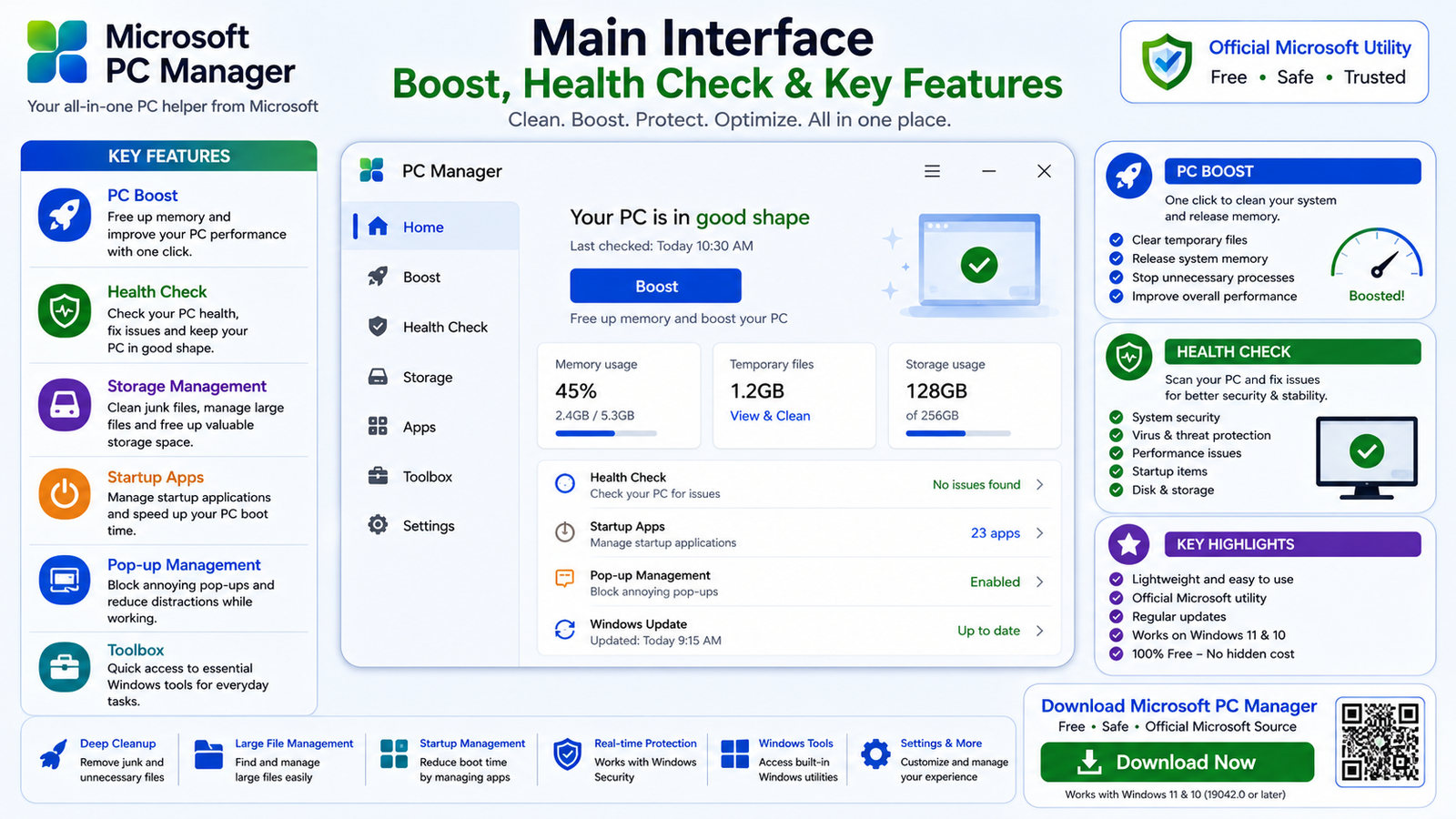
Microsoft PC Manager is designed around straightforward Windows maintenance tasks rather than complicated system-tuning controls. Depending on the current version, the interface may include Home, Boost, Health Check, Storage, Apps, Protection, Toolbox, Pop-up Management, and Settings.
PC Boost
PC Boost provides a quick way to perform basic cleanup and reduce temporary resource usage. It can be useful after a long Windows session, when many applications have been running, or when temporary data has accumulated.
However, Boost cannot compensate for insufficient RAM, failing storage, outdated hardware, malware, or serious Windows problems.
Health Checkup
Health Checkup can scan for common PC issues and provide recommendations. Depending on the current version, the exact items checked may vary.
Review recommendations before applying them instead of automatically selecting every available action.
Microsoft PC Manager Storage Management

Storage Management is one of Microsoft PC Manager’s most useful areas. It can help Windows users clean unnecessary files, locate large files, and access storage-management tools more easily.
Deep Cleanup
Deep Cleanup can identify temporary data, cached files, and other removable items that may be consuming disk space.
Large File Management
Large File Management can help locate files consuming significant storage space. This is particularly useful when your Windows system drive is almost full and you do not know what is using the space.
Possible large files include videos, ISO images, old installers, compressed archives, downloads, backups, and project files. PC Manager can help identify them, but you should decide manually whether each file is safe to remove.
Storage Sense
PC Manager can also work alongside Windows Storage Sense. You can access Storage Sense directly through Settings → System → Storage → Storage Sense.
Storage Sense can automatically remove certain temporary files and help maintain available disk space over time.
Microsoft PC Manager Startup Apps & Process Management
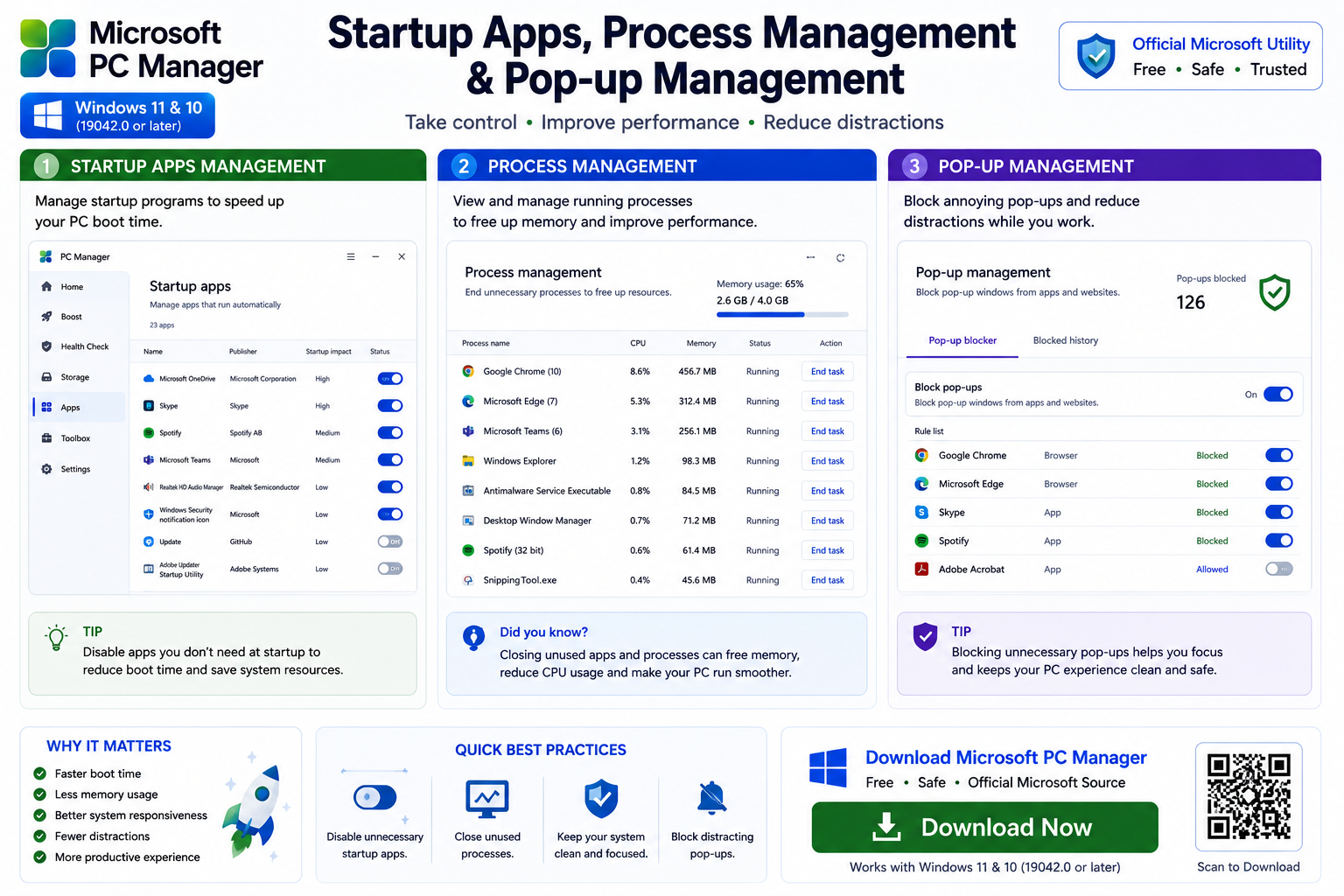
Startup Apps Management
Too many programs launching automatically when Windows starts can increase startup time and consume background resources. Microsoft PC Manager makes it easier to review startup applications.
Programs you rarely use may be good candidates for disabling at startup. However, be careful with security software, hardware utilities, audio tools, work-related applications, and cloud synchronization software.
If you actively use Microsoft’s cloud synchronization service, see our Microsoft OneDrive Download for Windows guide before changing OneDrive startup behavior.
Process Management
Depending on the current version, PC Manager may provide tools for reviewing running applications or processes. Closing unused applications can free system resources.
Pop-up Management
Pop-up Management is designed to reduce unwanted advertisements and application pop-up interruptions. This can create a cleaner Windows experience when programs frequently display promotional windows.
However, not every pop-up should be blocked. Security alerts, software update notices, backup warnings, and account notifications may contain important information.
Microsoft PC Manager Toolbox, Mini Toolbar & Windows Security

Toolbox
Microsoft PC Manager includes a Toolbox that provides quicker access to selected Windows utilities. The exact tools available may change between versions.
Mini Toolbar
The Mini Toolbar keeps selected PC Manager functions accessible without keeping the full application window open. If you prefer a cleaner desktop, you can leave this feature disabled when you do not need it.
Microsoft PC Manager and Microsoft Defender
Microsoft PC Manager is not a replacement for Microsoft Defender Antivirus. Windows Security and Microsoft Defender remain responsible for core built-in antivirus and malware protection.
PC Manager mainly focuses on cleanup, performance, storage, startup apps, health checks, pop-up management, and convenient access to Windows utilities.
If you want an additional on-demand malware scanner for Windows, see our Malwarebytes Download guide.
Microsoft PC Manager vs Third-Party PC Cleaners
One of PC Manager’s main advantages is that it comes directly from Microsoft and integrates with Windows features. Users who only need routine cleanup, storage management, startup management, and basic optimization may not need aggressive third-party PC optimizer applications.
- Huge gaming FPS increases.
- Instant RAM upgrades.
- One-click repair of every Windows problem.
- Registry fixes that supposedly make an old PC dramatically faster.
Do You Need a Registry Cleaner?
Routine registry cleaning is unnecessary for most Windows users. Safer maintenance tasks include removing temporary files, uninstalling unused applications, managing startup apps, installing Windows updates, maintaining sufficient free storage, and scanning for malware.
Does Microsoft PC Manager Really Make Your PC Faster?
Microsoft PC Manager can help when performance problems are related to limited free storage, excessive startup applications, temporary files, unnecessary background activity, or too many active programs.
However, PC Manager cannot add physical RAM, upgrade the processor, convert an HDD into an SSD, repair failing hardware, or make outdated hardware perform like a modern high-performance computer.
Is Microsoft PC Manager Safe?
Yes, when Microsoft PC Manager is obtained from Microsoft’s official PC Manager website or Microsoft Store.
As with any cleanup utility, review files and recommendations before deleting personal data. A file being large does not automatically mean it is unnecessary.
Microsoft PC Manager Troubleshooting

Microsoft PC Manager Won’t Install
First confirm that your computer uses Windows 11 or Windows 10 version 19042.0 or later.
Press Windows + R, type winver, and press Enter to check your current Windows version and build.
Install available Windows updates, restart the computer, and check whether PC Manager is available through Microsoft Store in your region.
Microsoft PC Manager Won’t Open
Restart Windows, install pending Windows updates, check Microsoft Store for PC Manager updates, close unnecessary background applications, and try opening PC Manager again.
If the problem continues, repair or reinstall the application.
PC Manager Boost Not Working
If Boost appears to make little difference, there may simply be very little temporary data or unnecessary resource usage available to clear.
Try restarting PC Manager, running Health Checkup, reviewing Storage and startup applications, and restarting Windows.
PC Manager Isn’t Freeing Much Space
If normal cleanup finds very little removable data, check Large Files and open Settings → System → Storage. Installed applications and personal files often consume much more storage than temporary files.
PC Manager Shows Different Features
Your interface may look different from screenshots because Microsoft periodically updates PC Manager. The installed version, Windows version, Microsoft Store updates, and region can affect what you see.
How to Uninstall Microsoft PC Manager
Windows 11
Open Settings → Apps → Installed apps, find Microsoft PC Manager, open its menu, and select Uninstall.
Windows 10
Open Settings → Apps → Apps & features, locate Microsoft PC Manager, and choose Uninstall.
Removing Microsoft PC Manager does not uninstall Windows Security or Microsoft Defender.
Safe Download – Important
The safest choice is an official Microsoft source. Microsoft PC Manager can be obtained through Microsoft’s official PC Manager website or Microsoft Store.
Visit the official Microsoft PC Manager website to check the current Windows download option.
- Microsoft PC Manager Crack.
- PC Manager Pro Cracked.
- Unofficial portable builds.
- Repacked PC Manager installers.
- Torrent downloads.
- Unknown third-party installer packages.
Microsoft PC Manager is already available free of charge, so there is no practical reason to use modified or unauthorized copies.
Frequently Asked Questions
Is Microsoft PC Manager free?
Yes. Microsoft PC Manager is available as a free Windows utility.
Does Microsoft PC Manager work on Windows 11?
Yes. Windows 11 is officially supported.
Does Microsoft PC Manager work on Windows 10?
Yes. Microsoft currently specifies Windows 10 version 19042.0 or later.
Is Microsoft PC Manager available everywhere?
Not necessarily. Availability can vary depending on region or locale.
What does PC Boost do?
PC Boost performs quick cleanup and can reduce temporary resource usage as part of routine Windows maintenance.
Can Microsoft PC Manager clean temporary files?
Yes. Cleanup and storage management are core Microsoft PC Manager functions.
Can Microsoft PC Manager find large files?
Yes. Large File Management can help identify files that are consuming significant storage space.
Does Microsoft PC Manager use Storage Sense?
PC Manager works alongside Windows storage-management features including Storage Sense.
Can Microsoft PC Manager manage startup apps?
Yes. It can help users review applications configured to start automatically with Windows.
What is Pop-up Management?
Pop-up Management is designed to reduce unwanted advertisements and application pop-up interruptions.
Does Microsoft PC Manager replace Microsoft Defender?
No. PC Manager mainly provides maintenance and optimization features. Microsoft Defender remains part of Windows’ built-in security protection.
Will Microsoft PC Manager make an old PC much faster?
Not necessarily. Cleanup can help when storage, startup applications, temporary files, or background processes are causing problems, but PC Manager cannot upgrade outdated hardware.
Is Microsoft PC Manager safe to download?
Yes, when downloaded from Microsoft’s official PC Manager website or Microsoft Store.
Do I need a registry cleaner with Microsoft PC Manager?
Most Windows users do not need routine registry cleaning. Focus instead on safe storage cleanup, startup management, Windows updates, malware protection, and removing unused software.
Why does Microsoft PC Manager look different?
Microsoft periodically updates the application, so features and interface elements may change between versions and regions.
Can I uninstall Microsoft PC Manager?
Yes. You can uninstall it through Windows Settings. Removing PC Manager does not remove Windows Security or Microsoft Defender.
Final Thoughts
Microsoft PC Manager is a practical free Windows utility for users who want routine maintenance functions in one simple application. Its useful features include PC Boost, Storage Management, Large File Management, Health Checkup, startup management, Pop-up Management, Toolbox, Mini Toolbar, and integration with Windows maintenance tools.
PC Manager cannot replace a hardware upgrade or solve every Windows performance problem, but it can simplify everyday cleanup and system maintenance. Most importantly, obtain the application only from an official Microsoft source.
Ready to download Microsoft PC Manager?
Get the latest supported Windows version from the official Microsoft PC Manager website. ABDNOVA recommends official sources only.


