
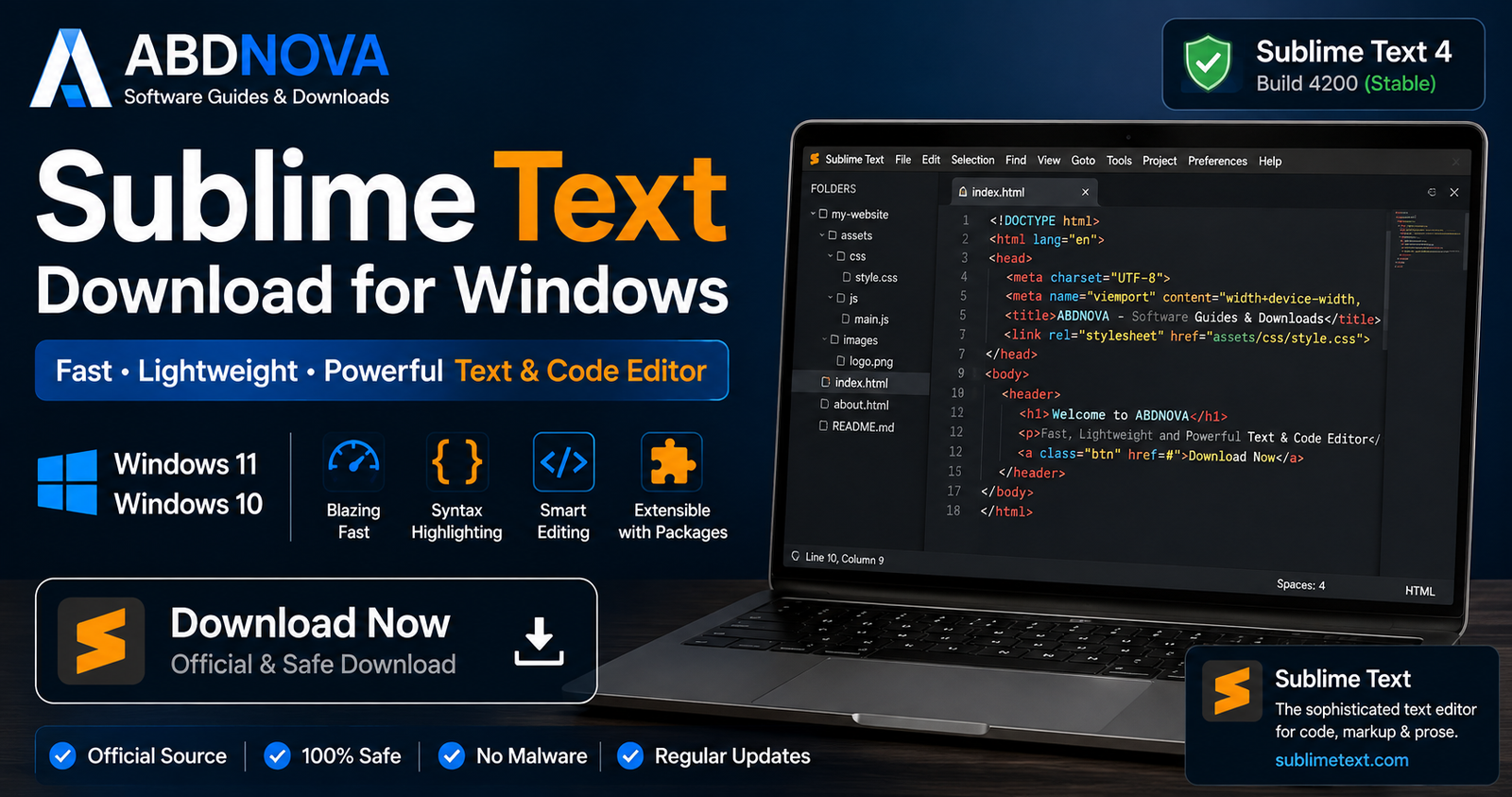

Sublime Text Download for Windows 11 & 10

Download Sublime Text for Windows 11 and Windows 10 to edit code and text with Goto Anything, multiple cursors, split editing, packages, Git tools, Build Systems, and extensive customization.
Sublime Text Download for Windows gives developers, programmers, web designers, and power users a fast and highly customizable text and source-code editor without the heavier interface of a full IDE.
Sublime Text combines a clean editing environment with syntax highlighting, multiple selections, Goto Anything, project-wide search, split editing, code completion, Git-aware features, Build Systems, packages, themes, keyboard shortcuts, and powerful navigation tools.
The current public stable Windows release is Sublime Text 4 Build 4200. Sublime Text can be downloaded and evaluated without purchasing first, but Sublime HQ requires a license for continued use.
Sublime Text Download for Windows – Quick Overview
| Information | Details |
|---|---|
| Software | Sublime Text |
| Developer | Sublime HQ Pty Ltd |
| Current Major Version | Sublime Text 4 |
| Current Stable Build | 4200 |
| Current Dev Build | 4207 |
| Software Type | Text & Source Code Editor |
| Windows 11 | Supported |
| Windows 10 | Supported |
| Windows x64 | Supported |
| Windows x86 | Supported |
| Windows ARM64 | Not Currently Supported |
| Portable Version | Available |
| Syntax Highlighting | Yes |
| Multiple Selections | Yes |
| Split Editing | Yes |
| Git Integration | Yes on Supported Builds |
| Build Systems | Yes |
| Packages / Plugins | Yes |
| Command-Line Tool | subl.exe |
| Evaluation Download | Available |
| Continued Use | License Required |
| Official Source | Sublime HQ |
What Is Sublime Text?
Sublime Text is a cross-platform text and source-code editor developed by Sublime HQ.
Unlike Windows Notepad, it is designed for serious code editing and larger project workflows while maintaining a lightweight and responsive interface.
Sublime Text can be used for:
- HTML and CSS.
- JavaScript.
- Python.
- PHP.
- C and C++.
- JSON.
- XML.
- Markdown.
- Configuration files.
- Scripts and logs.
- Plain-text documents.
- Large programming projects.
Its biggest strengths are speed, keyboard-driven navigation, efficient editing, and the ability to extend the editor without turning it into an unnecessarily heavy development environment.
Sublime Text Stable vs Dev Build
Stable Build 4200
Build 4200 is the current public stable release displayed on Sublime Text’s main download page.
This is the version most Windows users should install.
Development Build 4207
The development channel currently lists Build 4207, released August 12, 2026.
Development builds contain newer fixes and changes but are less tested than stable releases and are intended for licensed users who specifically want the development channel.
Sublime Text Windows Compatibility
Sublime Text’s current compatibility documentation includes Windows 11 and Windows 10.
32-bit vs 64-bit Sublime Text
Sublime Text supports both x86 and x86-64 Windows builds.
For most modern Windows 11 and Windows 10 computers, the 64-bit version is the better choice.
Does Sublime Text Support Windows ARM64?
Not currently. Although Sublime Text supports ARM64 on some other platforms, official compatibility documentation states that Windows ARM support is not currently available.
Windows-on-ARM users should check Sublime HQ’s current compatibility information before downloading.
How to Install Sublime Text on Windows & Open Your First File

Step 1: Download Sublime Text
Visit Sublime HQ’s official download page and choose the Windows version.
Step 2: Choose Installer or Portable Version
For most users, choose the normal 64-bit installer. An official portable Windows version is also available if you prefer to run Sublime Text without a conventional installation.
Step 3: Run the Installer
Open the downloaded setup file and confirm the Windows security prompt only after verifying that the installer came from Sublime HQ.
Step 4: Complete Installation
For a typical 64-bit setup, Sublime Text is normally installed under:
C:\Program Files\Sublime Text\Finish the setup wizard.
Step 5: Open Sublime Text
Launch Sublime Text from the Start menu.
Step 6: Open or Create a File
You can now open an existing file, drag a project folder into Sublime Text, or create a new text or source-code file.
Sublime Text Portable Version
Sublime HQ provides an official portable Windows package.
This can be useful when you want an isolated configuration, a portable development utility, or a Sublime Text copy on external storage.
Sublime Text Main Interface, Sidebar, Minimap & Tabs

Sublime Text deliberately keeps its main interface minimal so that most of the screen remains available for code and text.
File Tabs
Tabs let you keep multiple files open and switch between them quickly.
Sidebar
The sidebar displays the folders and files in your current project.
This is useful for websites, Python projects, JavaScript applications, documentation repositories, configuration projects, and larger codebases.
Minimap
The Minimap shows a compressed visual representation of the current document along the side of the editor.
It is particularly useful when navigating long source-code or text files.
Status Bar
The status bar can show information such as syntax mode, indentation, encoding, and other file-related settings.
Syntax Highlighting
Sublime Text recognizes many programming languages and file formats and can visually distinguish:
- Keywords.
- Strings.
- Variables.
- Functions.
- Comments.
- Numbers.
- Operators.
- Tags.
Sublime Text Goto Anything, Multiple Cursors & Command Palette

Goto Anything
Goto Anything is one of Sublime Text’s signature features.
Instead of manually navigating folders, you can quickly search for files and symbols using a keyboard-driven workflow:
Search → Select → Open
This becomes especially useful in projects containing hundreds or thousands of files.
Goto Definition
Sublime Text can navigate directly to definitions for classes, functions, methods, variables, and project symbols.
Sublime Text 4 can also show definitions side by side, allowing you to inspect related code without completely leaving the current file.
Multiple Selections & Multi-Cursor Editing
Multiple selections let you edit several locations simultaneously.
For example, if the same variable name appears multiple times, you can select repeated occurrences and edit them together.
A common shortcut is:
Ctrl + DThis progressively selects matching occurrences for simultaneous editing.
Split Editing
Sublime Text can display multiple files side by side.
This is useful for workflows such as:
- HTML + CSS.
- JavaScript + HTML.
- Source + configuration.
- Old + new file versions.
Command Palette
The Command Palette provides keyboard access to many Sublime Text commands.
Typical uses include changing syntax, installing packages, selecting Build Systems, changing settings, and accessing project actions.
Find in Files
Sublime Text can search the current file, open files, folders, or an entire project.
This is especially useful when changing a value that appears across many files in a website or codebase.
Sublime Text Packages, Build Systems & Git Integration

Packages & Plugins
Sublime Text can be extended through packages.
Packages can add:
- Programming-language support.
- Themes.
- Formatting tools.
- Linting.
- Snippets.
- Framework-specific features.
- Productivity tools.
- Development integrations.
This allows Sublime Text to remain lightweight by default while users add only the functionality they actually need.
Build Systems
Sublime Text Build Systems can invoke external programs to compile, run, lint, test, or otherwise process your current project.
Build configuration files use the:
.sublime-buildformat.
A common shortcut for running a build is:
Ctrl + BTo choose another Build System:
Ctrl + Shift + BGit Integration
Sublime Text includes Git-aware functionality that can recognize repository changes and show useful editing context through features such as Incremental Diff.
This should not be confused with Sublime Merge, which is Sublime HQ’s separate dedicated Git client.
Remember that the Windows 32-bit Sublime Text build does not include Git Integration.
Command-Line Tool: subl.exe
Sublime Text includes the subl.exe command-line launcher.
After adding the Sublime Text installation directory to Windows PATH, you can open files and folders directly from a terminal:
subl example.htmlOr open the current folder:
subl .If you regularly use command-line development workflows, see our Windows Terminal Download for Windows guide for PowerShell, Command Prompt, WSL, tabs, and split panes.
Web & Server Development Workflow
Sublime Text is often used for HTML, CSS, JavaScript, PHP, configuration files, and remote-server project editing.
If you also transfer website or server files through FTP, FTPS, or SFTP, see our FileZilla Download for Windows guide.
Container-Based Projects
Developers working with containerized projects can edit Dockerfiles, Compose files, application code, environment files, and configuration files in Sublime Text.
For Windows container-development setup, see our Docker Desktop Download for Windows guide.
Sublime Text Themes, GPU Rendering & Customization
Sublime Text provides extensive customization without requiring a full IDE-style interface.
You can configure:
- Color schemes.
- Themes.
- Fonts.
- Font size.
- Tabs.
- Sidebar.
- Key bindings.
- Indentation.
- File patterns.
- User-interface behavior.
GPU Rendering
Sublime Text 4 can use GPU rendering for its interface on supported systems.
This helps maintain smooth scrolling and responsive editing, including on high-resolution displays.
Sublime Text Safe Mode
If Sublime Text starts behaving incorrectly after adding packages or changing settings, Safe Mode can help determine whether a customization is responsible.
From the command line:
subl --safe-modeYou can also use Sublime Text’s documented Windows startup method for Safe Mode.
If the problem disappears in Safe Mode, investigate recently added packages, themes, settings, or customizations.
Sublime Text vs Notepad++ vs VS Code

Sublime Text vs Notepad++
| Feature | Sublime Text | Notepad++ |
|---|---|---|
| Text Editing | Excellent | Excellent |
| Code Editing | Excellent | Very Good |
| Goto Anything | Excellent | More Limited |
| Multi-Cursor | Excellent | Available |
| Split Editing | Yes | Yes |
| Packages / Plugins | Packages | Plugins |
| Projects | Yes | Basic Workspace Tools |
| Cross-Platform | Yes | Primarily Windows |
| License | Commercial | Free / Open Source |
| Best For | Fast Professional Coding | Free Lightweight Windows Editing |
Notepad++ is a strong choice when completely free Windows text editing is the priority. Sublime Text becomes more attractive when fast project navigation, multi-cursor editing, Goto Anything, and keyboard-driven workflows matter more.
Sublime Text vs Visual Studio Code
| Feature | Sublime Text | VS Code |
|---|---|---|
| Startup Speed | Excellent | Good |
| Lightweight Feel | Excellent | Heavier |
| Extensions | Packages | Large Extension Ecosystem |
| Git Features | Integrated Basics | More Extensive |
| Debugging | Limited / External Workflow | Strong |
| Integrated Terminal | External-Terminal Workflow | Built In |
| Project Navigation | Excellent | Excellent |
| Customization | Excellent | Excellent |
| License Model | Paid for Continued Use | Free |
| Best For | Speed & Focused Editing | Broader IDE-Like Development |
Choose Sublime Text when speed, minimal UI, and focused editing matter most. Choose VS Code when you want a larger IDE-like ecosystem, integrated debugging, terminal features, and extensive extensions.
Is Sublime Text Free?
Sublime Text can be downloaded and evaluated before purchasing.
However, Sublime HQ states that a license must be purchased for continued use.
ABDNOVA therefore does not recommend cracked license keys, patched executables, or pre-activated copies.
Is Sublime Text Safe?
Yes, when downloaded directly from Sublime HQ and used with trusted packages.
For safer use:
- Download only from Sublime HQ.
- Avoid cracked license keys.
- Avoid modified installers.
- Install packages from trusted sources.
- Keep Sublime Text updated.
- Use Safe Mode when troubleshooting package or settings problems.
Sublime Text Troubleshooting
Sublime Text Won’t Open
Restart Windows and try again.
If the problem continues, launch Sublime Text in Safe Mode:
subl --safe-modeIf Safe Mode works normally, investigate recently installed packages or changed settings.
subl Command Is Not Recognized
Add the Sublime Text installation directory to the Windows PATH environment variable.
A typical 64-bit installation location is:
C:\Program Files\Sublime Text\After changing PATH, close the existing terminal and open a new PowerShell or Command Prompt session.
A Package Broke Sublime Text
Start Sublime Text in Safe Mode.
If the issue disappears, disable or remove recently installed or updated packages and review recent configuration changes.
Git Features Are Missing
Check whether you installed the 32-bit edition.
Sublime HQ’s compatibility documentation states that Windows 32-bit builds do not include Git Integration.
Build Command Doesn’t Work
Check that:
- The required interpreter or compiler is installed.
- The executable is available through Windows PATH.
- The correct Build System is selected.
- The current file has been saved.
- The Build System matches the programming language.
Sublime Text Build Systems invoke external tools. Sublime Text itself does not automatically install Python, Node.js, compilers, or every runtime required by your code.
Sublime Text Shows UNREGISTERED
This indicates that Sublime Text is not currently running with a registered license.
The program can be downloaded and evaluated, but continued use requires a valid Sublime Text license.
How to Update Sublime Text
Stable users should use the latest stable release offered through Sublime HQ.
If you use a development build, remember that the development channel is separate and less tested than the normal stable release.
Do not replace a stable installation with an unofficial “newer” build downloaded from an unknown third-party site.
How to Uninstall Sublime Text
Installed Version
Open:
Settings → Apps → Installed apps → Sublime Text → Uninstall
Portable Version
Close Sublime Text and delete the portable program folder when you no longer need it.

Safe Sublime Text Download – Important
Always obtain Sublime Text directly from Sublime HQ.
Official source: Sublime Text Official Download.
- Sublime Text Crack.
- Sublime Text License Key Generator.
- Pre-Activated Sublime Text.
- Sublime Text Full Version Crack.
- Patched Sublime Text.
- Modified Sublime Text.
- Unofficial repacks.
- Pirated Sublime Text licenses.
Use the official evaluation download and purchase a legitimate license if you continue using Sublime Text.
Frequently Asked Questions
What is the latest stable Sublime Text version?
The current public stable release is Sublime Text 4 Build 4200.
What is Sublime Text Build 4207?
Build 4207 is currently a development-channel release dated August 12, 2026. It is newer than the stable build but is intended for licensed users who want development builds.
Does Sublime Text work on Windows 11?
Yes. Windows 11 is listed in Sublime Text’s official compatibility documentation.
Does Sublime Text work on Windows 10?
Yes. Windows 10 is officially supported.
Is Sublime Text free?
Sublime Text can be downloaded and evaluated before purchase, but Sublime HQ requires a license for continued use.
Is Sublime Text available in 64-bit?
Yes. Sublime Text supports x86-64 Windows systems.
Is there a 32-bit Sublime Text?
Yes. However, Sublime HQ states that the 32-bit Windows build does not include Git Integration.
Does Sublime Text support Windows ARM64?
No. Current official compatibility documentation states that Windows ARM support is not currently available.
Does Sublime Text have a portable version?
Yes. Sublime HQ provides an official portable Windows version.
Does Sublime Text support plugins?
Yes. Packages can extend Sublime Text with languages, themes, formatting, linting, snippets, and other development functionality.
Can Sublime Text run code?
Its Build Systems can call external tools to run, compile, test, lint, or process code. The appropriate interpreter or compiler usually needs to be installed separately.
Does Sublime Text have Git integration?
Yes, on supported builds. The Windows 32-bit version does not include Git Integration.
What is Goto Anything?
Goto Anything is Sublime Text’s fast keyboard-driven navigation system for locating files, symbols, and project content without manually browsing folders.
Can Sublime Text edit multiple locations at once?
Yes. Multiple selections and multi-cursor editing allow the same change to be made at several locations simultaneously.
What is Sublime Text Safe Mode?
Safe Mode runs Sublime Text without the normal third-party packages and customizations affecting the session, which helps diagnose configuration and package problems.
Is Sublime Text safe?
Yes, when downloaded from Sublime HQ and used with trusted packages and legitimate licensing.
Final Thoughts
Sublime Text remains an excellent Windows code editor for users who value speed, a minimal interface, and keyboard-driven editing.
Goto Anything, multiple selections, split editing, syntax highlighting, project navigation, Build Systems, packages, Git-aware features, GPU rendering, Minimap, Command Palette, and deep customization make it suitable for everything from quick configuration edits to serious software-development projects.
For most Windows 11 and Windows 10 users, the 64-bit stable release is the sensible default. Build 4207 is currently a development release rather than the main public stable build, so ordinary users should stay with Build 4200 unless they specifically need the dev channel.
Remember that Sublime Text is not completely free software: it can be evaluated before purchase, but continued use requires a valid license.
For the safest Windows download, use Sublime HQ’s official download page.
Ready to download Sublime Text?
Get the current Windows stable release directly from Sublime HQ. ABDNOVA recommends official sources only.


