


Docker Desktop Download for Windows 11 & 10

Download Docker Desktop for Windows to build, run and manage containers with Docker Engine, Docker CLI, Compose, WSL 2 and an integrated graphical Dashboard.
Docker Desktop Download for Windows provides a complete local container-development environment for Windows 11 and Windows 10. It combines Docker Engine, Docker CLI, Docker Compose, Build tools, an optional local Kubernetes environment, and a graphical Dashboard.
On Windows, Docker Desktop normally uses WSL 2 to run Linux containers efficiently. Docker currently recommends the WSL 2-based per-user setup for most Windows users, while Hyper-V and other supported backends are available for specific configurations.
The current stable release is Docker Desktop 4.88.1, published August 25, 2026. Docker notes that new releases may roll out gradually.
Docker Desktop Download – Quick Overview
| Information | Details |
|---|---|
| Software | Docker Desktop |
| Developer | Docker Inc. |
| Current Stable Version | 4.88.1 |
| Release Date | August 25, 2026 |
| Software Type | Container Development Platform |
| Windows 11 | Supported Configurations |
| Windows 10 | Supported Configurations |
| Recommended Backend | WSL 2 |
| Minimum WSL Version | 2.1.5 |
| System RAM | 8 GB Required by Current Windows Backend Requirements |
| Hardware Virtualization | Required |
| Docker Engine | Included |
| Docker CLI | Included |
| Docker Compose | Included |
| Buildx / BuildKit | Included |
| Kubernetes | Available |
| Linux Containers | Yes |
| Windows ARM | Early Access |
| Official Source | Docker |
What Is Docker Desktop?
Docker Desktop is an application designed to provide developers with a complete Docker environment on Windows, macOS and Linux.
Instead of separately configuring Docker Engine, Docker Compose, Buildx and other tools, Docker Desktop bundles the core local-development environment together.
Docker Desktop can manage:
- Containers.
- Container images.
- Volumes.
- Networks.
- Docker builds.
- Docker Compose applications.
- Local Kubernetes.
- Container logs.
- Docker Hub images.
- Development tools.
Docker Desktop Windows System Requirements
Docker Desktop is more demanding than an ordinary Windows utility because Linux containers rely on virtualization.
For the current WSL 2 backend, Docker lists requirements including:
- WSL version 2.1.5 or later.
- 64-bit processor with SLAT.
- 8 GB system RAM.
- Hardware virtualization enabled in BIOS/UEFI.
- WSL 2 Windows feature enabled.
- Supported Windows 10 or Windows 11 configuration.
WSL 2 Backend Explained
WSL stands for Windows Subsystem for Linux. Docker Desktop uses a Linux environment managed through WSL 2 to run Linux containers while integrating closely with Windows.
Docker requires WSL 2.1.5 or later for its current WSL backend and recommends keeping WSL updated.
You can check your WSL version from Windows Terminal or PowerShell:
wsl --versionWSL 2 vs Hyper-V
WSL 2
- Recommended starting point for most users.
- Strong Windows and Linux integration.
- Works with compatible WSL distributions.
- Supports the recommended per-user installation.
Hyper-V
- Useful for specific Windows and business scenarios.
- Available with supported all-users installations.
- Can be relevant when Windows-container workflows require it.
Docker also provides Docker VMM as another container-optimized virtualization option, currently documented as Beta on Windows.
Per-User vs All-Users Installation
Docker currently recommends the per-user installation for most users. This setup supports WSL 2 and does not normally require administrator rights for installation or updates.
The all-users installation requires administrator privileges and enables additional system-wide capabilities, including certain Hyper-V and Windows-container scenarios.
How to Install Docker Desktop on Windows & Set Up WSL 2
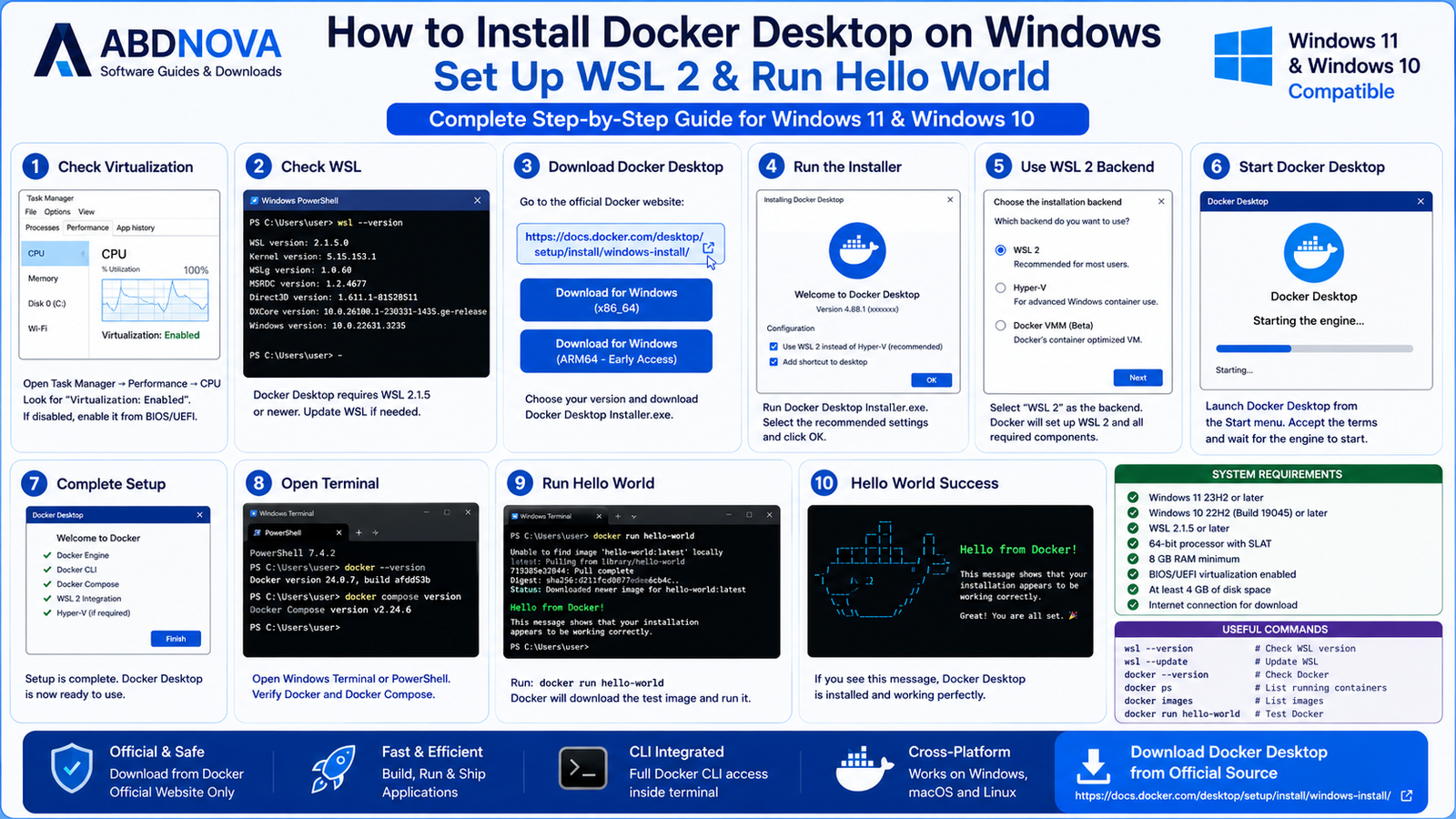
Step 1: Check Hardware Virtualization
Open Task Manager → Performance → CPU and confirm that Virtualization: Enabled appears.
If virtualization is disabled, it may need to be enabled in your system BIOS or UEFI.
Step 2: Check WSL
Open Windows Terminal or PowerShell and run:
wsl --versionDocker currently requires WSL 2.1.5 or later for the WSL backend.
Step 3: Download Docker Desktop
Use Docker’s official Windows download page. For most Intel and AMD Windows PCs, choose the standard x86_64 Windows build.
Step 4: Run the Installer
Open Docker Desktop Installer.exe and follow the installation steps. For most users, keep the recommended per-user installation.
Step 5: Use the WSL 2 Backend
Select the WSL 2-based backend where appropriate. Docker may automatically select the compatible backend for your system.
Step 6: Start Docker Desktop
Launch Docker Desktop, complete the terms screen when required, and wait until the Docker engine starts.
Verify Docker Desktop Installation
Open Windows Terminal or PowerShell and run:
docker --versionThen check Docker Compose:
docker compose versionFinally, test the environment:
docker run hello-worldIf the test container completes successfully, your basic Docker environment is working.
Docker Desktop Main Interface

Docker Desktop includes a graphical Dashboard that provides centralized access to your local Docker environment.
Depending on the current version, the Dashboard provides management views for containers, images, volumes, builds, Kubernetes resources, logs, search, settings, troubleshooting controls and updates.
This makes Docker Desktop easier for beginners because every routine task does not have to be performed from the command line.
Docker Containers, Images, Ports & Volumes Explained

Docker Containers
A container packages an application together with the environment and dependencies it needs to run.
For example:
docker run nginxTo list running containers:
docker psTo display running and stopped containers:
docker ps -aDocker Images
A Docker image is the packaged template used to create a container.
Image → creates → Container
Common images include Nginx, Ubuntu, Node.js, Python and PostgreSQL. Images can be downloaded from registries such as Docker Hub.
List local images with:
docker imagesRun Your First Web Container
A simple Nginx example is:
docker run -d -p 8080:80 nginxThis downloads the Nginx image when required, starts a container in the background, and maps Windows port 8080 to container port 80.
Then open:
localhost:8080Container Ports Explained
A port mapping such as:
-p 8080:80means:
Windows port 8080 → Container port 80
Docker Volumes
Containers are designed to be disposable. Docker volumes provide persistent storage that can survive container replacement.
Typical volume uses include database files, application data, development data, configuration and persistent service storage.
Docker Compose & Multi-Container Applications

Docker Compose lets you define and run multi-container applications using a YAML configuration file.
A project might include:
- Web application.
- Database.
- Cache.
- Worker service.
Instead of starting every component manually, define the application in a compose.yaml file and run:
docker compose upStop the application with:
docker compose downDocker Desktop includes Docker Compose, Docker Engine and Docker CLI together.
Docker Build & Dockerfile
A Dockerfile contains instructions describing how an application image should be built.
A basic workflow is:
docker build -t myapp .Then:
docker run myappModern Docker builds use Buildx and BuildKit, which are included with Docker Desktop.
Docker Hub Integration
Docker Hub is Docker’s container-image registry. It provides images for Linux distributions, databases, web servers, programming runtimes and development platforms.
If your development workflow also involves transferring website or server files, see our FileZilla Download for Windows guide for FTP, FTPS and SFTP file transfers.
Docker Desktop and WSL Distributions
Docker Desktop can integrate with compatible WSL 2 Linux distributions, allowing developers to work inside Ubuntu or another distribution while using the Docker Desktop-managed engine.
For most beginners, allowing Docker Desktop to manage Docker integration is simpler than maintaining conflicting Docker Engine or CLI installations inside WSL.
Local Kubernetes
Docker Desktop can provide an optional local Kubernetes environment for development and testing.
This can be useful for learning Kubernetes or testing applications before deployment, but Kubernetes does not need to be enabled just to run normal Docker containers.
Linux Containers vs Windows Containers
Linux containers are the most common Docker Desktop workflow on Windows and work well with the recommended WSL 2 backend.
Docker Desktop can also support Windows containers on compatible Windows configurations.
Windows-container support has additional Windows edition and installation requirements. Most general Docker tutorials and public images focus on Linux containers, so Linux containers are the practical starting point for most users.
Docker Desktop vs Docker Engine vs WSL 2

| Feature | Docker Desktop | Docker Engine |
|---|---|---|
| Docker Containers | Yes | Yes |
| Docker Daemon | Included | Core Component |
| Docker CLI | Included | Included |
| Graphical Dashboard | Yes | No |
| Docker Compose | Included | Depends on Platform / Setup |
| Windows-Friendly Setup | Excellent | More Manual |
| WSL Integration | Built In | Manual Configuration |
| Local Kubernetes | Available | Not Automatically Included |
| Desktop Integration | Yes | No |
| Best For | Local Windows Development | Servers, Linux & Custom Setups |
Docker Desktop and Docker Engine are related but not identical. Docker Engine is the core container runtime technology, while Docker Desktop packages Engine together with Docker CLI, Compose, a graphical Dashboard, integrations and additional development tools.
Docker Desktop Licensing
Docker Desktop is not unrestricted freeware for every commercial organization.
Under Docker’s current licensing terms, Docker Desktop is free for qualifying personal use, education, non-commercial open-source projects and qualifying small businesses.
Larger commercial organizations and government use may require a paid Docker subscription.
Is Docker Desktop Safe?
Docker Desktop is legitimate software from Docker when downloaded from the official source.
For safer use:
- Keep Docker Desktop updated.
- Keep WSL updated.
- Use trusted container images.
- Avoid unnecessarily exposing container ports.
- Review Dockerfiles and Compose files from unfamiliar projects.
- Avoid unknown privileged containers.
Containers provide isolation, but they are not a substitute for normal system and application security practices.
Docker Desktop Troubleshooting
Docker Desktop Says WSL Is Too Old
Run:
wsl --versionDocker currently requires WSL 2.1.5 or later for the supported WSL backend. Update WSL and restart Docker Desktop.
Hardware Virtualization Is Disabled
Open Task Manager and check CPU virtualization status. If it is disabled, enable Intel VT-x, AMD-V, SVM or the equivalent virtualization option in BIOS/UEFI.
Docker Engine Won’t Start
Check WSL status, Windows updates, hardware virtualization, Docker Desktop updates, available RAM and Docker troubleshooting information.
Recent Docker Desktop releases also provide diagnostic tools such as:
docker desktop diagnosedocker Command Is Not Recognized
Close the existing terminal and open a new Windows Terminal or PowerShell window after installation.
Then run:
docker --versionIf the command still fails, confirm that Docker Desktop is installed correctly and running.
Container Stops Immediately
Some containers are designed to perform a task and exit.
Check all containers:
docker ps -aThen inspect the logs:
docker logs CONTAINER_NAMEPort Is Already in Use
If port 8080 is already occupied, use another available host port:
docker run -d -p 8081:80 nginxDocker Uses Too Much Memory
WSL can retain memory after demanding workloads. Stop unnecessary containers and disable Kubernetes if you do not need it.
Docker also recommends considering WSL’s memory-reclaim functionality where appropriate.
Kubernetes Won’t Start
Make sure Docker Desktop itself is working first, then check the Kubernetes view and Docker troubleshooting tools.
If you do not need Kubernetes, leave it disabled instead of consuming additional resources.
How to Update Docker Desktop
Docker Desktop regularly receives bug fixes, security updates, engine changes and feature improvements.
Use Docker Desktop’s built-in update controls or download the latest official release. Docker notes that releases are gradually rolled out, so a new version may take several days to reach every installation.
How to Uninstall Docker Desktop
Open:
Windows Settings → Apps → Installed apps → Docker Desktop → Uninstall

Safe Docker Desktop Download – Important
Always download Docker Desktop directly from Docker’s official website.
Official source: Docker Desktop Official Website.
- Docker Desktop Crack.
- Docker Desktop Pro Crack.
- Docker Desktop Activator.
- Modified Docker Desktop.
- Pre-activated Docker.
- Repacked Docker Desktop.
- Unofficial portable Docker Desktop.
Docker Desktop’s commercial-use licensing rules should be followed instead of attempting to bypass them with modified software.
Frequently Asked Questions
Is Docker Desktop free?
Docker Desktop is free for qualifying personal use, education, non-commercial open-source projects and qualifying small businesses. Some larger commercial and government use requires a paid subscription.
What is the latest Docker Desktop version?
As of August 2026, Docker lists Docker Desktop 4.88.1, released August 25, 2026.
Does Docker Desktop work on Windows 11?
Yes, on supported Windows 11 configurations that meet Docker’s current WSL, RAM, CPU and virtualization requirements.
Does Docker Desktop work on Windows 10?
Yes. Docker’s current requirements include supported Windows 10 22H2 build 19045 configurations.
How much RAM does Docker Desktop require?
Docker’s current Windows backend requirements list 8 GB system RAM.
Does Docker Desktop require virtualization?
Yes. Hardware virtualization is required for supported Windows virtualization backends.
Do I need WSL 2 for Docker Desktop?
WSL 2 is the recommended backend for most Windows users. Docker currently requires WSL version 2.1.5 or later for its supported WSL backend.
Does Docker Desktop include Docker Compose?
Yes. Docker Desktop includes Docker Compose together with Docker Engine and Docker CLI.
Does Docker Desktop include Kubernetes?
Yes. Docker Desktop provides an optional local Kubernetes environment that can be enabled when needed.
Can Docker Desktop run Linux containers?
Yes. Linux-container development is one of Docker Desktop’s primary Windows use cases.
Can Docker Desktop run Windows containers?
Yes, on supported Windows configurations and installation modes. Windows containers have additional Windows edition and privilege requirements.
Is Docker Desktop the same as Docker Engine?
No. Docker Engine is the core container runtime. Docker Desktop packages Docker Engine together with Docker CLI, Compose, a graphical Dashboard and other development features.
How can I test Docker after installing it?
Run docker run hello-world. If the test container completes successfully, your basic Docker environment is working.
Is Docker Desktop safe?
Yes, when downloaded from Docker’s official source and used responsibly with trusted images and configurations.
Final Thoughts
Docker Desktop is one of the easiest ways to build and run containerized applications on a Windows development PC. Its main advantage is integration: Docker Engine, Docker CLI, Compose, Buildx, WSL integration, networking, volumes and optional Kubernetes are brought together in one managed environment.
For most Windows users, a practical setup is Docker Desktop with the recommended per-user installation, WSL 2 and Linux containers. Make sure Windows, WSL and BIOS/UEFI virtualization meet Docker’s current requirements before installation.
For professional use, also review Docker’s current licensing terms. For the safest current build, always download Docker Desktop directly from Docker.
Ready to download Docker Desktop?
Get the latest supported Windows installer directly from Docker. ABDNOVA recommends official sources only.


