
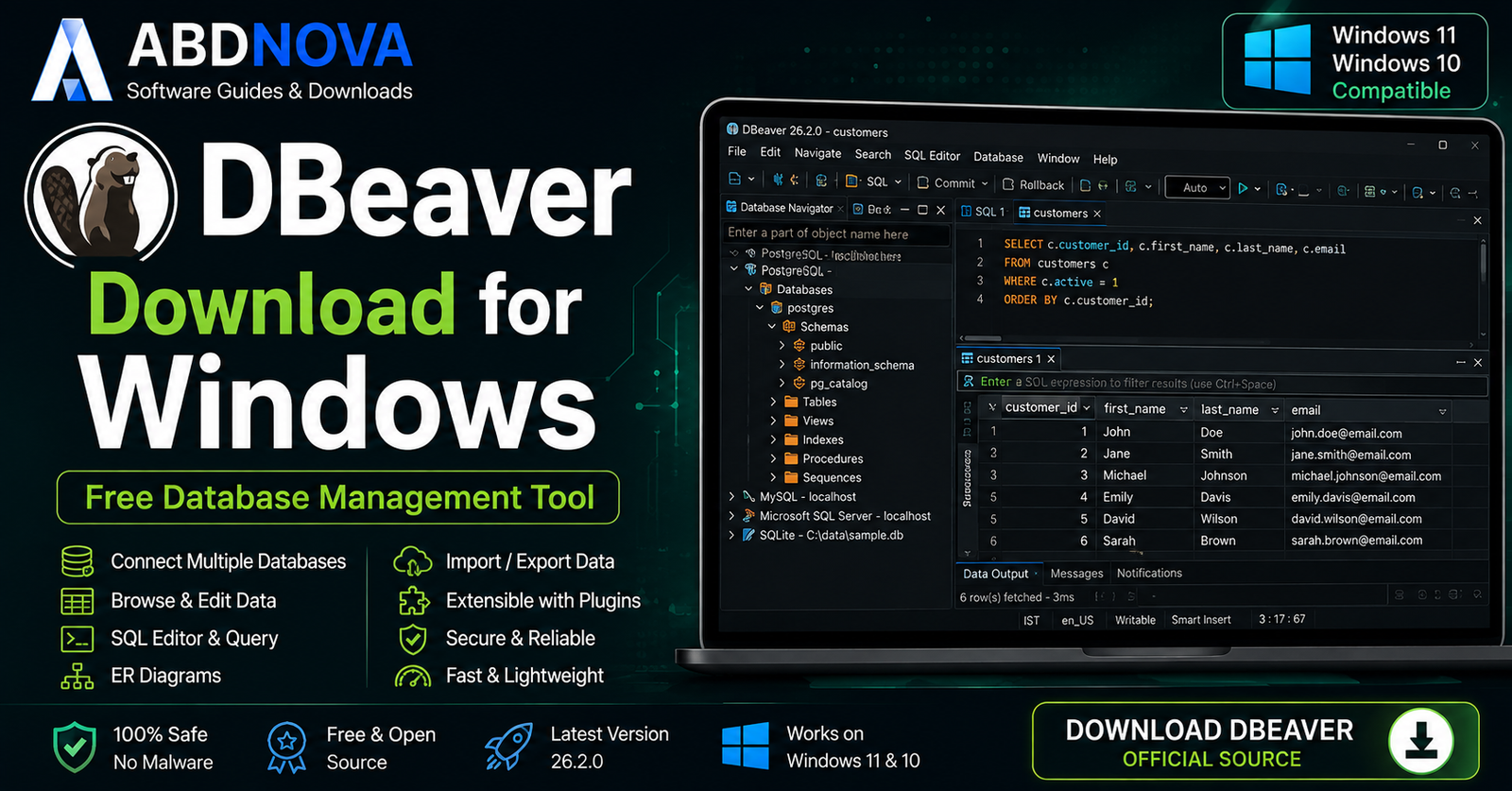

DBeaver Download for Windows 11 & 10

Download DBeaver Community for Windows 11 and Windows 10 to connect to PostgreSQL, MySQL, MariaDB, SQL Server, SQLite, Oracle and other databases from one interface.
DBeaver Download for Windows gives developers, database administrators, students, analysts, and other database users a free and open-source desktop client for working with many different database systems from one application.
Instead of installing a separate graphical client for PostgreSQL, MySQL, MariaDB, Microsoft SQL Server, SQLite, Oracle and other supported platforms, DBeaver provides a Database Navigator, SQL Editor, Data Editor, ER diagrams, import/export tools, driver management and connection settings inside one workspace.
The current stable release is DBeaver Community 26.2.0, released August 30, 2026. For most Intel and AMD Windows PCs, the x86-64 EXE installer is the easiest choice.
DBeaver Download for Windows – Quick Overview
| Information | Details |
|---|---|
| Software | DBeaver Community |
| Developer | DBeaver |
| Current Stable Version | 26.2.0 |
| Release Date | August 30, 2026 |
| Software Type | Database Management Tool / SQL Client |
| License | Free & Open Source |
| Windows 11 | Supported |
| Windows 10 | Supported |
| Windows x86-64 | EXE & ZIP |
| Windows ARM64 | EXE & ZIP |
| Microsoft Store | Available |
| Chocolatey | Available |
| Bundled Java Runtime | Yes |
| SQL Editor | Yes |
| Data Editor | Yes |
| Database Navigator | Yes |
| ER Diagrams | Yes |
| Data Import / Export | Yes |
| Driver Manager | Yes |
| Official Source | DBeaver |
What Is DBeaver?
DBeaver Community is a multiplatform database-management application that works with databases through JDBC drivers and database-specific extensions.
DBeaver Community can help you:
- Create and manage database connections.
- Browse schemas and tables.
- Execute SQL queries.
- Edit database records.
- Inspect columns, indexes, keys and constraints.
- View ER diagrams.
- Import and export data.
- Work with SQL scripts.
- Manage database drivers.
- Use multiple database systems from one client.
Its main advantage is flexibility. If you regularly work with PostgreSQL, MySQL, SQL Server, SQLite and other platforms, DBeaver can reduce the need to maintain a separate desktop client for every database engine.
Which DBeaver Version Should You Download?
x86-64 EXE
For most Windows 11 and Windows 10 desktops and laptops using Intel or AMD processors, choose the x86-64 EXE installer.
ARM64 EXE
Choose ARM64 only when your Windows computer actually uses an ARM-based processor.
ZIP Packages
ZIP packages are useful for manual installations where you want more control over the program directory.
Does DBeaver Require Java?
Normally, no separate Java installation is required simply to run the normal Windows version.
The DBeaver Windows installer includes OpenJDK and the necessary runtime dependencies. The included Java runtime is used by DBeaver and does not need to replace or modify another system Java installation.
How to Install DBeaver on Windows & Connect Your First Database

Step 1: Download DBeaver
Open DBeaver’s official Community download page.
Step 2: Choose the Windows Installer
For most PCs, select the x86-64 EXE package.
Step 3: Run the Installer
Open the downloaded file and continue through the setup wizard.
Step 4: Complete Installation
The default installation options are suitable for most users. The normal installer includes the required runtime components.
Step 5: Open DBeaver
Launch DBeaver and wait for the workspace to load.
Step 6: Create a Database Connection
- Select New Database Connection.
- Choose your database type.
- Enter the host or database file.
- Enter the port where required.
- Enter database name.
- Enter username and password.
- Use Test Connection.
- Save the connection when the test succeeds.
DBeaver Main Interface, Database Navigator & Data Editor

Database Navigator
The Database Navigator is normally located on the left side of the workspace and acts as the main navigation area.
Depending on the database, it can display:
- Database connections.
- Databases.
- Schemas.
- Tables.
- Views.
- Procedures.
- Indexes.
- Other database objects.
SQL Editor
The SQL Editor lets you write and execute queries against the active database connection.
SELECT *
FROM customers;
Query results can be displayed directly below or alongside the editor depending on your workspace configuration.
Data Editor
The Data Editor presents table and query data in a spreadsheet-like grid.
Depending on your permissions, you can:
- Browse rows.
- Sort data.
- Filter results.
- Edit values.
- Add rows.
- Delete rows.
- Inspect individual values.
Database Metadata
DBeaver can also show database-object information such as columns, data types, primary keys, foreign keys, constraints, indexes and relationships.
DBeaver Database Connections, Drivers & ER Diagrams

One of DBeaver Community’s strongest features is broad database compatibility through JDBC drivers.
Common Supported Databases
- PostgreSQL.
- MySQL.
- MariaDB.
- Microsoft SQL Server.
- Oracle.
- SQLite.
- DB2.
- Firebird.
- H2.
- Redshift.
- Snowflake.
- Vertica.
- Greenplum.
- ClickHouse.
- Other JDBC-compatible databases.
How Database Drivers Work
When you create a new connection, DBeaver uses an appropriate database driver. If the required driver is not already available, DBeaver can usually download it automatically.
Advanced users can also configure drivers manually through Driver Manager.
Connect to PostgreSQL
- Select New Database Connection.
- Choose PostgreSQL.
- Enter host and port.
- Enter database name.
- Enter credentials.
- Test the connection.
- Save it.
Connect to MySQL
Select MySQL and enter the appropriate server host, port, database name, username and password.
Connect to Microsoft SQL Server
Select SQL Server, enter the server address and authentication details, configure the database and port where required, then test the connection.
Connect to SQLite
SQLite commonly uses a local database file rather than a separate database server. Select SQLite and point DBeaver to the relevant `.db`, `.sqlite` or other supported SQLite database file.
ER Diagrams
DBeaver’s ER diagram tools can visualize relationships between tables, primary keys, foreign keys and database entities.
This can make an unfamiliar database schema much easier to understand.
DBeaver with Docker Databases
DBeaver is also useful when your PostgreSQL, MySQL or other database runs inside a local container. Once the database port is exposed to Windows, DBeaver can connect using the normal host, port and credentials.
If you work with containerized development environments, see our Docker Desktop Download for Windows guide.
DBeaver SQL Editor – Queries, Results, Filters & Data Editing

Run SQL Queries
DBeaver’s SQL Editor supports normal database-development workflows including multiple scripts, query execution, result tabs, database-specific syntax, autocomplete, object navigation, history and error reporting.
SELECT id, name, email
FROM customers
ORDER BY name;
SQL Autocomplete
When connected to a database, DBeaver can use available metadata to suggest relevant tables, columns and database objects while you write SQL.
Filter and Sort Data
Large tables should usually be filtered rather than loading unnecessary data.
SELECT *
FROM orders
WHERE status = 'Pending';
You can also use Data Editor filtering and sorting tools without manually writing every filter as SQL.
Edit Database Records
When your account has appropriate permissions, DBeaver can edit records through the Data Editor.
A typical workflow is:
Open Table → Data → Edit Value → Save Changes
Commit vs Rollback
When working with a transactional database, understand whether your current session uses automatic or manual commits.
Commit makes a transaction permanent.
Rollback reverses eligible uncommitted changes.
This becomes extremely important when running UPDATE or DELETE statements.
Export Results to CSV
DBeaver’s data-transfer tools can export query results and table data.
A common workflow is:
Run Query → Results → Export Data
CSV is useful when you need to open results in spreadsheet software, analytics tools, scripts or reporting workflows.
DBeaver Community vs PRO
DBeaver Community is free and open source. DBeaver also offers commercial PRO editions for users and organizations that need additional enterprise and professional functionality.
| Area | Community | PRO Editions |
|---|---|---|
| Core SQL Work | Yes | Yes |
| Database Navigator | Yes | Yes |
| SQL Editor | Yes | Yes |
| Data Editor | Yes | Yes |
| ER Diagrams | Yes | Yes |
| Import / Export | Yes | Yes |
| Enterprise Authentication | Limited | More Options |
| Advanced Cloud Integrations | Limited | Available |
| Schema / Data Comparison | Limited | Available in Applicable Editions |
| Task Automation | Limited | More Advanced |
| Commercial Support | Community Support | Available |
For normal querying, browsing, data editing and multi-database development with supported databases, Community is enough for many users.
DBeaver vs MySQL Workbench vs pgAdmin vs SSMS

| Feature | DBeaver | MySQL Workbench | pgAdmin | SSMS |
|---|---|---|---|---|
| Main Focus | Multiple Databases | MySQL | PostgreSQL | SQL Server |
| PostgreSQL | Yes | Not Primary | Excellent | No |
| MySQL | Yes | Excellent | No | No |
| SQL Server | Yes | Not Primary | No | Excellent |
| SQLite | Yes | Not Primary | No | No |
| Oracle | Yes | Not Primary | No | No |
| SQL Editor | Yes | Yes | Yes | Yes |
| Data Editing | Yes | Yes | Yes | Yes |
| Best For | Cross-Database Work | Dedicated MySQL | Dedicated PostgreSQL | Dedicated SQL Server |
DBeaver vs MySQL Workbench
MySQL Workbench primarily targets MySQL. DBeaver is a better fit when you regularly switch between MySQL and other database engines.
DBeaver vs pgAdmin
pgAdmin is focused specifically on PostgreSQL. DBeaver supports PostgreSQL while also supporting many other database platforms.
DBeaver vs SQL Server Management Studio
SSMS provides deep SQL Server-specific administration. DBeaver is more appropriate when your workflow crosses multiple database systems.
What’s New in DBeaver 26.2?
DBeaver Community 26.2 was released August 30, 2026.
The release includes improvements across areas such as the SQL Editor, Data Editor, diagrams, data transfer, connectivity and AI-related tooling.
Stable vs Early Access
The current stable public Community version is 26.2.0.
Early Access builds for 26.2.1 already exist, but DBeaver explicitly warns that EA builds are less stable and discourages their use in production environments.
Install DBeaver with Chocolatey
DBeaver’s official Windows download page also lists Chocolatey installation:
choco install dbeaverThis can be convenient for developers and administrators who manage Windows software through command-line package tools.
If you regularly use command-line development tools, see our Windows Terminal Download for Windows guide.
Is DBeaver Safe?
Yes. DBeaver Community is legitimate free and open-source software when obtained from the official DBeaver website.
Security also depends on how you configure database connections and what permissions your database account has.
DBeaver Troubleshooting
DBeaver Won’t Start
Restart Windows, install the latest stable release, check available disk space and reinstall from the official source if the installation appears damaged.
If you previously used a manual ZIP version, make sure a newer ZIP was not extracted directly over an older program folder.
Database Driver Download Fails
Check your internet connection. Corporate firewalls or proxies can also block automatic driver downloads.
Advanced users can review Driver Manager and configure drivers manually when necessary.
Cannot Connect to a Database
Check:
- Hostname or IP address.
- Port.
- Database name.
- Username.
- Password.
- Server status.
- Firewall.
- VPN.
- SSL configuration.
- SSH tunnel.
- User privileges.
A connection problem may be on the database server or network rather than inside DBeaver.
Connection Timeout
Confirm that the database server is reachable from your Windows PC and that required firewall rules, cloud security groups, VPN access and allowed IP addresses are configured correctly.
Authentication Failed
Verify the username and password and confirm that the selected authentication method matches the database server configuration.
SQL Query Doesn’t Run
Check SQL syntax, active database connection, selected schema, database-specific SQL dialect, account permissions and transaction state.
A query written for PostgreSQL may not work unchanged on MySQL, Oracle or SQL Server.
DBeaver Is Slow
Avoid requesting unnecessarily huge datasets.
Instead of:
SELECT *
FROM huge_table;
use filters, appropriate WHERE clauses or sensible result limits whenever possible.
ZIP Version Has Problems After Upgrade
Do not unzip a new DBeaver version over an existing manually extracted installation. Extract the newer version into a clean program directory.
How to Update DBeaver
DBeaver supports automatic update checking on Windows. When a newer stable version becomes available, DBeaver can prompt you and launch the installer after downloading the update.
If you maintain a ZIP installation manually, download the new official package and extract it into a clean directory rather than overwriting the old program directory.
How to Uninstall DBeaver
For a normal Windows installation:
Settings → Apps → Installed apps → DBeaver → Uninstall
If you use a manually extracted ZIP build, close DBeaver and remove the corresponding program directory when you no longer need it.

Safe DBeaver Download – Important
Always obtain DBeaver Community directly from DBeaver’s official website.
Official source: DBeaver Community Official Download.
- DBeaver Crack.
- DBeaver Enterprise Crack.
- DBeaver Pro Keygen.
- Pre-Activated DBeaver.
- Patched DBeaver.
- Modified DBeaver Installer.
- Unofficial repacks.
- Unknown third-party download packages.
DBeaver Community is already legally free and open source, so there is no legitimate reason to use a cracked or modified Community installer.
Frequently Asked Questions
What is the latest DBeaver Community version?
DBeaver Community 26.2.0 is the current stable release, released August 30, 2026.
Is DBeaver 26.2.1 available?
Early Access 26.2.1 builds exist, but DBeaver warns that EA releases are less stable. Stable 26.2.0 is the better choice for normal use.
Is DBeaver free?
Yes. DBeaver Community is free and open source.
Does DBeaver work on Windows 11?
Yes. Current DBeaver requirements support Windows 10 or later.
Does DBeaver work on Windows 10?
Yes. Windows 10 is currently supported.
Does DBeaver support ARM64 Windows?
Yes. DBeaver provides ARM64 EXE and ZIP packages for compatible Windows-on-ARM computers.
Does DBeaver require Java?
No separate Java installation is normally required for the standard Windows installer because DBeaver includes its own OpenJDK runtime.
Does DBeaver support PostgreSQL?
Yes. PostgreSQL is one of the major database systems supported by DBeaver.
Does DBeaver support MySQL?
Yes. DBeaver supports MySQL through its database-driver system.
Does DBeaver support Microsoft SQL Server?
Yes. DBeaver can connect to Microsoft SQL Server using the appropriate driver and connection settings.
Does DBeaver support SQLite?
Yes. You can connect DBeaver directly to supported SQLite database files.
Can DBeaver manage multiple database types?
Yes. Multi-database support is one of DBeaver’s main strengths.
Can DBeaver export query results?
Yes. DBeaver Community includes data-transfer and import/export functionality, including common CSV workflows.
Does DBeaver include an SQL editor?
Yes. The SQL Editor is one of DBeaver’s primary database-development tools.
Does DBeaver include ER diagrams?
Yes. DBeaver includes ER diagram functionality for visualizing database relationships.
Is DBeaver safe?
Yes, when downloaded from DBeaver’s official website and used with appropriate database permissions and secure connection settings.
Final Thoughts
DBeaver Community is an excellent Windows database client for users who want one interface for PostgreSQL, MySQL, MariaDB, Microsoft SQL Server, SQLite, Oracle and many other supported database systems.
Its Database Navigator, SQL Editor, Data Editor, ER diagrams, driver management and import/export features make it useful for both beginners and experienced developers or database administrators.
For most Windows 11 and Windows 10 users with an Intel or AMD processor, the stable x86-64 EXE installer is the simplest choice. ARM64 users have an official ARM build, while advanced users can choose ZIP or supported package-manager installation methods.
For normal use, stay with the stable DBeaver Community release rather than an Early Access build, and always be cautious when modifying important production data.
Ready to download DBeaver?
Get the current stable DBeaver Community release directly from the official source. ABDNOVA recommends official downloads only.


