

VeraCrypt Download for Windows 11 & 10

Download VeraCrypt for Windows 11 and Windows 10 to create encrypted containers, protect partitions and drives, and use supported system-drive encryption features.
VeraCrypt Download for Windows gives Windows users a free, open-source encryption tool for protecting sensitive files and storage devices.
VeraCrypt can create encrypted file containers, encrypt non-system partitions or drives, and provide system encryption on supported Windows configurations with pre-boot authentication.
In this guide, you will learn how to download and install VeraCrypt, create and mount encrypted volumes, use portable mode, understand system encryption, troubleshoot common problems, and download VeraCrypt safely.
VeraCrypt Download – Quick Overview
| Information | Details |
|---|---|
| Software | VeraCrypt |
| Developer | IDRIX / VeraCrypt Project |
| Category | Security / Encryption |
| Platform | Windows |
| Supported Systems | Windows 11 & Windows 10 |
| License | Free & Open Source |
| Main Purpose | Disk & File Encryption |
| Portable Mode | Available |
| System Encryption | Supported on compatible configurations |
| Official Source | VeraCrypt |
What Is VeraCrypt?
VeraCrypt is designed for users who want to protect files and drives from unauthorized access. Instead of simply hiding files or folders, VeraCrypt encrypts stored data and requires the correct password, keyfiles, or other configured authentication method to access it.
VeraCrypt Main Interface + Features
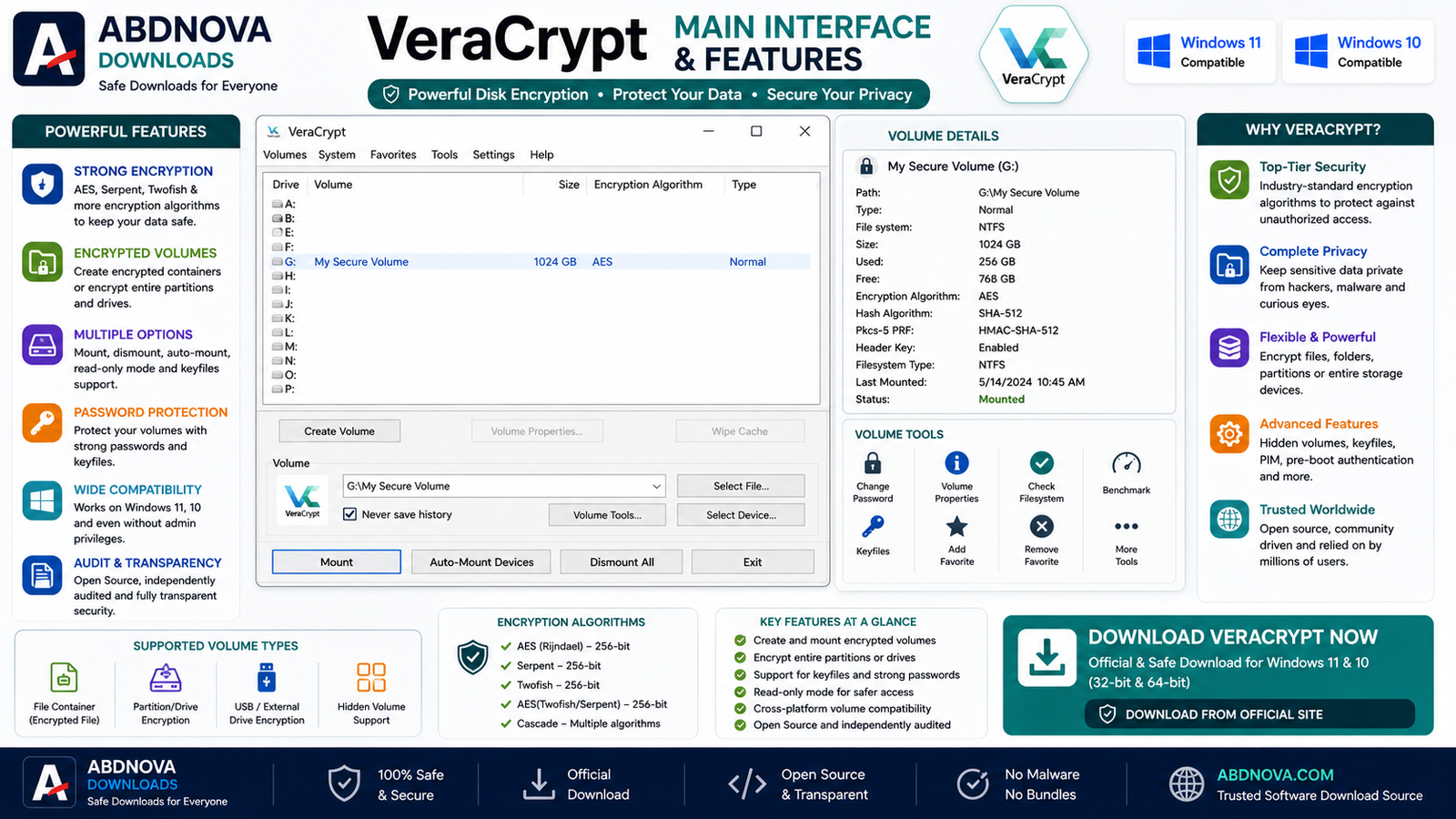
VeraCrypt uses a straightforward drive-based interface with available drive letters, Select File, Select Device, Mount, Dismount, Auto-Mount Devices, volume creation tools, and settings.
Encrypted File Containers
VeraCrypt can create an encrypted container that behaves like a virtual disk. After mounting it with the correct password, Windows displays it as another drive.
Partition and Drive Encryption
VeraCrypt can encrypt an entire non-system partition or supported storage device such as an external hard drive, USB drive, secondary internal drive, or data partition.
Windows System Encryption
VeraCrypt can encrypt the Windows system partition or drive on supported configurations. Authentication takes place before Windows starts.
Strong Encryption
VeraCrypt supports established encryption algorithms including AES, Serpent, and Twofish, along with certain cascaded combinations.
Hidden Volumes
VeraCrypt includes a hidden-volume feature intended for advanced use cases. Users should understand the official documentation before relying on it.
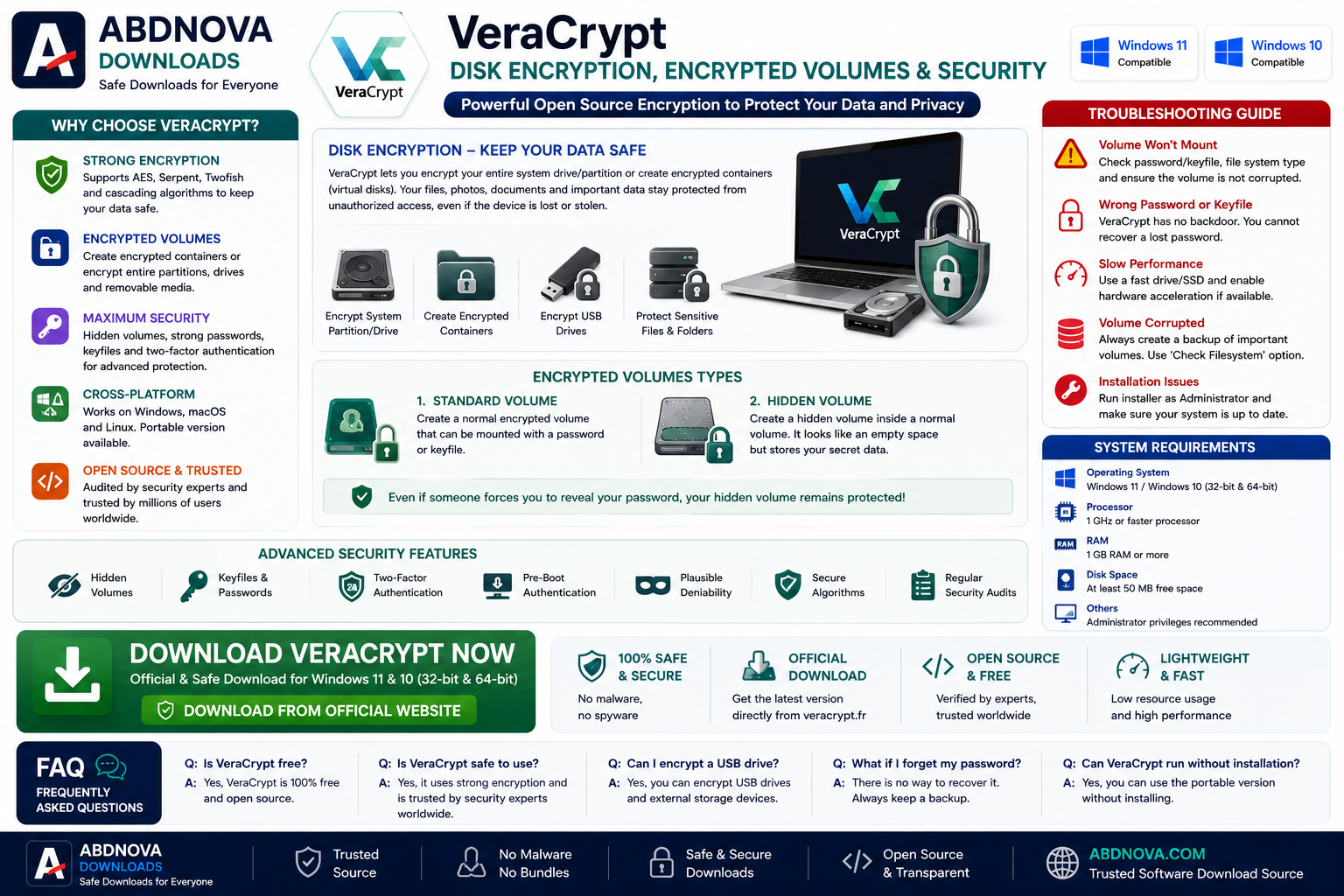
VeraCrypt Disk Encryption, Encrypted Volumes & Security
How to Download VeraCrypt for Windows 11 & 10
- Visit the official VeraCrypt website.
- Choose the latest stable Windows release.
- Select the Windows installer.
- Download the setup file.
- Avoid unofficial or modified installers.
How to Install VeraCrypt on Windows
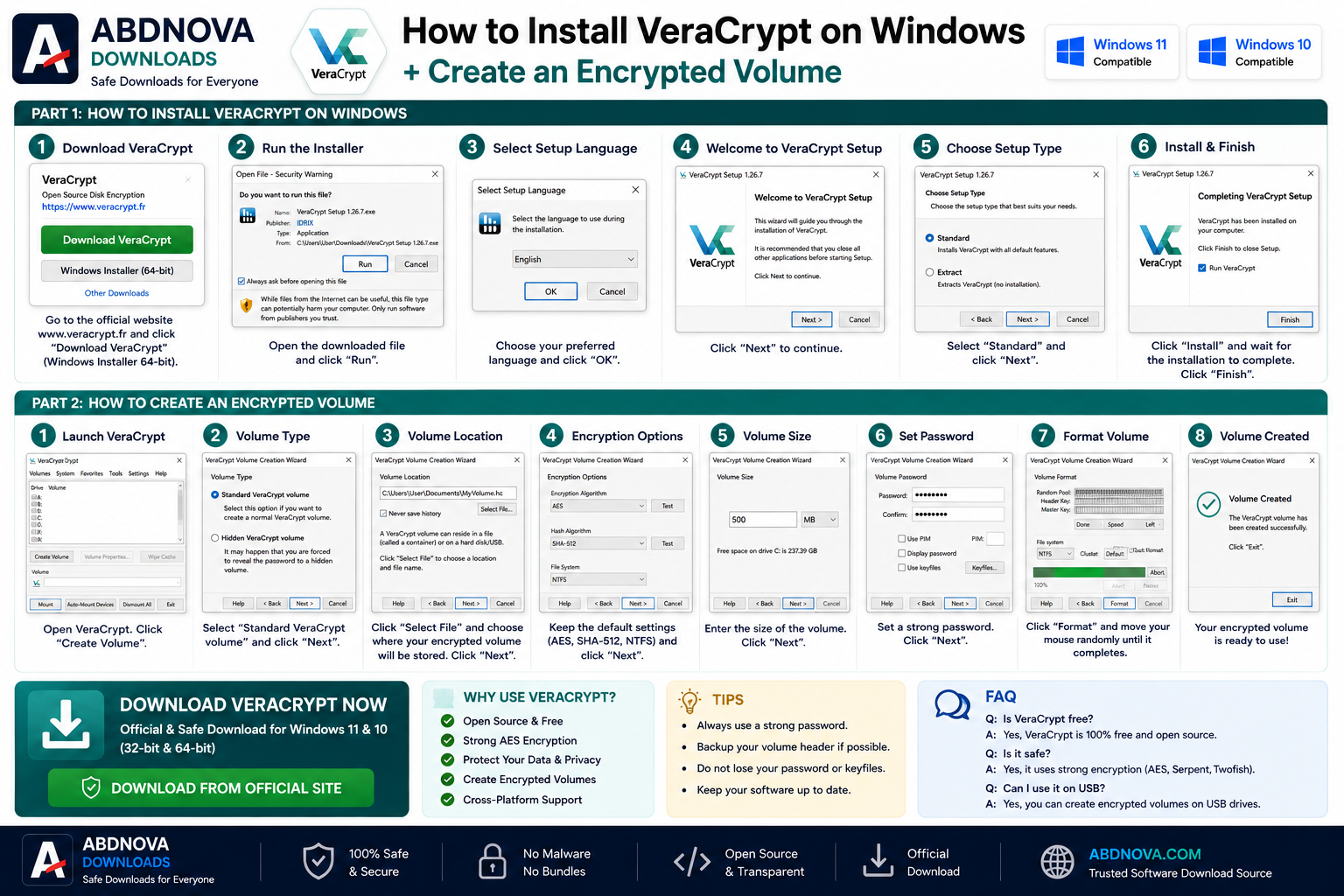
- Download VeraCrypt: Get the latest stable Windows version from the official source.
- Run the installer: Open the downloaded setup file.
- Verify security prompts: Check the publisher/source before continuing.
- Choose Install or Extract: For most users, normal installation is easier.
- Complete installation: Follow the setup wizard.
- Launch VeraCrypt: Open VeraCrypt from the Start menu or desktop shortcut.
How to Create an Encrypted VeraCrypt Volume
- Open VeraCrypt.
- Click Create Volume.
- Choose Create an encrypted file container.
- Select the standard VeraCrypt volume option unless you specifically need an advanced feature.
- Choose where the container should be saved.
- Select encryption settings.
- Set the volume size.
- Create a strong password.
- Choose the filesystem when prompted.
- Complete the formatting process.
How to Open a VeraCrypt Volume
- Open VeraCrypt.
- Select an unused drive letter.
- Click Select File.
- Choose your VeraCrypt container.
- Click Mount.
- Enter your password.
- Open the mounted drive through File Explorer.
- When finished, return to VeraCrypt and click Dismount.
Choosing a Strong VeraCrypt Password
Use a password that is long, unique, difficult to guess, and not reused on other accounts. Avoid obvious names, birthdays, phone numbers, or simple keyboard patterns.
VeraCrypt System Encryption
System encryption can protect the drive containing Windows. Before enabling it, back up important files, read the current official documentation, confirm your configuration is supported, create any requested rescue or recovery material, and do not interrupt encryption unnecessarily.
VeraCrypt Portable Mode
VeraCrypt can also be used in an extracted or portable-style configuration. Portable use does not bypass Windows permissions, and administrative privileges may still be required for operations involving VeraCrypt’s driver.
VeraCrypt vs BitLocker
| Feature | VeraCrypt | BitLocker |
|---|---|---|
| Free / Open Source | Yes | Windows feature |
| Encrypted Containers | Yes | Not its main design |
| Full Drive Encryption | Yes | Yes |
| System Encryption | Yes | Yes on supported systems |
| Portable Containers | Yes | Different approach |
| Best For | Flexible encryption options | Windows-integrated encryption |
Windows Compatibility
VeraCrypt supports Windows 11 and Windows 10. If you are preparing or reinstalling a Windows 11 PC, you can also read our Windows 11 ISO Download guide for Windows installation and setup information.
Common VeraCrypt Problems and Fixes
VeraCrypt Volume Won’t Mount
Check the password, selected container or device, required keyfiles, available drive letter, and VeraCrypt version. Passwords are case-sensitive.
Incorrect Password or Not a VeraCrypt Volume
This can happen if the password is incorrect, the wrong file or device was selected, required keyfiles are missing, or volume data is damaged.
VeraCrypt Doesn’t Show My USB Drive
Make sure Windows detects the USB drive first. Then restart VeraCrypt and use Select Device to locate the correct storage device.
VeraCrypt Won’t Install
Restart Windows, download a fresh installer from the official source, install available Windows updates, check whether security software is blocking the installer, and run setup with appropriate permissions.
Mounted Volume Doesn’t Appear in File Explorer
Try another unused drive letter and remount the volume. Restart VeraCrypt or Windows if necessary.
Is VeraCrypt Safe?
VeraCrypt is an established open-source encryption project, but secure use depends heavily on configuration and user practices.
- Download only from official sources.
- Keep VeraCrypt updated.
- Use strong passwords.
- Keep secure backups.
- Protect recovery information.
- Dismount encrypted volumes when finished.
- Never experiment with important drives without backups.
Frequently Asked Questions
What is VeraCrypt?
VeraCrypt is free, open-source encryption software used to create encrypted volumes and protect partitions, drives, and supported Windows system drives.
Is VeraCrypt free?
Yes. VeraCrypt is free and open source.
Does VeraCrypt work on Windows 11?
Yes. Current VeraCrypt releases support Windows 11 configurations covered by the project’s current requirements.
Can I use VeraCrypt on Windows 10?
Yes. VeraCrypt supports Windows 10.
Can VeraCrypt encrypt a USB drive?
Yes. VeraCrypt can encrypt supported removable storage devices and partitions.
Can VeraCrypt encrypt the Windows drive?
Yes. VeraCrypt provides system encryption for supported Windows configurations.
Does VeraCrypt have a portable version?
Yes. VeraCrypt supports an extracted or portable-style mode, although some functions still require appropriate administrative privileges.
What happens if I forget my VeraCrypt password?
If the required password or key material is permanently lost, encrypted files may become unrecoverable.
Is VeraCrypt better than BitLocker?
It depends on your needs. BitLocker offers Windows integration, while VeraCrypt provides open-source encryption and flexible encrypted-container functionality.
Where should I download VeraCrypt?
Download VeraCrypt from the official VeraCrypt website to reduce the risk of obtaining a modified installer.
Final Thoughts
VeraCrypt Download for Windows is a strong option for users who need encrypted containers, partition or drive encryption, portable encryption tools, or supported system-drive encryption.
For the safest use, download VeraCrypt from the official source, use a strong password, keep secure backups, and read the official documentation before making major encryption changes.
Ready to download VeraCrypt?
Get the latest stable Windows version from the official VeraCrypt website. ABDNOVA recommends official sources only.


