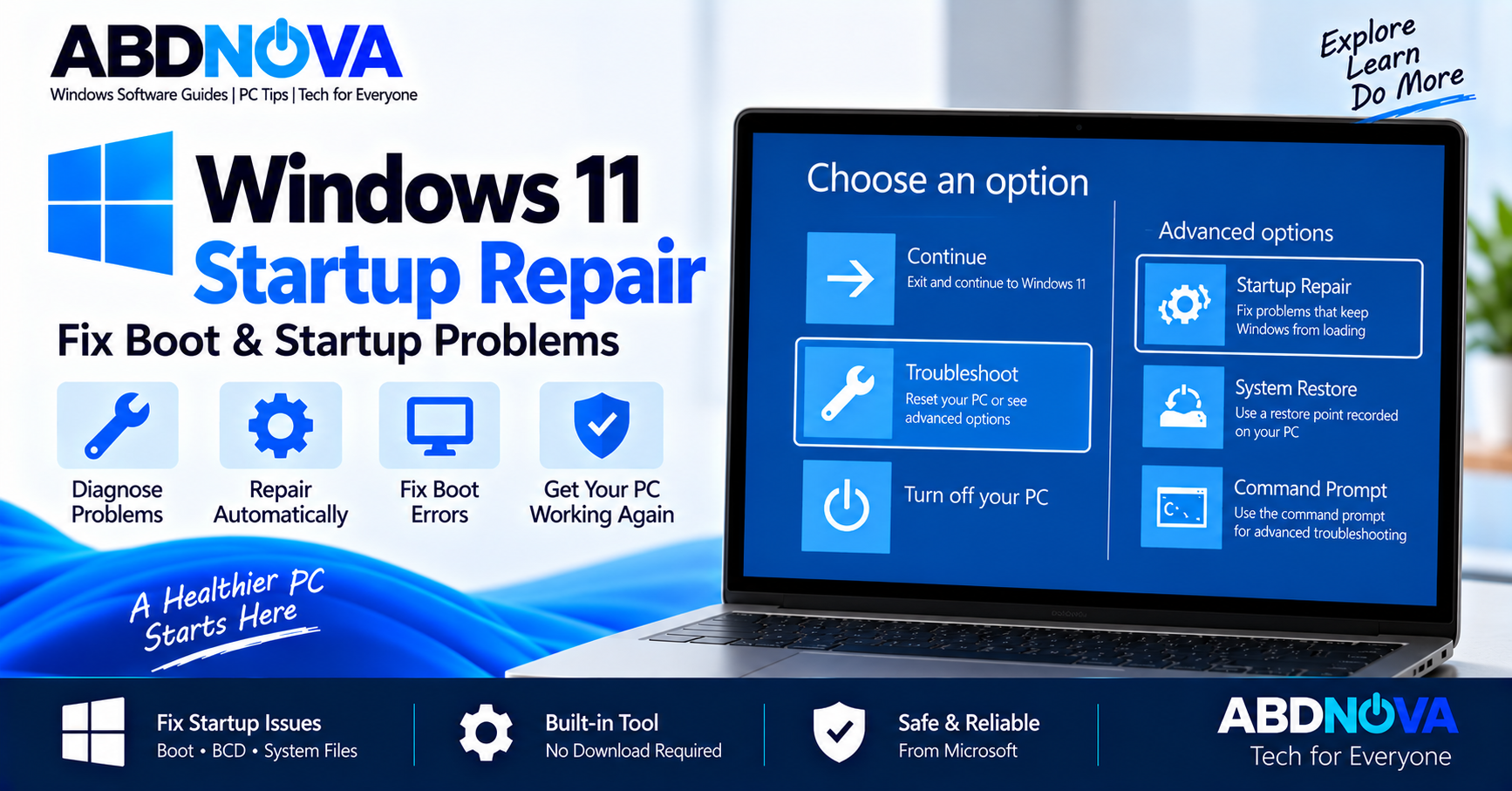

Windows 11 Startup Repair – Fix Boot & Startup Problems
Windows 11 Startup Repair is a built-in Microsoft recovery tool designed to diagnose and automatically repair certain problems that prevent Windows from starting correctly.
Startup Repair runs inside the Windows Recovery Environment (WinRE), which means it can work even when you cannot reach the normal Windows desktop.
It can attempt to repair problems involving damaged system files, corrupted boot configuration data, startup-related Registry errors, incompatible drivers, and other supported boot failures.
Windows 11 Startup Repair Details
| Detail | Information |
|---|---|
| Developer | Microsoft |
| Included With | Windows 11 |
| Tool Type | Automatic startup recovery |
| Runs From | Windows Recovery Environment (WinRE) |
| Main Purpose | Diagnose and repair Windows boot problems |
| Damaged System Files | Can attempt repair |
| Boot Configuration Problems | Can attempt repair |
| Startup Registry Problems | Can attempt repair |
| Incompatible Driver Issues | Can sometimes identify or repair |
| Internet Required | Normally no |
| Third-Party Download | Not required |
| BitLocker Key | May be required |
What Does Windows 11 Startup Repair Do?
When Startup Repair begins, Windows restarts and analyzes the computer for problems associated with the startup process.
Microsoft lists several problems that Startup Repair can attempt to fix:
- Missing or damaged Windows system files
- Corrupted Boot Configuration Data (BCD)
- Damaged Master Boot Record (MBR)
- Incompatible drivers
- Registry errors
If Startup Repair detects a supported problem, it attempts to correct it automatically. If it cannot repair the computer, you can continue troubleshooting through other Windows Recovery Environment tools.
When Should You Use Startup Repair?
Windows 11 Startup Repair is designed specifically for boot and startup problems. It can be appropriate when Windows:
- Does not start normally
- Gets stuck during startup
- Repeatedly enters a boot loop
- Displays startup-related errors
- Cannot reach the sign-in screen
- Has damaged boot configuration
- Develops a startup problem after a driver or system change
- Automatically enters Windows Recovery Environment
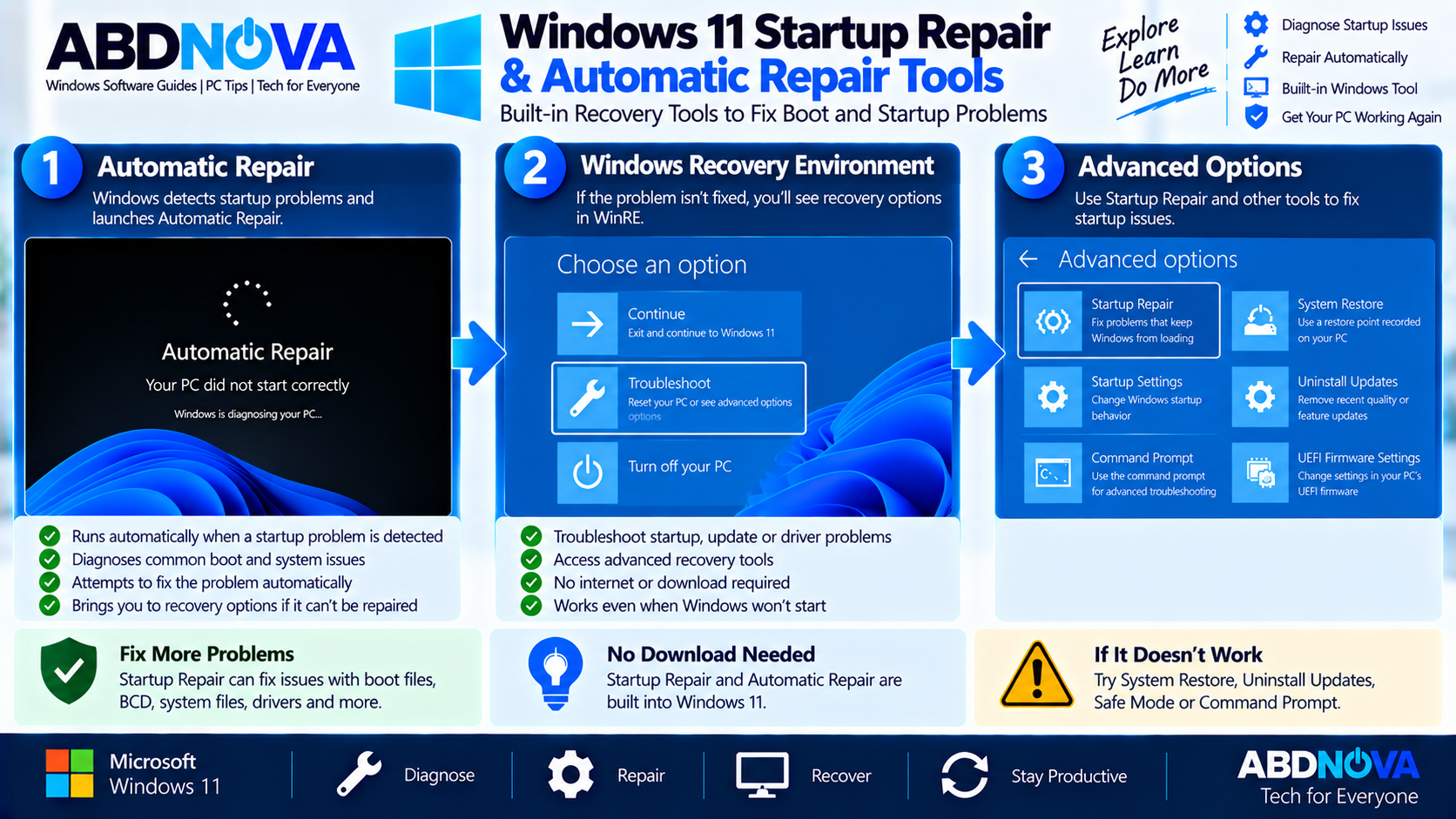
Windows 11 Startup Repair & Automatic Repair Tools
Startup Repair is one of several recovery tools available inside Windows Recovery Environment.
If Windows 11 still opens normally, you can manually enter WinRE through:
After the PC restarts, select:
If you want to understand the complete recovery environment and its other troubleshooting tools, see our Windows 11 Recovery Environment (WinRE) guide.
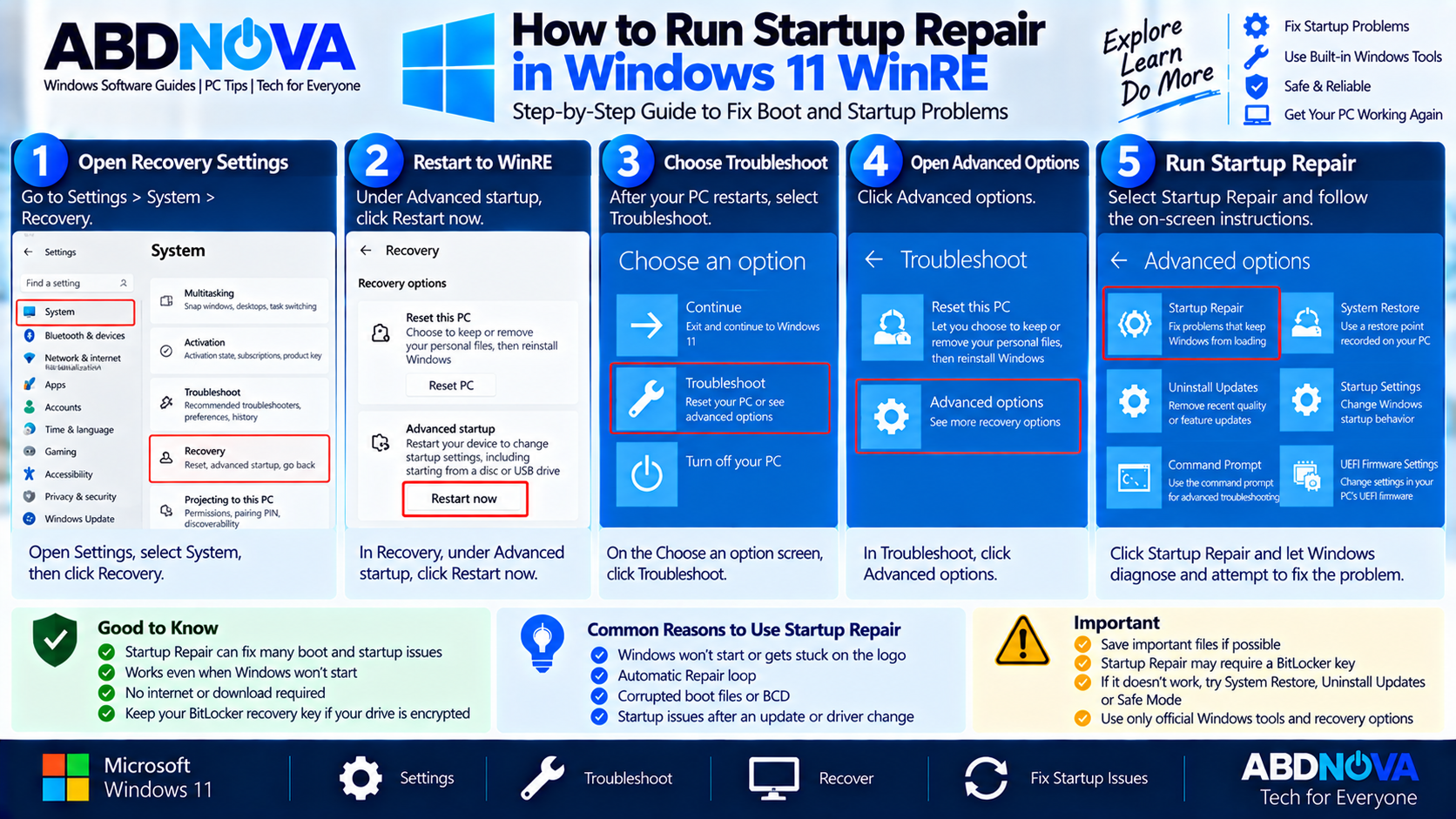
How to Run Startup Repair in Windows 11 WinRE
If Windows cannot start correctly multiple times, the PC can automatically enter Windows Recovery Environment instead of continuing to attempt a normal startup.
When the Windows recovery screen appears:
- Select Troubleshoot.
- Select Advanced options.
- Select Startup Repair.
- Select Restart if prompted.
- Allow Windows to diagnose the startup problem.
Startup Repair then scans the Windows installation and attempts to repair supported boot problems automatically.
What Happens During Startup Repair?
While Startup Repair is working, Windows may display messages such as:
or
Attempting repairs
The process is largely automatic. You normally do not need to manually edit Windows boot files or enter command-line repair commands.
If Windows finds a supported problem, it attempts the appropriate repair and then allows the computer to restart.
Does Startup Repair Delete Personal Files?
Startup Repair is designed to repair startup-related Windows components rather than reinstall Windows or erase the drive.
For that reason, it is generally a less disruptive recovery method than resetting or clean-installing Windows.
Windows 11 Startup Repair and BitLocker
If the Windows system drive is encrypted, Startup Repair may require the BitLocker recovery key.
A BitLocker recovery key is a 48-digit number that can be required to regain access to an encrypted drive when Windows cannot automatically unlock it.
Keep the recovery key somewhere accessible other than only on the computer being repaired.
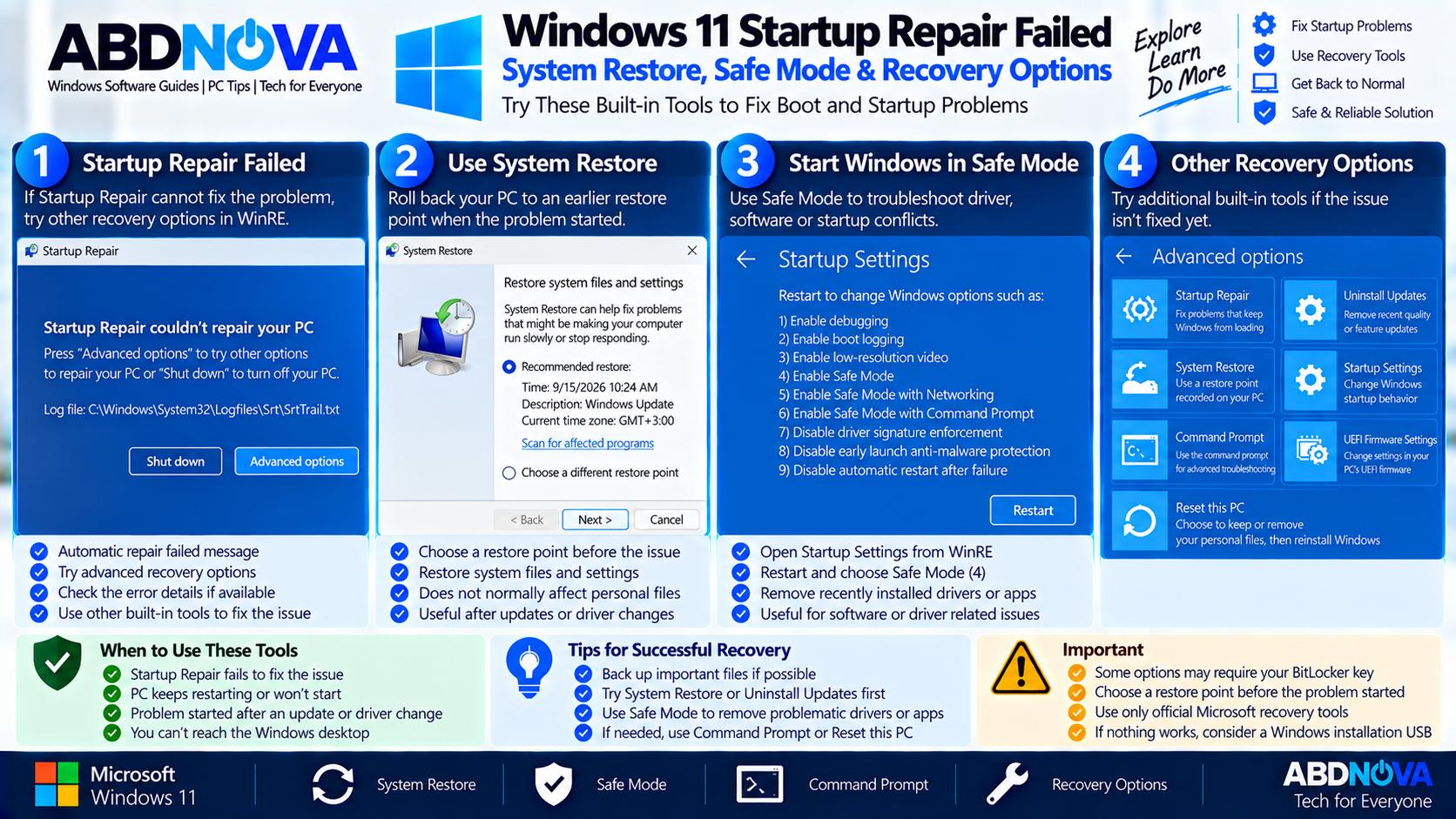
Windows 11 Startup Repair Failed – System Restore, Safe Mode & More
Startup Repair cannot fix every Windows startup problem. If it reports that it could not repair your PC, return to:
Windows Recovery Environment provides several other troubleshooting options.
Try System Restore
If Windows stopped starting after installing software, changing a driver, or modifying system settings, System Restore may help.
From WinRE, select:
System Restore can roll Windows system files and settings back to an earlier restore point without normally affecting personal files.
For complete instructions, see our Windows 11 System Restore guide.
Uninstall a Problematic Windows Update
If the startup failure appeared immediately after a Windows update, open:
This recovery option can help when a recently installed Windows update appears to be responsible for the startup problem. Not every update can necessarily be removed.
Try Safe Mode
Another useful WinRE option is:
Startup Settings provides troubleshooting modes such as Safe Mode.
Safe Mode can be useful when Windows is able to start in a limited environment but a problematic driver, application, or service prevents normal startup.
Use Command Prompt for Advanced Troubleshooting
Windows Recovery Environment also provides Command Prompt:
This option is intended for advanced troubleshooting and provides access to disk, system, and boot-related command-line tools.
Startup Repair vs Safe Mode
| Startup Repair | Safe Mode |
|---|---|
| Runs from WinRE | Starts Windows in a limited state |
| Attempts automatic repair | Provides a diagnostic environment |
| Designed for boot and startup failures | Useful for drivers, applications, and software conflicts |
| Little user interaction required | User performs troubleshooting |
| Windows desktop does not need to start | Windows itself starts in Safe Mode |
Startup Repair vs System Restore
Startup Repair and System Restore solve different types of recovery problems.
| Startup Repair | System Restore |
|---|---|
| Automatically diagnoses certain startup problems | Returns Windows to an earlier restore point |
| Does not require an existing restore point | Requires an available restore point |
| Focuses on boot and startup failures | Reverses system, driver, Registry, and application changes |
| Automatic repair process | User selects an earlier restore point |
If Startup Repair cannot fix the problem and a suitable restore point exists, System Restore can be an appropriate next recovery option.
Startup Repair vs Reset This PC
Startup Repair attempts to repair the existing Windows installation without reinstalling Windows.
Reset This PC is significantly more disruptive because it reinstalls Windows, removes installed applications and settings, and provides options to keep or remove personal files.
When appropriate, try less disruptive built-in recovery options before resetting Windows.
If a reset becomes necessary, see our Windows 11 Reset This PC guide.
Windows 11 Startup Repair Keeps Looping
If the computer repeatedly displays Automatic Repair or returns to WinRE after every restart, Windows is likely still detecting a startup failure.
Choose the next recovery option based on what happened before the problem:
| Possible Cause | Recovery Option |
|---|---|
| Recent Windows update | Uninstall Updates |
| Recent driver, software, or system change | System Restore |
| Possible driver or software conflict | Safe Mode |
| Advanced boot problem | Command Prompt or appropriate technical support |
| Built-in recovery options unsuccessful | Recovery Drive, OEM recovery media, or official Windows installation media |
Recovery Drive and Windows Installation Media
If the internal Windows recovery tools are unavailable or unsuccessful, a previously created Windows Recovery Drive can provide another recovery route.
If you do not have a recovery drive, official Windows installation media can be created on another working computer and used to access Windows recovery options.
Manufacturer-provided recovery media may also be useful on some PCs because it can contain hardware-specific drivers and factory applications.
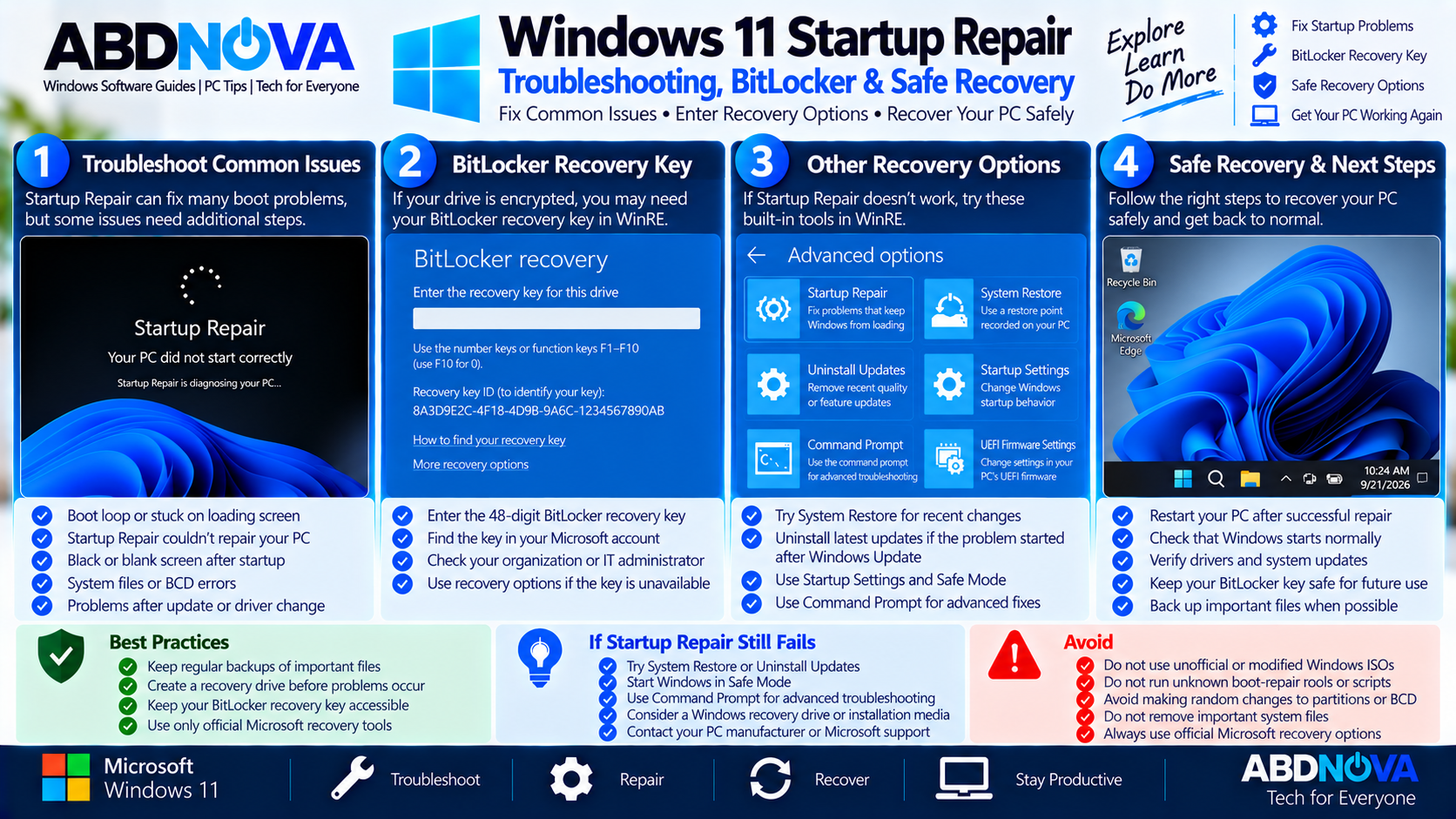
Windows 11 Startup Repair Troubleshooting, BitLocker & Safe Recovery
For safe Windows startup recovery:
- Use Windows’ built-in Startup Repair first when appropriate.
- Keep your BitLocker recovery key accessible.
- Back up important personal files whenever possible.
- Use System Restore when a recent system change caused the problem.
- Use Uninstall Updates when the failure began after an update.
- Use Safe Mode for driver, software, and service troubleshooting.
- Use official recovery or Windows installation media when built-in recovery options cannot solve the problem.
Startup Repair is already included with Windows 11. Websites offering a separate “Windows Startup Repair download” are not required for the built-in Microsoft recovery process.
Frequently Asked Questions
What is Windows 11 Startup Repair?
Startup Repair is a built-in Windows recovery tool that automatically diagnoses and attempts to repair certain problems that prevent Windows from starting correctly.
How do I start Windows 11 Startup Repair?
Enter Windows Recovery Environment and select Troubleshoot → Advanced options → Startup Repair → Restart.
Can Windows automatically open Startup Repair?
Windows can automatically enter Windows Recovery Environment after repeated startup failures, where recovery and troubleshooting tools become available.
What problems can Startup Repair fix?
Microsoft lists problems such as missing or damaged system files, corrupted BCD, damaged MBR, incompatible drivers, and Registry errors among the issues Startup Repair can attempt to repair.
Does Startup Repair delete personal files?
Startup Repair is intended to repair startup-related Windows components rather than reset or reinstall Windows. However, maintaining an up-to-date backup is recommended before recovery work whenever possible.
Why is Startup Repair asking for a BitLocker key?
If the Windows drive is encrypted with BitLocker, Windows Recovery Environment may require the recovery key before it can access the protected installation.
What should I do if Startup Repair fails?
Depending on the cause, other WinRE options include System Restore, Uninstall Updates, Startup Settings and Safe Mode, Command Prompt, Reset This PC, or official recovery and installation media.
Do I need to download Windows 11 Startup Repair?
No. Startup Repair is built into Windows 11 and is accessed through Windows Recovery Environment. No separate Startup Repair program is required.
Final Thoughts
Windows 11 Startup Repair provides a built-in automatic recovery option when boot files, system files, boot configuration, drivers, Registry errors, or related startup problems prevent Windows from loading correctly.
Because Startup Repair is built into WinRE, there is no separate program to download. If it cannot resolve the problem, Windows Recovery Environment provides additional tools such as System Restore, Uninstall Updates, Safe Mode, Command Prompt, Reset This PC, and recovery media.
Use Microsoft’s built-in recovery tools first, keep the BitLocker recovery key accessible for encrypted devices, and back up important files whenever possible before moving to more extensive recovery operations.
Windows 11 Startup Repair
View Microsoft’s official Startup Repair instructions for Windows 11.