


WinMerge Download for Windows – Free File Comparison Tool

Download WinMerge for Windows 11 and 10 to compare files and folders, highlight differences, review changes and selectively merge content.
WinMerge is a free and open-source file and folder comparison application for Windows. It places files side by side, highlights what has been added, removed or changed, and helps you merge selected differences when necessary.
It is especially useful for developers, system administrators, writers, web developers and anyone who works with multiple versions of source code, configuration files, documents or project folders.
This guide covers WinMerge Download for Windows, installation, file and folder comparison, inline differences, merging, filters, syntax highlighting, troubleshooting and safe official download options.
WinMerge Download for Windows – Quick Overview
| Information | Details |
|---|---|
| Software | WinMerge |
| Current Version | 2.16.58.2 |
| Release Date | August 27, 2026 |
| Type | File & Folder Comparison |
| License | Free & Open Source / GPL |
| Windows 11 | Supported |
| Windows 10 | Supported |
| x64 | Available |
| ARM64 | Available |
| x86 | Available |
| Standard Installer | Yes |
| Per-user Installer | Yes |
| ZIP Binaries | Yes |
| File Comparison | Yes |
| Folder Comparison | Yes |
| 2-Way Comparison | Yes |
| 3-Way Text Comparison | Yes |
| Merge Changes | Yes |
| Syntax Highlighting | Yes |
| Official Source | WinMerge Project |
What Is WinMerge?
WinMerge is an open-source differencing and merging application designed mainly for Windows. Its core workflow is simple:
Compare → Find Differences → Review → Merge
You can compare two versions of a file, identify exactly what changed, review each difference and selectively copy changes from one side to the other.
The same idea applies to folders. WinMerge can help identify files that are identical, different, missing or present only on one side of a folder comparison.
Which WinMerge Version Should You Download?
For most modern Intel or AMD Windows 11 and Windows 10 computers, the x64 installer is the normal choice.
WinMerge Download for Windows – x64 Installer
The standard x64 installer is the easiest option for most users and provides normal Windows integration.
x64 Per-user Installer
The per-user installer installs WinMerge for the current Windows user and does not require administrator rights. This can be useful on a PC where you cannot use admin privileges.
ARM64 Installer
Choose the ARM64 package only when your Windows computer uses a compatible ARM processor.
ZIP Binaries
WinMerge also provides official ZIP binary packages. These can be extracted and run without a traditional installation, which can be useful for temporary or portable-style usage.

How to Install WinMerge on Windows
- Open the official download page: Visit the WinMerge project website.
- Choose your architecture: For most modern PCs, select the x64 installer.
- Run the installer: Double-click the downloaded setup file.
- Approve UAC if required: The standard installer may request administrator privileges.
- Review setup options: Select the components and Windows integrations you need.
- Complete installation: Finish setup and launch WinMerge.
- Start a comparison: Select two files or folders and begin reviewing differences.

WinMerge Main Interface and File Comparison
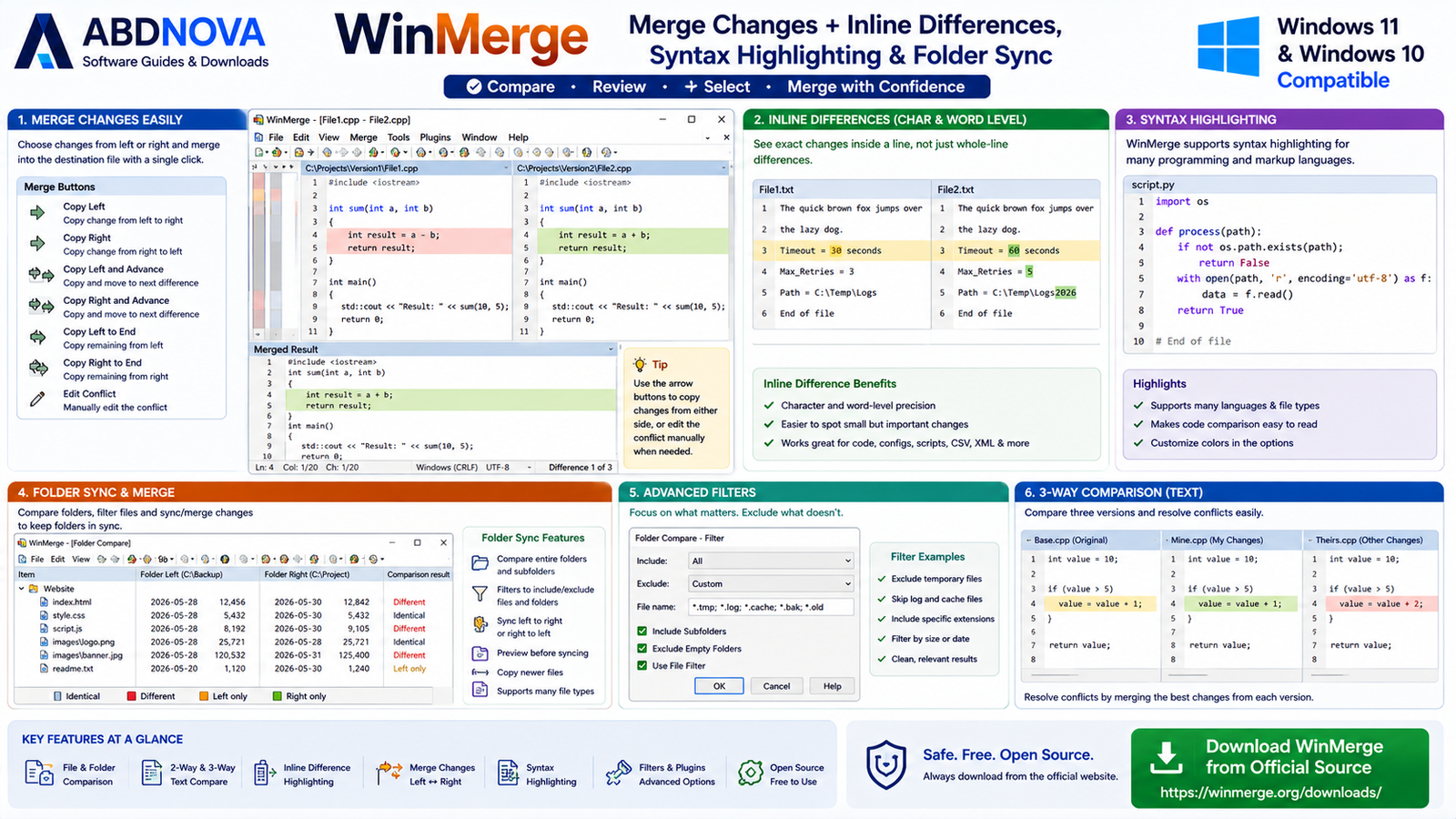
WinMerge’s interface is built around visual comparison. When two text files are opened, they appear side by side so differences can be reviewed without manually switching between separate editors.
Side-by-Side Comparison
The left and right panes show the compared files. Changed, added and missing content is visually highlighted so you can quickly see where the versions differ.
Difference Navigation
Navigation controls allow you to jump from one difference to the next instead of manually scrolling through a long file.
Edit and Save
You can review changes, edit content and save the corrected version directly from the comparison workflow.
Compare Two Files with WinMerge
A common workflow is comparing two versions of the same configuration, source-code or text file.
Example
website-old.css
vs
website-new.css
WinMerge can highlight changed lines, show inline differences and let you selectively copy changes between versions.

WinMerge File and Folder Comparison Explained
Inline Differences
A line may exist in both files but contain only a small change. WinMerge can highlight the changed portion within that line rather than only showing that the entire line differs.
Example
Old: timeout=30
New: timeout=60
This can be especially helpful when comparing long lines of source code, JSON, XML, CSV, logs or configuration data.
3-Way File Comparison
WinMerge supports comparison of two or three text files. Three-way comparison can be useful when you have an original file and two independently modified versions.
This is particularly relevant in collaborative editing and development workflows.
Compare Folders with WinMerge
Folder comparison lets you compare entire directories rather than individual files. WinMerge can identify files that match, differ, exist only on the left or exist only on the right.
This is useful for:
- Backup folders.
- Website directories.
- Project versions.
- Configuration folders.
- Development builds.
- Document collections.
Folder Filters
Large folders often contain temporary files, caches, generated files, build output or logs that you do not need to compare.
WinMerge supports filters that can include or exclude content based on names, paths, sizes, timestamps and other properties.
WinMerge Merge Changes, Syntax Highlighting and Plugins
Merge Changes Between Files
Finding differences is only part of WinMerge’s purpose. You can also selectively merge changes from one side to another.
For example, you may want to keep most of a newer configuration file while restoring only selected settings from an older copy. WinMerge lets you review those differences individually before applying them.
Syntax Highlighting
WinMerge provides syntax highlighting for many programming languages and file formats, making source-code comparisons easier to read.
It can be useful with files such as:
- HTML.
- CSS.
- JavaScript.
- C and C++.
- Configuration files.
- Scripts.
- Structured text.
WinMerge for Developers
Developers can use WinMerge to compare source-code versions, configuration files, website files, generated output and competing changes during development.
WinMerge is not a complete version-control system, but it can complement development workflows by providing a focused visual comparison environment.
For command-line and developer workflows on Windows, you may also find our Windows Terminal Download for Windows guide useful.
Image and Structured-Data Comparison
Modern WinMerge can also support comparison workflows beyond normal text, including images and structured formats such as CSV and TSV, depending on the file type and available comparison method.
Plugins and Extended Comparison
WinMerge supports plugins and filtering or unpacking workflows that can extend comparison capabilities for formats that require additional processing.
For ordinary TXT, code, configuration and folder comparisons, most users can start without changing advanced plugin settings.
WinMerge vs Notepad++ vs VS Code vs Beyond Compare
| Feature | WinMerge | Notepad++ | VS Code | Beyond Compare |
|---|---|---|---|---|
| Main Focus | Compare & Merge | Text & Code Editing | Development Environment | Comparison & Sync |
| File Diff | Excellent | Available through comparison workflows | Excellent | Excellent |
| Folder Comparison | Dedicated Workflow | Not primary focus | Workflow / extension dependent | Strong |
| Merge Changes | Yes | Not primary focus | Yes | Yes |
| Syntax Highlighting | Yes | Yes | Yes | Varies by workflow |
| Full Code Editor | Basic | Strong | Advanced | No |
| Free & Open Source | Yes | Yes | Yes | No |
| Best For | Dedicated comparison | Editing text & code | Software development | Advanced commercial comparison |
WinMerge vs Notepad++
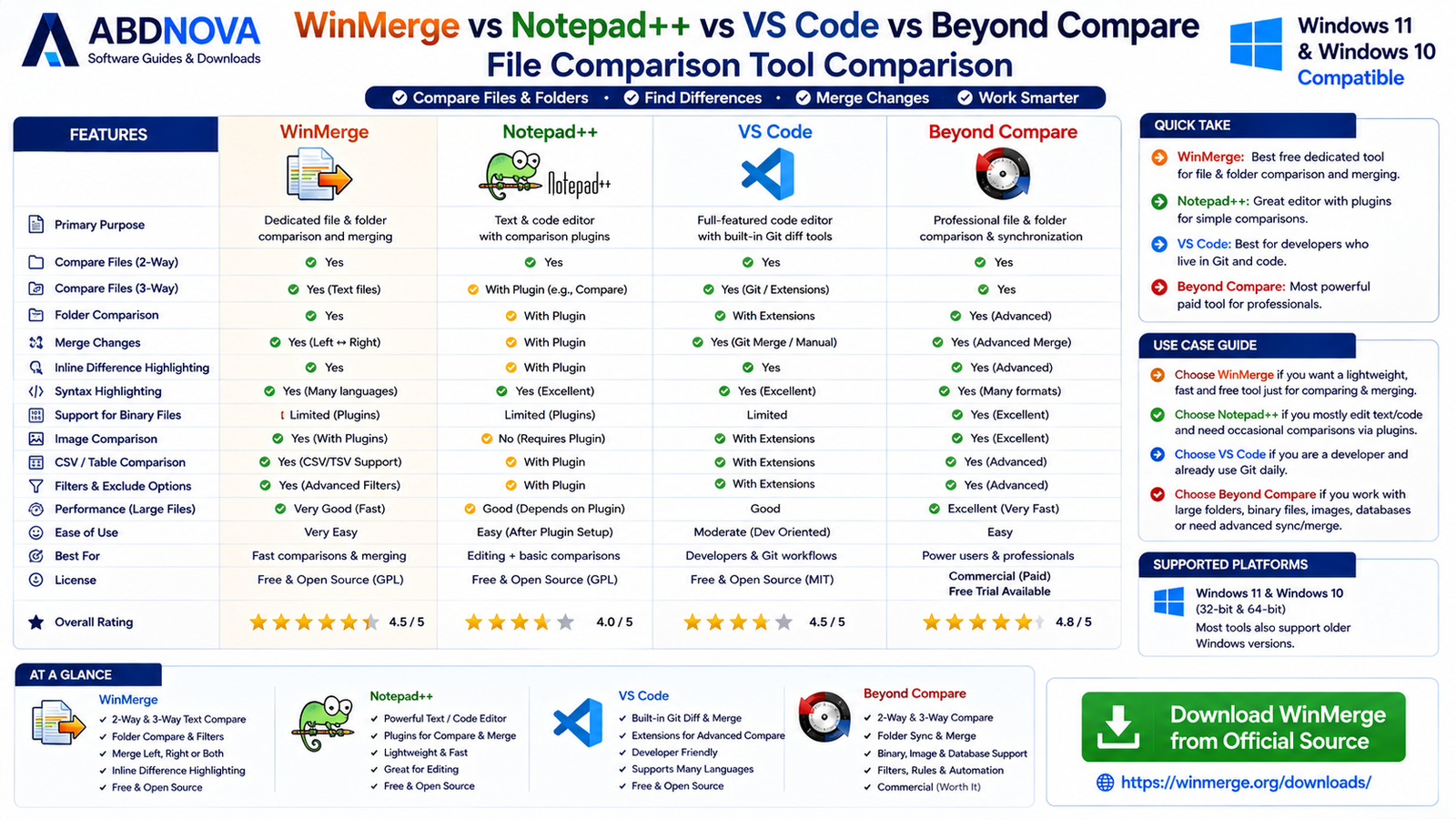
Use WinMerge when comparison and merging are the main tasks. Use Notepad++ when editing text or source code is the primary goal.
WinMerge vs Visual Studio Code
VS Code provides a complete development environment with integrated source-control and comparison tools. WinMerge is more focused and can be simpler when you only need to compare files or folders.
WinMerge vs Beyond Compare
Both applications support advanced comparison workflows, but WinMerge is free and open source while Beyond Compare is commercial software. Users who want a dedicated free Windows comparison tool have a strong reason to start with WinMerge.
Is WinMerge Safe?
Yes, when downloaded from the official WinMerge project. The official download page also publishes SHA-256 checksums for current installers and binary packages.
For safer use:
- Download WinMerge from the official project.
- Avoid modified installers.
- Keep WinMerge updated.
- Avoid unknown third-party plugins.
- Back up important files before large merge operations.
How to Verify a WinMerge Download
Advanced users can compare the SHA-256 hash of a downloaded WinMerge installer with the checksum published on the official download page.
Windows PowerShell can calculate a file hash with Get-FileHash. A matching official SHA-256 value provides additional assurance that the file has not been altered.

WinMerge Troubleshooting
WinMerge Does Not Open
Restart Windows, reinstall WinMerge, confirm that you downloaded the correct architecture, use the latest stable version and check Windows security notifications.
Installer Requests Administrator Rights
This is normal for the standard installer. If you cannot use administrator privileges, choose the official x64 Per-user installer.
Files Look Identical but WinMerge Shows Differences
Whitespace, line endings, text encoding, tabs, spaces or invisible characters can make apparently identical files compare differently. Review the comparison settings before assuming the content has substantially changed.
Too Many Folder Differences
Use appropriate filters to exclude caches, temporary files, build output, generated content and other files that are not relevant to the comparison.
File Cannot Be Compared Properly
The file may be binary or require a specialized comparison method or plugin. Check whether WinMerge provides an appropriate comparison workflow for that file type.
Merge Changed the Wrong File
Stop editing and restore your backup if necessary. Before major merge operations, always keep copies of important source files.
How to Update WinMerge
Check the official WinMerge download page for the latest stable version and download the package appropriate for your Windows architecture.
At the time of this article, the current official release is WinMerge 2.16.58.2, released August 27, 2026.
Safe WinMerge Download for Windows
The safest source for WinMerge Download for Windows is the official WinMerge project website.
You can review the current installers, architectures and checksums on the official WinMerge download page.
- WinMerge Crack.
- WinMerge Pro Crack.
- WinMerge Premium.
- WinMerge Activator.
- Modified WinMerge.
- Pre-activated WinMerge.
- Unofficial WinMerge Repack.
WinMerge is already free and open source, so there is no legitimate reason to use a cracked or modified copy.
Frequently Asked Questions
Is WinMerge free?
Yes. WinMerge is free and open-source software released under the GPL license.
What is the latest WinMerge version?
The current official WinMerge release is version 2.16.58.2, released August 27, 2026.
Does WinMerge work on Windows 11?
Yes. Current 64-bit WinMerge releases support Windows 7 or later, so Windows 11 is supported.
Does WinMerge work on Windows 10?
Yes. Windows 10 is supported.
Can WinMerge compare two files?
Yes. Comparing two files side by side is one of WinMerge’s main features.
Can WinMerge compare three files?
Yes. WinMerge supports two-way and three-way text comparison.
Can WinMerge compare folders?
Yes. It can compare folder contents and identify matching, changed and missing files.
Can WinMerge merge files?
Yes. You can selectively apply differences from one side to another.
Does WinMerge show inline differences?
Yes. WinMerge can highlight changed content within individual lines.
Does WinMerge support syntax highlighting?
Yes. Syntax highlighting is available for many programming languages and file formats.
Is there a portable WinMerge version?
The official WinMerge download page provides ZIP binary packages that can be extracted and run without a traditional installation. PortableApps.com’s WinMerge Portable is listed separately as an unofficial version.
Does WinMerge require administrator rights?
The standard installer requires administrator rights, but the official x64 Per-user installer does not.
Which WinMerge version should I download?
For most modern Intel or AMD Windows 11 and Windows 10 PCs, choose the x64 installer.
Is WinMerge safe?
Yes, when downloaded from the official WinMerge project. The official download page also provides SHA-256 checksums for current packages.
Final Thoughts
WinMerge solves a straightforward problem very well: showing exactly what changed between files or folders. Side-by-side comparison, inline highlighting, folder comparison, filters, syntax highlighting, two-way and three-way comparisons and selective merging make it useful for both everyday Windows users and developers.
For most Windows 11 and Windows 10 PCs, the x64 installer is the easiest choice. Users without administrator access can use the official x64 Per-user installer, while official ZIP binaries provide another option when conventional installation is not required.
Ready to download WinMerge?
Get the latest supported Windows installer directly from the official WinMerge project. ABDNOVA recommends official sources only.


