

Windows 11 Recovery Drive – Create USB & Recover Your PC
A Windows 11 Recovery Drive is a bootable USB recovery tool that can help restore or reinstall Windows when your PC cannot start normally. Windows includes the Recovery Drive utility, so you do not need third-party recovery software to create this media.
Microsoft recommends creating recovery media while the computer is working correctly. The drive can contain essential Windows recovery files, installed Windows updates available when the media is created, and manufacturer customizations associated with the PC.
A Recovery Drive can be particularly useful after serious Windows corruption, startup failure, or even replacement or complete wiping of the system drive.
Windows 11 Recovery Drive Details
| Detail | Information |
|---|---|
| Developer | Microsoft |
| Tool | Recovery Drive |
| Included With | Windows 11 |
| Command | recoverydrive.exe |
| Media Type | USB flash drive |
| Main Purpose | Windows recovery and reinstallation |
| Bootable | Yes |
| Recovery Environment | Windows RE |
| Personal Files Backup | No |
| Internet Required | Not normally for creation |
| Third-Party Software | Not required |
What Is a Windows 11 Recovery Drive?
Recovery Drive is a built-in Windows utility that copies the files required for Windows recovery onto a USB flash drive.
If Windows later becomes badly damaged or the computer cannot boot normally, you can start the PC from the recovery USB and access Windows Recovery Environment.
Microsoft also documents Recovery Drive for bare-metal recovery, including situations where the system drive has been replaced or completely wiped.
The recovery media is intended primarily for the PC on which it was created, especially because it can include device-manufacturer customizations.
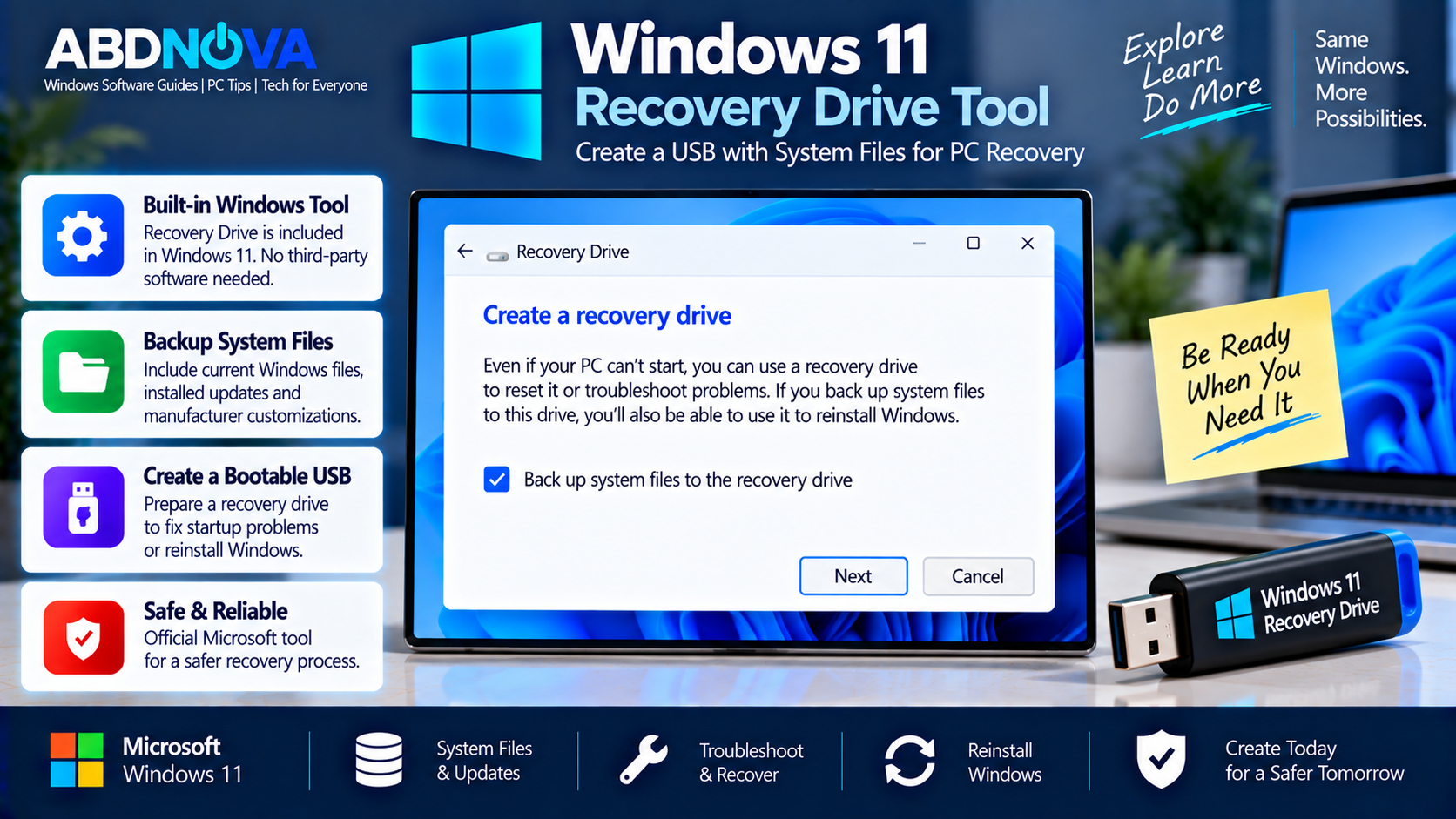
Windows 11 Recovery Drive Tool & System Files Backup
When creating the USB, Windows provides the option:
Microsoft recommends keeping this option selected. The resulting recovery media can include built-in Windows files, updates installed when the media is created, and applicable PC manufacturer customizations.
Does Recovery Drive Back Up Personal Files?
No. Recovery Drive is not a replacement for a personal-data backup.
Files that should be backed up separately include:
- Documents
- Photos
- Videos
- Downloads
- Work files
- Other personal data
Use Windows Backup, File History, an external drive, cloud storage, or another suitable backup method for personal files.
Recovery Drive vs Windows 11 Installation USB
A Windows Recovery Drive and Windows 11 installation USB are both bootable media, but they have different primary purposes.
| Recovery Drive | Windows 11 Installation USB |
|---|---|
| Created with Recovery Drive | Created using Windows installation media |
| Primarily designed to recover your PC | Primarily designed to install or reinstall Windows |
| Can contain PC/OEM customizations | Uses Microsoft Windows installation files |
| Intended primarily for the PC it was created for | Can be used with compatible PCs |
| Provides Windows recovery environment | Provides Windows Setup and recovery options |
| Can perform recovery or reinstallation | Can perform upgrade or clean installation |
For Microsoft’s standard Windows installation-media process, see our Windows 11 ISO Download guide.
Before Creating a Windows 11 Recovery Drive
Prepare a suitable USB flash drive and move anything important from it somewhere else. Windows erases the selected USB during the Recovery Drive creation process.
Also connect a laptop to reliable power before starting. Copying recovery files can take some time.
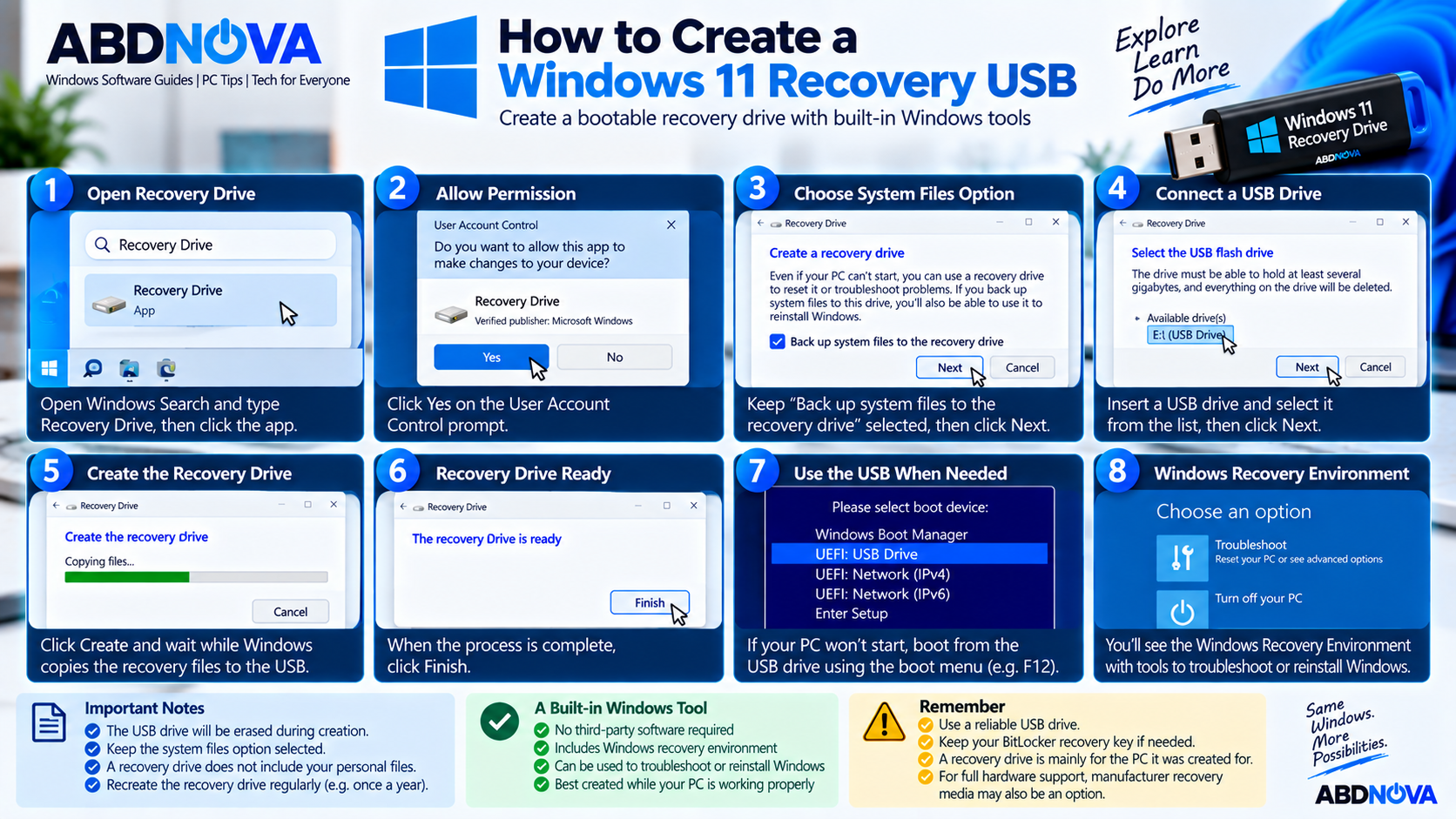
How to Create a Windows 11 Recovery USB
Windows 11 already includes everything required to create the recovery USB.
- Open Windows Search.
- Type Recovery Drive.
- Select the Recovery Drive app.
- Approve the User Account Control prompt if requested.
- Keep Back up system files to the recovery drive selected.
- Select Next.
- Wait while Windows determines the required files.
- Connect an empty USB flash drive.
- Select the correct USB drive.
- Select Next.
- Select Create.
- Wait for Windows to copy the recovery files.
- Select Finish when creation is complete.
You can also launch the built-in utility directly with:
recoverydrive.exeKeep the Recovery USB Safe
After creation, label the USB clearly so you know which PC it belongs to. For example:
Store it somewhere safe instead of using it as an everyday storage drive.
Microsoft currently recommends recreating recovery media annually so it includes newer Windows updates and improvements.
How to Boot From a Windows 11 Recovery Drive
If Windows no longer starts normally:
- Turn off the PC.
- Connect the recovery USB.
- Turn on the computer.
- Open the PC’s boot menu.
- Select the USB recovery drive.
- Allow Windows Recovery Environment to load.
The exact boot-menu key varies by PC manufacturer. Depending on the device, it may use F12, F9, Esc, or another manufacturer-specific key.
If necessary, check the PC manufacturer’s official instructions for its boot-menu procedure.
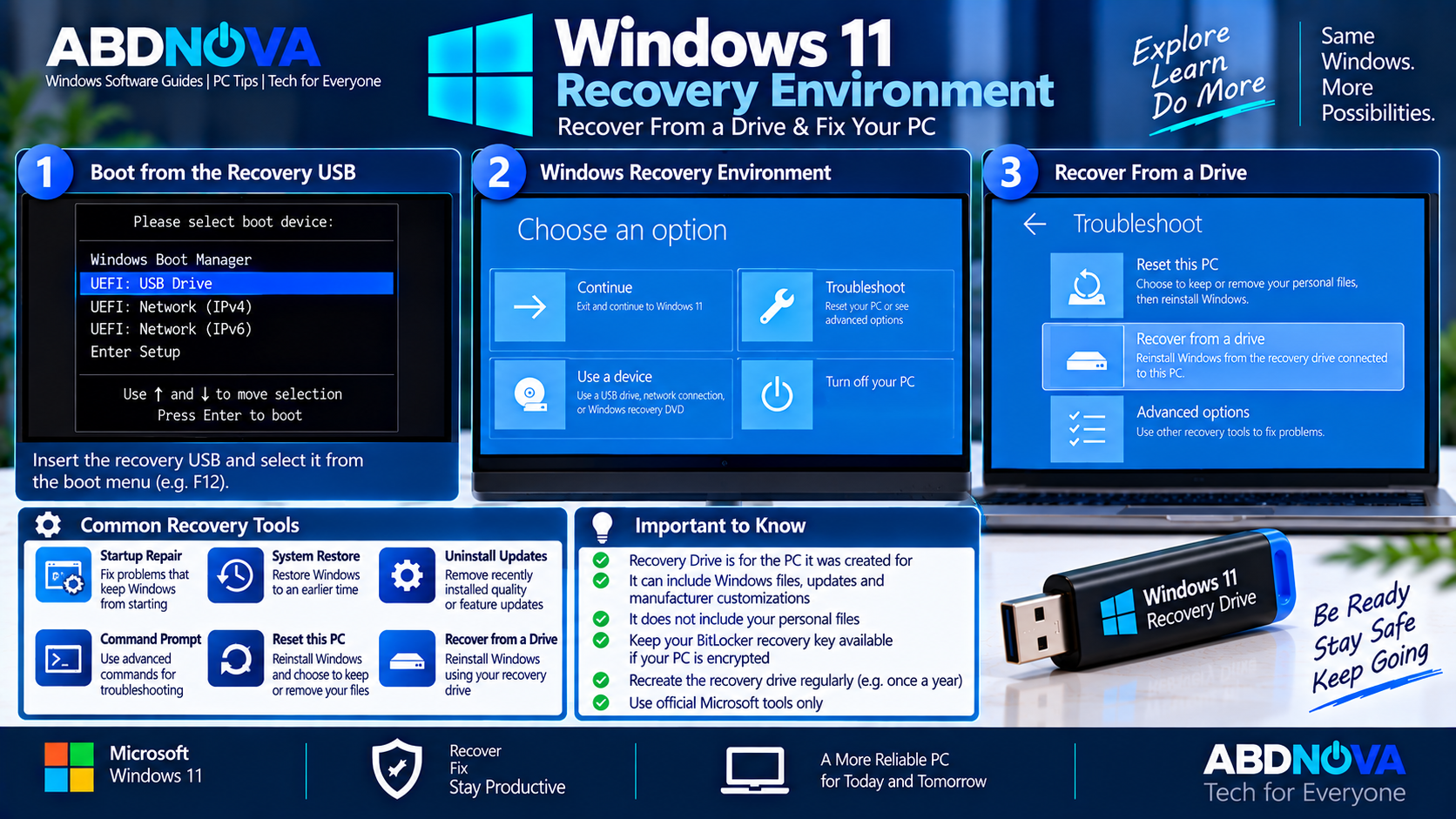
Windows 11 Recovery Environment & Recover From a Drive
A Windows 11 Recovery Drive can boot directly into Windows Recovery Environment (Windows RE or WinRE).
Windows RE provides troubleshooting and recovery tools that can include:
- Startup Repair
- System Restore
- Uninstall Updates
- Command Prompt
- Reset or reinstallation options
- Other advanced recovery tools
For a detailed explanation of these tools, see our Windows 11 Recovery Environment (WinRE) guide.
Reinstall Windows Using the Recovery Drive
If the Windows installation is badly damaged, the Recovery Drive can be used to reinstall Windows.
Boot from the recovery USB and allow Windows RE to load. Then select:
Windows can provide choices such as:
- Just remove my files
- Fully clean the drive
Select the appropriate option and then choose Recover to begin.
Recovery Drive vs Reset This PC
You do not always need to boot from a recovery USB when Windows develops a problem.
If Windows still starts, Reset this PC is available from:
Reset this PC can reinstall Windows while providing options such as:
- Keep my files
- Remove everything
- Cloud download
- Local reinstall
The Recovery Drive becomes particularly useful when the installed Windows environment is badly damaged or the PC cannot start normally.
BitLocker Recovery Key
If the Windows device uses BitLocker or device encryption, make sure the BitLocker recovery key is accessible before starting major recovery work.
Microsoft notes that the recovery key may be required for many Windows RE recovery options on encrypted devices.
What If You Did Not Create a Recovery Drive?
If the PC stops working before you create a Recovery Drive, you still have other recovery options.
Microsoft recommends creating Windows installation media on another working PC when necessary. Standard Windows installation media can boot the affected computer, provide recovery options, or reinstall Windows.
You can also check whether the PC manufacturer provides model-specific recovery media containing appropriate drivers and factory software.
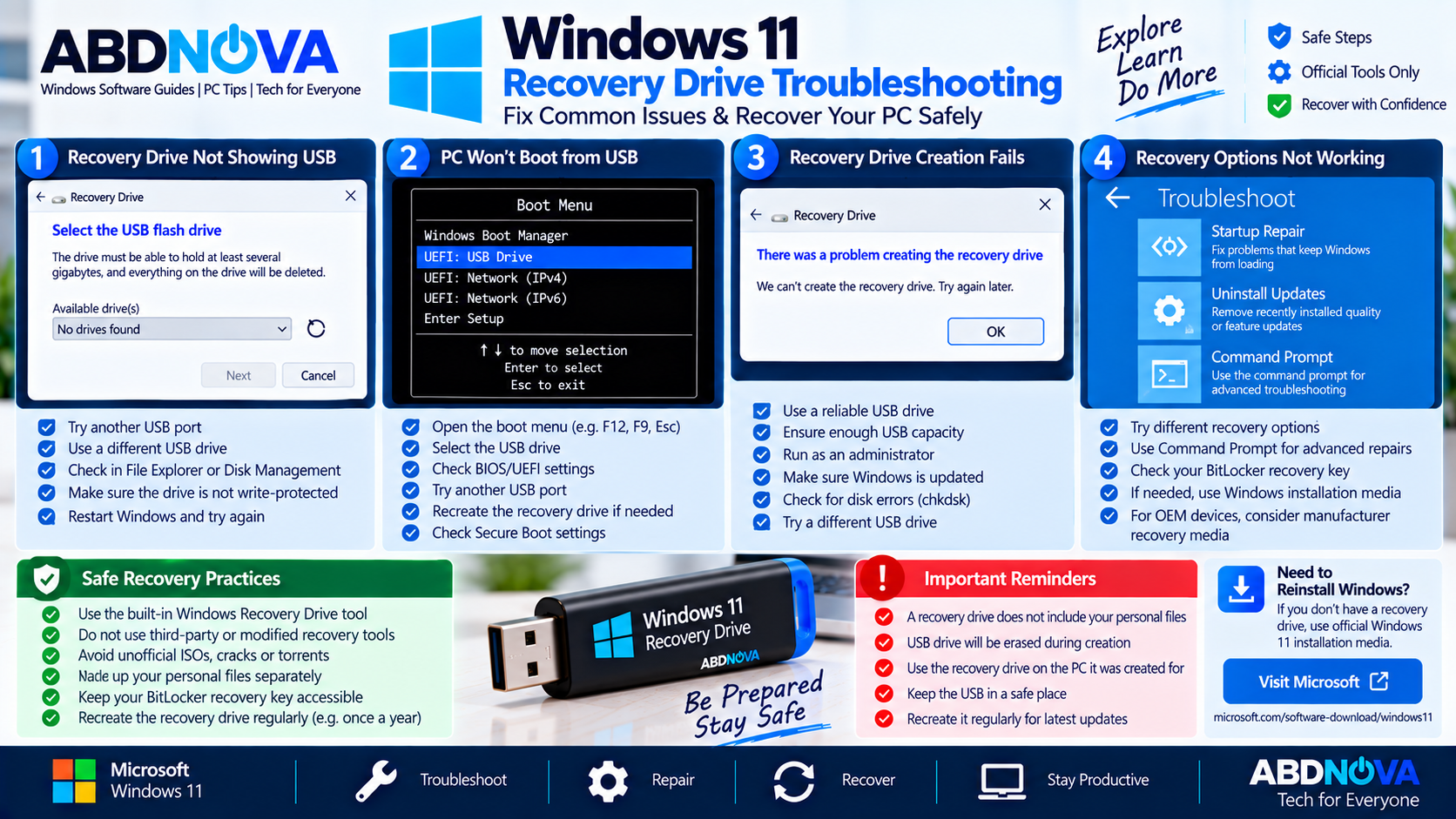
Windows 11 Recovery Drive Troubleshooting & Safe Recovery
Recovery Drive Is Not Showing the USB
If Recovery Drive cannot detect the USB flash drive:
- Disconnect and reconnect the USB.
- Try another USB port.
- Check whether File Explorer detects the drive.
- Check whether Disk Management detects it.
- Try another reliable USB drive if necessary.
Do not select an external storage device containing important files because Recovery Drive will erase the selected drive.
PC Will Not Boot From the Recovery USB
Open the PC’s UEFI/BIOS or boot menu and confirm that USB boot is available.
If the recovery USB still does not boot:
- Try another USB port.
- Check the manufacturer’s boot instructions.
- Verify that you selected the correct USB.
- Recreate the recovery media if possible.
- Check manufacturer guidance for Secure Boot or firmware settings.
Recovery Drive Creation Fails
If Windows cannot create the Recovery Drive, restart the PC and try again.
Also check that:
- The USB drive works correctly.
- The USB has the capacity requested by Recovery Drive.
- Windows system files are healthy.
- You are using an administrator account.
- Windows is fully updated.
If one flash drive repeatedly fails, try another reliable USB device to determine whether the problem is with the drive itself.
Safe Windows 11 Recovery Practices
Recovery Drive is already built into Windows 11. You normally do not need a third-party program claiming to be a “Windows Recovery Drive creator.”
For recovery, prioritize:
- Windows Recovery Drive
- Built-in Windows Recovery Environment
- Official Microsoft Windows installation media
- Official recovery media supplied by your PC manufacturer
Avoid:
- Modified recovery images
- Unofficial Windows ISO files
- Cracked Windows builds
- Pre-activated Windows images
- Torrent recovery downloads
- Unknown third-party recovery tools
Frequently Asked Questions
Is Recovery Drive built into Windows 11?
Yes. Recovery Drive is a built-in Windows utility. Search for Recovery Drive from Start or launch it with recoverydrive.exe.
Does a Windows 11 Recovery Drive save my personal files?
No. Recovery Drive does not include your personal files. Back up documents, photos, videos, and other personal data separately.
Can a Windows 11 Recovery Drive reinstall Windows?
Yes. Boot from the recovery USB, enter Windows RE, and use Recover from a drive when that option is available.
Will recovering from the drive delete my files?
Yes. Reinstalling Windows through Recover from a drive removes personal files, installed applications, and settings. Back up important data first whenever possible.
Is Recovery Drive the same as a Windows 11 installation USB?
No. Recovery Drive is primarily designed to recover the PC it was created for, while Windows installation media is primarily designed to install or reinstall Windows on compatible hardware.
Can I create a Recovery Drive after Windows stops booting?
Recovery media should ideally be created beforehand while Windows is working. If you do not already have one, Microsoft recommends using another working PC to create Windows installation media or checking for manufacturer recovery media.
How often should I recreate my Windows 11 Recovery Drive?
Microsoft currently recommends recreating the recovery media annually so it includes newer Windows updates and improvements.
Do I need my BitLocker recovery key?
You may need the BitLocker recovery key when accessing recovery options on an encrypted Windows device, so keep it accessible before beginning recovery.
Final Thoughts
Creating a Windows 11 Recovery Drive before your PC develops a serious problem gives you an additional way to access Windows Recovery Environment and reinstall Windows when the normal installation can no longer start.
Use Windows’ built-in Recovery Drive utility, keep Back up system files to the recovery drive selected, store the USB safely, and maintain a separate backup of personal files.
Microsoft also recommends recreating the recovery media periodically so it contains newer Windows updates and improvements. If you do not already have a Recovery Drive when the PC fails, official Windows installation media or manufacturer recovery media can provide alternative recovery paths.
Windows 11 Recovery Drive
Follow Microsoft’s official instructions to create and use Windows Recovery Drive.


