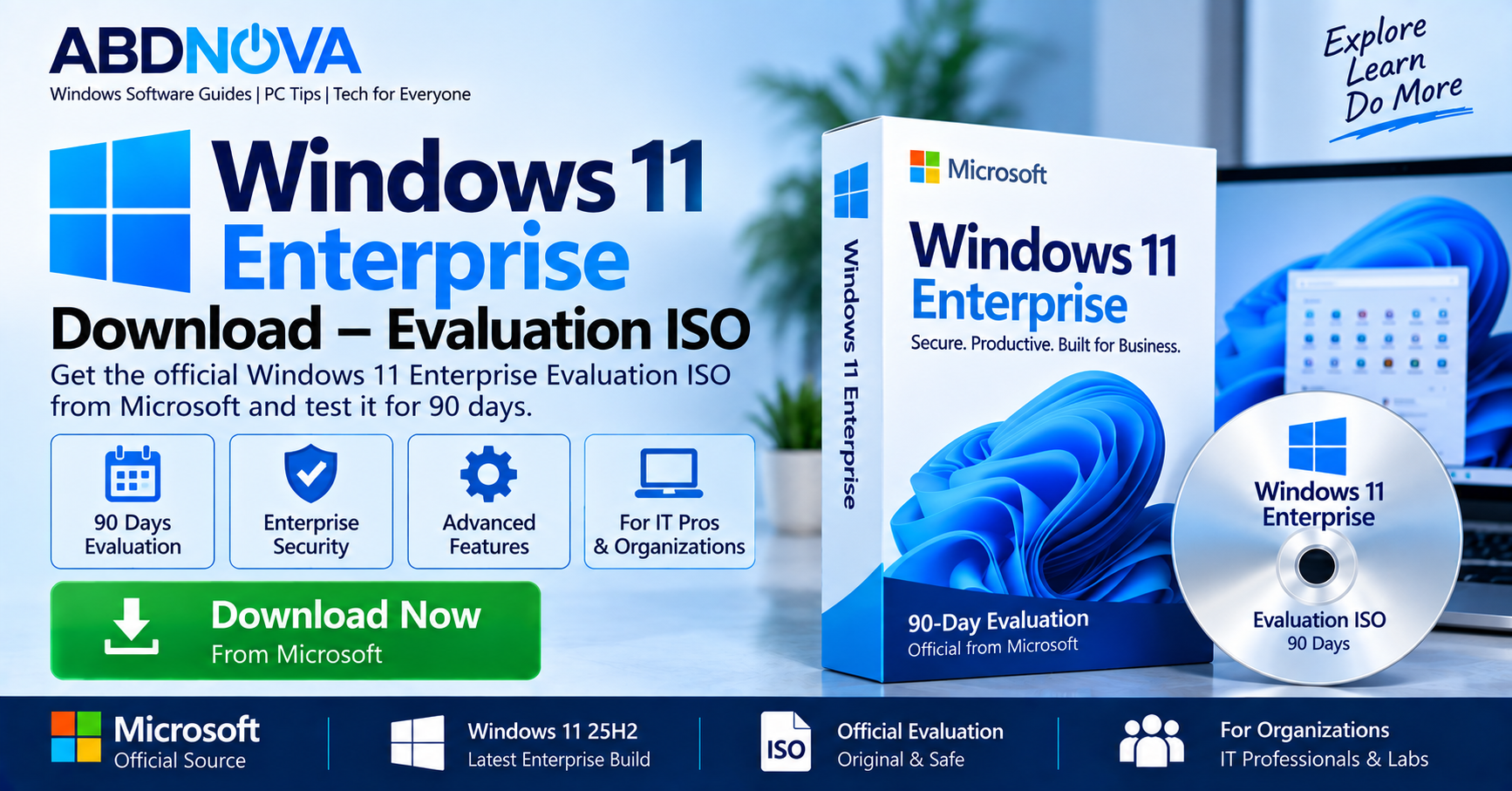

Windows 11 Enterprise Download – Evaluation ISO
Windows 11 Enterprise Download is available directly from Microsoft for organizations and IT professionals who want to evaluate Microsoft’s business-focused Windows edition. Microsoft currently provides Windows 11 Enterprise version 25H2 through its Evaluation Center as a full-featured 90-day evaluation.
Windows 11 Enterprise adds capabilities intended for managed organizational environments, including advanced security, deployment, update control, device management, application management, and business productivity.
The Enterprise Evaluation ISO can be installed on a physical compatible PC or used in a virtual machine for deployment testing, application compatibility, IT training, security testing, and Windows administration.
Windows 11 Enterprise Evaluation ISO Details
| Detail | Information |
|---|---|
| Developer | Microsoft |
| Product | Windows 11 Enterprise |
| Current Evaluation Version | Windows 11 Enterprise 25H2 |
| Evaluation Period | 90 days |
| ISO | Official Microsoft Evaluation ISO |
| Architecture | x64; Microsoft Evaluation Center overview also lists Arm64 |
| Product Key | Not required for the evaluation |
| Intended For | IT professionals and organizations |
| Installation | Physical PC or virtual machine |
| Official Source | Microsoft Evaluation Center |
If you need the standard consumer Windows 11 installation image instead of Enterprise Evaluation, see our Windows 11 ISO Download guide.
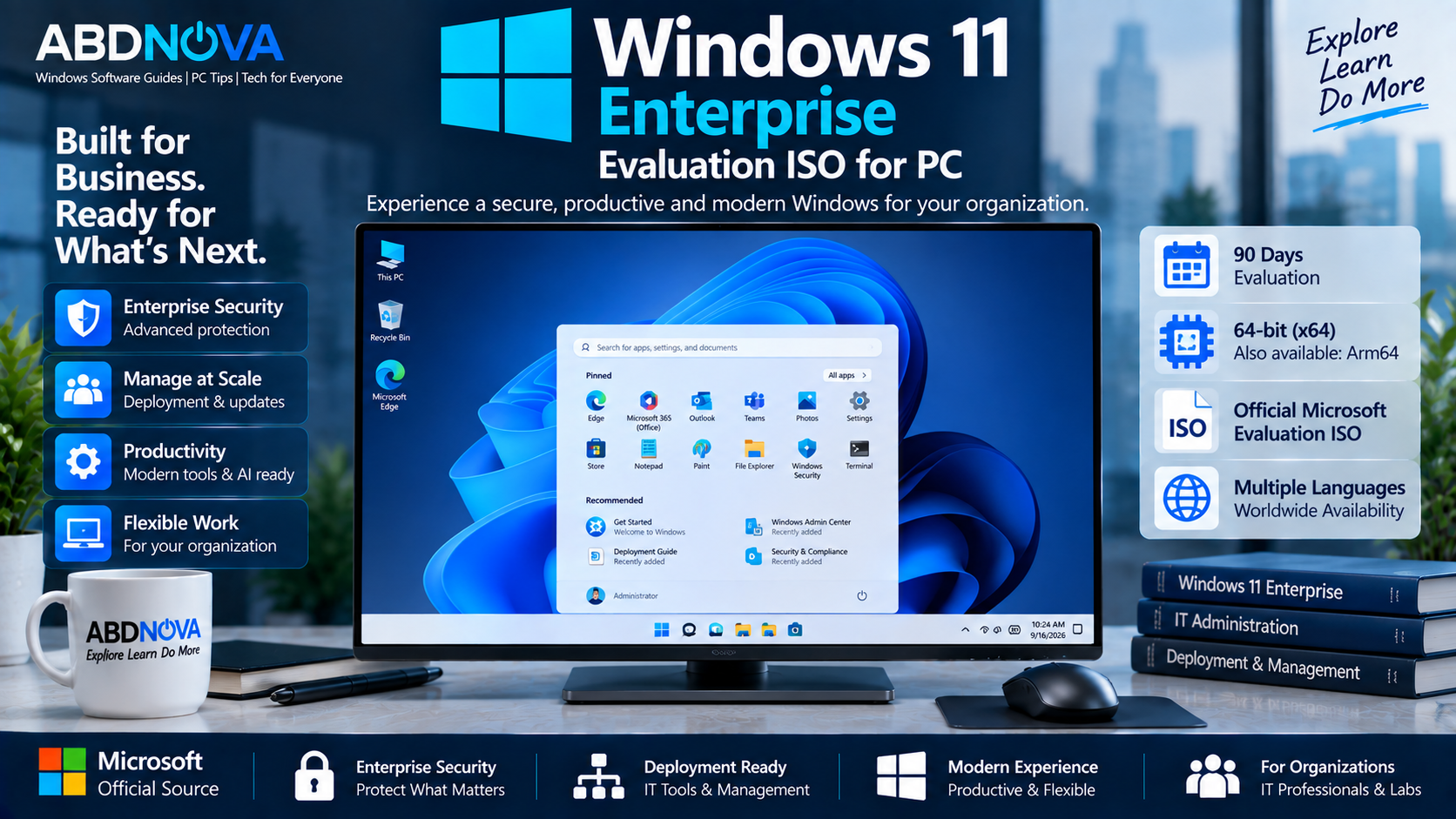
Windows 11 Enterprise Evaluation ISO for PC
Windows 11 Enterprise builds on Windows 11 with additional capabilities designed for organizations that centrally manage computers, users, applications, security policies, and deployment.
Microsoft describes Windows 11 Enterprise 25H2 as focusing on productivity, collaboration, security, and flexible work. It is particularly relevant where an IT team needs greater control over Windows deployment and management than a typical home installation requires.
Who Is Windows 11 Enterprise For?
Common Enterprise evaluation scenarios include:
- Enterprise desktops and laptops
- IT administration
- Corporate networks
- Application compatibility testing
- Windows deployment testing
- Virtual machines and test labs
- Security testing
- Device-management environments
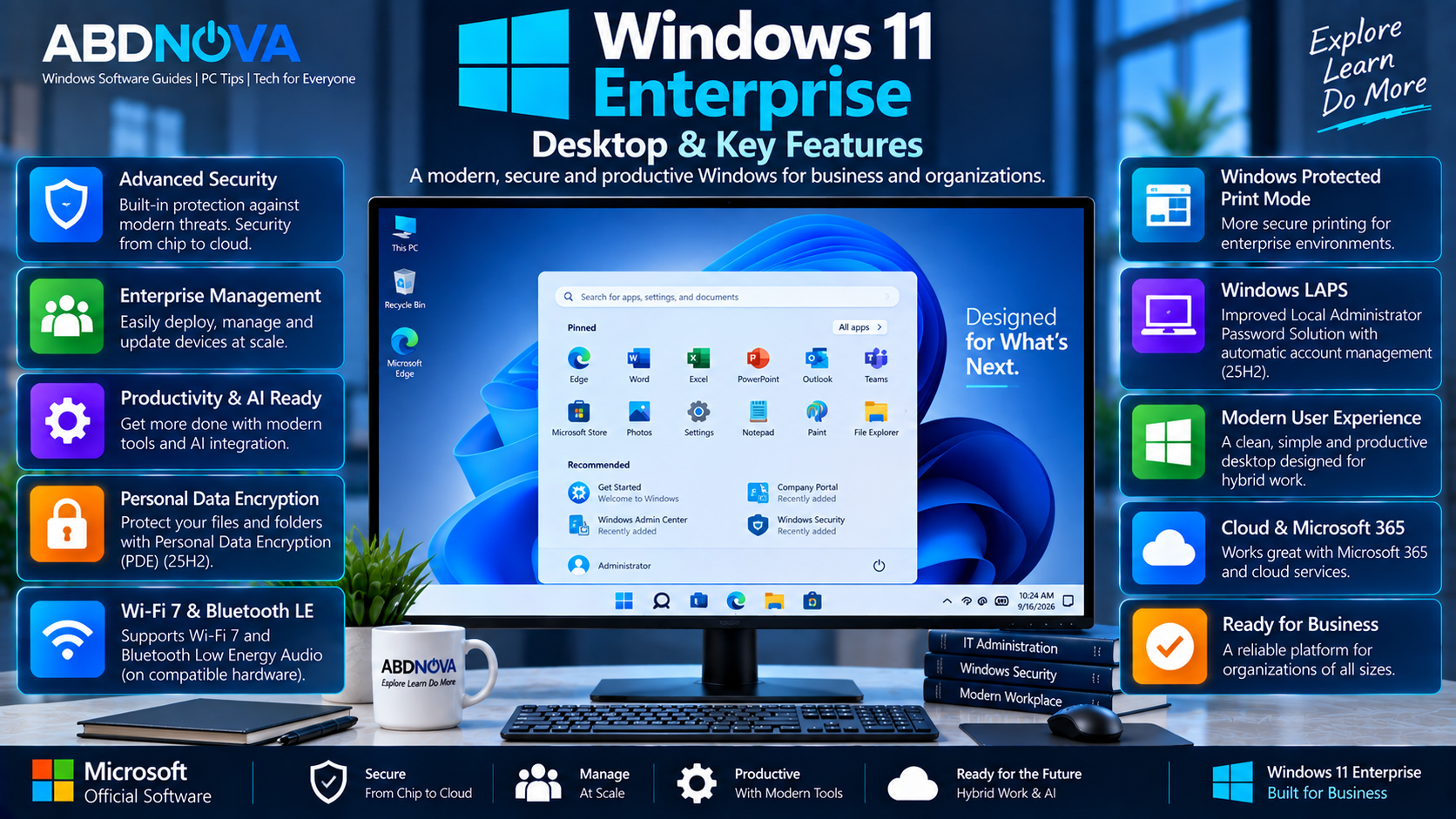
Windows 11 Enterprise Desktop & Key Features
Advanced Enterprise Security
Windows 11 Enterprise includes security capabilities designed to protect organizational devices, identities, applications, and business data.
Microsoft highlights hardware-based protection extending from the chip to the cloud as part of the current Enterprise security approach.
Personal Data Encryption
Windows 11 version 25H2 includes Personal Data Encryption (PDE) capabilities for folders as part of Microsoft’s current security improvements.
Windows Protected Print Mode
Windows protected print mode is another security-focused capability included in Microsoft’s current Windows 11 Enterprise feature set.
Wi-Fi 7 Support
Windows 11 Enterprise 25H2 supports Wi-Fi 7 on compatible computers and wireless hardware.
Bluetooth LE Audio
Windows 11 also supports Bluetooth Low Energy Audio on compatible hardware with appropriate drivers.
Windows LAPS Improvements
Windows 11 25H2 includes improvements to Windows Local Administrator Password Solution (LAPS), including automatic account management and image rollback detection.
Enterprise Device Management
Organizations can combine Windows 11 Enterprise with Microsoft’s management and deployment technologies to configure, secure, update, deploy, and manage business PCs.
Windows 11 Enterprise vs Windows 11 Pro
Windows 11 Pro is designed for professional users and businesses, while Windows 11 Enterprise is aimed more directly at centrally managed organizational environments.
| Area | Windows 11 Pro | Windows 11 Enterprise |
|---|---|---|
| Typical Use | Professionals and businesses | Managed organizations |
| Enterprise Management | Business capabilities | Broader enterprise management capabilities |
| Deployment Control | Business deployment | Designed for larger managed deployments |
| Evaluation ISO | Not the purpose of Enterprise Evaluation Center | 90-day Enterprise Evaluation available |
| Typical Licensing | Individual/business licensing | Organizational Enterprise licensing |
90-Day Windows 11 Enterprise Evaluation
Microsoft currently allows IT professionals to register and install the full-featured Windows 11 Enterprise software for a 90-day evaluation period.
The Evaluation ISO can be useful for testing:
- Hardware compatibility
- Business applications
- Enterprise security policies
- Deployment configurations
- Management tools
- Virtual machines
- Corporate software
- Windows administration
How to Download Windows 11 Enterprise Evaluation ISO
Use Microsoft’s official Windows 11 Enterprise Evaluation Center. Microsoft requires registration before downloading the evaluation software.
- Open the Microsoft Windows 11 Enterprise Evaluation Center.
- Select Download the ISO – Windows 11 Enterprise.
- Do not select Enterprise LTSC if you specifically want the standard Windows 11 Enterprise 25H2 evaluation.
- Complete Microsoft’s required registration information.
- Select the appropriate available language and download option.
- Save the ISO to a drive with sufficient free space.
Microsoft’s currently listed languages include English (US), English (UK), Chinese Simplified, Chinese Traditional, French, German, Italian, Japanese, Korean, Portuguese (Brazil), and Spanish.
Windows 11 Enterprise vs Enterprise LTSC
Standard Windows 11 Enterprise 25H2 and Windows 11 Enterprise LTSC 2024 should not be treated as the same product.
| Edition | Servicing Approach | Typical Purpose |
|---|---|---|
| Windows 11 Enterprise 25H2 | Normal Windows Enterprise servicing model | Current managed organizational environments |
| Windows 11 Enterprise LTSC 2024 | Long-Term Servicing Channel | Special-purpose devices and controlled environments |
This article covers the standard Windows 11 Enterprise 25H2 Evaluation ISO, not Windows 11 Enterprise LTSC 2024.
Windows 11 Enterprise System Requirements
Windows 11 Enterprise follows Microsoft’s standard Windows 11 hardware requirements.
Important requirements include:
- Compatible 64-bit processor
- At least 4 GB RAM
- At least 64 GB storage
- UEFI firmware
- Secure Boot capability
- TPM 2.0
- Compatible graphics hardware
- Compatible display
Some Windows 11 Enterprise features have additional hardware or organizational requirements.
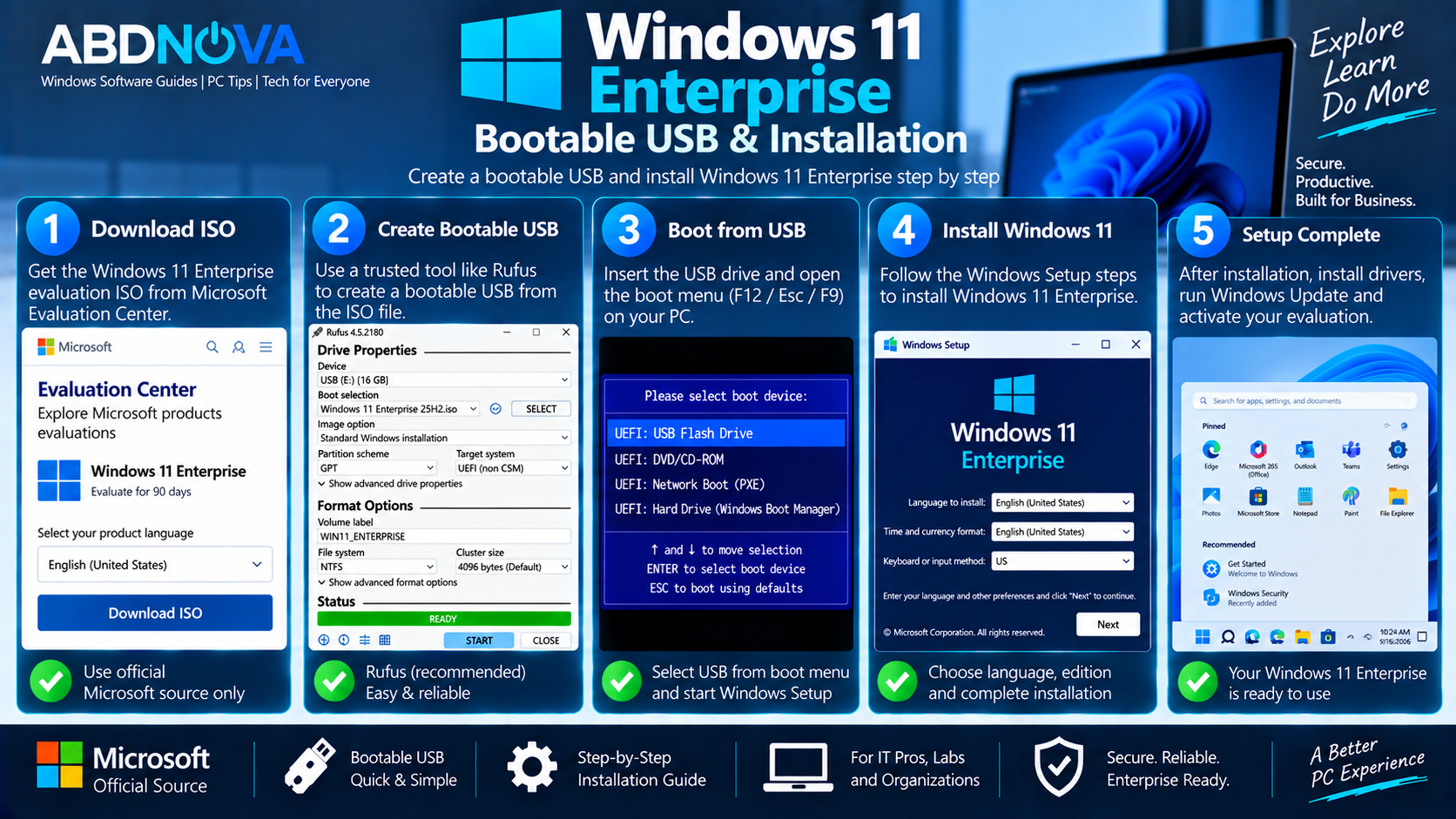
Windows 11 Enterprise Bootable USB & Installation
After downloading the official Enterprise ISO, you can use it to create bootable Windows installation media.
What You Need
- Official Windows 11 Enterprise Evaluation ISO
- Compatible PC
- Blank USB flash drive
- At least 8 GB USB capacity
- Trusted bootable USB utility
- Backup of important files
Create a Windows 11 Enterprise Bootable USB
- Download the official Windows 11 Enterprise ISO.
- Connect the USB flash drive.
- Open a trusted bootable USB utility.
- Select the Enterprise ISO.
- Select the correct USB drive.
- Configure the appropriate UEFI/GPT settings.
- Create the bootable USB.
- Restart the target computer.
- Open the system boot menu.
- Boot from the USB drive.
Install Windows 11 Enterprise
Before installing the evaluation, back up important files, settings, application data, and other information you may need.
Boot the PC from the prepared installation media and follow Windows Setup. Carefully select the appropriate disk and partition before beginning installation.
Windows 11 Enterprise Activation & Evaluation Expiration
A product key is not required to install the Windows 11 Enterprise Evaluation software. Windows will prompt for activation after installation.
Microsoft states that if the evaluation is not activated, or after the evaluation period expires, the desktop background turns black, a persistent notification appears, and the computer eventually shuts down every hour.
Windows 11 Enterprise in a Virtual Machine
A virtual machine can be a practical way to evaluate Windows 11 Enterprise without replacing the operating system on your primary computer.
Enterprise Evaluation can be useful in a VM for testing:
- Windows administration
- Business applications
- Security configurations
- Deployment scripts
- Enterprise policies
- Networking
- Device-management workflows
- Software compatibility
Microsoft also provides a Windows 11 and Microsoft 365 Deployment Lab Kit for enterprise deployment and management testing.
Verify the Windows 11 Enterprise ISO
Microsoft provides a method for checking the integrity and authenticity of downloaded Enterprise evaluation media.
Open PowerShell and calculate the ISO’s SHA-256 hash with:
Get-FileHash "C:\Path\To\Windows11Enterprise.iso"Compare the resulting SHA-256 value with Microsoft’s published hash information for the downloaded product. A matching hash helps confirm that the ISO was not corrupted or modified.
If you use PowerShell frequently for administration, see our Windows Terminal Download for Windows guide for a modern command-line environment.
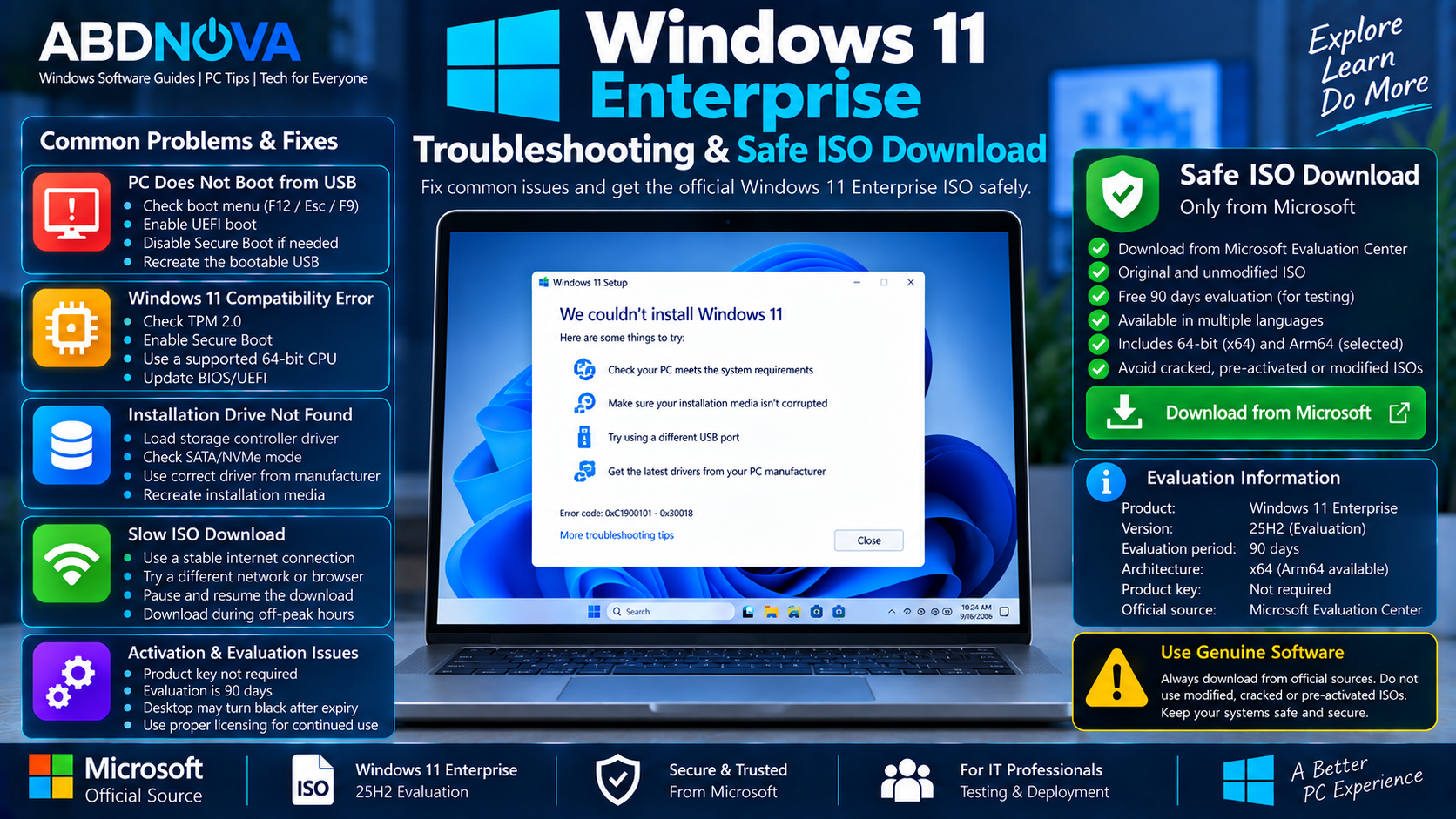
Windows 11 Enterprise Troubleshooting & Safe ISO Download
ISO Download Is Slow or Fails
Use a stable internet connection and retry the download. Large Windows ISO downloads can take significant time depending on bandwidth, internet provider, and network traffic.
PC Does Not Boot from USB
Open the computer’s UEFI/BIOS boot menu and manually select the USB device.
If the USB drive does not appear, recreate the installation media and verify the system’s boot configuration.
Windows 11 Compatibility Error
Check TPM 2.0, Secure Boot capability, processor compatibility, memory, storage, and Microsoft’s other Windows 11 requirements.
Do not use modified Windows images or unsupported bypass tools as a substitute for checking hardware compatibility.
Installation Drive Is Missing
Some systems require an appropriate storage-controller driver before Windows Setup can detect the installation drive.
Obtain the correct driver from the computer, motherboard, or storage-controller manufacturer’s official support site.
Business Application Does Not Work
Some devices or applications may require updates or reinstallation when moving to Windows 11. Test important line-of-business software before organization-wide deployment.
Safe Windows 11 Enterprise ISO Download
The safest Windows 11 Enterprise Download source is Microsoft’s Evaluation Center or an appropriate Microsoft licensing/subscription channel available to your organization.
- Cracked Windows 11 Enterprise downloads
- Pre-activated Enterprise ISOs
- Modified Windows images
- Activation bypass tools
- Custom Enterprise builds
- Unofficial Windows repacks
- Unknown third-party ISO mirrors
If you only need Microsoft’s standard Windows 11 release rather than Enterprise Evaluation, see our Windows 11 25H2 Download guide.
Frequently Asked Questions
Is Windows 11 Enterprise Evaluation free?
Microsoft provides Windows 11 Enterprise as a free 90-day evaluation for testing. It is not a permanently free Windows Enterprise license.
What version is the current Windows 11 Enterprise Evaluation?
Microsoft currently lists Windows 11 Enterprise version 25H2 through its Evaluation Center.
Does Windows 11 Enterprise Evaluation need a product key?
No. Microsoft states that a product key is not required for the Enterprise Evaluation software.
Can I install Windows 11 Enterprise in a virtual machine?
Yes. A compatible virtual machine is useful for IT testing, training, application compatibility, Windows administration, and deployment labs.
Is Windows 11 Enterprise the same as Enterprise LTSC?
No. Standard Windows 11 Enterprise and Windows 11 Enterprise LTSC use different servicing approaches. Microsoft lists Windows 11 Enterprise 25H2 and Windows 11 Enterprise LTSC 2024 separately.
Can I use the Enterprise Evaluation ISO permanently?
No. Microsoft’s Evaluation Center version is intended for a 90-day evaluation. Continued organizational use requires appropriate Windows Enterprise licensing.
Where should I download Windows 11 Enterprise?
Use Microsoft’s official Evaluation Center or an appropriate Microsoft licensing or subscription channel available to your organization.
Final Thoughts
Windows 11 Enterprise Download is currently available from Microsoft as a 90-day Windows 11 Enterprise 25H2 Evaluation ISO. It gives IT professionals and organizations a practical way to evaluate enterprise security, deployment, management, productivity, and application compatibility.
The ISO can be used on compatible physical PCs and virtual machines, and it can also be turned into bootable installation media. A product key is not required for the evaluation, but the evaluation period should not be confused with permanent Windows Enterprise licensing.
Download Enterprise media directly from Microsoft, verify the ISO when appropriate, back up important data before installation, and avoid cracked, modified, pre-activated, or unofficial Windows images.
Download Windows 11 Enterprise Evaluation
Get the official 90-day Windows 11 Enterprise 25H2 Evaluation ISO from Microsoft.