
Movavi Video Suite 2026 – Overview & Key Features
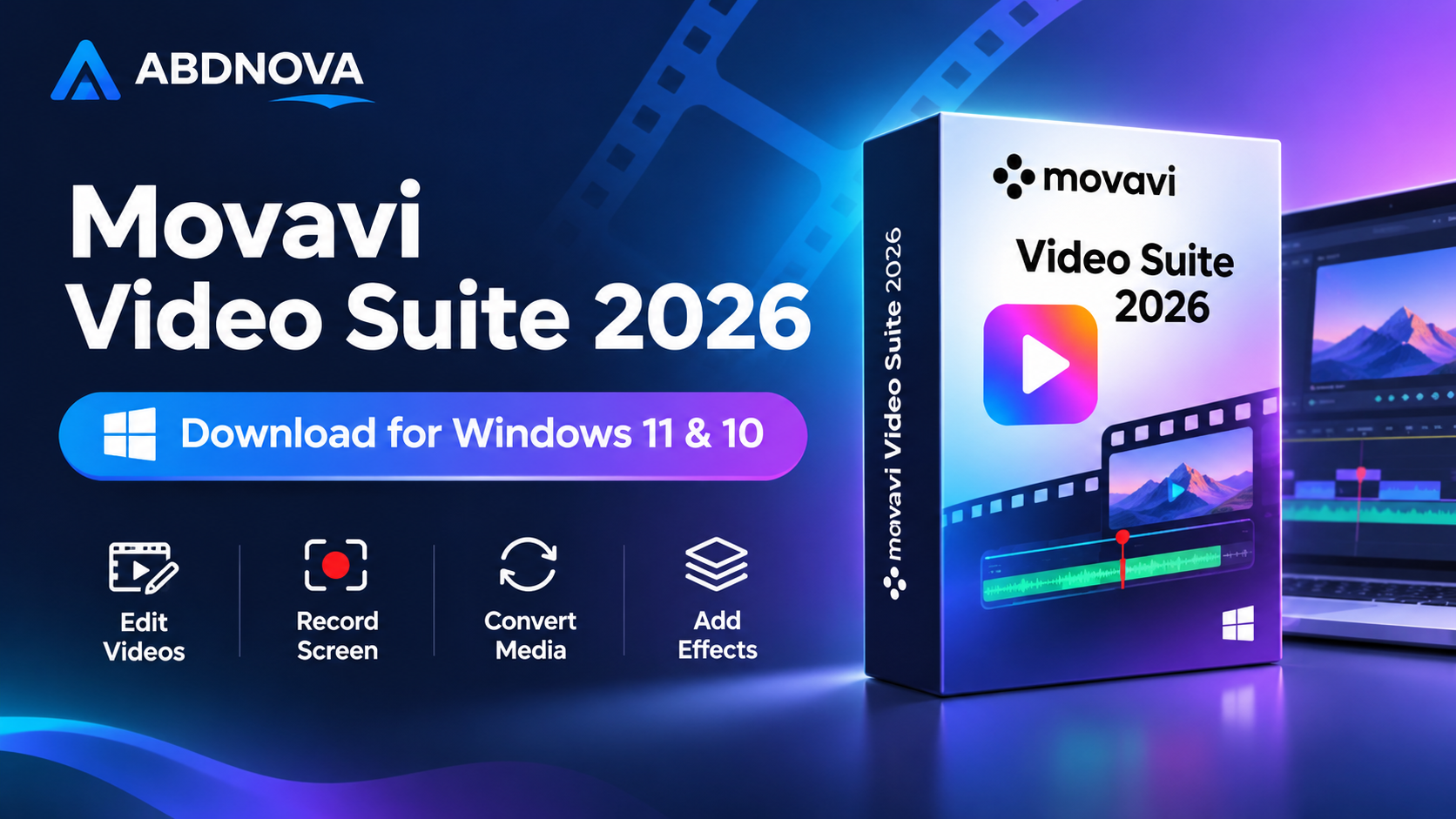
Movavi Video Suite 2026 Download for Windows 11 and Windows 10 gives users a collection of tools for editing videos, recording screens, converting media files, and improving audio.
Movavi Video Suite 2026 is a multimedia software package developed by Movavi. It combines several useful video tools in one application. You can cut videos, add music, create titles, record your computer screen, and prepare videos for sharing.
The software is designed for beginners and everyday users who want to create videos without learning complicated editing programs. It can be useful for YouTube videos, school projects, business presentations, tutorials, and family recordings.
Movavi also includes AI-assisted features for selected editing tasks, such as creating subtitles, reducing background noise, and working with video backgrounds.
This guide explains the main features, system requirements, installation steps, and common problems you may face when using Movavi Video Suite 2026.
Movavi Video Suite 2026 Download – Overview
| Software Name | Movavi Video Suite 2026 |
| Developer | Movavi |
| Category | Video Editing & Multimedia |
| Operating System | Windows 11 & Windows 10 (64-bit) |
| Release Family | 2026 |
| Software Version | 26.x series; check the official page for the available build |
| License | Commercial software with a limited evaluation download |
| Video Editing | Supported |
| Screen Recording | Supported |
| Media Conversion | Supported |
| AI-Assisted Tools | Available for supported features |
| Official Website | movavi.com |
Movavi Video Suite brings several multimedia tools together, making it convenient for users who regularly edit, record, or convert videos.
Movavi Video Suite 2026 Main Features
1. Video Editing
Movavi allows you to edit video clips using a timeline. You can trim unwanted parts, arrange clips, add music, and combine several recordings into one project.
This is useful when preparing YouTube videos, short social media clips, school assignments, or personal recordings.
2. Screen Recording
The screen recording tool helps you capture activities on your Windows computer.
You can use it to prepare software tutorials, online lessons, product demonstrations, and instructional videos.
Supported recording options may include microphone audio, screen areas, and visual effects that make cursor activity easier to follow.
3. Media File Conversion
Movavi Video Suite includes tools for converting supported video and audio files into other formats.
This can help when a video does not play on your phone, television, or another device.
Common media formats include MP4, AVI, MOV, MP3, and other supported file types.
4. Automatic Subtitles
Movavi provides AI-assisted subtitle generation for supported audio and video content.
The software can analyse speech and create captions that you can review and edit.
Users can adjust subtitle appearance, including text style, colour, size, and position where supported.
Automatic subtitles should be checked before exporting because names, accents, and unclear speech may produce mistakes.
5. Background Noise Removal
Background noise can make a recording difficult to understand.
Movavi includes AI-assisted noise reduction features that can help reduce unwanted sounds in supported recordings.
This is useful for voiceovers, presentations, interviews, and home recordings.
6. Background and Object Editing
Movavi offers tools for working with video backgrounds and removing selected unwanted elements in supported situations.
These features can help improve a scene without manually editing every frame.
The final result depends on the video quality, movement, lighting, and the editing feature used.
7. Video Effects and Transitions
You can improve your videos with visual effects, transitions, titles, stickers, and overlays.
For example, you can add a title at the beginning of a tutorial or use a transition between two scenes.
8. Audio Editing
Movavi provides audio tools for working with music, voice recordings, and video soundtracks.
You can adjust audio levels, add background music, and improve sound quality using available editing options.
9. Slideshow Creation
Users can combine photographs, video clips, music, and titles to create slideshows.
This can be useful for family events, school presentations, and business projects.
10. Easy-to-Use Timeline
The editing timeline helps users arrange video clips, audio, titles, and effects.
It is designed to make common editing tasks easier to understand, even for people who are new to video editing.
Movavi Video Suite 2026 System Requirements
Before installing Movavi Video Suite 2026, check that your computer meets the requirements for the Windows version.
| Component | Requirement |
|---|---|
| Operating System | Windows 11 or Windows 10, 64-bit |
| Processor | Intel, AMD, or compatible dual-core processor, 1.5 GHz |
| RAM | 4 GB or more recommended for practical use |
| Graphics | Compatible graphics adapter with updated drivers |
| Display | 1280 × 768 resolution or higher |
| Storage | Allow at least 1.35 GB for operation, plus space for installation and projects |
| Internet | Needed for downloading, activation, and some online features |
| Permissions | Administrator permission may be required during installation |
For smoother video editing, especially with large or high-resolution files, a modern processor, additional RAM, and an SSD are helpful.
Note: Requirements can vary between Movavi releases. Check the official technical specifications before installation.
How to Download and Install Movavi Video Suite 2026
You can download Movavi Video Suite from the official Movavi website.
Installation Steps
- Visit the official Movavi Video Suite website.
- Find the available download for Windows.
- Download the installation file to your computer.
- Open the downloaded installer.
- Allow the Windows permission request if it appears.
- Read and accept the applicable licence terms.
- Follow the installation instructions.
- Wait until the installation is complete.
- Launch Movavi Video Suite.
- Choose the available evaluation option or activate the software with a valid licence.
After installation, you can explore the video editor, screen recorder, and media conversion tools.
Download availability and activation options may change depending on the product release.
How to Edit Videos Using Movavi Video Suite 2026
Movavi Video Suite can help you turn raw video clips into a finished project.
Basic Video Editing Steps
- Open Movavi Video Suite.
- Launch the video editing tool.
- Create a new project.
- Import your video clips and audio files.
- Drag the clips onto the timeline.
- Trim unwanted sections.
- Arrange the clips in the correct order.
- Add transitions, titles, or effects if needed.
- Adjust the audio and review the video.
- Choose the available export settings and save the finished video.
For better results, use the same video resolution throughout your project when possible.
Save your editing project regularly so that you can return to it later.
How to Record Your Screen with Movavi
Screen recording is useful when you want to demonstrate a computer task or explain how software works.
Screen Recording Steps
- Open Movavi Video Suite.
- Launch the screen recording tool.
- Select the area you want to record.
- Choose your microphone and system audio settings.
- Configure any available cursor or keyboard display options.
- Start recording.
- Perform the activity you want to capture.
- Stop recording when finished.
- Review the recorded video.
- Save the recording or open it in the editor.
Before recording a tutorial, close private documents and disable unnecessary notifications.
How to Convert Video Files Using Movavi
The media conversion tools can help you change supported video files into formats suitable for other devices.
Video Conversion Steps
- Open Movavi Video Suite.
- Launch the available media conversion tool.
- Add the video file you want to convert.
- Choose an output format.
- Select the desired quality and resolution.
- Choose an output folder.
- Start the conversion.
- Wait until the process finishes.
- Open the converted file and check the result.
Converting a video to a smaller file size may reduce picture quality. Choose settings based on how you plan to use the finished file.
Movavi Video Suite 2026 vs Separate Video Tools
Movavi Video Suite is designed for users who prefer several multimedia tools in one package.
| Task | Movavi Video Suite | Alternative |
|---|---|---|
| Video Editing | Integrated video editor | Separate video editing software |
| Screen Recording | Built-in recording tools | OBS Studio |
| Media Conversion | Integrated conversion tools | HandBrake |
| Audio Editing | Basic audio enhancement and editing | Audacity |
| Visual Effects | Built-in effects and transitions | Dedicated creative software |
| Learning Curve | Designed for common tasks | Depends on the application |
If you mainly need video conversion, you may prefer a dedicated tool. For more information, see our FFmpeg Download for Windows guide. FFmpeg is a command-line multimedia tool that can convert and process supported audio and video files.
For checking detailed information about video and audio files, read our MediaInfo Download for Windows guide.
Movavi Video Suite 2026 Troubleshooting
Movavi Video Suite Not Opening
If the software does not start, try the following steps:
- Restart your computer.
- Check whether your Windows version is supported.
- Install available Windows updates.
- Update your graphics drivers from the manufacturer.
- Close conflicting applications.
- Repair or reinstall Movavi using the official installer.
Video Export Is Slow
Video export time depends on the project length, resolution, effects, and computer hardware.
To improve performance:
- Close unnecessary background applications.
- Make sure the destination drive has enough free space.
- Use a suitable output resolution.
- Keep graphics drivers updated.
- Reduce demanding effects if necessary.
- Use an SSD when possible.
Screen Recorder Has No Audio
If your screen recording has no sound:
- Check the selected microphone.
- Confirm that system audio recording is enabled when needed.
- Review Windows microphone permissions.
- Check the audio volume.
- Restart the recording tool.
- Make a short test recording.
Movavi Video Suite Crashes During Editing
Crashes may occur because of outdated drivers, damaged media files, insufficient memory, or application conflicts.
Try updating the software, reducing the project complexity, and checking whether a particular video file causes the problem.
Save your project frequently and keep a backup of important source files.
Movavi Cannot Import a Video File
Not every video codec or file variation is supported.
If a file cannot be imported:
- Check whether the file opens in another media player.
- Confirm that the file is not damaged.
- Check the video format and codec.
- Try converting the file to a supported format.
- Update Movavi to a compatible version.
For general video playback and checking media files, see our VLC Media Player Download guide.
Is Movavi Video Suite 2026 Safe to Download?
Movavi Video Suite is legitimate commercial multimedia software developed by Movavi.
For a safer installation:
- Download the installer from the official Movavi website.
- Avoid cracked, modified, or unofficial software packages.
- Keep Windows security protection enabled.
- Review the licence terms before activation.
- Install updates from trusted sources.
- Keep backups of important video projects.
- Check the official website for current download and compatibility details.
Important: Movavi Video Suite is paid software. The official evaluation download may include time limits, export restrictions, watermarks, or unavailable features until a licence is activated.
Who Should Use Movavi Video Suite 2026?
Movavi Video Suite can be useful for different types of Windows users.
- Content Creators: Edit YouTube videos and social media clips.
- Students: Prepare presentations, tutorials, and school projects.
- Teachers: Record lessons and create educational videos.
- Office Users: Prepare product demonstrations and training videos.
- Home Users: Edit family recordings and create photo slideshows.
- Beginners: Learn common video editing tasks through a simpler interface.
Users who require advanced professional workflows should compare Movavi’s features with specialist editing software before purchasing.
Movavi Video Suite 2026 FAQ
What is Movavi Video Suite 2026?
Movavi Video Suite 2026 is a multimedia application for editing videos, recording screens, converting media files, and working with audio and visual effects.
Does Movavi Video Suite 2026 work on Windows 11?
Yes. Movavi Video Suite 2026 supports compatible 64-bit Windows 11 computers.
Can I install Movavi Video Suite 2026 on Windows 10?
Yes. It supports compatible 64-bit Windows 10 systems. Check the official requirements for the exact release.
Can Movavi Video Suite edit MP4 videos?
Yes. Movavi supports MP4 and several other common media formats, subject to the codec used.
Does Movavi Video Suite include screen recording?
Yes. The suite includes tools for recording supported screen activity.
Can Movavi Video Suite convert video files?
Yes. It provides media conversion tools for supported video and audio formats.
Does Movavi Video Suite support automatic subtitles?
Yes. Supported versions include AI-assisted subtitle features. Results should be reviewed for accuracy.
Can Movavi remove background noise?
Movavi includes audio enhancement and AI-assisted noise reduction features for supported content.
Is Movavi Video Suite suitable for beginners?
Yes. It is designed to make common multimedia tasks easier for people who are new to video editing.
Is Movavi Video Suite 2026 completely free?
No. Movavi Video Suite is commercial software. The official download provides limited evaluation access, and a valid licence is required for unrestricted paid features.
Can I use Movavi Video Suite for YouTube videos?
Yes. You can use it to edit videos, add titles and music, prepare subtitles, and export supported video formats for online publishing.
Where should I download Movavi Video Suite 2026?
Use the official Movavi website to obtain the available installer and review the current licence conditions.
Final Thoughts
Movavi Video Suite 2026 is a practical multimedia package for Windows users who want to edit videos, record their screens, convert media files, and improve audio in one place.
Its editing timeline, visual effects, screen recording tools, and AI-assisted features can help beginners and everyday content creators complete common video projects.
If you need several multimedia tools and prefer one application, Movavi Video Suite is worth considering. Before installing, check the current system requirements and licence conditions on the official website.
Always use the official download source and keep a backup of your original media files.
Ready to download Movavi Video Suite 2026?
Windows 11 & 10 • Video Editing • Screen Recording • Media Conversion
ABDNOVA does not host the installer. This button opens the official Movavi website. The available download may be a newer release or a limited evaluation version.