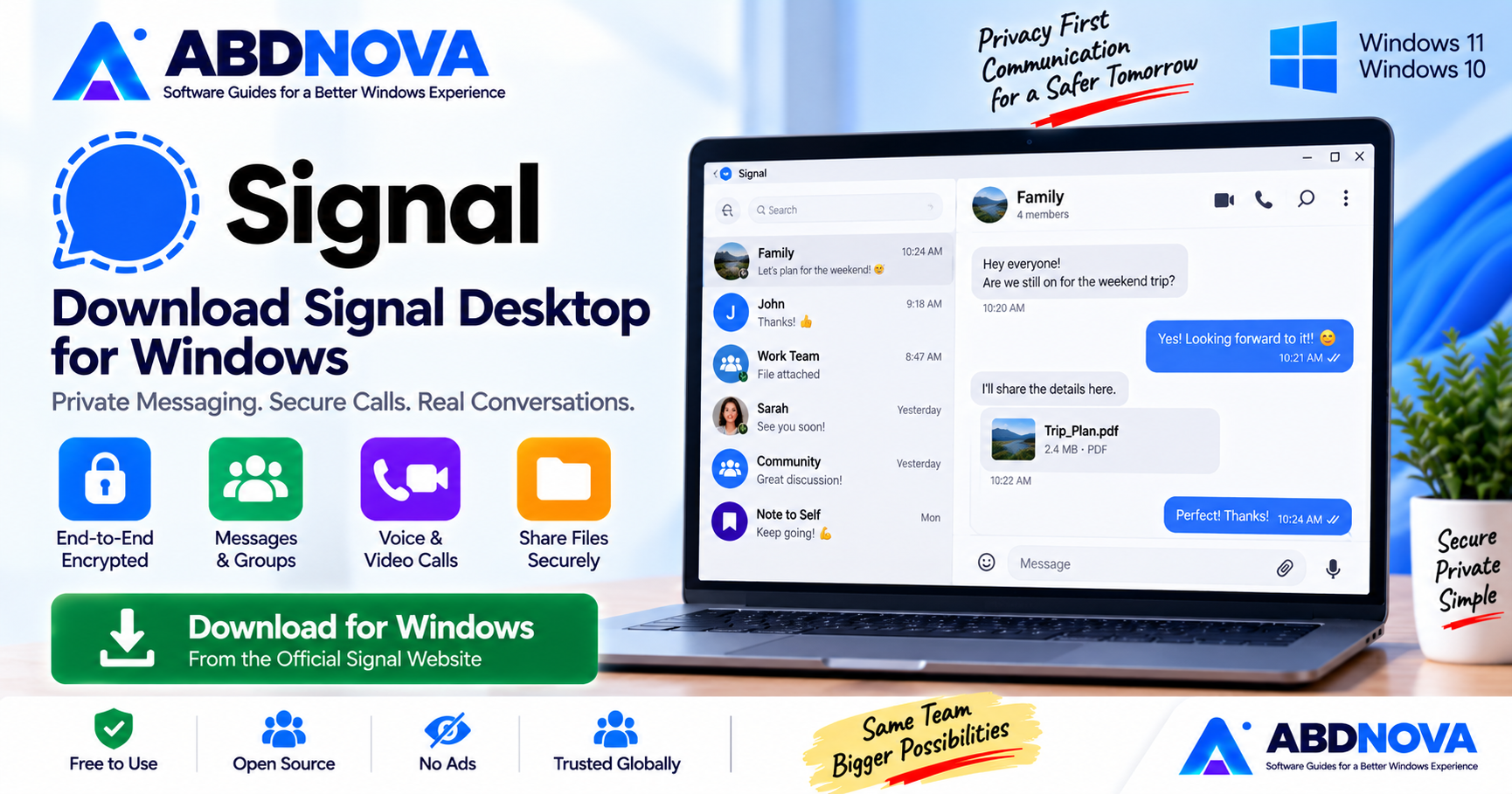

Signal Desktop Download for Windows 11 & 10
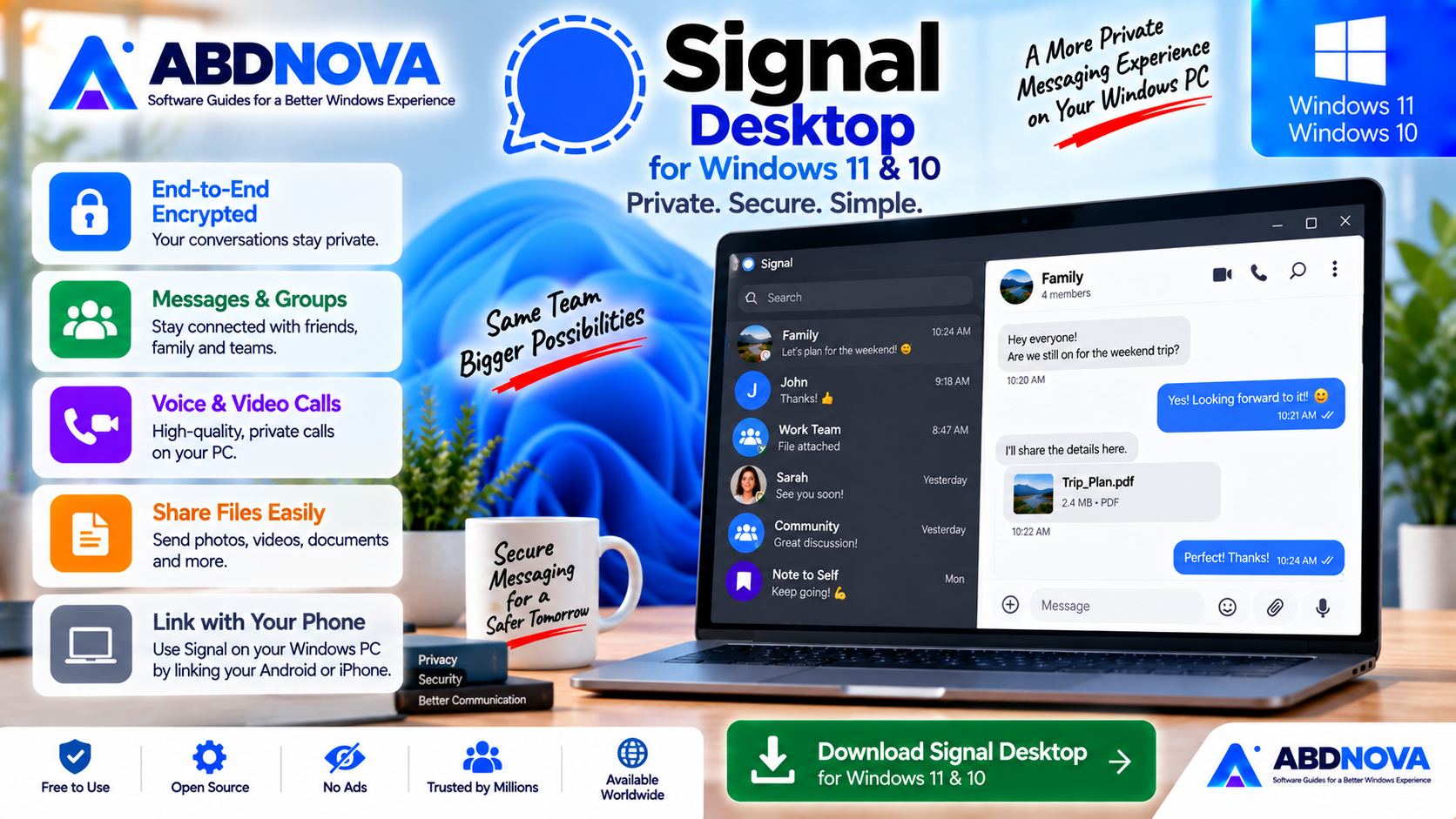
Download Signal Desktop for Windows 11 and 10 to continue private conversations, share files, make voice and video calls, join group chats and use screen sharing from your PC.
Signal Desktop Download for Windows gives existing Signal users a private desktop messaging and calling application for Windows.
After linking Signal Desktop with Signal on your Android phone or iPhone, you can send messages, share photos and files, make private voice and video calls, participate in group conversations and use Signal’s calling tools from a larger screen.
Signal is built around end-to-end encrypted communication and officially supports modern Windows 10 and Windows 11 systems.
Signal Desktop at a Glance
| Information | Details |
|---|---|
| Software | Signal Desktop |
| Developer | Signal Messenger |
| Category | Private Messaging & Calling |
| Platform | Windows |
| Windows Support | Windows 10 & Windows 11 |
| Architecture | 64-bit |
| License | Free |
| Phone Required | Yes, for initial linking |
| Independent Desktop Registration | No |
| Encryption | End-to-end encrypted |
| Private Messages | Yes |
| Group Chats | Yes |
| Voice Calls | Yes |
| Video Calls | Yes |
| Call Links | Yes |
| Screen Sharing | Yes |
| Microsoft Store | Available |
| Official Source | Signal.org |
Download Signal Desktop for Windows
For the safest installation, download Signal Desktop directly from Signal.
The official Windows download page currently provides both a direct Windows download and a Microsoft Store option. :contentReference[oaicite:3]{index=3}
- Signal cracks.
- Modified Signal installers.
- Unofficial portable repacks.
- Activators or keygens.
- Bundled third-party installers.
Signal Desktop for Windows 11 & 10
Signal’s current support documentation lists:
- Windows 10 — Supported.
- Windows 11 — Supported.
- Architecture — 64-bit Windows.
This makes Signal Desktop suitable for most modern Windows PCs. Signal’s installation and troubleshooting documentation both list Windows 10 and Windows 11 as supported desktop platforms. :contentReference[oaicite:4]{index=4}
Important: Signal Desktop Requires Your Phone First
Unlike some messaging apps, you cannot install Signal Desktop and create an entirely new Signal account from your PC.
Signal Desktop must first be linked with Signal already installed and working on an Android phone or iPhone.
Once linked, the Windows application can be used for messages, group chats, file sharing, voice calls, video calls and other supported desktop features.
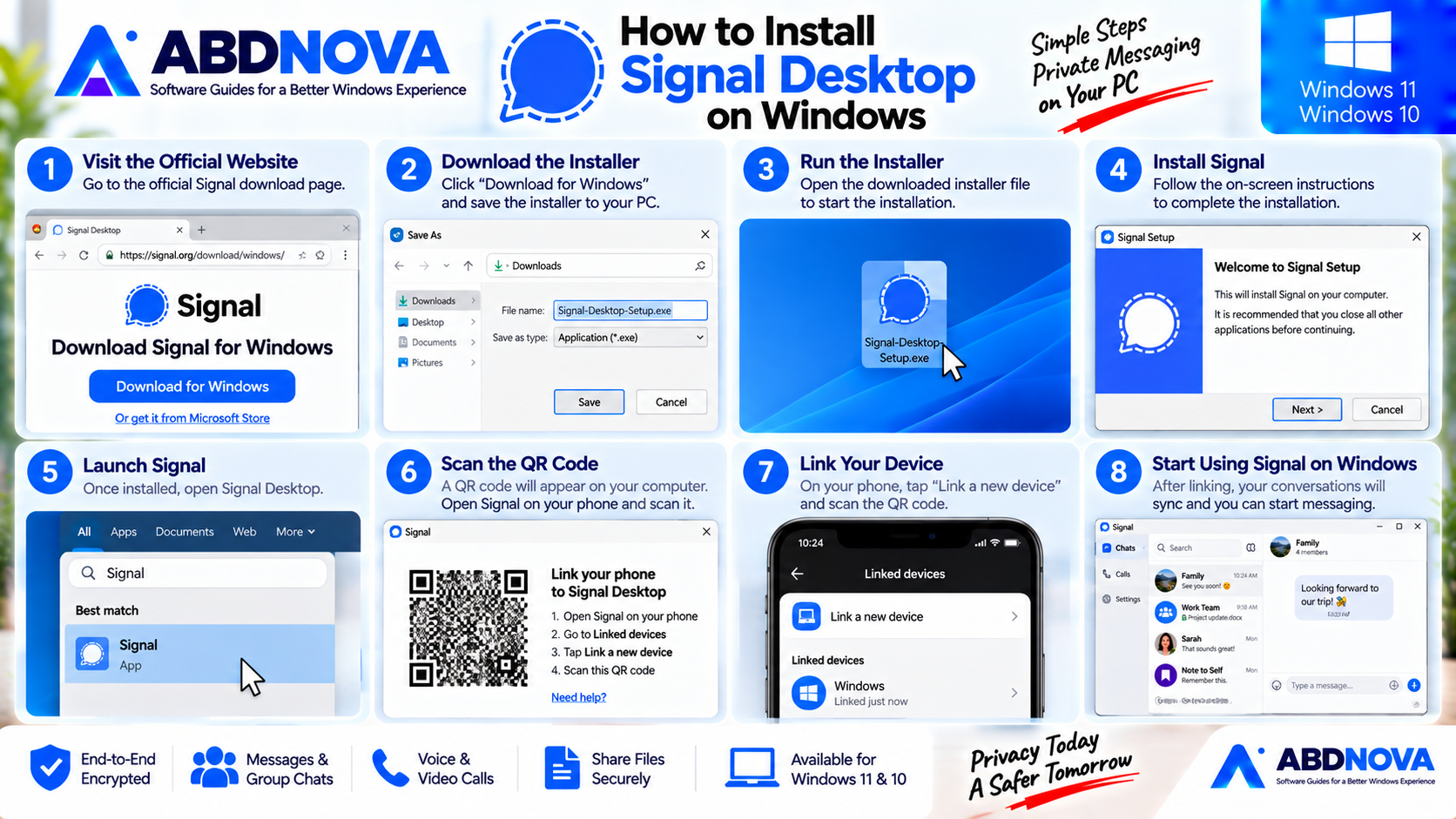
How to Install Signal Desktop on Windows
- Visit Signal’s official Windows download page.
- Click Download for Windows.
- Save the installer to your PC.
- Open the downloaded installer.
- Wait for Signal Desktop to install.
- Launch Signal Desktop.
- A QR code will appear on the computer.
- Open Signal on your Android phone or iPhone.
- Open the Linked devices section.
- Scan the QR code shown on the Windows PC.
- Follow the remaining prompts.
After linking is complete, Signal Desktop becomes available for messaging and calling.
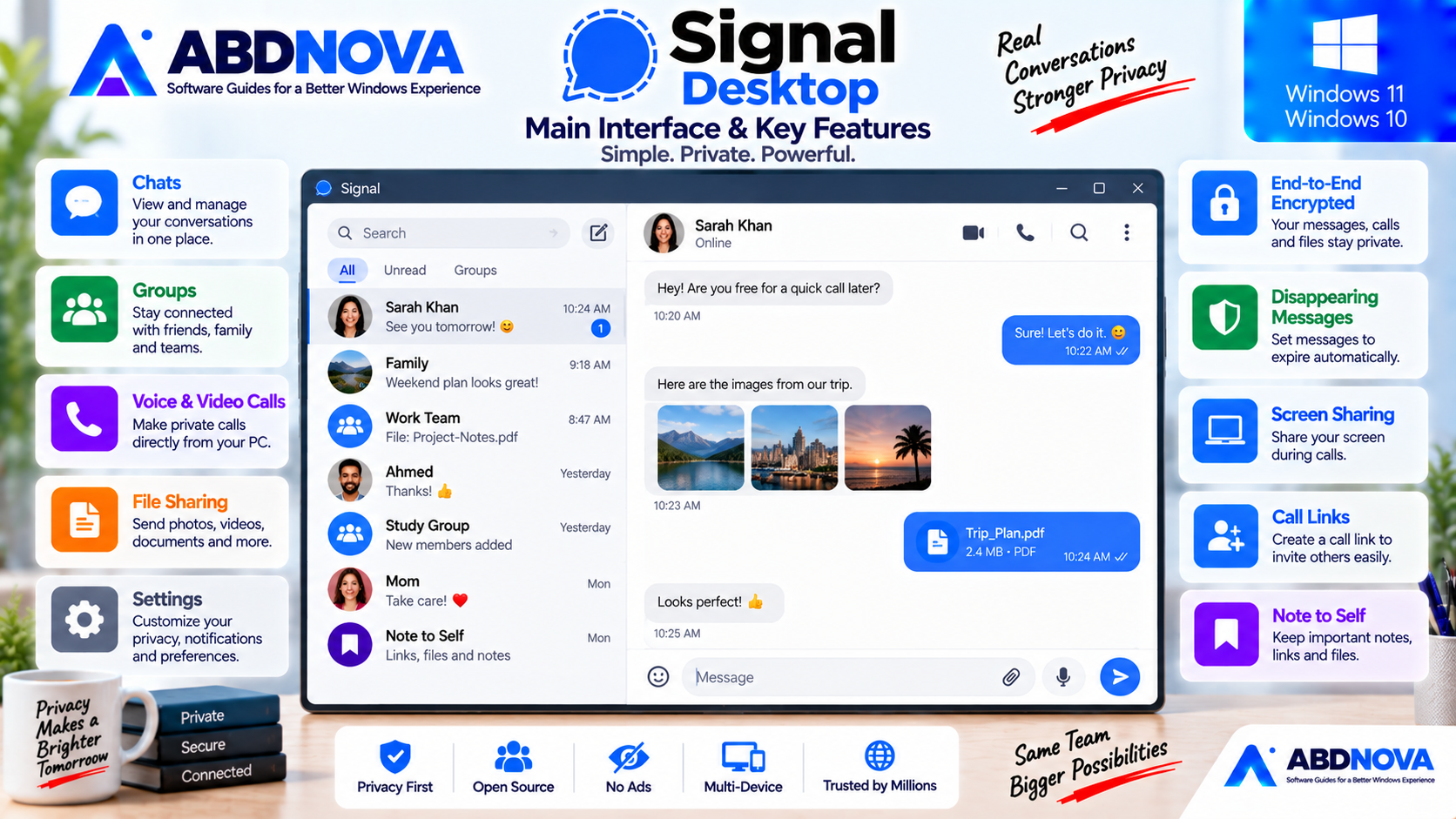
Signal Desktop Main Interface & Key Features
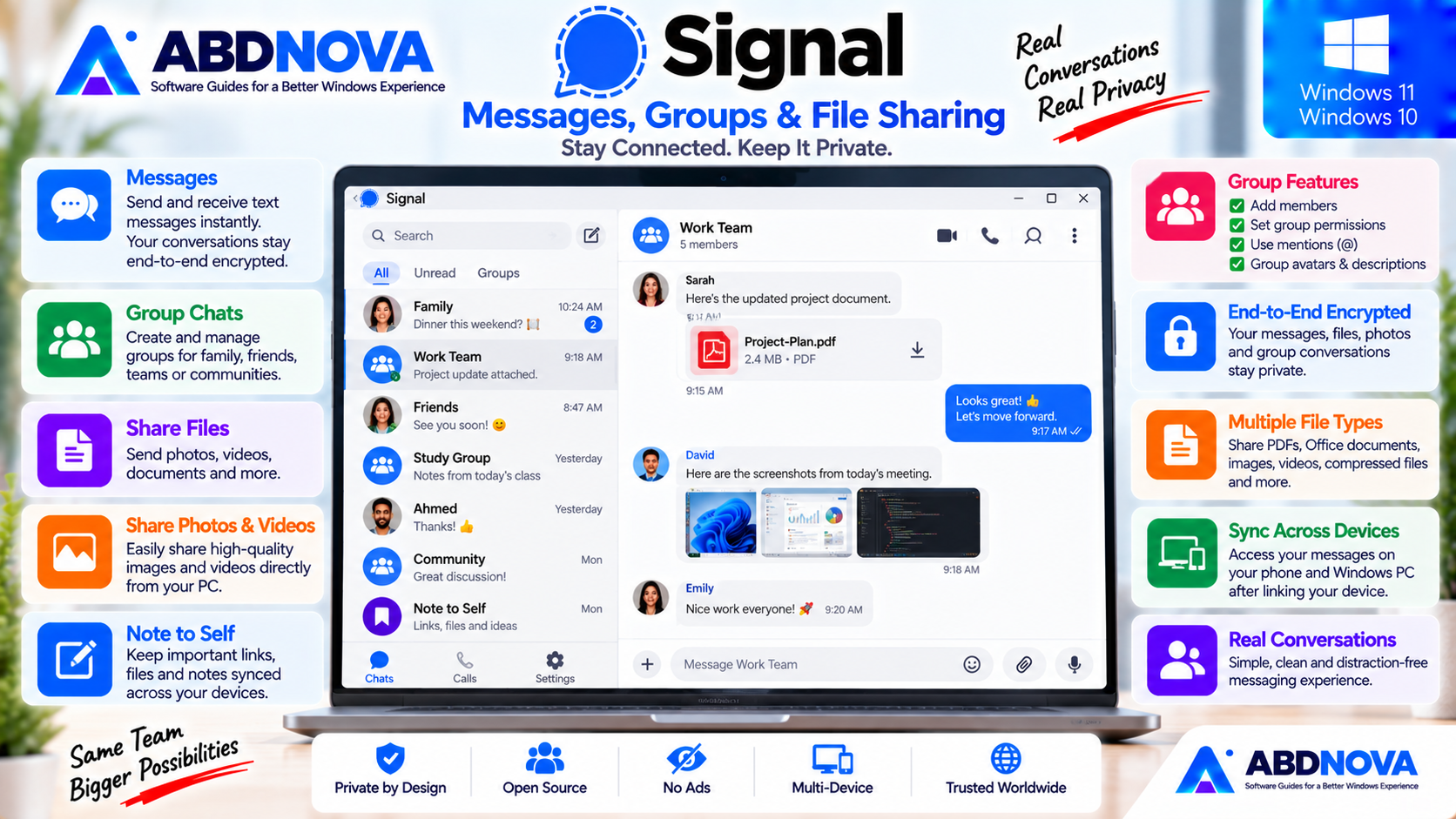
Signal Desktop uses a simple interface designed to keep conversations easy to access.
Your conversations appear on the left side while the selected chat opens in the larger message area.
Common functions include:
- Private conversations.
- Group chats.
- Voice calls.
- Video calls.
- Shared media.
- Call history.
- Linked-device features.
- Privacy settings.
The relatively uncluttered interface should feel familiar to users who already use Signal on their phone.
Private Messages
Private messaging is the core of Signal.
You can continue conversations from your phone on your Windows PC and use a physical keyboard for longer messages.
Signal-to-Signal communication is end-to-end encrypted. :contentReference[oaicite:5]{index=5}
Signal Messages, Groups & File Sharing
Group Chats
Signal supports private group conversations for families, friends, teams and communities.
Its group system can include:
- Group administrators.
- Granular permissions.
- @mentions.
- Group avatars.
- Group descriptions.
- Private group membership information.
Signal emphasizes privacy around group information as well as ordinary messages.
File, Photo & Media Sharing
Using Signal Desktop makes sharing files stored on your computer more convenient.
You can send:
- Photos.
- Videos.
- Documents.
- Other supported attachments.
This avoids the need to transfer every file to your phone before sending it through Signal.
Linked Devices & Message History
Signal has improved its linked-device experience so a newly linked Desktop or iPad can receive message history during the linking process instead of always starting with an empty conversation history.
The transfer process is designed to remain end-to-end encrypted.
Signal Calls, Screen Sharing & Privacy
Voice & Video Calls
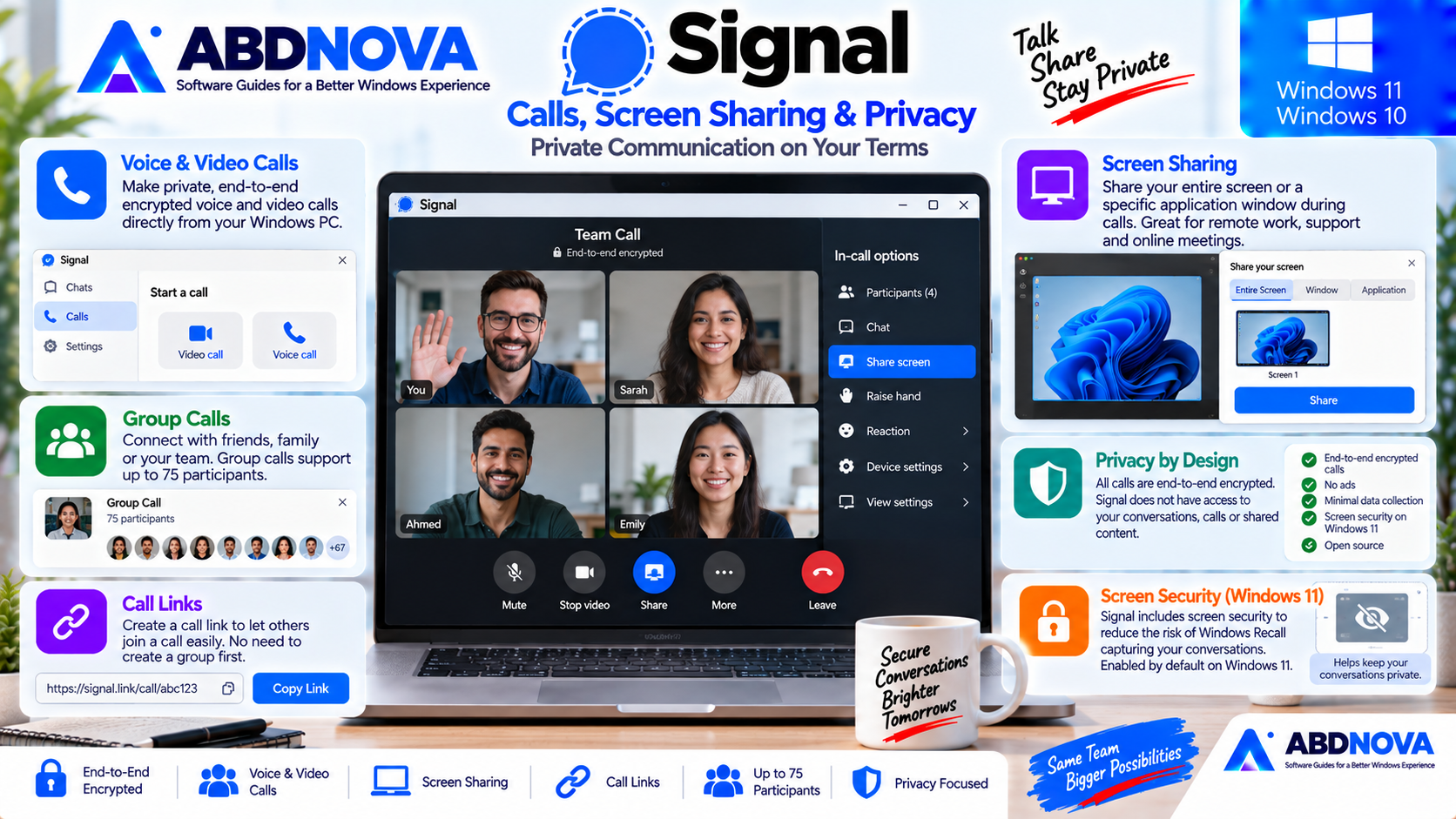
Signal Desktop supports private voice and video calls directly from your computer.
A Windows PC can be particularly convenient for longer calls because you can use:
- A larger display.
- Dedicated webcam.
- Headset.
- External microphone.
- Desktop speakers.
Group Calls & Call Links
Signal’s calling tools also include group calls and reusable Call Links.
Call Links let other Signal users join a call without requiring you to create a separate group chat first.
Current calling features can also include:
- Raise hand.
- Emoji reactions.
- Call history.
- Participant views.
- Microphone controls.
- Camera controls.
Screen Sharing
Signal Desktop supports screen sharing during calls.
You can share:
- Your entire screen.
- A specific application window.
If another participant is already presenting, you must wait until they stop before sharing your own screen.
Windows 11 Screen Security
Signal Desktop includes a Windows 11 privacy feature called Screen security.
The feature was introduced to reduce the risk of Microsoft Recall capturing Signal conversations. On Windows 11, Screen security is enabled by default.
When active, Signal attempts to prevent its desktop content from appearing in screenshots or Recall captures.
Signal vs WhatsApp vs Telegram
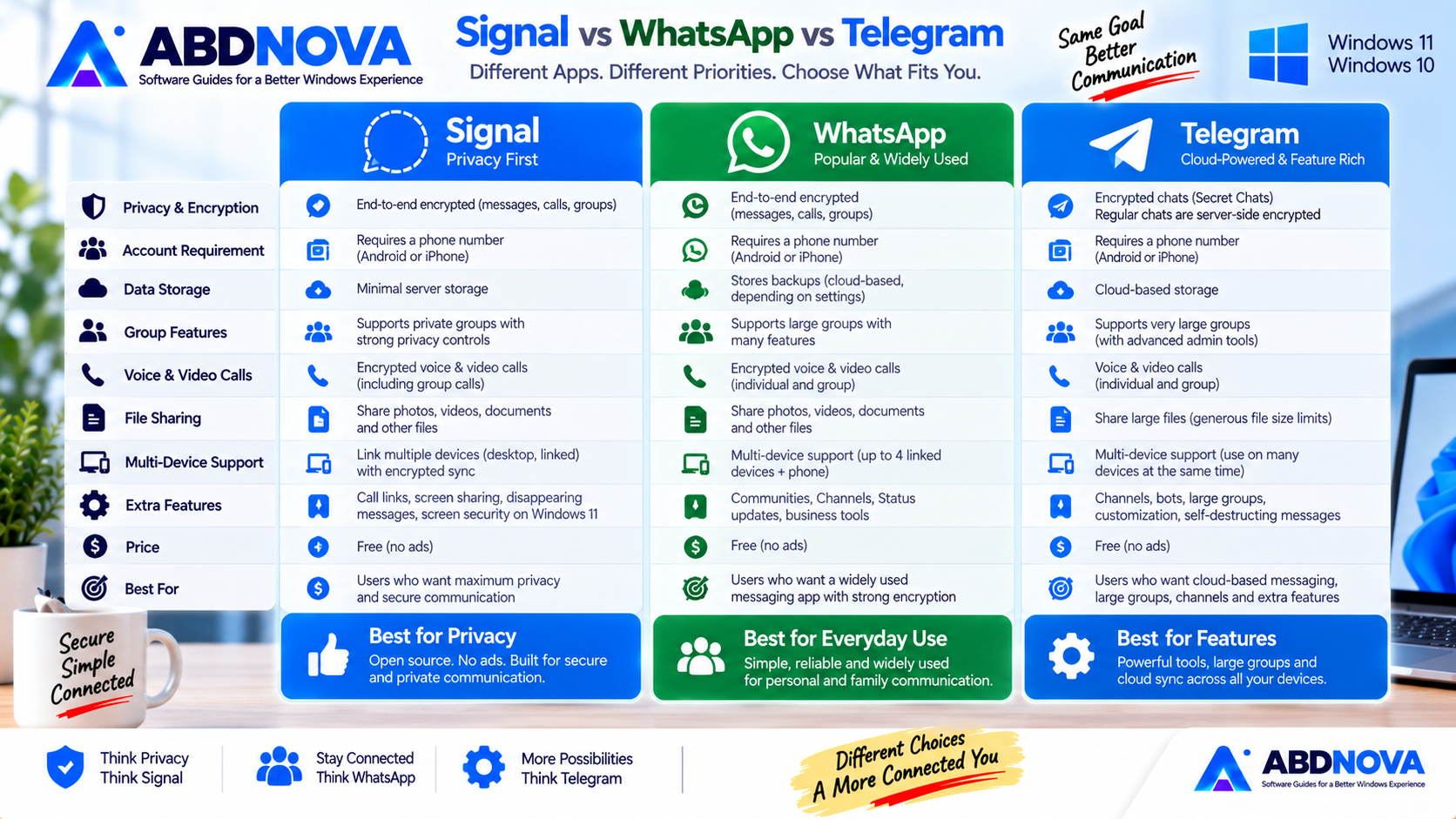
| Feature | Signal | Telegram | |
|---|---|---|---|
| Windows App | Yes | Yes | Yes |
| Messaging | Yes | Yes | Yes |
| Voice Calls | Yes | Yes | Yes |
| Video Calls | Yes | Yes | Yes |
| Group Chats | Yes | Yes | Yes |
| File Sharing | Yes | Yes | Yes |
| Screen Sharing | Yes | Available | Yes |
| Privacy Focus | Very strong | Strong private messaging | Different privacy model |
| Channels / Large Communities | Not primary focus | Communities | Strong |
| Cloud-Based Multi-Device Model | Linked devices | Linked devices | Strong cloud model |
| Best For | Private personal messaging | Mainstream communication | Cloud chats, channels & communities |
Signal is especially attractive when private communication and minimizing service-side access to communication data are top priorities.
WhatsApp is useful when most friends, relatives or colleagues already use WhatsApp.
If you prefer cloud-synced messaging, channels, bots, large communities and extensive group features, see our Telegram Desktop Download for Windows guide. :contentReference[oaicite:6]{index=6}
Is Signal Desktop Free?
Yes. Signal Desktop is free to download and use for normal private messaging and calling.
Signal does not require a crack, activation key or paid desktop license.
Signal has introduced optional paid functionality related to expanded Secure Backup media storage, but ordinary Signal messaging and the Windows desktop application remain free.
Signal Desktop Troubleshooting
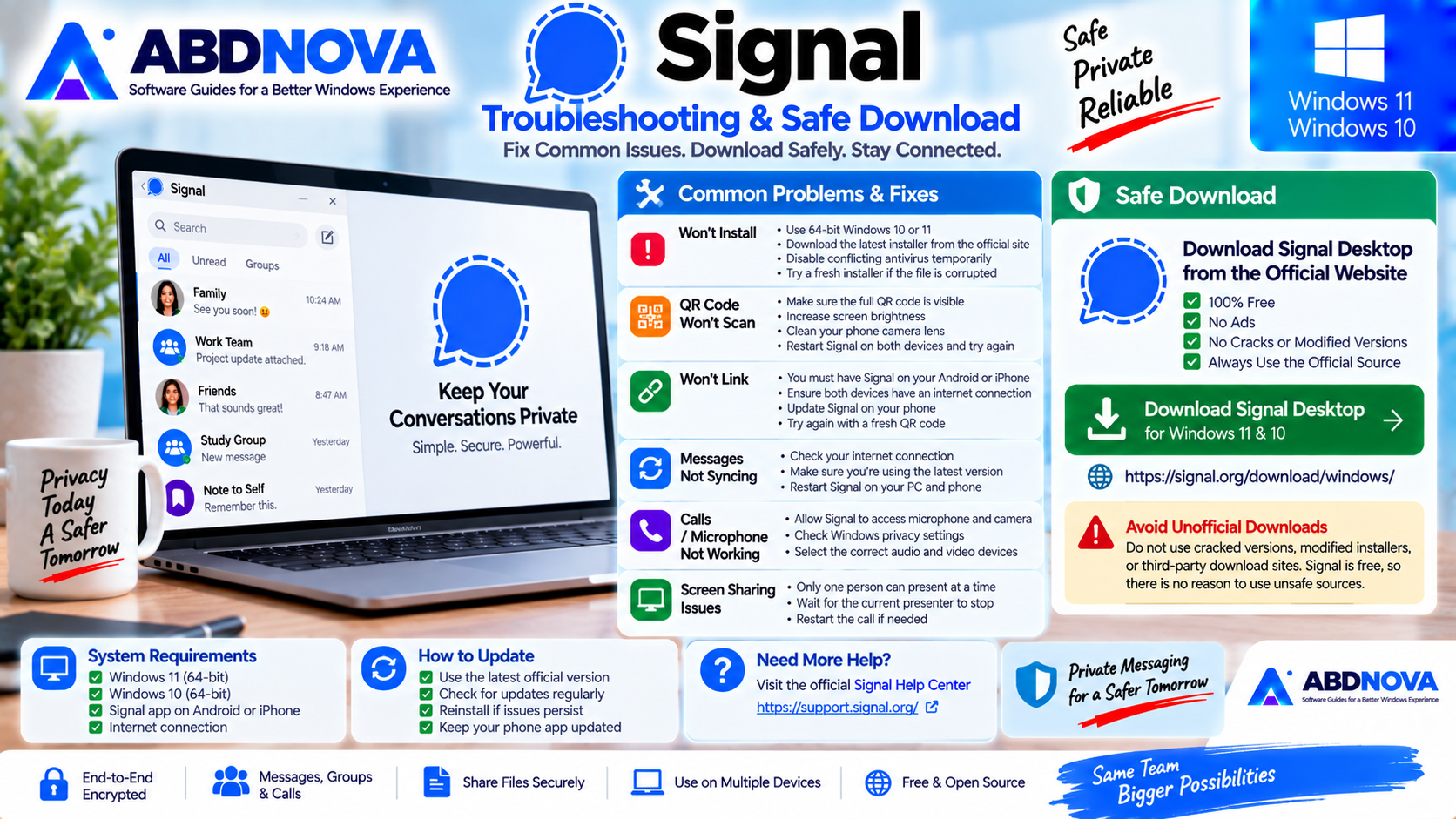
Signal Desktop Won’t Link
Confirm that Signal is already installed and working on your Android phone or iPhone.
Desktop registration is not supported independently; the Windows app must link to an existing mobile Signal installation. :contentReference[oaicite:7]{index=7}
Also check the internet connection on both your phone and PC.
Signal Desktop Won’t Install
Check that the PC is running a supported 64-bit Windows 10 or Windows 11 installation.
If the existing setup file appears damaged, download a fresh installer directly from Signal.
QR Code Won’t Scan
- Clean the phone camera lens.
- Make sure the entire QR code is visible.
- Increase the PC display brightness if necessary.
- Restart Signal on both devices.
- Repeat the linking process.
Messages Aren’t Appearing
Check the network connection on both devices.
Also make sure Signal Desktop is current rather than using an outdated installation.
Calls or Microphone Don’t Work
Check Windows privacy permissions and confirm Signal has access to:
- Microphone.
- Camera.
Also verify that the correct microphone, speaker and camera are selected inside the calling setup.
Screen Sharing Doesn’t Work
Make sure another participant is not already presenting.
Signal only allows you to begin screen sharing when another participant is not currently sharing.
How to Update Signal Desktop
Keeping Signal updated is important for security, compatibility, bug fixes and new features.
If an installation becomes seriously corrupted, reinstall Signal using the latest official installer.
Safe Signal Desktop Download
Signal should always be downloaded from an official Signal source.
The official Windows page provides both a standard Windows download and Microsoft Store option. :contentReference[oaicite:8]{index=8}
- Signal Pro cracks.
- Modified Signal installers.
- Unofficial portable repacks.
- Activators.
- Keygens.
- Bundled third-party installers.
Signal is already free, so these unofficial packages are unnecessary.
Frequently Asked Questions
Does Signal Desktop work on Windows 11?
Yes. Signal officially lists Windows 11 as supported.
Does Signal Desktop work on Windows 10?
Yes. Signal’s current desktop support documentation lists Windows 10 and Windows 11.
Is Signal Desktop 64-bit?
Yes. Signal’s current Windows desktop requirement is 64-bit Windows.
Can I use Signal Desktop without a phone?
No. Signal must first be installed and working on an Android phone or iPhone before you can link Signal Desktop.
Can I create a Signal account directly on Windows?
No. Independent Desktop registration is not supported.
Is Signal Desktop free?
Yes. Signal Desktop is free to download and use for private messaging and calling.
Can Signal Desktop make video calls?
Yes. Signal Desktop supports private voice and video calls.
Can I share my screen using Signal Desktop?
Yes. You can share your entire screen or an individual application window during a Signal call.
Does Signal Desktop have Call Links?
Yes. Current versions support Call Links along with other calling features such as reactions, raise hand and participant views.
Is Signal Desktop available from Microsoft Store?
Yes. Signal’s official Windows download page provides a Microsoft Store option.
Final Thoughts
Signal Desktop Download for Windows is an excellent companion for people who already use Signal on their phone and want private messaging and calling on a larger Windows screen.
It combines end-to-end encrypted conversations with group chats, file sharing, voice and video calls, Call Links, screen sharing and useful Windows-specific privacy protections.
Both Windows 11 and Windows 10 are currently supported when using a compatible 64-bit system.
The main requirement is simple: Signal Desktop is a linked device. Install and activate Signal on Android or iPhone first, then link the Windows application using the QR code shown during setup.
Download Signal Desktop for Windows
Get the current Windows version directly from Signal’s official website. ABDNOVA recommends official sources only.