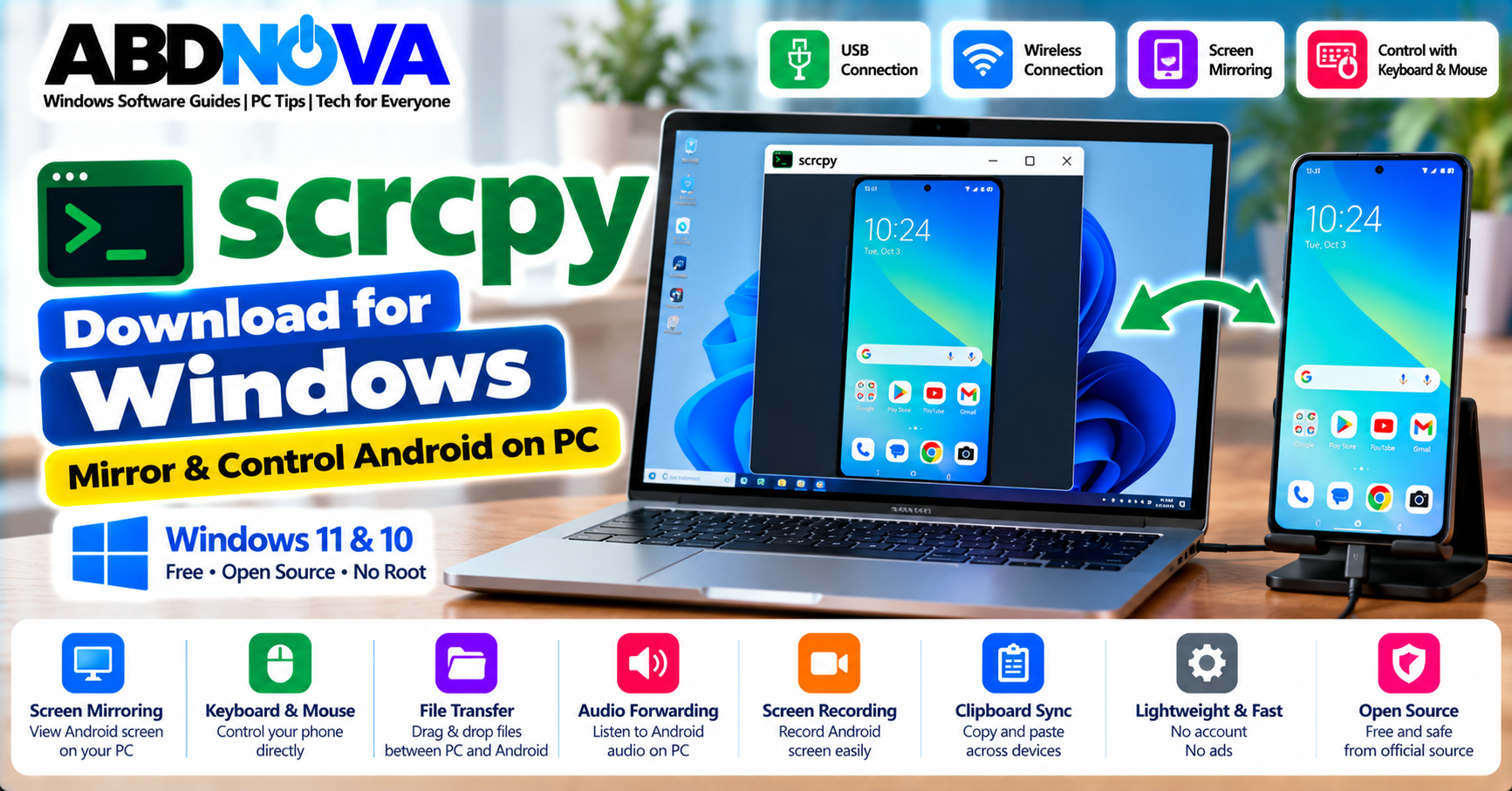

scrcpy Download for Windows – Mirror & Control Android on PC
scrcpy is a free and open-source application that lets you mirror and control an Android phone or tablet from a Windows PC. It works over USB or TCP/IP and allows you to interact with Android using your computer’s keyboard and mouse.
Unlike many commercial phone-mirroring applications, scrcpy does not require an account, advertisements, root access, or a permanently installed companion app on the Android device. It is lightweight and designed for responsive, low-latency Android screen mirroring.
scrcpy also supports Android audio forwarding, screen recording, clipboard synchronization, wireless connections, camera mirroring, virtual displays, physical keyboard and mouse simulation, and other advanced controls.
scrcpy for Windows 11 & 10
The current stable release is scrcpy 4.1. Official Windows packages are available for both 64-bit and 32-bit systems.
| Detail | Information |
|---|---|
| Software | scrcpy |
| Current Stable Version | 4.1 |
| Windows | Windows 11 & Windows 10 |
| Windows Packages | 64-bit and 32-bit |
| Android Requirement | Android 5.0 / API 21 or later |
| Connection | USB or TCP/IP |
| Root Required | No |
| Android Companion App | No permanent app required |
| Account Required | No |
| License | Free & Open Source |
For most modern Windows 11 and Windows 10 computers, the 64-bit Windows ZIP package is the appropriate choice. The official Windows package includes the components required for normal operation, including ADB.
What Is scrcpy?
The name scrcpy is pronounced “screen copy.” It mirrors an Android device to a computer and allows the Android interface to be controlled directly from Windows.
Android Phone → USB / Wi-Fi → Windows PC
Once connected, your Android screen appears in a Windows window. You can then use mouse clicks, keyboard input, Android navigation, copy and paste, recording, audio forwarding and other supported features.
scrcpy Key Features
- Android screen mirroring
- Keyboard and mouse control
- USB connection
- TCP/IP wireless connection
- Audio forwarding
- Screen recording
- Clipboard synchronization
- Configurable resolution and frame rate
- Multiple video codec options
- Fullscreen mode
- Android screen-off mirroring
- Camera mirroring
- Virtual display
- Physical keyboard and mouse simulation
- Gamepad support
- OTG mode
- Multiple-device support
- Drag-and-drop APK installation
- File push by drag and drop
- No Android root required
- No account or advertisements
- No internet required for normal USB use
scrcpy Main Interface & Android Screen Mirroring
scrcpy uses a lightweight interface focused on displaying the Android device rather than surrounding it with a large desktop management suite.
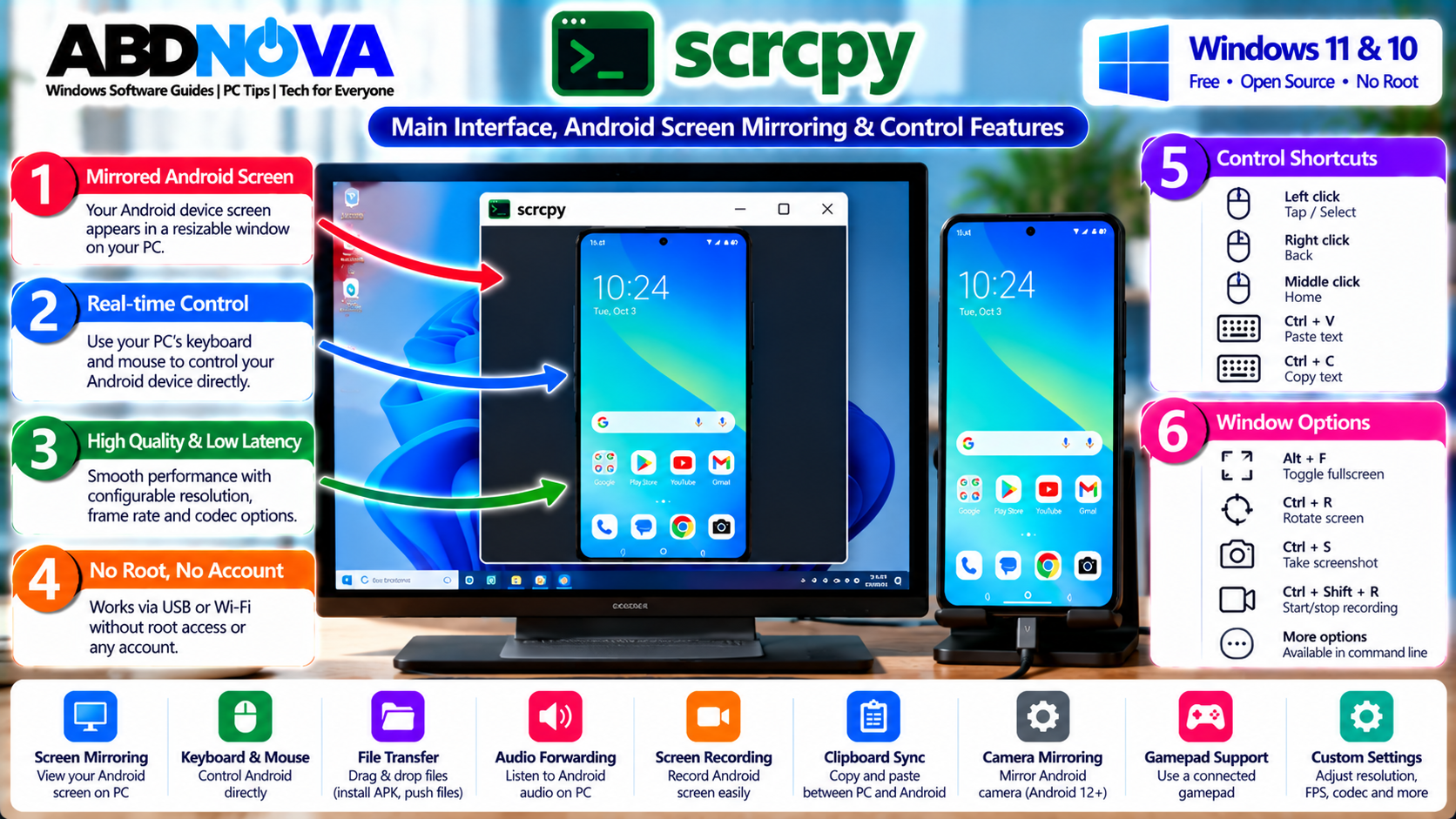
After a successful connection, the Android display appears in its own window. You can interact with apps, scroll pages, enter text, open menus and navigate Android directly from the PC.
scrcpy is designed for responsive mirroring. Actual performance depends on the Android device, video encoder, USB or Wi-Fi connection, selected resolution, frame rate and Windows PC hardware.
scrcpy System Requirements
Windows PC
- Windows 11 or Windows 10
- Appropriate 64-bit or 32-bit Windows package
- Available USB port for wired use
- Wi-Fi or network connectivity for wireless use
Android Device
- Android 5.0 / API 21 or later
- USB debugging for standard ADB-based control
- Newer Android versions for some advanced features
Audio forwarding requires Android 11 or later, while camera mirroring requires Android 12 or later on supported devices.
How to Set Up scrcpy, Enable USB Debugging & Connect Android to PC
For beginners, a USB connection is the simplest way to set up scrcpy. First extract the official Windows package, then enable Android Developer Options and USB debugging.
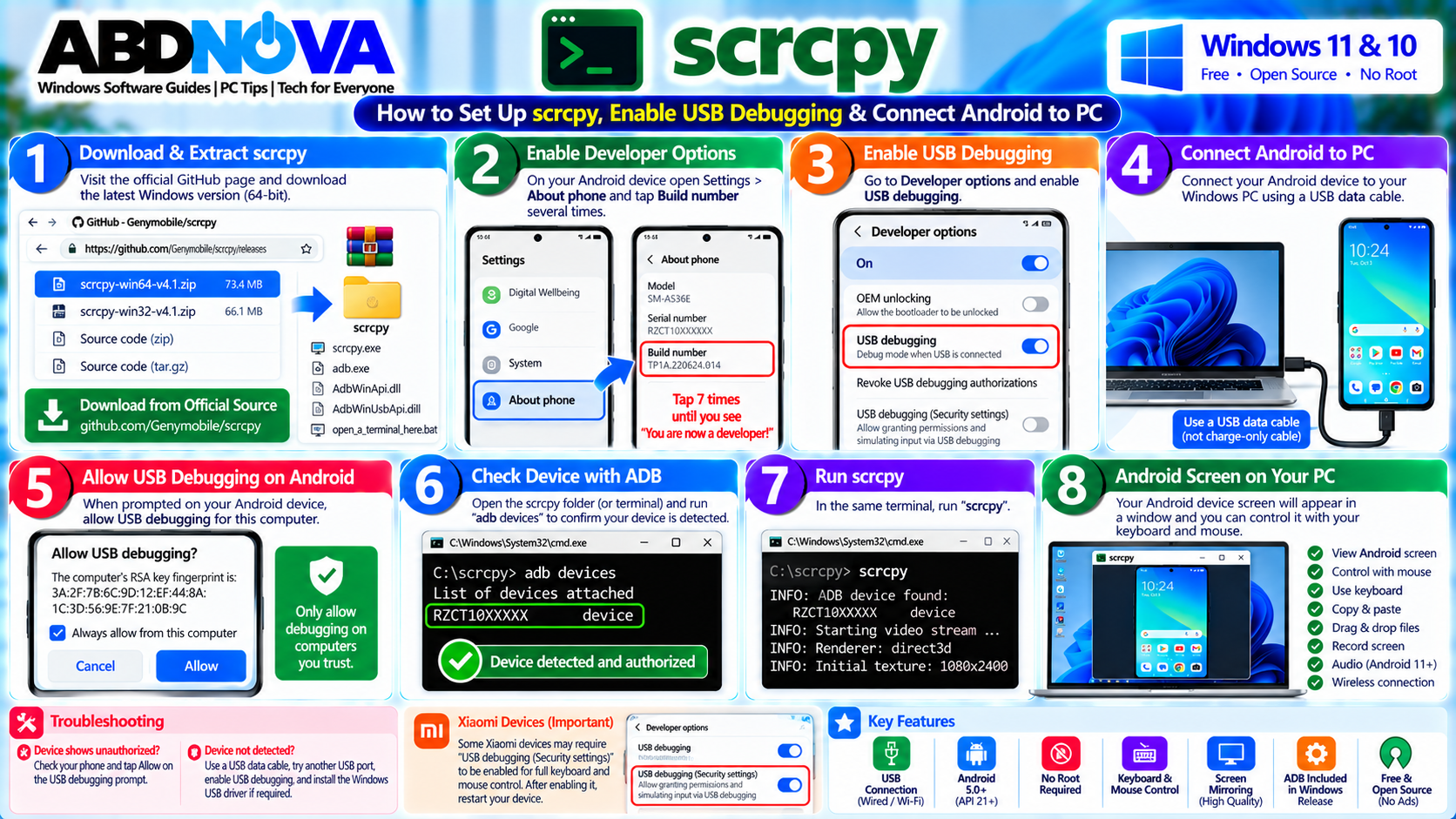
Install scrcpy Using the Official ZIP
- Open the official Genymobile scrcpy release page.
- Download the current Windows 64-bit ZIP for a normal 64-bit PC.
- Save the ZIP file to your computer.
- Right-click the archive.
- Select Extract All.
- Choose a permanent folder.
- Open the extracted scrcpy folder.
Install scrcpy With WinGet
Windows users can also install scrcpy using Windows Package Manager:
winget install --exact Genymobile.scrcpyIf you regularly use command-line package management, see our Windows Terminal Download for Windows guide.
Enable Developer Options on Android
The exact Android menu names vary between phone manufacturers, but the general process is:
- Open Android Settings.
- Open About phone.
- Find Build number.
- Tap Build number several times.
- Enter the device PIN if requested.
- Developer Options should become available.
Enable USB Debugging
- Open Android Settings.
- Find Developer options.
- Locate USB debugging.
- Turn it on.
- Confirm the warning.
- Connect the phone to your Windows PC using a data-capable USB cable.
Android should display an authorization prompt asking whether you want to allow USB debugging from the connected computer.
Connect Android to Windows With scrcpy
After USB debugging is enabled and authorized:
- Connect the Android phone to the PC.
- Open the extracted scrcpy folder.
- Start scrcpy.
- Approve the USB debugging request on Android if prompted.
- Wait for the Android display to appear on Windows.
For command-line configuration, the Windows package also provides open_a_terminal_here.bat. Open it and run:
scrcpyCheck Whether ADB Detects Your Phone
If scrcpy cannot find the Android device, open a terminal in the scrcpy directory and run:
adb devicesYour device should appear in the list. If it shows unauthorized, unlock the Android device and approve the USB debugging authorization request.
Control Android With Keyboard & Mouse
Once the Android phone is mirrored, you can use the Windows mouse and keyboard to interact with it.
- Click apps
- Scroll pages
- Open menus
- Enter text
- Navigate Android
- Use keyboard shortcuts
- Copy and paste text
scrcpy also provides useful mouse actions. For example, right-click can perform Android’s Back action, while middle-click can perform Home.
Xiaomi USB Debugging Security Settings
Some Xiaomi devices require an additional developer option before scrcpy can inject keyboard or mouse input.
If screen mirroring works but control does not, check whether your device requires:
This setting is separate from normal USB debugging. Do not enable unrelated developer settings simply because they appear in a tutorial.
scrcpy Wireless Mirroring, Audio, Recording & Keyboard/Mouse Control
Once basic USB mirroring works, scrcpy provides several advanced features for wireless use, audio, recording and device control.
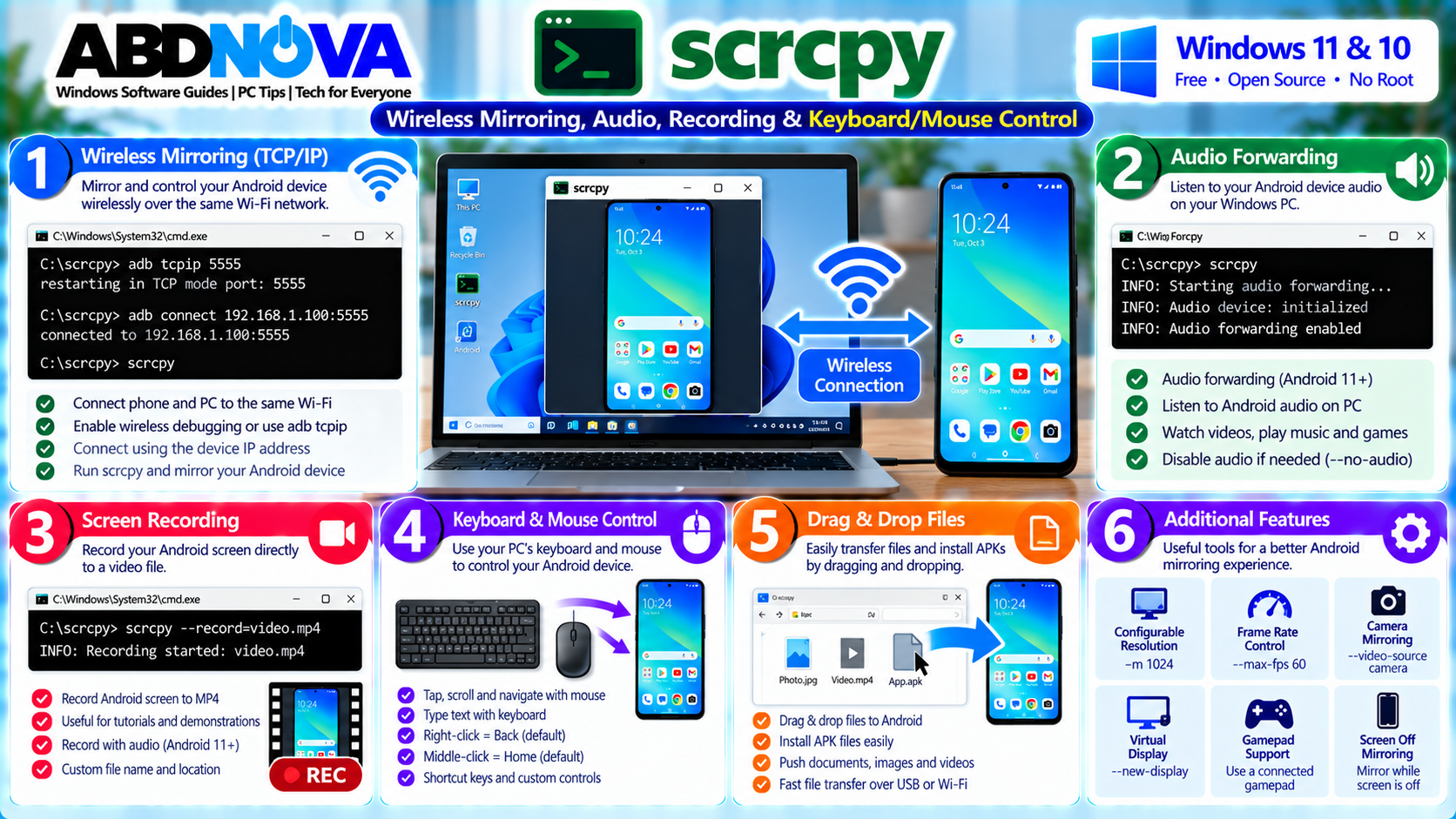
Mirror Android Wirelessly With scrcpy
scrcpy supports TCP/IP connections. A common setup starts with the phone connected by USB while both the Android device and Windows PC are connected to the same trusted network.
A typical manual workflow is:
adb tcpip 5555adb connect PHONE_IP:5555scrcpyReplace PHONE_IP with the Android device’s actual local IP address. After the ADB connection succeeds, the USB cable can be disconnected.
When finished:
adb disconnectWireless Debugging on Android 11+
Android 11 and later provide a dedicated Wireless Debugging feature that can establish ADB pairing and wireless connections without the traditional USB-first workflow.
Wireless debugging is convenient, but USB is generally the simplest starting point and can provide more predictable performance for high-quality mirroring.
Android Audio Forwarding
scrcpy supports Android audio forwarding starting with Android 11. Audio forwarding is enabled by default when supported.
- Android 12+: normally works without additional setup.
- Android 11: keep the phone unlocked when scrcpy starts so audio capture can initialize correctly.
- Android 10 and earlier: standard scrcpy audio forwarding is unavailable.
To intentionally disable audio:
scrcpy --no-audioRecord Android Screen With scrcpy
scrcpy can record the mirrored Android display directly to a file:
scrcpy --record=file.mp4This can be useful for Android tutorials, app demonstrations, bug reports, training videos, testing and documentation.
Change Mirroring Resolution
If scrcpy is slow or unstable, reduce the maximum mirrored resolution:
scrcpy --max-size=1024or
scrcpy -m1024This can improve responsiveness on older phones, slower computers and wireless connections.
Limit Frame Rate
You can also limit the maximum frame rate:
scrcpy --max-fps=60A lower frame rate can reduce resource usage and network bandwidth.
Fullscreen Mode
scrcpy can display Android in fullscreen mode. The default shortcut includes:
Mirror With the Android Screen Off
scrcpy can continue mirroring while the physical Android display is turned off. This can be useful when controlling your own phone from the computer while reducing unnecessary screen usage.
This should not be confused with locking or shutting down the Android device.
Clipboard Synchronization
scrcpy supports copy and paste between Android and Windows, making it convenient to move URLs, commands, messages, notes and search terms between devices.
Drag & Drop Files and APKs
Files can be pushed to the Android device by dragging them onto the scrcpy window. APK files can also be installed using drag and drop.
Camera Mirroring
On supported Android 12 or later devices, scrcpy can mirror the Android camera instead of the normal device display.
scrcpy --video-source=cameraThis can be useful for camera testing, demonstrations, recording and development.
Virtual Display
scrcpy supports creating a virtual Android display. This advanced feature can be useful when you want to launch applications on a separate virtual display instead of simply duplicating the phone’s physical screen.
OTG Mode
scrcpy supports OTG mode for keyboard and mouse simulation:
scrcpy --otgUSB debugging is not required for scrcpy OTG mode. In this mode, standard screen mirroring is not the primary purpose; it is intended for keyboard and mouse control.
Gamepad Support
scrcpy can forward supported gamepads connected to the Windows computer to the Android device. Availability and behavior depend on the Android device and controller.
scrcpy Does Not Require Root
Root access is not required for normal scrcpy operation. You do not need to root Android, unlock the bootloader, flash a custom ROM or permanently install a scrcpy Android application.
For normal operation, scrcpy temporarily starts its required server component through ADB and does not leave a normal companion application installed afterward.
No Account or Cloud Service Required
scrcpy does not require an online account or mandatory cloud service for normal USB or local-network operation.
You can use it without:
- Creating an account
- Paying a subscription
- Viewing advertisements
- Uploading your Android screen to a cloud account
Normal USB operation also does not require an internet connection.
scrcpy Device Not Detected, ADB Troubleshooting & Safe Download
Most initial scrcpy problems involve USB debugging, ADB authorization, USB cables or device-specific Android settings.
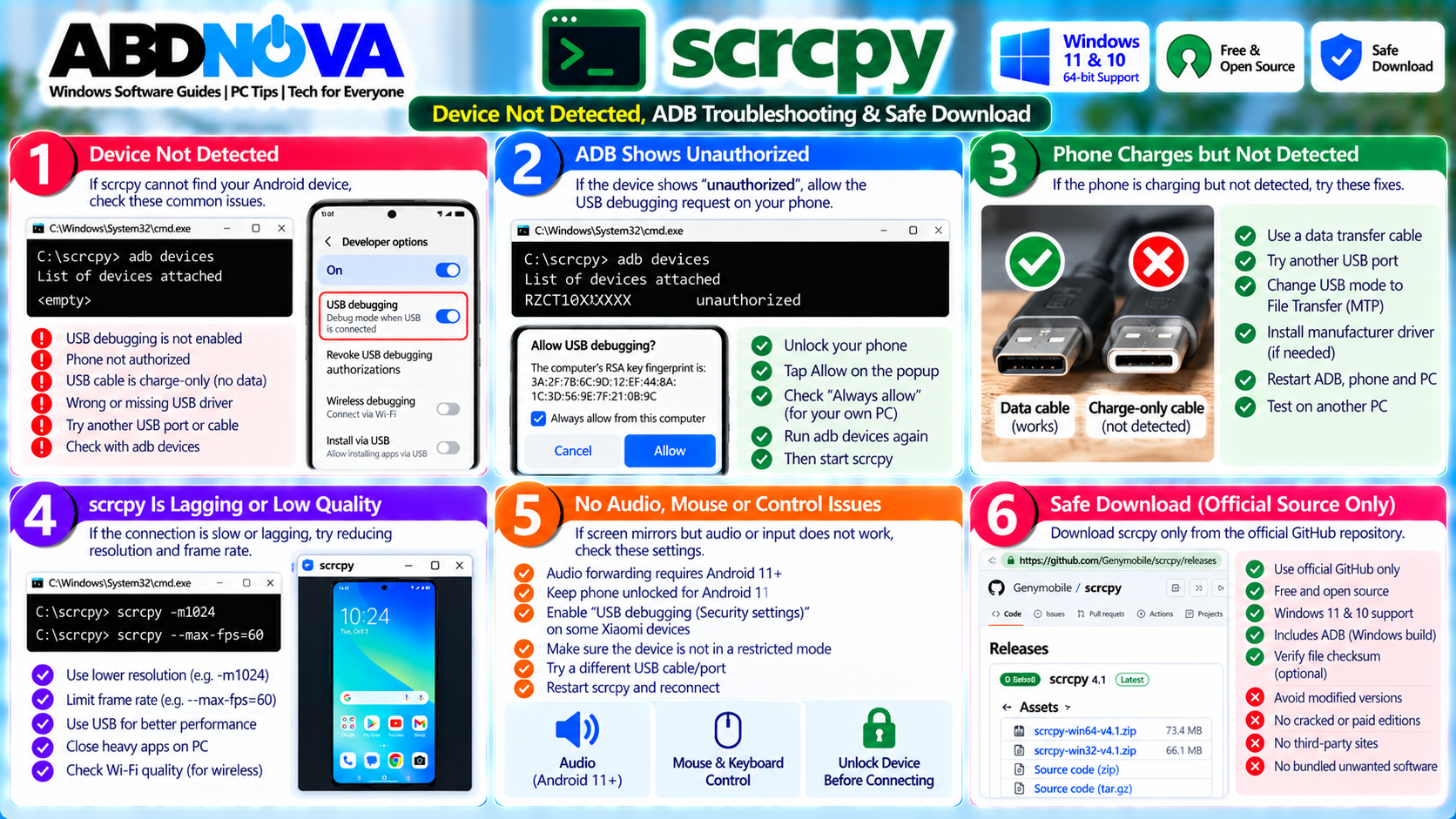
scrcpy Does Not Detect Android Phone
Check that:
- USB debugging is enabled.
- The USB cable supports data transfer.
- The phone is unlocked.
- USB debugging authorization was accepted.
- Windows detects the Android device.
- ADB detects the phone.
Run:
adb devicesADB Shows Unauthorized
If ADB displays unauthorized:
- Unlock the Android device.
- Look for the USB debugging authorization prompt.
- Approve the trusted computer.
- Run
adb devicesagain.
Phone Charges but Is Not Detected
Some USB cables support charging but not data transfer. Try:
- Another USB cable
- Another USB port
- Changing the phone’s USB mode
- Installing the manufacturer’s appropriate USB driver if required
- Restarting ADB
- Restarting the phone and PC
Screen Mirrors but Mouse Cannot Control Phone
Check whether the Android device requires additional security permissions. This is particularly relevant on some Xiaomi devices where USB debugging (Security Settings) may also need to be enabled.
scrcpy Is Lagging
Try reducing the resolution:
scrcpy -m1024You can also limit the frame rate:
scrcpy --max-fps=60For wireless use, check Wi-Fi quality and network congestion. USB may provide a more consistent connection.
No Android Audio
- Audio forwarding requires Android 11 or later.
- Android 12+ generally works directly.
- For Android 11, unlock the device when starting scrcpy.
- Android 10 and earlier cannot use standard scrcpy audio forwarding.
Wireless Connection Stops Working
Check:
- PC and phone network connection
- Android IP address
- Wireless Debugging status
- ADB connection
- Firewall settings
When finished with classic ADB TCP/IP access, disconnect it rather than leaving unnecessary remote debugging connectivity active.
Safe scrcpy Download
The scrcpy developers explicitly identify the Genymobile/scrcpy GitHub repository as the project’s only official source.
Avoid:
- Fake scrcpy websites
- Modified installers
- Unofficial EXE packages
- Bundled download managers
- Cracked or “Pro” versions
- Random repacks
- Unknown GitHub forks presented as official releases
The official project is already free and open source. Official release files also provide verification information such as checksums where applicable.
Frequently Asked Questions
What is scrcpy?
scrcpy is a free and open-source tool for mirroring and controlling Android devices from Windows, Linux or macOS.
What is the latest scrcpy version?
The current stable release is scrcpy 4.1.
Does scrcpy work on Windows 11?
Yes. scrcpy can be used on Windows 11.
Does scrcpy work on Windows 10?
Yes. Windows 10 users can also run scrcpy.
Is scrcpy free?
Yes. scrcpy is free and open-source software.
Does scrcpy require root?
No. Normal scrcpy operation does not require root access.
Does scrcpy install an app on Android?
scrcpy does not require a normal permanently installed companion application on the Android device.
What Android version does scrcpy require?
The basic requirement is Android 5.0 / API 21 or later. Some advanced features require newer Android versions.
Can scrcpy control Android with a mouse and keyboard?
Yes. You can interact with a connected Android device using your PC’s keyboard and mouse.
Can scrcpy work over Wi-Fi?
Yes. scrcpy supports TCP/IP connections, while Android 11 and later also provide Wireless Debugging functionality.
Does scrcpy support Android audio?
Yes. Standard audio forwarding is supported on Android 11 and later.
Can scrcpy record the Android screen?
Yes. scrcpy includes screen-recording functionality.
Can scrcpy mirror an Android camera?
Yes. Camera mirroring is available on supported Android 12 or later devices.
Does scrcpy require an internet connection?
No. Normal USB operation does not require internet access.
Is scrcpy safe?
scrcpy is an open-source project. Download it only from the official Genymobile/scrcpy GitHub repository and authorize USB debugging only on computers you trust.
Final Thoughts
scrcpy is one of the most capable tools for Windows users who want to mirror and control an Android device without installing a heavy desktop suite or creating an online account.
It supports USB and wireless connections, keyboard and mouse control, clipboard synchronization, screen recording, Android audio forwarding, configurable video quality, camera mirroring, virtual displays, gamepads and advanced command-line configuration.
For beginners, the easiest approach is to download the official Windows ZIP, enable USB debugging, connect the phone by USB, authorize the trusted PC and start scrcpy. Once the basic connection works, wireless debugging and advanced commands can be configured as needed.
Because ADB debugging provides powerful access to Android, authorize only computers you trust and download scrcpy exclusively from the official Genymobile project.
Download scrcpy for Windows
Get the current Windows package directly from the official Genymobile scrcpy releases.