
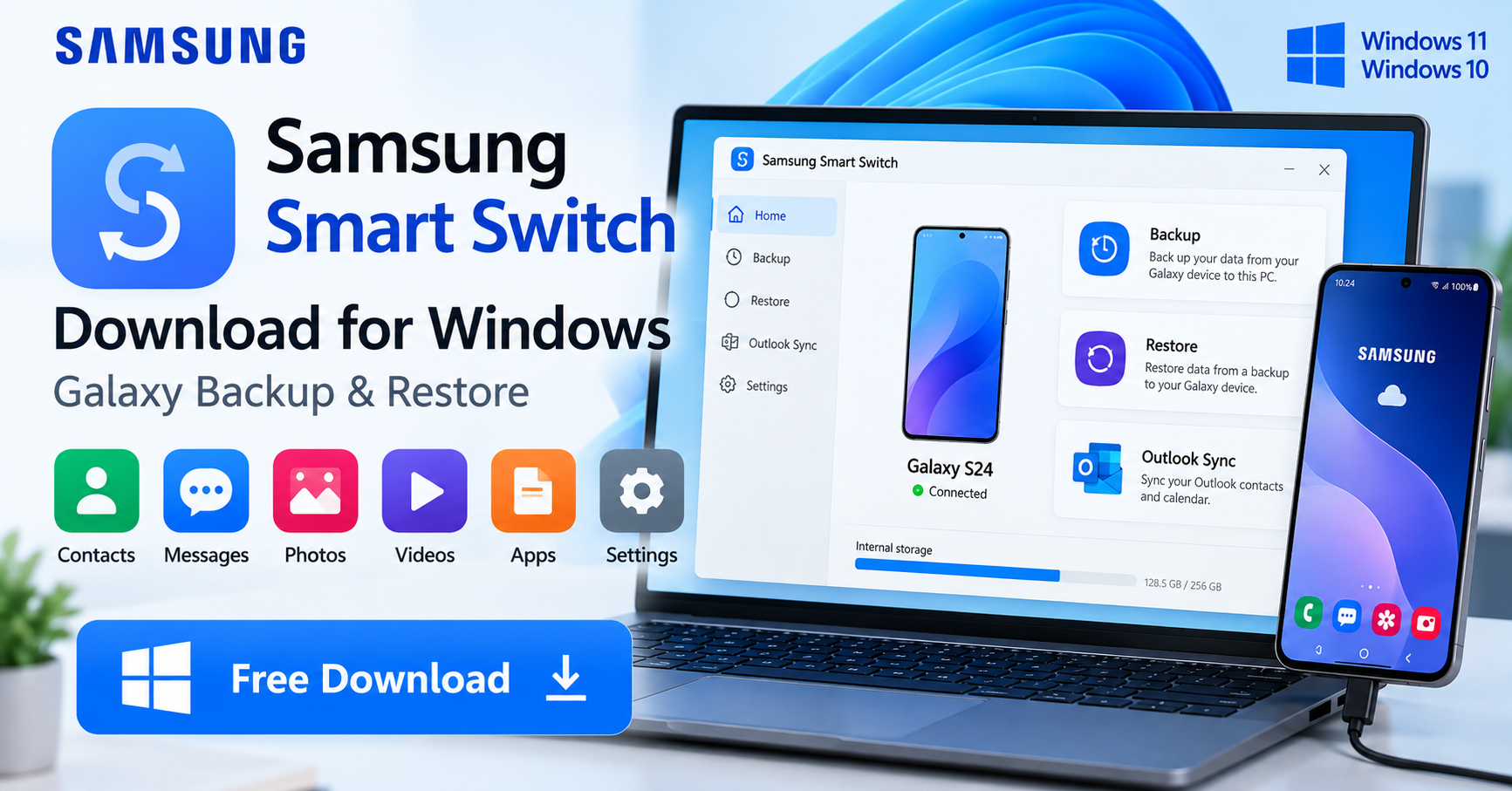

Samsung Smart Switch Download for Windows
Samsung Smart Switch Download for Windows gives Galaxy users an official way to create local backups, restore supported data, and move content between compatible Galaxy devices using a Windows PC.
Samsung Smart Switch is Samsung’s official data transfer, backup, and restore software for Galaxy phones and tablets. The Windows version lets you connect a compatible Galaxy device to a PC, create a local backup, restore previously saved data, and move supported content when setting up another Galaxy device.
Smart Switch can handle supported data such as contacts, messages, photos, videos, apps, and other device information. Samsung’s current Smart Switch requirements list Windows 10 or later for PC backup and restore, making it suitable for Windows 11 and Windows 10 PCs.
Samsung Smart Switch Download – Overview
| Software | Samsung Smart Switch |
| Developer | Samsung Electronics |
| Platform | Windows |
| Windows Requirement | Windows 10 or later |
| Windows 11 | Supported |
| Windows 10 | Supported |
| License | Free |
| Connection | Compatible USB data connection |
| Main Functions | Backup, Restore, Data Migration, Outlook Sync |
| Best For | Samsung Galaxy backup, restore and migration |
Samsung Smart Switch Main Interface & Key Features
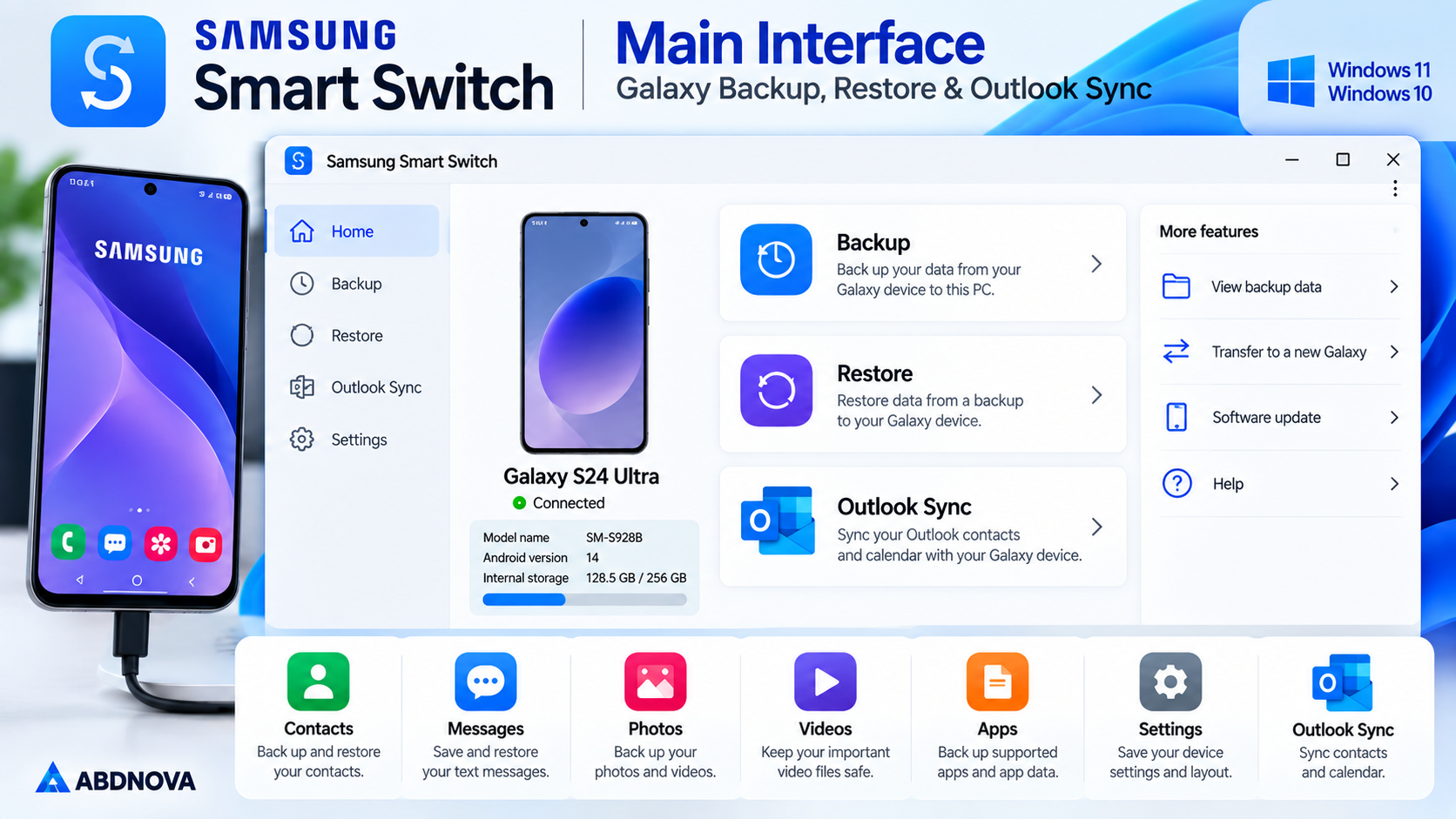
The Windows version of Smart Switch keeps the main functions in a relatively simple interface. After connecting a compatible Galaxy phone or tablet, the PC application detects the device and provides the available management options.
Backup
Save supported Galaxy data to your Windows PC.
Restore
Restore data from a previously created Smart Switch backup.
Selective Backup
Choose which supported data categories you want to save instead of backing up everything.
Selective Restore
Restore only the required categories from an available backup.
Galaxy Data Migration
Use a PC backup when moving supported content to another Galaxy device.
Outlook Sync
Synchronize supported Outlook information where the option is available.
Device Recognition
Smart Switch can automatically identify a compatible Galaxy device connected through USB.
Smart Switch copies data during backup rather than deleting the original information from the phone.
What Can Samsung Smart Switch Back Up?
The exact categories available can vary by device, software version, source device, and content type.
Common supported categories can include:
- Contacts
- Call logs
- Messages
- Photos
- Videos
- Music
- Documents
- Apps and supported app information
- Calendar information
- Device settings
- Home screen information
- Other compatible Galaxy data
Before starting a backup, Smart Switch displays the categories available for the connected device. You can keep all supported categories selected or deselect anything you do not want to copy.
Not every type of app data or protected content can necessarily be transferred. Data protected by third-party services, DRM, account security, or application-specific restrictions may need to be restored separately.
Samsung Smart Switch Windows Requirements
Samsung’s current Smart Switch information lists Windows 10 or later for the PC backup and restore version.
| Requirement | Smart Switch for PC |
|---|---|
| Operating System | Windows 10 or later |
| Windows 11 | Supported |
| Windows 10 | Supported |
| Connection | Compatible USB connection |
| Additional Component | Microsoft Media Feature Pack may be required |
| Storage | Depends on the size of the backup |
The amount of free disk space required is particularly important. A Galaxy phone containing many photos and videos can create a large backup, so check available PC storage before starting.
Windows N editions may also require the appropriate Microsoft Media Feature Pack for some Smart Switch functionality.
How to Install Samsung Smart Switch & Connect Galaxy to Windows
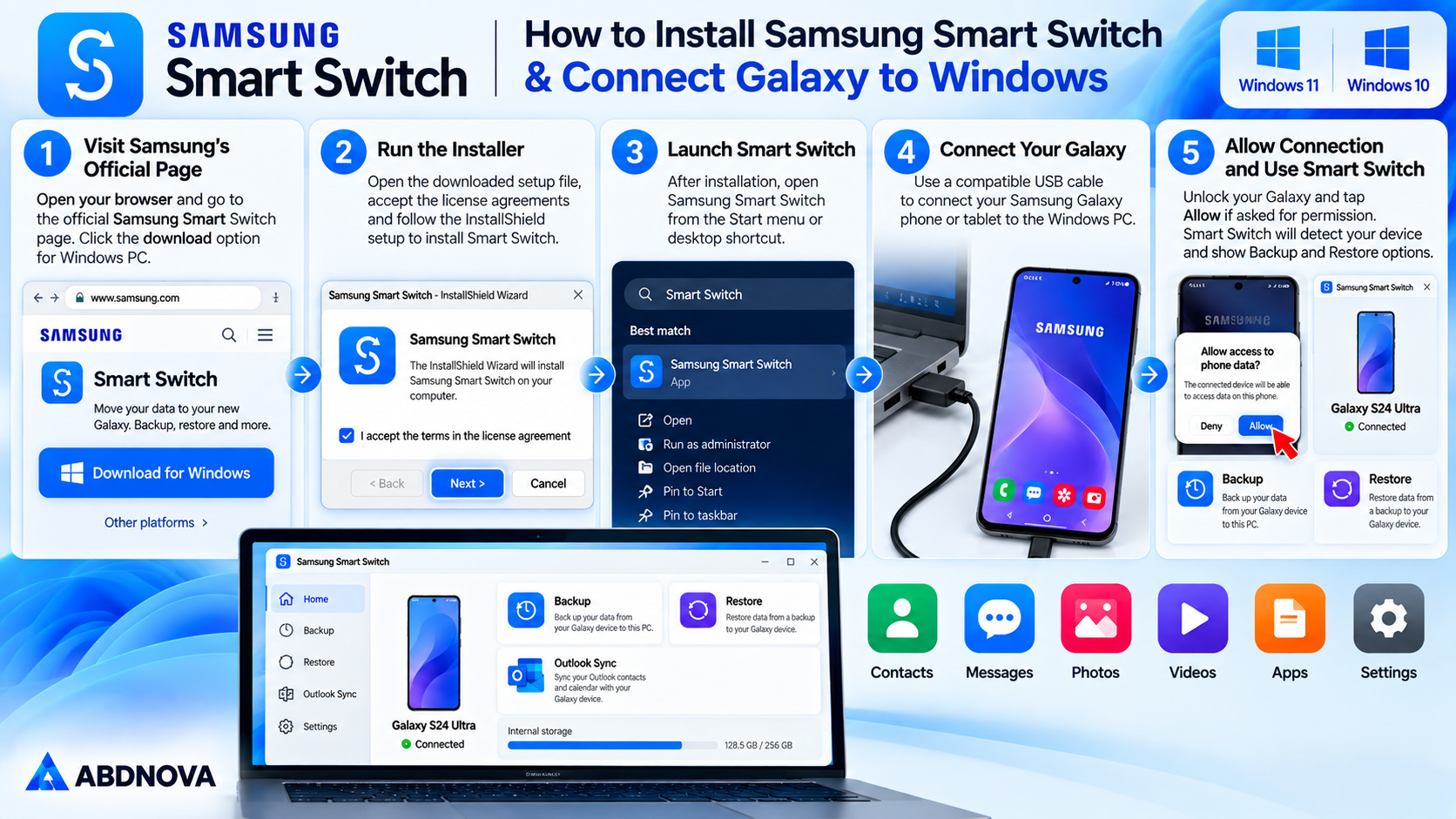
Download Smart Switch directly from Samsung rather than using an unofficial software mirror.
- Visit Samsung’s official Smart Switch page.
- Find the Smart Switch download option for Windows PC.
- Download the Windows installer.
- Open the downloaded setup file.
- Review the license information.
- Follow the installation instructions.
- Complete the installation.
- Launch Samsung Smart Switch.
- Connect your Galaxy phone or tablet using a compatible USB cable.
- Unlock the device and allow the requested connection permissions.
Once the device is recognized, Smart Switch will display the available backup, restore, and synchronization options.
How to Back Up & Restore Samsung Galaxy With Smart Switch on PC
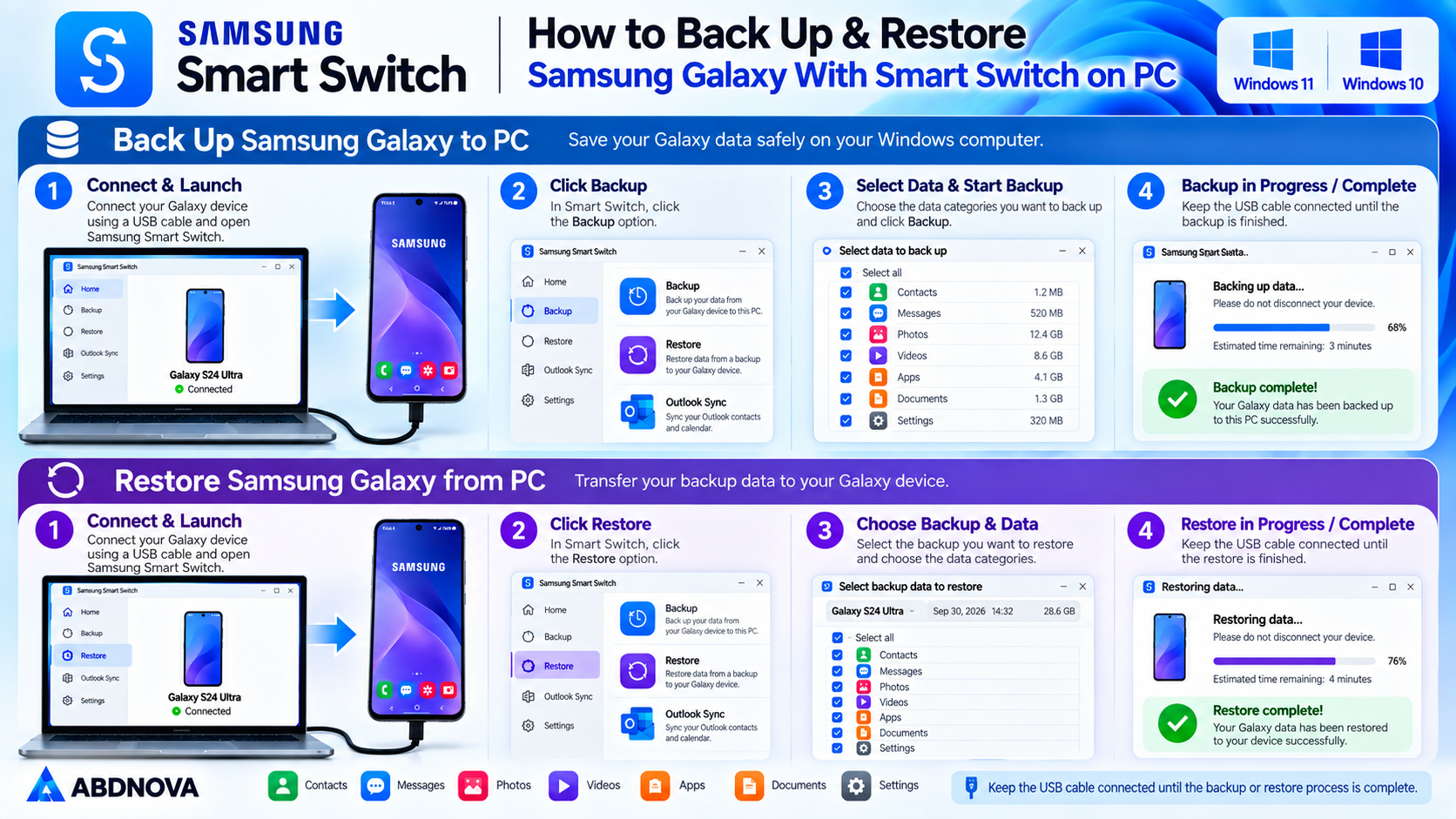
How to Back Up a Samsung Galaxy Phone to Windows
Creating a local PC backup is one of the most useful features of Smart Switch.
Before starting, make sure the Windows PC has enough free storage for the phone data you plan to back up.
- Open Samsung Smart Switch on the PC.
- Connect the Galaxy device using a compatible USB cable.
- Unlock the Galaxy device.
- Tap Allow if the phone asks for connection permission.
- Wait for Smart Switch to recognize the device.
- Select Backup on the PC.
- Review the available data categories.
- Select or deselect categories as required.
- Start the backup.
- Keep the USB cable connected until the process finishes.
- Select OK when Smart Switch confirms that the backup is complete.
Large backups can take considerably longer than small ones, especially when the phone contains many photos and videos.
Avoid disconnecting the USB cable, restarting the computer, or turning off the Galaxy device while a backup is running.
How to Restore a Galaxy Backup With Smart Switch
Smart Switch can restore a compatible backup from your Windows PC to a connected Galaxy device.
- Launch Smart Switch on Windows.
- Connect the Galaxy device to the PC.
- Unlock the phone and approve the connection if requested.
- Select Restore in Smart Switch.
- Choose the required backup if multiple backups are available.
- Select the data categories you want to restore.
- Start the restoration.
- Keep the phone connected until the process completes.
- Select OK after Smart Switch confirms completion.
You do not always have to restore every category. Selective restore can be useful when you only need contacts, messages, photos, or another supported category.
Where Does Smart Switch Store Backups on Windows?
Smart Switch stores PC backups locally, but the exact location can depend on the Windows version and the Smart Switch workflow or version being used.
Samsung documents Smart Switch backup-related locations under the Windows user profile, including Samsung/SmartSwitch folders.
Because backup locations can differ between Smart Switch versions and workflows, the safest approach is to use the backup information available inside Smart Switch when locating or managing an important backup.
Remember that Galaxy backups can consume significant storage space. If you have several old backups, check them before deleting anything and keep at least one verified copy if the data is important.
Moving Data to a New Samsung Galaxy
Smart Switch is particularly useful when replacing an older Galaxy phone with a new Galaxy device.
One option is to create a backup of the old phone on your Windows PC and then restore the supported information to the new Galaxy device.
Old Galaxy → Smart Switch PC Backup → New Galaxy
This approach can be useful when you want to keep a PC copy of the old device before completing the migration.
Smart Switch also supports direct phone-to-phone migration in supported scenarios, so a Windows PC is not always required simply to move data between phones.
If you also transfer photos, videos, documents, or other files between Windows PCs and mobile devices, see our LocalSend Download for Windows guide for another local file-transfer option.
Smart Switch PC Backup vs Direct Phone Transfer
Both methods can be useful, but they serve slightly different purposes.
| Feature | PC Backup & Restore | Direct Phone Transfer |
|---|---|---|
| Requires Windows PC | Yes | No |
| Creates PC Backup | Yes | No |
| Useful Before Phone Reset | Yes | Limited |
| Useful for New Galaxy Setup | Yes | Yes |
| Select Supported Data | Yes | Yes |
| Keeps Separate Backup Copy | Yes | No PC Copy |
| Convenient for Immediate Migration | Good | Excellent |
If you only need to move data directly to a new Galaxy phone, phone-to-phone Smart Switch may be faster and more convenient.
If you also want a local backup stored on your computer, the Windows version is more useful.
USB Connection & Device Detection
For PC backup and restore, connect the Galaxy device to the computer with a compatible USB cable.
If Smart Switch does not recognize the phone:
- Unlock the Galaxy device.
- Disconnect and reconnect the USB cable.
- Approve any permission request displayed on the phone.
- Try another USB port.
- Avoid an unreliable USB hub.
- Try another data-capable USB cable.
- Restart both the phone and Windows PC.
- Update Smart Switch.
- Install pending Windows updates.
- Reinstall Smart Switch if necessary.
Some USB cables are designed primarily for charging and may not provide a reliable data connection. Trying another known-good data cable can quickly rule out this problem.
Samsung Smart Switch Device Not Detected, Troubleshooting & Safe Download
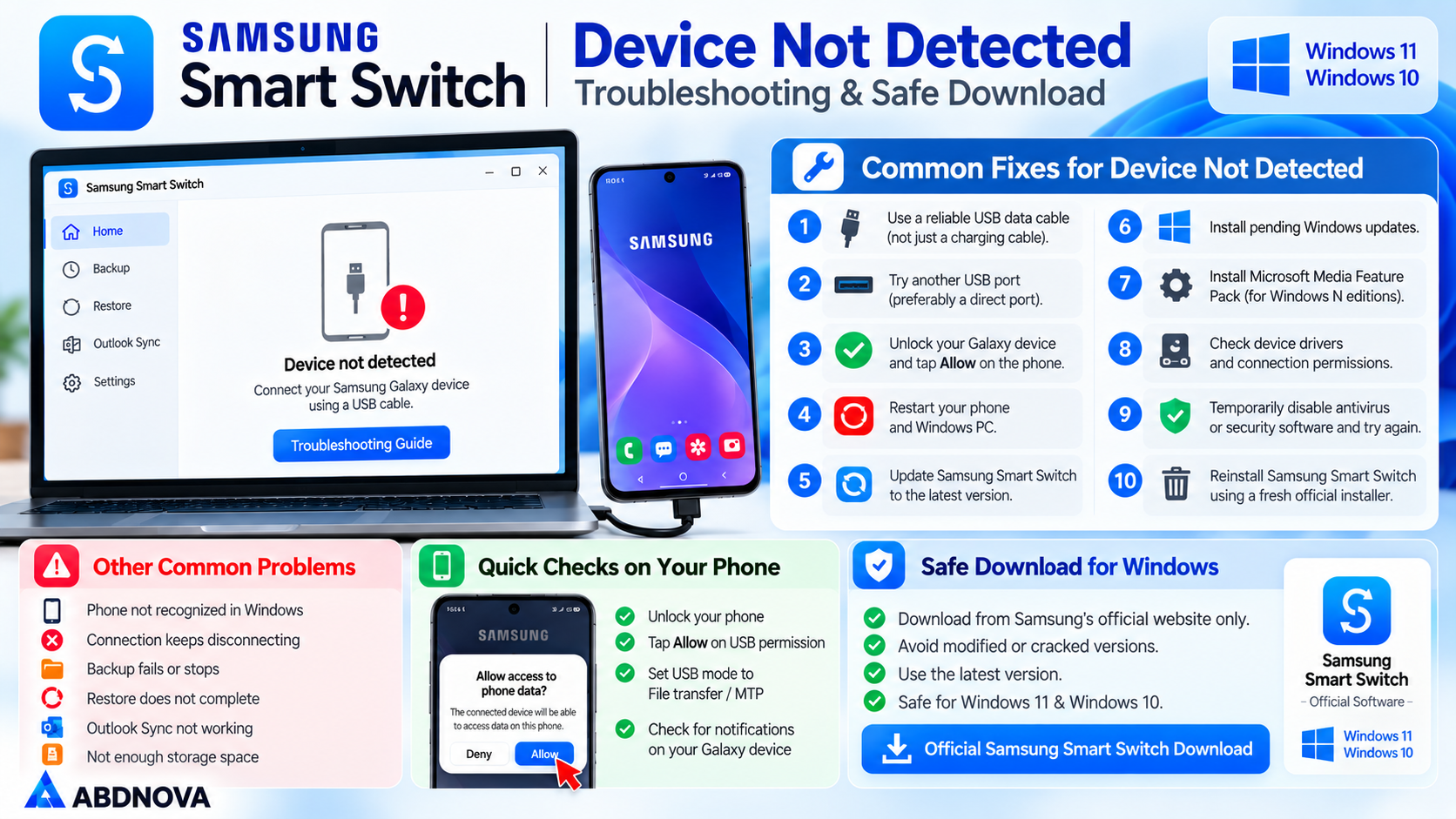
Samsung Smart Switch Not Detecting Galaxy Phone
Device detection is one of the most common Smart Switch problems.
First, confirm that Windows itself can detect the connected Galaxy device. If neither Windows nor Smart Switch recognizes it, the problem may involve the USB cable, USB port, permissions, drivers, or the phone’s USB connection.
If Windows detects the phone but Smart Switch does not:
- Close and reopen Smart Switch.
- Reconnect the Galaxy device.
- Check for Smart Switch updates.
- Restart Windows.
- Restart the Galaxy device.
- Reinstall Smart Switch using a fresh official installer.
- Check whether required Windows media components are installed.
For Windows N editions, missing Media Feature Pack components can also cause compatibility problems.
Smart Switch Backup Fails or Stops
A backup may fail if there is insufficient storage, an unstable USB connection, software interference, or a problem with a particular data category.
Try these fixes:
- Check available Windows storage.
- Use a direct USB connection.
- Try another USB cable.
- Close unnecessary applications.
- Restart Smart Switch.
- Restart the phone and PC.
- Update Smart Switch.
- Try backing up fewer categories.
- Make sure the Galaxy device remains unlocked and connected when required.
If one specific category repeatedly causes the backup to fail, try creating another backup without that category to determine whether it is responsible.
Smart Switch Restore Does Not Complete
If restoration fails, confirm that the Galaxy device remains properly connected and that the selected backup is available.
You can also:
- Restart the Galaxy device.
- Restart Windows.
- Reconnect the USB cable.
- Update Smart Switch.
- Try restoring fewer categories.
- Confirm there is enough free storage on the Galaxy device.
- Use another USB port or cable.
Do not delete the original PC backup until you have confirmed that the required information has been restored successfully.
Is Smart Switch a Complete Phone Backup?
Smart Switch can back up many important categories of Galaxy data, but it should not be treated as a guaranteed bit-for-bit image of everything stored on the phone.
Some information can be restricted by:
- App security
- DRM protection
- Account authentication
- Third-party application policies
- Unsupported file types
- Cloud-only information
- Security and encryption requirements
For especially important photos, videos, documents, authenticator information, or application-specific data, check whether those items require an additional backup method.
Safe Samsung Smart Switch Download for Windows
Samsung Smart Switch is official Samsung software and should be downloaded from Samsung’s official website or another Samsung-provided official distribution channel.
Avoid modified Smart Switch installers and unknown third-party download sites. There is no reason to use a cracked or patched copy because Samsung provides Smart Switch for compatible devices without requiring users to purchase the PC backup software.
For a safe setup:
- Use Samsung’s official download source.
- Keep Smart Switch updated.
- Use a reliable USB data cable.
- Keep enough free PC storage for backups.
- Do not interrupt an active backup or restore.
- Keep important backups until you verify the restored data.
Samsung Smart Switch FAQ
Is Samsung Smart Switch free for Windows?
Yes. Samsung provides Smart Switch for compatible Galaxy backup, restore, and data transfer tasks without requiring a separate purchase for the Windows application.
Does Samsung Smart Switch work on Windows 11?
Yes. Samsung’s current requirements specify Windows 10 or later for PC backup and restore, which includes Windows 11.
Does Smart Switch work on Windows 10?
Yes. Windows 10 is supported by the current Smart Switch PC requirements.
Can Smart Switch back up my Samsung phone to a PC?
Yes. Connect a compatible Galaxy phone or tablet to the Windows PC, open Smart Switch, select the supported data categories, and create a local backup.
Can I restore a Smart Switch backup to a new Galaxy phone?
Yes. A compatible Smart Switch PC backup can be selected and supported content restored to a connected Galaxy device.
Does Smart Switch delete data from my old phone?
No. Creating a Smart Switch backup copies supported information. It does not normally remove the original content from the source device.
Can I select what Smart Switch backs up?
Yes. Smart Switch displays supported categories and allows you to select the information you want to include in the backup.
Can Smart Switch transfer photos and videos?
Yes. Photos, videos, and other supported multimedia content can be included in compatible Smart Switch transfers and backups.
Why is Smart Switch not detecting my Samsung phone?
Common causes include an unsuitable USB cable, USB port problems, missing connection permission, outdated software, missing Windows components, or a temporary device or PC issue. Reconnecting the device, changing the cable or USB port, restarting both devices, and updating Smart Switch are good first steps.
Do I need Smart Switch on my PC to transfer to a new Galaxy?
Not always. Smart Switch can also perform supported direct phone-to-phone transfers. The Windows application is particularly useful when you want to create a separate PC backup or restore a previously saved backup.
Final Thoughts
Samsung Smart Switch is a useful Windows tool for Galaxy owners who want to create a local phone backup, restore supported information, or prepare data for another Galaxy device. Its simple Backup and Restore workflow makes it especially useful before changing phones, resetting a device, or performing maintenance where important data should be protected first.
For the safest setup, use Samsung’s official Smart Switch installer, keep enough storage available on the PC, use a reliable USB data cable, and keep important backups until you have verified that your contacts, messages, photos, videos, and other required data are safely restored.
Ready to download Samsung Smart Switch?
Windows 11 & 10 • Free • Galaxy Backup & Restore
ABDNOVA does not host the Smart Switch installer. The button opens Samsung’s official Smart Switch page.


