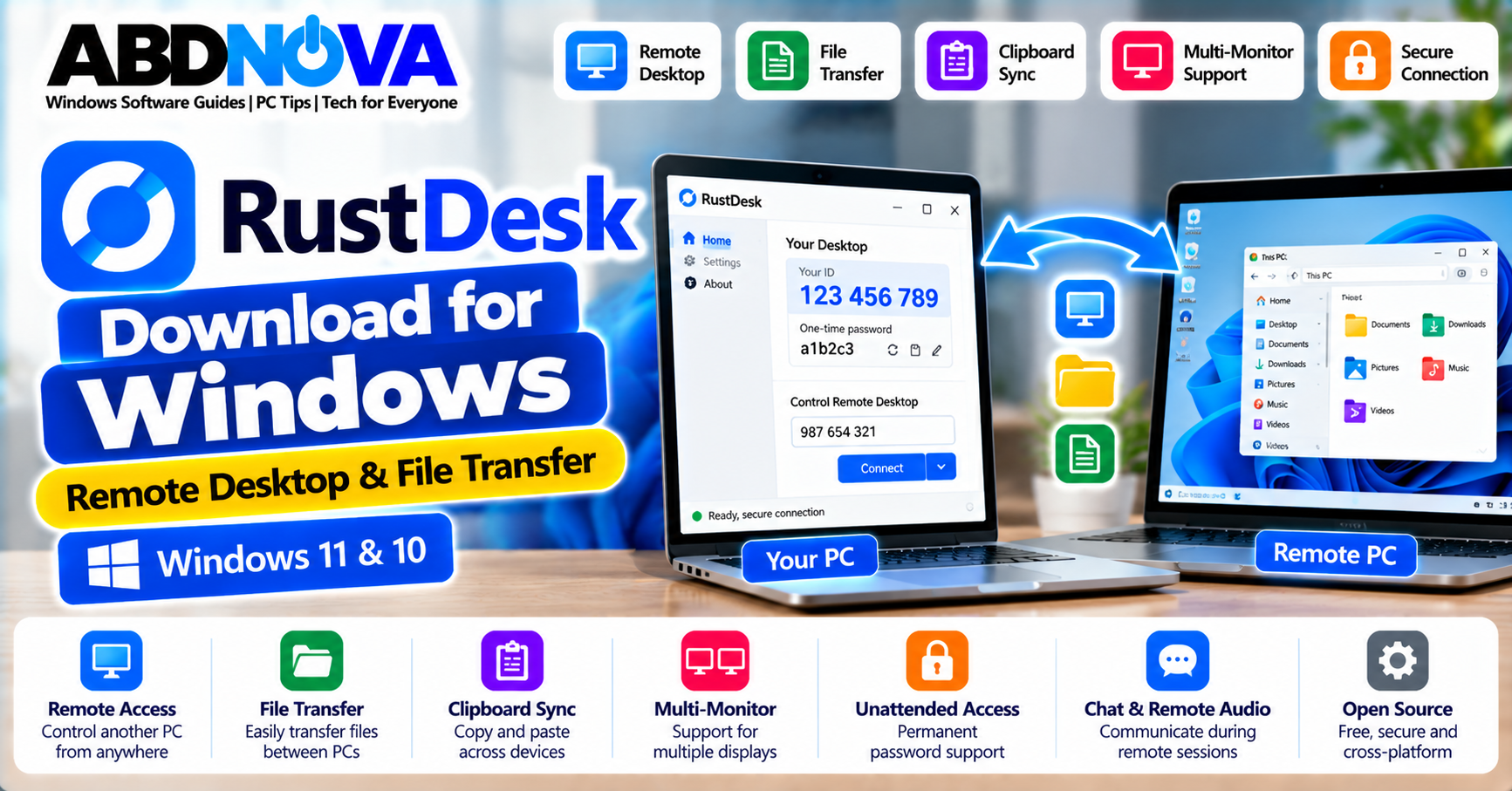

RustDesk Download for Windows – Remote Desktop & File Transfer
RustDesk is a free and open-source remote desktop application that lets you access and control another computer from a Windows PC. It can be used for remote support, accessing your own computers, transferring files, sharing clipboard content, and managing devices from another location.
RustDesk is often considered an alternative to remote-access applications such as AnyDesk and TeamViewer. One of its major differences is self-hosting support: you can use the available RustDesk infrastructure for normal connections or configure your own RustDesk Server when you want greater control over the connection infrastructure.
For Windows users, RustDesk supports both standard installation and portable-style workflows, making it useful for occasional technical support as well as regular unattended remote access.
RustDesk for Windows 11 & 10
RustDesk supports modern Windows PCs and provides packages for different processor architectures and deployment requirements.
| Package | Best For |
|---|---|
| Windows x86-64 EXE | Most Windows 11 & 10 PCs with Intel or AMD processors |
| Windows x86-64 MSI | Managed and business deployment |
| Windows ARM64 EXE | ARM-based Windows PCs |
| Windows ARM64 MSI | Managed ARM64 deployment |
| Legacy x86 | Older supported 32-bit environments |
For most Windows 11 and Windows 10 computers with Intel or AMD processors, choose the current x86-64 Windows package. ARM-based Windows PCs should use the ARM64 build.
RustDesk Main Interface, Remote ID, Password & Connection Features
The RustDesk interface displays the information and controls required to establish remote connections.
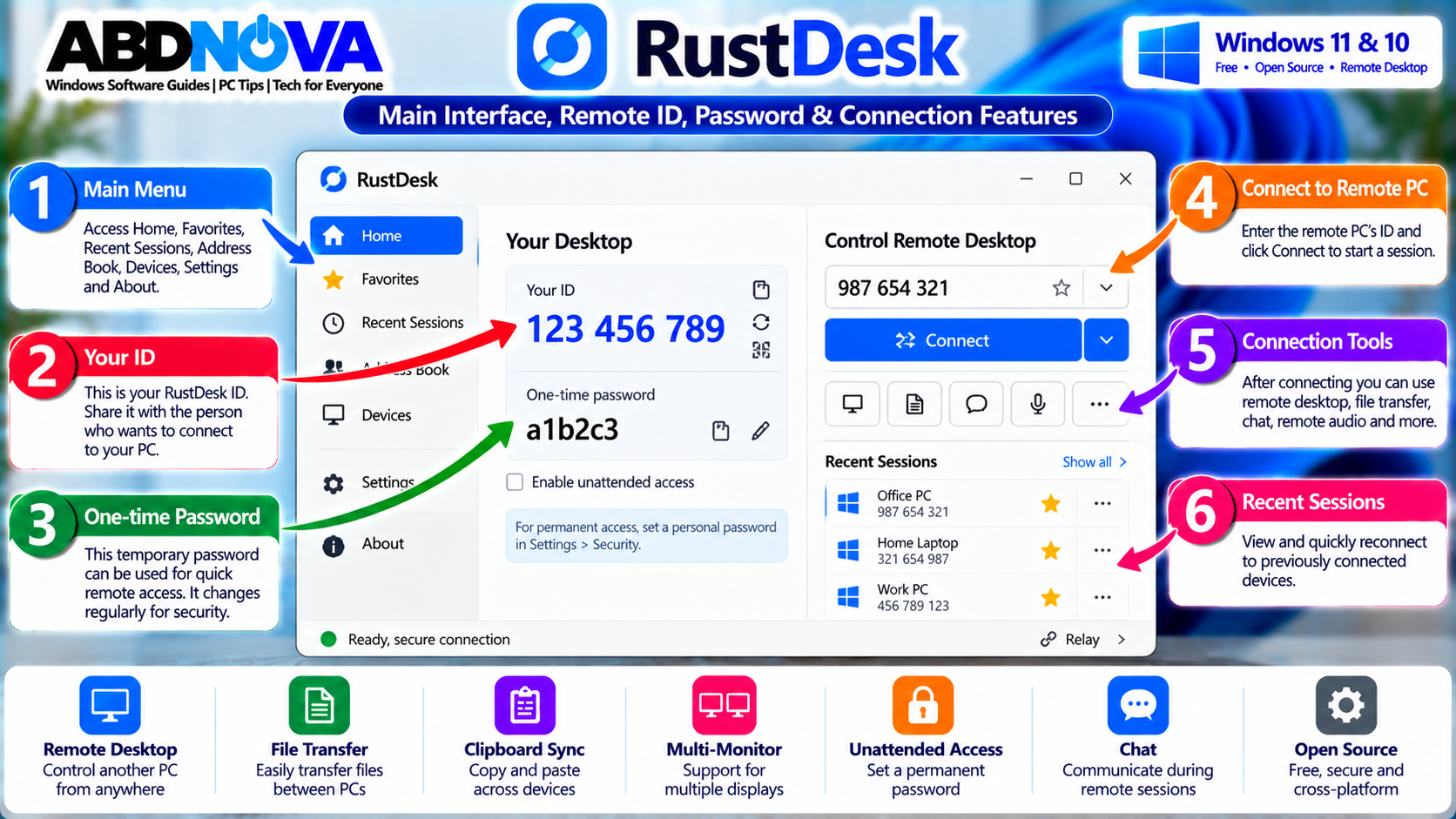
Depending on the current version and configuration, the interface may show:
- Your RustDesk device ID
- Temporary password
- Remote ID field
- Connection controls
- Recent sessions
- Favorites
- Discovered devices
- Settings
- Security options
- Network configuration
Your RustDesk ID identifies the device for remote connections. A remote user can enter that ID and request a connection. Depending on your security settings, you can manually approve the request or allow authentication using a configured password.
RustDesk Key Features
- Remote desktop control
- Remote technical support
- File transfer
- Clipboard synchronization
- Multi-monitor support
- Unattended access
- Permanent and temporary password access
- Remote audio
- Chat
- Keyboard and mouse control
- Connection permissions
- Remote restart options
- Windows elevation support
- Direct connections when available
- Relay connections
- Self-hosted server support
- Cross-platform support
- Portable Windows workflow
- MSI deployment options
EXE vs MSI – Which RustDesk Download Should You Choose?
RustDesk provides both EXE and MSI packages for Windows.
EXE
The standard EXE is convenient for normal users and remote-support sessions. It is suitable for:
- Personal PCs
- Remote support
- Occasional connections
- Standard Windows installations
MSI
The MSI package is more useful for managed Windows environments and may be preferred for:
- Business deployment
- Multiple PCs
- Scripted installation
- Enterprise software management
- Administrative deployment
For most home users, the standard Windows client is sufficient.
Run RustDesk Without a Full Installation
RustDesk can be useful for quick remote-support sessions where you do not initially want a traditional installation.
Download the official Windows EXE and run it. The application can display the ID and other information needed for another RustDesk user to request a connection.
This can be convenient when helping someone with a temporary computer problem. However, functionality that requires elevated privileges or persistent background access may work better when RustDesk is properly installed.
How to Install RustDesk & Connect to Another Windows PC
For regular remote access, install RustDesk on the Windows computer and configure only the access options you actually need.
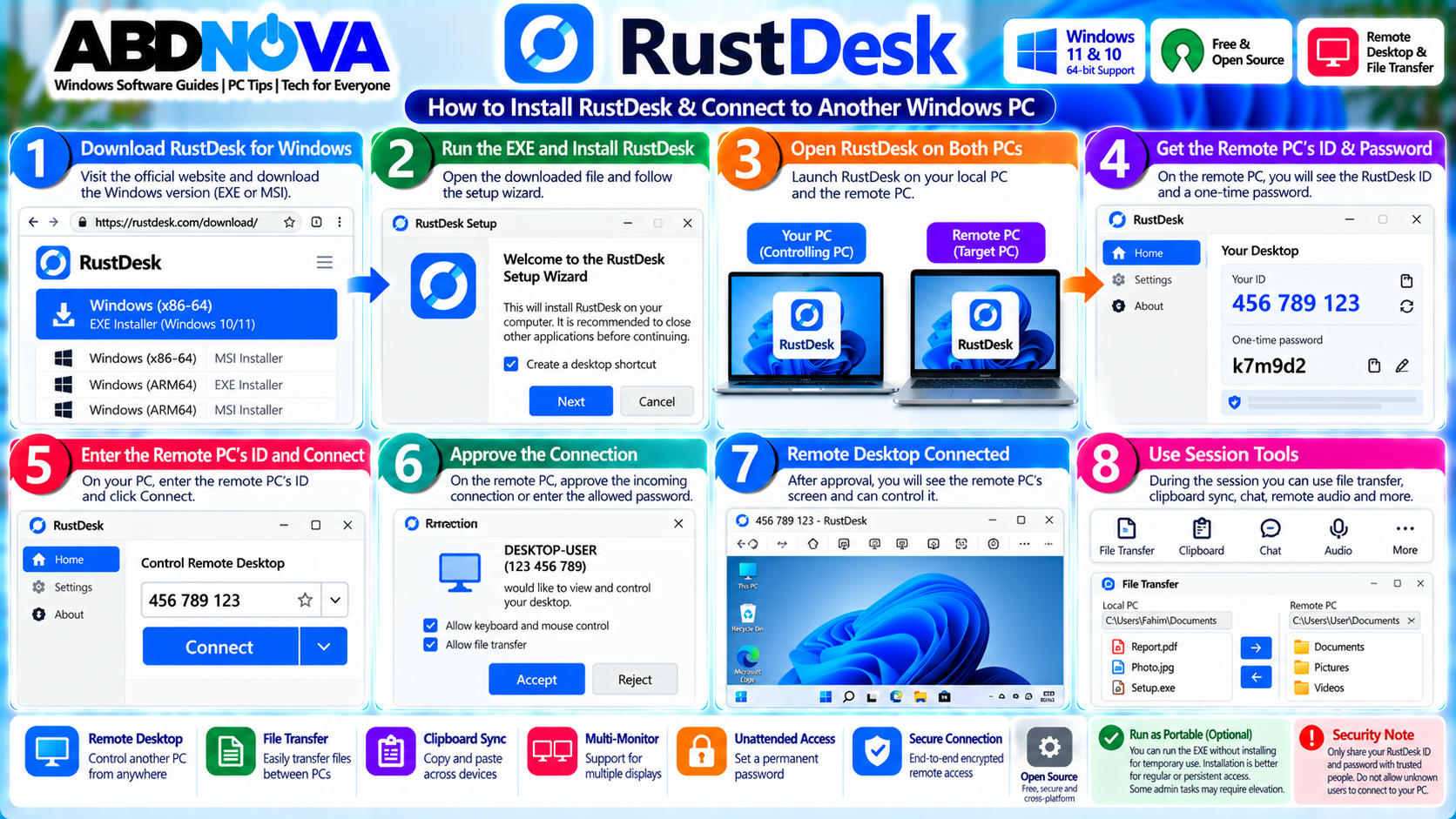
Install RustDesk on Windows
- Visit the official RustDesk download page.
- Download the appropriate Windows package.
- Open the downloaded RustDesk file.
- Review the Windows security prompt.
- Start RustDesk.
- Choose the installation option if you want permanent installation.
- Approve the Windows UAC prompt when required.
- Complete the installation.
- Launch RustDesk.
Connect Two Windows PCs
Install or run RustDesk on both computers.
PC 2: Remote Desktop
On PC 2, open RustDesk and obtain its RustDesk ID.
Then on PC 1:
- Open RustDesk.
- Enter the ID of PC 2.
- Start the connection.
- Wait for approval or enter the required password.
- Establish the remote session.
After authorization, the remote desktop appears on your computer and can be controlled according to the permissions granted by the remote side.
Temporary Password Access
Temporary password access is useful for one-time remote support. A person who intentionally requests technical help can provide the required connection information to a trusted support person.
For temporary support, avoid enabling permanent unattended access unless it is genuinely required.
RustDesk Remote Desktop, File Transfer, Unattended Access & Security
Once a trusted remote session is established, RustDesk can provide much more than basic screen viewing.
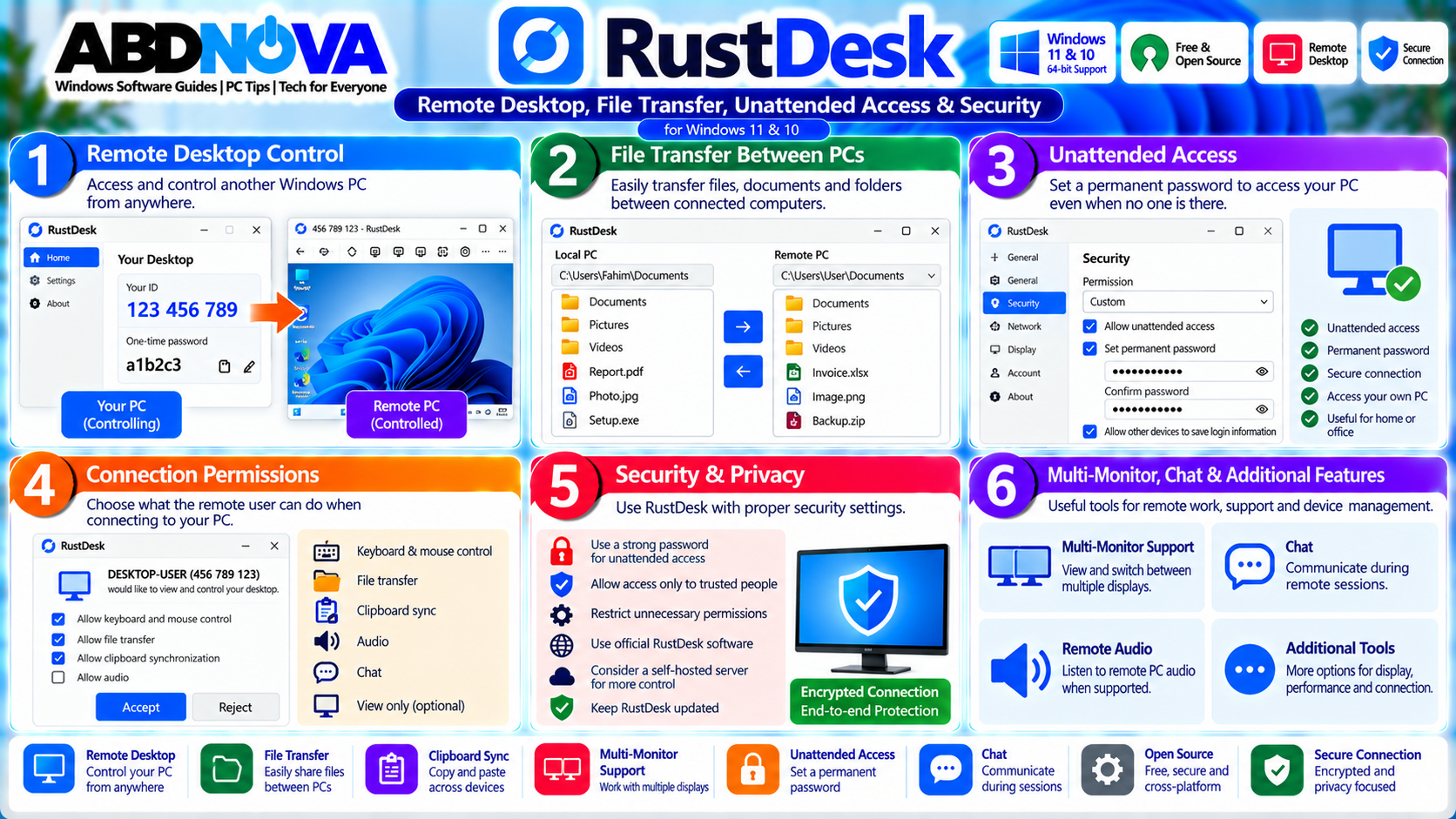
Remote Desktop Control
RustDesk can provide keyboard and mouse control of the remote Windows computer. Depending on the granted permissions, you can:
- Open applications
- Change settings
- Manage files
- Troubleshoot Windows
- Install software
- Review system information
- Assist another user
- Access your own workstation
Only enable remote-control capabilities that are actually needed for the session.
RustDesk File Transfer
RustDesk supports file transfer between connected devices. This allows files to be moved between local and remote computers without first uploading them to separate cloud storage.
You can transfer items such as:
- Documents
- Photos
- Videos
- Software installers
- ZIP archives
- Project files
- Support logs
Transfer speed depends on network speed, whether the connection is direct or relayed, file size, disk performance and network congestion.
If you only need simple file sharing between nearby devices rather than full remote desktop control, see our LocalSend Download for Windows guide.
Clipboard Synchronization
When clipboard permission is enabled, RustDesk can synchronize supported clipboard content between connected devices.
This can make it easier to copy:
- Commands
- URLs
- Text
- File paths
- Notes
Clipboard access can expose sensitive information, so disable clipboard sharing when it is unnecessary.
Multi-Monitor Remote Access
RustDesk supports remote systems with multiple displays. When the remote computer has more than one monitor, you can switch between available displays using the remote-session controls.
This is useful for dual-monitor office PCs, development computers, design workstations and technical-support environments.
Remote Audio & Chat
RustDesk can transfer remote audio when supported and permitted. It also includes communication functionality that can help a technician and remote user communicate during a support session.
Disable remote audio and other capabilities when they are not required.
Unattended Access
RustDesk can be configured for unattended remote access when you need to connect to a computer while nobody is physically present.
Examples include:
- Home PC from work
- Office PC from home
- Personal server
- Secondary computer
- Remote workstation
For regular unattended access, install RustDesk properly and configure an appropriate permanent password in the security settings.
RustDesk Connection Permissions
RustDesk provides controls for incoming remote sessions. Depending on the platform and current client, permissions can include:
- Keyboard and mouse
- Clipboard
- File transfer
- Audio
- Camera
- Terminal
- Remote printing
- Other remote functions
Disable unnecessary permissions. For example, if another person only needs to view your screen, there may be no reason to allow file transfer.
Windows UAC & Administrator Tasks
Some Windows administrative actions require elevated permissions. When RustDesk is only running temporarily without installation or elevation, Windows security boundaries can limit what the remote user can control.
Installing or appropriately elevating RustDesk can provide better support for administrative tasks.
Direct vs Relay Connections
RustDesk attempts to establish appropriate connectivity between devices. A direct connection is generally preferable because traffic can travel directly between the devices.
PC A ↔ PC B
Relay:
PC A → Relay → PC B
If a direct connection cannot be established because of NAT, firewall or network restrictions, relay infrastructure can be used. Relay performance can be slower than a successful direct connection.
Self-Hosted RustDesk Server
One of RustDesk’s major features is the ability to use your own server infrastructure. This is useful for advanced users and organizations that want greater control over their remote-access environment.
RustDesk’s self-hosted architecture includes components responsible for ID/rendezvous and relay functionality.
A self-hosted client configuration can require information such as:
- ID Server
- Server public key
- Relay Server when required
RustDesk offers the open-source Server OSS option as well as Server Pro for additional commercial and management requirements.
RustDesk Security & Remote Access Safety
Remote desktop software can provide extensive control over a computer, so security should remain a priority.
Use RustDesk securely by:
- Using strong passwords
- Allowing access only to trusted people
- Keeping RustDesk updated
- Reviewing incoming connection requests
- Restricting unnecessary permissions
- Protecting self-hosted server keys
- Locking your Windows account
- Ending remote sessions when finished
- Avoiding unknown support callers
- Downloading RustDesk only from official sources
Remote Access Scams
Remote desktop software itself can be legitimate, but scammers may attempt to convince victims to install remote-access applications and give them control of a computer.
Be suspicious if an unknown person asks you to:
- Install RustDesk unexpectedly
- Provide your RustDesk ID
- Share a temporary password
- Enable unattended access
- Open online banking
- Enter payment information
- Disable Windows security
- Transfer money
- Reveal one-time security codes
RustDesk vs AnyDesk vs TeamViewer
RustDesk, AnyDesk and TeamViewer can all provide remote desktop access, but their deployment models and management options differ.
| RustDesk | AnyDesk / TeamViewer |
|---|---|
| Open-source client | Commercial remote-access ecosystems |
| Self-hosted server option | Primarily vendor-operated service infrastructure |
| Remote desktop and file transfer | Remote desktop and file-transfer capabilities |
| Suitable for personal and self-hosted environments | Strong commercial and business-management ecosystems |
The best option depends on your support workflow, deployment size, infrastructure requirements, licensing needs and management requirements.
RustDesk Connection Problems, Troubleshooting & Safe Download
If RustDesk cannot connect or a remote-session feature does not work correctly, check network connectivity, permissions, client versions and Windows security settings before making major configuration changes.
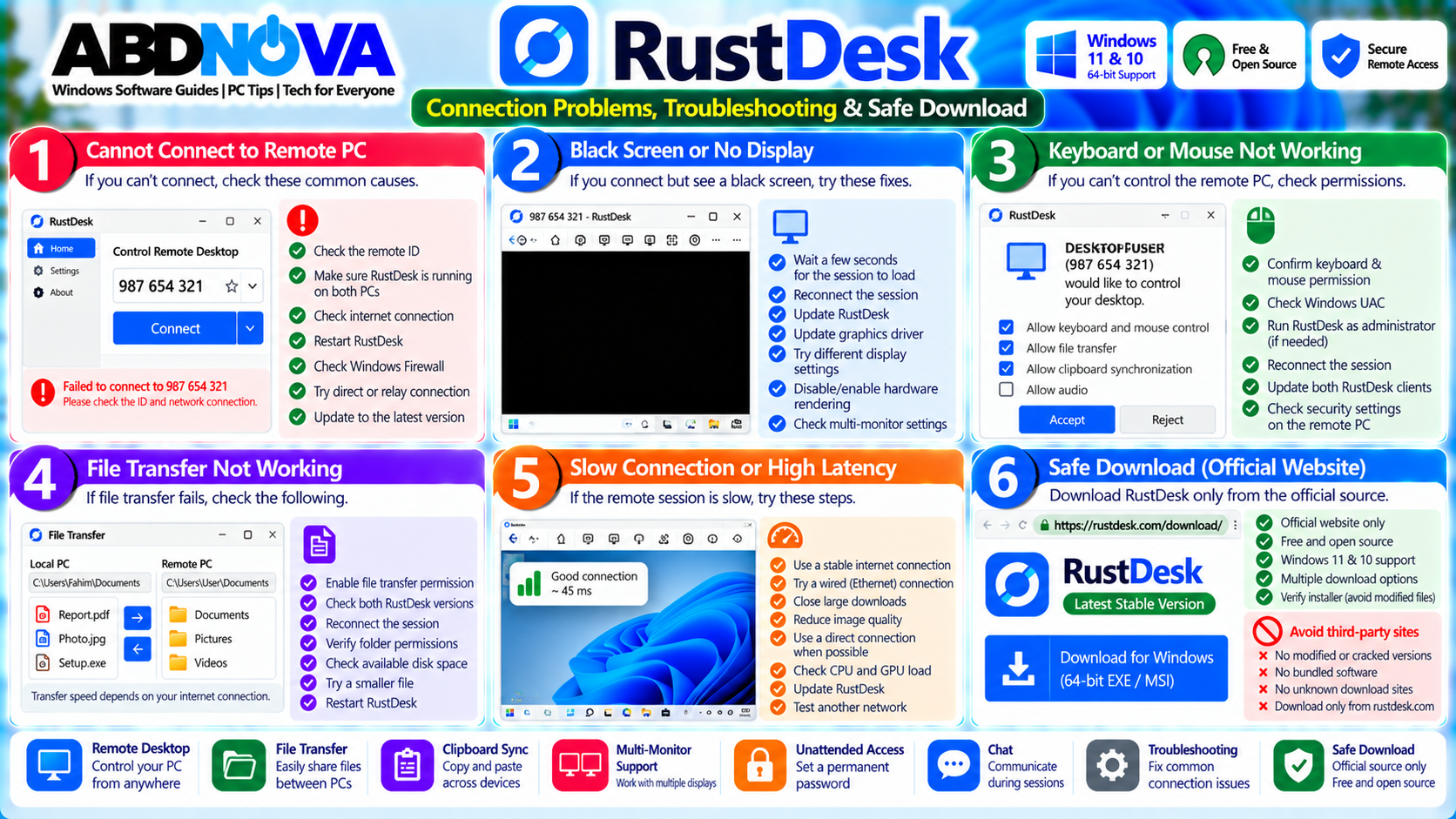
RustDesk Cannot Connect to Remote PC
- Confirm RustDesk is running on both devices.
- Check the remote ID.
- Confirm both computers have network or internet access.
- Restart RustDesk.
- Restart the network connection.
- Check Windows Firewall.
- Check VPN or proxy configuration.
- Update both RustDesk clients.
- Confirm the remote computer is online.
If direct connectivity is unavailable, RustDesk may need to use relay infrastructure.
RustDesk Remote Screen Is Black
- Wait a few seconds for the session to initialize.
- Reconnect the session.
- Check the remote display.
- Update RustDesk.
- Update the graphics driver.
- Review hardware rendering or codec settings.
- Try another supported display or rendering option.
Keyboard or Mouse Does Not Work
Check whether keyboard and mouse control is permitted on the remote device. Also review:
- RustDesk permissions
- Windows elevation
- UAC state
- Remote-session mode
- Client version
Reconnect after changing permissions.
RustDesk File Transfer Does Not Work
- Confirm file-transfer permission is enabled.
- Check both RustDesk versions.
- Reconnect the session.
- Verify folder permissions.
- Check available disk space.
- Try a smaller file.
- Restart RustDesk.
The receiving Windows account must also have permission to write to the destination folder.
RustDesk Connection Is Slow
- Use Ethernet instead of weak Wi-Fi where possible.
- Close unnecessary large downloads.
- Reduce remote image quality if appropriate.
- Check network latency.
- Use a direct connection when possible.
- Update RustDesk.
- Check CPU and GPU load.
- Test another network.
Relay connections can have different performance characteristics from direct peer connections.
Unattended Access Does Not Work
Check that:
- RustDesk is installed.
- The remote computer is powered on.
- RustDesk is running appropriately.
- Permanent password settings are correct.
- Windows has network connectivity.
- Firewall access is allowed.
- The remote ID is correct.
- The computer is not sleeping.
Safe RustDesk Download
Download RustDesk only from the official RustDesk project. RustDesk states that rustdesk.com is its official domain.
Avoid:
- Modified RustDesk installers
- Cracked versions
- Unknown portable builds
- Third-party repacks
- Bundled installers
- Fake premium editions
- Suspicious remote-support links
Frequently Asked Questions
What is RustDesk?
RustDesk is a remote desktop application that lets you access and control another computer remotely.
Is RustDesk free?
RustDesk provides free and open-source client software. Commercial products and services are also available for additional business and server requirements.
Does RustDesk work on Windows 11?
Yes. RustDesk supports modern Windows systems, including Windows 11.
Does RustDesk work on Windows 10?
Yes. RustDesk can also be used on Windows 10.
Does RustDesk support Windows ARM64?
Yes. Current RustDesk releases provide Windows ARM64 packages in addition to x86-64 builds.
Can RustDesk transfer files?
Yes. RustDesk supports file transfer between connected devices when the required permissions are enabled.
Can RustDesk be used without installing it?
The Windows EXE can be useful for temporary or portable-style remote-support workflows. Installation is more appropriate when persistent or elevated functionality is required.
Does RustDesk support unattended access?
Yes. RustDesk can be configured for unattended remote access using appropriate security settings and a permanent password.
Can RustDesk connect over the internet?
Yes. RustDesk supports remote connections across networks and can use direct or relay connectivity as appropriate.
Can I host my own RustDesk server?
Yes. Self-hosting is one of RustDesk’s major features. Server OSS and commercial server options are available for different requirements.
Is RustDesk safe?
RustDesk is legitimate open-source remote-access software, but remote-access applications must be configured carefully. Download it from the official project, use strong authentication, restrict permissions and never grant access to unknown people.
Is RustDesk an alternative to AnyDesk or TeamViewer?
Yes. RustDesk provides many similar core remote-access capabilities while also offering open-source development and self-hosting options.
Final Thoughts
RustDesk is a capable remote desktop solution for Windows users who need to access another PC, provide technical support, transfer files, synchronize clipboard content or manage their own computers remotely.
For occasional assistance, the Windows client provides a convenient temporary remote-support workflow. For regular remote access, installing RustDesk and configuring secure unattended access is more practical.
Self-hosted server support is one of RustDesk’s strongest differences from many traditional remote desktop applications. Advanced users and organizations can gain greater control over how their remote-access infrastructure is configured.
Because remote desktop software can provide extensive access to a computer, use strong passwords, enable only required permissions, keep RustDesk updated and reject unexpected remote-access requests.
Download RustDesk for Windows
Get the current Windows client directly from the official RustDesk project.