


Proton VPN Download for Windows 11 & 10 – Free & Secure VPN

Download Proton VPN for Windows 11 and Windows 10 to encrypt your internet connection, change your public IP address, and use privacy features such as Kill Switch, WireGuard, Secure Core, and leak protection.
Proton VPN is a privacy-focused VPN service that helps protect your internet connection by encrypting traffic between your Windows PC and a Proton VPN server. When connected, websites normally see the VPN server’s IP address instead of the public IP address exposed by your regular internet connection.
The official Proton VPN Windows app supports Windows 11 and supported 64-bit versions of Windows 10. Proton provides a free plan with no data limit as well as paid plans with additional servers and advanced features.
The Windows application supports features including Kill Switch, Secure Core, WireGuard, OpenVPN, Stealth, Smart Protocol, DNS and IPv6 leak protection, split tunneling, NetShield, and VPN Accelerator depending on the selected plan.
In this guide, you will learn how to download Proton VPN safely, install it on Windows, connect to a VPN server, compare Free and paid plans, understand its privacy features, choose VPN protocols, and troubleshoot common connection problems.
Proton VPN Download – Quick Overview
| Information | Details |
|---|---|
| Software | Proton VPN |
| Developer | Proton |
| Category | VPN / Privacy & Security |
| Platform | Windows and other major platforms |
| Windows Support | Windows 11 and supported Windows 10 64-bit versions |
| Architecture | x64 and ARM64 versions available |
| Free Plan | Yes |
| Free Data Limit | No data limit |
| Kill Switch | Yes |
| Secure Core | Available with eligible paid plans |
| Split Tunneling | Paid feature |
| Protocols | WireGuard, OpenVPN, Stealth |
| Smart Protocol | Yes |
| Open Source App | Yes |
| Account Required | Yes |
| Recommended Source | Official Proton VPN Website |
What Is Proton VPN?
Proton VPN is a virtual private network service developed by Proton, the privacy-focused company behind services including Proton Mail.
When you connect to Proton VPN, internet traffic between your device and the VPN server travels through an encrypted VPN tunnel. This can provide additional privacy, particularly when using networks you do not fully trust.
A VPN can help prevent your internet service provider from directly seeing the websites and services your device communicates with through the VPN tunnel, while websites normally see the VPN server’s IP address rather than your usual public IP address.
Which Proton VPN Version Should You Download?
Proton provides separate Windows downloads for conventional x64 computers and compatible ARM64 Windows devices.
Choose the correct version:
- x64: The correct choice for most Windows desktop and laptop computers.
- ARM64: Designed for compatible Windows-on-ARM devices such as certain Microsoft Surface and other ARM-based PCs.
To check your PC, open Settings → System → About → System type. This shows whether Windows is using an x64-based or ARM-based processor.
Do not randomly install a different architecture if you are unsure. Check your System type first.
Proton VPN Windows System Support
Proton’s current lifecycle information lists Windows 11 as supported and Windows 10 64-bit build 19045 as supported. Windows 10 builds 19041–19044 are deprecated.
- Windows 11: Supported
- Windows 10 64-bit build 19045: Supported
- Windows 10 builds 19041–19044: Deprecated
Build 19045 corresponds to Windows 10 version 22H2. For the best security, keep both Windows and Proton VPN updated.
How to Install Proton VPN on Windows

Installing the official Proton VPN app takes only a few minutes.
Step 1: Download Proton VPN
Visit Proton’s official Windows download page and choose the correct installer for your PC.
Step 2: Open the Installer
Locate the downloaded .exe file and double-click it. Windows may display a User Account Control prompt asking permission to make changes.
Confirm that you downloaded the installer from Proton before selecting Yes.
Step 3: Select Your Language
The Proton VPN installation wizard will open. Choose your preferred language and continue.
Step 4: Continue Through Setup
You can use the default Start menu folder or choose another location. The installer may also offer other Proton applications available with your plan. Deselect any applications you do not want.
Step 5: Install Proton VPN
Review the installation choices, select Install, and wait while Windows completes the installation.
Step 6: Launch Proton VPN
After setup finishes, Proton VPN should launch automatically. Sign in to your Proton account to continue.
Create a Proton VPN Account
You need a Proton account to use the Proton VPN application. New users can create a free account, while existing Proton users—including Proton Mail users—can sign in using their existing credentials.
Use a strong, unique password for your Proton account and enable two-factor authentication where appropriate.
How to Connect to Proton VPN
After signing in, you can use the application’s automatic connection option to connect to an appropriate available server or manually choose a location and server available under your plan.
Once connected, Proton VPN shows that the VPN connection is active. Traffic between your device and the VPN server is encrypted, and websites normally see the VPN server’s public IP address.
Proton VPN Main Interface

The Windows application is designed to make common VPN tasks accessible without requiring users to manually configure a VPN connection.
Depending on your app version and plan, you can access:
- VPN connection controls
- Countries and servers
- Recent connections
- Pinned connections
- Connection profiles
- Kill Switch
- Split tunneling
- Protocol settings
- Secure Core
- NetShield
- Account and application settings
Proton VPN Free Plan
One of Proton VPN’s major differences from many VPN providers is that it offers an official free VPN service.
According to Proton, its free plan includes:
- No data limits
- No activity logs
- No privacy-invading ads
- Access to free VPN servers
- Core privacy and security features
This makes Proton VPN Free suitable for users who need basic VPN protection but do not require the full server selection and premium features.
Proton VPN Free vs Paid

| Feature | Free | Paid |
|---|---|---|
| VPN Connection | Yes | Yes |
| Data Limit | No data limit | No data limit |
| Free VPN Servers | Yes | Yes |
| Broader Server Selection | Limited | Yes |
| Kill Switch | Yes | Yes |
| Secure Core | No | Yes |
| NetShield | No / Limited by plan | Yes |
| P2P Support | Limited | Yes |
| VPN Accelerator | No | Yes |
| Split Tunneling | No | Yes |
| Advanced Features | Limited | Yes |
Free Plan Is Suitable If You:
- Need basic VPN privacy
- Use a VPN occasionally
- Do not want a monthly data allowance
- Do not require advanced server selection
- Want to try Proton VPN before paying
A Paid Plan Makes More Sense If You:
- Need more server locations
- Want higher-performance server options
- Need P2P support
- Want NetShield
- Need Secure Core
- Want split tunneling
- Need additional advanced VPN features
You do not need a paid plan simply to start using Proton VPN on Windows.
Proton VPN Protocols
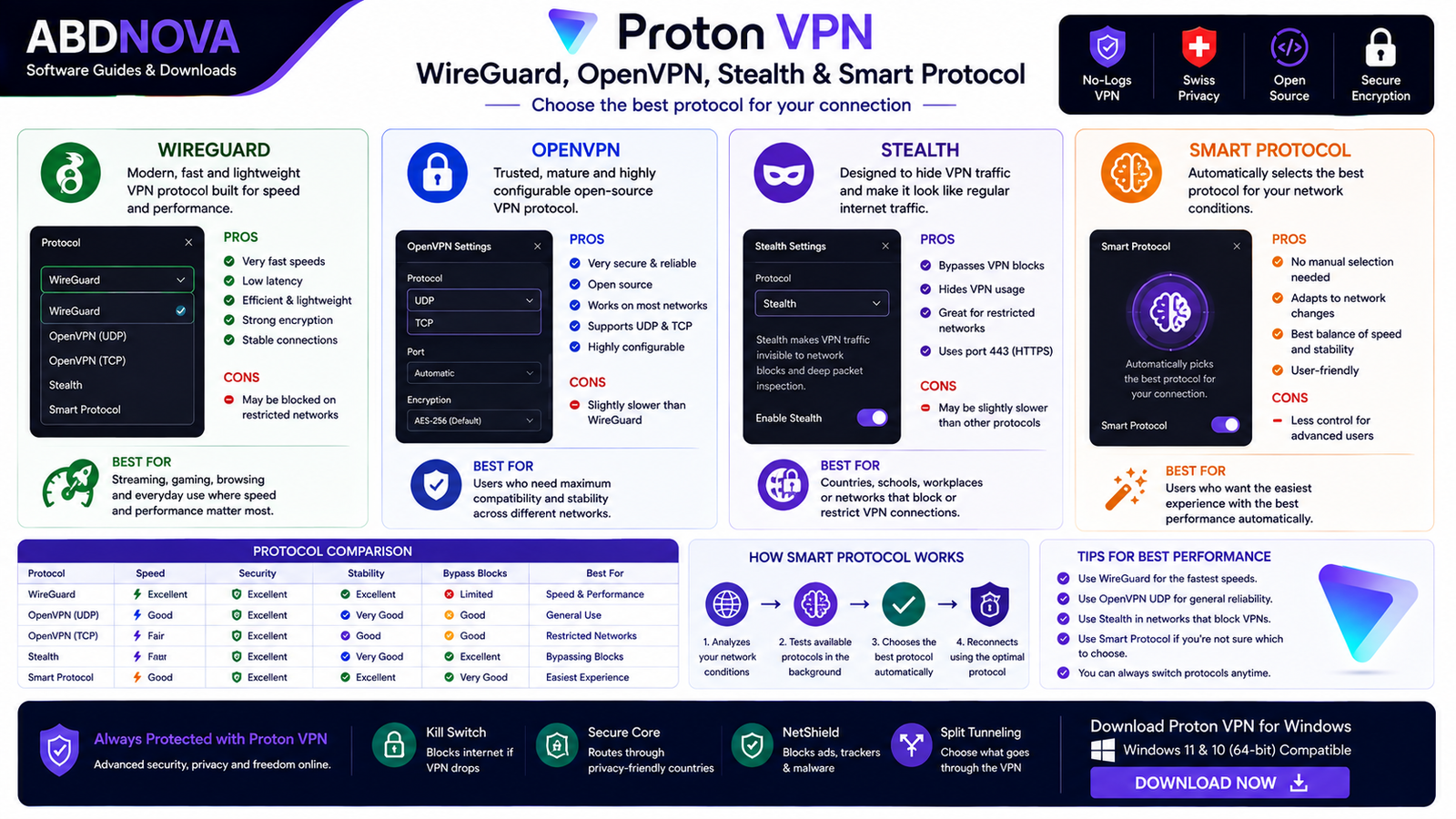
VPN protocols determine how your device establishes and maintains its encrypted VPN connection.
WireGuard
WireGuard is a modern VPN protocol designed around simplicity and performance. For many users, it offers a good balance between speed and security.
OpenVPN
Proton VPN supports OpenVPN connections, including UDP and TCP modes. OpenVPN is mature and widely supported.
Stealth
Stealth is designed to make VPN traffic harder to identify as VPN traffic, which may help in environments where VPN connections are restricted or blocked.
Smart Protocol
If you do not know which protocol to choose, you normally do not need to manually select one. Proton’s Smart Protocol can choose an appropriate VPN protocol based on the connection environment.
For ordinary users, leaving protocol selection automatic is usually the easiest option.
Kill Switch, Secure Core, NetShield & Split Tunneling

Kill Switch
Kill Switch is one of the most important privacy features in a VPN. If your VPN connection unexpectedly drops, your PC could otherwise return to its normal internet connection and expose its regular public IP address.
Proton VPN’s Kill Switch can block network access when the VPN connection fails until the protected VPN connection is restored.
Advanced Kill Switch
Advanced Kill Switch goes further by preventing your Windows PC from connecting to the internet unless Proton VPN is connected, including after a system restart.
Secure Core
Secure Core is an eligible paid-plan privacy feature that routes your VPN connection through additional hardened Proton infrastructure before traffic exits the VPN network.
Proton states that Secure Core infrastructure includes locations in privacy-friendly countries such as Switzerland, Iceland, and Sweden.
Secure Core can increase latency because the connection travels through additional servers, so not every user needs it enabled all the time.
NetShield Ad-Blocker
NetShield is available with eligible paid Proton VPN plans. It uses DNS filtering to block requests to domains associated with malware and, depending on the selected mode, can also block ads and online trackers.
NetShield should not be treated as a replacement for keeping Windows, your browser, and security software updated.
Split Tunneling
Split tunneling controls which applications or IP addresses use the VPN connection.
Proton VPN for Windows supports both:
- Exclude mode: Selected applications or IP addresses bypass the VPN.
- Include mode: Only selected applications or IP addresses use the VPN.
Split tunneling is currently a paid feature.
VPN Accelerator
VPN connections can become slower when the selected VPN server is geographically far away. Proton provides VPN Accelerator technology on eligible paid plans to improve VPN performance, particularly over long-distance connections.
Actual VPN speed still depends on factors including:
- Your original internet connection
- Distance to the VPN server
- Server load
- VPN protocol
- Network congestion
- Your device
No VPN can guarantee the same speed for every user or network.
DNS and IPv6 Leak Protection
A VPN should not protect ordinary web traffic while accidentally exposing DNS requests or your real IP address through another network path.
Proton lists DNS and IPv6 leak protection among the security features of its Windows application.
Proton VPN No-Logs Policy
Proton describes its VPN service as a no-logs VPN and states that it does not keep activity logs that identify what users do online.
A VPN provider occupies an important position of trust, so users should consider its privacy policy, technical design, jurisdiction, transparency, and security practices rather than selecting a VPN solely because of advertising claims.
Open-Source Windows App
The Proton VPN Windows application is open source. This allows security researchers and technically capable users to inspect its source code.
Open source does not automatically guarantee that software has no vulnerabilities, but it provides additional transparency compared with software whose client code cannot be publicly inspected.
Proton VPN and Public Wi-Fi
A VPN can be particularly useful when using hotel, airport, café, or other networks you do not fully trust. Proton VPN encrypts traffic between your Windows device and the VPN server.
Continue to follow normal security practices:
- Use HTTPS websites
- Keep Windows updated
- Avoid suspicious downloads
- Use strong passwords
- Enable two-factor authentication
- Be careful with phishing pages
VPN protection should complement these security practices rather than replace them.
Can Proton VPN Make the Internet Faster?
Usually, a VPN introduces at least some networking overhead because traffic must be encrypted and routed through a VPN server.
Sometimes a particular VPN route can perform better than an inefficient normal route, but users should not install a VPN primarily as an internet speed booster.
For Better VPN Performance
- Connect to a nearby server.
- Use automatic or Smart Protocol selection.
- Try WireGuard where appropriate.
- Avoid Secure Core when maximum speed is more important.
- Check whether your original internet connection is already slow.
Proton VPN Not Connecting – Troubleshooting

VPN connection problems can be caused by Proton VPN, Windows, your local network, firewall configuration, or restrictions imposed by the network you are using.
1. Check Your Internet Without the VPN
Disconnect Proton VPN temporarily and verify that your normal internet connection works. If the internet does not work without the VPN, Proton VPN may not be the cause.
2. Try Another Server
The selected server may temporarily be busy or unavailable. Disconnect and connect to another available server.
3. Change VPN Protocol
If the network blocks or interferes with one VPN protocol, another may work. Try Smart Protocol first or test another supported protocol when necessary.
4. Restart Proton VPN
Close the application completely, reopen it, and try connecting again.
5. Restart Windows
Restarting Windows can resolve temporary networking, adapter, firewall, and VPN-service problems.
6. Check the Windows Clock
An incorrect Windows system clock can cause VPN connection errors. Make sure your Windows date, time, and time zone settings are correct.
7. Update Proton VPN
Use the latest stable Proton VPN version so you receive current fixes and improvements.
8. Check Windows Security or Firewall Settings
Security software or unusually restrictive firewall settings can sometimes interfere with VPN connections.
Proton VPN Connected but No Internet
If Proton VPN says it is connected but websites do not load:
- Disconnect and reconnect.
- Try another server.
- Try another VPN protocol.
- Restart Proton VPN.
- Restart Windows.
- Check DNS and network settings.
- Temporarily test another network.
- Check Kill Switch settings.
If Advanced Kill Switch is active, Windows is intentionally prevented from accessing the internet outside an active Proton VPN connection.
Proton VPN Won’t Start
Restart Windows first. If the application still does not open:
- Install available Windows updates
- Update or reinstall Proton VPN from Proton
- Confirm your Windows version is supported
- Check whether required Windows networking services are running
Proton’s Windows documentation notes that the Base Filtering Engine (BFE) is required by its Windows application.
Avoid downloading random DLL files or unofficial “VPN repair” tools from third-party websites.
Proton VPN Is Slow
Some reduction in speed is normal when using a VPN. If performance is unusually poor:
- Choose a geographically closer server
- Disconnect from heavily loaded servers
- Try Smart Protocol or WireGuard
- Disable Secure Core when you do not need it
- Test your connection without the VPN
- Restart your router if the underlying connection is slow
- Use Ethernet or strong Wi-Fi where possible
Proton VPN Keeps Disconnecting
Frequent disconnections can result from unstable Wi-Fi, mobile hotspots, network changes, VPN protocol restrictions, or other connectivity problems.
Try another Proton VPN server, another protocol, a more stable network, updating Proton VPN, or restarting Windows and your router.
How to Uninstall Proton VPN
Windows 11
Go to Start → Settings → Apps → Installed apps → Proton VPN → ⋯ → Uninstall.
Windows 10
Go to Start → Settings → Apps → Apps & features → Proton VPN → Uninstall.
Is Proton VPN Safe?
Proton VPN includes several features designed to protect VPN connections, including Kill Switch, DNS and IPv6 leak protection, multiple VPN protocols, Secure Core, and an open-source Windows application.
However, a VPN does not automatically protect you from:
- Phishing
- Malicious downloads
- Weak passwords
- Account compromise
- Browser tracking while logged in
- Scams
- Malware you intentionally install
If you also want a Windows malware scanner and cleanup tool, see our Malwarebytes Download for Windows guide.
Safe Download – Important
Because VPN software handles network traffic, you should be especially careful about where you download it. Always use the official Proton VPN Windows download page.
- Proton VPN Crack
- Proton VPN Premium Unlocked
- Modified Proton VPN installers
- Unknown third-party download packages
- Torrent copies of the VPN application
There is no reason to use a modified version because Proton already provides an official free VPN plan.
ABDNOVA does not host cracked or modified Proton VPN installers. Our download button directs visitors to Proton’s official Windows download source.
Frequently Asked Questions
Is Proton VPN free?
Yes. Proton VPN offers a free plan. Proton states that its free VPN has no data limit, no activity logs, and no privacy-invading ads. Advanced features require a paid plan.
Does Proton VPN work on Windows 11?
Yes. Windows 11 is currently listed as supported by Proton VPN.
Does Proton VPN work on Windows 10?
Yes. Current Proton lifecycle information lists Windows 10 64-bit build 19045 as supported, while builds 19041–19044 are deprecated.
Is there a Proton VPN ARM version for Windows?
Yes. Proton provides an ARM64 version for compatible Windows-on-ARM devices.
Does Proton VPN Free have a data limit?
No. Proton states that its free VPN service does not impose a data limit.
Does Proton VPN have a Kill Switch?
Yes. The Windows application includes Kill Switch and Advanced Kill Switch functionality.
Does Proton VPN support WireGuard?
Yes. Proton VPN for Windows supports WireGuard along with OpenVPN and Stealth protocols.
What is Smart Protocol?
Smart Protocol automatically selects an appropriate supported VPN protocol based on network conditions and availability.
Does Proton VPN support split tunneling?
Yes. Split tunneling is available on Windows as a paid feature and can include or exclude selected applications and IP addresses from the VPN tunnel.
What is Secure Core?
Secure Core is a premium Proton VPN feature that routes traffic through additional hardened Proton infrastructure before it exits the VPN network.
Does Proton VPN block ads?
Eligible paid plans include NetShield, which can block domains associated with malware and can also block ads and trackers depending on its configuration.
Can I use Proton VPN on public Wi-Fi?
Yes. Encrypting traffic between your Windows device and a VPN server can provide additional protection on networks you do not fully trust. Normal security precautions are still important.
Why does my internet stop when Proton VPN disconnects?
Check whether Kill Switch or Advanced Kill Switch is enabled. Advanced Kill Switch can intentionally block internet access unless Proton VPN is connected.
Is Proton VPN open source?
Yes. Proton describes its Windows VPN application as open source.
Do I need antivirus software if I use Proton VPN?
A VPN and antivirus software perform different jobs. Proton VPN protects network traffic and privacy but does not replace protection against malicious files and other threats.
Should I download a cracked Proton VPN Premium version?
No. Modified VPN software is particularly risky because VPN applications handle network traffic. Proton already provides an official free service, so use the genuine application.
Final Thoughts
Proton VPN is a strong option for Windows users who want a privacy-focused VPN without being required to purchase a subscription immediately.
Its free plan with no data limit, combined with an open-source Windows application, Kill Switch, modern VPN protocols, DNS and IPv6 leak protection, and a no-logs policy provides the main features needed for ordinary VPN use.
Users who need additional locations and advanced functionality can compare paid plans with features such as Secure Core, NetShield, split tunneling, P2P support, and VPN Accelerator.
For most users, the simplest setup is to install Proton’s official Windows application, sign in, leave Smart Protocol enabled, and connect to an appropriate server. Advanced features can then be enabled only when required.
Most importantly, download Proton VPN directly from Proton rather than using modified or unofficial installers.
Ready to download Proton VPN?
Get the latest supported Windows installer from the official Proton VPN website. ABDNOVA recommends official sources only.


