


Opera Browser Download for Windows 11 & 10

Download Opera Browser for Windows 11 and Windows 10 with built-in ad blocking, tracker blocking, sidebar tools, workspaces, sync, and Chromium extension support.
Opera Browser Download for Windows gives Windows 11 and Windows 10 users a Chromium-based browser with a clean interface and several built-in productivity and privacy features.
Opera includes tools such as an ad blocker, tracker blocking, sidebar access, Workspaces, browser synchronization, screenshot tools, battery-saving features, private browsing, password management, and support for Chromium-compatible extensions.
In this guide, you will learn how to download and install Opera Browser, use its main features, import browser data, manage privacy tools, compare Opera with other browsers, troubleshoot common problems, and download Opera safely.
Opera Browser Download – Quick Overview
| Information | Details |
|---|---|
| Software | Opera Browser |
| Developer | Opera |
| Category | Browser |
| Platform | Windows |
| Supported Windows | Windows 11 & Windows 10 |
| Architecture | 64-bit |
| Browser Engine | Chromium |
| License | Free |
| Extensions | Chromium-compatible extensions |
| Main Focus | Browsing, productivity & privacy tools |
| Recommended Source | Official Opera Website |
Opera Browser Main Interface + Features
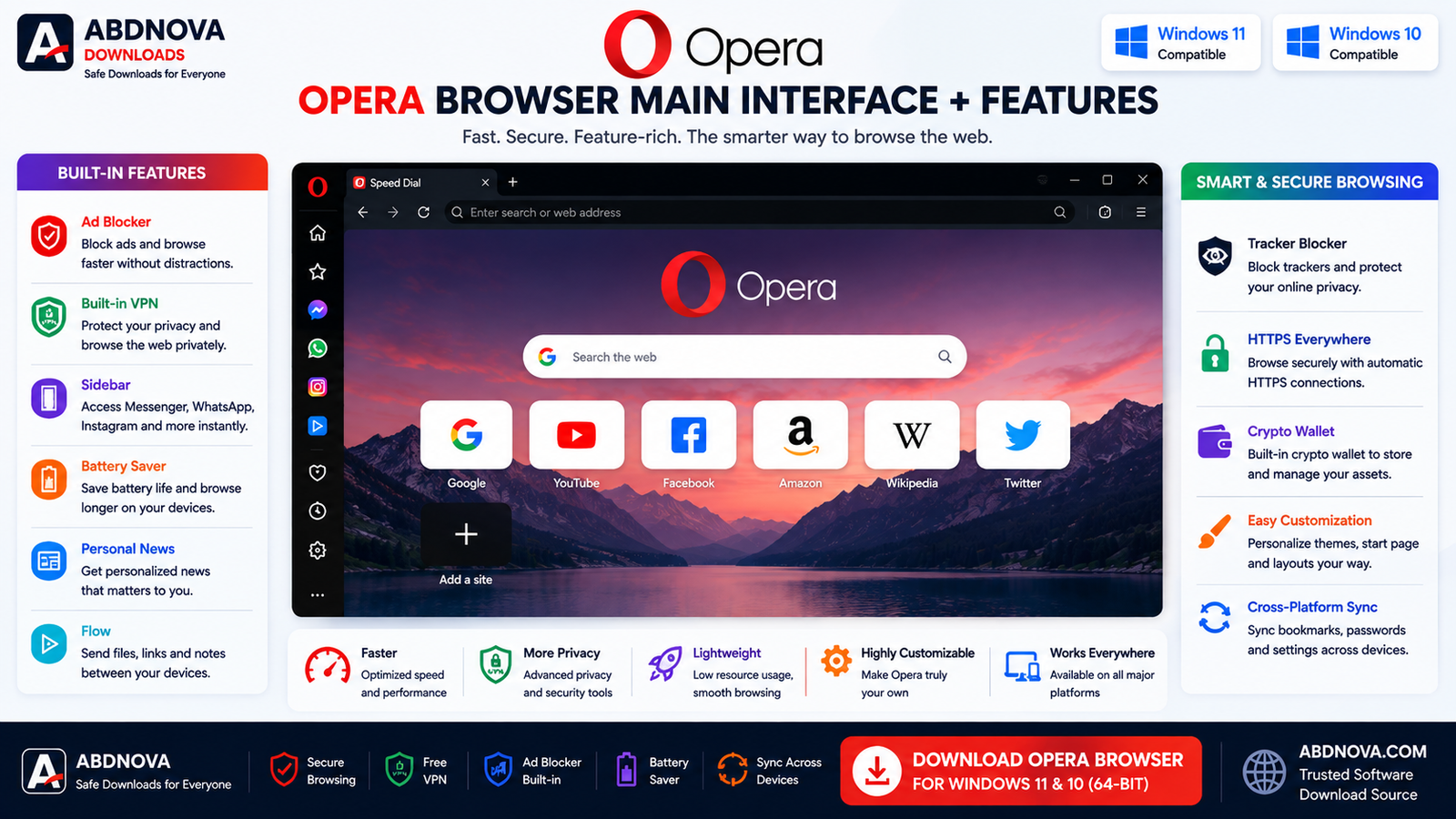
Opera provides a modern browser interface that should feel familiar to users coming from Chrome, Edge, Firefox, or Brave. The interface includes an address bar, tabs, sidebar, Workspaces, extensions, history, downloads, and browser settings.
Built-In Ad Blocker
Opera includes an integrated ad-blocking feature that can block many advertisements and reduce unnecessary webpage elements when enabled.
Tracker Blocking
Opera includes tracker-blocking controls designed to limit certain tracking technologies used across websites.
Opera Sidebar
The sidebar provides quick access to supported tools and services such as Workspaces, bookmarks, history, downloads, messaging services, and other integrated features depending on the current Opera version.
Workspaces
Workspaces help organize tabs into separate groups for work, study, personal browsing, or other activities.
Browser Sync
Opera Sync can synchronize supported information such as bookmarks, history, settings, open tabs, and passwords when you use an Opera account and enable synchronization.
Opera Browser Built-in VPN, Ad Blocker & Sidebar

Opera combines several built-in browser tools intended to reduce the need for separate extensions. Exact features can change between versions, so review Opera’s current settings and official documentation after installation.
How to Download Opera Browser for Windows 11 & 10
- Visit Opera’s official download page.
- Choose the Windows version.
- Download the standard Opera installer.
- Wait for the installer to finish downloading.
- Open the installer from your Downloads folder.
How to Install Opera Browser on Windows

- Download Opera: Get the Windows installer from Opera’s official website.
- Open the installer: Double-click the downloaded Opera setup file.
- Review installation options: Check any available preferences before continuing.
- Verify security prompts: If Windows shows a User Account Control or security prompt, verify the expected publisher.
- Install Opera: Continue with the installation process.
- Launch Opera: Open Opera after setup completes.
- Complete initial setup: Import browser data, configure privacy settings, customize the sidebar, select a search engine, configure sync, or make Opera your default browser if desired.
Import Bookmarks and Browser Data into Opera
Opera can import supported browser data from compatible browsers such as Chrome, Edge, Firefox, or other supported browsers. Depending on the source, this can include bookmarks, browsing history, saved passwords, and other supported data.
Opera Extensions
Because Opera uses Chromium, it supports many Chromium-compatible extensions. Before installing an extension, review the developer, requested permissions, user reviews, update history, and privacy practices.
Opera Private Browsing
Opera provides private browsing windows. Private mode reduces certain local browsing information saved after the private session is closed, but it does not make your internet activity completely anonymous.
Opera Browser Performance & Battery Saver
Opera performance depends on the number of open tabs, installed extensions, RAM, CPU, background applications, website complexity, internet connection, and browser configuration.
Opera has also offered battery-saving functionality designed to reduce browser power consumption under certain conditions. Actual battery improvement varies by laptop hardware, display brightness, websites, tabs, video playback, and background applications.
Opera Browser vs Google Chrome
| Feature | Opera | Google Chrome |
|---|---|---|
| Chromium Based | Yes | Yes |
| Extension Support | Yes | Yes |
| Built-In Ad Blocker | Yes | Not equivalent by default |
| Tracker Blocking | Built-in controls | Different privacy controls |
| Workspaces | Available | Different tab organization features |
| Sidebar | Yes | Different interface |
| Sync | Yes | Yes |
Opera Browser vs Brave Browser
Opera and Brave are both Chromium-based browsers, but their priorities differ. Brave places stronger emphasis on privacy protections, while Opera combines browsing with a wider range of integrated productivity and convenience features.
Opera Browser vs Microsoft Edge
Opera and Microsoft Edge both use Chromium. Edge integrates closely with Windows and Microsoft’s ecosystem, while Opera provides a different interface with sidebar tools, Workspaces, built-in blocking options, and other integrated features.
Related Browser Guides
- Brave Browser Download for Windows
- Google Chrome Offline Installer for Windows
- Microsoft Edge Offline Installer for Windows
- Mozilla Firefox Offline Installer for Windows
How to Update Opera Browser
Opera normally checks for updates automatically. You can also use Opera’s update or About section to check manually. Keeping Opera updated helps with security, bug fixes, performance, browser features, and website compatibility.
Common Opera Browser Problems and Fixes
Opera Browser Won’t Open
Restart your computer, check Task Manager for stuck Opera processes, install Windows updates, and reinstall Opera if necessary.
Opera Browser Is Slow
Close unnecessary tabs, remove unused extensions, restart Opera, update the browser, and check Windows Task Manager for high resource usage.
Website Doesn’t Load Correctly
Reload the page, check the internet connection, test site-specific ad or tracker blocking settings, disable extensions one at a time, and update Opera.
Opera Extensions Not Working
Confirm the extension is enabled, update Opera, reinstall the extension, review its permissions, and disable conflicting extensions.
Opera Installation Failed
Restart Windows, check the internet connection, download a fresh official installer, verify that security software is not incorrectly blocking it, and run setup again.
Opera Uses Too Much RAM
Close unused tabs, remove unnecessary extensions, restart Opera periodically, and close heavy web applications when finished.
Is Opera Browser Safe?
Opera is a legitimate mainstream browser. For safer use, keep it updated, download from the official source, avoid suspicious extensions, review extension permissions, keep Windows updated, and use strong account security.
- Download from Opera’s official website.
- Choose the latest stable release.
- Avoid cracked or modified versions.
- Verify the publisher when Windows displays a security prompt.
- Keep Opera updated after installation.
- Avoid third-party installers containing bundled software.
Frequently Asked Questions
Is Opera Browser free?
Yes. Opera Browser is available to download and use for free.
Does Opera work on Windows 11?
Yes. Current Opera releases support compatible Windows 11 systems.
Can I install Opera on Windows 10?
Opera can be installed on supported Windows 10 systems. Check the current official system requirements when downloading a new release.
Is Opera based on Chromium?
Yes. Opera is a Chromium-based browser.
Can Opera use Chrome extensions?
Opera supports many extensions designed for Chromium-based browsers, although individual extension compatibility can vary.
Does Opera have an ad blocker?
Yes. Opera includes built-in ad-blocking functionality that users can enable and configure.
Does Opera block trackers?
Opera includes tracker-blocking controls that can be reviewed and configured through browser settings.
Can I import Chrome bookmarks into Opera?
Yes. Opera can import supported browser data from compatible browsers, including bookmarks.
Where should I download Opera?
For the safest installation, download Opera directly from its official website.
Final Thoughts
Opera Browser Download for Windows is a useful option for Windows 11 and Windows 10 users who want a Chromium-based browser with integrated productivity, privacy, ad-blocking, sidebar, Workspaces, sync, and extension features.
For the safest installation, use Opera’s official developer source and keep the browser updated after installation.
Ready to download Opera Browser?
Get the latest supported Windows installer from Opera’s official website. ABDNOVA recommends official sources only.


