


Microsoft Edge Offline Installer for Windows
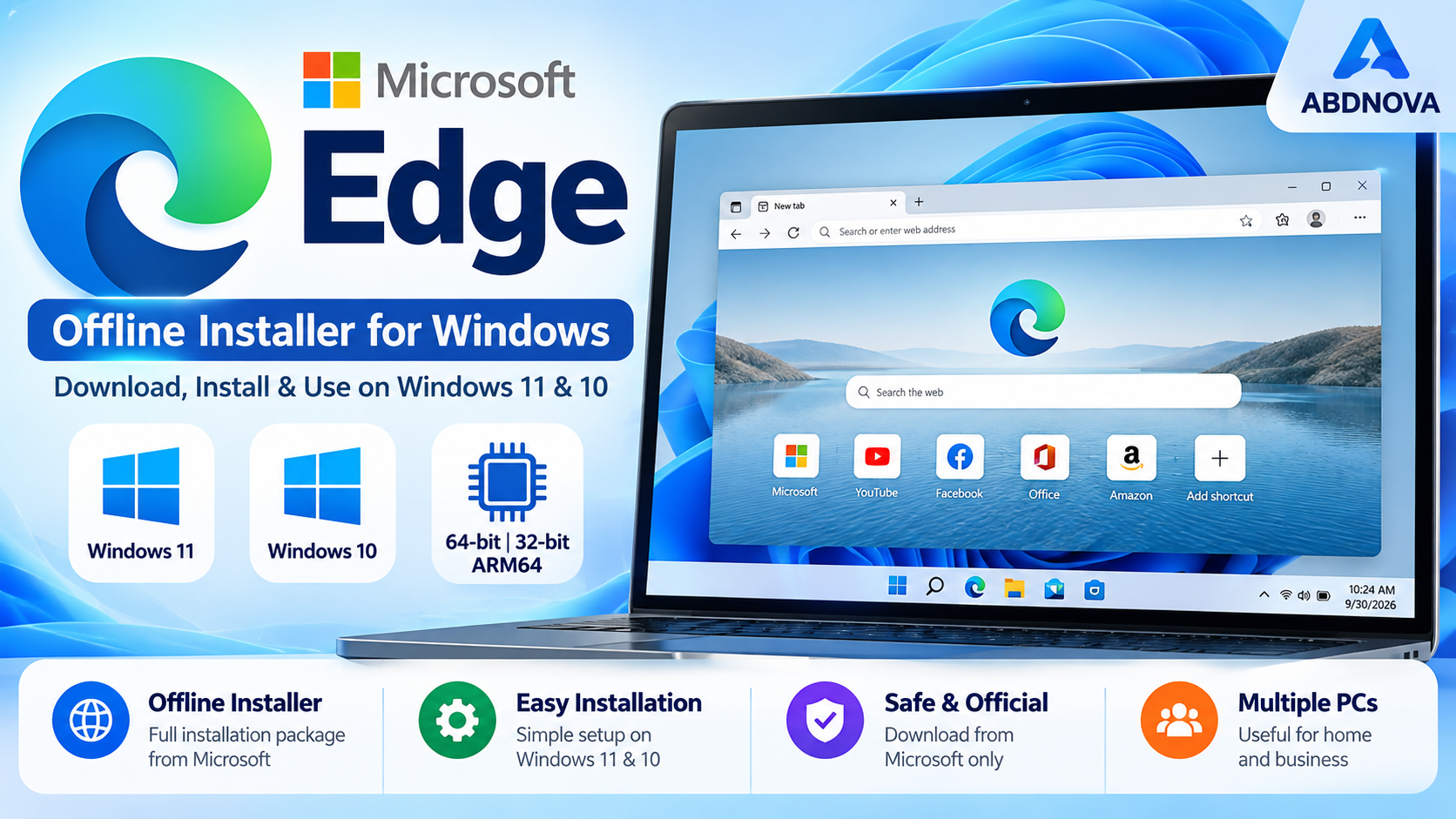
Microsoft Edge Offline Installer for Windows lets you download the full Edge installation package before setup. It is useful for Windows 11 and Windows 10 PCs with limited connectivity, repeated installations, troubleshooting, or deployment on multiple computers.
Microsoft Edge Offline Installer – Overview
| Software | Microsoft Edge |
| Developer | Microsoft |
| Platform | Windows |
| Windows Support | Windows 11 and Windows 10 |
| Category | Web Browser |
| License | Free |
| Architecture | 64-bit, 32-bit and ARM64 |
| Package | Offline / Enterprise installation package |
| Best For | Offline setup, multiple PCs and deployment |
What Is the Microsoft Edge Offline Installer?
Microsoft Edge normally installs and updates through an internet connection. Microsoft also provides downloadable Windows packages that can be saved before installation.
Unlike a small web installer that retrieves additional files during setup, an offline package already contains the main installation files. This makes it more convenient when installing Edge on another PC or when the target computer has an unreliable internet connection.
Microsoft Edge Interface & Key Features
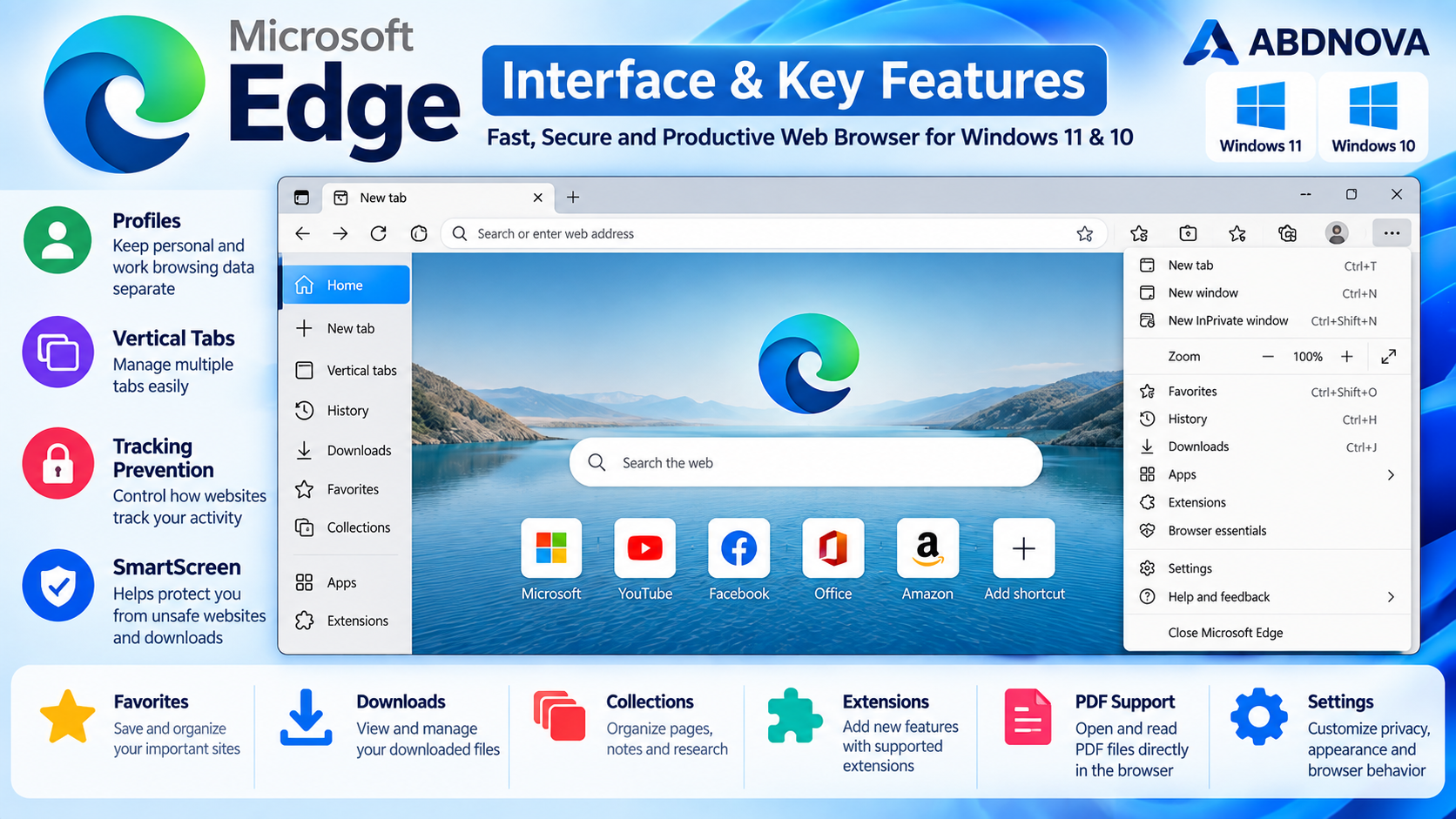
Microsoft Edge uses a modern Chromium-based browser interface with tabs, an address bar, profiles, Favorites, Downloads, History, Extensions, Collections and browser settings.
Profiles
Profiles help separate personal and work browsing data. Users can optionally sign in with a Microsoft account to synchronize supported browser information between devices.
Vertical Tabs
Vertical Tabs provide an alternative way to organize open webpages, especially when many tabs are open at the same time.
Tracking Prevention
Edge includes tracking-prevention controls that allow users to manage how websites and third-party trackers interact with browsing activity.
Microsoft Defender SmartScreen
SmartScreen helps warn users about potentially unsafe websites and suspicious downloads.
PDF Support and Extensions
Edge can open PDF documents directly and supports browser extensions for adding compatible features and services.
Microsoft Edge Offline Installer vs Web Installer
| Feature | Web Installer | Offline Package |
|---|---|---|
| Initial Download | Small | Larger |
| Downloads Files During Setup | Yes | Main package already downloaded |
| Useful for Multiple PCs | Less convenient | Yes |
| Keep Installer for Later | Less useful | Yes |
| Recommended Source | Microsoft | Microsoft |
Microsoft Edge 64-bit, 32-bit and ARM64
Microsoft provides Edge packages for different Windows architectures. Choosing the correct package helps avoid installation and compatibility problems.
| Architecture | Recommended For |
|---|---|
| 64-bit (x64) | Most modern Intel and AMD Windows PCs |
| 32-bit (x86) | PCs running 32-bit Windows |
| ARM64 | Compatible ARM-based Windows PCs |
To check your PC, open Settings → System → About → System type. Download the Edge package that matches the architecture shown by Windows.
How to Download & Install Microsoft Edge Offline on Windows
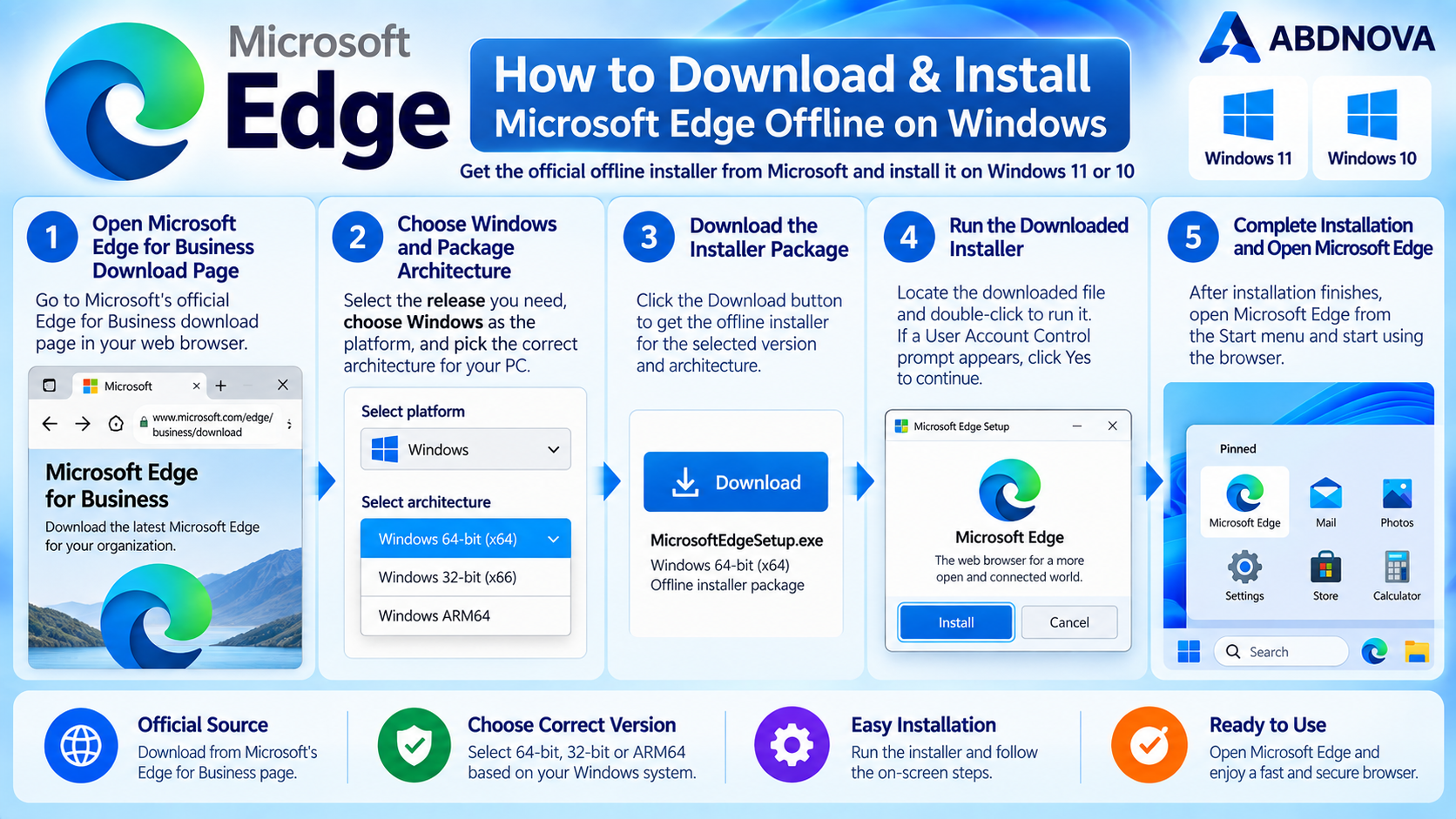
- Open Microsoft’s official Edge for Business download page.
- Select the Edge release you need. The Stable release is suitable for most normal users.
- Select Windows as the platform.
- Choose the correct architecture: 64-bit, 32-bit or ARM64.
- Download the installation package.
- Locate the downloaded installer on your PC.
- Open the installer and approve the Windows security prompt if required.
- Wait for Microsoft Edge to finish installing.
- Open Edge from the Windows Start menu.
Does Microsoft Edge Work Without Internet?
The downloaded offline package can install Edge without downloading the complete browser package during setup. However, normal web browsing still requires an internet connection.
Internet access is also needed for browser updates, account synchronization, downloading extensions and other online Edge services.
How to Update Microsoft Edge
- Open Microsoft Edge.
- Click the three-dot menu.
- Select Help and feedback.
- Open About Microsoft Edge.
- Edge will check for available updates when the PC is online.
- Restart the browser if an update requires it.
You can also enter edge://settings/help in the address bar to open the Edge update page directly.
Microsoft Edge Installation Problems & Troubleshooting
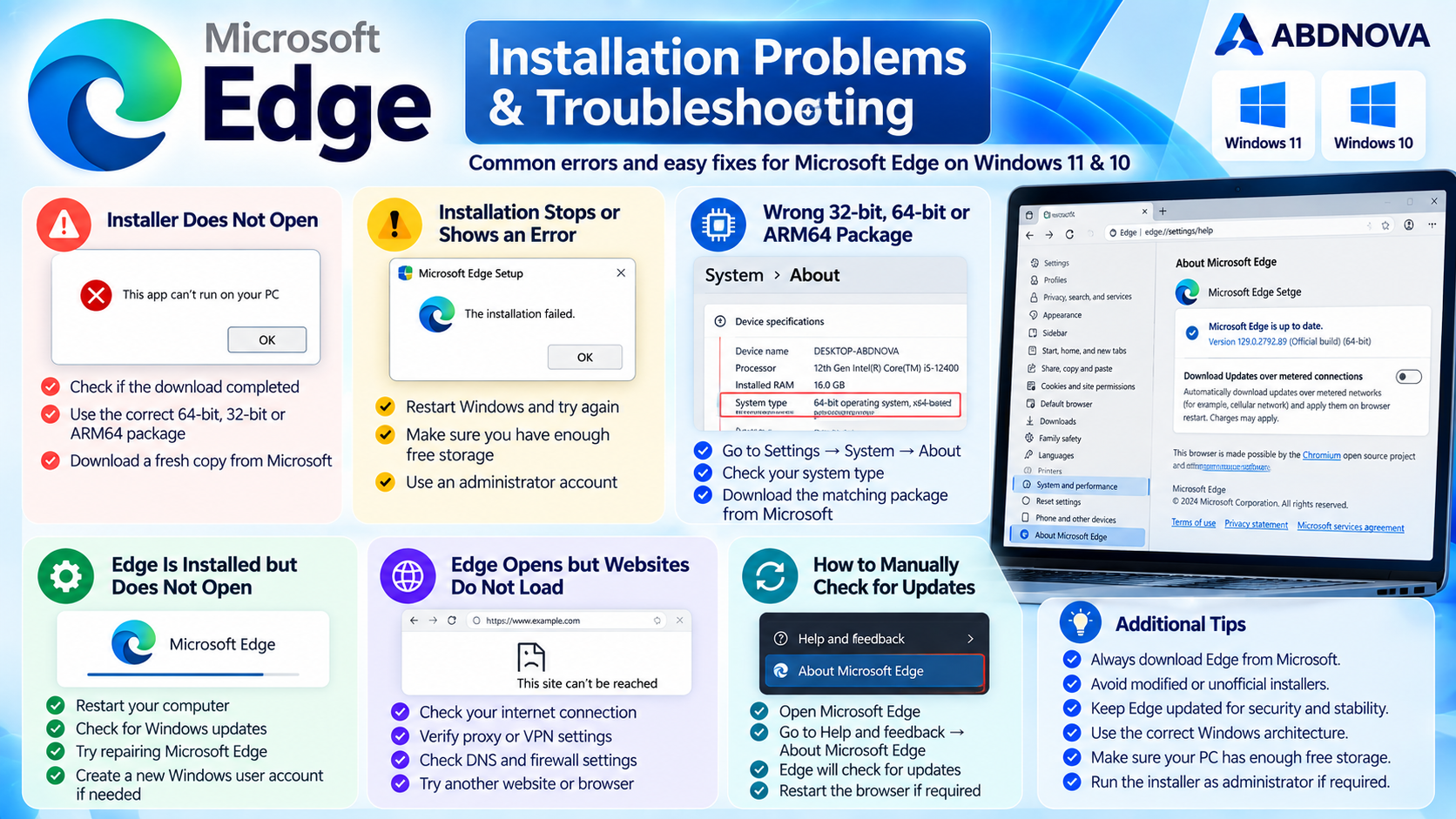
Edge Installer Does Not Open
Check whether the download completed correctly and confirm that you downloaded the correct 64-bit, 32-bit or ARM64 package. If necessary, download a fresh installer directly from Microsoft.
Installation Stops or Shows an Error
Restart Windows and try again. Check available storage space, install pending Windows updates and make sure your account has permission to install applications.
Wrong 32-bit, 64-bit or ARM64 Package
Open Settings → System → About and check the System type field. Return to Microsoft’s download page and select the matching architecture.
Microsoft Edge Is Installed but Does Not Open
Restart the PC first. If Edge still does not launch, check Windows Update and use the available Edge repair option in Windows installed-app settings.
Edge Opens but Websites Do Not Load
If Edge opens normally but webpages fail to load, check your internet connection, VPN or proxy configuration, DNS settings and firewall. Testing the same website in another browser can help determine whether the problem is specific to Edge.
Edge Does Not Update
Make sure the PC is connected to the internet and open Help and feedback → About Microsoft Edge. Restart Edge after an update if requested.
Is Microsoft Edge Free?
Yes. Microsoft Edge is available free of charge. You do not need to purchase a browser license for normal use.
Is the Microsoft Edge Offline Installer Safe?
Microsoft Edge is safest when downloaded directly from Microsoft. Avoid modified, repacked or unofficial Edge installers from unknown download websites.
Before running a downloaded package, Windows may display publisher information in its security prompt. Check that the installer comes from the expected Microsoft source before continuing.
Microsoft Edge Offline Installer FAQ
What is the Microsoft Edge offline installer?
It is a downloadable Edge installation package that contains the main files needed to install the browser without relying on a small web installer during setup.
Does Microsoft Edge work on Windows 11?
Yes. Microsoft Edge is integrated with Windows 11 and is available for supported Windows systems.
Can I install Edge offline?
Yes. If you download the appropriate full package beforehand, it can be used to install Edge without downloading the complete browser package during setup.
Should I download 32-bit or 64-bit Edge?
Choose the package that matches the Windows system type shown under Settings → System → About. Most modern Intel and AMD Windows PCs use 64-bit Windows.
Does Microsoft Edge support ARM64?
Yes. Microsoft provides Edge for compatible Windows ARM64 devices.
Can I use the offline installer on multiple PCs?
An offline package can be convenient for repeated installations, but each target PC should use the correct Windows architecture and supported Edge package.
Will Edge update after an offline installation?
Yes. Once the PC has internet access, Edge can check for and install available browser updates through its normal update mechanism.
Where should I download Microsoft Edge?
Use Microsoft’s official Edge download resources. Microsoft’s Edge for Business page provides downloadable Windows packages and architecture selections.
Related Windows & Browser Guides
If you need another browser with a full installer, see our Google Chrome Offline Installer for Windows guide.
For another popular browser option, see our Mozilla Firefox Offline Installer for Windows guide.
If you are preparing or reinstalling Windows, see our Windows 11 Bootable USB guide.
Final Thoughts
The Microsoft Edge offline installer is useful when you want to save the installation package before setup, install Edge on another Windows PC, or perform repeated installations without downloading the full package each time.
For a safe installation, use Microsoft’s official source, select the correct 64-bit, 32-bit or ARM64 package, and keep Edge updated after installation.
Ready to download Microsoft Edge?
Windows 11 & 10 • 64-bit / 32-bit / ARM64 • Free Web Browser
ABDNOVA does not host the Microsoft Edge installer. The button opens Microsoft’s official Edge for Business download page.


