
ocenaudio Download for Windows – Audio Editor
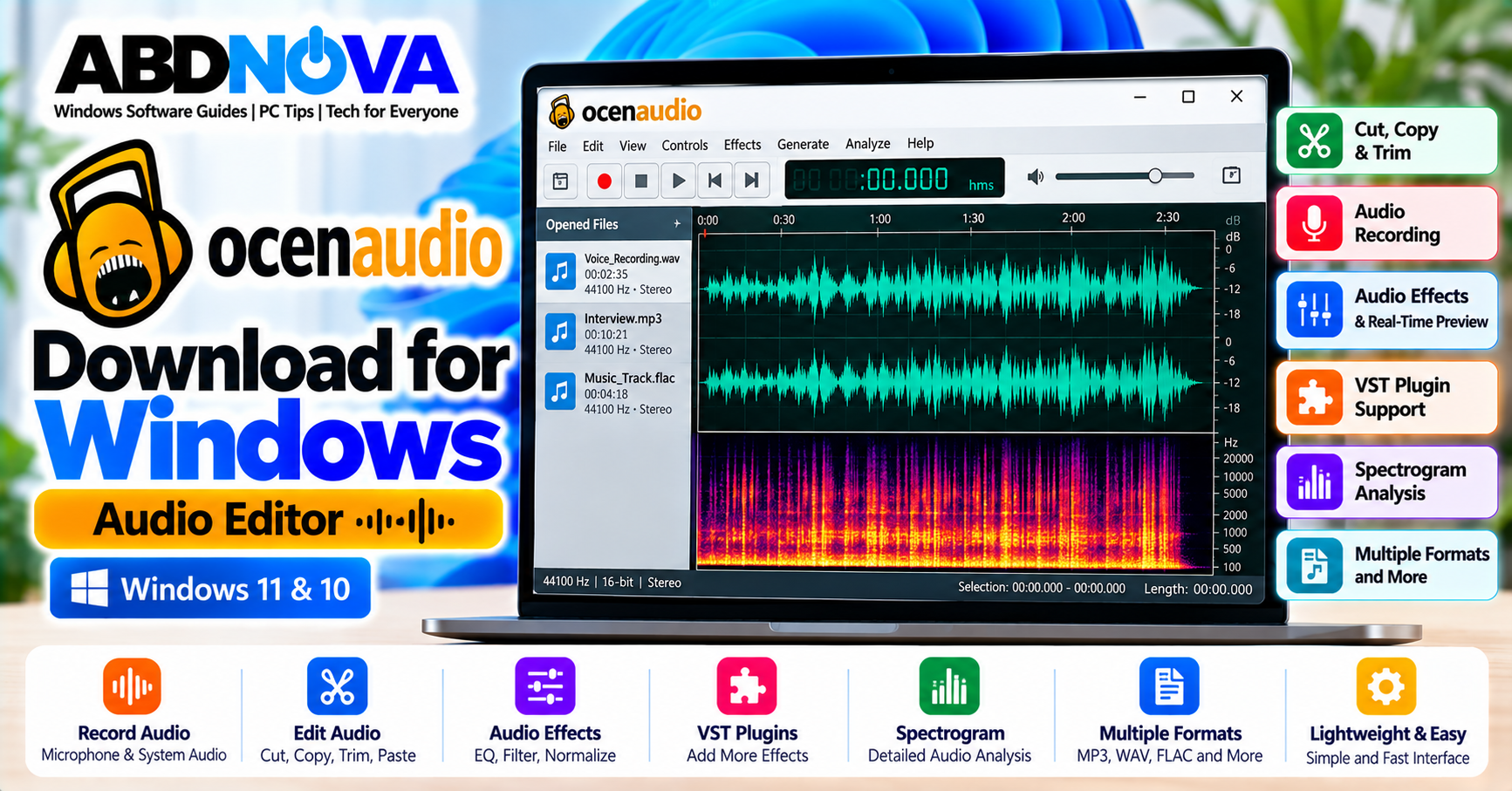
ocenaudio is a fast and easy-to-use audio editor for Windows designed for recording, editing, analyzing, and processing audio without the complexity of a full digital audio workstation.
It combines a simple waveform-based interface with useful features such as cut, copy and paste, audio recording, real-time effect previews, VST plugin support, multi-selection editing, and a detailed spectrogram.
The current Windows release is ocenaudio 3.21.4. It supports 64-bit Windows 11 and Windows 10, with both a standard installer and an official portable version available.
ocenaudio for Windows 11 & 10
| Detail | Information |
|---|---|
| Software | ocenaudio |
| Current Version | 3.21.4 |
| Windows Support | Windows 11 & Windows 10 |
| Architecture | 64-bit |
| Installer | ocenaudio_windows64.exe |
| Portable | ocenaudio_windows64.zip |
| Main Use | Recording, editing, processing and analyzing audio |
| VST Plugins | Supported |
| Spectrogram | Supported |
| Platform | Windows, macOS & Linux |
ocenaudio Main Interface, Waveform Editing & Audio Features
The ocenaudio interface is centered around the audio waveform. After opening a recording, you can visually identify different sections of the audio and select exactly which part you want to edit.
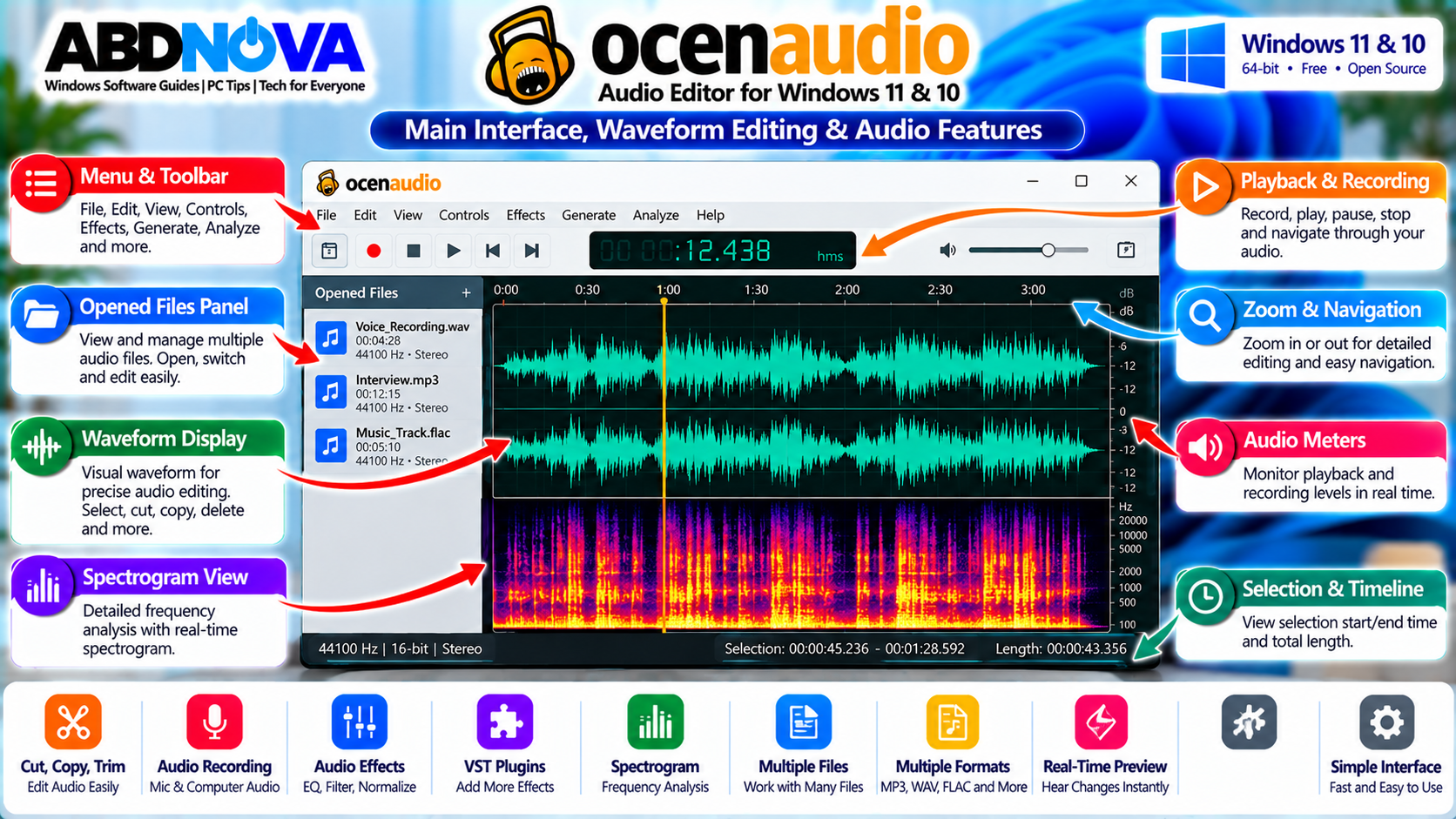
The main interface provides access to:
- Audio waveform display
- Timeline
- Playback and recording controls
- Selection tools
- Audio effects
- Spectrogram
- Volume information
- Open audio files
- Save and export options
You can zoom into the waveform for precise editing or zoom out to view a longer recording.
ocenaudio Key Features
- Waveform audio editing
- Audio recording
- Cut, copy and paste
- Delete and trim audio
- Real-time effect preview
- VST plugin support
- Multi-selection editing
- Spectrogram analysis
- Equalization and filtering
- Gain adjustment
- Audio normalization
- Fade effects
- Audio format conversion
- Large-file editing
- Portable Windows version
Download ocenaudio for Windows
The official developer provides a standard Windows installer and a portable ZIP package.
Portable: ocenaudio_windows64.zip
For most users, the EXE installer is the easiest option. The portable package is useful if you prefer to run ocenaudio without a traditional installation.
How to Install, Record & Edit Audio With ocenaudio on Windows
Installing ocenaudio and starting a basic editing project is straightforward.
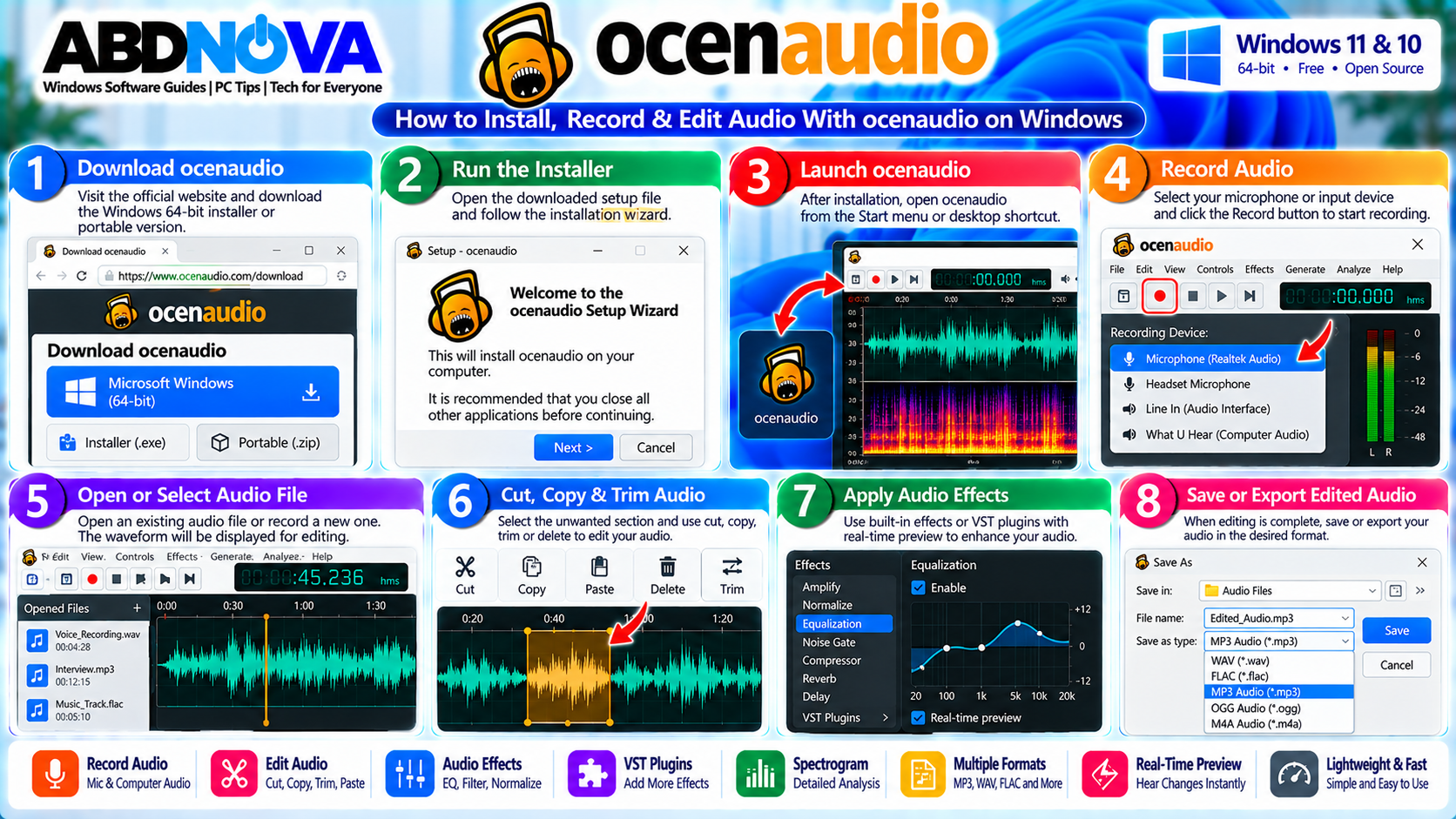
How to Install ocenaudio
- Visit the official ocenaudio website.
- Open the Download page.
- Find the Microsoft Windows version.
- Download the 64-bit EXE installer.
- Open the downloaded installer.
- Follow the setup instructions.
- Complete installation.
- Launch ocenaudio.
Use ocenaudio Portable
If you do not want a traditional installation:
- Download the official Windows portable ZIP.
- Extract the archive.
- Open the extracted folder.
- Launch ocenaudio.
- Open your audio file.
The portable version can be useful on an external drive or as part of a self-contained software collection.
How to Open an Audio File
- Launch ocenaudio.
- Open the File menu.
- Select Open.
- Choose the audio file.
- Wait for the waveform to appear.
The waveform then becomes the main editing workspace.
Basic Audio Editing
Select the part of the waveform you want to modify. You can then:
- Cut
- Copy
- Paste
- Delete
- Trim
- Silence a selection
- Apply effects
For example, if a recording contains unwanted audio at the beginning, highlight that section, listen to confirm the selection, delete it, and play the beginning again before saving.
Record Audio With ocenaudio
ocenaudio can record directly from compatible Windows audio input devices, including:
- Microphones
- Headset microphones
- USB microphones
- Audio interfaces
- Other available recording devices
Recent versions include a redesigned audio system for playback and recording, improved device switching, channel routing, and live meters.
Record Computer Audio
Current releases also support recording audio playing on the computer, depending on the available Windows audio hardware and configuration.
Cut, Trim, Copy & Paste Audio
Waveform editing makes it easy to remove unwanted sections such as silence, mistakes, unwanted introductions, recording noise between sections, and extra material at the end.
For precise editing:
- Zoom into the waveform.
- Select the required section.
- Cut, copy, delete, or trim it.
- Move the cursor to the required position if pasting audio.
- Play the edited section.
- Save only after checking the result.
ocenaudio VST Effects, Real-Time Preview & Spectrogram Analysis
ocenaudio combines straightforward waveform editing with more advanced processing and analysis features.
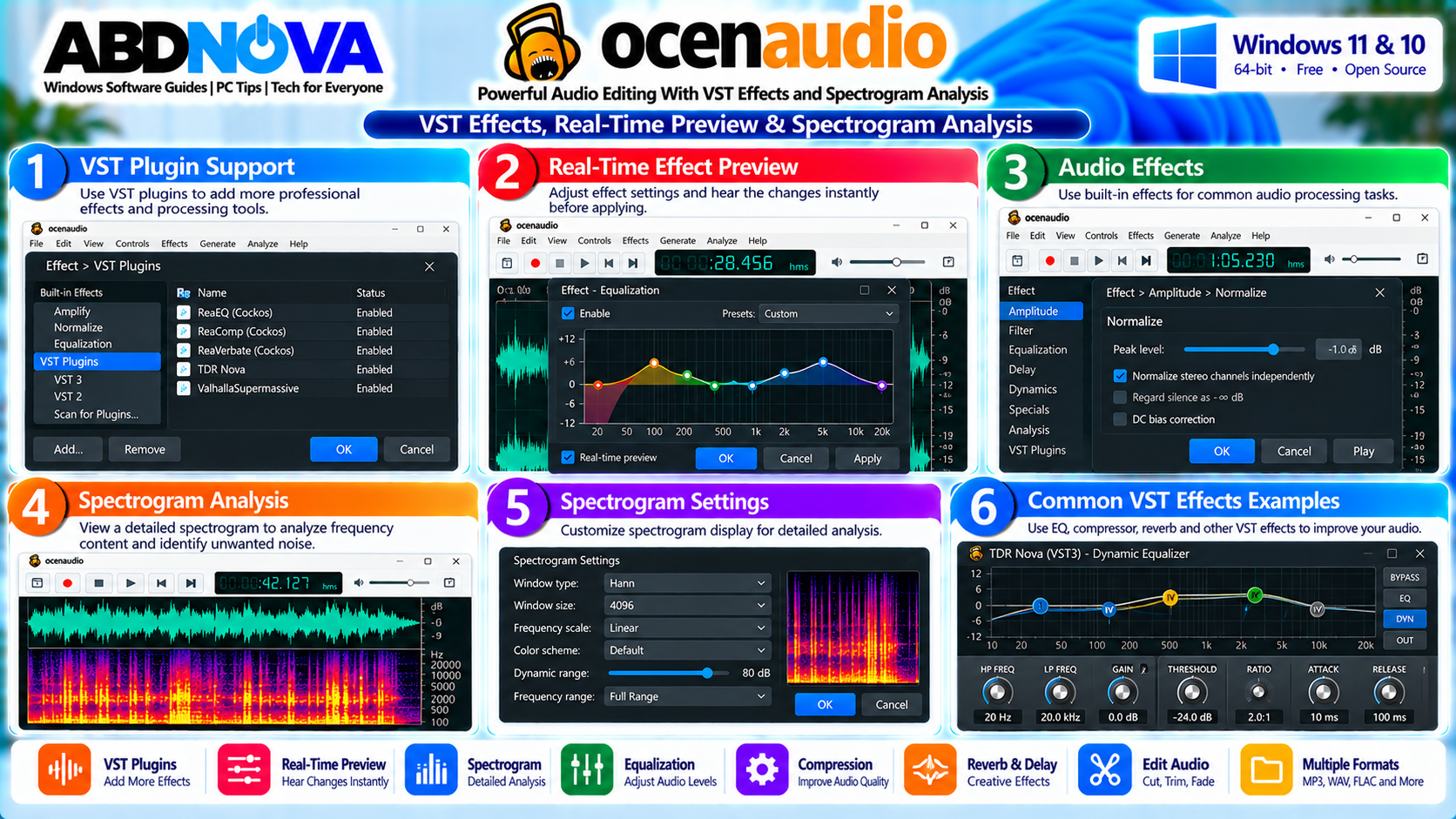
Real-Time Effect Preview
One of ocenaudio’s most useful features is its real-time effect preview. Instead of repeatedly applying an effect, listening, undoing it, and changing the settings again, supported effects can be previewed while you adjust their controls.
This is especially useful for:
- Equalization
- Gain
- Filtering
- Compatible VST effects
You can listen while changing the settings and choose the result based on the actual sound.
VST Plugin Support
ocenaudio supports VST plugins, allowing compatible third-party effects to extend its audio-processing capabilities.
Depending on the plugins installed, you may add:
- EQ tools
- Compressors
- Filters
- Reverb
- Delay
- Audio restoration tools
- Creative effects
Multi-Selection Audio Editing
Multi-selection lets you select several separate parts of the same audio file and process those selections together.
For example, if several sections of an interview are too quiet, you can select those specific areas and apply an appropriate effect without processing the entire recording.
Spectrogram View
In addition to the normal waveform, ocenaudio provides a detailed spectrogram for viewing frequency content over time.
The spectrogram can help analyze:
- Background noise
- Speech
- Music
- Frequency problems
- Unwanted tones
- Recording artifacts
Advanced spectrogram settings can be adjusted in real time, including parameters related to frequency bands, window type, window size, and display dynamic range.
Waveform vs Spectrogram
| Waveform | Spectrogram |
|---|---|
| Cutting and trimming | Frequency analysis |
| Finding silence | Finding tonal noise |
| Viewing volume changes | Examining speech frequencies |
| Selecting audio sections | Identifying unusual frequency content |
| General editing | Detailed audio analysis |
Editing Large Audio Files
ocenaudio is designed to work efficiently with long audio files. Its memory-management system helps prevent large files from consuming huge amounts of RAM simply because they are open.
This can be useful for:
- Long interviews
- Podcasts
- Lectures
- Meeting recordings
- Voice recordings
- Music sessions
Actual performance still depends on your PC, storage device, audio format, plugins, and processing workload.
Audio Effects & Processing
ocenaudio includes built-in audio-processing effects and supports additional VST effects. Common tasks include:
- Equalization
- Gain adjustment
- Filtering
- Normalization
- Fade in
- Fade out
- Silence
- Channel-related processing
Normalize Audio
Normalization can help adjust an audio recording to a more appropriate level when it is consistently too quiet.
Fade In & Fade Out
A fade-in gradually increases the audio level, while a fade-out gradually reduces it. These effects can be useful for music, podcasts, voice recordings, intros, outros, and presentation audio.
Remove Unwanted Audio
You can select and remove unwanted sections such as long silence, coughing, mistakes, unwanted speech, background interruptions, or extra material.
For constant background noise, filtering or compatible VST restoration plugins may help, although results depend heavily on the source recording.
Save & Export Audio
After editing, save or export the finished recording in a format appropriate for its intended use.
Uncompressed or lossless formats are useful when maintaining editing quality is important, while compressed formats are convenient when smaller file sizes and easy sharing are priorities.
Before replacing an important recording, consider saving the edited version under a different filename.
Interview_Edited
ocenaudio vs Audacity
ocenaudio and Audacity are both audio editors, but their workflows differ.
| ocenaudio | Audacity |
|---|---|
| Clean waveform-focused interface | Broader multitrack editing environment |
| Fast single-file editing workflow | Designed for more extensive multitrack workflows |
| Real-time effect previews | Different effect and processing workflow |
| Multi-selection editing | Broader project-oriented editing tools |
| VST effects and spectral analysis | Plugin, recording and processing tools |
For quick waveform editing and audio analysis, ocenaudio’s simpler interface can be convenient. For projects requiring a broader multitrack workflow, a multitrack-focused editor may be more appropriate.
If you need a broader professional audio-production workflow, Adobe Audition is available through Adobe Creative Cloud. See our Adobe Creative Cloud Desktop Download for Windows guide for Adobe’s official app installation and management workflow.
ocenaudio Audio Editing, Troubleshooting & Safe Download
If ocenaudio does not open, recording does not work, playback is silent, or a VST plugin is unavailable, check the Windows audio configuration and application settings before reinstalling the software.
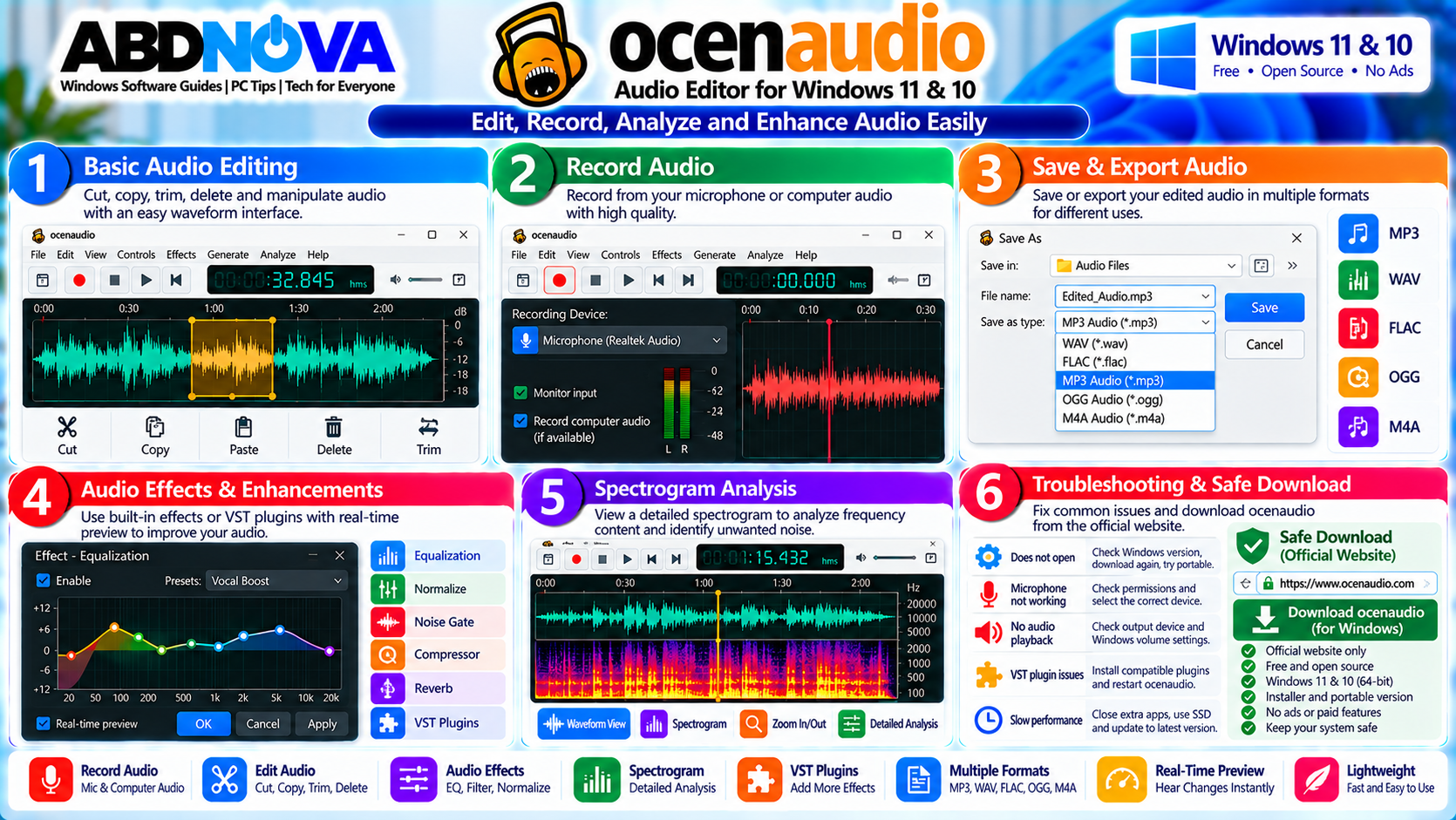
ocenaudio Does Not Open
- Confirm you downloaded the correct Windows version.
- Make sure the PC uses 64-bit Windows 10 or later.
- Restart Windows.
- Download the installer again from the official website.
- Try the official portable version.
- Check Windows security software.
- Install the latest stable version.
Microphone Is Not Working
- Confirm the microphone is connected.
- Check Windows microphone permissions.
- Select the correct input device.
- Check the recording level.
- Test the microphone in Windows.
- Restart ocenaudio after connecting the device.
- Update the audio driver if necessary.
No Audio During Playback
- Check Windows volume.
- Confirm the correct output device.
- Check headphones or speakers.
- Review ocenaudio audio preferences.
- Reconnect the audio device.
- Restart ocenaudio.
- Test another audio file.
VST Plugin Is Not Working
- Confirm the plugin is compatible.
- Check its installation location.
- Restart ocenaudio.
- Test another VST plugin.
- Update the plugin.
- Update ocenaudio.
A problem with one third-party VST plugin does not necessarily mean ocenaudio itself is malfunctioning.
Audio Editing Is Slow
- Close unnecessary applications.
- Check available storage space.
- Use a local SSD when possible.
- Test without demanding VST effects.
- Close unnecessary audio files.
- Update ocenaudio.
Large processing jobs and complex plugins can require considerably more CPU resources than basic waveform editing.
Safe ocenaudio Download
Always download ocenaudio from the official developer website. For modern Windows PCs, select the current Windows 10+ 64-bit package.
The official download page provides both:
- 64-bit EXE installer
- 64-bit portable ZIP
Avoid modified installers, unofficial repacks, unknown portable packages, fake premium versions, bundled download managers, and cracked or modified builds.
Frequently Asked Questions
What is ocenaudio?
ocenaudio is a cross-platform audio editor designed for recording, editing, processing, and analyzing audio files.
Is ocenaudio free?
Yes. ocenaudio is available as a free download from its official website.
Does ocenaudio work on Windows 11?
Yes. The current 64-bit Windows build supports Windows 10 and later, including Windows 11.
What is the latest ocenaudio version?
As of September 2026, the official download page lists ocenaudio 3.21.4.
Is there a portable version?
Yes. The official website provides a Windows 64-bit portable ZIP package.
Can ocenaudio record audio?
Yes. ocenaudio supports recording from compatible input devices and current releases can also record computer audio depending on the Windows audio configuration.
Does ocenaudio support VST plugins?
Yes. VST plugin support is one of ocenaudio’s main audio-processing features.
Can I preview effects before applying them?
Yes. Supported effects provide real-time preview so you can listen while adjusting their settings.
Does ocenaudio have a spectrogram?
Yes. It includes a configurable real-time spectrogram for analyzing frequency content.
Can ocenaudio edit long recordings?
Yes. Its memory-management system is designed to handle long audio files efficiently.
Final Thoughts
ocenaudio is a practical Windows audio editor for users who need fast recording, waveform editing, trimming, effects, VST plugins, and spectral analysis without the complexity of a full professional DAW.
Real-time effect preview is particularly useful because you can hear changes while adjusting EQ, gain, filters, and compatible VST effects. Multi-selection also makes it easier to process several separate sections of the same recording.
For Windows 11 and Windows 10, both installer and portable 64-bit packages are available. Keep an untouched copy of important recordings and preview major effects before permanently saving your edits.
Download ocenaudio for Windows
Get the official 64-bit Windows installer or portable version.