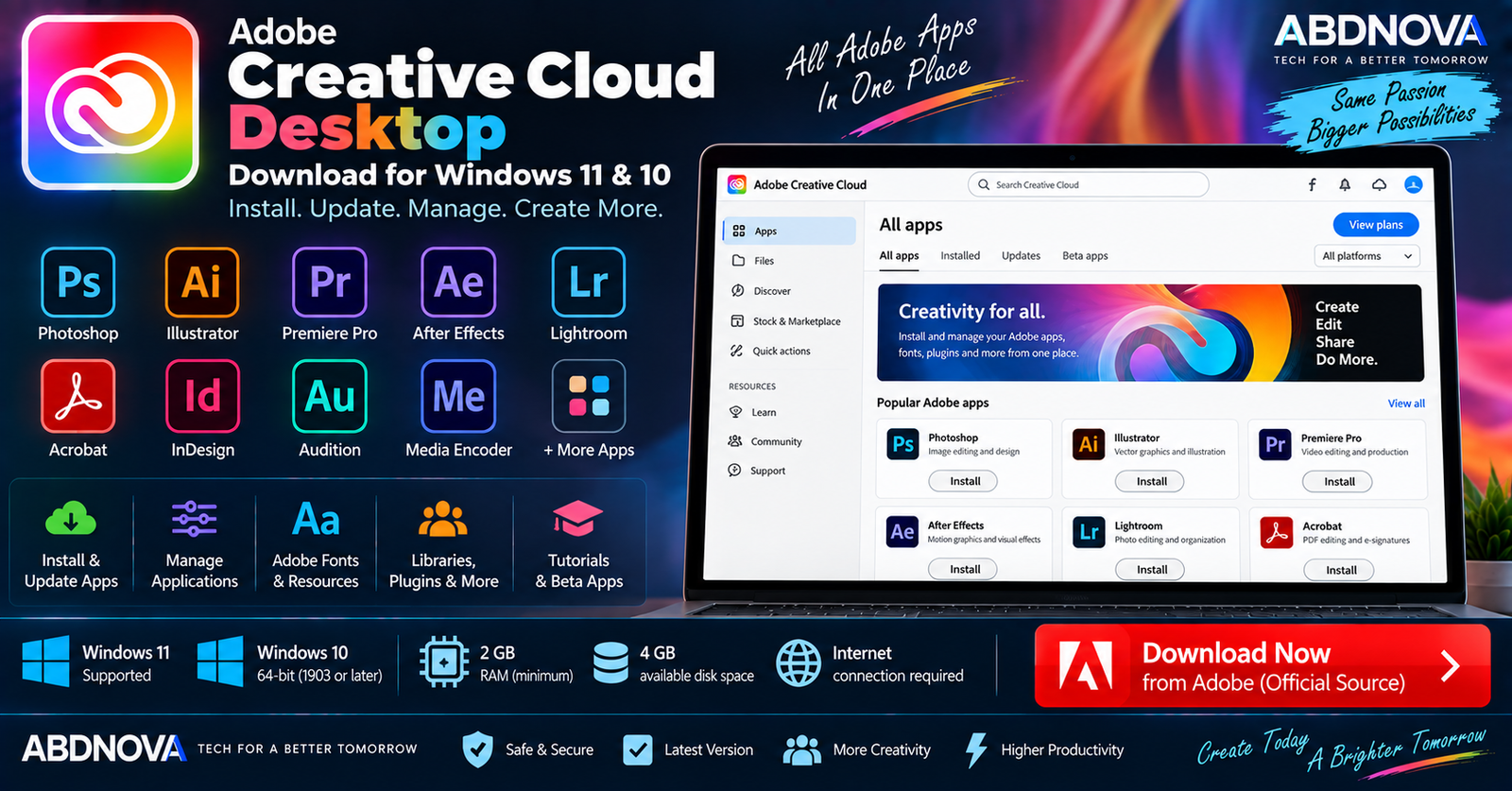

Adobe Creative Cloud Desktop Download for Windows 11 & 10
Adobe Creative Cloud Desktop Download for Windows gives you Adobe’s official management application for installing, updating, launching, and managing Creative Cloud apps from one place.
Instead of searching separately for Photoshop, Illustrator, Premiere, After Effects, Lightroom, Audition, and other Adobe applications, Creative Cloud Desktop provides one official management hub. It also connects users with Adobe Fonts, plugins, libraries, cloud documents, beta applications, tutorials, and other Creative Cloud services.
Adobe Creative Cloud Desktop for Windows at a Glance
| Details | Information |
|---|---|
| Software | Adobe Creative Cloud Desktop |
| Developer | Adobe |
| Category | Adobe App Manager / Creative Platform |
| Windows 11 | Supported |
| Windows 10 | 64-bit version 1903 or later in Adobe’s direct-download documentation |
| Processor | 64-bit Intel, AMD, or ARM |
| Minimum RAM | 2 GB |
| Recommended RAM | 4 GB or more |
| Storage | 4 GB plus additional installation space |
| Internet | Required |
| Architecture | 64-bit; ARM installer available |
| Desktop App Cost | Free to download |
| Adobe Apps | Subscription or trial requirements vary by app |
| Official Source | Adobe |
Creative Cloud Desktop on Windows 11
Creative Cloud Desktop works on Windows 11 and acts as the main management application for Adobe’s modern Windows software ecosystem.
Depending on your account and plan, it can manage applications such as:
- Adobe Photoshop.
- Adobe Illustrator.
- Adobe Premiere.
- Adobe After Effects.
- Adobe Lightroom.
- Adobe Lightroom Classic.
- Adobe Acrobat.
- Adobe Audition.
- Adobe Media Encoder.
- Adobe Bridge.
- Adobe Dreamweaver.
- Other available Creative Cloud applications.
Individual applications still have separate Windows and hardware requirements. For example, see our Adobe Photoshop Download for Windows guide before installing Photoshop on a Windows PC.
Creative Cloud Desktop on Windows 10
Adobe’s current direct-download documentation provides an installer for Windows 10 version 1903 and later (64-bit), along with a Windows ARM installer.
However, installing Creative Cloud Desktop does not guarantee that every current Creative Cloud application will support the same Windows 10 configuration.
Adobe Creative Cloud Desktop System Requirements
| Component | Requirement |
|---|---|
| Processor | Intel, AMD, or ARM processor with 64-bit support |
| Operating System | Windows 10 64-bit version 1903+ in Adobe’s current direct-download documentation; Windows 11 supported |
| RAM | 2 GB minimum |
| Recommended RAM | 4 GB or more |
| Storage | 4 GB available space plus additional installation space |
| Internet | Internet connection required |
These requirements apply to Creative Cloud Desktop itself. Professional applications installed through it can require substantially more RAM, storage, processing power, GPU performance, and newer Windows versions.
How to Download Adobe Creative Cloud Desktop for Windows
Use Adobe’s official Creative Cloud download page or Adobe’s official direct-download instructions.
Adobe maintains direct installer options for supported Windows configurations, including Windows 10 version 1903+ 64-bit and Windows ARM.
How to Install Adobe Creative Cloud Desktop
- Open Adobe’s official Creative Cloud download page.
- Download Creative Cloud Desktop.
- Locate the downloaded installer.
- Double-click Creative_Cloud_Set-Up.exe.
- Allow Windows to run the installer.
- Follow the on-screen instructions.
- Sign in with your Adobe account when required.
- Wait for Creative Cloud Desktop to finish installing.
- Open the Apps section.
- Find the Adobe application you want and select Install.
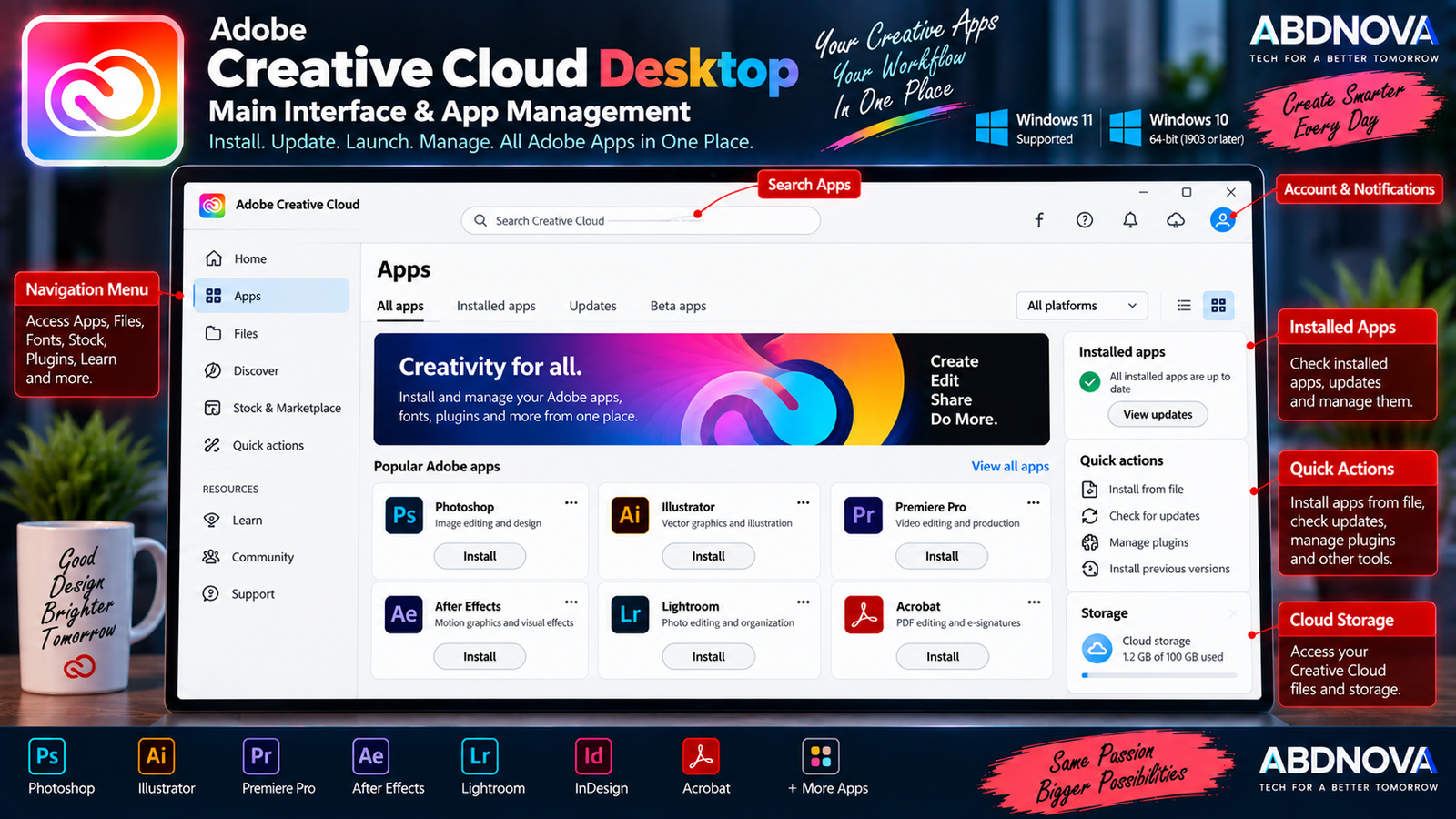
Adobe Creative Cloud Desktop Main Interface & App Management
The Creative Cloud Desktop interface works as a control center for Adobe applications and services. Available areas can include Apps, Files, Fonts, Stock, Plugins, Beta apps, tutorials, account options, and preferences.
The Apps area is particularly important because it lets you discover, install, update, launch, and manage available Adobe applications.
Install Adobe Apps
One of Creative Cloud Desktop’s main purposes is application installation.
This provides a safer and simpler workflow than searching the web for individual Adobe installers.
Update Adobe Apps
Creative Cloud Desktop also manages application updates. Depending on your preferences, updates can be handled manually or through available automatic-update options.
Updates can provide security fixes, bug fixes, compatibility improvements, performance improvements, and new application features.
Install Previous Versions
For supported applications, Creative Cloud Desktop can make selected previous versions available.
This can be useful when a newer application release causes compatibility problems with a plugin, project, workflow, or Windows configuration. Availability depends on the individual application.
Uninstall Adobe Apps
Creative Cloud applications can normally be removed directly from the desktop manager.
Adobe may offer the option to keep or remove application preferences during uninstall.
Manage Adobe Apps
The More actions menu can provide additional options depending on the selected application, including:
- View product details.
- Open in browser.
- Explore tutorials.
- Manage plugins.
- Update.
- Uninstall.
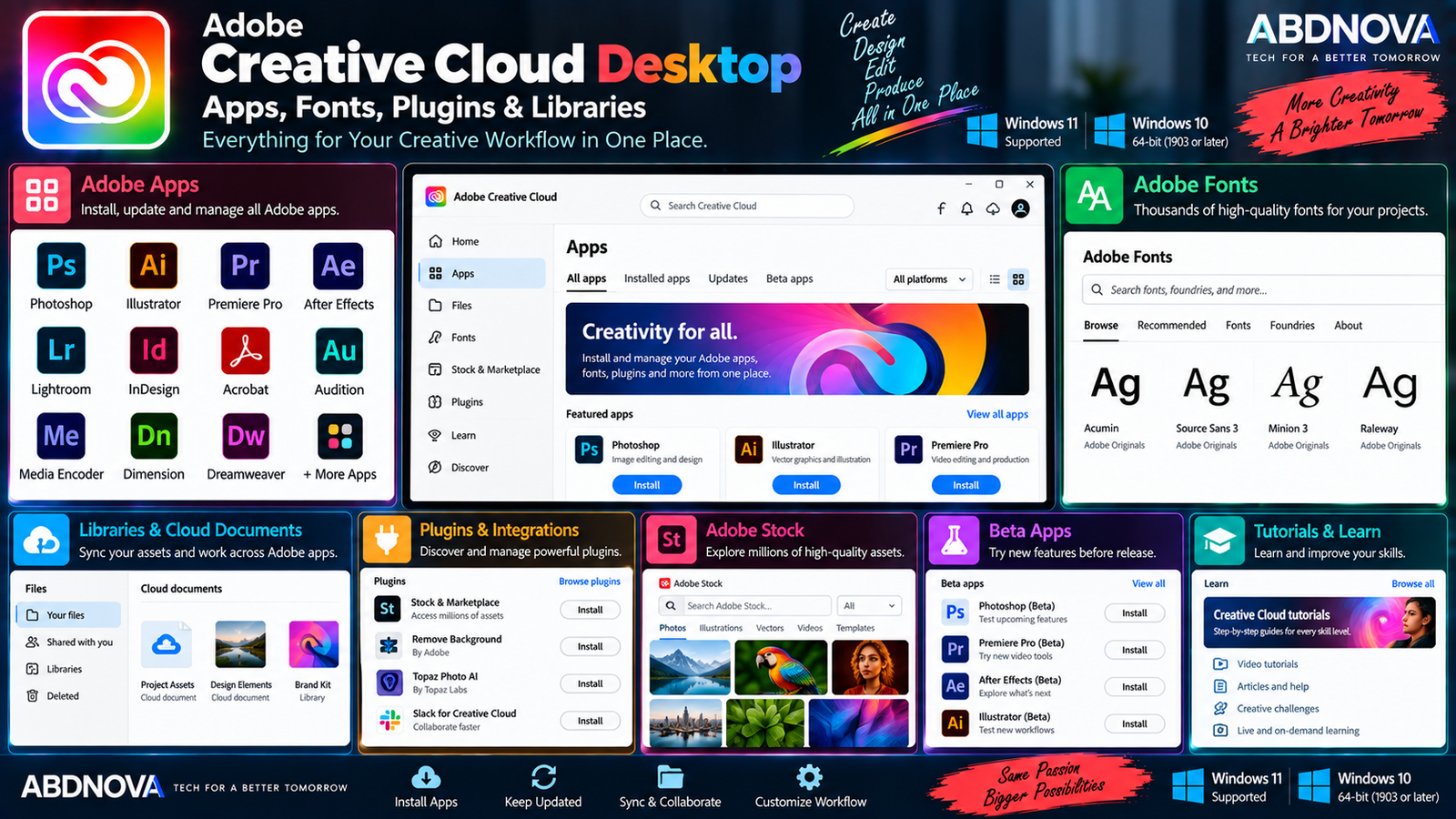
Adobe Creative Cloud Apps, Fonts, Plugins & Libraries
Adobe Fonts
Creative Cloud Desktop provides access to Adobe Fonts. Fonts can be made available for supported applications and creative workflows involving graphic design, branding, typography, photography, and video titles.
Plugins
Creative Cloud Desktop can help users discover and manage plugins that extend supported Adobe applications.
Plugins can add:
- Workflow tools.
- Creative effects.
- Automation.
- Integrations.
- Specialized utilities.
Libraries & Cloud Documents
The Files area provides access to supported Creative Cloud file-related services, including libraries and cloud documents.
Creative Cloud Libraries can help multiple Adobe applications share creative assets such as graphics, colors, design elements, brand assets, and other supported library items.
Adobe Stock
Creative Cloud Desktop connects users with Adobe Stock discovery. Stock assets are subject to Adobe’s applicable licensing and account terms.
Creative Cloud Beta Apps
Adobe allows users to test selected beta applications and features through Creative Cloud. Beta releases provide early access to software or functionality Adobe is still testing.
Tutorials & Learning Resources
Creative Cloud Desktop also connects users with learning resources for Adobe applications. These can be useful when starting with more complex software such as Photoshop, Illustrator, Premiere, or After Effects.
Creative Cloud Preferences
Available preferences can include controls for:
- Application installation.
- Install language.
- Launch behavior.
- Automatic updates.
- Notifications.
- Other Creative Cloud settings.
Creative Cloud Desktop & Adobe Video Apps
Creative Cloud Desktop can install and manage Adobe’s professional video and motion-graphics applications, but each program has its own system requirements.
For example, current After Effects releases have substantially higher hardware and Windows requirements than Creative Cloud Desktop itself. See our Adobe After Effects Download for Windows guide if you plan to install After Effects.
Is Adobe Creative Cloud Desktop Free?
Yes. Creative Cloud Desktop itself is free to download. You do not need to purchase the application manager simply to install it.
However, that does not mean every application available through Creative Cloud is free. Photoshop, Illustrator, Premiere, After Effects, Acrobat Pro, Lightroom, and other professional applications can require an eligible subscription or trial.
Individual Adobe applications: Subscription, plan, or trial requirements vary
Do You Need Creative Cloud Desktop?
If you use modern Adobe desktop applications, Creative Cloud Desktop is an important part of Adobe’s normal installation and management workflow.
It can help you:
- Install Adobe applications.
- Update applications.
- Launch installed apps.
- Install available previous versions.
- Uninstall applications.
- Manage plugins.
- Access fonts.
- Access Creative Cloud files and libraries.
- Discover Adobe resources.
- Manage Creative Cloud preferences.
Adobe can also install Creative Cloud Desktop automatically when you install a Creative Cloud application through its normal first-time installation process.
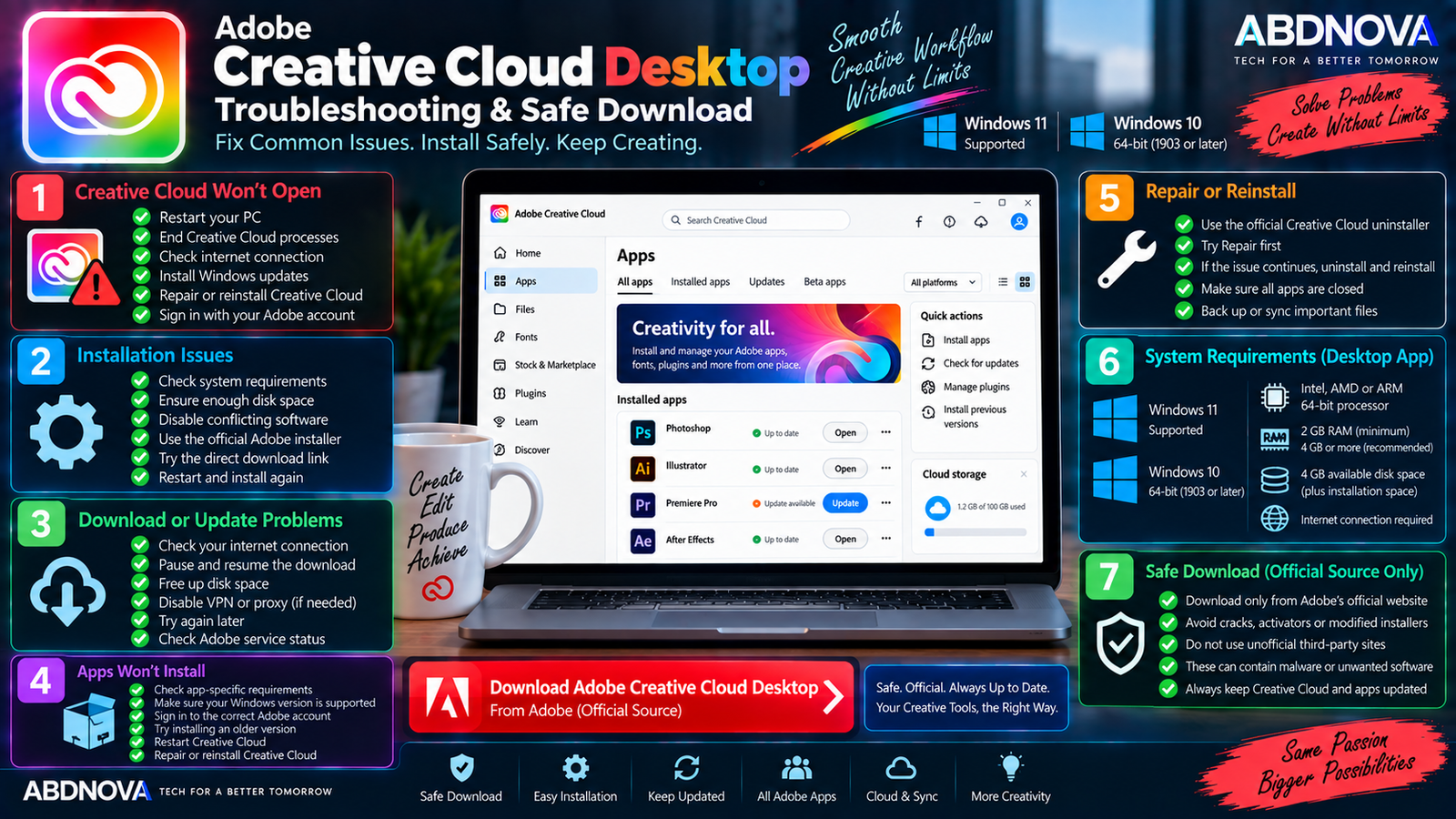
Adobe Creative Cloud Desktop Troubleshooting & Safe Download
Creative Cloud Desktop Won’t Open
Try:
- Close Creative Cloud processes.
- Restart Windows.
- Open Creative Cloud again.
- Install available Windows updates.
- Check your internet connection.
- Verify your Adobe account.
- Repair or reinstall Creative Cloud Desktop if the problem continues.
Creative Cloud Installation Fails
First confirm that your PC meets the basic requirements:
- 64-bit Intel, AMD, or ARM processor.
- Compatible 64-bit Windows installation.
- 2 GB RAM minimum.
- 4 GB available storage plus installation space.
- Working internet connection.
Also install available Windows updates and confirm that sufficient free storage is available.
An Adobe App Won’t Install
If Creative Cloud Desktop works but an individual application refuses to install, check the requirements for that specific program.
Creative Cloud Desktop’s requirements are not the same as the requirements for Photoshop, Premiere, After Effects, Lightroom, or other professional applications.
Creative Cloud Download Is Stuck
Check:
- Your internet connection.
- Available disk space.
- Windows updates.
- Adobe account status.
- Firewall or security software.
- Whether Adobe services are responding normally.
Restarting Creative Cloud Desktop and Windows can also resolve temporary download problems.
Creative Cloud Shows Update Problems
If an application update fails:
- Restart Creative Cloud Desktop.
- Restart Windows.
- Verify available storage.
- Check the internet connection.
- Try the update again.
- Confirm that the application supports your Windows version.
How to Repair Creative Cloud Desktop
Adobe provides an official Creative Cloud Desktop uninstaller that also includes a repair option.
Adobe recommends trying Repair before performing a full uninstall when the desktop application is damaged or behaving incorrectly.
How to Uninstall Creative Cloud Desktop
Adobe does not normally recommend removing Creative Cloud Desktop while you still depend on installed Creative Cloud applications.
- Uninstall Creative Cloud applications as appropriate.
- Confirm that important cloud files are synchronized or backed up.
- Download Adobe’s official Creative Cloud uninstaller.
- Extract and run the uninstaller.
- Try Repair first.
- If necessary, proceed with Uninstall.
- Reinstall Creative Cloud Desktop from Adobe if required.
Safe Adobe Creative Cloud Desktop Download
Download Creative Cloud Desktop only from Adobe. Adobe provides both its normal installer and official direct-download options for supported Windows configurations.
- Creative Cloud cracks.
- Creative Cloud activators.
- Adobe GenP packages.
- Adobe patches.
- Pre-activated Creative Cloud installers.
- Modified Creative Cloud installers.
- Cracked Adobe all-apps packages.
- Unofficial repacks.
- Pirated Adobe bundles.
Modified packages can contain altered executables, malware, credential-stealing software, unwanted applications, or changes designed to bypass Adobe licensing.
Frequently Asked Questions
Does Adobe Creative Cloud Desktop work on Windows 11?
Yes. Creative Cloud Desktop works on supported Windows 11 systems. Individual Adobe applications can have more specific Windows requirements.
Does Creative Cloud Desktop work on Windows 10?
Yes. Adobe’s current direct-download documentation provides a Windows 10 version 1903 and later 64-bit installer.
Is Creative Cloud Desktop free?
Yes. Creative Cloud Desktop itself is free to download. Individual Adobe applications can require an eligible subscription or trial.
How much RAM does Creative Cloud Desktop require?
Adobe specifies 2 GB minimum and recommends 4 GB or more for Creative Cloud Desktop itself.
How much storage does Creative Cloud Desktop need?
Adobe specifies 4 GB of available hard-disk space, with additional space required during installation. Adobe applications require their own additional storage.
Can Creative Cloud Desktop install Photoshop?
Yes. Creative Cloud Desktop is Adobe’s normal management application for installing and managing Photoshop and other available Creative Cloud applications.
Can I install an older Adobe app version?
For supported applications and versions, the More actions menu can provide an Other versions option. Availability varies by application.
Can Creative Cloud Desktop update Adobe apps?
Yes. Installing and updating Adobe applications is one of Creative Cloud Desktop’s primary functions.
Does Creative Cloud Desktop include Adobe Fonts?
Creative Cloud Desktop provides access to Adobe Fonts and related font-management functionality.
Do I need an internet connection?
Yes. Adobe lists an internet connection as a requirement for Creative Cloud Desktop.
Final Thoughts
Adobe Creative Cloud Desktop Download for Windows provides the central management application for Adobe’s Windows creative-software ecosystem. It gives users one place to install, update, launch, uninstall, and manage Adobe applications.
It also connects Creative Cloud users with fonts, plugins, libraries, cloud documents, tutorials, beta applications, Adobe Stock resources, and other Adobe services.
The desktop manager itself has modest hardware requirements compared with applications such as Photoshop, Premiere, or After Effects. Always check the requirements of the individual Adobe program before installing it through Creative Cloud.
For a safe installation, use Adobe’s official Creative Cloud installer or Adobe’s official direct-download options rather than cracks, activators, patched installers, or unofficial Adobe bundles.
Download Adobe Creative Cloud Desktop for Windows
Get the official Creative Cloud Desktop installer directly from Adobe.