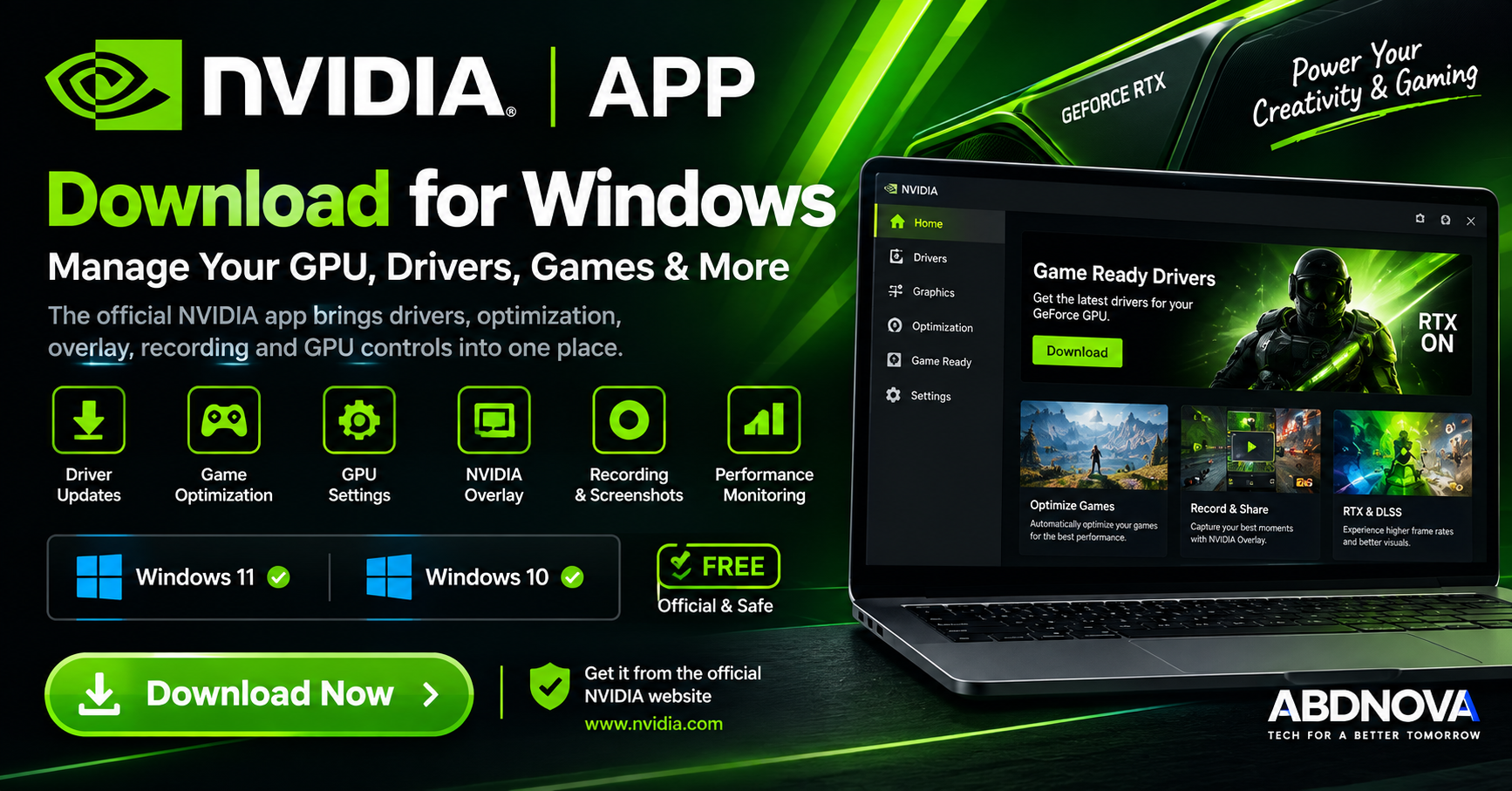

NVIDIA App Download for Windows 11 & 10
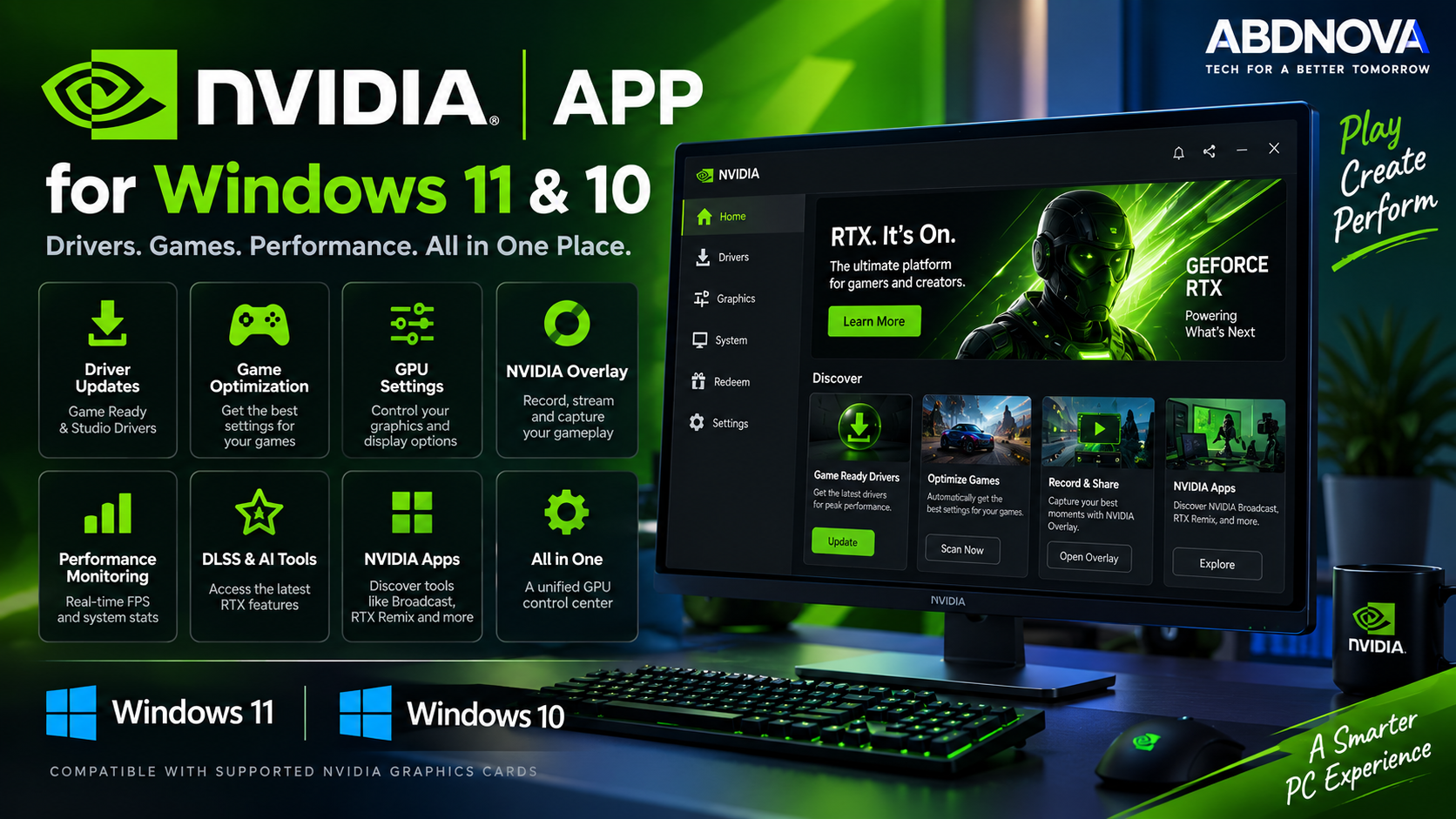
NVIDIA App Download for Windows gives NVIDIA GPU users one official desktop application for managing graphics drivers, game and application settings, GPU controls, performance monitoring, recording and NVIDIA Overlay features.
The NVIDIA App combines many functions that were previously spread across GeForce Experience and NVIDIA Control Panel. Gamers can manage Game Ready Drivers, optimize supported games, monitor performance, capture gameplay and configure supported DLSS features, while creators can switch to NVIDIA Studio Drivers from the same interface.
NVIDIA continues adding graphics and display controls to the newer application, making NVIDIA App an increasingly complete control center for compatible NVIDIA GPUs.
NVIDIA App for Windows at a Glance
| Details | Information |
|---|---|
| Software | NVIDIA App |
| Developer | NVIDIA |
| Category | GPU Management / Drivers / Gaming |
| Operating System | Windows 11 & Windows 10 |
| License | Free |
| Main Purpose | Manage NVIDIA GPUs, drivers, games and graphics settings |
| Driver Options | Game Ready & Studio Drivers |
| Game Optimization | Yes, for supported games and applications |
| GPU Controls | Yes |
| Performance Monitoring | Yes |
| Recording | Yes, through NVIDIA Overlay |
| DLSS Controls | Available on compatible RTX GPUs and supported games |
| Official Source | NVIDIA |
Download NVIDIA App for Windows
The safest way to download NVIDIA App is directly from NVIDIA. The official installer provides the current application for supported Windows PCs with compatible NVIDIA graphics hardware.
NVIDIA App may also be offered as part of supported NVIDIA graphics-driver installation packages.
NVIDIA App for Windows 11
NVIDIA App supports Windows 11 and provides a modern interface for managing compatible NVIDIA graphics hardware.
Windows 11 users can use NVIDIA App to:
- Download NVIDIA graphics drivers.
- Switch between Game Ready and Studio Drivers.
- Optimize supported games and applications.
- Configure graphics settings.
- Monitor FPS and system performance.
- Record gameplay.
- Configure NVIDIA Overlay.
- Manage supported DLSS features.
- Discover additional NVIDIA applications.
NVIDIA App for Windows 10
NVIDIA also lists Windows 10 as a supported operating system for NVIDIA App.
Windows 10 users with compatible NVIDIA hardware can access the same core driver-management, game-optimization, overlay, recording and graphics-control features supported by their GPU and driver.
NVIDIA App System Requirements
Requirements can vary by NVIDIA GPU family and individual features. For normal use, the key requirements are a supported Windows installation, compatible NVIDIA graphics hardware and an appropriate NVIDIA driver.
| Component | Requirement |
|---|---|
| Operating System | Windows 10 or Windows 11 |
| Graphics | Compatible NVIDIA GPU |
| System Memory | At least 2 GB in NVIDIA’s current enterprise requirements |
| App Disk Space | About 600 MB in NVIDIA’s enterprise requirements, plus space for downloaded drivers |
| Internet | Needed for driver downloads and online content |
| Graphics Driver | Current supported NVIDIA driver recommended |
RTX-specific AI, DLSS and other advanced features require compatible GeForce RTX hardware, and some features have additional GPU-generation or game requirements.
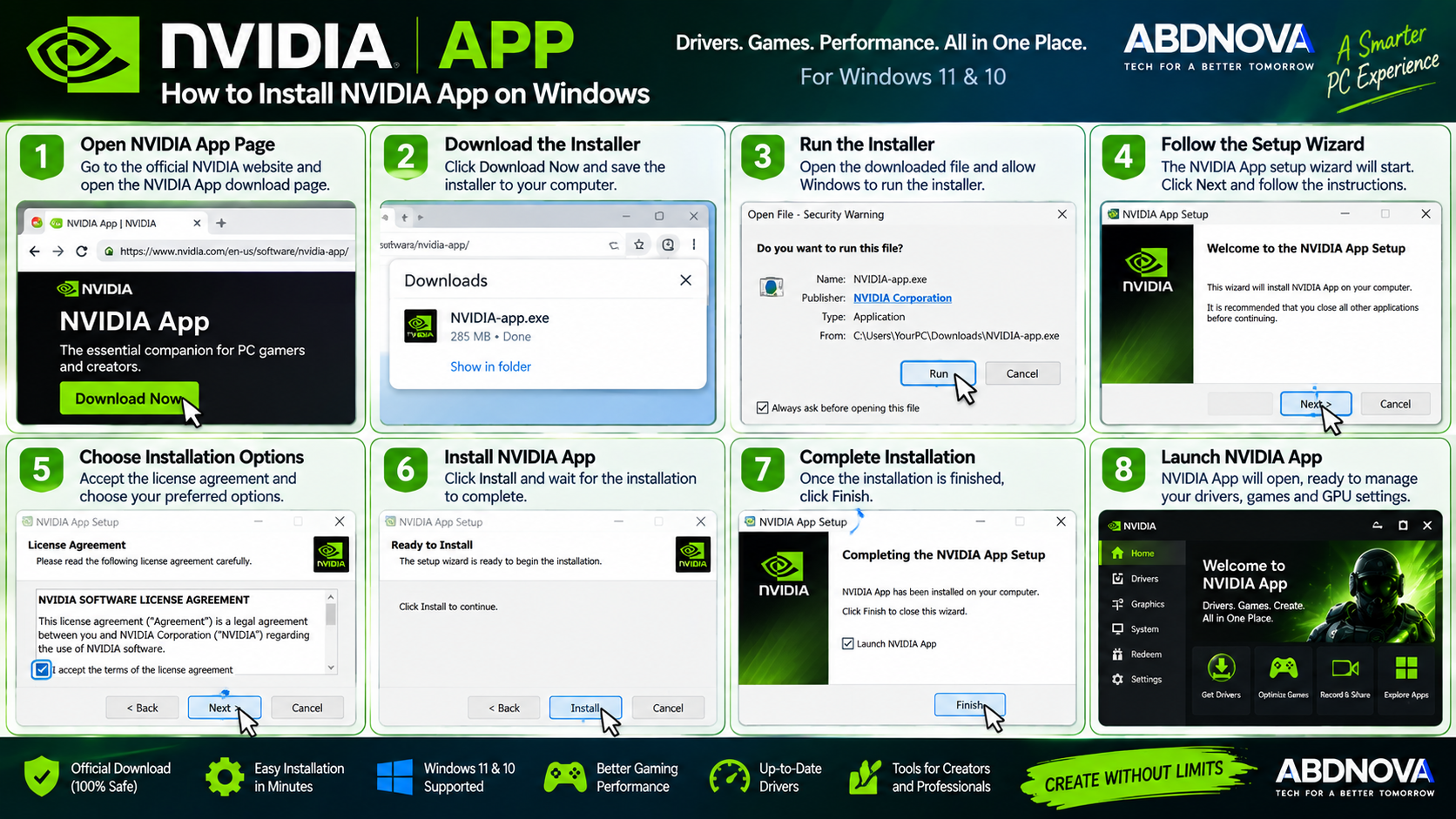
How to Install NVIDIA App on Windows
Step 1: Open NVIDIA’s Official Website
Go to NVIDIA’s official NVIDIA App page.
Step 2: Download NVIDIA App
Select Download Now and save the official installer.
Step 3: Open the Installer
Run the downloaded installer and allow Windows to continue if prompted.
Step 4: Complete Installation
Follow the installation instructions and wait while NVIDIA App is installed.
Step 5: Launch NVIDIA App
Open NVIDIA App after installation and allow it to detect your compatible NVIDIA GPU and installed graphics driver.
Step 6: Check the Drivers Section
Open the Drivers section to check for an appropriate Game Ready or Studio Driver.
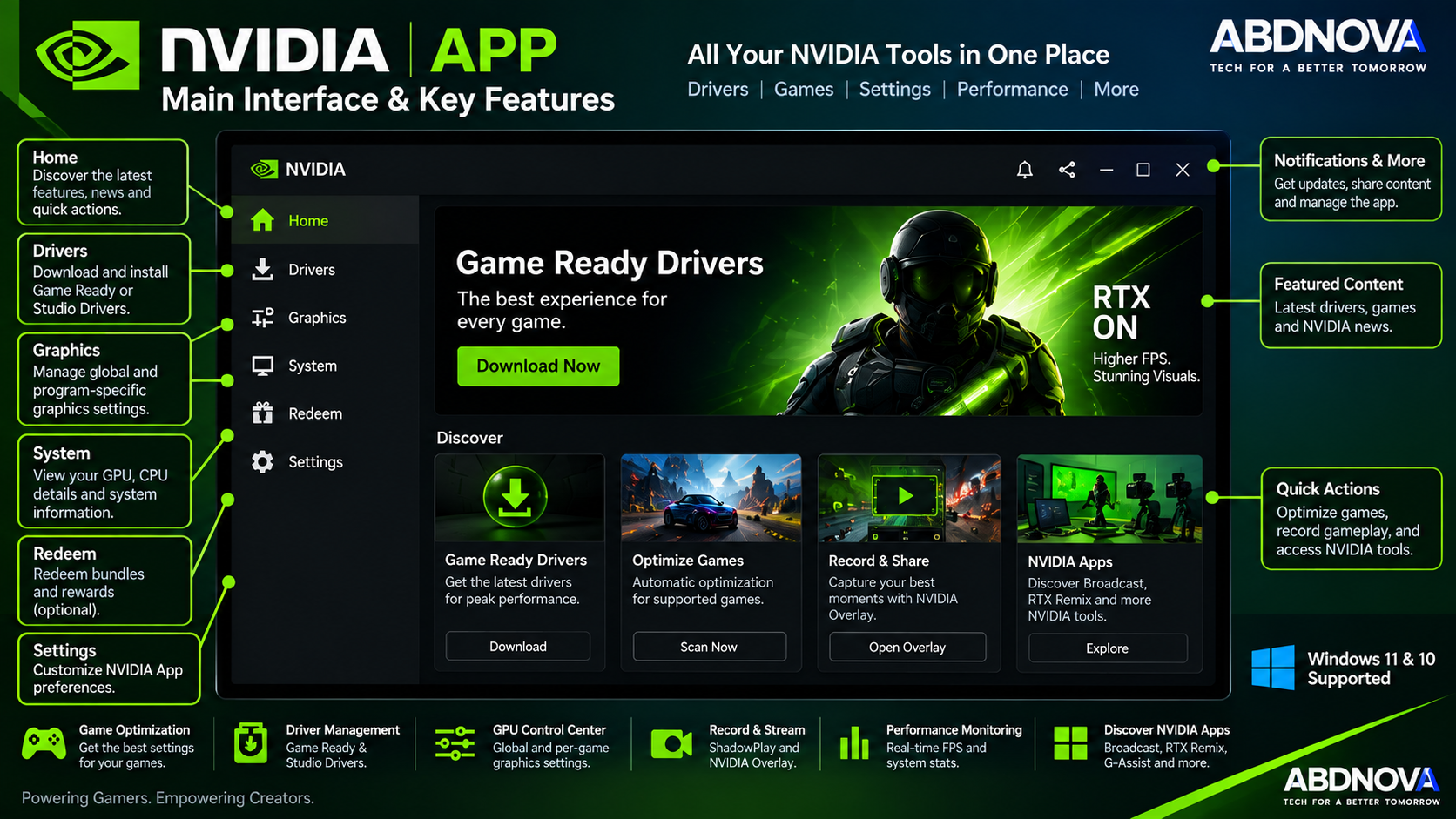
NVIDIA App Main Interface & Key Features
NVIDIA App consolidates several NVIDIA functions into one modern interface.
The application provides access to:
- Graphics drivers.
- Games and applications.
- Global graphics settings.
- Per-game graphics profiles.
- System information.
- NVIDIA Overlay.
- Performance monitoring.
- Recording and screenshots.
- Additional NVIDIA applications.
Unified GPU Control Center
One of the biggest changes is NVIDIA’s unified GPU control center. NVIDIA has been moving graphics settings traditionally associated with NVIDIA Control Panel into NVIDIA App.
Depending on your GPU, driver and current app version, available controls may include:
- VSync.
- Low Latency Mode.
- DSR.
- Display scaling.
- Display color.
- Per-game graphics profiles.
- Global graphics settings.
NVIDIA App Game Ready & Studio Drivers
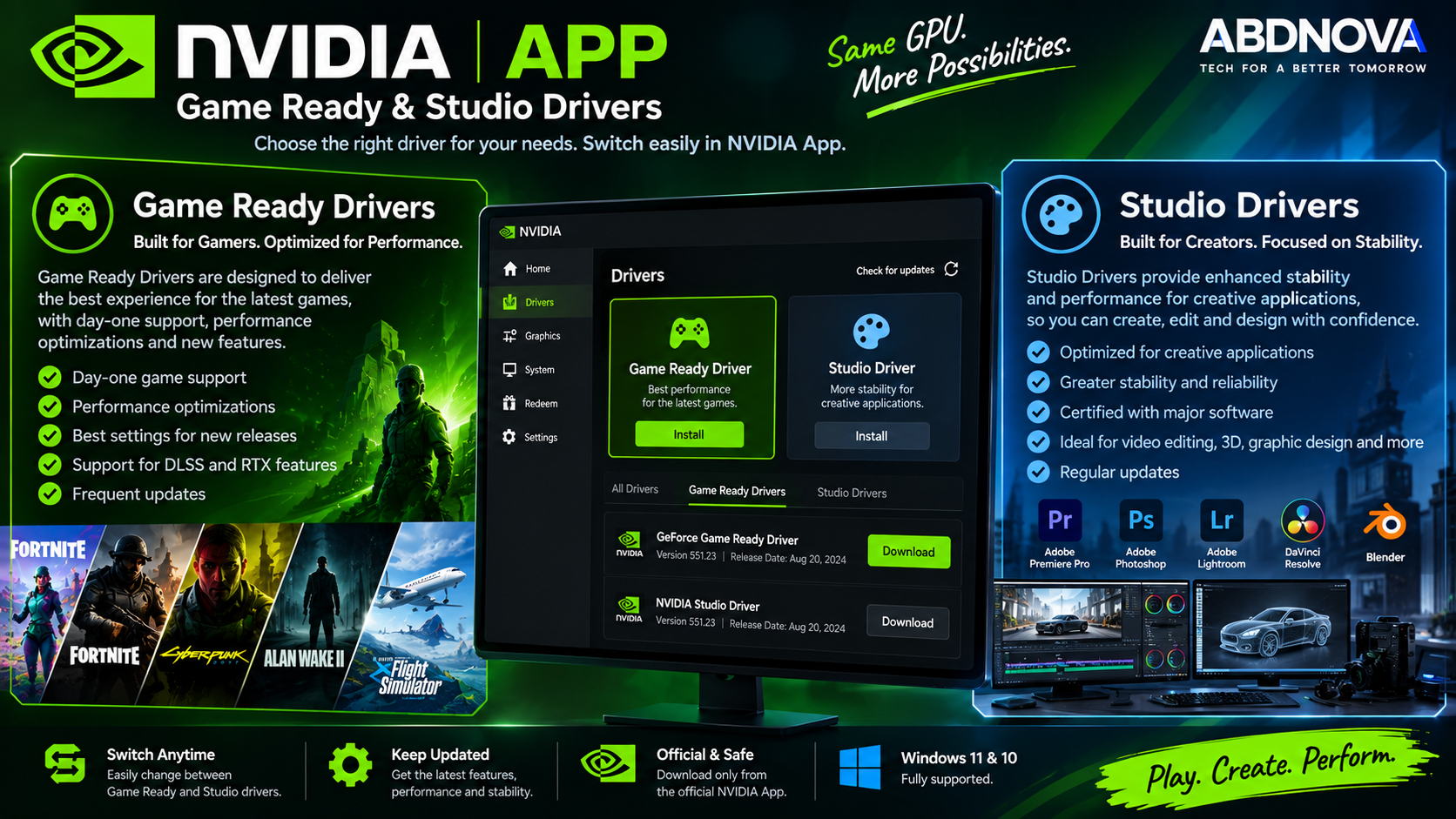
Driver management is one of the most useful NVIDIA App features. Users can download supported NVIDIA drivers directly from the application and switch between Game Ready and Studio releases.
GeForce Game Ready Drivers
Game Ready Drivers are intended primarily for gamers. NVIDIA tests these releases to provide optimized support for major games, new releases, patches and downloadable content.
If gaming is the main purpose of your PC, Game Ready Driver is generally the appropriate choice.
NVIDIA Studio Drivers
Studio Drivers focus on performance and reliability for major creative applications used for workflows such as video editing, graphics, photography, animation and 3D creation.
If your PC is mainly used for professional creative applications, Studio Driver may be the better option.
- Gaming PC: Game Ready Driver
- Creative workstation: Studio Driver
NVIDIA’s official driver pages continue to describe Game Ready Drivers as gaming-focused and Studio Drivers as optimized for creative applications.
NVIDIA App Game Optimization, Overlay & Performance Monitoring
Game & Application Optimization
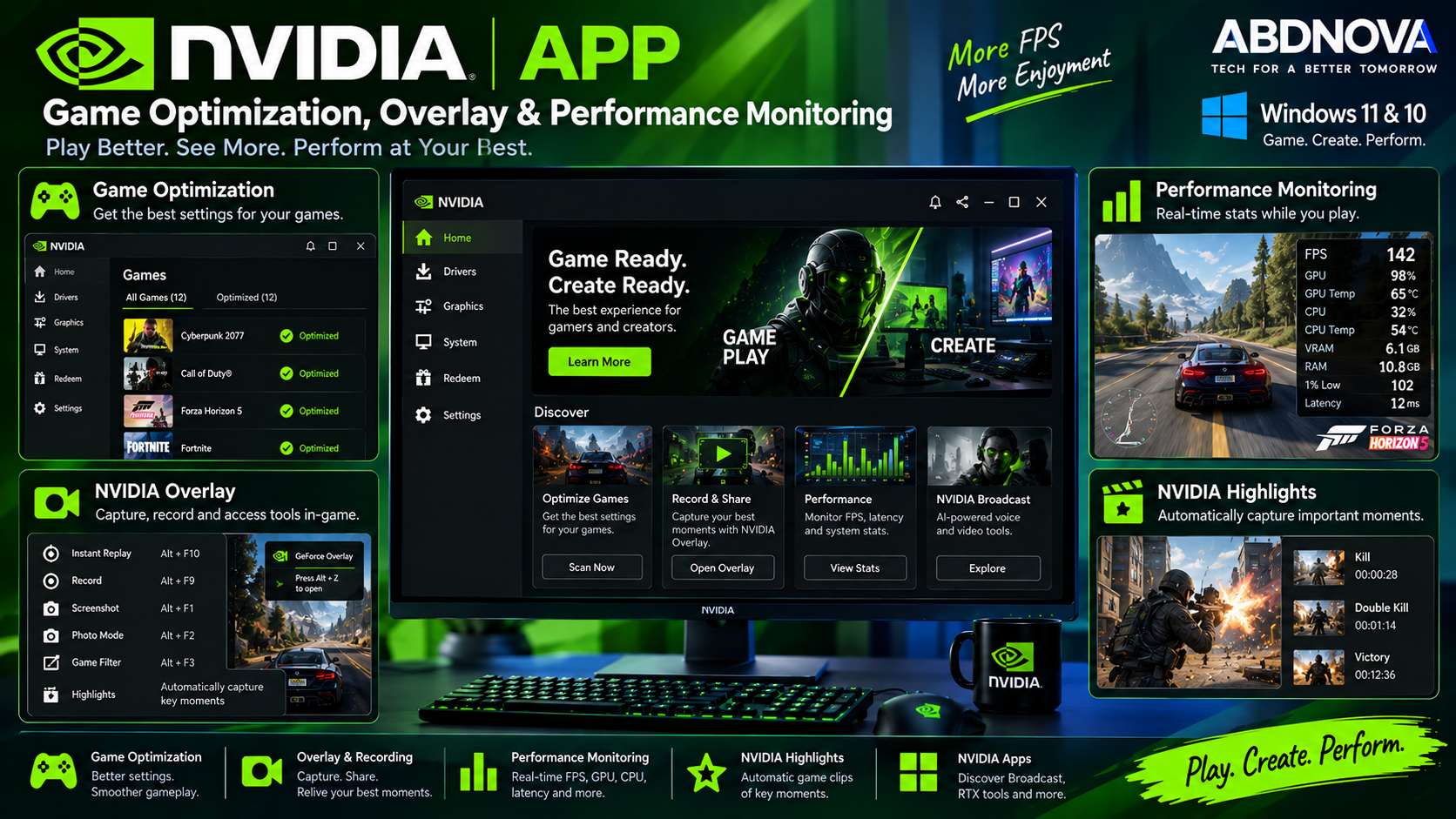
NVIDIA App can detect supported games and applications and provide recommended graphics settings based on your system hardware.
Users can start with NVIDIA’s recommended configuration and then adjust settings toward:
- Performance — prioritize higher frame rates.
- Quality — prioritize visual quality.
- Balanced — balance performance and image quality.
Advanced users can continue adjusting individual graphics options manually.
NVIDIA Overlay
NVIDIA App includes a redesigned NVIDIA Overlay that provides quick access to recording, screenshots, filters and performance statistics while using supported games and applications.
Performance Monitoring
The performance overlay can display useful real-time information such as:
- Frame rate.
- GPU utilization.
- CPU utilization.
- FPS 1% Low.
- System temperatures where available.
- Supported latency information.
This can help identify whether poor game performance is associated with GPU load, CPU load or other system conditions.
ShadowPlay Recording & Screenshots
NVIDIA’s gameplay-capture technology is integrated into NVIDIA App through the overlay.
On supported hardware and configurations, ShadowPlay can record high-resolution, high-frame-rate gameplay. Actual recording capabilities depend on the GPU, monitor, game, encoding support and system configuration.
NVIDIA Highlights
Supported games can use NVIDIA Highlights to automatically capture notable gameplay events. Support depends on the individual game.
DLSS Controls & Overrides
NVIDIA App provides increasingly advanced DLSS management for compatible GeForce RTX GPUs and supported games.
Depending on the hardware and game, available controls can involve:
- DLSS Super Resolution.
- Frame Generation.
- Ray Reconstruction.
- Multi Frame Generation.
- Supported DLSS model overrides.
NVIDIA has continued expanding DLSS override controls in NVIDIA App, including newer global and per-game options. Feature availability varies significantly by GPU generation and game.
NVIDIA Freestyle & RTX Filters
NVIDIA Freestyle provides real-time visual filters in compatible games. Supported RTX systems may also provide features such as RTX Dynamic Vibrance and RTX HDR.
Other NVIDIA Applications
NVIDIA App also provides access to information about other NVIDIA applications and services.
- NVIDIA Broadcast: AI-enhanced microphone, speaker and camera effects.
- GeForce NOW: NVIDIA’s cloud gaming service.
- RTX Remix: Tools for remastering compatible classic games.
- Project G-Assist: AI assistant functionality for compatible GeForce RTX PCs.
These are separate NVIDIA products or services. Installing NVIDIA App does not require installing all of them.
Does NVIDIA App Require an NVIDIA Account?
Basic NVIDIA App use does not require mandatory login. NVIDIA describes account login as optional for features such as rewards and bundle redemption.
This means users who primarily want driver updates, graphics settings and GPU-management features do not need to treat account creation as a required installation step.
Is NVIDIA App Free?
Yes. NVIDIA App itself is free software for compatible NVIDIA hardware.
No subscription is required simply to install NVIDIA App, manage supported GPU settings or download supported NVIDIA graphics drivers.
Separate NVIDIA applications or services discovered through NVIDIA App may have their own requirements or pricing.
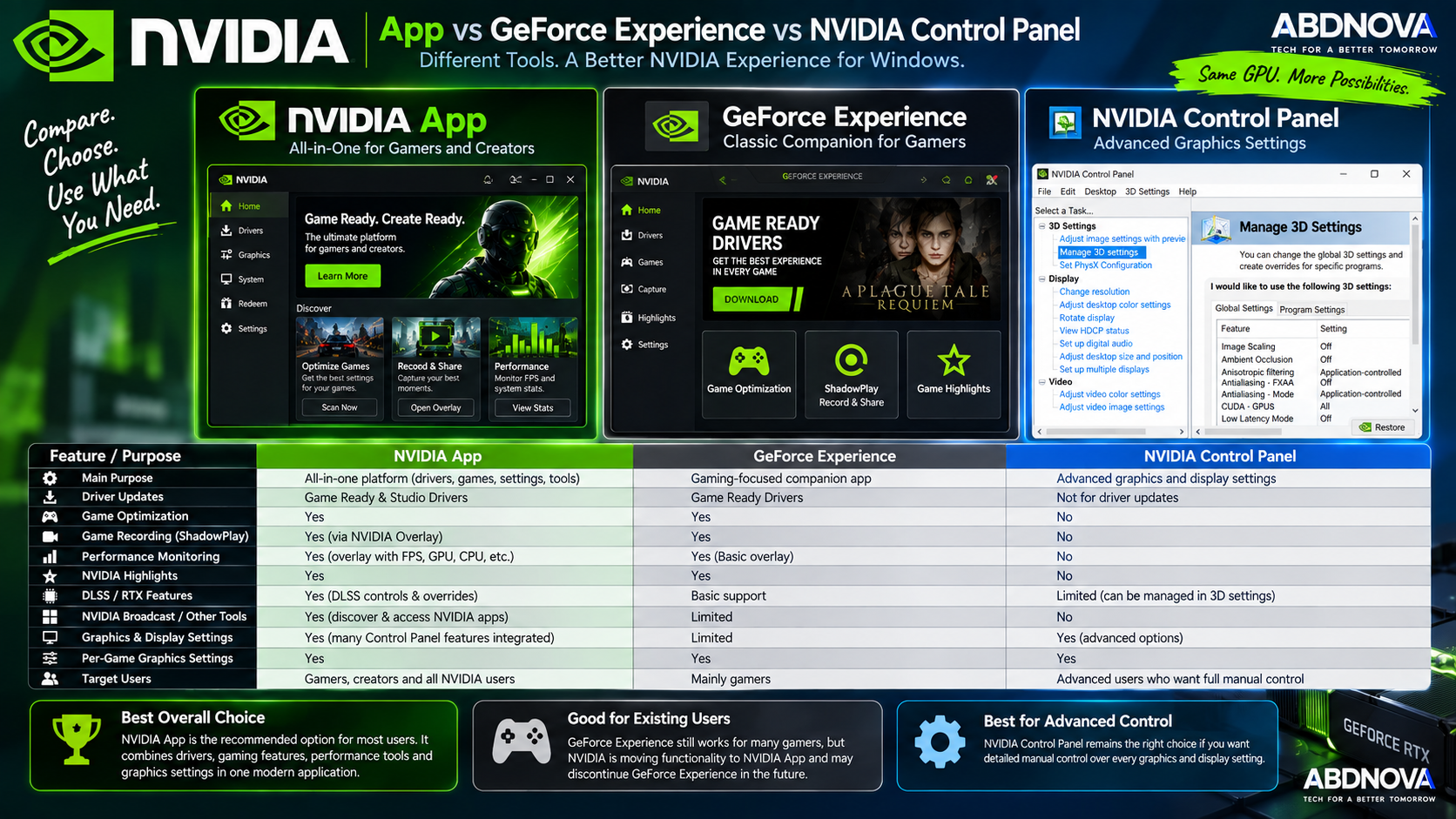
NVIDIA App vs GeForce Experience vs NVIDIA Control Panel
| Feature | NVIDIA App | GeForce Experience | NVIDIA Control Panel |
|---|---|---|---|
| Current NVIDIA Direction | Yes | Legacy / being replaced | Functions increasingly integrated |
| Driver Updates | Yes | Yes | No |
| Game Optimization | Yes | Yes | Manual controls |
| Game Recording | Yes | Yes | No |
| Performance Overlay | Yes | Yes | No |
| Global GPU Settings | Yes, expanding | Limited | Yes |
| DLSS Overrides | Supported on compatible hardware/games | Limited | Not its primary role |
| Optional Login | Yes | Historically more account-focused | No account needed |
| Best Choice for New Setup | Recommended current NVIDIA utility | Legacy choice | Still useful for remaining controls |
NVIDIA App is the modern application NVIDIA is actively developing for GeForce users. It incorporates popular GeForce Experience functionality while continuing to absorb graphics and display controls previously managed through NVIDIA Control Panel.
Useful Windows Tools for NVIDIA Users
If you want to check detailed GPU information alongside NVIDIA App, our GPU-Z Download for Windows guide covers a lightweight tool for viewing graphics-card specifications and sensor information.
For broader hardware monitoring, you can also see our HWMonitor Download for Windows guide for monitoring temperatures, voltages and other hardware readings.
NVIDIA App Troubleshooting & Safe Download
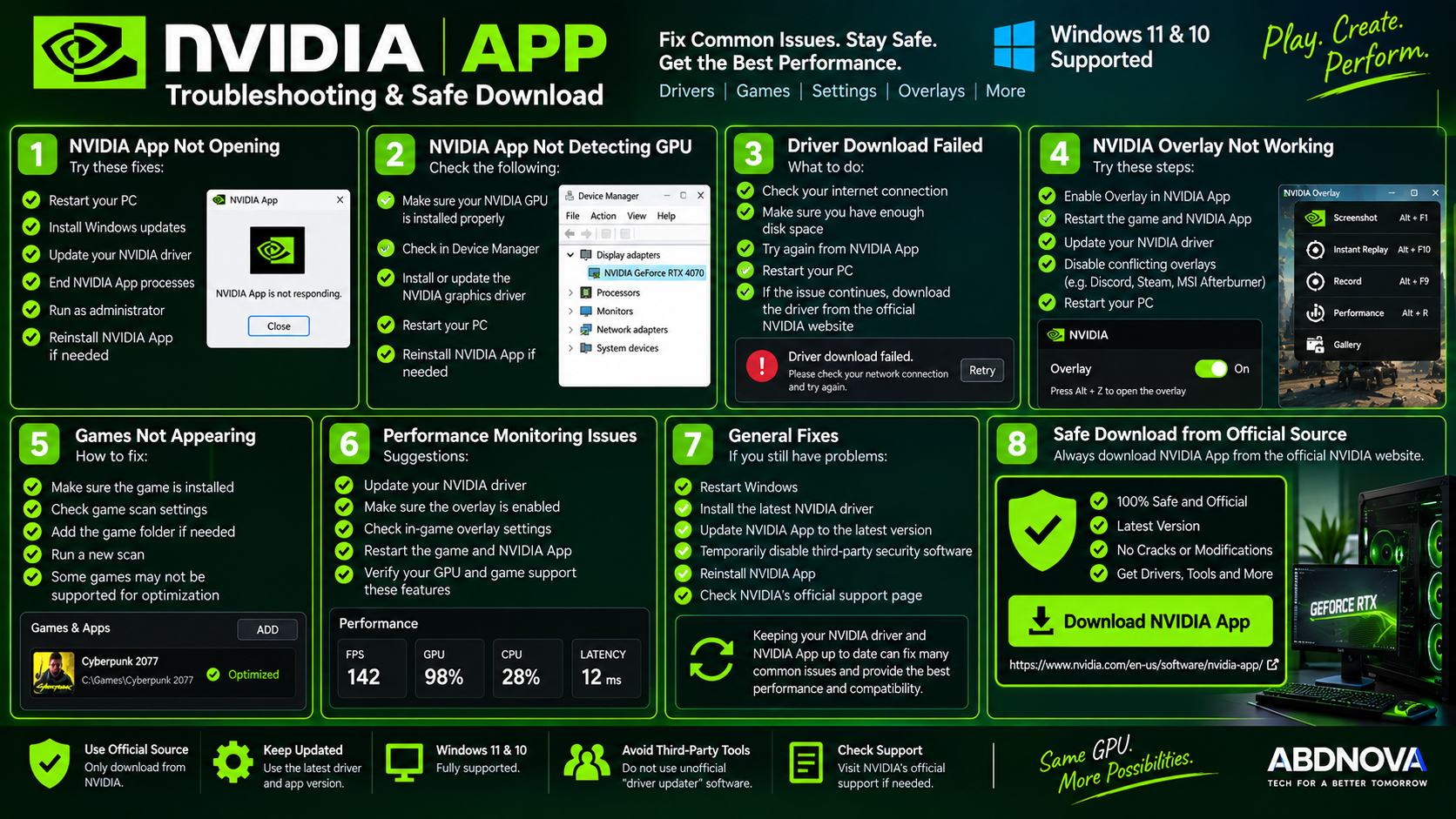
NVIDIA App Not Detecting GPU
If NVIDIA App does not detect your graphics card:
- Restart Windows.
- Open Device Manager and confirm the NVIDIA GPU appears.
- Install or update the correct NVIDIA graphics driver.
- Install pending Windows updates.
- Restart NVIDIA App.
- Reinstall NVIDIA App if necessary.
NVIDIA Driver Download Failed
If a driver fails to download or install:
- Check the internet connection.
- Confirm enough free disk space is available.
- Restart NVIDIA App.
- Restart Windows.
- Retry the driver download.
- If necessary, obtain the appropriate driver directly from NVIDIA’s official driver page.
Avoid replacing NVIDIA’s official driver distribution with random third-party driver updater applications.
NVIDIA App Not Opening
- Restart your PC.
- Install pending Windows updates.
- Update the NVIDIA graphics driver.
- Close NVIDIA processes and reopen the application.
- Run the app again with appropriate Windows permissions.
- Reinstall NVIDIA App if its installation appears damaged.
NVIDIA Overlay Not Working
First confirm that NVIDIA Overlay is enabled inside NVIDIA App.
- Restart the game.
- Restart NVIDIA App.
- Update the graphics driver.
- Check game compatibility.
- Temporarily disable conflicting third-party overlays.
- Restart Windows.
Games Not Appearing in NVIDIA App
Check NVIDIA App’s game and application scanning settings and make sure the folder containing the game is included. Run another scan afterward.
Not every game or application has an NVIDIA optimization profile, so an installed program may not always receive optimization settings.
How to Update NVIDIA App & Drivers
Keep both NVIDIA App and your NVIDIA graphics driver current. Driver updates can be managed from the Drivers area of NVIDIA App.
Depending on your workload, select the appropriate Game Ready or Studio Driver.
Safe NVIDIA App Download for Windows
Download NVIDIA App only from NVIDIA’s official website or through an official NVIDIA graphics-driver installation.
- NVIDIA App cracked.
- NVIDIA App modified.
- Pre-activated NVIDIA package.
- Unofficial driver pack.
- Repacked NVIDIA installer.
- NVIDIA driver booster.
- NVIDIA App with unknown modifications.
The official NVIDIA App is already free. ABDNOVA therefore recommends downloading it directly from NVIDIA and avoiding modified or unofficial GPU software.
Frequently Asked Questions
Does NVIDIA App work on Windows 11?
Yes. NVIDIA officially supports NVIDIA App on Windows 11.
Does NVIDIA App work on Windows 10?
Yes. Windows 10 is also officially listed as a supported operating system.
Is NVIDIA App free?
Yes. NVIDIA App is free to download and use with compatible NVIDIA graphics hardware.
Does NVIDIA App replace GeForce Experience?
NVIDIA App is NVIDIA’s current replacement direction for GeForce Experience and incorporates many of its popular features while adding newer GPU-management capabilities.
Can NVIDIA App update my graphics driver?
Yes. NVIDIA App can download and install supported NVIDIA graphics drivers, including Game Ready and Studio Drivers.
Should I use Game Ready or Studio Driver?
Game Ready Drivers are generally best for gaming-focused PCs. Studio Drivers prioritize reliability and performance with major creative applications.
Does NVIDIA App require an NVIDIA account?
Basic functionality does not require mandatory login. NVIDIA describes login as optional for features such as rewards and bundle redemption.
Does NVIDIA App include gameplay recording?
Yes. NVIDIA Overlay provides gameplay capture and related recording features on supported NVIDIA hardware.
Can NVIDIA App optimize games?
Yes. It provides optimized settings for supported games and applications based on compatible system hardware.
Can I still use NVIDIA Control Panel?
Yes. NVIDIA continues integrating more Control Panel functionality into NVIDIA App, but NVIDIA Control Panel can still be relevant for controls that have not yet moved to the newer application.
Final Thoughts
NVIDIA App Download for Windows provides a modern NVIDIA utility for Windows 11 and Windows 10 PCs with compatible NVIDIA graphics hardware.
It combines driver management, Game Ready and Studio Drivers, game optimization, GPU settings, performance monitoring, recording, NVIDIA Overlay and supported DLSS controls in one application.
For gamers, Game Ready Drivers, ShadowPlay, NVIDIA Overlay, DLSS controls and optimization are particularly useful. Creators can switch to Studio Drivers while managing the same NVIDIA GPU from the same application.
For the safest installation, download NVIDIA App directly from NVIDIA and keep both the application and your graphics driver updated.
Download NVIDIA App for Windows
Get the official NVIDIA App for Windows 11 and Windows 10 directly from NVIDIA.