


GPU-Z Download for Windows 11 & 10

Download GPU-Z for Windows 11 and Windows 10 to identify your graphics card, inspect VRAM and PCIe details, monitor sensors, and troubleshoot GPU hardware.
GPU-Z Download for Windows gives Windows users a lightweight utility for viewing detailed graphics-card information and monitoring supported GPU sensors.
Developed by TechPowerUp, GPU-Z can display GPU model, graphics processor, BIOS version, memory type and size, bus width, driver information, GPU and memory clocks, PCI Express interface details, temperatures, load, fan speed, power readings, and other supported telemetry.
GPU-Z is especially useful for gamers, PC builders, technicians, laptop users, and anyone who wants to confirm exactly what graphics hardware is installed in a Windows PC.
GPU-Z Download – Quick Overview
| Information | Details |
|---|---|
| Software | TechPowerUp GPU-Z |
| Developer | TechPowerUp |
| Software Type | GPU Information & Monitoring Utility |
| Platform | Windows |
| Windows 11 | Supported |
| Windows 10 | Supported |
| GPU Information | Yes |
| VRAM Information | Yes |
| Sensor Monitoring | Yes |
| PCIe Information | Yes |
| GPU BIOS Information | Yes |
| BIOS Backup | Available |
| Online Validation | Yes |
| Full GPU Benchmark | No |
| Official Source | TechPowerUp |
What Is GPU-Z?
TechPowerUp GPU-Z is a free graphics-card information and monitoring utility for Windows.
Its purpose is not to overclock the graphics card or increase gaming performance. Instead, it reads information reported by the GPU, graphics driver, and supported hardware sensors and presents it in a compact interface.
GPU-Z can help you:
- Identify the exact graphics card.
- Check GPU specifications.
- Verify VRAM size and memory type.
- View GPU and memory clock speeds.
- Check PCIe bus information.
- Monitor GPU temperature and load.
- Check fan speed on supported cards.
- View graphics-driver information.
- Inspect GPU BIOS information.
- Save a supported GPU BIOS backup.
- Validate GPU information online.
- Troubleshoot graphics hardware.
How to Download and Run GPU-Z on Windows

GPU-Z can be used without a conventional installation, which makes it convenient as a portable-style diagnostic utility.
- Visit TechPowerUp: Open the official GPU-Z download page.
- Download GPU-Z: Choose the standard official GPU-Z download.
- Open the executable: Double-click the downloaded GPU-Z file.
- Verify the source: If Windows displays a security prompt, confirm that the file came from TechPowerUp.
- Run or install: Choose whether to run GPU-Z directly or use the installation option when available.
- Select the GPU: If your PC contains multiple graphics adapters, choose the GPU you want to inspect.
GPU-Z Main Interface & Graphics Card Information
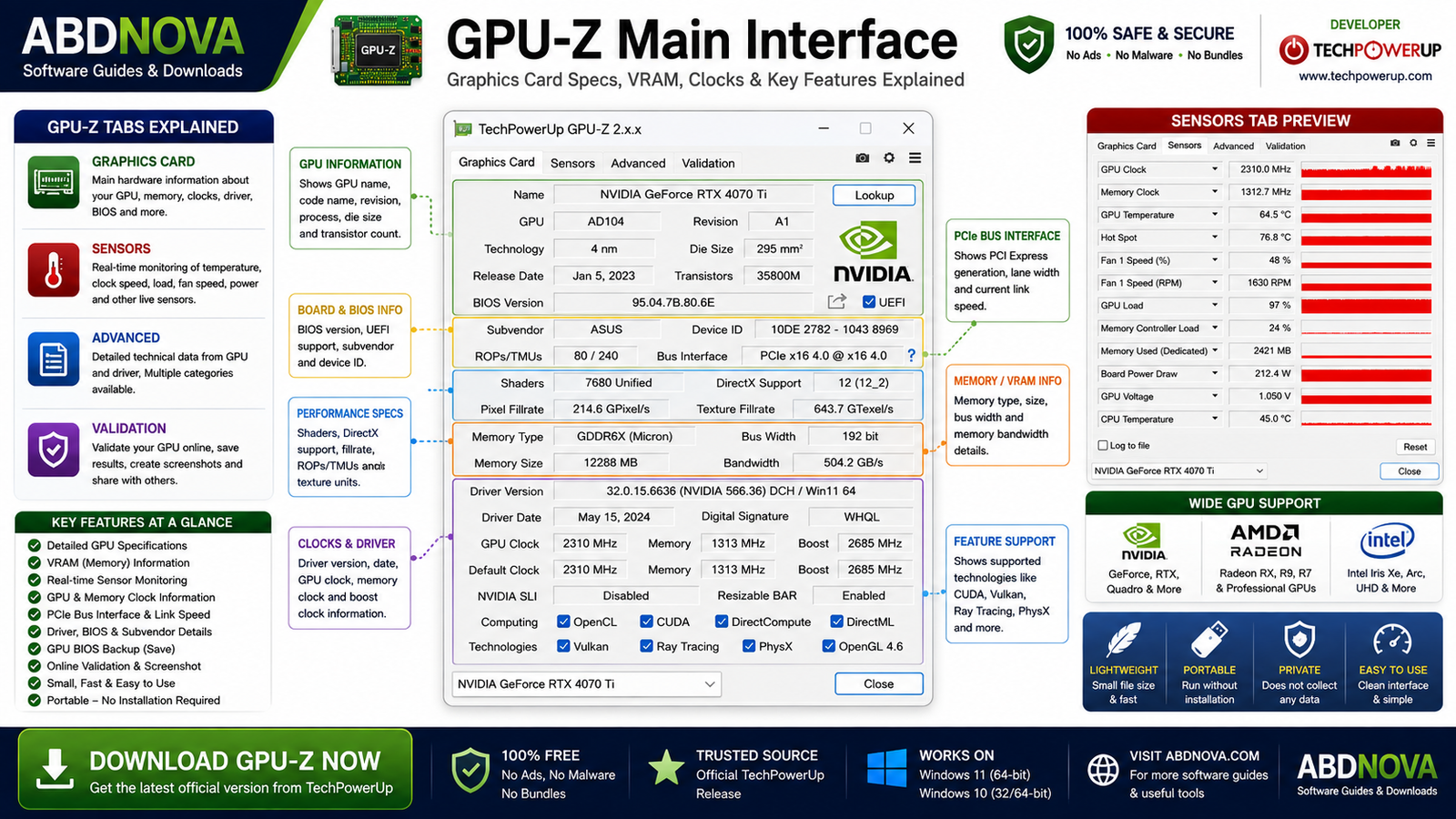
GPU-Z organizes graphics information into several tabs. The exact fields available depend on the GPU, graphics driver, and supported sensors.
Graphics Card Tab
The Graphics Card tab provides the main technical overview of the detected graphics adapter.
Information can include:
- Graphics card name.
- GPU code name and revision.
- Manufacturing process.
- BIOS version.
- Device ID and subvendor.
- Bus interface.
- Shader information.
- DirectX support.
- Pixel and texture fillrate.
- Memory type and size.
- Memory bus width and bandwidth.
- Driver version.
- GPU clock and memory clock.
- Default clocks.
Advanced Tab
The Advanced area provides additional graphics hardware and driver-related information. Available categories vary depending on the GPU and system.
Online Validation
GPU-Z includes an online validation system through TechPowerUp. Validation can be useful when documenting or sharing detected GPU specifications.
Identify Your Graphics Card & Check VRAM with GPU-Z
Windows can show the basic GPU model, but GPU-Z provides much more detailed hardware information.
This can help distinguish graphics cards with similar names but different subvendors, GPU revisions, VRAM capacities, memory types, BIOS versions, default clocks, or PCIe configurations.
VRAM Information
GPU-Z can display graphics-memory information including:
- Memory Type: such as GDDR6 or GDDR6X.
- Memory Size: the detected dedicated video memory.
- Bus Width: the width of the GPU memory interface.
- Bandwidth: the theoretical memory bandwidth.
This information can help confirm whether a used or newly installed graphics card matches its expected specifications.
GPU-Z Sensors Explained

The Sensors tab provides real-time monitoring and is one of GPU-Z’s most useful troubleshooting features.
GPU Temperature
GPU temperature shows how hot the graphics processor is operating. Monitoring temperature under load can help investigate cooling problems or thermal throttling.
GPU Clock
Modern graphics cards dynamically adjust their clock speeds. A low GPU clock while the system is idle is normally expected.
Memory Clock
The memory clock reports the current graphics-memory operating frequency. It can change depending on workload and power-saving behavior.
GPU Load
GPU load indicates how heavily the graphics processor is being used. High utilization is normal during demanding games or GPU workloads.
Fan Speed
Supported graphics cards can report fan information. Fan speed becomes more meaningful when considered together with GPU temperature and workload.
Power Monitoring
Some GPUs expose board power, voltage, hotspot temperatures, and other hardware-specific telemetry. Not every graphics card exposes every sensor.
GPU Sensor Logging
GPU-Z can log supported sensor readings while you reproduce a gaming or GPU-related issue.
- Open GPU-Z.
- Go to the Sensors tab.
- Enable logging.
- Start the game or GPU workload.
- Reproduce the performance problem.
- Stop the workload.
- Review the recorded sensor information.
This can help identify changes in temperature, clocks, utilization, and other available readings when a problem occurs.
GPU-Z PCIe Render Test & Bus Interface
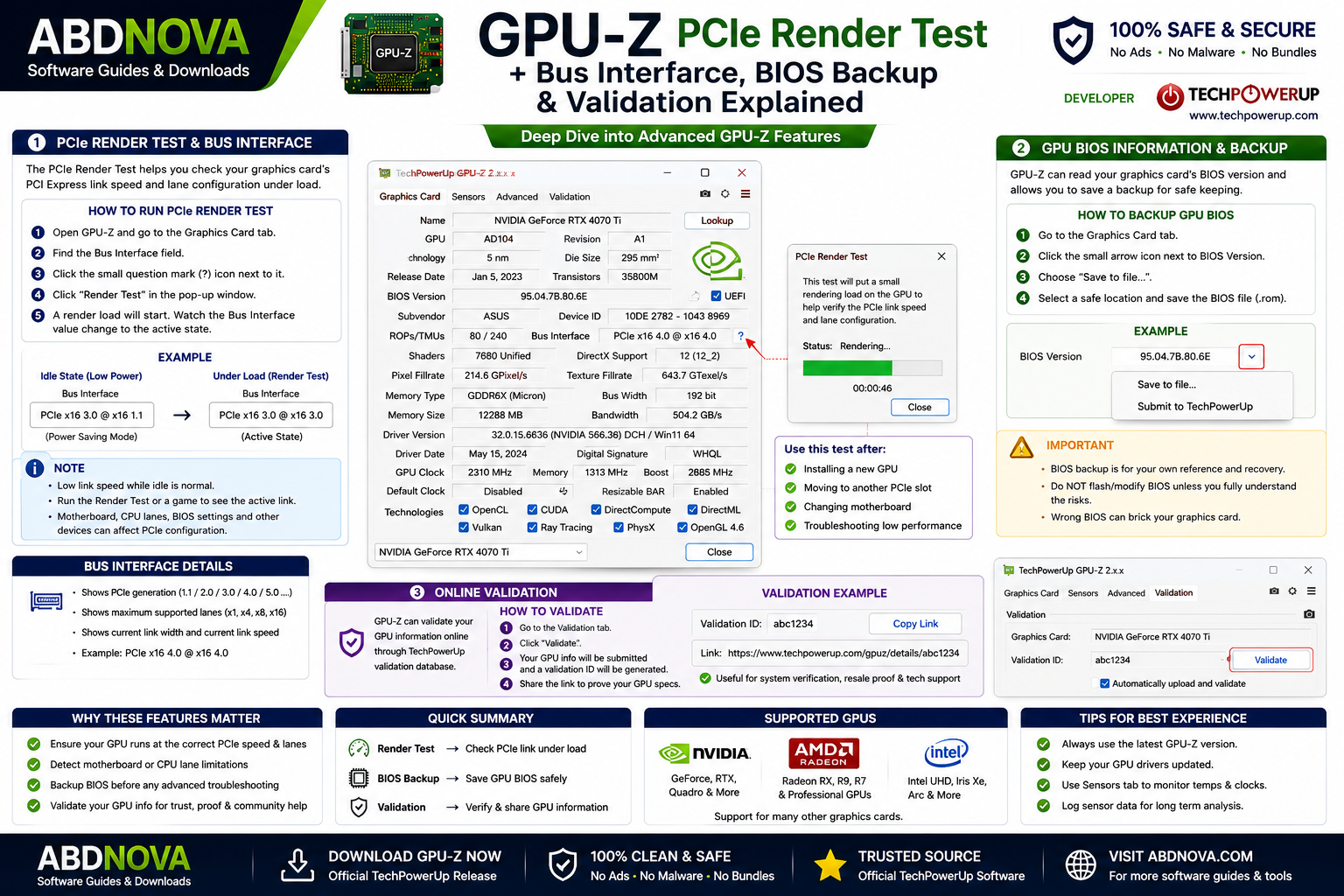
The Graphics Card tab includes Bus Interface information showing how the graphics card is connected through PCI Express.
A reading can include the PCIe generation, maximum lane configuration, current lane configuration, and current operating state.
Low PCIe Speed at Idle Can Be Normal
Modern GPUs use power-saving features. When the GPU is idle, the PCIe link may operate at a lower state.
Therefore, seeing a reduced PCIe value on the Windows desktop does not automatically mean your graphics card is installed incorrectly.
GPU-Z PCIe Render Test
GPU-Z includes a small Render Test near the Bus Interface field. Its main purpose is to place some load on the GPU so you can observe PCIe link behavior.
- Open GPU-Z.
- Locate the Bus Interface field.
- Click the nearby question-mark button.
- Start the Render Test.
- Watch the Bus Interface value.
- Check whether the link moves into its expected active state.
GPU BIOS Information & Backup
GPU-Z displays the detected graphics-card BIOS version and can save a backup of supported GPU firmware.
NVIDIA, AMD & Intel GPU Support
NVIDIA
GPU-Z is widely used with NVIDIA GeForce graphics cards to inspect specifications, VRAM, clocks, boost behavior, PCIe configuration, drivers, sensors, and BIOS information.
AMD Radeon
Supported AMD Radeon graphics hardware can also be identified and monitored. Available information varies by GPU generation and driver support.
Intel Graphics
GPU-Z can identify supported Intel integrated and discrete graphics hardware.
Using GPU-Z on a Laptop with Two GPUs
Many laptops contain both an integrated GPU and a dedicated graphics adapter.
GPU-Z can provide a GPU selector when multiple compatible adapters are detected. Make sure you select the intended graphics adapter when investigating gaming performance or GPU-specific issues.
GPU-Z vs Windows Task Manager, CPU-Z & HWiNFO
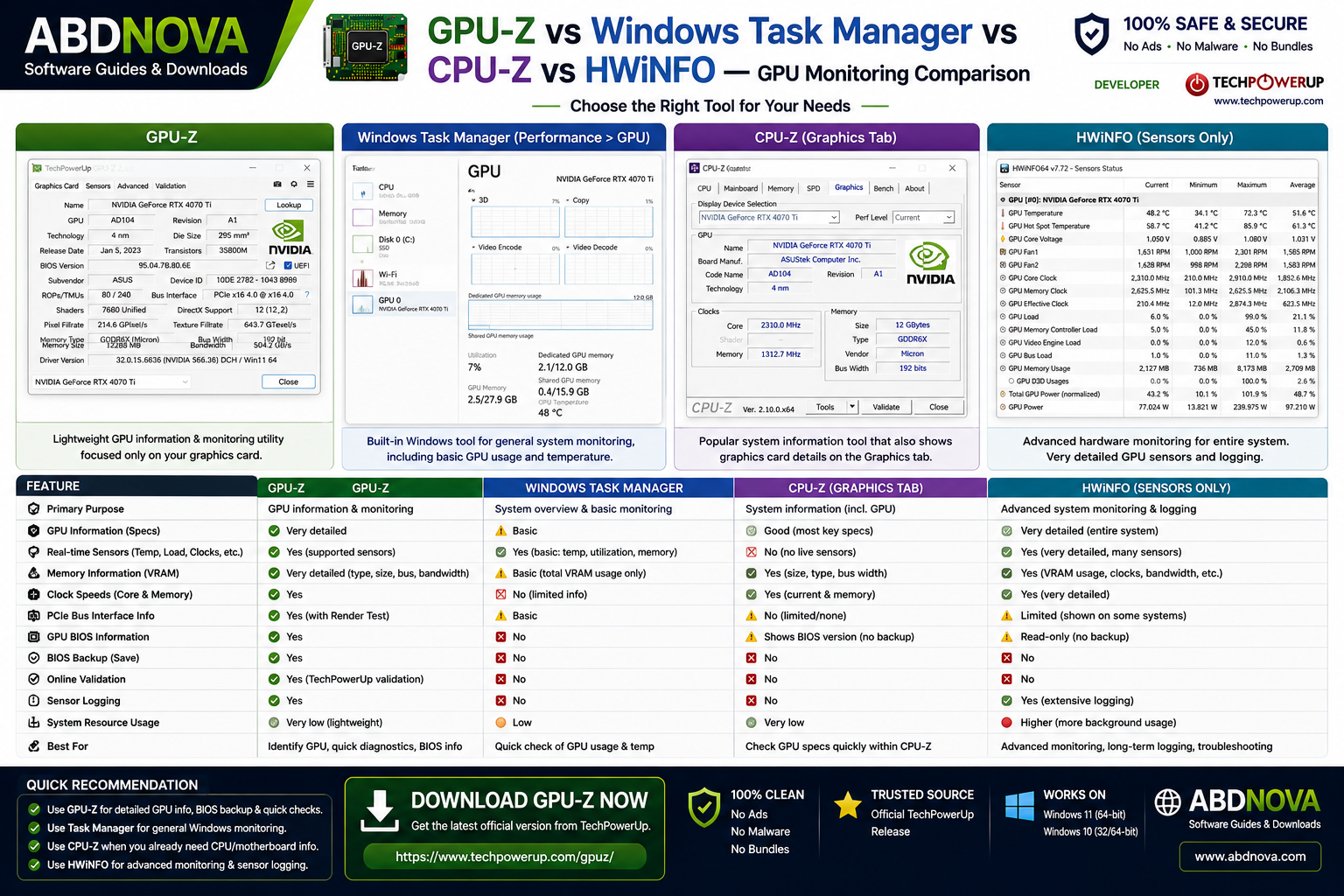
GPU-Z vs Windows Task Manager
| Feature | GPU-Z | Windows Task Manager |
|---|---|---|
| GPU Identification | Detailed | Basic |
| GPU Specifications | Extensive | Limited |
| GPU Utilization | Yes | Yes |
| Memory Usage | Yes | Yes |
| Temperature Monitoring | Supported Hardware | Supported Hardware |
| Clock Information | Detailed | Limited |
| Memory Type | Yes | Limited |
| Memory Bus Width | Yes | Limited |
| PCIe Information | Yes | Limited |
| BIOS Information | Yes | No |
| PCIe Render Test | Yes | No |
| Online Validation | Yes | No |
| Best Use | GPU Diagnostics | General Windows Monitoring |
GPU-Z vs CPU-Z
GPU-Z and CPU-Z are different utilities from different developers.
GPU-Z focuses on graphics hardware, while CPU-Z focuses more on processor, motherboard, and memory information.
GPU-Z vs HWiNFO
HWiNFO is a broader hardware-information and sensor-monitoring utility covering the CPU, GPU, motherboard, RAM, storage, temperatures, fans, voltages, and many other system components.
GPU-Z is more specialized. If your main concern is graphics hardware, its compact interface can be easier to use than a full system-monitoring suite.
GPU-Z Is Not a Full GPU Benchmark
GPU-Z should not be confused with graphics benchmark software.
Its main workflow is:
Identification → Specifications → Monitoring → Diagnostics
The Render Test is primarily a diagnostic tool and should not be used as a performance score for comparing different graphics cards.
Is GPU-Z Safe?
GPU-Z is a legitimate utility published by TechPowerUp when obtained from the official source.
Opening GPU-Z and checking graphics-card specifications does not automatically overclock or modify your GPU.
If you are investigating unusual GPU behavior and suspect malware or unwanted software, you can also use an additional security scanner. See our Malwarebytes Download for Windows guide.
GPU-Z Troubleshooting
GPU-Z Does Not Recognize My GPU Correctly
Download the latest official GPU-Z build from TechPowerUp. New graphics hardware may require updated detection data.
Also make sure the correct graphics driver is installed.
Some Sensors Are Missing
This does not necessarily indicate a problem. Different graphics cards expose different sensors, and GPU-Z can display only the information provided by supported hardware and drivers.
PCIe Speed Appears Too Low
Check the reading while the graphics card is under load rather than relying only on its idle state.
Use the GPU-Z Render Test or another appropriate GPU workload and observe the Bus Interface reading.
GPU Clock Looks Too Low
Low clock speeds while idle are normally expected because modern GPUs reduce frequency to save power.
Check the clock under an appropriate workload before assuming there is a performance problem.
GPU Temperature Is High
Check GPU fans, case airflow, dust buildup, ambient temperature, and GPU utilization.
Temperatures should be evaluated according to the specific graphics-card model and workload rather than one universal number.
GPU-Z Shows the Wrong GPU
On multi-GPU systems, use the GPU selector and confirm that you are viewing the intended graphics adapter.
How to Update GPU-Z
GPU-Z is updated periodically as new graphics hardware is released and detection improvements are added.
- Visit TechPowerUp.
- Open the GPU-Z download page.
- Check the current official release.
- Download the latest executable.
- Replace or remove the older copy as appropriate.
How to Remove GPU-Z
If you run GPU-Z directly without installing it, removal is simple:
- Close GPU-Z.
- Locate the downloaded executable.
- Delete it.
If you chose to install GPU-Z, remove it through Windows Settings → Apps → Installed apps.

Safe GPU-Z Download – Important
Download GPU-Z only from TechPowerUp’s official website.
Official source: TechPowerUp GPU-Z.
- GPU-Z Crack.
- GPU-Z Pro Crack.
- GPU-Z Activator.
- GPU-Z Premium.
- Unlocked GPU-Z.
- Modified or repacked GPU-Z.
- Unknown third-party download packages.
GPU-Z is already available as a free utility, so there is no reason to search for modified or activated copies.
Frequently Asked Questions
Is GPU-Z free?
Yes. GPU-Z is distributed by TechPowerUp as a free GPU information and monitoring utility.
Does GPU-Z work on Windows 11 and Windows 10?
Yes. GPU-Z is designed for Windows PCs and supports modern Windows systems including Windows 11 and Windows 10.
Does GPU-Z support NVIDIA GPUs?
Yes. GPU-Z supports a wide range of NVIDIA graphics hardware.
Does GPU-Z support AMD Radeon GPUs?
Yes. Supported AMD Radeon graphics cards can be identified and monitored.
Can GPU-Z detect Intel graphics?
Yes. GPU-Z can identify supported Intel integrated and discrete graphics hardware.
Can GPU-Z show GPU temperature?
Yes. Supported GPU temperature readings are available through the Sensors tab.
Can GPU-Z show VRAM information?
Yes. GPU-Z can display memory type, memory size, memory bus width, bandwidth, and other supported GPU-memory details.
Can GPU-Z check PCIe speed?
Yes. GPU-Z displays Bus Interface information and includes a small Render Test that can help check PCIe link behavior under load.
Is GPU-Z a benchmark?
No. GPU-Z is mainly a GPU information, monitoring, and diagnostic utility. Its Render Test is not a full graphics-performance benchmark.
Can GPU-Z save a GPU BIOS?
GPU-Z provides BIOS information and can save supported GPU firmware backups. Saving a backup should not be confused with modifying or flashing firmware.
Does GPU-Z need to be installed?
Not necessarily. GPU-Z can be used as a portable-style executable and may also provide an installation option.
Why does GPU-Z show low GPU clocks when idle?
Modern graphics cards reduce clock speeds when full performance is unnecessary. Check clocks under an appropriate GPU workload when troubleshooting performance.
Why does GPU-Z show a lower PCIe state while idle?
PCIe power-saving behavior can reduce the active link state when the GPU is idle. Check the Bus Interface value under load using the Render Test or another appropriate workload.
GPU-Z or Task Manager – which should I use?
Use Task Manager for quick Windows GPU-usage monitoring. Use GPU-Z when you need detailed graphics-card specifications, sensors, PCIe information, BIOS details, and GPU-specific diagnostics.
Final Thoughts
GPU-Z is a small but highly useful Windows utility for understanding exactly what is happening with your graphics hardware.
Its strength is specialization. Instead of monitoring every component in the computer, GPU-Z concentrates on the graphics card and provides detailed specifications, VRAM information, clocks, PCIe configuration, driver details, real-time sensors, BIOS information, and validation tools in one compact interface.
It is particularly useful after installing a new GPU, checking a used graphics card, troubleshooting temperatures or clock behavior, verifying PCIe configuration, or confirming the specifications of a laptop or desktop GPU.
For the safest copy, download GPU-Z directly from TechPowerUp rather than using modified or repackaged third-party versions.
Ready to download GPU-Z?
Get the current Windows build directly from TechPowerUp. ABDNOVA recommends official sources only.


