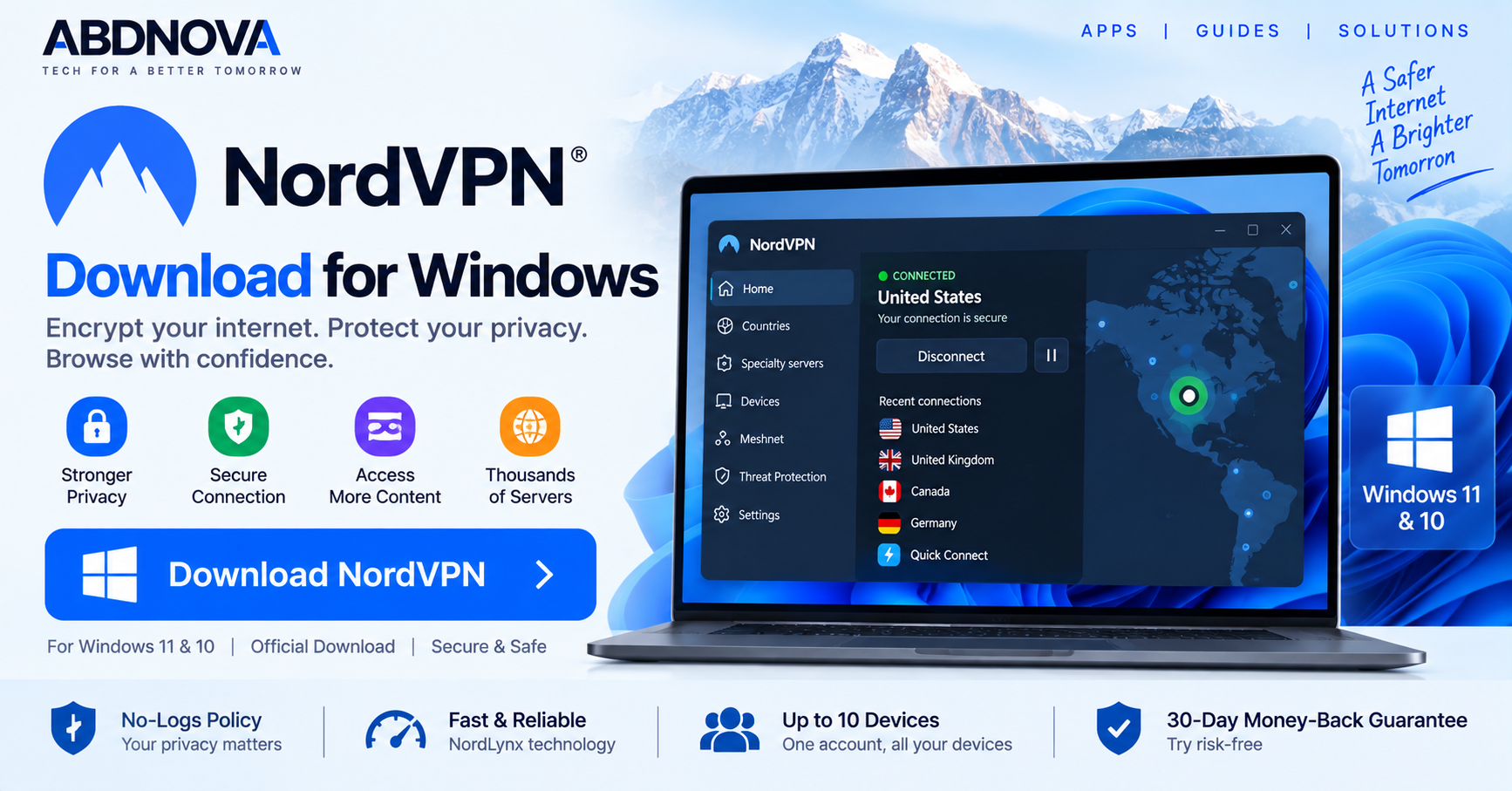

NordVPN Download for Windows 11 & 10
Download NordVPN for Windows 11 and 64-bit Windows 10 to use NordLynx, Kill Switch, Split Tunneling, Auto-connect, Meshnet, specialty servers and additional security features.
NordVPN Download for Windows gives Windows users a VPN and online-security application that encrypts internet traffic, changes the visible public IP address and provides additional control over how applications access the internet.
The desktop app combines straightforward VPN connections with features such as NordLynx, Kill Switch, Split Tunneling, Auto-connect, specialty servers, Meshnet and additional threat-protection tools depending on the selected subscription.
NordVPN officially supports Windows 11 and supported 64-bit editions of Windows 10. Compatible ARM-based Windows computers can also use NordVPN’s native Windows application.
NordVPN for Windows at a Glance
| Information | Details |
|---|---|
| Software | NordVPN |
| Developer | Nord Security |
| Category | VPN / Online Security |
| Windows 11 | Supported |
| Windows 10 | 64-bit, version 1607 or later |
| Architecture | x64 and compatible ARM64 |
| VPN Protocols | NordLynx, NordWhisper, OpenVPN |
| Kill Switch | Yes |
| Split Tunneling | Yes |
| Auto-connect | Yes |
| Meshnet | Yes |
| Specialty Servers | Yes |
| Simultaneous Devices | Up to 10 |
| Main VPN Service | Paid subscription |
| Money-Back Guarantee | 30 days for eligible purchases |
| Official Source | NordVPN |
Download NordVPN for Windows 11 & 10
The safest way to install NordVPN is directly from NordVPN’s official Windows download page.
The current full Windows application supports Windows 11 and 64-bit Windows 10 version 1607 or later.
NordVPN also provides native support for compatible ARM-based Windows devices.
- NordVPN Premium Crack.
- NordVPN pre-activated.
- NordVPN Mod for PC.
- NordVPN keygen.
- Patched NordVPN installer.
- Unofficial repacked VPN clients.
- Torrented installers.
A VPN handles sensitive network traffic, so installing a modified client from an unknown source creates an unnecessary security risk.
NordVPN for Windows 11
NordVPN works with Windows 11 and provides a native desktop application designed to make VPN connections easy to manage.
After signing in, you can use Quick Connect to automatically choose an appropriate server or manually select a location.
Windows 11 users can access features including:
- NordLynx.
- NordWhisper.
- OpenVPN.
- Kill Switch.
- Split Tunneling.
- Auto-connect.
- Specialty servers.
- Meshnet.
- Threat Protection features where included.
- Dark Web Monitor and other account features depending on the plan.
NordVPN also supports compatible Windows 11 devices using ARM processors.
NordVPN for Windows 10
NordVPN currently supports 64-bit Windows 10 version 1607 and later.
The Windows 10 application provides the same core VPN experience, including encrypted connections, Quick Connect, NordLynx, Kill Switch, Split Tunneling and configurable connection settings.
- Use the 64-bit edition.
- Keep Windows updated.
- Keep NordVPN updated.
- Check that your normal internet connection works before troubleshooting the VPN.
- Use the official NordVPN installer.
Older Windows versions may have legacy options available, but they should not be preferred on a modern PC because older operating systems and VPN clients may no longer receive the same security and feature updates.
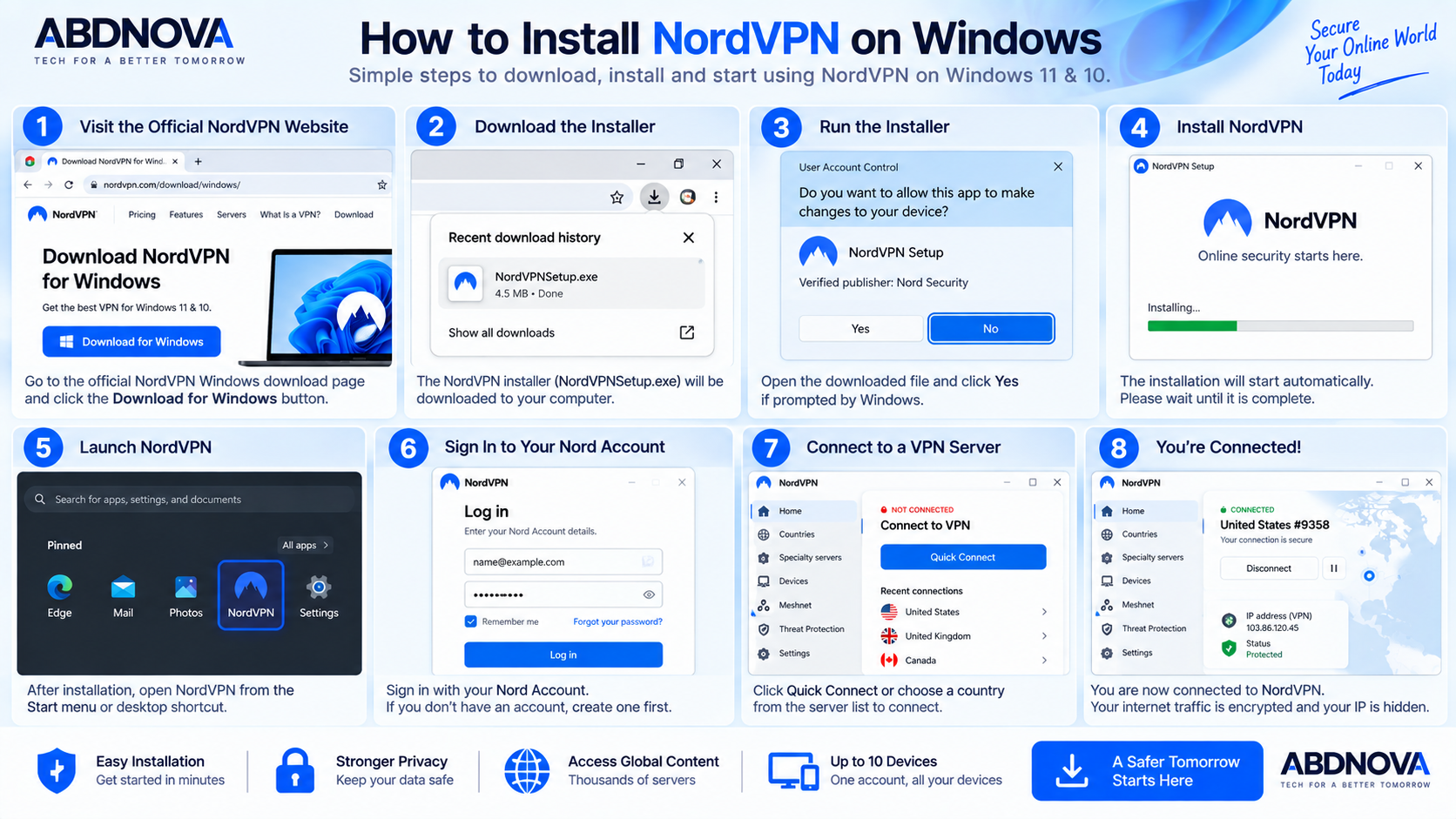
How to Install NordVPN on Windows
Step 1: Open the Official NordVPN Website
Visit NordVPN’s official Windows download page.
Step 2: Download NordVPN
Download the Windows application for your system.
Step 3: Run the Installer
Open your Downloads folder and launch the NordVPN installer.
If Windows displays a User Account Control prompt, continue only after confirming the installer came from NordVPN.
Step 4: Install NordVPN
Follow the installation instructions.
The setup process installs the desktop application and networking components required for VPN connections.
Step 5: Launch NordVPN
Open NordVPN from the Start menu or desktop shortcut.
Step 6: Sign In
Sign in using your Nord Account.
You need an active subscription to use NordVPN’s normal VPN server network.
Step 7: Connect to a VPN Server
Use Quick Connect for automatic server selection or manually choose a country or specialty server.
Step 8: Confirm the Connection
When the application shows that NordVPN is connected, the VPN tunnel is active.
You can then configure additional options such as Auto-connect, Kill Switch, Split Tunneling and protocol selection.
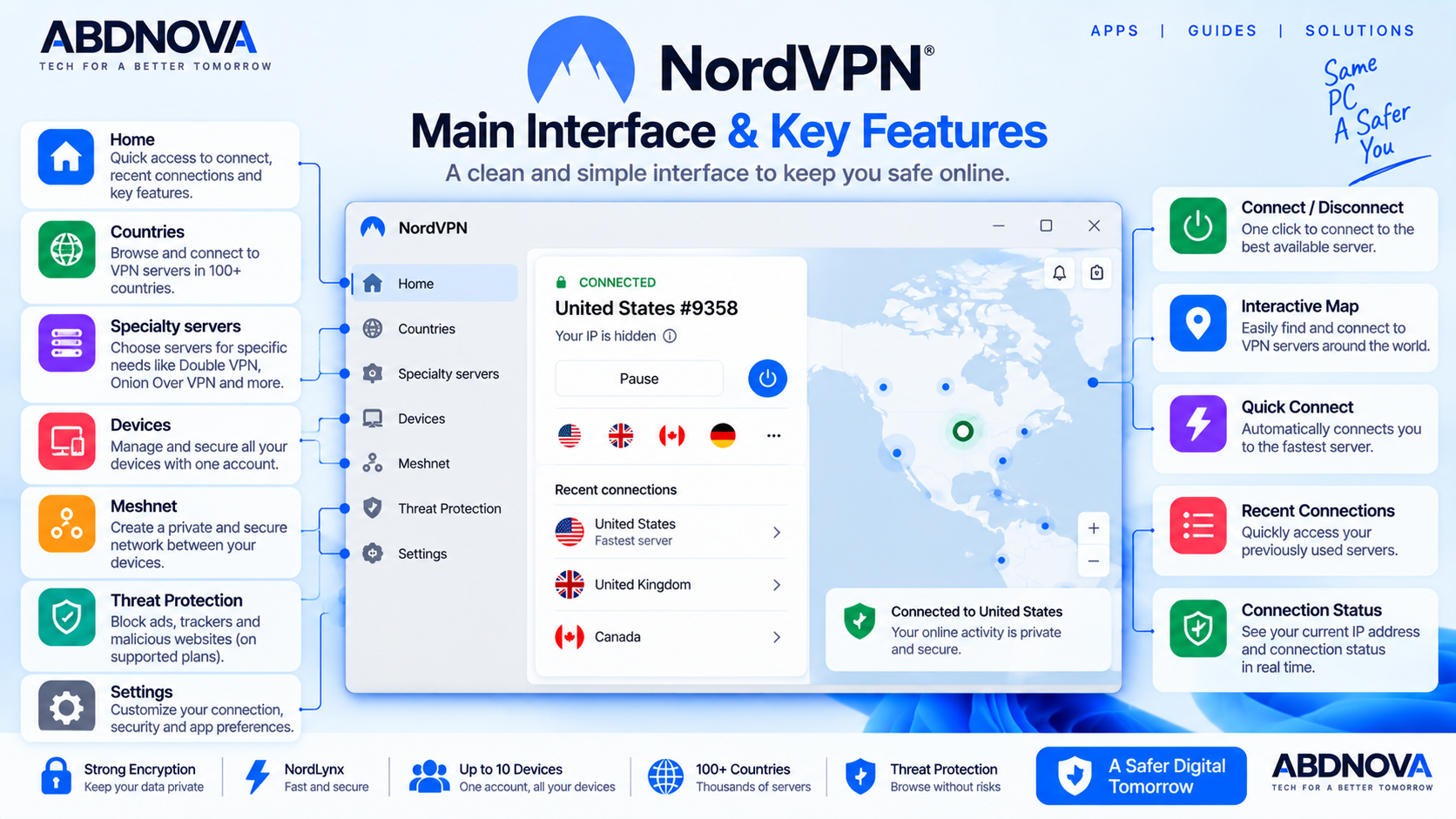
NordVPN Main Interface & Key Features
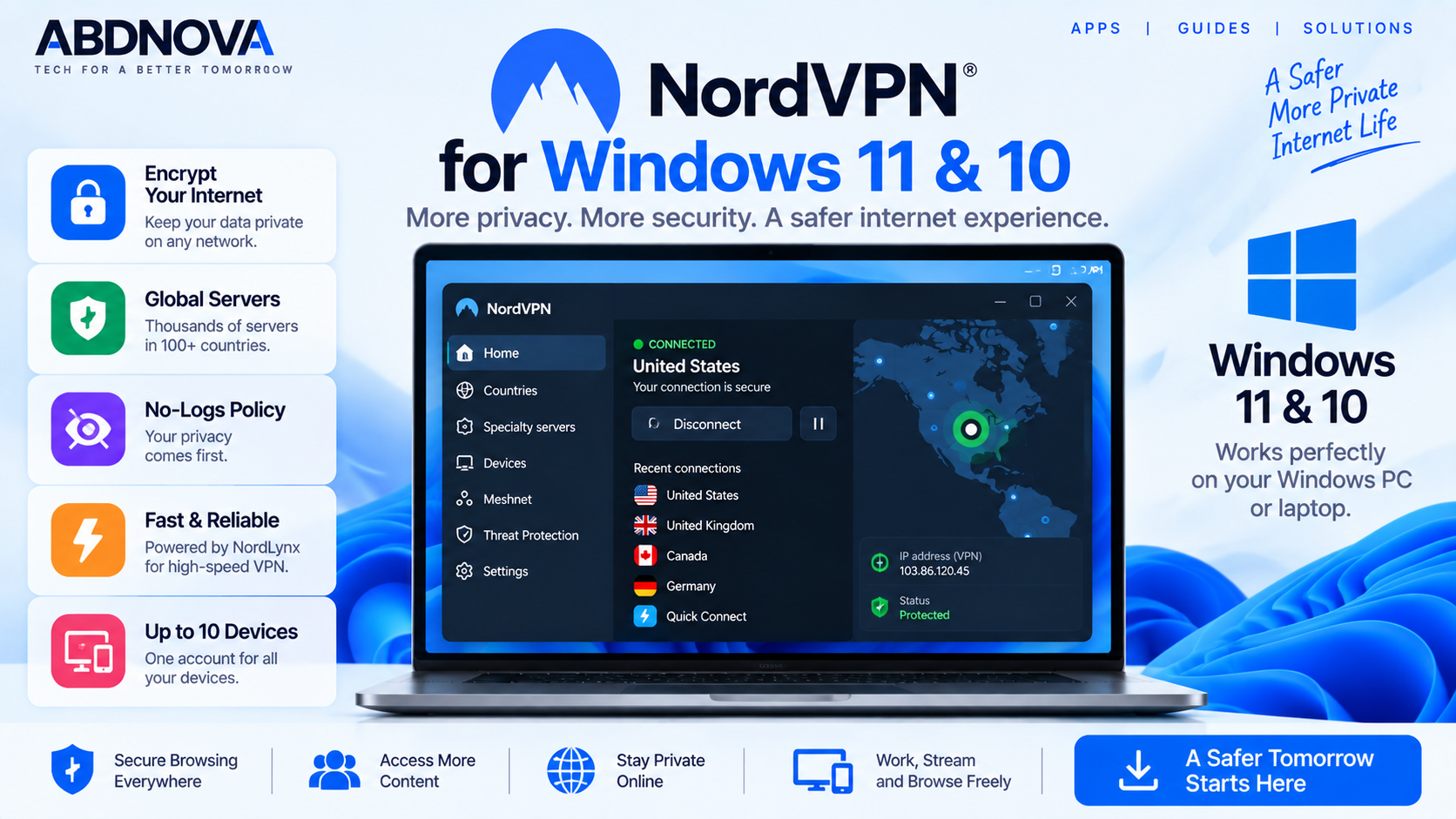
NordVPN’s Windows interface is designed to make basic VPN connections straightforward while keeping advanced security and networking tools accessible.
Depending on the current application version and subscription, you may see areas for:
- VPN connection.
- Server locations.
- Specialty servers.
- Threat Protection.
- Meshnet.
- Settings.
- Connection and security controls.
- Account options.
The application clearly indicates whether the Windows PC is currently protected by a VPN connection.
Open NordVPN → Quick Connect → Wait for Connected status
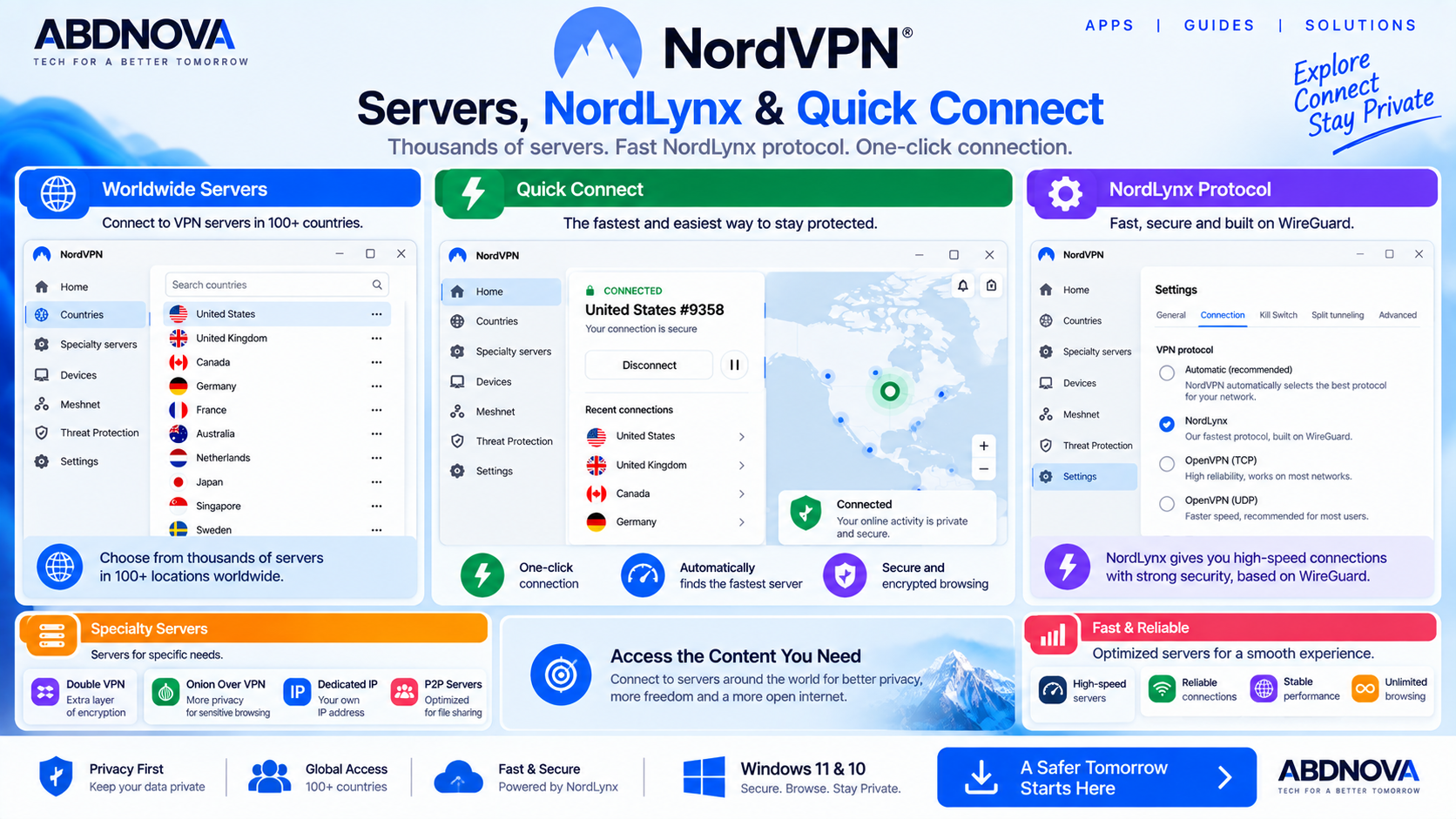
NordVPN Servers, NordLynx & Quick Connect
Quick Connect
Quick Connect allows NordVPN to automatically select a suitable VPN server instead of requiring you to choose one manually.
This is usually the simplest option when you only want to establish a protected connection quickly.
Server Locations
NordVPN operates thousands of VPN servers across a large number of worldwide locations.
The exact server count can change as the network grows, so the current NordVPN website should be treated as the primary source for server-network figures.
You can manually choose a country or use specialty server categories when you have a specific requirement.
NordLynx Protocol
NordLynx is NordVPN’s VPN technology built around the WireGuard protocol.
It is designed to provide fast VPN connections while maintaining privacy and security.
To select NordLynx:
For many users, automatic protocol selection is convenient. Manually choosing NordLynx can be useful when troubleshooting or comparing performance.
NordWhisper
Current NordVPN for Windows versions also support NordWhisper.
NordWhisper is another NordVPN protocol option designed for situations where normal VPN traffic may have difficulty connecting through restrictive networks.
It can be selected from the same protocol settings where available.
OpenVPN
OpenVPN remains another supported protocol option.
Most users do not need to switch protocols regularly, but having several options can be useful when diagnosing network or compatibility problems.
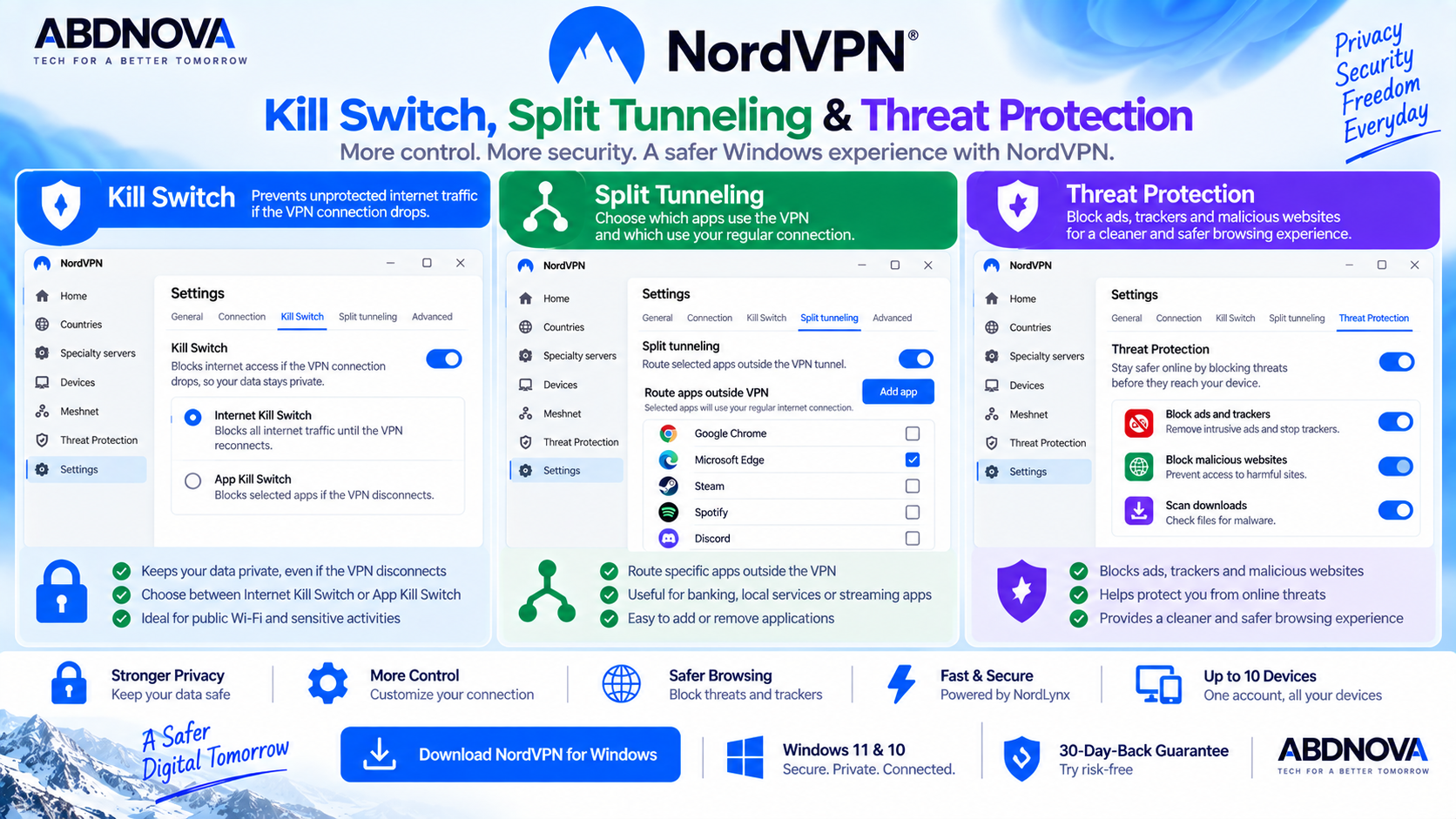
NordVPN Kill Switch, Split Tunneling & Threat Protection
Kill Switch
Kill Switch is designed to help prevent unprotected internet traffic when the required VPN protection becomes unavailable.
Depending on the current Windows configuration, NordVPN can block internet traffic or selected applications when VPN protection is lost.
This can be particularly useful when using public Wi-Fi or working with accounts where an unexpected VPN disconnection would be undesirable.
Split Tunneling
Split Tunneling lets selected applications use a different connection path instead of routing every application through the VPN.
For example:
Browser → NordVPN tunnel
Selected local app → Normal internet connection
This can be useful when an application or local service does not work correctly through a VPN.
Remember that applications excluded from the VPN do not receive the same VPN-tunnel protection.
Auto-connect
Auto-connect can establish a VPN connection automatically when NordVPN starts or when configured network conditions are detected.
This is especially useful on laptops that frequently connect to public or unfamiliar Wi-Fi networks.
Threat Protection
NordVPN also offers cybersecurity functionality beyond the basic VPN tunnel.
Depending on the selected subscription, architecture and current app version, Threat Protection features can help reduce exposure to threats such as:
- Malicious downloads.
- Scam or phishing websites.
- Trackers.
- Intrusive advertisements.
- Other supported online threats.
A VPN and threat-protection features perform different jobs. The VPN primarily protects network traffic and the visible public IP address, while additional security tools provide another layer of protection.
NordVPN Meshnet
Meshnet lets supported devices create secure private connections with each other over the internet.
Possible uses include:
- Remote access to another computer.
- File sharing between devices.
- Remote collaboration.
- LAN-style gaming.
- Routing traffic through another Meshnet device.
Meshnet is different from connecting to a normal public VPN server because it focuses on secure connections between approved devices.
NordVPN Specialty Servers
NordVPN provides specialty servers for users who need particular routing or connectivity features.
Double VPN
Double VPN sends traffic through more than one VPN server, adding another routing layer.
Dedicated IP
Users with an eligible Dedicated IP option can access a VPN IP address reserved for their use.
Other Specialty Connections
Other specialty server categories may appear depending on your location, plan and current NordVPN configuration.
For ordinary browsing, Quick Connect or a standard VPN server is usually sufficient.
NordVPN and Other VPN Options
NordVPN is a paid VPN with a strong collection of connection, networking and additional security features.
If you want to compare it with a VPN that provides an official permanent free tier, see our Proton VPN Download for Windows guide.
Proton VPN follows a different plan structure and provides an official free option, while NordVPN focuses more heavily on its paid VPN network and tools such as NordLynx, Meshnet, specialty servers and additional security features.
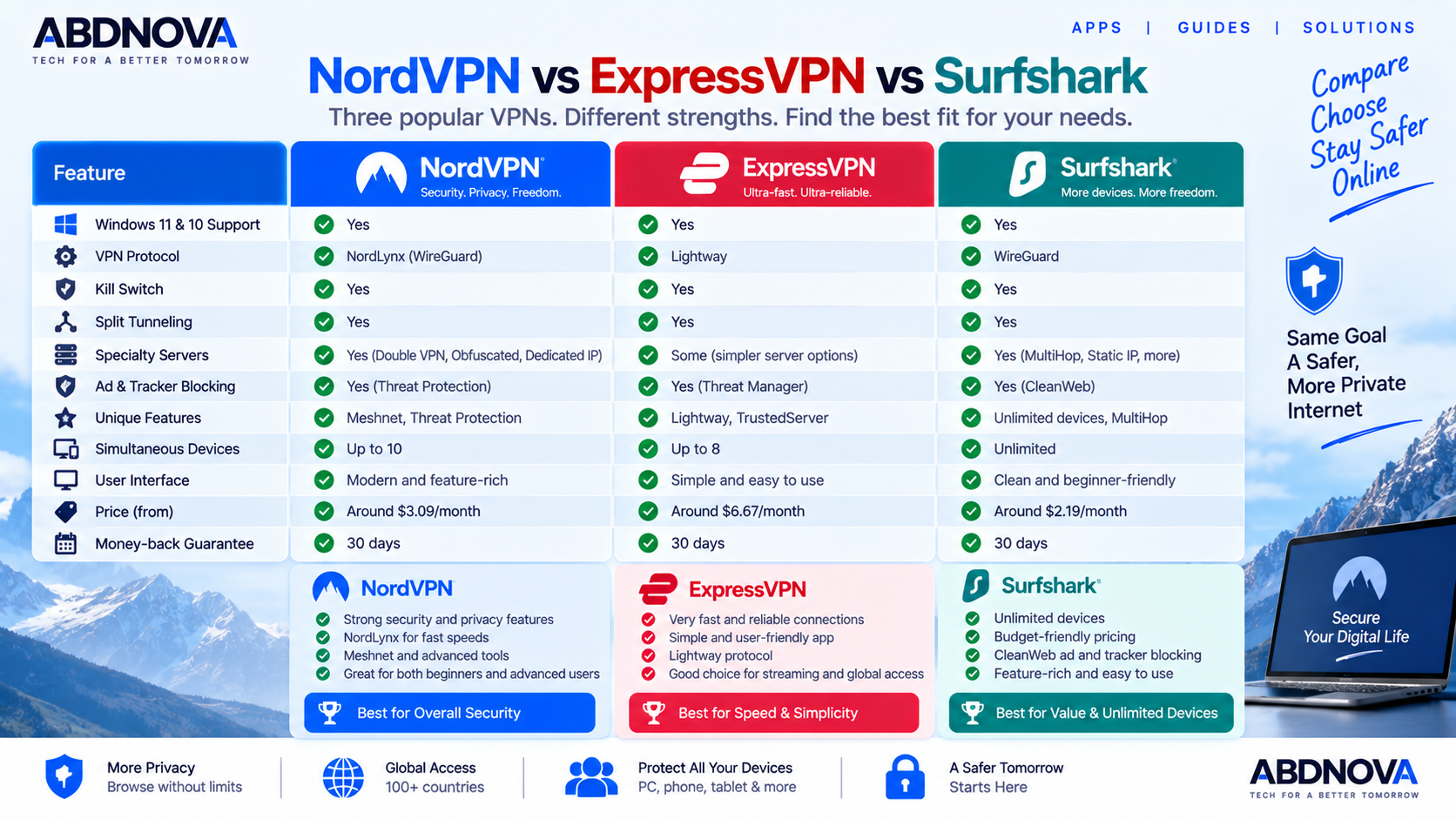
NordVPN vs ExpressVPN vs Surfshark
| Feature | NordVPN | ExpressVPN | Surfshark |
|---|---|---|---|
| Windows 11 | Yes | Yes | Yes |
| Windows 10 | Yes, 64-bit | Yes | Yes |
| Main Modern Protocol | NordLynx | Lightway | WireGuard |
| Kill Switch | Yes | Yes | Yes |
| Split Tunneling | Yes | Yes | Bypasser |
| Threat / Ad Protection | Threat Protection features | Advanced Protection | CleanWeb |
| Multi-Server Routing | Double VPN | Different feature approach | Dynamic MultiHop |
| Special Networking Tool | Meshnet | Lightway ecosystem | IP Rotator / NoBorders |
| Current Device Limit | Up to 10 | Plan/service policy | Unlimited |
| Permanent Full Free VPN | No | No | No |
NordVPN is especially suitable for users who want VPN functionality combined with tools such as NordLynx, Meshnet, specialty servers and additional security features.
ExpressVPN emphasizes a streamlined VPN workflow and its Lightway protocol.
Surfshark combines WireGuard with features such as Bypasser, CleanWeb, Dynamic MultiHop and unlimited device connections.
The better choice depends on the devices, server locations, networking features, privacy requirements and current subscription terms that matter most to you.
Is NordVPN Free?
NordVPN’s main VPN service is not permanently free.
A paid subscription is required to use its regular VPN server network.
NordVPN currently provides a 30-day money-back guarantee for eligible purchases under its terms.
Meshnet is separately available as a free feature for supported use cases.
If you need a VPN with an official permanent free plan, see our Proton VPN for Windows guide.
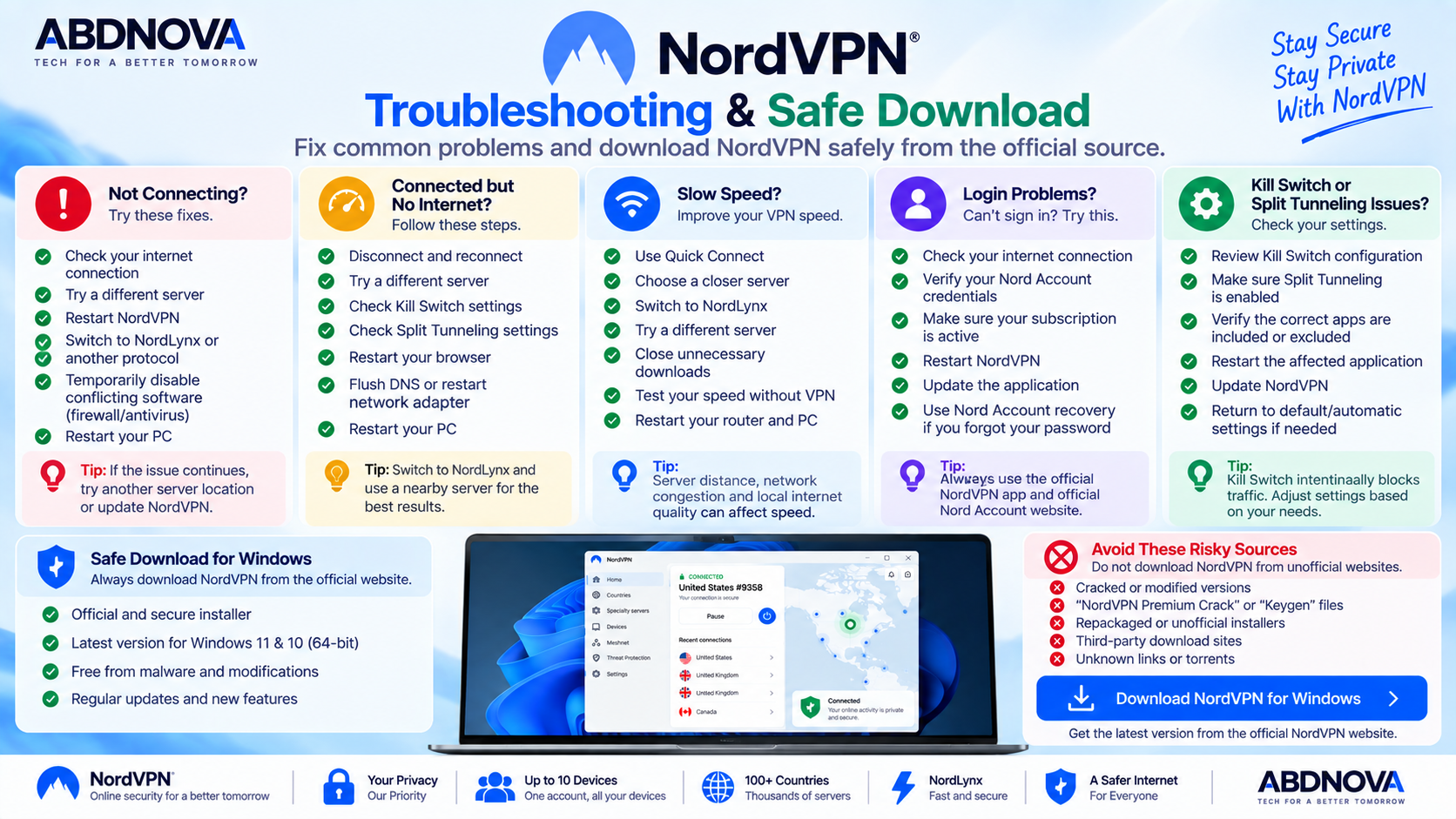
NordVPN Troubleshooting on Windows
NordVPN Not Connecting
First confirm that your normal internet connection works without the VPN.
Then try:
- Disconnect and reconnect NordVPN.
- Select another VPN server.
- Restart NordVPN.
- Restart Windows.
- Update NordVPN.
- Switch the VPN protocol.
- Check whether another VPN or network-security application is conflicting with NordVPN.
Try NordLynx, NordWhisper, OpenVPN or automatic protocol selection where appropriate.
NordVPN Connected but No Internet
If NordVPN shows Connected but websites do not load:
- Disconnect and reconnect.
- Try another server.
- Restart your browser.
- Check Kill Switch.
- Check Split Tunneling.
- Change the VPN protocol.
- Restart Windows.
- Confirm normal Windows networking still works.
If the problem started after changing advanced settings, temporarily restore the previous or automatic configuration and test again.
NordVPN Is Slow
All VPNs introduce some networking overhead because traffic must be encrypted and routed through another server.
If NordVPN feels unusually slow:
- Use Quick Connect.
- Select a geographically closer server.
- Try NordLynx.
- Try another server.
- Close large downloads.
- Test your internet without the VPN.
- Restart the router.
- Restart Windows.
Server distance, network congestion, local internet quality, protocol selection and server load can all affect performance.
NordVPN Login Problems
- Check the internet connection.
- Confirm your Nord Account credentials.
- Make sure your subscription is active.
- Restart NordVPN.
- Update the application.
- Try signing in again.
- Use NordVPN’s official account-recovery process if necessary.
Kill Switch Blocking Internet
Kill Switch intentionally prevents certain traffic when the required VPN protection is unavailable.
If you want to use the internet without NordVPN, inspect the Kill Switch configuration and make sure the current settings allow that behavior.
Do not permanently disable security features simply to work around an unexplained problem without identifying the actual cause.
Split Tunneling Not Working
If an application does not follow your Split Tunneling configuration:
- Confirm Split Tunneling is enabled.
- Check that the correct application is included or excluded.
- Restart the application.
- Reconnect NordVPN.
- Update NordVPN.
- Check Kill Switch settings.
- Test without Split Tunneling.
How to Update NordVPN
Keeping NordVPN updated is important because VPN applications depend on current networking components, protocol improvements, compatibility fixes and security updates.
Use the update option inside the official application when available.
You can also download the latest supported Windows installer directly from NordVPN and install it over the existing application when appropriate.
Safe NordVPN Download for Windows
Always download NordVPN from NordVPN’s official website or another distribution channel explicitly provided by NordVPN.
Windows 11: Supported
Windows 10: 64-bit version 1607 or later
ARM Windows: Supported on compatible devices
VPN protocols: NordLynx, NordWhisper, OpenVPN
Simultaneous devices: Up to 10
Main VPN service: Paid
Crack required: No
- NordVPN cracked versions.
- NordVPN premium cracks.
- Pre-activated installers.
- NordVPN keygens.
- Patched installers.
- Unofficial repacks.
Frequently Asked Questions
Is NordVPN available for Windows 11?
Yes. NordVPN officially supports Windows 11.
Does NordVPN work on Windows 10?
Yes. The current full Windows application supports 64-bit Windows 10 version 1607 or later.
Does NordVPN support Windows ARM PCs?
Yes. NordVPN provides native support for compatible 64-bit ARM-based Windows devices.
Is NordVPN free?
The main NordVPN VPN service requires a paid subscription. Eligible purchases are covered by a 30-day money-back guarantee under NordVPN’s terms.
How many devices can I use with NordVPN?
A NordVPN subscription currently supports VPN protection on up to 10 devices simultaneously.
What is NordLynx?
NordLynx is NordVPN’s VPN technology built around WireGuard and designed for fast, secure VPN connections.
What is NordWhisper?
NordWhisper is a NordVPN protocol designed to help VPN connections work on networks where conventional VPN traffic may have difficulty connecting.
Does NordVPN have a Kill Switch?
Yes. NordVPN provides Kill Switch functionality on Windows to help prevent unprotected traffic when VPN protection is unavailable.
Does NordVPN support Split Tunneling?
Yes. The Windows application provides Split Tunneling controls for supported applications.
What is Meshnet?
Meshnet creates secure connections between supported devices and can be used for remote access, file sharing, collaboration, traffic routing and LAN-style activities.
Does NordVPN have specialty servers?
Yes. NordVPN provides specialty server options including Double VPN, Dedicated IP and other server categories depending on location and configuration.
Where should I download NordVPN?
Download NordVPN directly from the official NordVPN Windows download page and avoid cracked, patched or repacked installers.
Final Thoughts
NordVPN Download for Windows is a feature-rich VPN option for Windows 11 and supported 64-bit Windows 10 users who want more control over internet privacy and network security.
Its Windows application combines Quick Connect with advanced tools including NordLynx, NordWhisper, Kill Switch, Split Tunneling, Auto-connect, specialty servers, Threat Protection features and Meshnet.
For most users, setup is straightforward: download the official Windows installer, sign in to your Nord Account and use Quick Connect. Advanced users can then customize protocols, server types, traffic routing and security settings.
NordVPN is a paid service. If you specifically want to compare it with a VPN offering an official permanent free tier, see our Proton VPN Download for Windows guide.
Because a VPN handles your internet traffic, always use the genuine NordVPN installer and keep both NordVPN and Windows updated.
Download NordVPN for Windows
Get the latest supported Windows application directly from NordVPN. ABDNOVA recommends official software sources only.