


FFmpeg Download for Windows – Multimedia Processing Framework

Download FFmpeg for Windows 11 and 10 to convert, encode, decode, compress, resize, trim, extract, stream and analyze audio and video files from the command line.
FFmpeg Download for Windows gives you access to one of the most powerful open-source multimedia frameworks available for Windows. FFmpeg can process video, audio, images and network streams from Windows Terminal, PowerShell or Command Prompt.
Unlike a traditional media converter, FFmpeg is primarily command-line based. This makes it especially useful for advanced conversion, automation, scripting, batch processing, video production and development workflows.
The FFmpeg project includes the main ffmpeg processing tool, ffprobe for media analysis and ffplay for simple playback.
FFmpeg Download for Windows – Quick Overview
| Information | Details |
|---|---|
| Software | FFmpeg |
| Current Stable Release | FFmpeg 9.0.1 “Lei” |
| Release Date | August 12, 2026 |
| Type | Multimedia Framework |
| License | Free & Open Source |
| Windows | Supported through compatible compiled builds |
| Main Interface | Command Line |
| Video Conversion | Yes |
| Audio Conversion | Yes |
| Video Compression | Yes |
| Audio Extraction | Yes |
| Resize / Scale | Yes |
| Trim / Cut | Yes |
| Filters | Yes |
| Streaming | Yes |
| Media Analysis | ffprobe |
| Simple Playback | ffplay |
| Official Source | FFmpeg Project |
What Is FFmpeg?
FFmpeg is much more than a simple video converter. It is a multimedia framework containing tools and libraries for processing audio, video, images, streams and other media data.
The three main FFmpeg tools are:
- ffmpeg: Converts, encodes, decodes, filters and processes media.
- ffprobe: Inspects codecs, streams, resolution, frame rate, bitrate, duration and other media information.
- ffplay: Provides simple media playback using FFmpeg libraries.
FFmpeg is useful for both quick one-off media tasks and complex automated workflows.
Why Use FFmpeg on Windows?
FFmpeg is useful when you need more control than a normal one-click converter provides.
- Convert video between formats.
- Convert audio files.
- Compress large videos.
- Resize or scale video.
- Extract audio from video.
- Trim media.
- Change codecs.
- Analyze media information.
- Apply audio and video filters.
- Prepare media for websites.
- Work with network streams.
- Automate repetitive multimedia tasks.
Where Do FFmpeg Windows Builds Come From?
This is an important part of FFmpeg Download for Windows.
The FFmpeg project itself provides source code rather than ready-to-run Windows EXE packages. On the official download page, Windows users are directed to compiled Windows builds from:
- gyan.dev
- BtbN
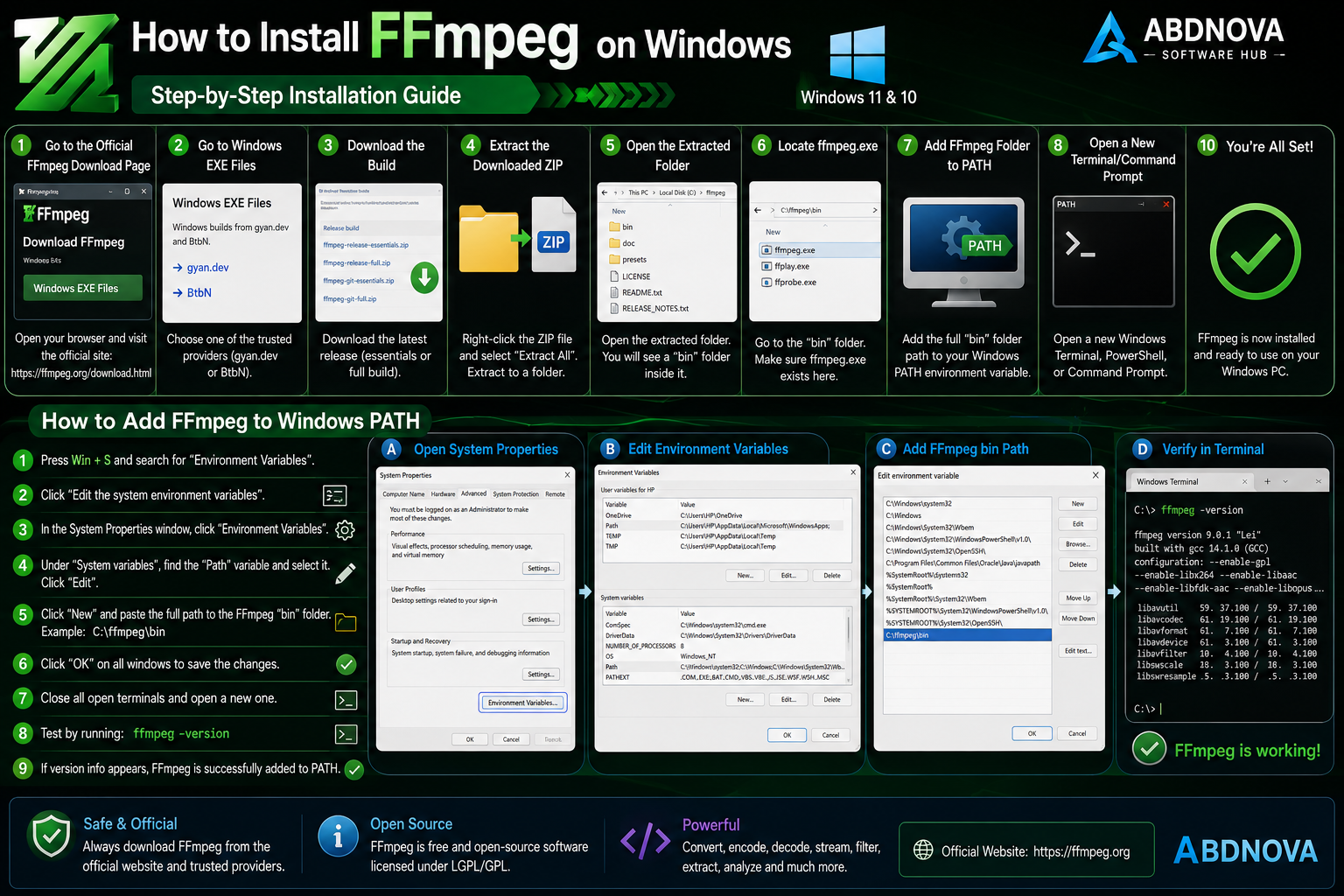
How to Install FFmpeg on Windows 11 & 10
- Open the official FFmpeg download page.
- Find the Windows EXE Files section.
- Choose one of the Windows build providers linked by FFmpeg.
- Download an appropriate build.
- Extract the downloaded archive.
- Place the extracted FFmpeg folder in a permanent location.
- Locate the folder containing ffmpeg.exe.
- Add that folder to Windows PATH if you want FFmpeg available from any terminal location.
- Open a new Windows Terminal, PowerShell or Command Prompt window.
- Run
ffmpeg -version.
How to Add FFmpeg to Windows PATH
Adding FFmpeg to PATH allows you to type FFmpeg commands from any folder instead of navigating manually to the FFmpeg executable directory.
Open Windows Environment Variables, edit the appropriate Path variable and add the folder containing ffmpeg.exe.
After changing PATH, close and reopen your terminal before testing FFmpeg.
If you frequently use FFmpeg from the command line, see our Windows Terminal Download for Windows guide.

FFmpeg Command Line and Basic Commands
FFmpeg commonly follows an input-to-output workflow. The -i option identifies the input file, followed by processing options and the output file.
Check FFmpeg Version
ffmpeg -version
Convert MP4 to MKV
ffmpeg -i input.mp4 output.mkv
Convert WAV to MP3
ffmpeg -i input.wav output.mp3
Extract Audio from Video
ffmpeg -i video.mp4 -vn audio.mp3
Resize Video
ffmpeg -i input.mp4 -vf scale=1280:720 output.mp4
These examples show how one command-line tool can perform many different multimedia tasks.

FFmpeg Video Conversion, Compression, Resize & Audio Extraction
FFmpeg Video Conversion
FFmpeg can read many media inputs and create many output formats depending on the compiled build and included libraries.
Common workflows include MP4, MKV, WebM, MOV, AVI and other video containers, plus MP3, AAC, WAV, FLAC and other audio formats.
Compress Video with FFmpeg
FFmpeg can re-encode video using different codecs, bitrate, quality, resolution and frame-rate settings.
This is useful when a file is too large for web uploads, cloud storage, email, mobile devices or archiving.
Resize Video
The FFmpeg scaling filter can change video dimensions.
ffmpeg -i input.mp4 -vf scale=1920:1080 output.mp4
Extract Audio from Video
FFmpeg can process video and audio streams separately. For example:
ffmpeg -i video.mp4 -vn audio.mp3
The -vn option disables video output and creates an audio-only result.
Trim and Process Media
FFmpeg can also trim media, change codecs, adjust timing and build more advanced processing workflows through additional command options and filters.

FFmpeg Codecs, Formats & Filters
FFmpeg supports extensive codecs, formats, filters, protocols, devices, muxers and demuxers. Exact availability depends on how the Windows build was compiled.
Formats and Containers
Common containers and media formats used with FFmpeg include:
- MP4.
- MKV.
- WebM.
- MOV.
- AVI.
- MP3.
- AAC.
- WAV.
- FLAC.
Codec vs Container
A container and a codec are not the same thing. For example, an MP4 file can contain video and audio encoded with different codecs.
Simple example:
Container: MP4
Video codec: H.264
Audio codec: AAC
FFmpeg Filters
FFmpeg includes a large filter system for audio and video processing. Filters can be used for scaling, cropping, overlays, color adjustments, frame-rate changes, audio processing and many other tasks.

FFmpeg ffprobe & ffplay Explained
What Is ffprobe?
ffprobe is FFmpeg’s multimedia stream-analysis tool. It can inspect a media file without converting it.
A simple command is:
ffprobe video.mp4
It can help identify codecs, streams, duration, bitrate, frame rate, resolution and other technical information.
What Is ffplay?
ffplay is a simple media player based on FFmpeg libraries. It is useful for quick playback and testing rather than replacing a full desktop media player.
If you want a full graphical media player for everyday audio and video playback, see our VLC Media Player Download for Windows guide.
FFmpeg vs HandBrake vs VLC
| Feature | FFmpeg | HandBrake | VLC |
|---|---|---|---|
| Main Purpose | Multimedia processing | Video transcoding | Media playback |
| GUI | Primarily CLI | Yes | Yes |
| Command Line | Excellent | Available | Available |
| Video Conversion | Excellent | Excellent | Basic |
| Audio Processing | Extensive | More limited focus | Basic |
| Filters | Extensive | Yes | Limited conversion focus |
| Automation | Excellent | Possible | Limited |
| Media Playback | ffplay | No | Excellent |
| Best For | Advanced processing & automation | Easy video conversion | Playback |
FFmpeg vs HandBrake
HandBrake is easier for users who prefer a graphical interface and mainly want video transcoding. FFmpeg offers much more command-level flexibility and is better suited to scripting, automation and customized media processing.
FFmpeg vs VLC
VLC is primarily a media player with some conversion and streaming functionality. FFmpeg is a broader media-processing framework designed for conversion, encoding, filtering, automation and other technical workflows.
Is FFmpeg Safe?
FFmpeg is a well-established open-source project, but Windows users should pay attention to where compiled executables come from.
- FFmpeg Crack.
- FFmpeg Premium.
- FFmpeg Activated.
- Modified FFmpeg.
- Unofficial FFmpeg Repack.
FFmpeg is already open source, so there is no legitimate need to use a cracked or modified version.

FFmpeg Troubleshooting on Windows
“ffmpeg is not recognized”
This usually means Windows cannot find ffmpeg.exe. Confirm that the correct folder was added to PATH, then close and reopen your terminal.
FFmpeg Window Opens and Closes Immediately
FFmpeg is primarily a command-line application. Do not expect ffmpeg.exe to work like a normal graphical program when double-clicked.
Open Windows Terminal, PowerShell or Command Prompt and run FFmpeg there.
A Codec or Feature Is Missing
Different compiled builds can include different libraries and capabilities.
Use commands such as:
ffmpeg -versionffmpeg -codecsffmpeg -formatsffmpeg -filters
FFmpeg Conversion Fails
Check:
- The input filename and path.
- The output filename.
- File permissions.
- Available disk space.
- Codec availability.
- Command syntax.
- Whether the input file is damaged.
The error message displayed in the terminal often provides useful clues about the cause.
Safe FFmpeg Download for Windows
The safest starting point for FFmpeg Download for Windows is the official FFmpeg website.
Use the official FFmpeg download page and then choose one of the Windows build providers linked by the FFmpeg project.
Frequently Asked Questions
Is FFmpeg free?
Yes. FFmpeg is a free and open-source multimedia project.
What is the latest stable FFmpeg version?
The current stable release is FFmpeg 9.0.1 “Lei”, released August 12, 2026.
Does FFmpeg work on Windows 11?
Yes. FFmpeg can run on Windows 11 using an appropriate compiled Windows build.
Does FFmpeg work on Windows 10?
Yes. Compatible Windows builds can be used on Windows 10.
Does FFmpeg have a GUI?
The core FFmpeg tool is primarily command-line based. Third-party graphical applications may use FFmpeg internally, but they are separate projects.
What is ffprobe?
ffprobe is FFmpeg’s multimedia analysis tool for inspecting streams, codecs and technical media information.
What is ffplay?
ffplay is a simple media player built around FFmpeg libraries.
Can FFmpeg convert videos?
Yes. Video conversion and transcoding are core FFmpeg functions.
Can FFmpeg extract audio from video?
Yes. FFmpeg can process video and audio streams separately and create audio-only output.
Can FFmpeg compress video?
Yes. FFmpeg can re-encode video with different quality, codec, bitrate and resolution settings.
Why doesn’t FFmpeg provide a Windows installer directly?
The FFmpeg project provides source code and links Windows users to external providers for compiled executable builds.
Final Thoughts
FFmpeg Download for Windows is an excellent choice for users who want deep control over multimedia processing. FFmpeg can handle everything from simple format conversion to encoding, compression, resizing, filtering, streaming, media analysis and automated workflows.
The command-line interface takes some learning, but it is also what makes FFmpeg so flexible. Once PATH is configured and you understand the basic input-to-output structure, many common audio and video tasks become straightforward.
For Windows, start from the official FFmpeg download page and use one of the Windows build providers linked there rather than downloading executables from unknown third-party websites.
Ready to download FFmpeg?
Start from the official FFmpeg download page and choose a Windows build provider listed by the FFmpeg project. ABDNOVA recommends official sources only.


