


MediaInfo Download for Windows – Free Media Metadata Analyzer

Download MediaInfo for Windows 11 and 10 to inspect video and audio codecs, resolution, frame rate, bitrate, channels, subtitles, tags and other technical metadata.
MediaInfo is a free and open-source utility that displays detailed technical and tag information about video and audio files. Instead of guessing which codec, bitrate, resolution, frame rate, audio format or subtitle stream a file uses, MediaInfo can show those details in one place.
It is useful for video editors, media enthusiasts, developers, content creators, archivists and anyone troubleshooting playback, editing or compatibility problems.
This guide explains MediaInfo Download for Windows, which version to choose, how to install it, how to analyze video and audio metadata, how its different views work, and how to troubleshoot common problems.
MediaInfo Download for Windows – Quick Overview
| Information | Details |
|---|---|
| Software | MediaInfo |
| Developer | MediaArea |
| Current Version | 26.05 |
| Category | Media Metadata / Codec Information Tool |
| License | Free & Open Source |
| Windows 11 | Supported |
| Windows 10 | Supported |
| Intel 64-bit | Supported |
| Intel 32-bit | Supported |
| ARM64 | Supported |
| GUI Version | Yes |
| Command-Line Version | Yes |
| No-Installer Builds | Available |
| Video Metadata | Yes |
| Audio Metadata | Yes |
| Subtitle Information | Yes |
| Export | Text, CSV, HTML and more |
| Official Source | MediaArea |
What Is MediaInfo?
MediaInfo is a media-file analysis tool developed by MediaArea. It reads technical and tag information stored in video, audio, subtitle and container formats without modifying the actual media file.
MediaInfo can show information such as:
- Container format.
- Video and audio codec.
- Resolution and aspect ratio.
- Frame rate.
- Video and audio bitrate.
- Bit depth.
- Chroma subsampling.
- Audio sample rate.
- Audio channels.
- Language information.
- Subtitle format.
- Duration and chapters.
- Tags and metadata.
MediaInfo is primarily an inspection tool. It does not need to play or convert a file to tell you what technical formats and streams are inside it.
Which MediaInfo Version Should You Download?
For most Windows 11 and Windows 10 users, the easiest option is the Universal Windows installer. MediaArea provides a Universal installer designed for Intel 32-bit, Intel 64-bit and ARM64 Windows systems.
Users who know exactly what they need can also choose separate Intel x64, Intel x86, ARM64, no-installer and command-line packages.
MediaInfo GUI vs CLI
MediaInfo GUI
The graphical version is the best choice for most Windows users. It lets you open or drag and drop media files, browse technical information visually, switch between different views and export information.
MediaInfo CLI
The command-line version is intended for Terminal workflows, scripts, batch processing and automation. Users who regularly work with command-line utilities may also find our Windows Terminal Download for Windows guide useful.

How to Install MediaInfo on Windows
- Open the official MediaArea download page: Go to the official Windows download section.
- Choose the installer: Select the Universal GUI installer unless you specifically need another package.
- Run the setup file: Open the downloaded installer from your Downloads folder.
- Check the Windows prompt: Confirm that the installer came from the official MediaArea source.
- Follow the setup wizard: Choose your preferred installation options.
- Finish installation: Complete the setup and launch MediaInfo.
- Analyze your first file: Open or drag a supported video or audio file into MediaInfo.

MediaInfo Main Interface and Metadata Views
MediaInfo has a relatively simple interface because its main purpose is to inspect media files rather than edit them. Open a file, allow MediaInfo to read its metadata, then choose the view that best fits the level of detail you need.
Tree View
Tree View organizes information hierarchically. You can expand General, Video, Audio, Text and Menu or chapter sections. This is particularly useful when a file contains several audio tracks or subtitles.
Text View
Text View presents technical information in a straightforward format that is convenient for copying specifications, saving reports or sharing troubleshooting information.
Sheet View
Sheet View provides a more structured overview of important media properties and can be easier to scan when you do not need every advanced field.
HTML and Other Views
MediaInfo can also display information using HTML-oriented and customizable presentation formats.

MediaInfo Video Metadata Explained
MediaInfo can reveal detailed information about the video stream inside a media file. This is useful when troubleshooting playback, editing, encoding and compatibility problems.
Video Codec
MediaInfo can identify codecs and formats including H.264/AVC, H.265/HEVC, MPEG video formats, AV1, FFV1 and many others.
Resolution
MediaInfo can confirm the exact dimensions of a video, such as 1920 × 1080 or 3840 × 2160. This lets you verify the actual resolution without relying only on a filename or label.
Frame Rate
MediaInfo can report frame rates including 23.976, 24, 25, 29.970, 30, 50, 59.940 and 60 FPS, depending on the file.
Bitrate
The program can show stream bitrate and overall bitrate. This can help when comparing different versions or encodes of the same video.
Bit Depth
MediaInfo can report values such as 8-bit or 10-bit, which can be important for HDR, editing and codec compatibility.
Chroma Subsampling
Technical video information may include values such as 4:2:0, 4:2:2 and 4:4:4. These fields can be particularly useful in professional editing, camera and delivery workflows.

MediaInfo Audio, Subtitles, Tags and Export Explained
Audio Codec
MediaInfo can identify audio formats such as AAC, MP3, AC-3, DTS, FLAC, PCM and other supported audio formats.
Sample Rate
Audio sample rates may appear as 44.1 kHz, 48 kHz or another value depending on the file. This information can be useful for audio production, synchronization and transcoding checks.
MediaInfo Download for Windows – Audio Channels
MediaInfo can show whether an audio track is mono, stereo, 5.1, 7.1 or another supported channel layout. This helps confirm whether a file actually contains the audio track you expected.
Subtitle Information
Embedded subtitle and text streams can include details such as format, codec ID and language. MediaInfo can therefore help identify multiple subtitle tracks stored inside a media container.
Tags and Chapters
Depending on the file, MediaInfo can display language information, titles, chapters, tags and other descriptive metadata.
Export Media Information
MediaInfo can export technical information in formats including text, CSV and HTML. This is useful when creating media inventories, saving specifications, documenting assets or comparing files.
Container vs Codec – What’s the Difference?
A file extension or container does not necessarily tell you which video and audio codecs are inside it.
Example: video.mp4
An MP4 file might contain:
- Container: MPEG-4.
- Video: H.264/AVC.
- Resolution: 1920 × 1080.
- Frame rate: 29.970 FPS.
- Video bitrate: 8 Mbps.
- Audio: AAC.
- Audio channels: Stereo.
- Sample rate: 48 kHz.
MediaInfo makes these differences visible, which is one reason it is helpful for diagnosing media compatibility problems.
Why a Video Won’t Play – How MediaInfo Can Help
If Windows or another application refuses to play a media file correctly, MediaInfo can help identify whether the file uses an unusual codec, profile, bit depth, resolution, audio format, container or subtitle stream.
MediaInfo does not repair or convert the video. Its job is to tell you what is inside the file. You can then choose an appropriate media player, codec or transcoding setup.
For media playback after checking a file’s technical information, see our VLC Media Player Download for Windows guide.
MediaInfo for Batch Checking and Automation
MediaInfo can also be useful when you need to analyze many files. The CLI version can process media metadata through scripts and automated workflows.
Common batch and developer uses include:
- Media libraries.
- Automated quality-control pipelines.
- Archives.
- Server workflows.
- Batch reports.
- Application integration through MediaInfo libraries.
Windows Shell Integration
MediaInfo supports Windows shell integration, including drag-and-drop and context-menu workflows. This can make it quicker to inspect a media file directly from File Explorer instead of manually opening a larger editing or transcoding application.
What’s New in MediaInfo 26.05?
MediaInfo 26.05 includes several updates mentioned in the source material, including Windows 11 Explorer Shell Extension optimization, Windows dark icon support, additional media-format support, translation updates, initial AV2 support, APV support, AV1 Annex B support and JPEG MotionPhoto support.

MediaInfo vs VLC vs FFprobe vs Windows Properties
| Feature | MediaInfo | VLC | FFprobe | Windows Properties |
|---|---|---|---|---|
| Main Purpose | Media metadata analysis | Media playback | Technical CLI analysis | Basic file information |
| Graphical Interface | Yes | Yes | No by default | Yes |
| Detailed Metadata | Excellent | Limited compared with MediaInfo | Excellent | Basic |
| CLI / Automation | Yes | Different focus | Excellent | No |
| Media Playback | No | Yes | No | No |
| Best For | Quick detailed inspection | Playing media | Advanced automation | Quick basic checks |
MediaInfo vs VLC Media Player
Use MediaInfo when you need detailed information about what is inside a media file. Use VLC when your main goal is to play video or audio. The two applications perform different jobs and can complement each other.
MediaInfo vs FFprobe
FFprobe is powerful for highly technical and automated analysis. MediaInfo is generally easier for users who prefer a graphical interface, although MediaInfo also provides its own CLI.
MediaInfo vs Windows File Properties
Windows File Explorer can display basic information through Properties → Details, but MediaInfo can expose considerably more technical information such as codec profiles, frame-rate mode, bit depth, chroma subsampling, multiple audio streams, subtitle streams and encoder metadata.
Is MediaInfo Free?
Yes. MediaInfo is free and open-source software under a BSD-style license. You do not need cracked, activated or modified copies.
Is MediaInfo Safe?
MediaInfo is safest when downloaded directly from the official MediaArea source. Avoid unofficial installers, repacks and modified versions from unknown download websites.
- MediaInfo Crack.
- MediaInfo Pro Crack.
- MediaInfo Activated.
- MediaInfo Modified.
- MediaInfo Patched.
- Unofficial MediaInfo Repack.
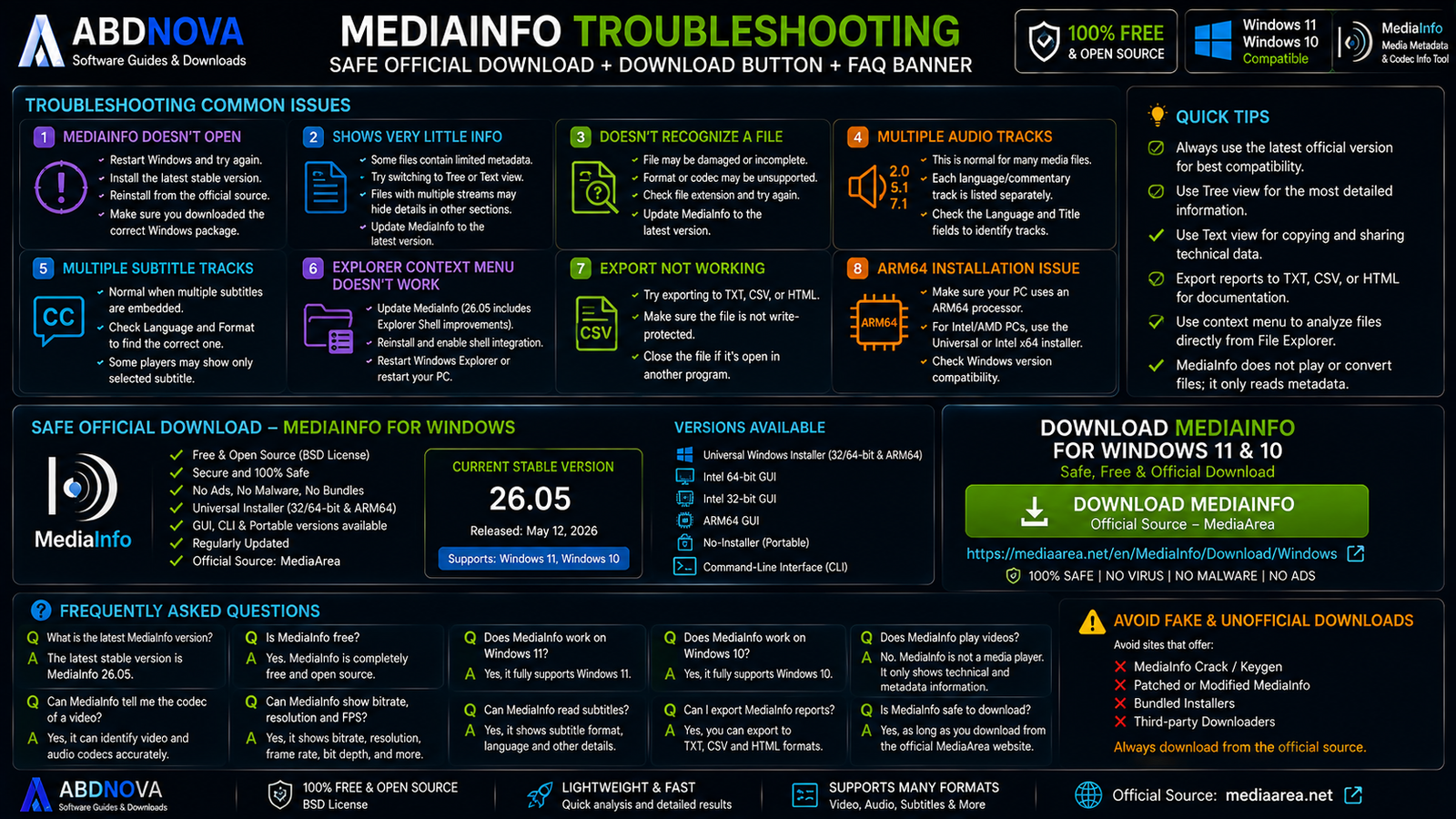
MediaInfo Troubleshooting
MediaInfo Doesn’t Open
Restart Windows, install the latest stable release, download a fresh installer from MediaArea and make sure you selected an appropriate Windows package.
MediaInfo Shows Very Little Information
The amount of information depends on the file. Some media files contain much more metadata than others. Try switching to Tree or Text view to see additional available fields.
MediaInfo Doesn’t Recognize a File
The file may be damaged, incomplete, incorrectly named or use an unusual format or codec. Update MediaInfo first and test the file again.
MediaInfo Shows Multiple Audio Tracks
This is normal when a container genuinely includes multiple audio streams, such as different languages, surround-sound tracks or commentary tracks.
MediaInfo Shows Multiple Subtitle Tracks
A media container may contain several embedded subtitle streams. Check the language and format fields to identify each one.
Explorer Context Menu Doesn’t Work
Update MediaInfo, reinstall the application if necessary, confirm that shell integration is enabled and restart Windows Explorer or Windows.
ARM64 Installation Problem
Confirm that the computer actually uses an ARM64 processor. For a typical Intel or AMD PC, use the Universal installer or appropriate Intel build.
Safe MediaInfo Download for Windows
The safest source for MediaInfo Download for Windows is the official MediaArea website. Avoid third-party mirrors, modified installers and unofficial repacks when the original software is available directly from its developer.
Check the current Windows installers and packages on the official MediaInfo Windows download page.
Frequently Asked Questions
What is the latest MediaInfo version?
The current stable Windows release listed in the source material and official Windows download page is MediaInfo 26.05.
Is MediaInfo free?
Yes. MediaInfo is free and open-source software under a BSD-style license.
Does MediaInfo work on Windows 11?
Yes. The current Windows packages support Windows 11.
Does MediaInfo work on Windows 10?
Yes. Windows 10 is supported by the current MediaInfo Windows packages.
Does MediaInfo support ARM64 Windows?
Yes. MediaArea currently provides Windows ARM64 support, including through the Universal installer.
Is there a 64-bit MediaInfo version?
Yes. Intel x64 builds are available, along with the Universal installer.
Is there a portable MediaInfo version?
MediaArea provides no-installer packages for supported Windows architectures.
Does MediaInfo play videos?
No. MediaInfo is primarily designed to inspect media metadata and technical characteristics rather than play media.
Can MediaInfo tell me which codec a video uses?
Yes. Identifying media formats and codecs is one of MediaInfo’s core functions.
Can MediaInfo show bitrate and frame rate?
Yes. MediaInfo can report video and audio bitrate information, video frame rate and many other stream properties.
Can MediaInfo show audio channels?
Yes. It can report channels, sample rate, codec, language, bit depth and bitrate information.
Can MediaInfo inspect subtitles?
Yes. MediaInfo can display information about embedded text and subtitle streams.
Can I export MediaInfo results?
Yes. MediaInfo supports output including text, CSV and HTML formats.
Is MediaInfo safe?
Yes, when downloaded from the official MediaArea website. Avoid unofficial modified installers and repacks.
Final Thoughts
MediaInfo is a simple but highly useful Windows utility for anyone who works with video or audio files. It can reveal codecs, containers, resolution, frame rate, bitrate, bit depth, chroma subsampling, audio channels, sample rate, subtitles, tags, chapters and other technical information that Windows File Explorer may not clearly display.
For most Windows 11 and Windows 10 users, the Universal installer is the easiest option. More specialized GUI, CLI and no-installer packages are also available for users with specific requirements.
Ready to download MediaInfo?
Get the latest supported Windows installer from the official MediaArea website. ABDNOVA recommends official sources only.


