


Foxit PDF Reader Download for Windows – Free PDF Reader

Download Foxit PDF Reader for Windows to open, read, annotate, fill, sign, and print PDF documents.
Foxit PDF Reader is a free PDF reader for Windows designed for users who want more document tools than a basic browser PDF viewer. It can open and read PDFs, search long documents, highlight text, add comments, fill supported forms, use available signature tools, and print PDF files.
It is suitable for home users, students, freelancers, and office users who regularly work with PDF documents but do not necessarily need a complete professional PDF editing suite.
In this guide, you will learn how to download Foxit PDF Reader safely, check Windows compatibility, choose the correct installer, install it, use its main PDF tools, compare it with Adobe Acrobat Reader, and troubleshoot common problems.
Foxit PDF Reader Overview
| Information | Details |
|---|---|
| Software | Foxit PDF Reader |
| Developer | Foxit Software |
| Software Type | PDF Reader |
| License | Free Reader |
| Platform | Windows |
| Main Use | View and work with PDF documents |
| PDF Viewing | Yes |
| Annotations & Comments | Yes |
| Form Support | Yes |
| Signature Features | Available for supported workflows |
| Printing | Yes |
| Recommended Source | Official Foxit Website |
What Is Foxit PDF Reader?
Foxit PDF Reader is a PDF viewing and document productivity application developed by Foxit Software. Its main purpose is opening and reading PDF files, but it also includes tools that make everyday document review easier.
You can use Foxit PDF Reader to:
- Open and read PDF documents.
- Search text inside large PDFs.
- Zoom, rotate, and navigate pages.
- Highlight and mark text.
- Add comments and notes.
- Fill supported interactive PDF forms.
- Use available signing tools.
- Print PDF files.
- Work with bookmarks and multiple PDFs.
Foxit PDF Reader Features

PDF Viewing and Navigation
Foxit provides page navigation, zoom controls, page rotation, thumbnails, bookmarks, search, full-screen viewing, and multiple page-layout options.
Tabbed PDF Viewing
Multiple PDFs can be opened in a tabbed workflow, which is useful when comparing reports, invoices, manuals, and other documents.
Annotation and Comment Tools
Foxit includes tools for highlighting, underlining, strikeout, sticky notes, comments, drawing, and other supported annotations.
PDF Form Support
Interactive PDF forms can be completed directly on the computer when the document contains supported form fields.
Signature Support
Foxit provides signature-related functionality for supported workflows. For official or legal documents, confirm that the recipient accepts the signing method you plan to use.
Search and Printing
Use document search to locate words or phrases inside long PDFs, and use standard printing controls for page range, copies, orientation, scaling, and printer selection.
Foxit PDF Reader for Windows 11 and Windows 10
Foxit PDF Reader can be used on currently supported Windows systems when the selected release meets Foxit’s system requirements. Windows 11 and supported Windows 10 users can use it as a dedicated PDF application and set it as the default program for .pdf files.
Foxit PDF Reader 32-bit vs 64-bit
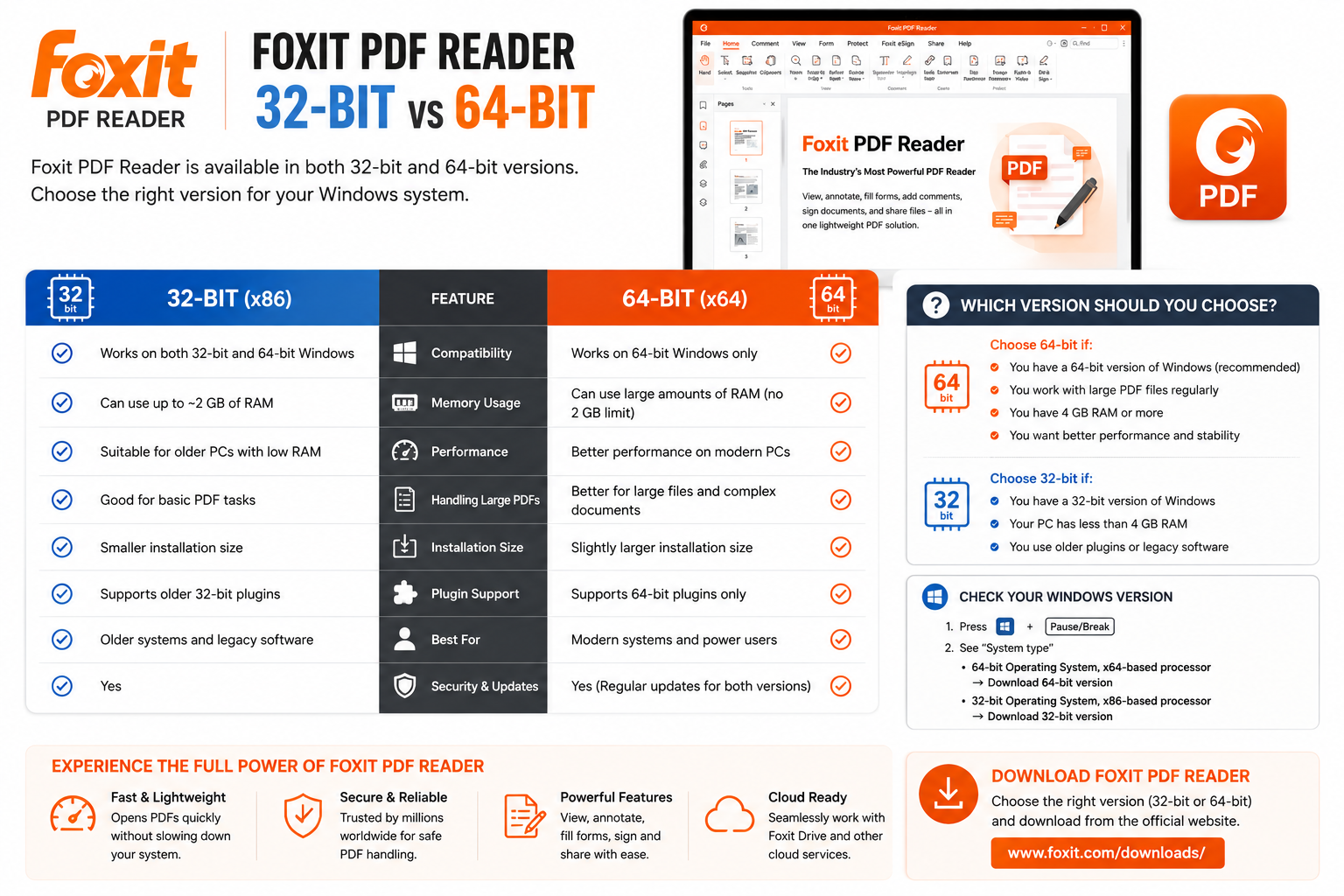
| Feature | 32-bit | 64-bit |
|---|---|---|
| Designed For | 32-bit environments | 64-bit environments |
| Typical PC Type | Older systems | Modern systems |
| Modern Windows Use | Less common | Standard |
| Best Choice | When specifically required | Usually preferred on modern PCs |
To check your Windows architecture, open Settings → System → About and look for System type. Then use the installer architecture currently recommended or provided by Foxit.
Foxit PDF Reader Free vs Paid
The free Reader is designed for everyday PDF viewing and interaction. It can cover common tasks such as reading, printing, searching, annotations, comments, supported forms, and available signature functionality.
More advanced PDF creation, editing, conversion, organization, and professional document-management features may require another Foxit product or paid service.
Online Installer vs Offline Installer
| Feature | Online Installer | Offline Installer |
|---|---|---|
| Initial Download | Usually smaller | Usually larger |
| Internet During Setup | Usually needed | Usually not needed for core setup |
| Single PC | Convenient | Convenient |
| Multiple PCs | Less convenient | More practical |
| Recommended Source | Official Foxit | Official Foxit |
Installer availability can change. If you need a full or offline installation package, use Foxit’s official download or support resources. Avoid unofficial packages simply labeled “Foxit Offline Installer.”
How to Download Foxit PDF Reader for Windows
The safest approach is to download Foxit PDF Reader directly from the official Foxit website. Make sure you select the Reader product rather than a different Foxit application.
- Visit the official Foxit website.
- Open the Foxit PDF Reader product or download page.
- Select Windows if required.
- Review the currently available installer and architecture.
- Start the official download.
- Wait for the installer to finish downloading before running it.
How to Install Foxit PDF Reader on Windows
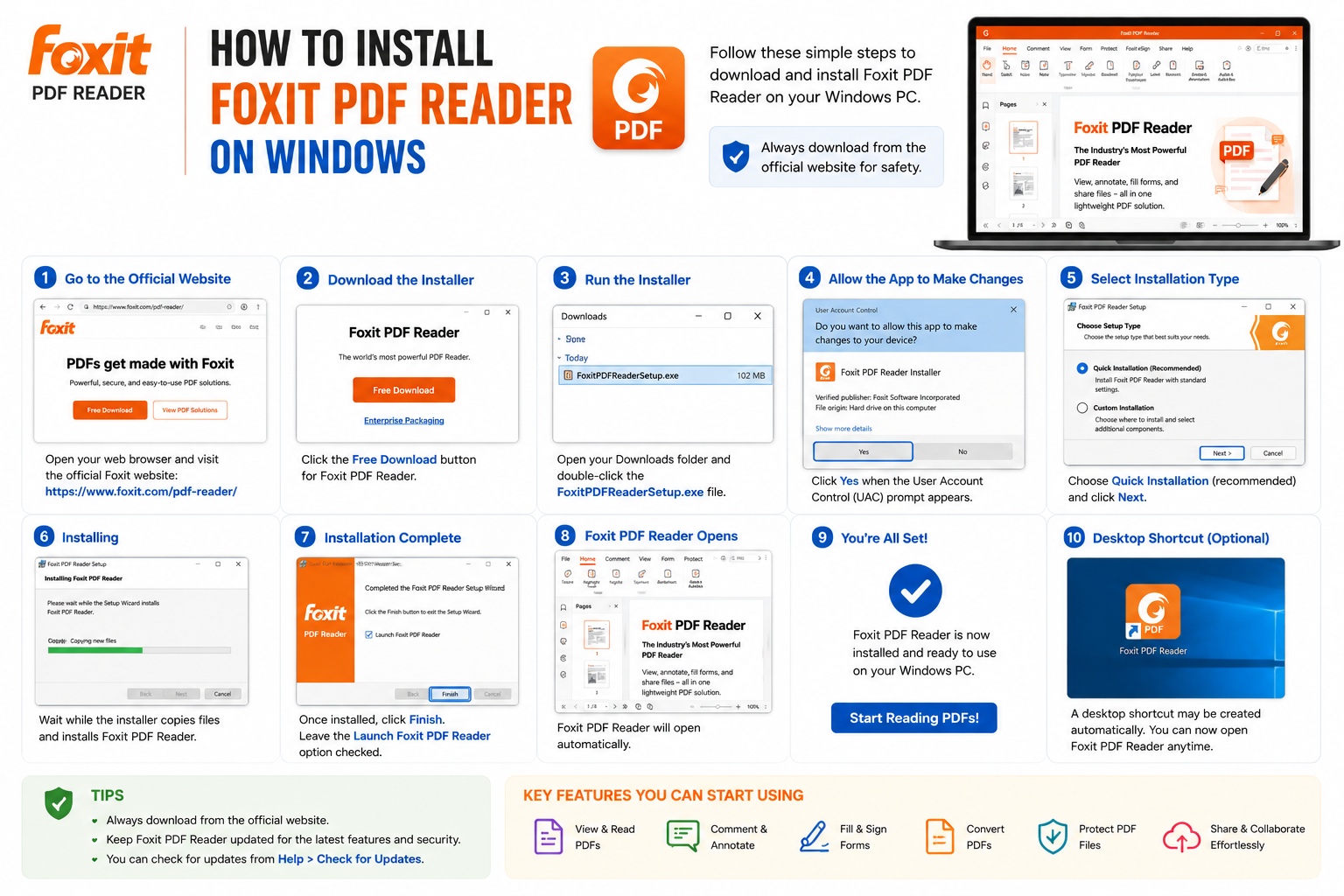
- Locate the installer: Open your Downloads folder and find the Foxit setup file.
- Run the setup: Double-click the installer and review the publisher information if Windows displays a UAC prompt.
- Follow the wizard: Review each installation screen rather than clicking through automatically.
- Review the license: Continue only if you agree with the applicable terms.
- Keep or change the installation location: Most users can keep the default folder.
- Review optional settings: Choose shortcuts, default PDF behavior, integrations, and update settings according to your needs.
- Start installation: Allow the installer to copy and configure the required files.
- Finish setup: Launch Foxit PDF Reader when installation is complete.
How to Make Foxit the Default PDF Reader
Windows may continue opening PDFs in Microsoft Edge or another app after installation. To change this, right-click a PDF and choose Open with → Choose another app → Foxit PDF Reader, then select the option to always use Foxit for PDF files if Windows offers it.
How to Use Foxit PDF Reader
For most users, the best way to get comfortable with Foxit is to start with a few everyday tasks:
- Open a PDF.
- Navigate between pages.
- Search for text with Ctrl + F.
- Zoom in or out.
- Highlight important information.
- Add a comment or note.
- Fill supported form fields.
- Save a reviewed copy.
- Print with Ctrl + P.
Foxit PDF Reader vs Adobe Acrobat Reader
| Feature | Foxit PDF Reader | Adobe Acrobat Reader |
|---|---|---|
| PDF Viewing | Yes | Yes |
| Free Reader | Yes | Yes |
| Printing | Yes | Yes |
| Search | Yes | Yes |
| Highlighting & Comments | Yes | Yes |
| Form Filling | Yes | Yes |
| Signature Features | Available | Available |
| Paid PDF Tools | Available | Available |
Both applications are capable PDF readers. Foxit may suit users who prefer its interface and document workflow, while Adobe Acrobat Reader may suit users already working in Adobe’s ecosystem.
Is Foxit PDF Reader Safe?
Foxit PDF Reader is legitimate software developed by Foxit Software. The safest approach is to use the official Foxit website and keep the software updated.
- Keep Windows Security or another trusted security solution enabled.
- Be careful with unexpected PDF attachments.
- Check links inside PDFs before opening them.
- Avoid modified or cracked software.
- Install legitimate Foxit updates when available.
Foxit PDF Reader Troubleshooting
Foxit PDF Reader Does Not Open
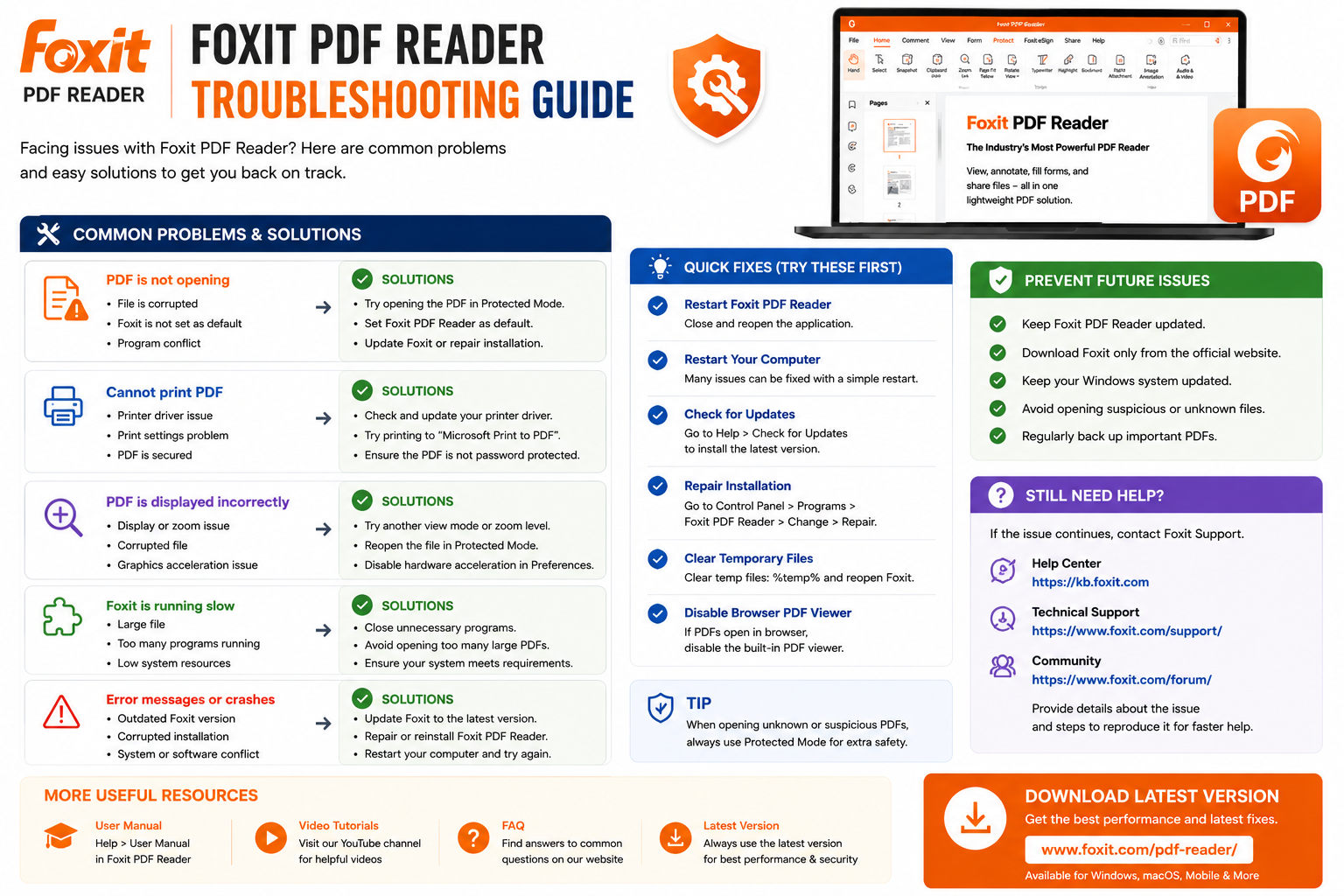
Close Foxit completely, restart Windows, check for a legitimate update, and repair or reinstall the application from the official source if necessary.
Foxit Cannot Open a PDF
Test another known-good PDF. If other files work normally, the original PDF may be corrupted, incomplete, password-protected, or damaged during download.
Foxit PDF Reader Is Slow
Close unnecessary PDF tabs and applications, restart Foxit, check available RAM and storage, and make sure the application is up to date.
Foxit Keeps Crashing
Repeated crashes can be caused by a damaged installation, problematic PDF, outdated software, Windows issues, or limited system resources. Restart Windows, update Foxit, test another PDF, and reinstall if necessary.
Foxit Is Not the Default PDF Reader
Use Windows Default Apps settings or the Open with menu to associate .pdf files with Foxit PDF Reader.
Frequently Asked Questions
Is Foxit PDF Reader free?
Yes. Foxit provides a free PDF Reader for supported use. More advanced PDF editing and professional features may require another Foxit product or paid service.
Is Foxit PDF Reader safe?
Foxit PDF Reader is legitimate software from Foxit Software. Download it from the official Foxit website and keep it updated.
Does Foxit PDF Reader work on Windows 11?
Foxit provides PDF software for modern Windows systems. Check the current official system requirements before installation.
Does Foxit PDF Reader work on Windows 10?
Compatible Foxit PDF Reader releases can be used on supported Windows 10 systems. Verify current requirements before installing.
Is there a Foxit PDF Reader offline installer?
Installer options can change. Check Foxit’s official download and support resources for currently available full or offline packages.
Can Foxit PDF Reader fill PDF forms?
Yes, Foxit can work with supported interactive PDF forms.
Can I sign PDFs with Foxit PDF Reader?
Foxit provides signature-related functionality for supported workflows. Confirm the required signing method for official documents.
Can Foxit highlight text and add comments?
Yes. Foxit includes annotation, highlighting, markup, and comment tools for supported PDF content.
Can Foxit open multiple PDFs?
Yes. Foxit provides a multi-document workflow that can make it easier to switch between several open PDFs.
Can Foxit PDF Reader edit PDFs?
The Reader provides document interaction tools such as annotations, comments, forms, and signatures. Full PDF editing should not be confused with free Reader functionality.
Final Thoughts
Foxit PDF Reader is a practical choice for users who regularly work with PDF files and want more functionality than a basic browser viewer. Its viewing, search, annotation, comment, form, signature, and printing tools cover many everyday personal, study, and office workflows.
For advanced PDF creation or editing, compare the free Reader with Foxit’s current paid products. For normal PDF reading and document review, the free Reader can cover many common tasks.
Ready to download Foxit PDF Reader?
Get Foxit PDF Reader from the official Foxit website. We recommend downloading Windows software only from official sources.


