
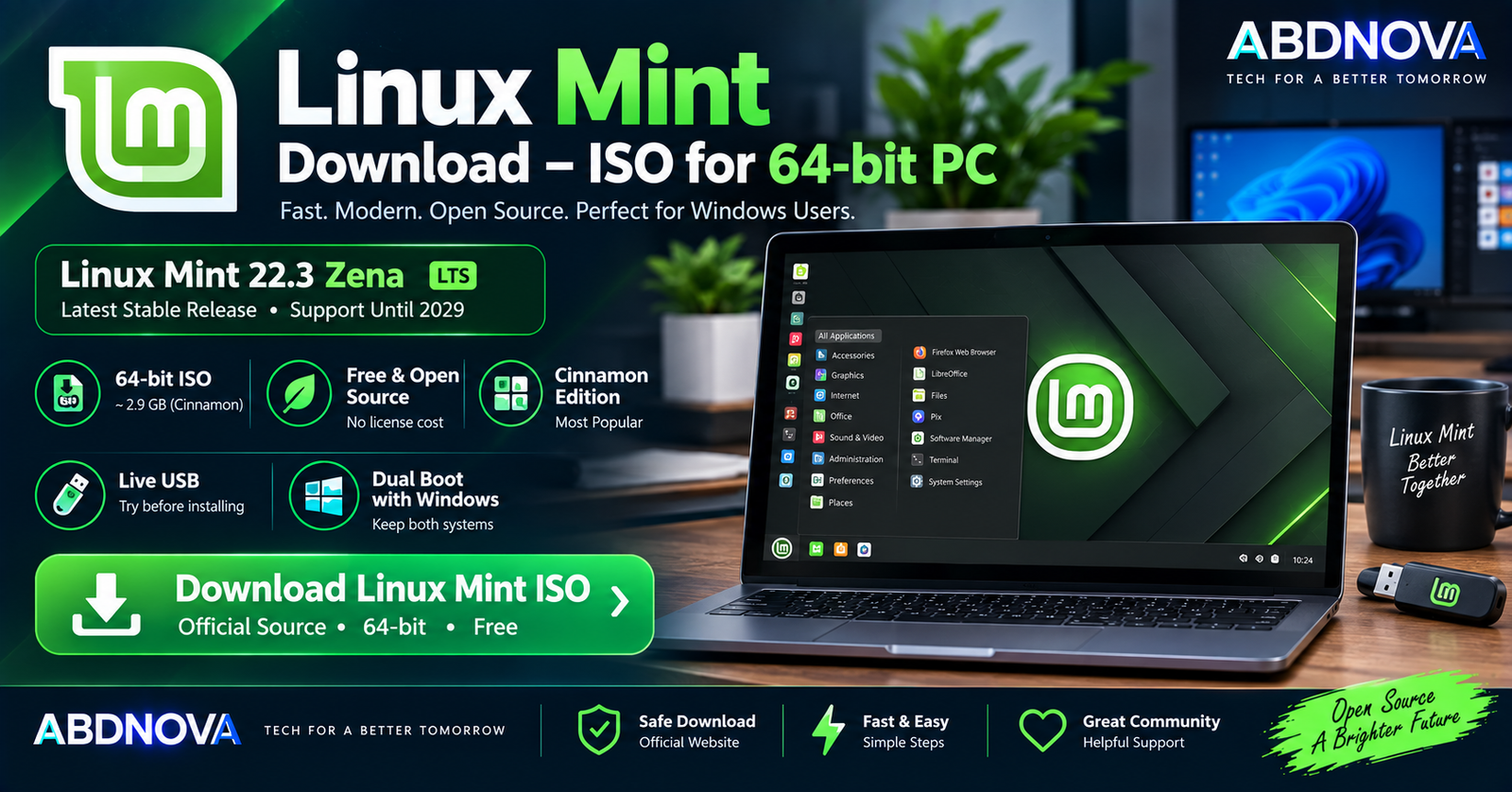

Linux Mint Download – ISO for 64-bit PC
Linux Mint Download provides a free, open-source Linux operating system for 64-bit desktop and laptop computers. It is particularly approachable for users moving from Windows because its desktop can provide familiar elements such as an application menu, bottom panel, file manager, system tray, desktop shortcuts, and graphical system settings.
The current stable release is Linux Mint 22.3 “Zena”. It is a Long-Term Support release supported until April 2029 and is available in Cinnamon, Xfce, and MATE editions.
Current Linux Mint releases are 64-bit only. For most users installing Mint on a reasonably modern Intel or AMD PC, the Cinnamon 64-bit ISO is the natural starting point.
Linux Mint for 64-bit PC at a Glance
| Details | Information |
|---|---|
| Operating System | Linux Mint |
| Current Version | 22.3 |
| Codename | Zena |
| Release Type | Long-Term Support |
| Support Until | April 2029 |
| Architecture | 64-bit |
| Popular Edition | Cinnamon |
| Other Editions | Xfce, MATE |
| RAM | 2 GB minimum |
| Recommended RAM | 4 GB |
| Storage | 20 GB minimum |
| Recommended Storage | 100 GB |
| Display | 1024 × 768 minimum |
| Cinnamon ISO Size | Approximately 2.9 GB |
| License | Free & Open Source |
| Live USB | Yes |
| Dual Boot with Windows | Yes |
| Official Source | Linux Mint |
Linux Mint 22.3 “Zena”
Linux Mint 22.3 “Zena” was released on January 13, 2026. It is part of the Linux Mint 22 LTS series and receives support until April 2029.
The release includes updated software, refinements, and desktop improvements while retaining the familiar Mint desktop experience.
Which Linux Mint Edition Should You Download?
Linux Mint Cinnamon Edition
Cinnamon is Linux Mint’s flagship and most popular desktop environment. Linux Mint describes it as its modern, innovative, and full-featured desktop.
Its layout can feel familiar to Windows users because it includes concepts such as:
- Application menu.
- Bottom desktop panel.
- Pinned applications.
- System tray.
- Nemo file manager.
- Desktop shortcuts.
- Window controls.
- Graphical system settings.
For a reasonably modern 64-bit desktop or laptop, Cinnamon is generally the best place to start.
Linux Mint Xfce Edition
Xfce is Linux Mint’s lightweight desktop option. It provides fewer desktop features than Cinnamon but uses fewer system resources.
Xfce can be useful for:
- Older laptops.
- Lower-powered PCs.
- Users who prefer a simple desktop.
- Systems where lower resource consumption matters.
Linux Mint MATE Edition
MATE provides a more traditional Linux desktop experience. It continues the GNOME 2 desktop style and generally requires fewer resources than Cinnamon.
Cinnamon → Modern and full-featured
MATE → Traditional and relatively lightweight
Xfce → Lightest and simplest
Linux Mint 64-bit ISO
Modern Linux Mint releases are available only for 64-bit PCs. Linux Mint stopped producing new 32-bit images beginning with Linux Mint 20.
This is suitable for virtually all reasonably modern Intel and AMD desktop and laptop computers. PCs with 32-bit-only processors cannot install current Linux Mint releases.
Linux Mint System Requirements
| Component | Minimum | Recommended |
|---|---|---|
| RAM | 2 GB | 4 GB or more |
| Storage | 20 GB | 100 GB |
| Display | 1024 × 768 | Higher resolution for comfortable use |
| Architecture | 64-bit | Modern 64-bit Intel/AMD PC |
Although Linux Mint can run with 2 GB RAM, more memory is preferable for modern web browsing, multitasking, development tools, and other everyday applications.
The recommended 100 GB of storage also leaves more room for applications, updates, personal files, and Timeshift system snapshots.
How to Download Linux Mint ISO
The safest source for a Linux Mint Download is the official Linux Mint website.
The current download page provides:
- Linux Mint Cinnamon Edition.
- Linux Mint Xfce Edition.
- Linux Mint MATE Edition.
For a typical modern PC, choose:
The standard Linux Mint 22.3 Cinnamon ISO is approximately 2.9 GB.
Verify the Linux Mint ISO
Linux Mint strongly recommends checking both the integrity and authenticity of the downloaded ISO before installation.
The integrity check helps confirm that the ISO downloaded correctly, while the authenticity check helps confirm that the image is an official Linux Mint image rather than an altered copy.
Official download mirrors provide verification files including:
sha256sum.txtsha256sum.txt.gpg
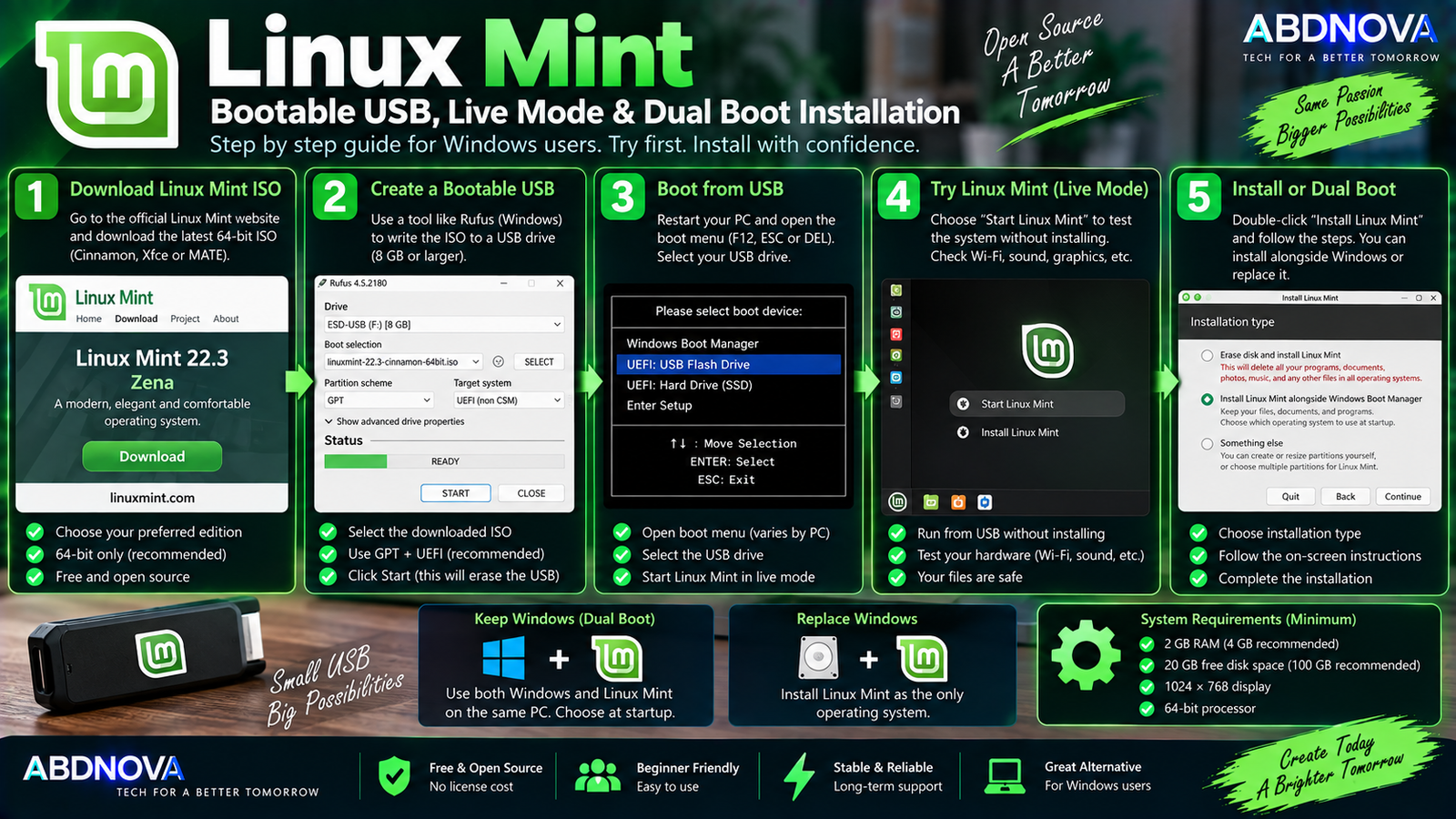
Linux Mint Bootable USB, Live Mode & Dual Boot Installation
Create a Linux Mint Bootable USB on Windows
Linux Mint is distributed as an ISO image. To install or test the operating system, write the ISO to a USB flash drive using a compatible bootable-USB creation tool.
The general process on Windows is:
- Download the official Linux Mint ISO.
- Insert a suitable USB flash drive.
- Open a bootable-USB creation tool.
- Select the Linux Mint ISO.
- Select the correct USB drive.
- Write the image.
- Wait for the process to complete.
- Restart the computer.
- Open the BIOS/UEFI boot menu.
- Select the USB drive.
Try Linux Mint Without Installing
Booting from the Linux Mint USB starts a live session. This lets you test Linux Mint without immediately installing it to your internal SSD or hard drive.
Use the live environment to test:
- Wi-Fi.
- Bluetooth.
- Sound.
- Keyboard.
- Mouse.
- Touchpad.
- Display.
- Graphics.
- USB devices.
Changes made during a normal live session are temporary and do not modify the operating system already installed on your internal drive.
Install Linux Mint Alongside Windows
Linux Mint can coexist with Windows in a dual-boot configuration. After installation, the computer can provide a boot menu that lets you choose which operating system to start.
Windows 11 + Linux Mint
Windows 10 + Linux Mint
This setup is useful when you want to learn or use Linux while retaining Windows for applications, games, or hardware that requires Microsoft’s operating system.
Replace Windows with Linux Mint
Linux Mint can also become the computer’s only operating system. A clean installation can provide the entire internal drive to Mint, but selecting an erase-disk option can remove Windows, installed applications, and personal data.
If you are new to Linux, testing the live environment first is safer than immediately removing Windows.
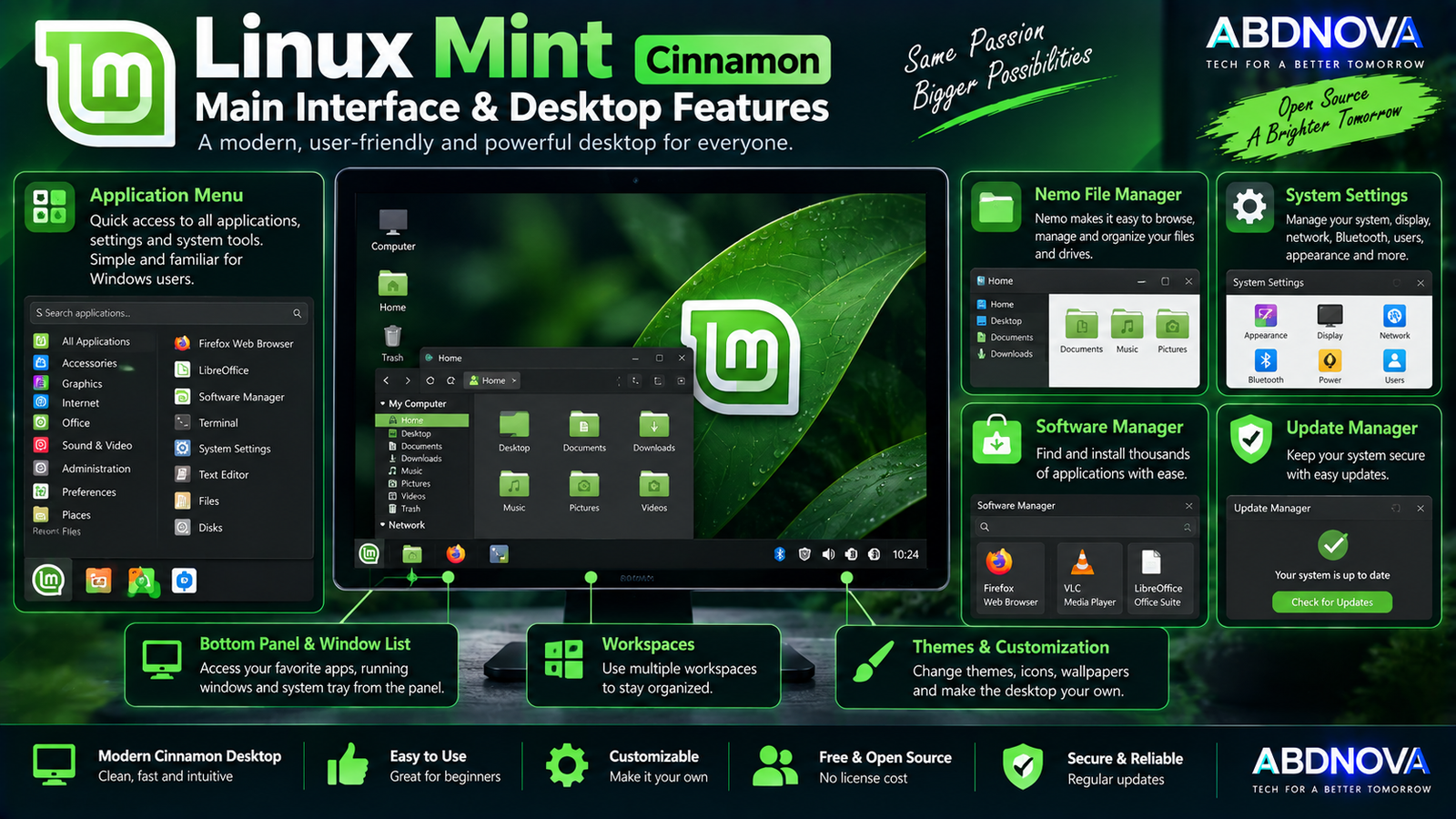
Linux Mint Cinnamon Main Interface & Desktop Features
Linux Mint Cinnamon uses a traditional desktop layout that can feel relatively familiar to Windows users.
Menu
The application menu provides access to installed applications, settings, and search.
Desktop Panel
The panel displays running applications, pinned programs, and system indicators.
Nemo File Manager
Nemo is Cinnamon’s file-management application for browsing folders, drives, and files.
System Settings
Linux Mint’s graphical settings provide controls for areas including:
- Display.
- Network.
- Bluetooth.
- Themes.
- Desktop.
- Keyboard.
- Mouse.
- Users.
- Sound.
- Power.
- Software sources.
Software Manager
Linux Mint provides graphical software-management tools for installing applications through Linux package-management systems instead of relying on random installer websites.
Software categories include:
- Internet.
- Office.
- Graphics.
- Multimedia.
- Development.
- Games.
- Utilities.
Linux Mint can also work with Flatpak applications.
Update Manager
Linux Mint includes Update Manager for maintaining the operating system and installed packages.
Updates can include:
- Security patches.
- Bug fixes.
- Application updates.
- Kernel updates.
- System components.
Driver Manager
Some PCs require proprietary or alternative hardware drivers. Linux Mint’s Driver Manager can help identify available drivers, which can be particularly useful for certain NVIDIA graphics cards and wireless adapters.
Timeshift System Snapshots
Linux Mint integrates with Timeshift for system snapshots. A snapshot can help restore system files to an earlier state if a system change or update creates problems.
Linux Mint for Everyday Use
Linux Mint can handle common desktop tasks such as:
- Web browsing.
- Email.
- Documents and spreadsheets.
- Video playback.
- Music.
- Image editing.
- Programming.
- Video calls.
- File management.
Many popular applications provide Linux versions or suitable alternatives. However, check your essential Windows applications before permanently removing Windows.
Linux Mint for Developers
Because Linux Mint is Linux-based, many development and server tools can run natively. Typical workloads include:
- Python.
- C and C++.
- Java.
- JavaScript.
- Node.js.
- Git.
- Web development.
- Linux development.
- Containers.
- Server administration.
If you also work with containers from Windows, see our Docker Desktop Download for Windows guide.
Linux Mint Gaming
Linux gaming has improved considerably, but compatibility is not identical to Windows. Steam and compatibility technologies such as Proton make many Windows games playable on Linux, but support varies by game.
Some titles that depend on particular anti-cheat systems or Windows-specific components may still require Windows. Check your important games before removing a Windows installation.
Linux Mint HWE ISO
Linux Mint also provides Hardware Enablement (HWE) ISO images for newer PCs. HWE images include a newer Linux kernel than the regular ISO to improve compatibility with recent hardware.
For Linux Mint 22.3, the regular ISO uses Linux kernel 6.14, while HWE images with newer kernels, including kernel 7.0, are available.
Linux Mint vs Ubuntu Desktop
| Feature | Linux Mint | Ubuntu Desktop |
|---|---|---|
| Base | Ubuntu-based | Ubuntu |
| Default Desktop | Cinnamon | GNOME |
| Interface Style | Traditional desktop | Modern GNOME |
| Main Menu | Traditional menu layout | GNOME-style interface |
| Beginner Friendly | Yes | Yes |
| Free/Open Source | Yes | Yes |
| Live USB | Yes | Yes |
| Dual Boot | Yes | Yes |
| Package Management | APT + Mint tools | APT + Ubuntu tools |
| Main Focus | Comfortable desktop experience | General-purpose Linux platform |
Both are established Linux desktop operating systems, but their default desktop environments and user experience differ significantly.
Linux Mint vs Windows 11
| Feature | Linux Mint | Windows 11 |
|---|---|---|
| License | Free / Open Source | Proprietary |
| Linux Applications | Native | WSL / other options |
| Windows EXE Support | Not native | Native |
| Desktop | Cinnamon / MATE / Xfce | Windows desktop |
| Software Updates | Linux package management | Windows Update |
| Live USB | Yes | No equivalent standard workflow |
| Dual Boot | Yes | Can coexist with Linux |
| Customization | Extensive | Moderate |
| Microsoft Software Compatibility | Varies | Native |
| PC Gaming Compatibility | Varies | Generally broader |
Linux Mint can be a practical Windows alternative, but it is a different operating system rather than a free version of Windows.
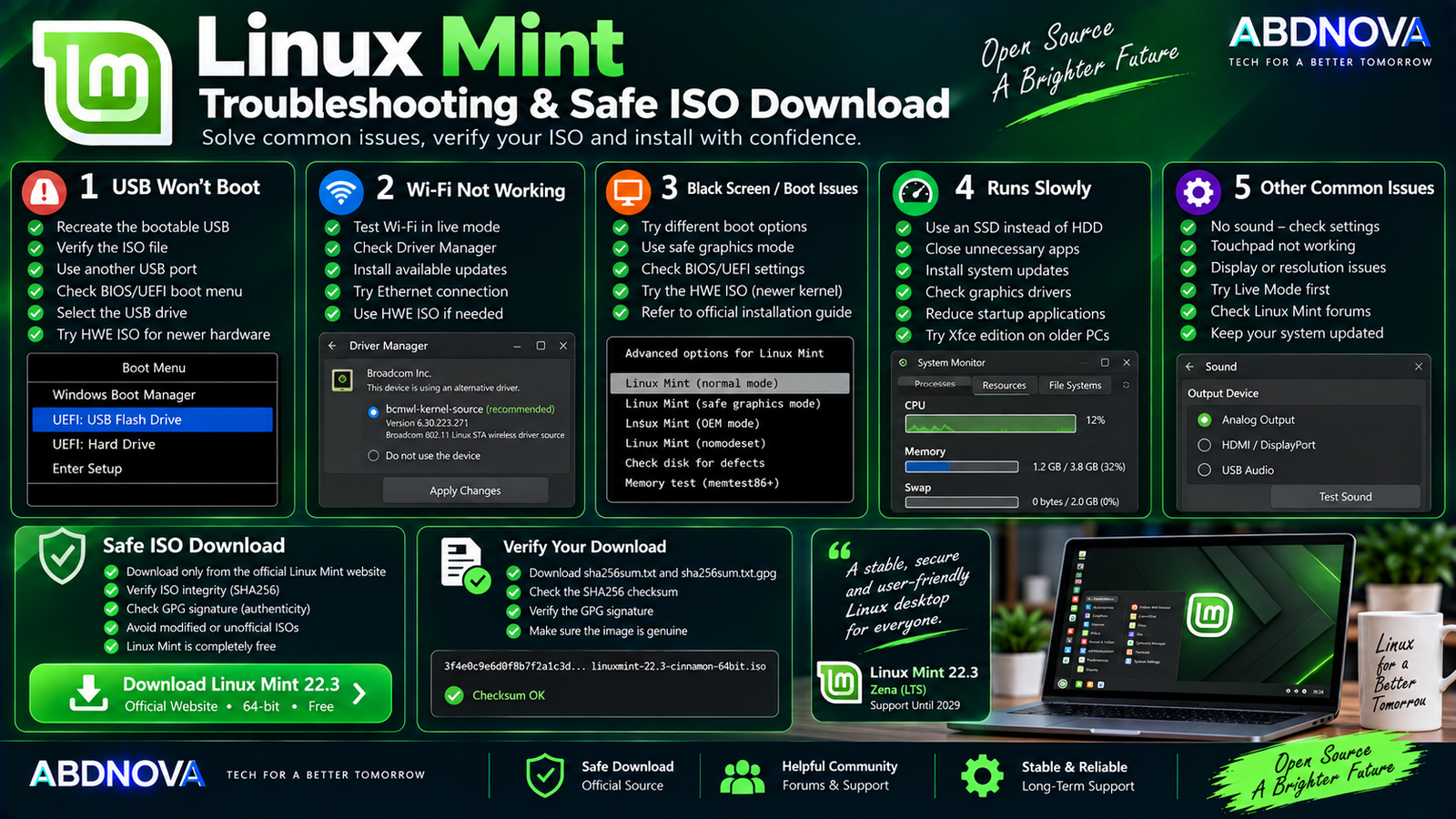
Linux Mint Troubleshooting & Safe ISO Download
Linux Mint USB Won’t Boot
Try:
- Recreate the bootable USB.
- Verify the downloaded ISO.
- Try another USB port.
- Check BIOS/UEFI boot settings.
- Confirm the USB is selected in the boot menu.
- Try an HWE ISO if the PC uses very recent hardware.
Wi-Fi Doesn’t Work
Try:
- Test Wi-Fi from the live environment.
- Check Driver Manager.
- Install available system updates.
- Temporarily connect through Ethernet if possible.
- Check whether the Wi-Fi chipset requires an additional driver.
Black Screen During Boot
Graphics compatibility can occasionally cause boot problems. Check Linux Mint’s boot and EFI troubleshooting guidance, particularly if the PC has unusual or very recent graphics hardware.
If the regular ISO does not work correctly on newer hardware, testing the official HWE image may help.
Linux Mint Runs Slowly
Possible improvements include:
- Install Linux Mint on an SSD.
- Close unnecessary applications.
- Install current updates.
- Check graphics drivers.
- Reduce startup applications.
- Consider Xfce on lower-powered hardware.
Safe Linux Mint ISO Download
Download Linux Mint only from the official Linux Mint website and its listed download mirrors.
After downloading the ISO, verify its integrity and authenticity using the official SHA256 and signature files.
- Linux Mint crack.
- Modified Linux Mint ISO.
- Pre-activated Linux Mint.
- Unlocked Linux Mint.
- Custom repacked ISO.
- Unknown third-party ISO.
- Modified security ISO.
Linux Mint is already completely free, so no activation crack, keygen, patched installer, or unofficial activated copy is required.
Frequently Asked Questions
What is the latest Linux Mint version?
Linux Mint 22.3 “Zena” is the current stable release. It was released in January 2026 and is supported until April 2029.
Is Linux Mint available for 64-bit PCs?
Yes. Modern Linux Mint releases are 64-bit only. New 32-bit ISO releases were discontinued beginning with Linux Mint 20.
Which Linux Mint edition should I download?
If you are unsure, start with Cinnamon. MATE provides a more traditional and somewhat lighter desktop, while Xfce is Linux Mint’s lightweight option.
Is Linux Mint free?
Yes. Linux Mint is free and open-source software.
Can Linux Mint run alongside Windows 11 or Windows 10?
Yes. Linux Mint supports multi-boot configurations, so Windows and Linux Mint can remain installed on the same PC.
Can I try Linux Mint before installing it?
Yes. Boot the Linux Mint ISO from USB to start a live session and test the operating system before making a permanent installation.
How much RAM does Linux Mint need?
Linux Mint lists 2 GB RAM as the minimum and recommends 4 GB for comfortable use.
How much storage does Linux Mint need?
Linux Mint lists 20 GB as the minimum and recommends 100 GB.
What is the Linux Mint HWE ISO?
HWE stands for Hardware Enablement. It is an alternative Linux Mint ISO containing a newer Linux kernel for improved compatibility with newer PC hardware.
Should I verify the Linux Mint ISO?
Yes. Linux Mint recommends verifying both the integrity and authenticity of the ISO before installation.
Final Thoughts
Linux Mint Download provides a free 64-bit Linux operating system with long-term support and a desktop experience that can be particularly approachable for people moving from Windows.
Linux Mint 22.3 “Zena” is supported until April 2029. Cinnamon provides the flagship full-featured experience, while MATE and Xfce provide alternative desktops for users who prefer a more traditional or lightweight environment.
For a typical modern PC, start with the official Linux Mint 22.3 Cinnamon 64-bit ISO. Verify the ISO, create a bootable USB, test the live environment, and confirm that Wi-Fi, graphics, sound, and other important hardware work before making permanent changes to your internal drive.
Download Linux Mint 22.3
Get the official Linux Mint ISO directly from Linux Mint.


